

Introduction to Toolkits
Toolkits in ELITEA are modular integrations that connect your agents to external platforms and internal services. Each toolkit provides an interface for configuring connection parameters (such as API keys, URLs, or credentials) and setting options specific to the target service. Once configured, toolkits can be assigned to agents, empowering them to automate tasks across different systems and domains.Navigate the Toolkits & Indexes Menu
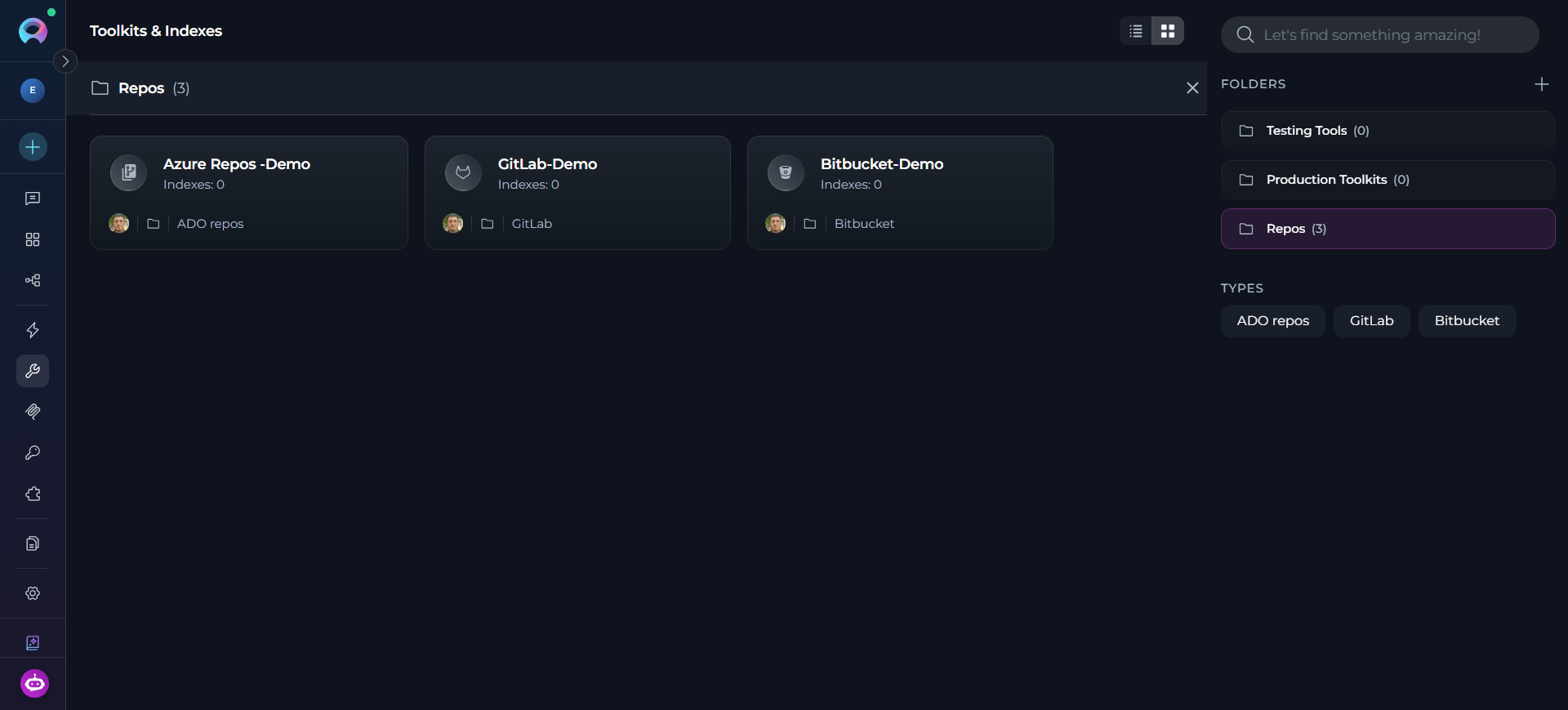
The Toolkits & Indexes menu is accessible from the main platform navigation. Upon entering this section, you will see a dashboard listing all available toolkits along with their configuration status.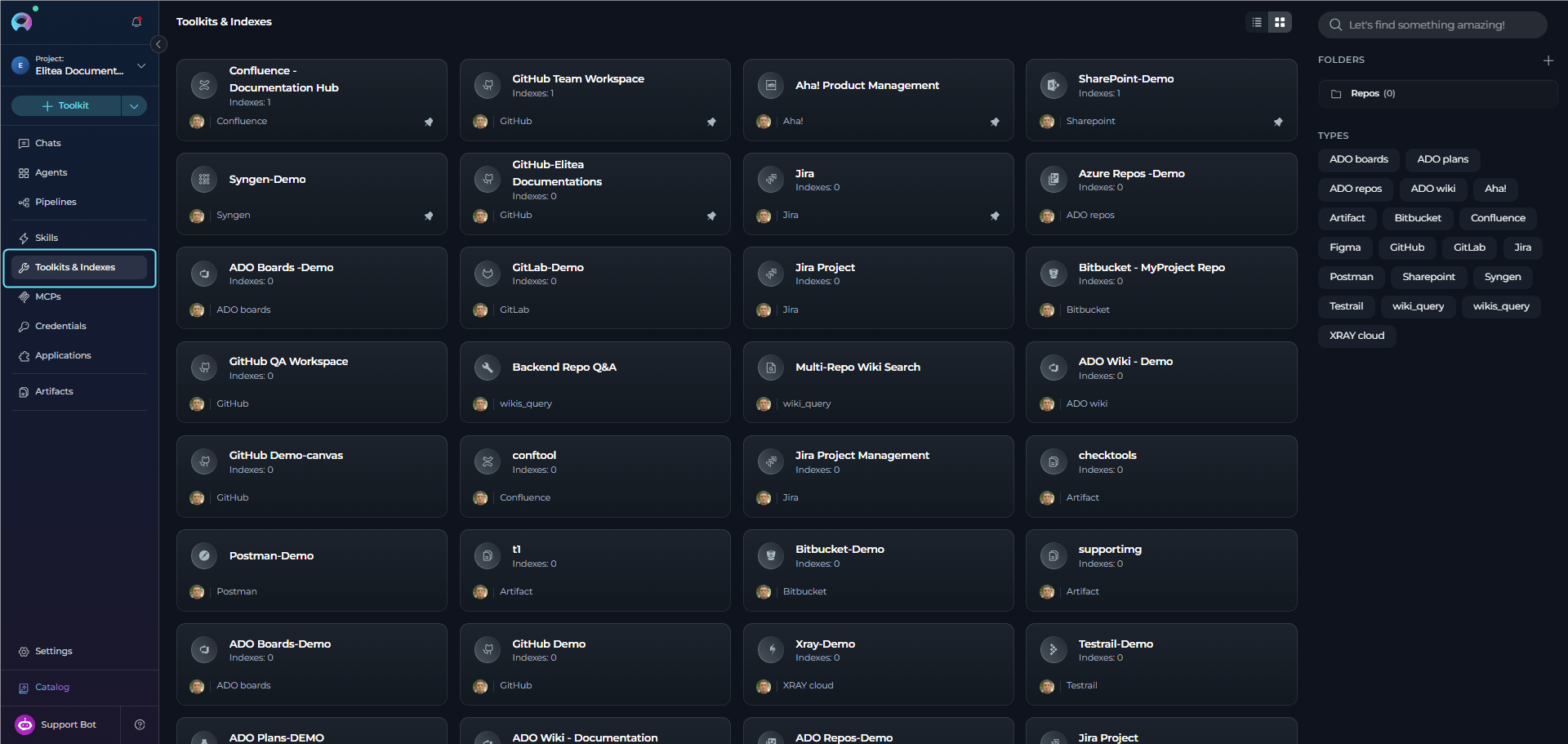
- Toolkit cards: Each card provides a brief description, current status, and toolkit type.
- Search and filter: Locate a toolkit using the search bar or filter by type.
- Create Toolkit button: Use the + Toolkit button to add a new integration or configure an existing one.
- View toggle: Switch between Card List View and Table View using the toggle in the top-right corner.
- Folders panel (right side): Organize your toolkits into folders for better organization (see Organize Toolkits with Folders below)
- Types filter panel: Filter toolkits by their type/category tags
- Pinning: Pin frequently used toolkits to keep them at the top of the list
Organize Toolkits with Folders
Folders help you organize toolkits into logical groups for better navigation and management. You can create folders, move toolkits between folders, and control folder access within team projects.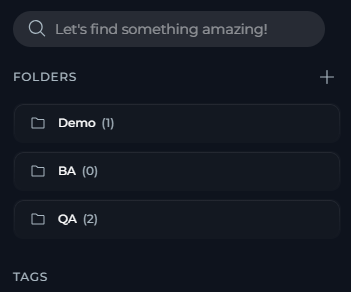
- In the Toolkits dashboard right panel, locate the Folders section.
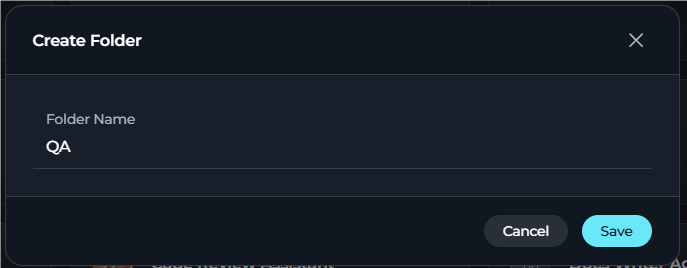
- Select + Create Folder.
- Enter a folder name (up to 128 characters).
-
Select Create.
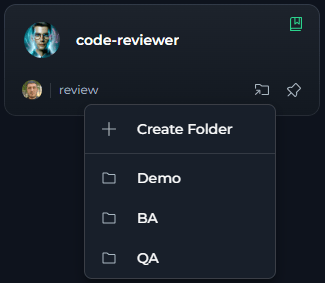
- Hover over a Toolkit card: A “Move to folder” icon (folder with arrow) appears on the card
- Click the folder icon: Opens a menu with folder options
-
Select a folder from the list: The menu displays:
- + Create Folder option at the top
- A scrollable list of existing folders
- Pinned folders are marked with a pin icon
- The current folder (if any) is highlighted and marked with a checkmark
-
The toolkit is moved to the selected folder
Remove a Toolkit from a Folder:
- Open the toolkit card’s three-dot menu (⋮).
- Select Remove from Folder.
- The toolkit returns to the main toolkits list and the folder icon is removed from its card.
Folders are available in team and personal projects. In team projects, folder access can be restricted to specific users. The Public project does not support folders.
Folder Permission Management
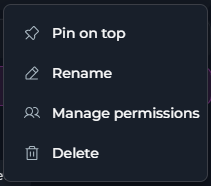
In team projects, you can control which users can view and modify specific folders by setting permission exceptions. By default, users retain the permissions granted by their project roles. Permission exceptions can only restrict access. Access Folder Permissions:- In the Toolkits dashboard right panel, locate the folder in the Folders list.
- Select the folder’s three-dot menu (⋮).
- Select Manage Access.
-
The Manage Permissions dialog opens.
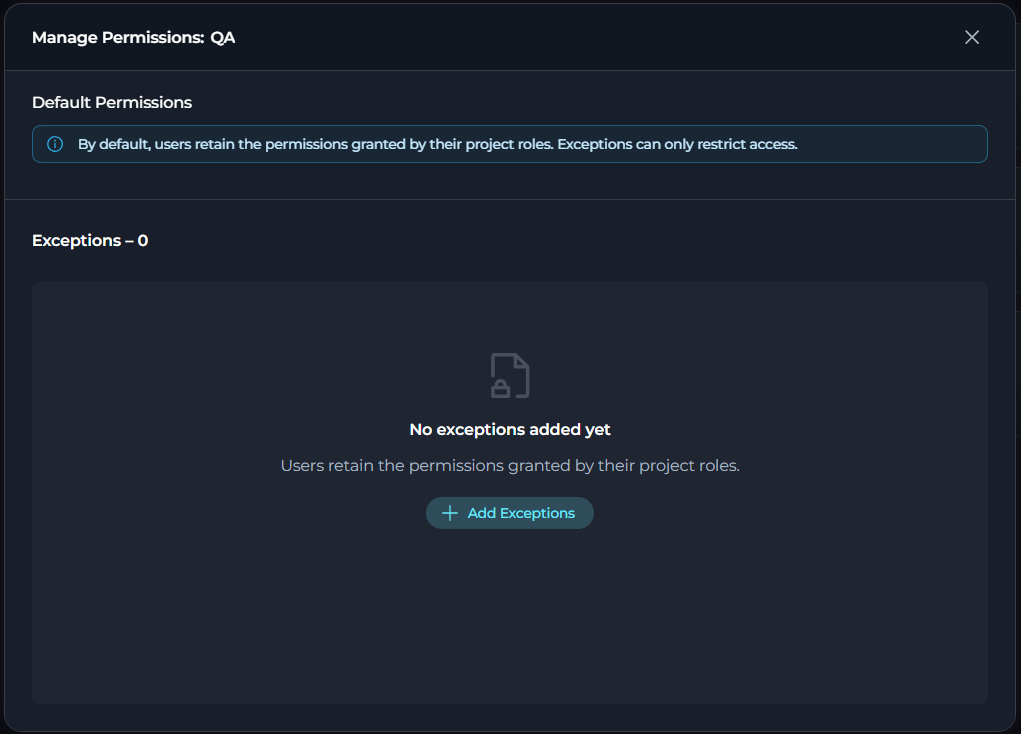
- In the Manage Permissions dialog, select + Add Exception.
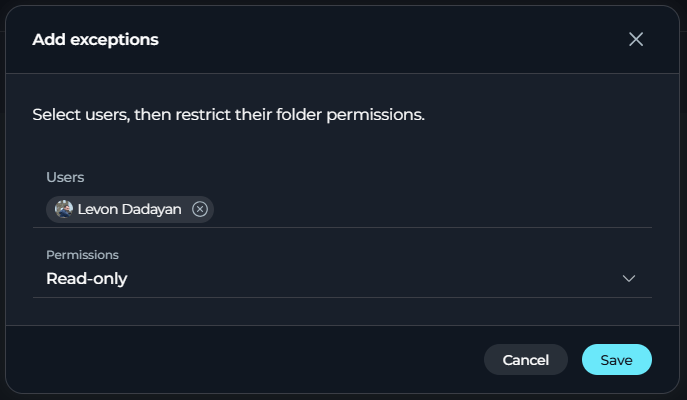
- Search for and select one or more users from the project.
- Choose a permission level: Read-only or No access.
-
Select Add. The selected users are added to the permissions table.
Edit Permission Exceptions:
- To modify an existing exception, locate the user in the permissions table and select the Edit (pencil) icon in the Actions column. Change the permission level to your desired setting and select Save.
- To remove an exception and return the user to default permissions, change the permission level to Read/write (default). When saved, the user is removed from the exceptions table and inherits permissions based on their project role.
Permission exceptions apply only to the folder itself. Users with no access to a folder cannot see it in their folders list or view its contents.
Create a New Toolkit
Add new integrations to the platform by creating a new toolkit through the Toolkits menu.Start Toolkit Creation
- From the Toolkits & Indexes page: Select the + Toolkit button at the top of the page.
- From any page: Open the global Create dropdown in the navigation bar and select Toolkit.
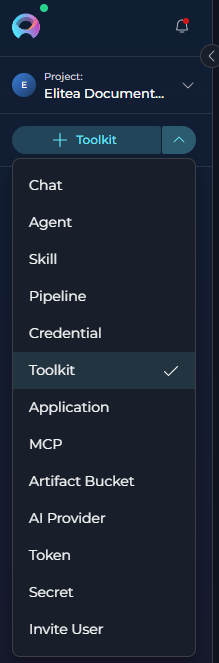
Only users with the necessary permissions can create or configure toolkits. If the + Create button is disabled, contact your platform administrator.
Select a Toolkit Type
Choose the desired toolkit type from the categorized list. Toolkit types are organized by category to help you find the integration you need. Use the search bar to locate a specific toolkit type by name.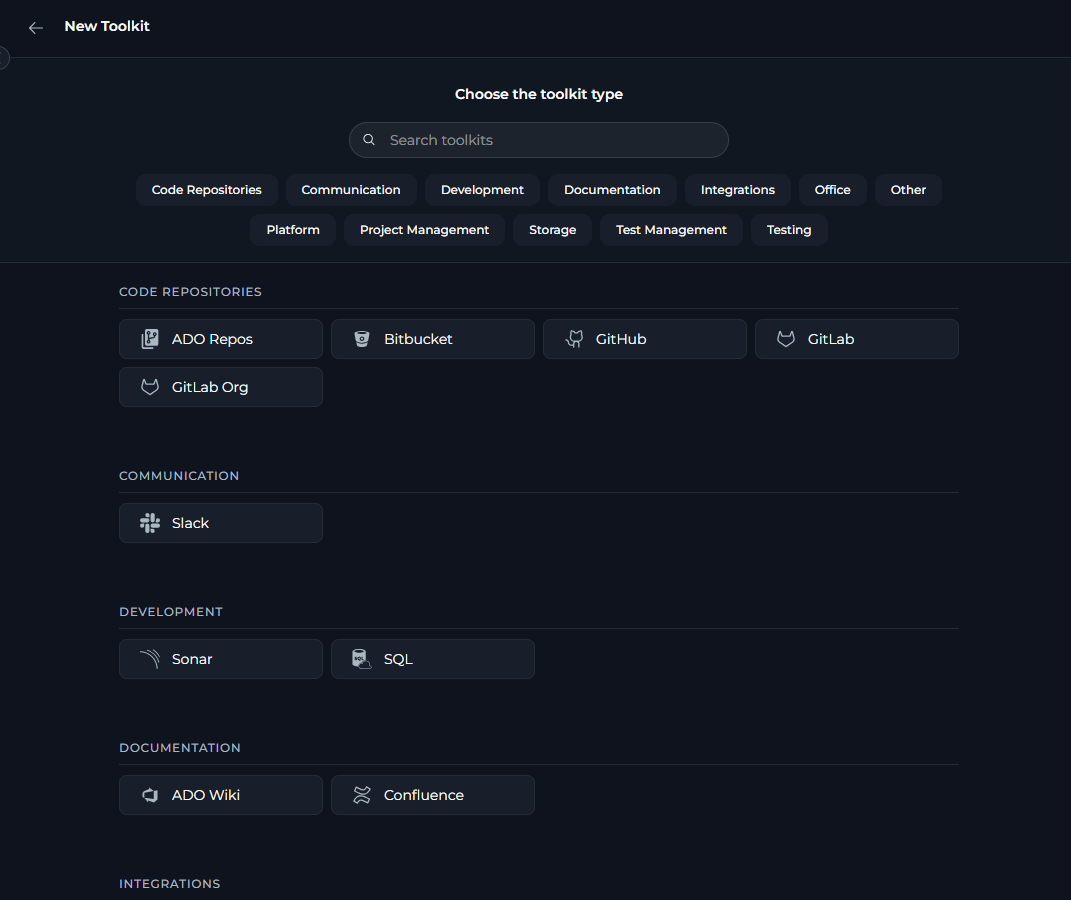
Configure Toolkit Details
Once you have selected a toolkit type, configure the following fields: Main configuration fields: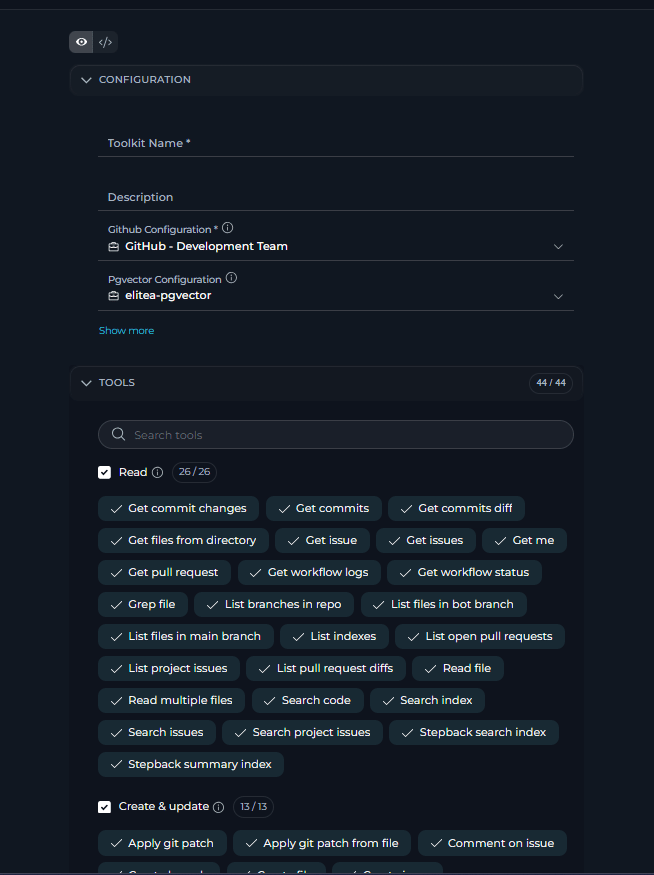
Advanced users can switch to Raw JSON mode to directly edit the toolkit configuration as JSON. This provides more flexibility for complex configurations and bulk data entry. Toggle between the form view and Raw JSON view using the interface switch.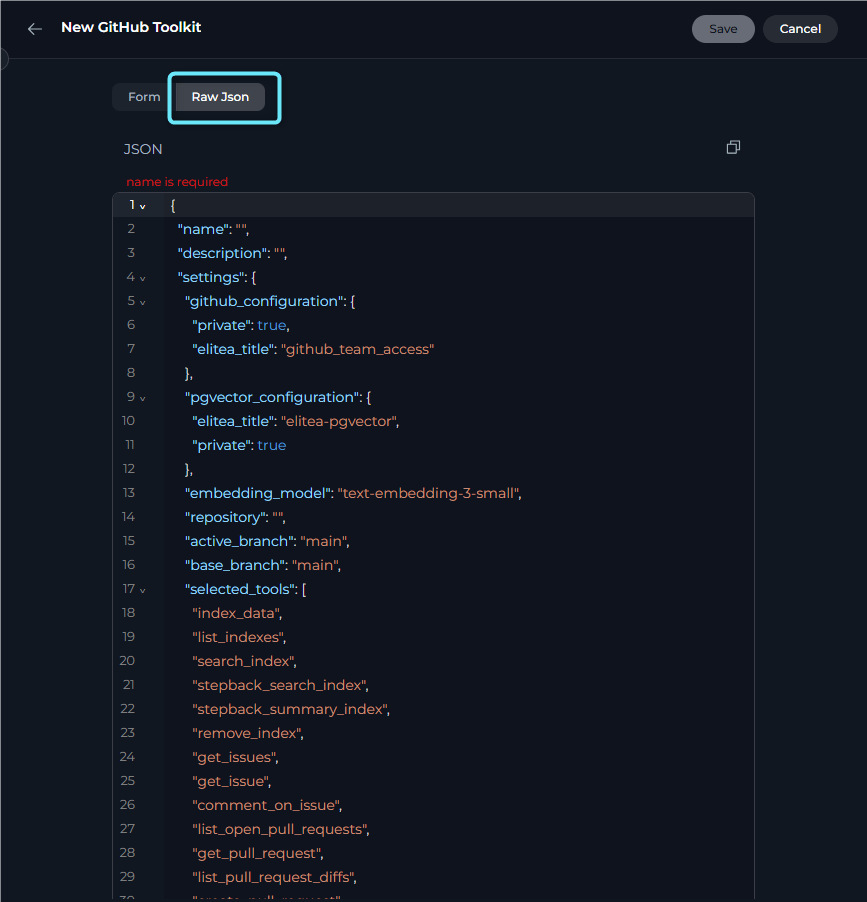
Save Your Toolkit
Select Save (top right) to create the toolkit. It will appear in your toolkits dashboard, where you can access its detailed configuration page to modify settings or adjust tool selection as needed.Toolkit Categories & Descriptions
The platform supports a wide range of toolkits, organized by category. This table lists the available categories and toolkit types.Toolkit availability may change. Refer to the platform UI for the most current list.
Manage Toolkit Configuration
The toolkit detail page provides a comprehensive interface for configuring, testing, and monitoring your toolkits. Access it by selecting any toolkit from the Toolkits dashboard.Configure a Toolkit
The toolkit detail page is the primary interface for configuring toolkit settings and managing tool selection. The page header includes a Back button, the toolkit name, and a controls dropdown in the top-right area. The layout is split into two main panels:- Left panel — the configuration form, including toolkit settings, tool selection, and a Run History button above the form
- Right panel — the Indexes section when indexing is supported for the toolkit
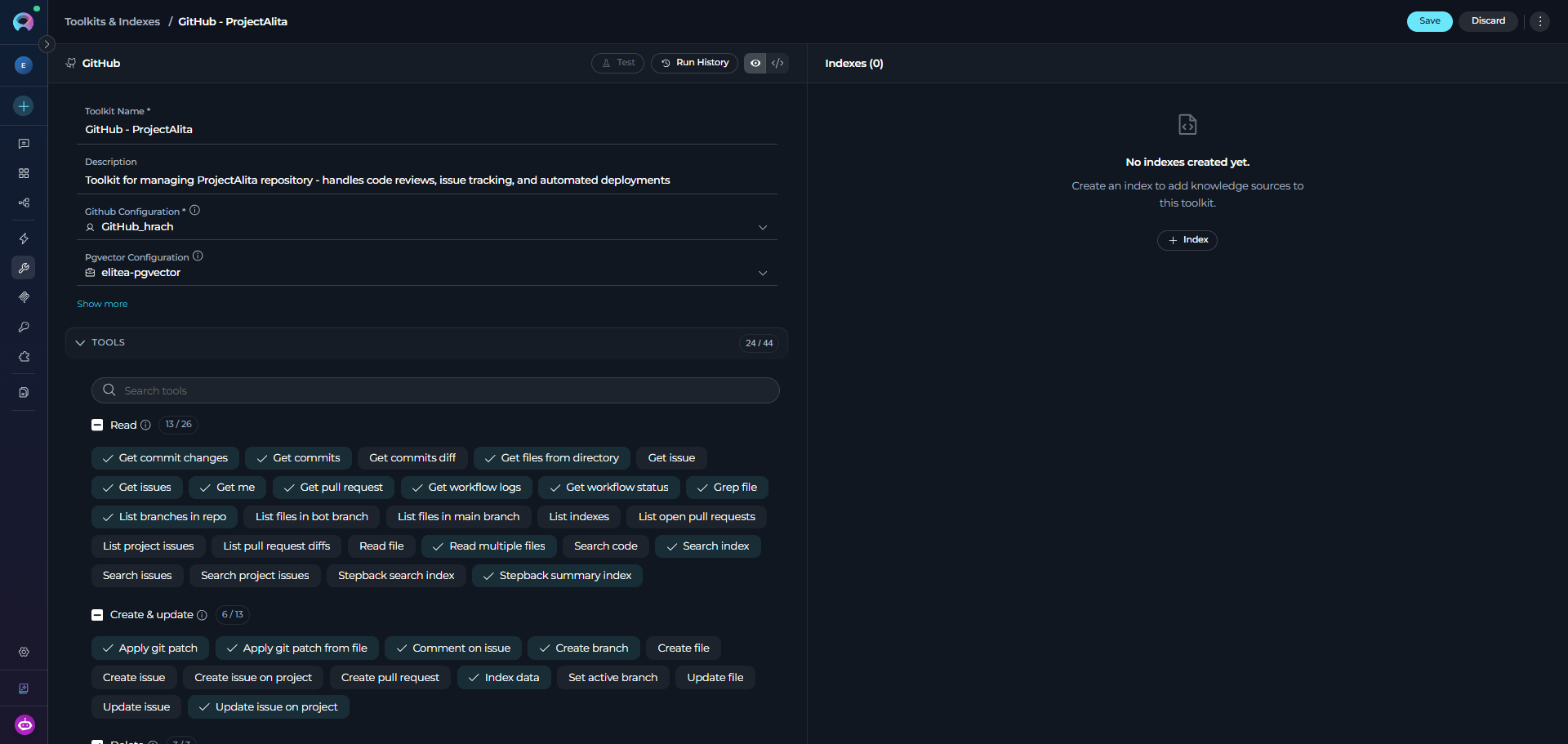
- Edit toolkit details: Edit the name, description, credentials, and other toolkit-specific settings in the left panel.
- Select tools: In the Tools section, turn on only the tools your agent needs. Tools are organized into groups (Read, Create & update, Delete, Execute). Use the group-level checkboxes to select/deselect all tools in a group at once, or use the search box to filter tools by name.
- Update advanced settings: Update PgVector configuration or embedding model as your indexing needs change.
- Save or discard: Save becomes active once you make changes. Changing the embedding model while indexes exist triggers a warning first, since it can make those indexes non-operational.
- View run history: Select the Run History button above the form to view past test runs.
- Test toolkit: Select the Test button in the page header to open the dedicated Test page where you can test individual toolkit tools.
- Use the controls menu: Use the three-dot menu (⋮) for Copy Link, Pin/Unpin, and Delete. Export and Fork are listed but currently unavailable.
- View authors: Shown in the header when viewing a public toolkit.
- Edit Raw JSON: Supported toolkits let you switch the form to Raw JSON editing via the view toggle in the left panel.
- Manage indexes: In the right panel, the Indexes section shows all indexes for this toolkit with options to create, reindex, or delete indexes (see Indexes Section below).
Use the tool groups (Read, Create & update, Delete, Execute) to quickly select related tools. Turn on only the tools your use case requires, use the search box to find specific tools quickly, test each one in the Test Settings panel, and revisit the toolkit configuration when credentials, tool access, or capabilities need to change.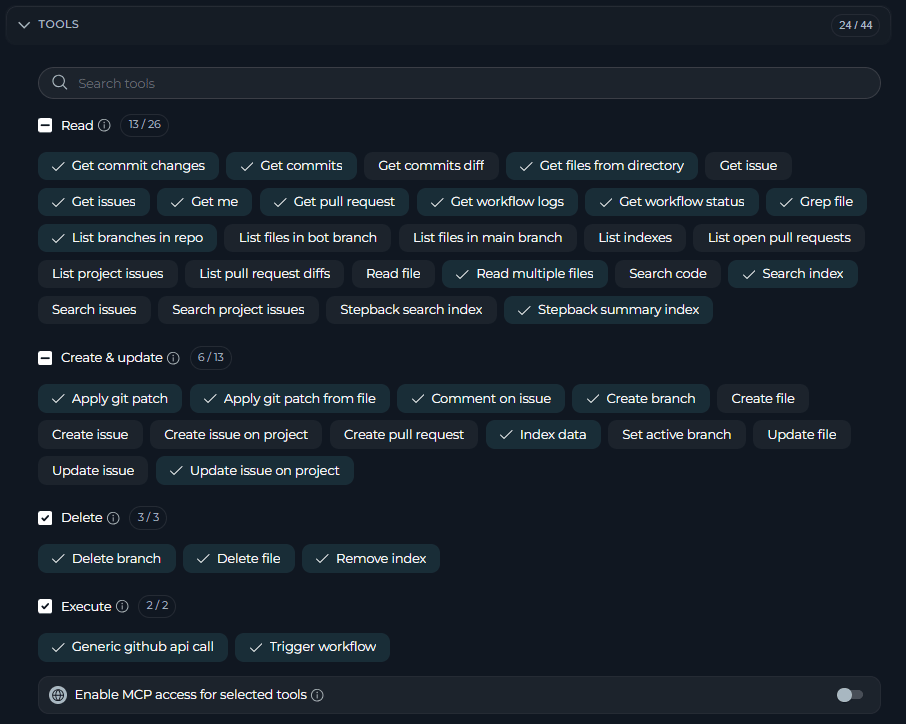
Make Tools Available by MCP

- Purpose: Turns on toolkit tools to be exposed and accessible via MCP servers.
- Location: Appears in the Tools configuration section when selecting toolkit tools.
- When to turn on:
- You plan to use this toolkit’s tools through an MCP server.
- You want to make these tools available to external MCP clients.
- You are building MCP-based integrations that need access to these tools.
Test a Toolkit
The Test page provides a dedicated full-screen interface for testing individual toolkit tools. Access it by selecting the Test button in the toolkit detail page header. For comprehensive testing instructions and best practices, see How to Test Toolkit Tools. Steps to test a toolkit:- Access the Test page: From the toolkit detail page, select the Test button in the page header. This opens the dedicated Test page.
- Select a tool: Use the Tool dropdown to choose which toolkit action you want to test. Type in the search box to filter available tools and select from the options.
-
Select a model and adjust settings (optional): Choose the LLM model from the model dropdown (for example,
GPT-5.4). To fine-tune the response, select the Model Settings icon (⚙️) next to the model selector. The available settings vary by model:- Reasoning Models (e.g. GPT-5.1)
- Standard Models (e.g. GPT-4o)
- Provide required parameters (if prompted): Enter any inputs required by the selected tool. The form dynamically displays fields based on the tool’s requirements.
- Run the tool: Select the Run Test button. The results appear in the right panel, showing the tool execution output and LLM response. You can run multiple tests in sequence, and each result is added to the conversation history in the Results panel.
- Return to configuration: Use the breadcrumb navigation or back button to return to the toolkit detail page.
Shared Toolkit Credentials
Shared toolkits in team projects can show warnings when each user must provide a matching private credential, or when a credential change may affect other team members. Credential setup required: This toolkit requires your own private [credential type] credentials. Create a credential with the matching ID “[credential ID]” in your Private workspace to use this toolkit.
Credential Configuration Change
Changing the credential may make this toolkit non-operational for other team members who do not have a matching private credential. Make this decision considering the potential impact on your team.
Indexes Section
Toolkits with indexing tools display an Indexes panel in the right side of the toolkit detail page. Indexing ingests documents into a vector store for semantic search and retrieval.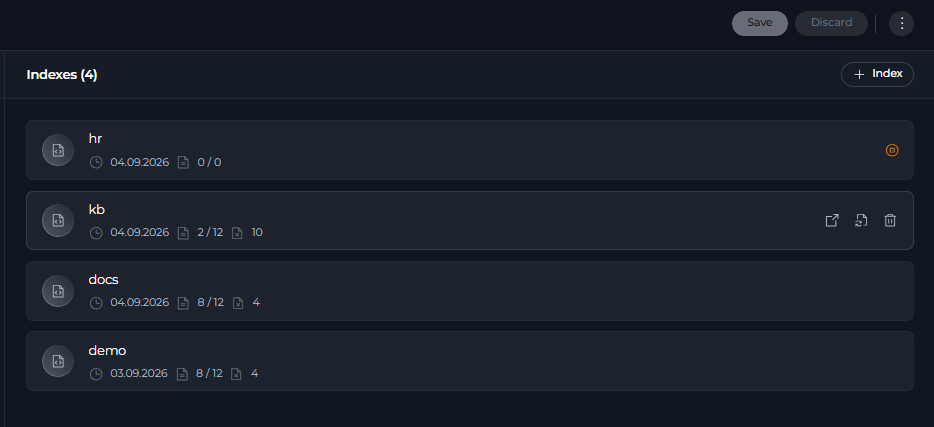
- Open — View the Index Details page with Configuration and Activity tabs
- Reindex — Rebuild the index (requires confirmation)
- Delete — Remove the index (requires confirmation)
- Open in new tab — Open index details in a separate tab
Indexing Status BannersIf a banner appears instead of index cards, indexing is not ready:
- “Turn on the ‘Index data’ tool…” — The
index_datatool is not selected, or PgVector/Embedding Model are not configured (see AI Configuration) - “Create your first index…” — Indexing is active but no indexes exist yet
View Toolkit Run History
The Run History page provides a complete audit trail of all past test executions performed in the toolkit’s Test Settings panel. How to access Run History:- Open any saved toolkit.
- Go to the toolkit’s detail page and select the View run history button. This opens the dedicated Run History page for that toolkit.
- Use the back navigation (breadcrumb or back button) to return to the toolkit’s configuration tab.

RunHistoryContainer layout:
-
Left panel — sortable list of all past test runs. Select any column header to sort:
Select a row to load the conversation replay in the right panel. Each row also has a three-dot menu (⋮) with Share link and Delete.
-
Right panel — full conversation replay of the selected test run.
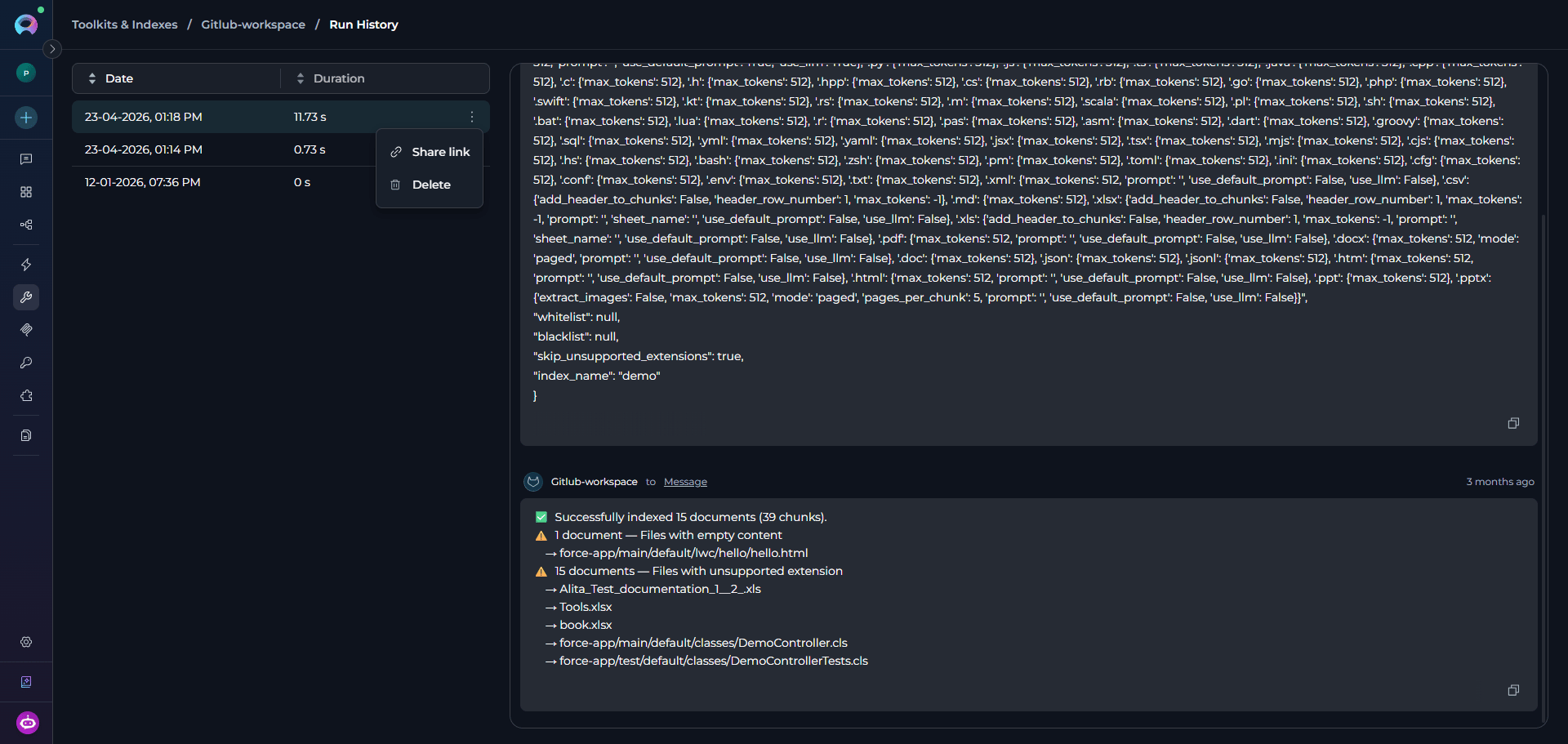
For detailed instructions on using the Toolkit History panel, see Toolkit History Tab Guide.
Use Toolkits in Your Workflows
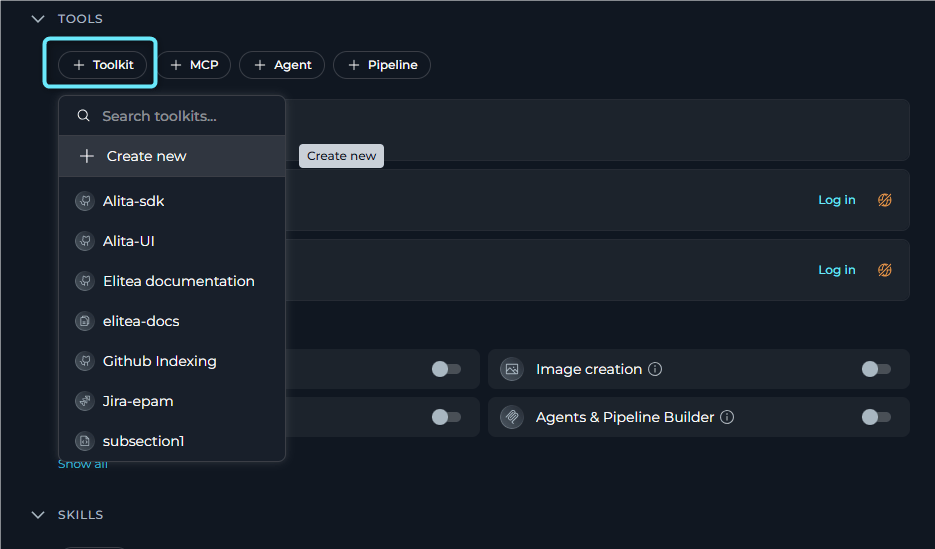
Once a toolkit is configured, use it across different areas of the platform to enhance your workflows. In Agents- Go to the Agents menu.
- Select or create an agent.
- In the agent’s configuration, add the desired toolkit from the list of available toolkits.
- Configure any agent-specific toolkit options, if prompted.
-
Select Save.
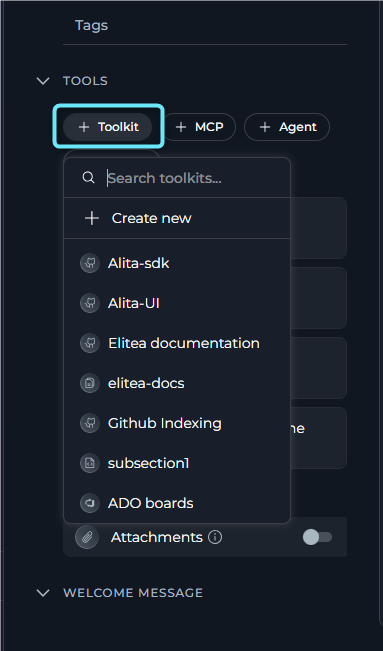
- Go to the Pipelines menu.
- Select or create a pipeline.
- In the pipeline configuration, add the desired toolkit to turn on automated workflow steps.
- Configure pipeline-specific toolkit parameters as needed.
-
Select Save.
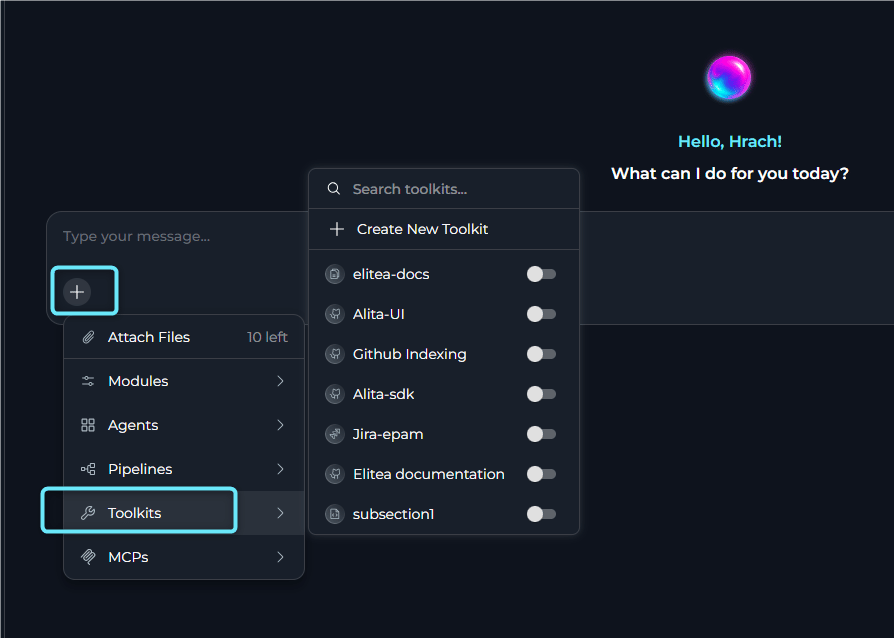
- Open a Chat session.
- Access the toolkit selector within the chat interface.
- Select one or more toolkits to make their capabilities available during the conversation.
-
Use natural language to interact with the toolkit’s features.
Use multiple toolkits simultaneously in agents, pipelines, and chat sessions to create powerful, integrated workflows that span multiple services and platforms.
Best Practices
Secure Your Credentials
Secure Your Credentials
Use dedicated credentials for each integration, store them only in the platform credential manager, and avoid sharing private credentials across users or workspaces.
Test Before Use
Test Before Use
Test each turned-on tool in the Test Settings panel before assigning the toolkit to agents, pipelines, or chat workflows.
Keep Toolkits Updated
Keep Toolkits Updated
Review toolkit settings whenever credentials rotate, service URLs change, available tools change, or indexing configuration is updated.
Minimal Permissions
Minimal Permissions
Turn on only the tools and external-service permissions required for the intended workflow.
Troubleshooting
Failed Connection
Failed Connection
Verify the selected credential, confirm any required URLs or project identifiers, and check that the target service is reachable from your environment.
Toolkit Not Appearing
Toolkit Not Appearing
Refresh the Toolkits page, clear active filters or search terms, and verify that you have permission to view or create that toolkit type.
Agent Cannot Use Toolkit
Agent Cannot Use Toolkit
Confirm the toolkit is saved, properly configured, and explicitly attached to the agent, pipeline, or chat session where you expect to use it.
Indexes Section Not Available
Indexes Section Not Available
If the Indexes section does not appear or cannot be used in your toolkit:
- Verify indexing tools are turned on — Confirm the Index data tool is selected in the toolkit’s Tools section.
- Check AI configuration — Confirm that PgVector and an Embedding Model are configured in AI Configuration.
- Save and refresh — Save the toolkit after making changes, then refresh the page so the Indexes accordion can load with the updated configuration.
Support Contact
If you encounter issues not covered in this guide or need additional assistance with toolkit management, see Contact Support for detailed information on how to reach the ELITEA Support Team.Explore these related guides to maximize your toolkit usage:
- Sensitive Action Authorization Guardrail — Learn how to protect sensitive toolkit actions by requiring human approval before they are executed.
- Glossary — Definitions of common terms used across the platform.
- Credentials — Learn how to create and manage credentials used by toolkits.
- AI Configuration — Set up embedding models and vector configurations.
- Secrets Management — Secure credential storage best practices.