

Overview
The ELITEA Applications menu provides access to purpose-built integrations that extend the platform with specialized, application-level capabilities. Unlike general-purpose toolkits, Applications are complete, deployable solutions—each one covering a focused domain such as documentation generation or codebase exploration—and they expose their own interface directly inside ELITEA. Why Use Applications? Applications let teams activate powerful, ready-made workflows without building them from scratch:Focused Functionality
Each application addresses a specific engineering problem—generating wikis, mapping code ownership, or exploring dependencies—rather than providing generic AI assistance.
Integrated Experience
Applications open their own interface inside the platform, so there is no need to leave ELITEA or switch context to a separate tool.
Access Control
Administrators control which applications are available to each project. If an application is not yet enabled, any team member can submit a request for access.
Quick Deployment
Once access is granted, configuring an application takes only a few minutes—connect a repository toolkit, select an AI model, and the application is ready to use.
Wikis
Turns a code repository into navigable documentation with architecture summaries, source-linked explanations, and project Q&A support.
Inventory
Helps teams inspect the code estate, map key components, and understand service relationships and ownership before planning changes.
Navigating the Applications Menu
The Applications menu is accessible from the main platform navigation sidebar. The section is divided into two tabs: Applications and App Catalog.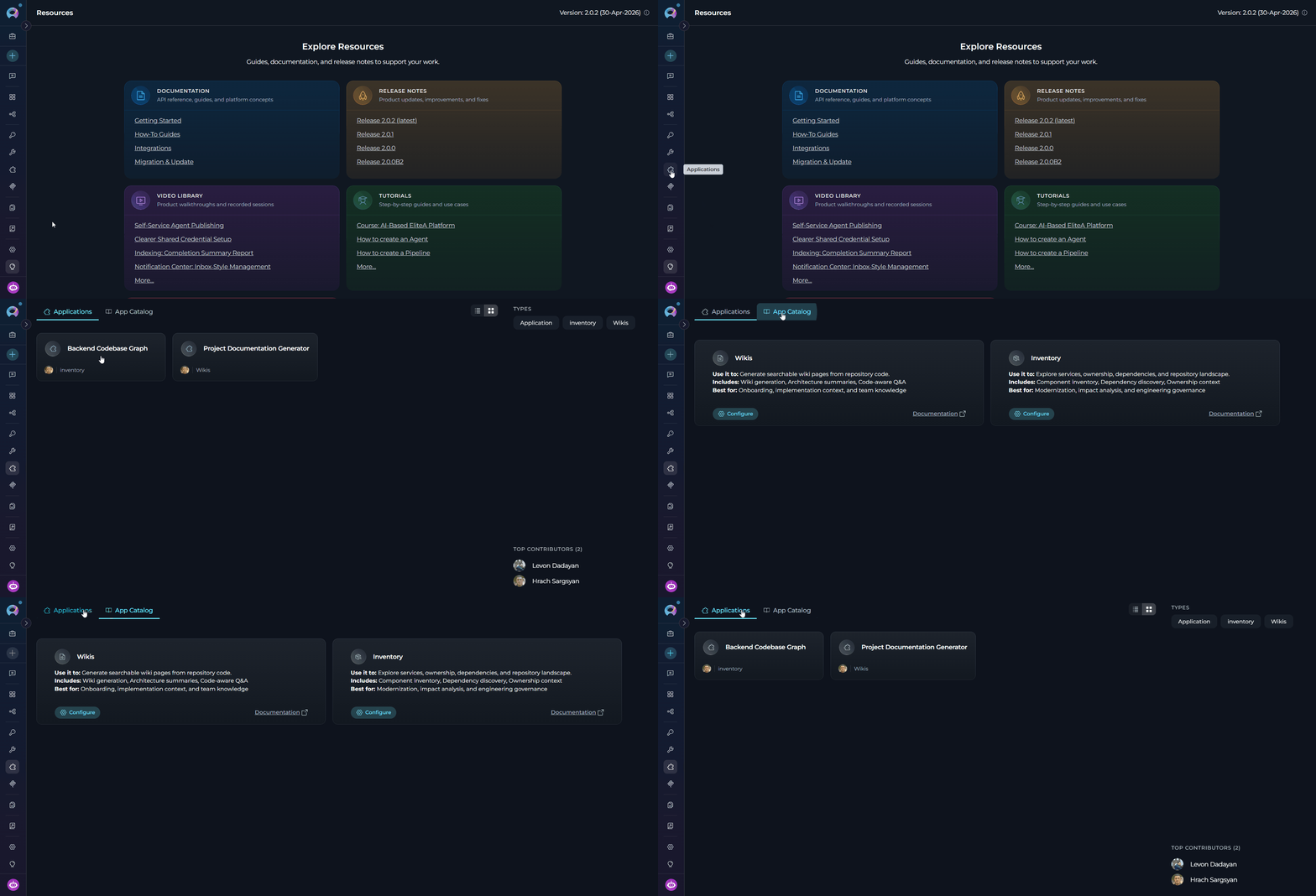
Applications Tab
The Applications tab lists all application instances that have been configured for the current project. Each configured application appears as a card showing the application name, description, and status. View Options- Card View — Visual cards displaying the application name, description, and key metadata. Ideal for browsing configured applications at a glance.
- Table View — Organized list format with columns for detailed information. Better for projects with many configured applications.
App Catalog Tab
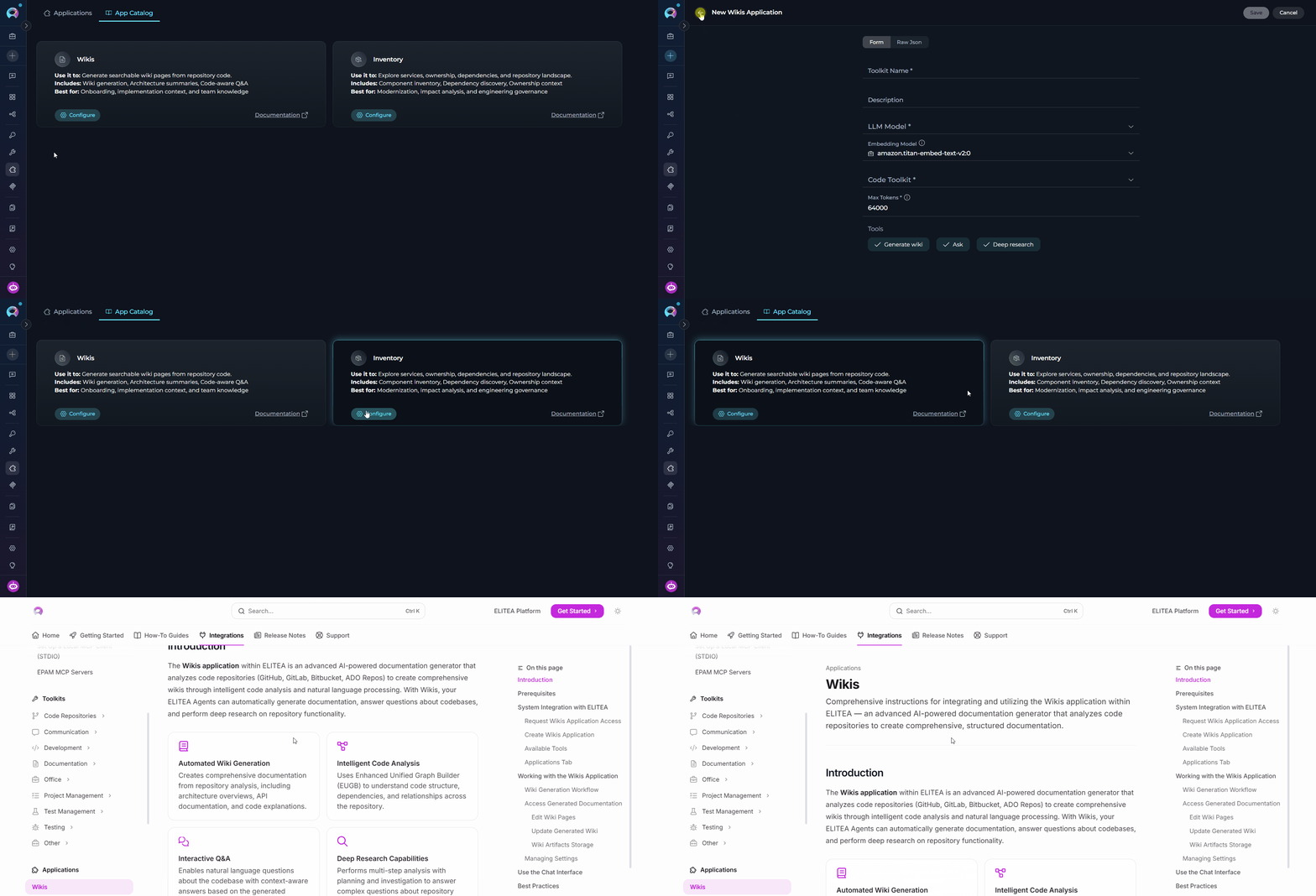
The App Catalog tab shows all applications available on the platform. Each catalog entry provides a summary of what the application does, what it includes, and who it is best suited for. Catalog Card Details Each application card in the catalog displays:- Use it to — a concise statement of the application’s primary purpose
- Includes — a list of the capabilities bundled with the application
- Best for — the scenarios or team roles the application targets
- Status tag — one of three states:
- Available — your project has access and the application can be configured
- Configured — at least one instance of this application has already been set up in your project
- By request — your project does not yet have access; submit a request to enable it
Every card also includes a Documentation link that opens the application’s external reference documentation in a new tab.
Configuring an Application
To set up a new application instance, start from the App Catalog tab:- Open the Applications menu and switch to the App Catalog tab.
- Locate the application you want to configure (e.g., Wikis or Inventory).
-
Click the Configure button on the application card.
The Configure button is only shown when your project has been granted access to that application. If you see Request Access instead, submit a request first and wait for approval before proceeding.
- The configuration form opens. Fill in the required fields (see the application-specific sections below for details).
- Click Save to create the application instance.
Wikis
For full usage details, see the Wikis documentation.
Once configured, the Wikis application opens its own embedded interface where you can browse generated wiki pages, explore architecture diagrams, and ask questions about the connected repository.
Inventory
For full usage details, see the Inventory documentation.
- Searching entities by name, type, layer, or source
- Inspecting individual components with their properties and relationships
- Mapping dependencies across services and modules
Requesting Access
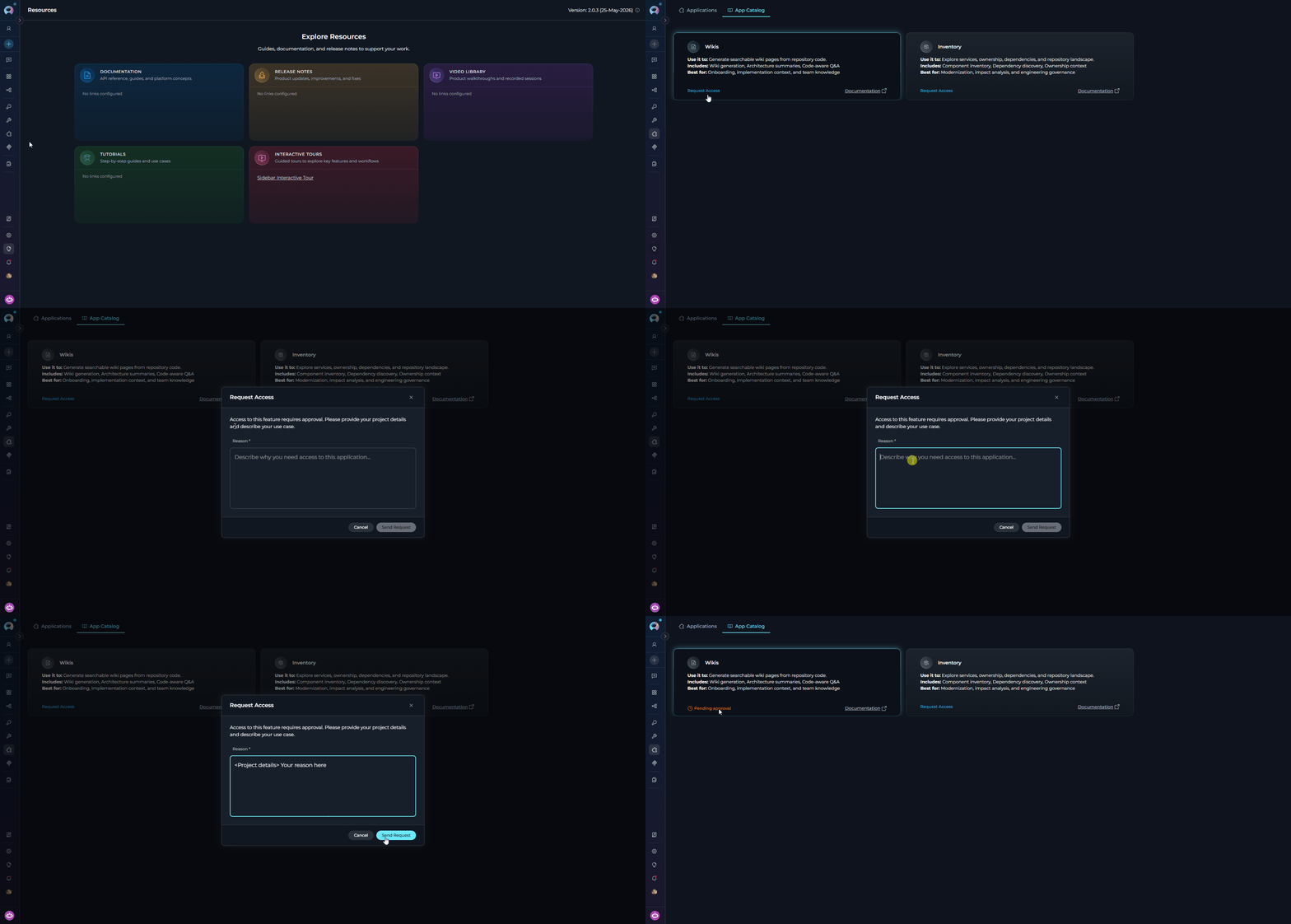
If an application shows By request status, your project has not been granted access to configure it. To request access:- Click the Request Access button on the application catalog card.
- In the modal that appears, enter a Reason describing your project details and use case.
- Click Submit to send the request.
If you have questions about the access request process or need assistance, contact the ELITEA support team at SupportAlita@epam.com.