

Before You Start
Before you begin, make sure you have:- ☑️ VS Code installed (version 1.99 or newer)
- ☑️ GitHub Copilot installed and configured in VS Code
- ☑️ Python installed on your computer (version 3.8 or newer) - Download Python
- ☑️ Your Elitea Project ID (find this in Elitea Settings → Configuration)
- ☑️ Your Elitea Authentication Token (create one in Elitea Settings → Personal Tokens)
- ☑️ Your Elitea deployment URL (example:
https://next.elitea.ai)
What is MCP and Why Do I Need It?
MCP stands for Model Context Protocol. It’s a way for different AI tools to talk to each other. Why it matters to you: By setting up an MCP server, you can use your Elitea agents directly inside VS Code while you code. No need to switch windows or copy-paste between apps.Step-by-Step Setup
Part 1: Install the Elitea MCP Client
The “client” is a small program that handles communication between VS Code and Elitea.-
Open PowerShell
- Press
Windows key, type “PowerShell”, and press Enter - This opens a window where you’ll type commands
- Press
-
Install pipx (a tool that helps install Python programs)
- Copy this command and paste it into PowerShell, then press Enter:
- Wait for it to finish
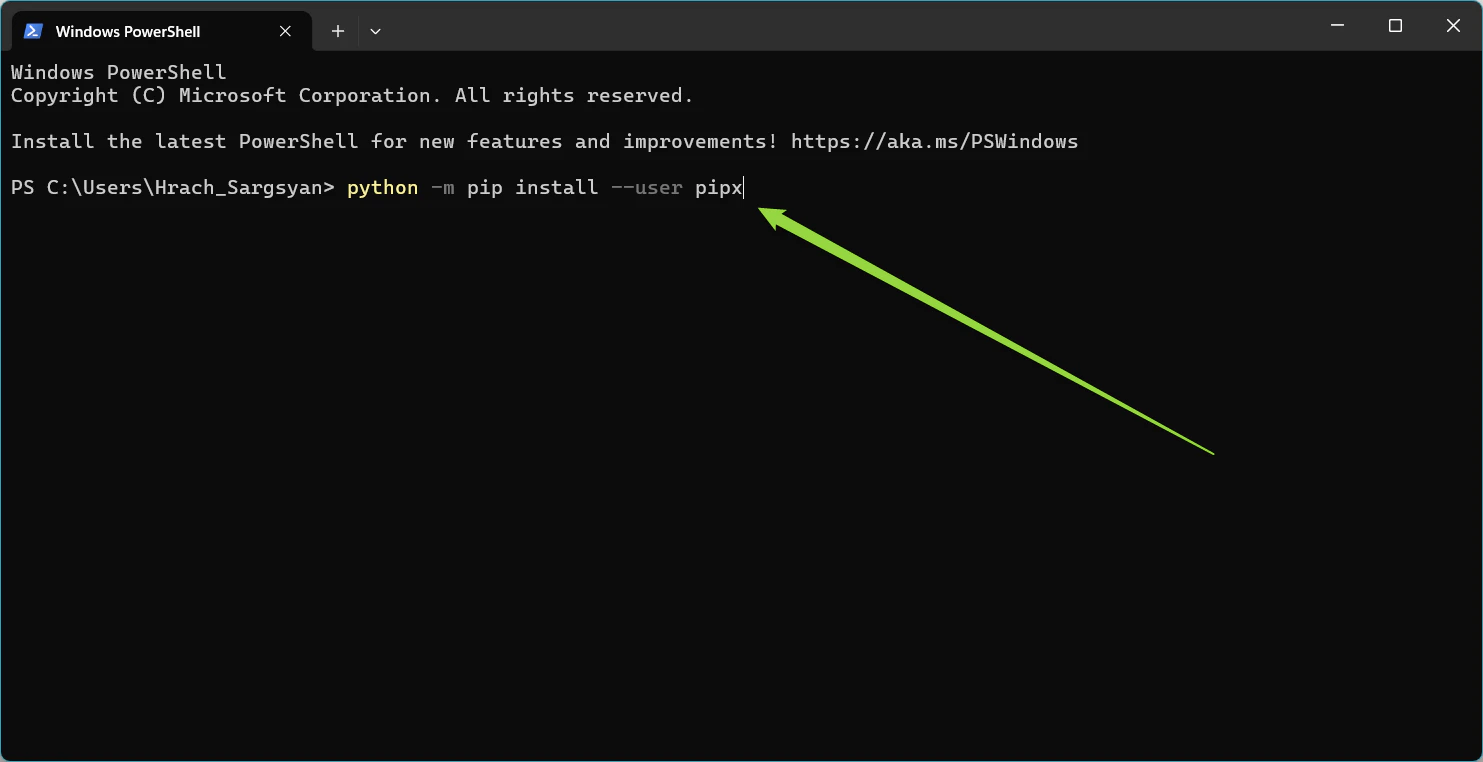
- Copy this command and paste it into PowerShell, then press Enter:
-
Set up pipx’s path
- This makes sure your computer can find pipx. Copy and run:
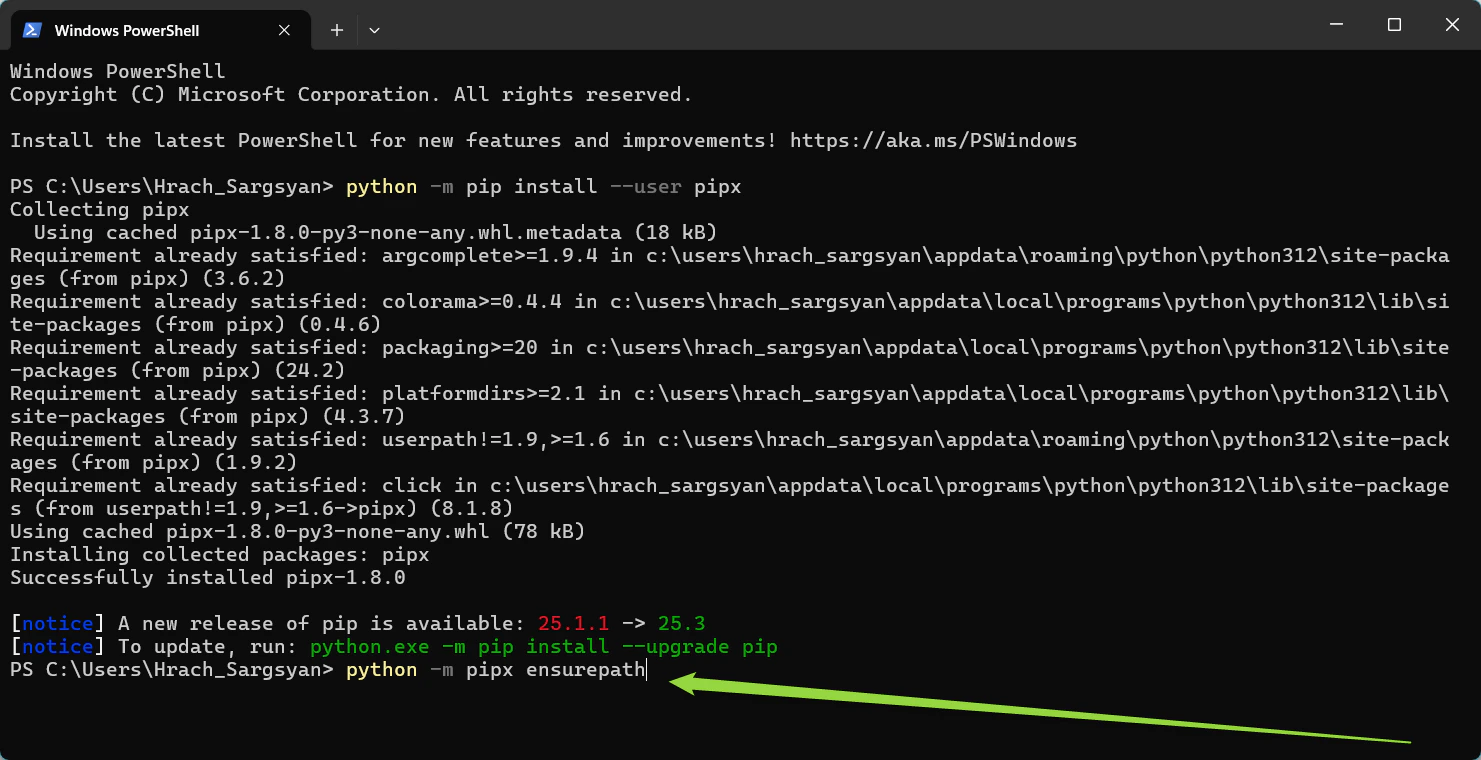
- This makes sure your computer can find pipx. Copy and run:
-
Install elitea-mcp
- This is the actual client program. Copy and run:
- Wait for installation to complete
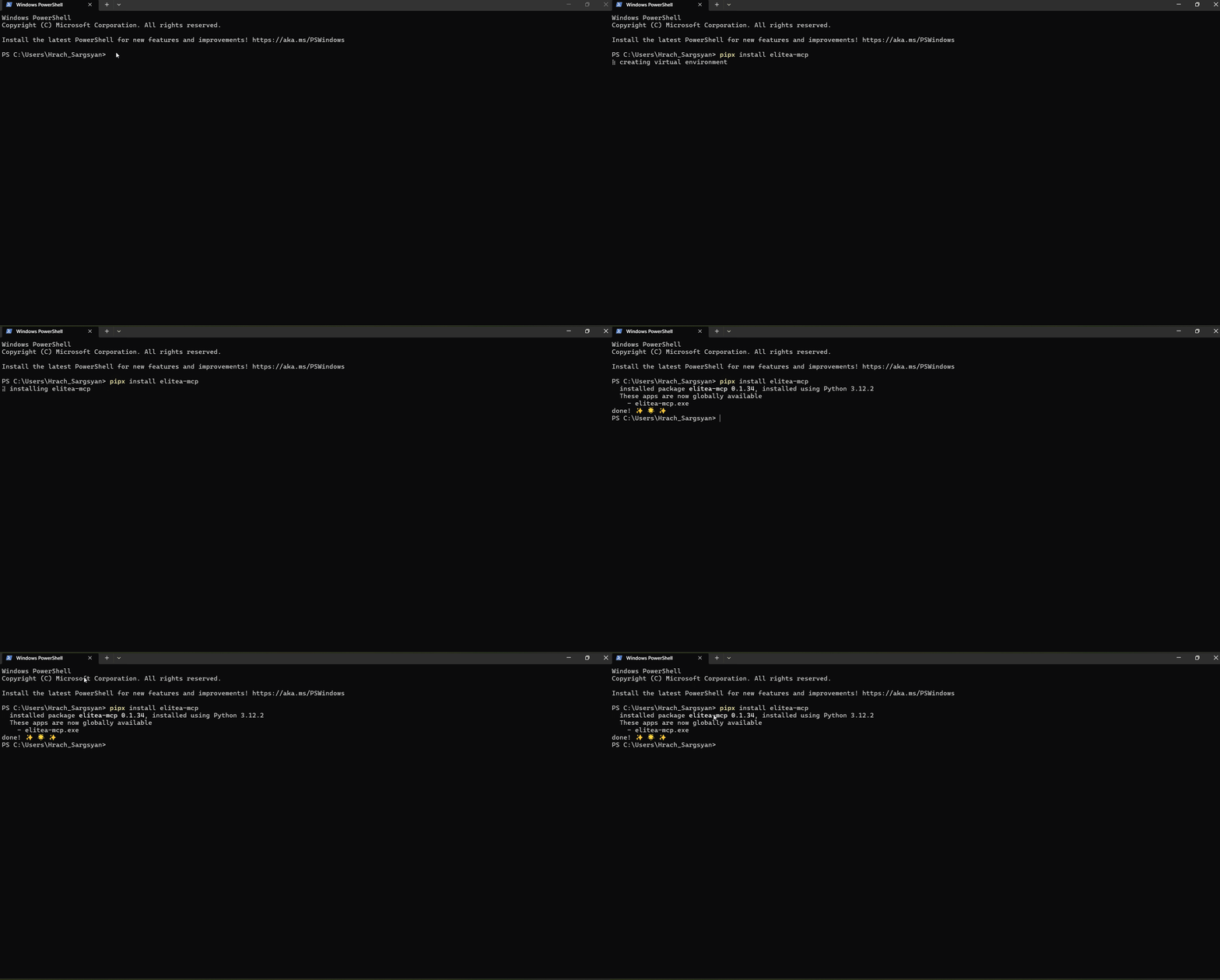
- This is the actual client program. Copy and run:
-
Close and reopen PowerShell
- This refreshes your environment so the new program is recognized
Part 2: Configure the Client
Now you’ll tell the client how to connect to your Elitea account.-
Run the setup wizard
- In PowerShell, type:
- Press Enter
- In PowerShell, type:
-
Answer the prompts
- Deployment URL: Type your Elitea URL (example:
https://next.elitea.ai) and press Enter - Authentication token: Paste your token (the one you copied earlier) and press Enter
- Host: Just press Enter to accept the default (
0.0.0.0) - Port: Just press Enter to accept the default (
8000) - Project ID: You can either:
- Enter your Project ID number now (find it in Elitea Settings → Configuration), OR
- Press
Ctrl+Cto skip this step and add the Project ID later in VS Code (see Part 4)
- Deployment URL: Type your Elitea URL (example:
-
Verify success
- You should see a message confirming the configuration was saved
- If you see errors, double-check your URL and token
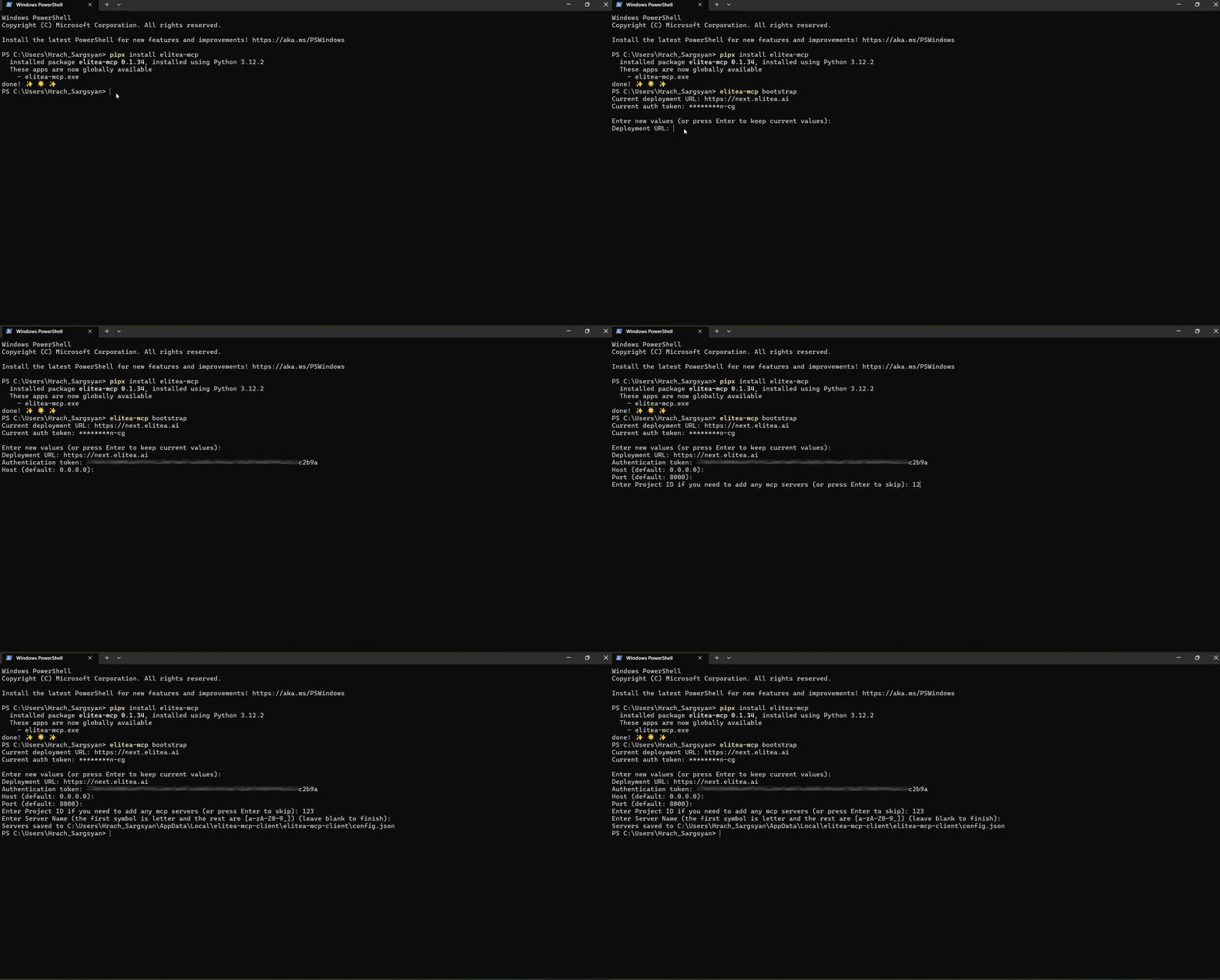
If the Project ID prompt keeps asking for a valid integer and won’t accept an empty value, press
Ctrl+C to cancel. Don’t worry—your Deployment URL and Authentication Token have already been saved. You’ll add the Project ID in VS Code’s configuration file in Part 4 of this guide.Part 3: Connect to VS Code
Now you’ll add the MCP server to VS Code so it can talk to Elitea.-
Open VS Code
- Launch the VS Code application
-
Open your project
- Open the folder or workspace where you want to use Elitea agents
-
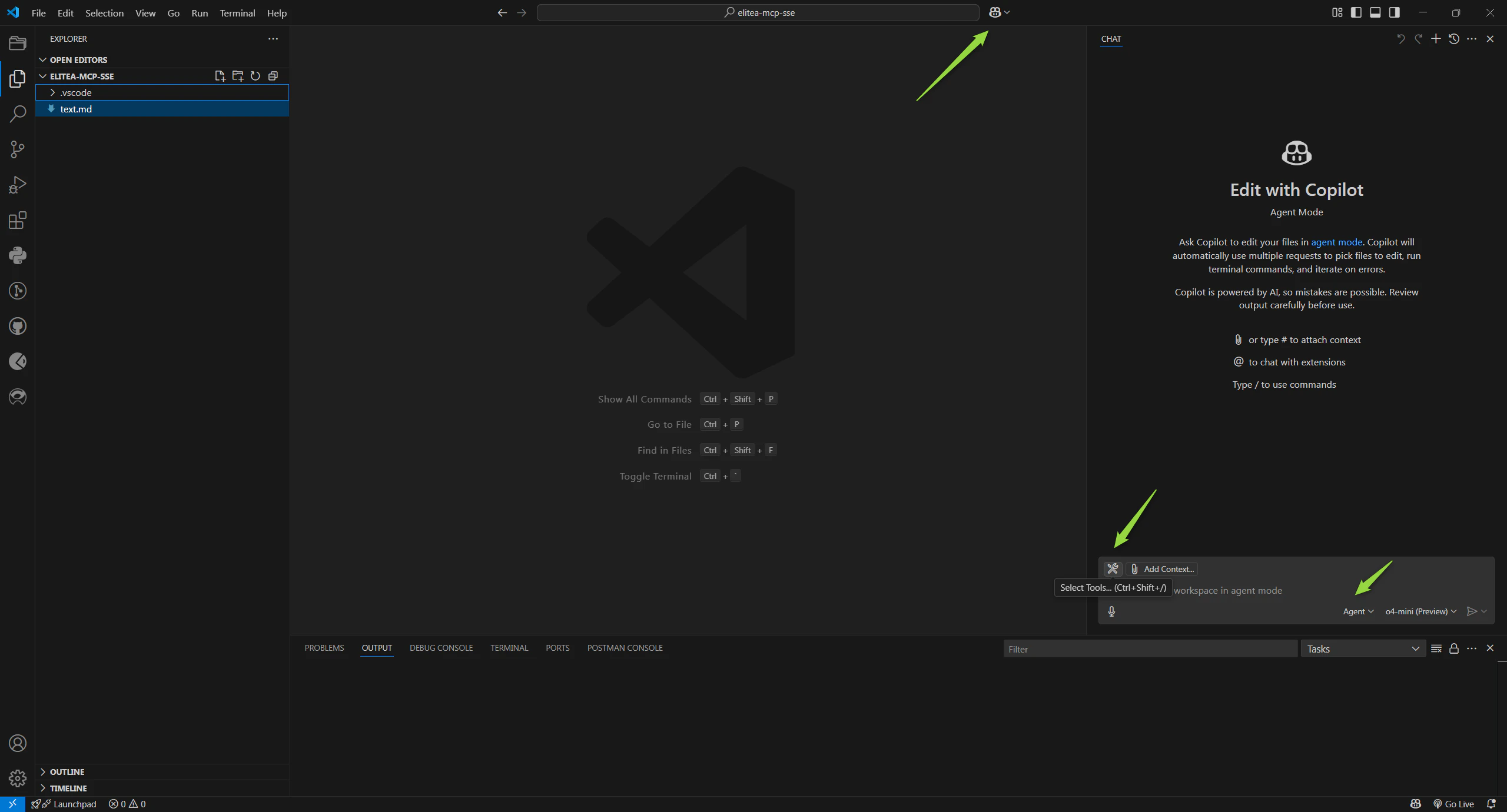
Open GitHub Copilot Chat
- Click the chat icon in the left sidebar (or press
Ctrl+Alt+I)
- Click the chat icon in the left sidebar (or press
-
Switch to Agent mode
- In the chat panel, look for “Agent mode” and click it
- This enables the use of tools (like your Elitea agents)
-
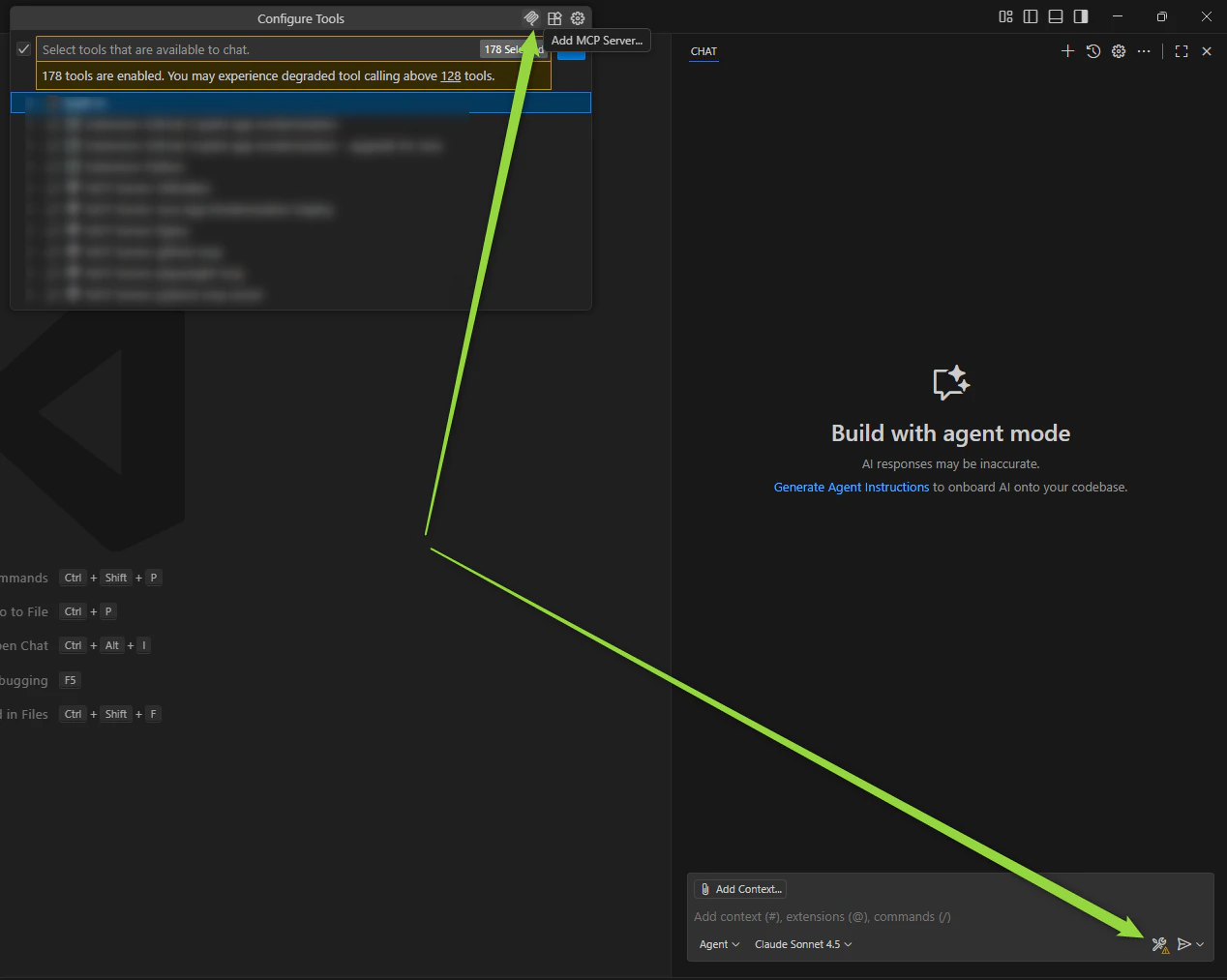
Add the MCP server
- Click the Select Tools icon (looks like a wrench or tools)
- Click Add MCP Server icon
- Click + Add MCP Server

- Select Command stdio
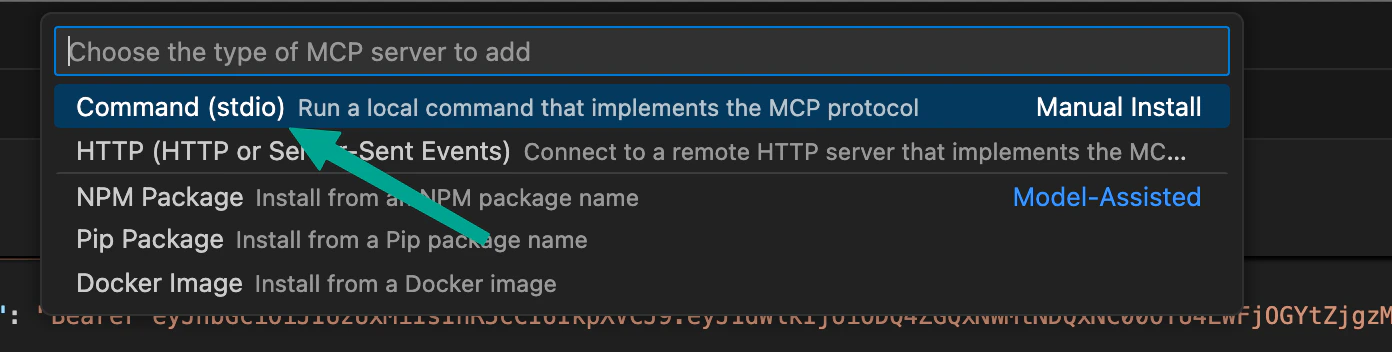
- For “Command”, type:
elitea-mcpand press Enter

- For “Server ID”, use the suggested name or type something like
elitea

-
Choose where to save the settings
- You’ll see two options:
- Workspace – Only works in this project folder
- Global – Works in all your VS Code projects
- Choose based on your needs (Workspace is good for team projects)

- You’ll see two options:
Part 4: Add Your Project ID
This tells the server which Elitea project to connect to.Option A: If You Chose Workspace
-
The config file opens automatically
- After selecting Workspace, VS Code will automatically open
.vscode/mcp.json - If it doesn’t open automatically, look for the file at
.vscode/mcp.jsonand click to open it
- After selecting Workspace, VS Code will automatically open
-
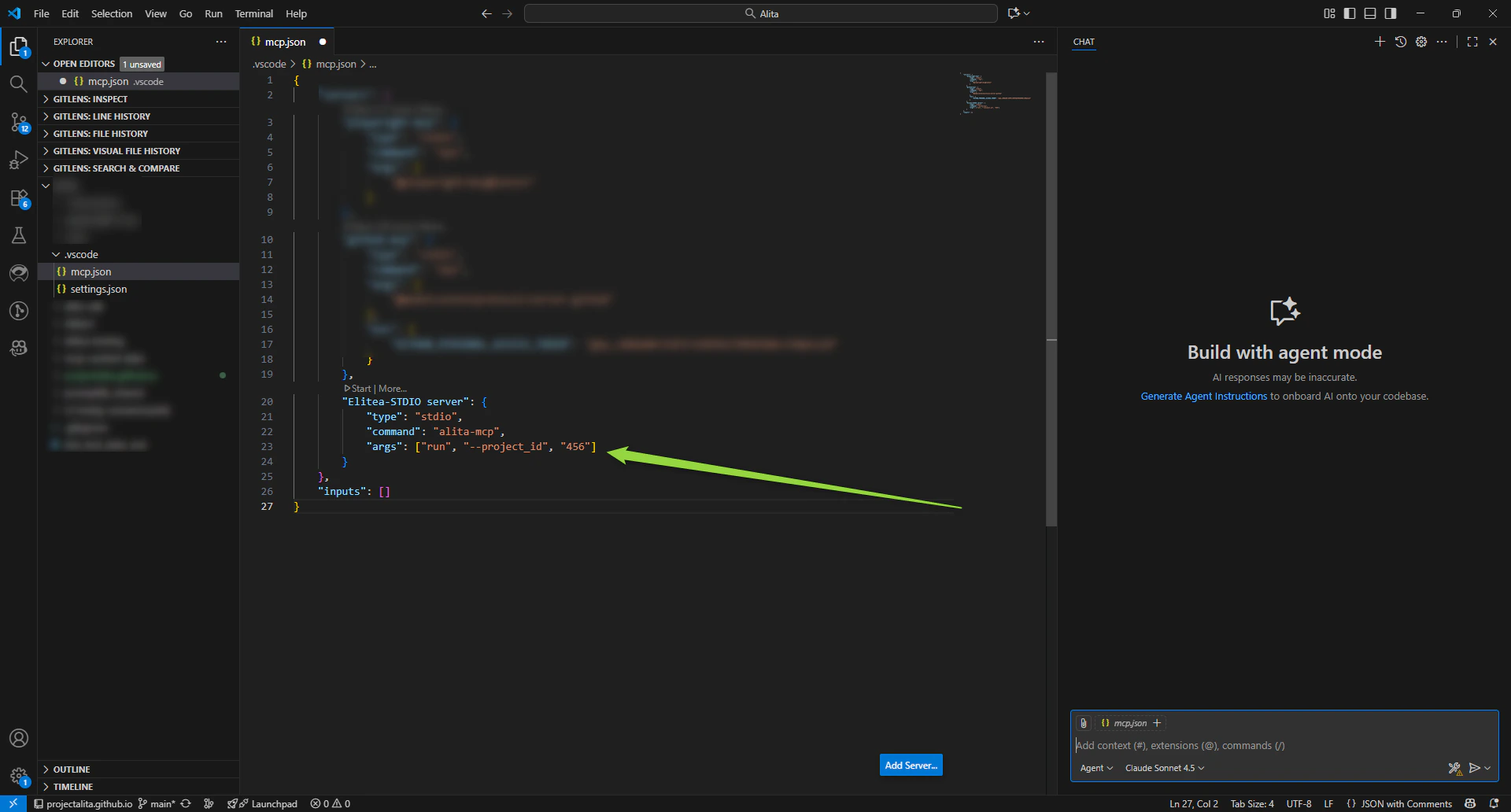
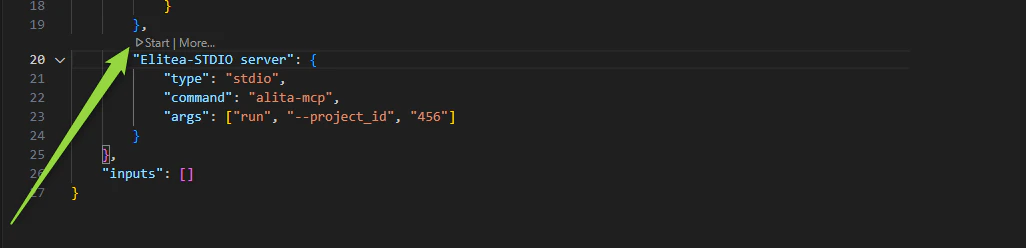
Add your project ID
- Find the line that says
"args": [] - Replace it with:
- Replace
YOUR_PROJECT_IDwith your actual number (example:25)
- Find the line that says
-
Save the file
- Press
Ctrl+S
- Press
-
Start the server
- In Copilot Chat, click the Start button
Option B: If You Chose Global
-
The settings file opens automatically
- After selecting Global, VS Code will automatically open your global
mcp.jsonconfiguration file - If it doesn’t open automatically, look for a new tab in the VS Code editor with the file
- After selecting Global, VS Code will automatically open your global
-
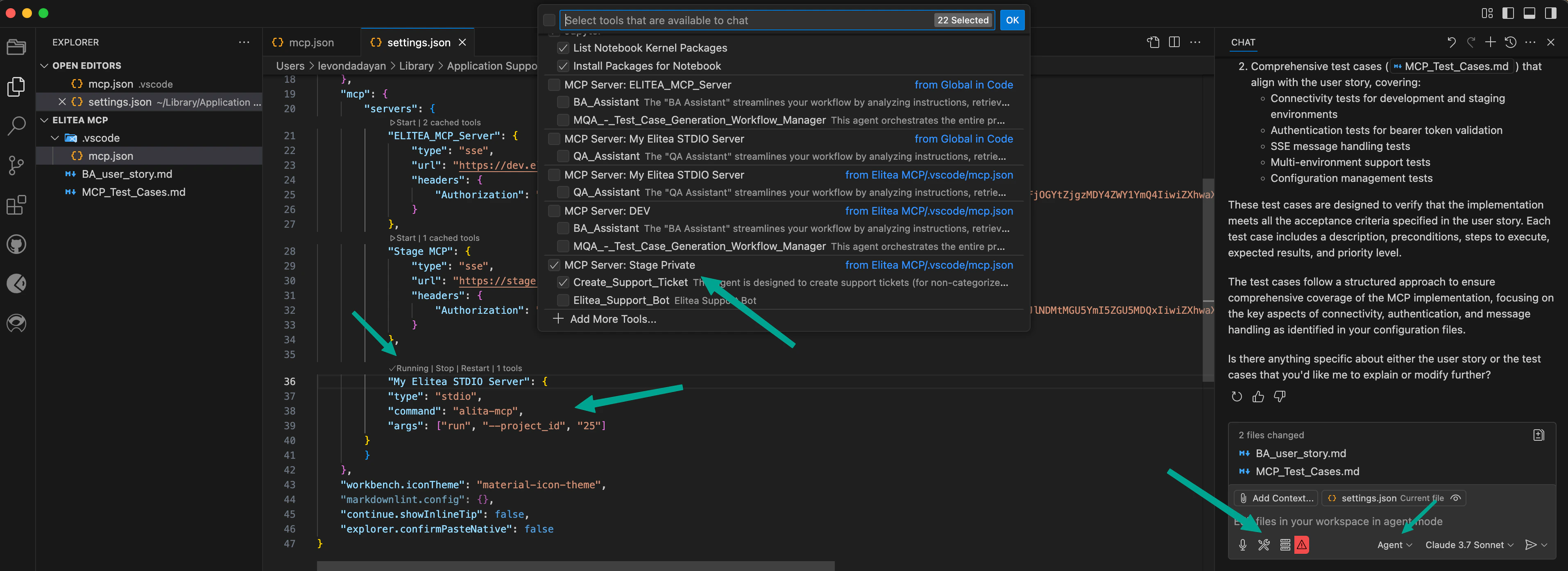
Add your project ID
- Find the MCP server section you just added
- Find the line that says
"args": [] - Replace it with:
- Replace
YOUR_PROJECT_IDwith your actual number
-
Save the file
- Press
Ctrl+S
- Press
-
Start the server
- In Copilot Chat, click the Start button
Part 5: Tag Your Agents
For an agent to be available as a tool, it must be tagged in Elitea.Tagging Agents:
-
Log into Elitea
- Open your Elitea deployment in a web browser
-
Find your agent
- Navigate to the agent or pipeline you want to use
-
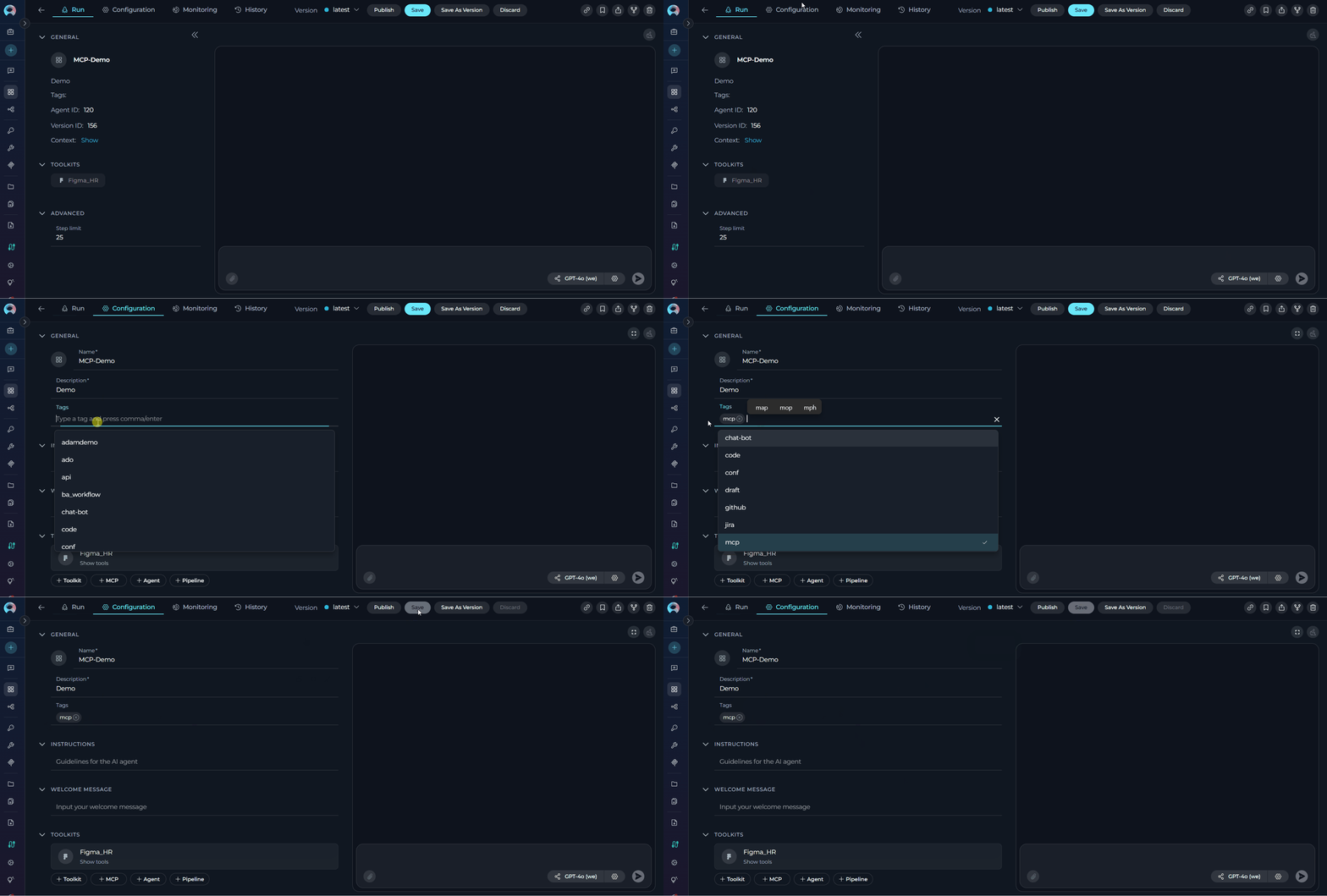
Add the “mcp” tag
- Look for the tags section
- Add a tag named
mcp(all lowercase) - Save your changes
Complete Setup:
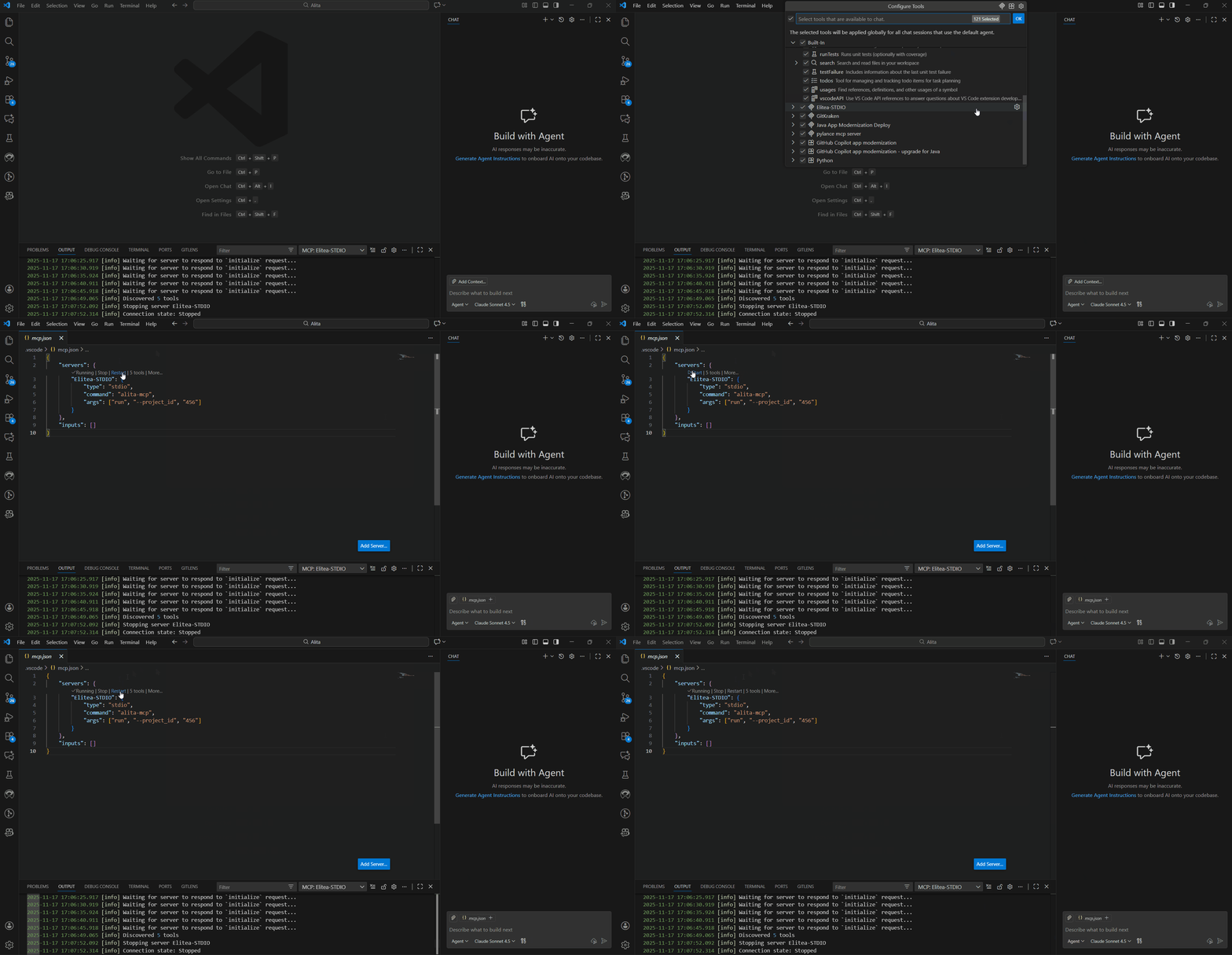
- Restart the MCP server in VS Code
- Go back to VS Code
- In Copilot Chat, stop the server and start it again
- This syncs the newly tagged agents
Part 6: Use Your Agent
Now you’re ready to use your Elitea agent from VS Code!-
Open Copilot Chat
- Make sure you’re in Agent mode
-
Click the Tools icon
- You should see your tagged agents listed

-
Select the tools you want to use
- All tools are selected by default
- You can deselect any you don’t need right now
-
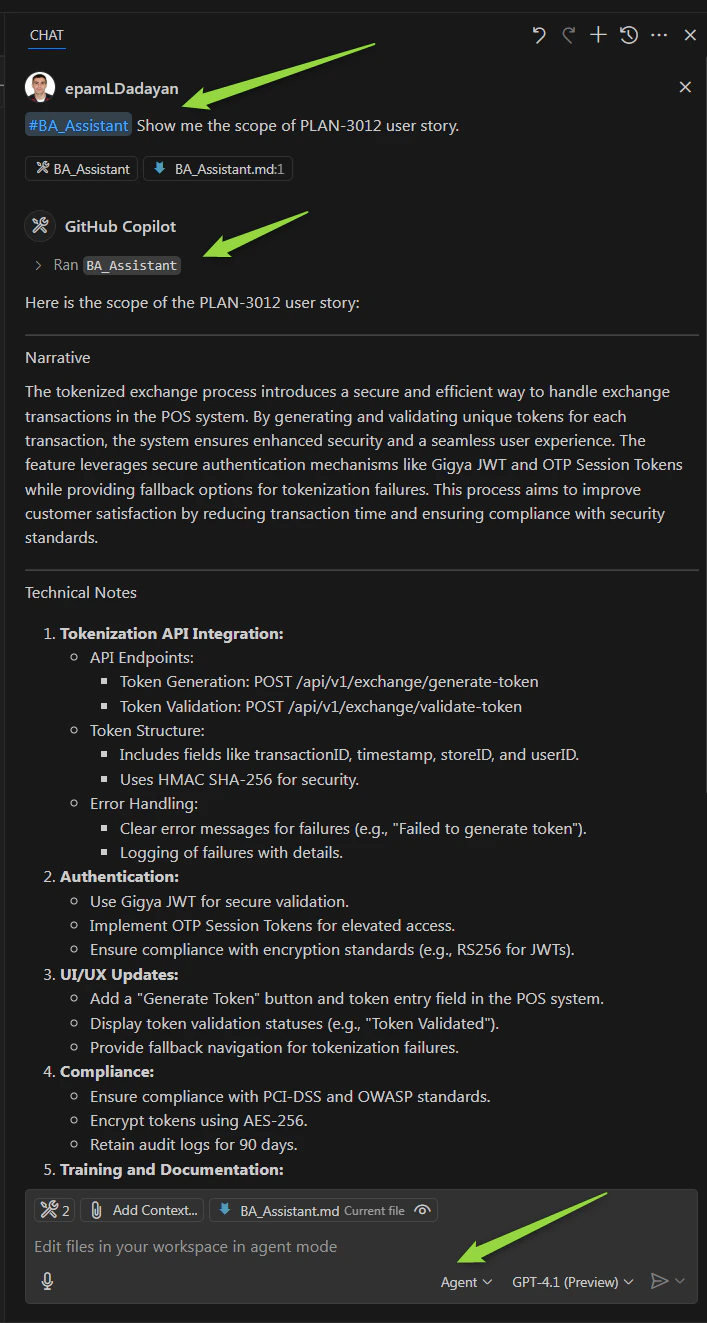
Type your request
- In the chat box, type
#followed by your agent’s name - Example:
#BA Assistant Show me the scope of PLAN-3012
- In the chat box, type
-
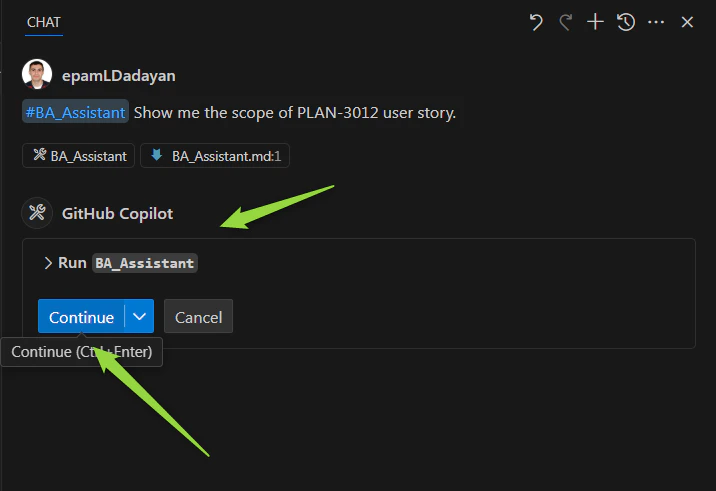
Run the tool
- Click Run [tool name] when prompted
-
Confirm execution
- The first time, you’ll be asked to confirm
- Click Continue (you can choose to auto-confirm for future runs)
-
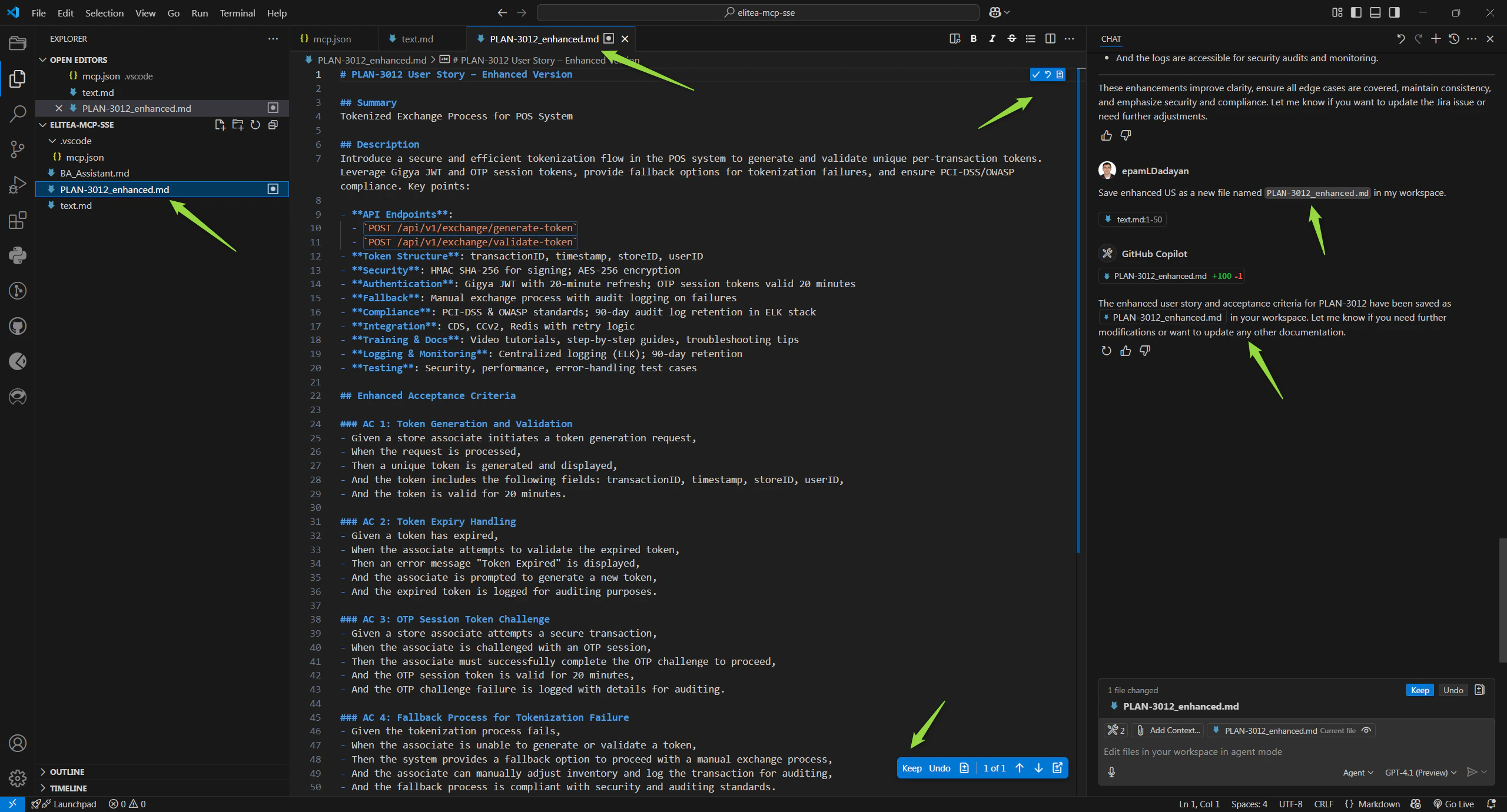
Review the results
- Your agent will execute and return results directly in the chat
How to Know It’s Working
✔️ You’ve succeeded if:- The MCP server shows as “Running” in VS Code
- Your tagged agents appear in the Tools list
- When you call an agent, you see output in the chat
- No error messages appear
- You see “Command not found” errors → Reinstall the client
- No agents appear in the Tools list → Check that they’re tagged with
mcp - Server won’t start → Check your Project ID and authentication token
Common Problems & Fixes
Problem: “elitea-mcp: command not found”
Fix: Make sure you completed all installation steps, includingpipx ensurepath. Close and reopen PowerShell.
Problem: No agents showing up
Fix:- Make sure your agents are tagged with
mcpin Elitea - Restart the MCP server in VS Code
- Check you’re using the correct Project ID
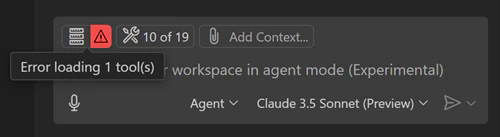
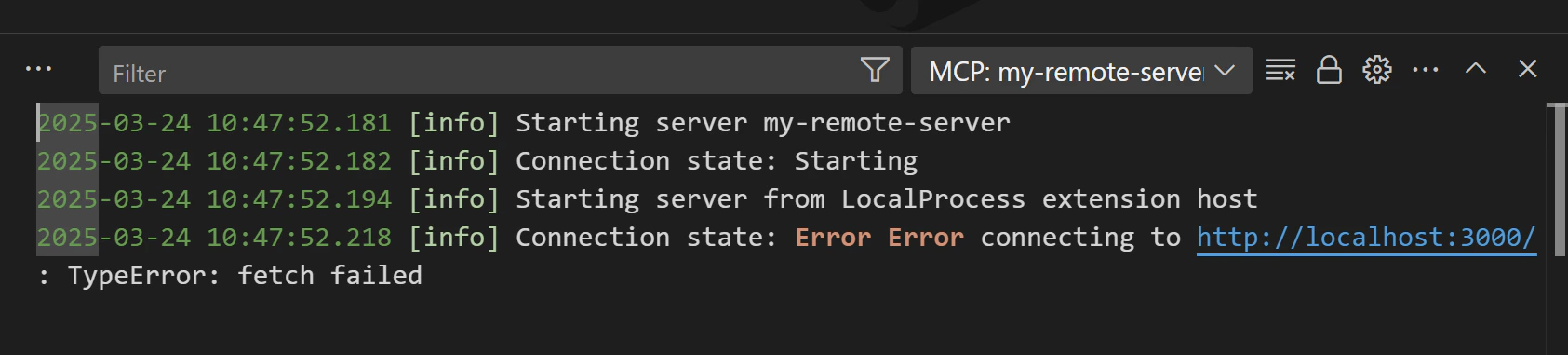
Problem: “Error indicator” in VS Code
Fix:- Click the error in the Chat view
-
Select Show Output to see details
-
Look for specific error messages in the log
Problem: Server keeps disconnecting
Fix:- Verify your authentication token is still valid
- Check your internet connection
- Confirm your Elitea deployment URL is correct
Problem: Multiple elitea-mcp versions installed (pip and pipx conflict)
Fix: If you see errors or unexpected behavior, you may have multiple versions ofelitea-mcp installed. This happens when you installed it with both pip and pipx.
-
Check for multiple installations:
-
Remove the pip version (keep pipx):
-
Verify the correct version is active:
You should see:
C:\Users\<YourUsername>\.local\bin\elitea-mcp.exe - Restart VS Code and the MCP server
What You Can Do Next
Now that your MCP server is running, you can:- Call multiple agents in one conversation
- Use agents to analyze code, create documentation, or fetch data
- Automate repetitive tasks directly from VS Code
- Combine Elitea agents with other Copilot features