

Introduction
This guide is your definitive resource for integrating and utilizing the GitHub toolkit within ELITEA. It provides a comprehensive, step-by-step walkthrough, from generating a GitHub Personal Access Token to configuring the toolkit in ELITEA and effectively using it within your Agents. By following this guide, you will unlock the power of automated code management, streamlined development workflows, and enhanced team collaboration, all directly within the ELITEA platform. This integration empowers you to leverage AI-driven automation to optimize your software development lifecycle using the combined strengths of ELITEA and GitHub. Brief Overview of GitHub GitHub is the world’s leading web-based platform for version control, collaboration, and software development. It is built around Git and provides a rich ecosystem for developers to host, manage, and collaborate on code. GitHub is essential for modern software development, offering features for:- Robust Version Control: Leveraging Git, GitHub meticulously tracks every change to your code, enabling seamless collaboration, easy rollback to previous states, and a complete history of project evolution.
- Streamlined Code Collaboration: Facilitate effective teamwork with features like pull requests for code review, in-line commenting, and branch-based development workflows, fostering a collaborative coding environment.
- Centralized Code Hosting: Provides a secure, reliable, and globally accessible platform for hosting and managing your Git repositories, ensuring code availability and integrity.
- Powerful Workflow Automation (GitHub Actions): Enables you to automate your software development lifecycle with GitHub Actions, including building, testing, and deploying code directly from your repositories.
- Issue Tracking and Project Management: Integrated issue tracking and project management tools help teams organize tasks, track bugs, and manage projects directly within the GitHub platform.
Toolkit’s Account Setup and Configuration in GitHub
Account Setup If you don’t already have a GitHub account, follow these steps to create one:- Visit GitHub Website: Open your web browser and go to github.com.
- Sign Up: Click on the “Sign up” button, located in the top right corner of the homepage.
- Enter Details: Follow the on-screen instructions to create your account. You will need to choose a username, provide your email address, and create a strong password.
- Verify Email: Check your inbox for a verification email from GitHub. Click the verification link in the email to activate your account.
- Log In: Once your email is verified, log in to GitHub using your newly created username and password.
Generate a Personal Access Token (Classic)
For secure integration with ELITEA, it is essential to use a GitHub Personal Access Token (Classic). This method is significantly more secure than using your primary GitHub account password directly and allows you to precisely control the permissions granted to ELITEA. Follow these steps to generate a Personal Access Token (Classic) in GitHub:- Log in to GitHub: Access your GitHub account at github.com.
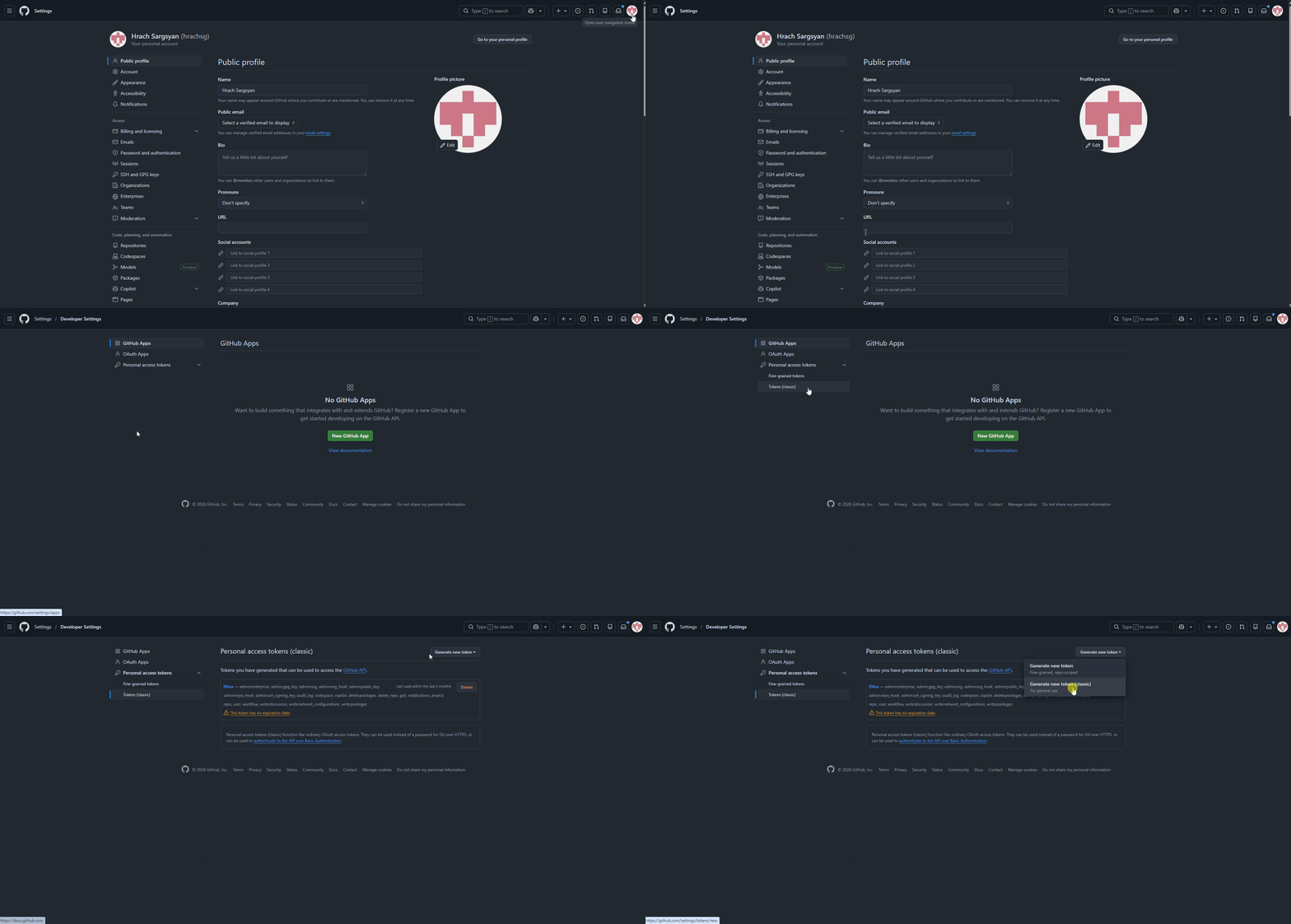
- Access Settings: Click on your profile avatar in the top right corner and then click on “Settings”.
- Navigate to Developer Settings: In the left-hand sidebar, scroll down and click on “Developer settings”.
- Access Personal Access Tokens (Classic): In the left-hand sidebar under “Personal access tokens,” click on “Tokens (classic)”.
-
Generate New Token: Click the “Generate new token (classic)” button.
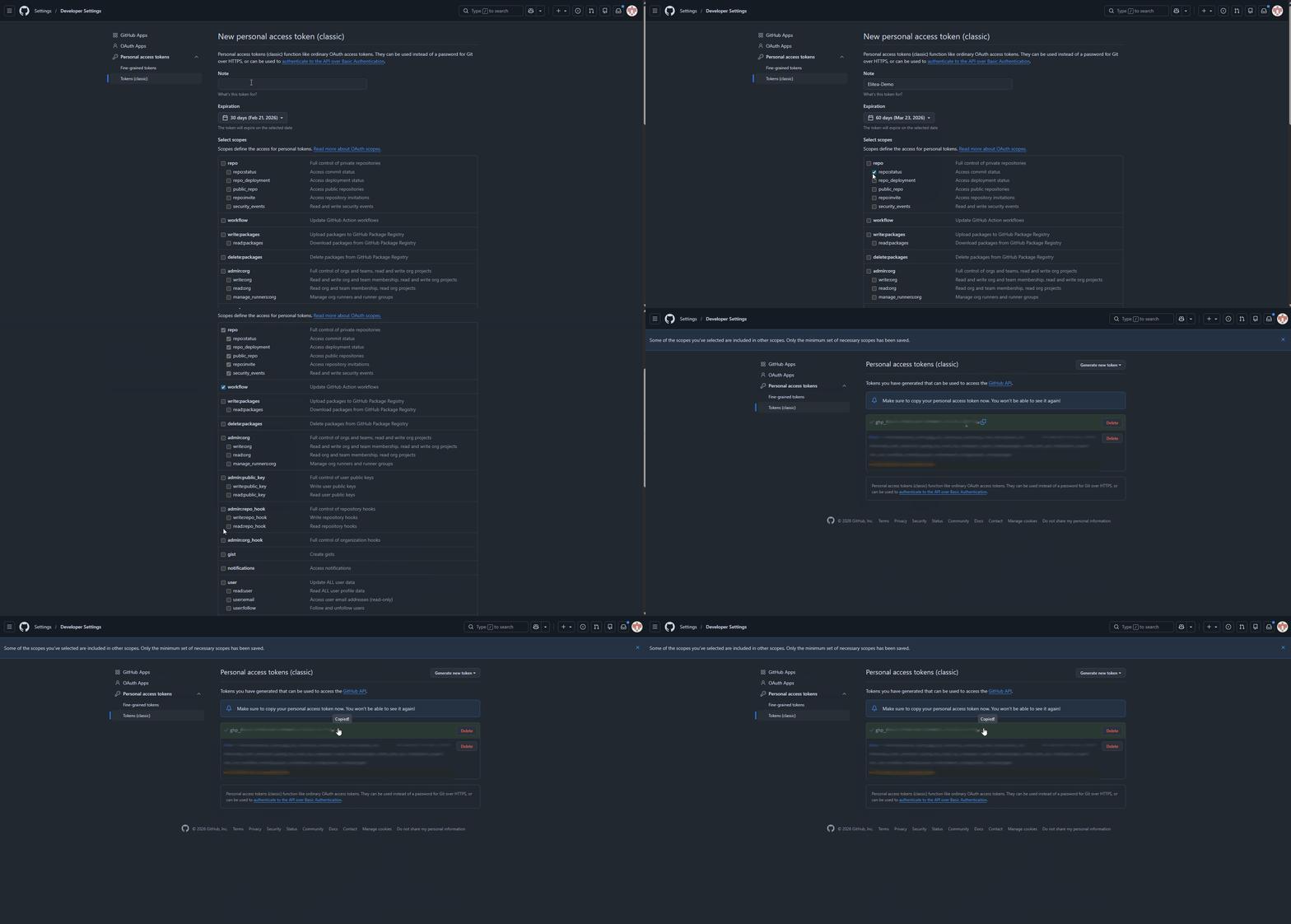
- Note: Enter a descriptive label (e.g., “ELITEA Integration”) to identify this token’s purpose.
- Expiration: Set an expiration date to limit the token’s lifespan and reduce security risk if compromised.
- Select Scopes: Grant only the minimum necessary permissions. Overly permissive tokens pose security risks. For typical ELITEA integration, consider these minimal scopes:
- repo (For full access to private and public repositories. If possible, select more granular
reposcopes instead of fullrepo):- repo:status (Access commit statuses)
- public_repo (Access public repositories)
- workflow (Access GitHub Actions workflows if your Agent needs to interact with workflows)
- read:user (To read user profile information, often needed for basic interactions)
- issues (To access and manage issues)
- pull_request (To access and manage pull requests)
- gist (To access gists, if your Agent needs to work with gists)
- read:org (To read organization membership and information, if your Agent needs organization-level access)
- Generate Token: Click the “Generate token” button at the bottom of the page.
- Copy and Store Token: Copy the generated token immediately - this is your only chance to see it. Store it securely in a password manager or ELITEA’s Secrets feature. You’ll need it to configure the GitHub toolkit.
Authentication Using a GitHub App (Private Key)
For more granular control and enhanced security, especially in organizational or automated contexts, using a GitHub App for authentication is the recommended approach. This method authenticates as the app itself, not as a user, and its permissions are precisely defined within the app’s settings.- Navigate to Developer Settings: Log in to your GitHub account, click your profile photo in the top-right corner, and go to Settings > Developer settings.
- Register a New App: Select GitHub Apps from the left-hand menu and click New GitHub App.
- Fill in App Details:
- App Name: Enter a unique name for your application (e.g., “ELITEA Integration App”).
- Homepage URL: Provide a valid URL. A placeholder like
https://www.example.comis sufficient if you don’t have a dedicated homepage.
- Configure Permissions: This is the most critical step. Scroll down to the “Permissions” section. For the toolkit to function correctly, you must grant the following permissions. Under Repository permissions, set the following:
- Actions: Read & Write
- Contents: Read & Write
- Issues: Read & Write
- Metadata: Read-only (This is a minimum requirement)
- Pull requests: Read & Write
- Projects: Read & Write
- Set Installation Options: Under “Where can this GitHub App be installed?”, choose “Only on this account” for private use.
- Create the App: Click Create GitHub App at the bottom of the page.
-
Generate a Private Key:
- Scroll down to the “Private keys” section.
- Click Generate a private key.
- A
.pemfile will be immediately downloaded to your computer. This is your private key. Treat it like a password and store it securely. You will only be able to download it once.
-
Get the App ID:
- Note the App ID displayed at the top of your GitHub App’s settings page. You’ll need this along with the private key when creating your ELITEA credential.
-
Install the App:
- In your GitHub App’s settings, click the Install App tab in the left sidebar.
- Click Install next to your organization or personal account.
- On the next screen, you can choose to install the app on All repositories or Only select repositories.
- Click Install to complete the process. The app can now interact with the selected repositories.
System Integration with ELITEA
To integrate GitHub with ELITEA, you need to follow a three-step process: Create Credentials → Create Toolkit → Use in Agents. This workflow ensures secure authentication and proper configuration.Step 1: Create GitHub Credentials
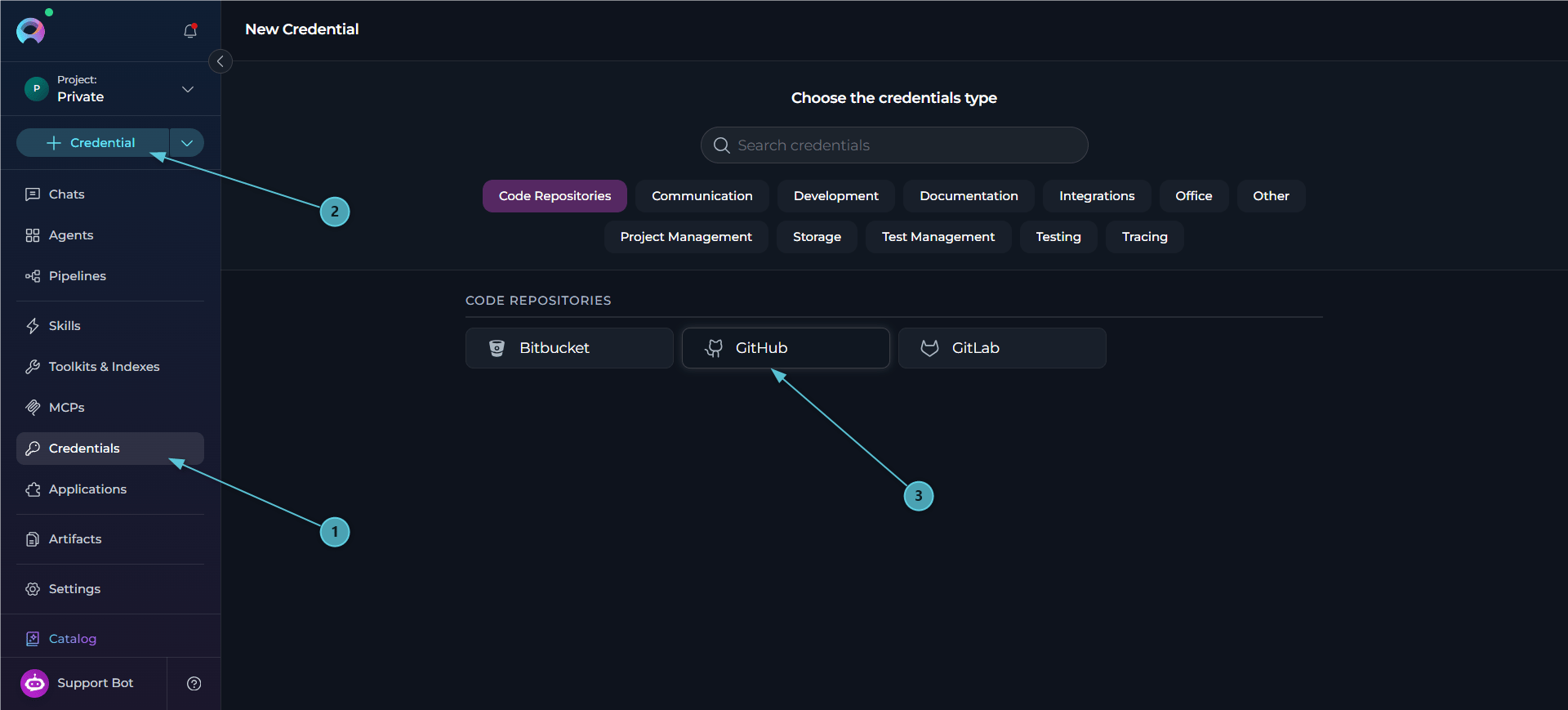
Before creating a toolkit, you must first create GitHub credentials in ELITEA:- Navigate to Credentials Menu: Open the sidebar and select Credentials.
-
Create New Credential: Click the
+ Createbutton. -
Select GitHub: Choose GitHub as the credential type.
-
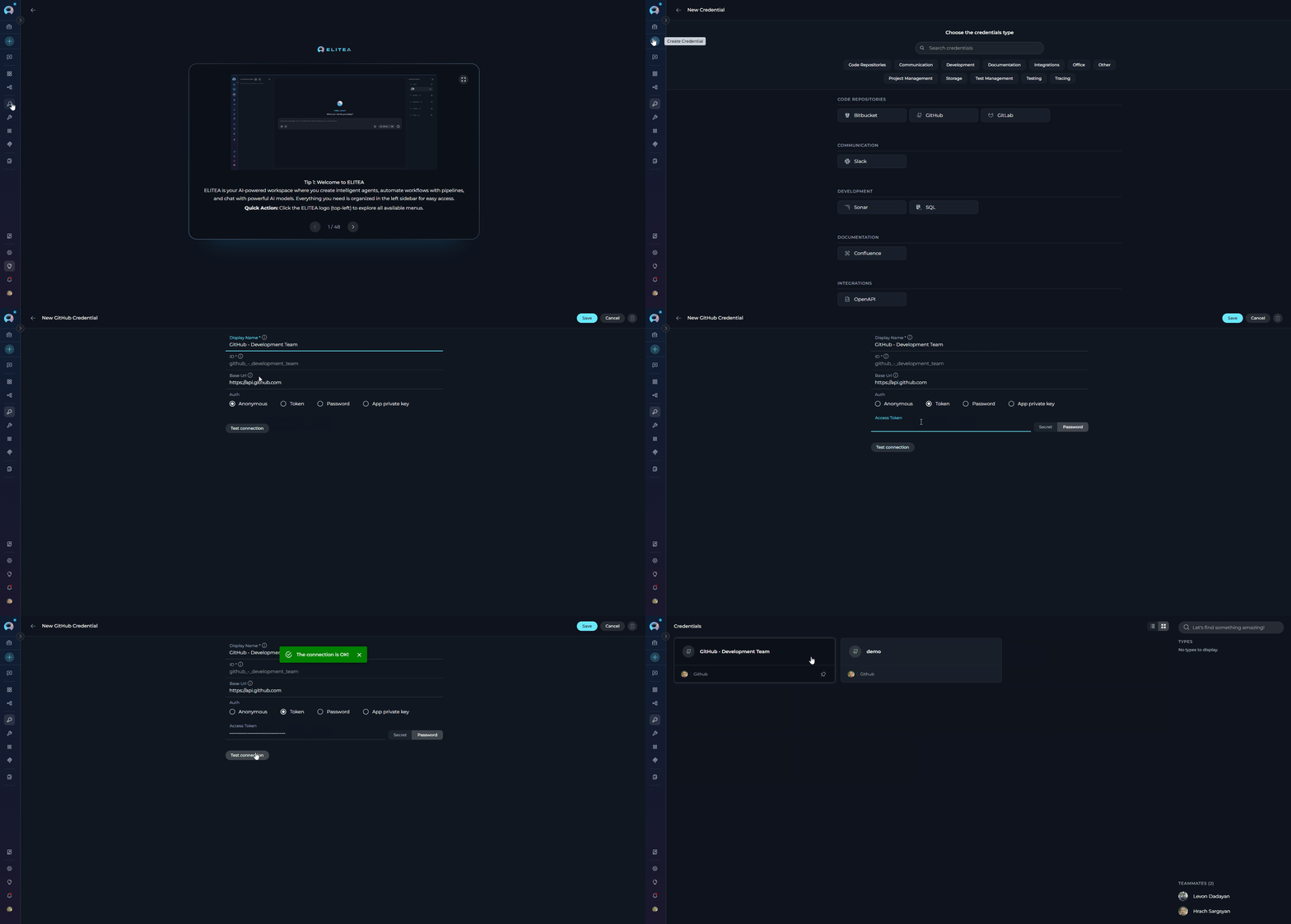
Configure Credential Details:
- Display Name: Enter a descriptive name (e.g., “GitHub - Development Team Access”)
- Base URL: Required; pre-filled with
https://api.github.com.- GitHub.com: leave the pre-filled value as-is.
- GitHub Enterprise Server: replace it with your REST v3 endpoint, for example
https://<your-ghes-domain>/api/v3.
- Authentication: The form shows three tabs — Token, Password, and App private key — fill in exactly one:
- Token: Enter your GitHub Personal Access Token (recommended)
- Password: Enter your GitHub username and password (not recommended)
- App private key: Enter the GitHub App ID and private key for app-based authentication
- Anonymous access: Leave the fields in all three tabs blank (limited to public repositories and subject to GitHub’s unauthenticated rate limits)
- Test Connection: Click Test Connection to verify that your credentials are valid and ELITEA can successfully connect to GitHub
- Save Credential: Click Save to create the credential. After saving, your GitHub credential will be added to the credentials dashboard and will be ready to use in toolkit configurations. You can view, edit, or delete it from the Credentials menu at any time.
- GitHub.com: Keep the pre-filled Base URL value (
https://api.github.com) - GitHub Enterprise Server: Enter your REST v3 endpoint (e.g.,
https://ghe.company.com/api/v3)
Step 2: Create GitHub Toolkit
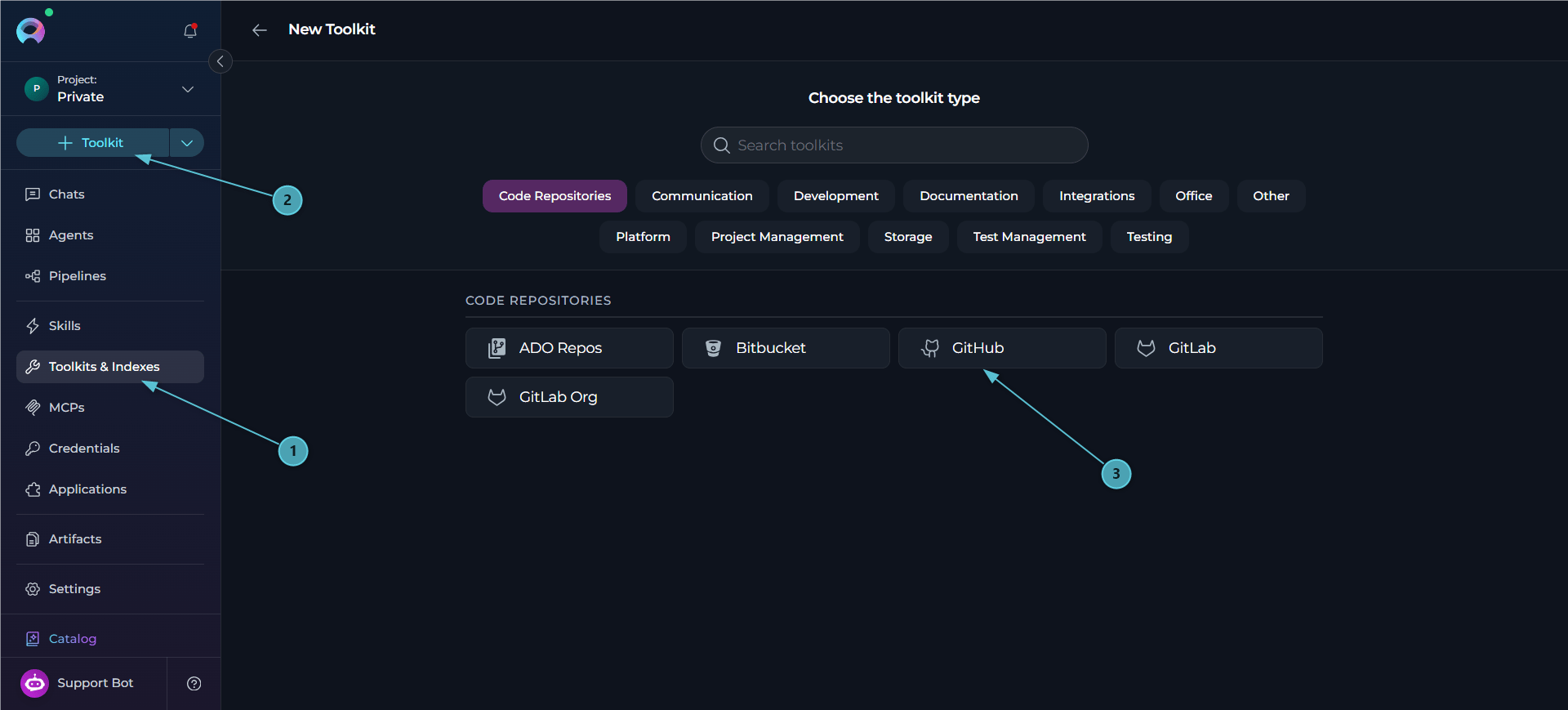
Once your credentials are configured, create the GitHub toolkit:- Navigate to Toolkits Menu: Open the sidebar and select Toolkits.
-
Create New Toolkit: Click the
+ Createbutton. -
Select GitHub: Choose GitHub from the list of available toolkit types.
-
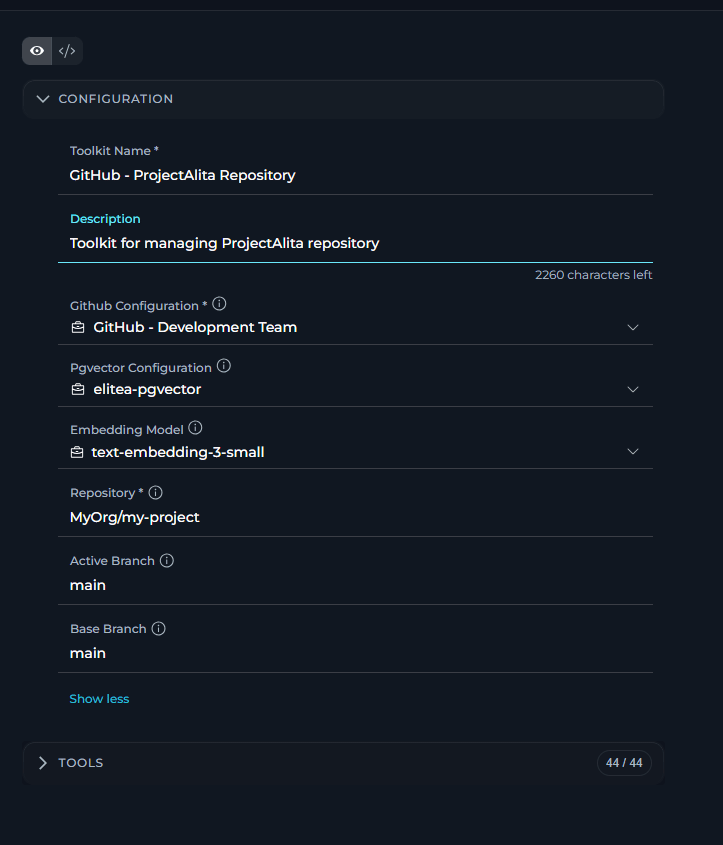
Configure Basic Information:
- Toolkit Name: Enter a descriptive name for your toolkit (required). Example: “GitHub - ProjectAlita Repository”
- Description: Provide an optional description to explain the toolkit’s purpose. Example: “Toolkit for managing ProjectAlita repository - handles code reviews, issue tracking, and automated deployments”
-
Configure Credentials:
- In the Configuration section, select your previously created GitHub credential from the Credentials dropdown
-
Configure Advanced Options:
- PgVector Configuration: Select a PgVector connection for vector database integration
- Embedding Model: Select an embedding model for text processing and semantic search capabilities
-
Configure Repository Settings:
- Repository: Enter the repository name in the format
owner/repository-name(e.g.,MyOrg/my-project) - Main Branch: Specify the main branch name (typically
mainormaster) - Active Branch: Set the active working branch (defaults to
main)
- Repository: Enter the repository name in the format
-
Enable Desired Tools: In the “Tools” section, select the checkboxes next to the specific GitHub tools you want to enable. Enable only the tools your agents will actually use to follow the principle of least privilege
- Make Tools Available by MCP - (optional checkbox) Enable this option to make the selected tools accessible through the external MCP clients to use the toolkit’s capabilities
- Save Toolkit: Click Save to create the toolkit.
Available Tools:
The GitHub toolkit provides 44 tools for interacting with GitHub repositories and managing development workflows. In the toolkit configuration form, tools are grouped by the effect they have on your repository:comments_total and a comments list — each comment with its body, user, created_at, and url. Up to 30 comments are returned per call, and fewer if their combined size would exceed the tool’s result-size limit (the issue’s own description counts against that limit first).If more comments remain than fit in one call, the response includes a comments_note telling the agent which comments_offset to pass on the next Get issue call to continue reading further into the thread. If no comments_offset is given, reading starts from the first comment.Testing Toolkit Tools
After configuring your GitHub toolkit, you can test individual tools directly from the Toolkit detailed page using the Test Settings panel. This allows you to verify that your credentials are working correctly and validate tool functionality before adding the toolkit to your workflows. General Testing Steps:- Select LLM Model: Choose a Large Language Model from the model dropdown in the Test Settings panel
- Configure Model Settings: Adjust model parameters like Creativity, Max Completion Tokens, and other settings as needed
- Select a Tool: Choose the specific GitHub tool you want to test from the available tools
- Provide Input: Enter any required parameters or test queries for the selected tool
- Run the Test: Execute the tool and wait for the response
- Review the Response: Analyze the output to verify the tool is working correctly and returning expected results
Step 3: Add GitHub Toolkit to Your Workflows
Now you can add the configured GitHub toolkit to your agents, pipelines, or use it directly in chat:In Agents:
- Navigate to Agents: Open the sidebar and select Agents.
- Create or Edit Agent: Either create a new agent or select an existing agent to edit.
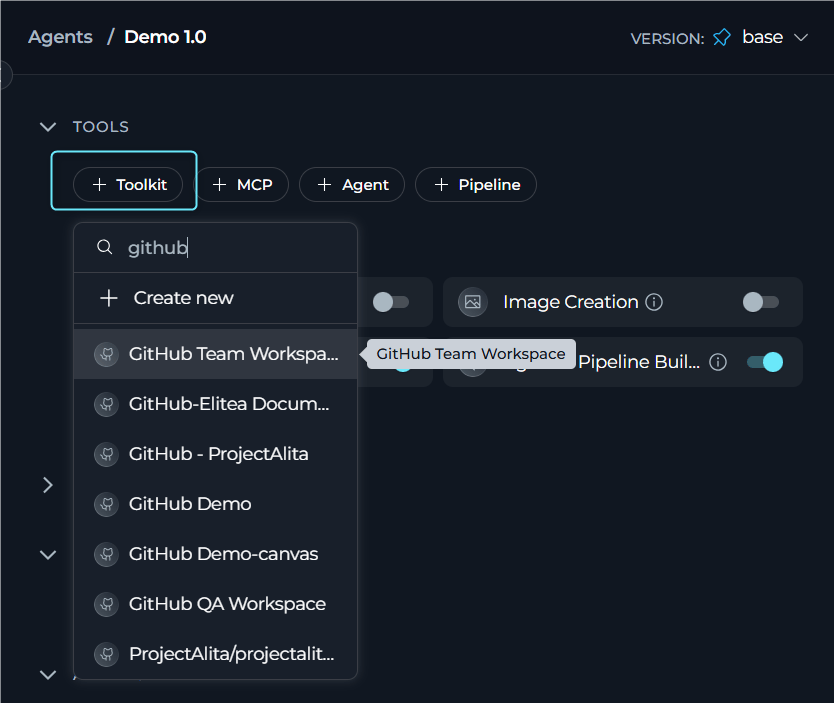
- Add GitHub Toolkit:
- In the “TOOLKITS” section of the agent configuration, click the “+Toolkit” icon
- Select your configured GitHub toolkit from the dropdown list
- The toolkit will be added to your agent with the previously configured tools enabled
In Pipelines:
- Navigate to Pipelines: Open the sidebar and select Pipelines.
- Create or Edit Pipeline: Either create a new pipeline or select an existing pipeline to edit.
-
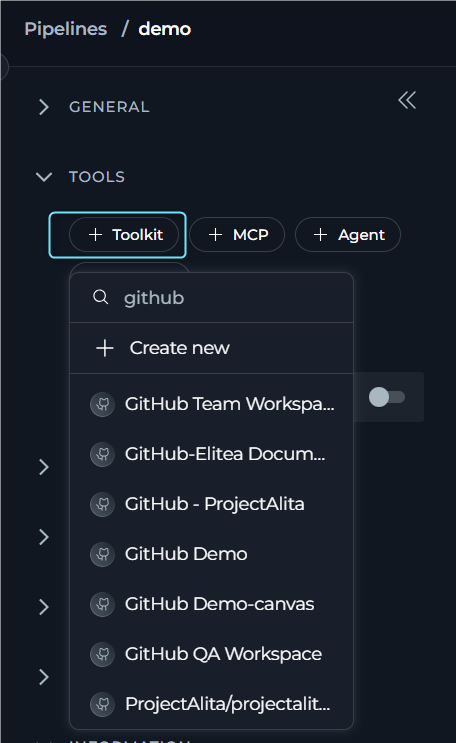
Add GitHub Toolkit:
- In the “TOOLKITS” section of the pipeline configuration, click the “+Toolkit” icon
- Select your configured GitHub toolkit from the dropdown list
- The toolkit will be added to your pipeline with the previously configured tools enabled
In Chat:
- Navigate to Chat: Open the sidebar and select Chat.
- Start New Conversation: Click +Create or open an existing conversation.
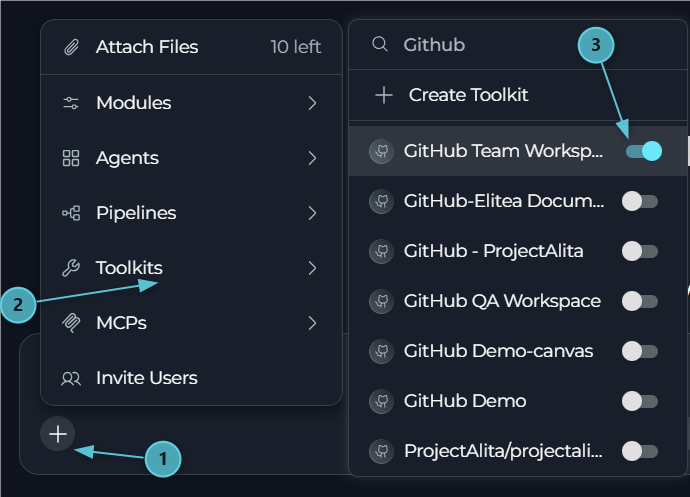
- Add Toolkit to Conversation:
- In the chat Participants section, look for the Toolkits element
- Click the “Add Tools” Icon to open the tools selection dropdown
- Select your configured GitHub toolkit from the dropdown list
- The toolkit will be added to your conversation with all previously configured tools enabled
- Use Toolkit in Chat: You can now directly interact with your GitHub repositories by asking questions or requesting actions that will trigger the GitHub toolkit tools.
- Please list all open issues in the repository that are labeled as ‘bug’ and ‘high-priority’.”
- Create a new branch called ‘feature-user-authentication’ from the main branch.”
- Show me the recent commits in the main branch and summarize what changes were made.”
- Create a pull request to merge the ‘feature-login’ branch into ‘develop’ with the title ‘Add user login functionality’.”
Instructions and Prompts for Using the GitHub Toolkit
To effectively instruct your ELITEA Agent to use the GitHub toolkit, you need to provide clear and precise instructions within the Agent’s “Instructions” field. These instructions are crucial for guiding the Agent on when and how to utilize the available GitHub tools to achieve your desired automation goals.Instruction Creation for Agents
When crafting instructions for the GitHub toolkit, especially for OpenAI-based Agents, clarity and precision are paramount. Break down complex tasks into a sequence of simple, actionable steps. Explicitly define all parameters required for each tool and guide the Agent on how to obtain or determine the values for these parameters. OpenAI Agents respond best to instructions that are:- Direct and Action-Oriented: Employ strong action verbs and clear commands to initiate actions. For example, “Use the ‘read_file’ tool…”, “Create a branch named…”, “List all open pull requests…”.
-
Parameter-Centric: Clearly enumerate each parameter required by the tool. For each parameter, specify:
- Its name (exactly as expected by the tool)
- The format or type of value expected
- How the Agent should obtain the value – whether from user input, derived from previous steps in the conversation, retrieved from an external source, or a predefined static value
- Contextually Rich: Provide sufficient context so the Agent understands the overarching objective and the specific scenario in which each GitHub tool should be applied within the broader workflow. Explain the desired outcome or goal for each tool invocation.
- Step-by-Step Structure: Organize instructions into a numbered or bulleted list of steps for complex workflows. This helps the Agent follow a logical sequence of actions.
- Add Conversation Starters: Include example conversation starters that users can use to trigger this functionality. For example, “Conversation Starters: ‘Show me the README file’, ‘What’s in the README.md?’, ‘Display the project documentation’”
- State the Goal: Begin by clearly stating the objective you want to achieve with this step. For example, “Goal: To retrieve the content of the ‘README.md’ file.”
- Specify the Tool: Clearly indicate the specific GitHub tool to be used for this step. For example, “Tool: Use the ‘read_file’ tool.”
-
Define Parameters: Provide a detailed list of all parameters required by the selected tool. For each parameter:
- Parameter Name:
<Parameter Name as defined in tool documentation> - Value or Source:
<Specify the value or how to obtain the value. Examples: "user input", "from previous step", "hardcoded value 'main'", "value of variable X">
- Parameter Name:
- Describe Expected Outcome (Optional but Recommended): Briefly describe the expected result or outcome after the tool is successfully executed. For example, “Outcome: The Agent will provide the content of the ‘README.md’ file.”
- Add Conversation Starters: Include example conversation starters that users can use to trigger this functionality. For example, “Conversation Starters: ‘Show me the README file’, ‘What’s in the README.md?’, ‘Display the project documentation’”
Chat Usage Examples by Tool Category
The following examples demonstrate how to interact with the GitHub toolkit in ELITEA Chat, organized by functional categories. Each example shows the user request and the expected agent behavior.Issue Management - Create Issue
Issue Management - Create Issue
Issue Management - Get Issue with Comments
Issue Management - Get Issue with Comments
Pull Request Management - List Open Pull Requests
Pull Request Management - List Open Pull Requests
File Operations - Read File
File Operations - Read File
Branch Management - Create Branch
Branch Management - Create Branch
Version Control - Get Commits
Version Control - Get Commits
Workflow Automation - Trigger Workflow
Workflow Automation - Trigger Workflow
Project Management - List Project Issues
Project Management - List Project Issues
Indexing & Search - Search Index
Indexing & Search - Search Index
Advanced Operations - Generic GitHub API Call
Advanced Operations - Generic GitHub API Call
Troubleshooting
Credential Not Appearing in Toolkit Configuration
Credential Not Appearing in Toolkit Configuration
- Check Credential Scope: Ensure you’re working in the same workspace/project where the credential was created. Private credentials are only visible in your Private workspace, while project credentials are visible within the specific team project.
- Verify Credential Creation: Go to the Credentials menu and confirm that your GitHub credential was successfully saved.
- Credential Type Match: Ensure you selected “GitHub” as the credential type when creating the credential.
Connection Errors
Connection Errors
- Verify GitHub API URL: Ensure that the Base URL field in the credential configuration is correctly set to the standard GitHub API URL:
https://api.github.com. Avoid modifying this URL unless you are using GitHub Enterprise Server. - Check Personal Access Token (PAT): Double-check that the Personal Access Token (Classic) you have provided is accurate, has not expired, and is valid for your GitHub account and the target repository. Carefully re-enter or copy-paste the token to rule out typos.
- Verify Token Scopes: Review the scopes/permissions granted to your Personal Access Token in GitHub. Ensure that the token has the necessary scopes (e.g.,
repo,workflow,issues,pull_request) for the specific GitHub tools your Agent is attempting to use. Insufficient scopes are a common cause of connection and permission errors. - Network Connectivity: Confirm that both your ELITEA environment and the GitHub service are connected to the internet and that there are no network connectivity issues, firewalls, or proxies blocking the integration. Test network connectivity to
api.github.comfrom your ELITEA environment if possible.
Rate Limit Errors
Rate Limit Errors
- Check Rate Limit Status: Use the “Get Me” tool to check your current GitHub API rate limit status and remaining requests.
- Reduce Search Scope: When using search operations, add specific filters like
repo:owner/name,org:organization, orlanguage:pythonto narrow down the search scope and reduce API calls. - Wait and Retry: GitHub API rate limits reset every hour. Wait for the reset time indicated in the error message before retrying.
- Upgrade GitHub Plan: Consider upgrading to GitHub Enterprise or using a GitHub App authentication for higher rate limits if you frequently hit limits.
- Optimize Agent Instructions: Review your agent’s workflow to minimize unnecessary API calls and batch operations when possible.
Incorrect Repository or Branch Names
Incorrect Repository or Branch Names
- Double-Check Repository Name: Carefully and meticulously verify that you have entered the correct GitHub Repository name in the toolkit configuration within ELITEA. Pay close attention to capitalization, spelling, and the
repository_owner/repository_nameformat. Even minor typos can cause errors. - Verify Branch Name Spelling and Case: Ensure that you are using the correct branch name (e.g.,
main,develop,feature-branch) in your Agent’s instructions when specifying branch-related parameters for GitHub tools. Branch names in Git are case-sensitive. Double-check the spelling and capitalization of branch names against your repository in GitHub. - Branch Existence: Confirm that the specified branch actually exists in your GitHub repository. It’s possible the branch name is correct but the branch was deleted or renamed.
Search Query Syntax Errors
Search Query Syntax Errors
- Use Supported Filters: Ensure your search queries use valid GitHub search filters:
language:,repo:,org:,path:,filename:,extension:,user:,is:,in:. - Check Query Format: Verify that your query follows GitHub’s search syntax rules. Use quotes for exact phrases:
"exact match". - Example Valid Queries:
language:python repo:owner/name authenticationfilename:config.json org:my-organizationextension:js "function handleClick"
- Consult GitHub Search Syntax: Refer to GitHub’s search documentation for detailed syntax rules.
Toolkit Configuration Issues
Toolkit Configuration Issues
- Verify Repository Format: Ensure the repository name follows the correct format:
owner/repository-name. Do not include the full GitHub URL or.gitextension. - Check Main Branch Name: Verify that the main branch name matches the actual main branch in your repository (commonly
mainormaster). - Credential Selection: Ensure you have selected the correct credential from the dropdown in the toolkit configuration.
- Refresh Configuration: After updating credential details, refresh or recreate the toolkit to ensure it picks up the latest configuration.
Support Contact
If you encounter issues not covered in this guide or need additional assistance with GitHub integration, please refer to Contact Support for detailed information on how to reach the ELITEA Support Team.FAQ
Can I use my regular GitHub password directly for the ELITEA integration instead of a Personal Access Token?
Can I use my regular GitHub password directly for the ELITEA integration instead of a Personal Access Token?
- Access Token (Recommended): Most secure and flexible option with granular permissions
- Username/Password: Supported but less secure, use only if PAT is not an option
- GitHub App Private Key: For GitHub App integrations with enhanced security and higher rate limits
What scopes/permissions are absolutely necessary and minimally sufficient for the GitHub Personal Access Token to work with ELITEA?
What scopes/permissions are absolutely necessary and minimally sufficient for the GitHub Personal Access Token to work with ELITEA?
read_file, list_files_in_main_branch, get_issue):repo:statusandpublic_repofor public repositoriesrepofor private repositories
create_file, update_file, create_pull_request):repo(full repository access)- Or granular scopes:
repo:write,contents:write
issues- Create, edit, and manage issuespull_request- Create and manage pull requests
trigger_workflow):workflow- Trigger and manage GitHub Actions workflows
create_issue_on_project, update_issue_on_project, list_project_issues, search_project_issues):project- Enable this scope on your Personal Access Token (classic) to read and write GitHub Projects (the current Projects experience built on GitHub’sProjectV2API — not the retired “Projects (Classic)” feature)- A regular Personal Access Token (classic) with the
projectscope enabled is sufficient; no OAuth App is required
What is the correct format for specifying the GitHub Repository name in the ELITEA toolkit configuration?
What is the correct format for specifying the GitHub Repository name in the ELITEA toolkit configuration?
repository_owner/repository_name.Examples:MyOrganization/my-project-repousername/personal-projectProjectAlita/AlitaUI
- Include both the repository owner (username or organization name) and the repository name
- Separate them with a forward slash
/ - Do NOT include:
- Full GitHub URL (
https://github.com/owner/repo) .gitextension (owner/repo.git)- Trailing or leading slashes (
/owner/repo/)
- Full GitHub URL (
How do I switch from the old Agent-based configuration to the new Credentials + Toolkit workflow?
How do I switch from the old Agent-based configuration to the new Credentials + Toolkit workflow?
- Create a GitHub Credential: Navigate to Credentials menu → Create new credential → Select “GitHub” type → Add your authentication details (PAT, username/password, or App key)
- Create a GitHub Toolkit: Navigate to Toolkits menu → Create toolkit → Select “GitHub” → Link your credential → Configure repository and branch → Select tools to enable
- Add Toolkit to Workflows: Add the toolkit to your agents, pipelines, or chat sessions
- Credentials stored securely in one place
- Reuse same credential across multiple toolkits
- Easier to update authentication without reconfiguring agents
- Better audit trail and access control
- Separate concerns: authentication vs. toolkit configuration
Can I use the same GitHub credential across multiple toolkits and agents?
Can I use the same GitHub credential across multiple toolkits and agents?
- One GitHub credential can be used by multiple GitHub toolkits
- Each toolkit can be configured for different repositories or with different tool selections
- Each toolkit can be added to multiple agents, pipelines, and chat sessions
- Create one GitHub credential with your Personal Access Token
- Create multiple toolkits using the same credential:
- Toolkit A: Production repository (
company/production-app) - Toolkit B: Development repository (
company/dev-app) - Toolkit C: Documentation repository (
company/docs)
- Toolkit A: Production repository (
- Add different toolkits to different agents based on their purpose
Can I use GitHub toolkits with private repositories?
Can I use GitHub toolkits with private repositories?
- Personal Access Token with
reposcope (full repository access) - Or GitHub App with repository permissions configured
- Your GitHub account must have appropriate access to the private repository (collaborator, team member, or organization member)
public_repo scope only works with public repositories. For private repositories, you must use the full repo scope.Do I need a GitHub OAuth App to use the Project Management tools (create_issue_on_project, etc.)?
Do I need a GitHub OAuth App to use the Project Management tools (create_issue_on_project, etc.)?
create_issue_on_project, update_issue_on_project, list_project_issues, search_project_issues) work against GitHub’s current Projects experience (built on GitHub’s GraphQL ProjectV2 API) — not the retired “Projects (Classic)” feature. They only need a regular Personal Access Token (Classic) with the project scope enabled; no OAuth App registration or authorization flow is required.To enable project access on your token:- Go to GitHub Settings → Developer settings → Personal access tokens → Tokens (classic)
- Edit (or generate) your token and check the
projectscope - Update the token value in your ELITEA GitHub credential
Can I use the same toolkit across different workspaces (Private vs. Team Projects)?
Can I use the same toolkit across different workspaces (Private vs. Team Projects)?
- Credentials created in Private workspace are only visible to you
- Toolkits using private credentials are only accessible in your private workspace
- Cannot be shared with team members
- Credentials created in a team project are visible to all project members
- Toolkits using project credentials can be used by all project members
- Ideal for team collaboration
- Use Private workspace credentials for personal repositories or testing
- Use Team Project credentials for shared repositories and team collaboration
- Create separate toolkits for different repositories even if using the same credential
Why am I consistently encountering 'Permission Denied' errors, even though I believe I have configured everything correctly?
Why am I consistently encountering 'Permission Denied' errors, even though I believe I have configured everything correctly?
- Double and triple-check the scopes/permissions granted to your GitHub Personal Access Token in your GitHub Developer Settings
- Ensure that the token possesses the exact scopes required for each GitHub tool your Agent is attempting to use
- Pay close attention to write vs. read permissions
- Remember:
public_repoonly works for public repositories; private repos need fullreposcope
- Explicitly verify that the GitHub account associated with the Personal Access Token has the necessary access rights to the specific target repository
- Confirm repository membership, collaborator status, and assigned roles/permissions within the GitHub repository settings
- Check if the repository is in an organization with additional access restrictions
- Double-check that the Personal Access Token is still valid and has not expired
- Verify the token hasn’t been accidentally revoked in your GitHub settings
- Generate a new token as a test if unsure
- Check token expiration date in GitHub Settings → Developer Settings → Personal Access Tokens
- Carefully review the credential configuration in ELITEA
- Check authentication method selection (Token vs. Password vs. App Key)
- Look for hidden typographical errors or accidental whitespace in token field
- Ensure no special characters were added when copying the token
- If working with organization repositories, check organization-level restrictions
- Some organizations require OAuth App approval before tokens can access repositories
- Verify SSO (Single Sign-On) requirements if applicable
- Error message details
- Tool/operation that failed
- Token scopes granted
- Repository name and privacy setting (public/private)
- Organization restrictions (if applicable)
- Create and Edit Agents from Canvas - Learn how to quickly create and edit agents directly from chat canvas for rapid prototyping and workflow automation.
- Create and Edit Toolkits from Canvas - Discover how to create and configure GitHub toolkits directly from chat interface for streamlined workflow setup.
- Create and Edit Pipelines from Canvas - Guide to building and modifying pipelines from chat canvas for automated GitHub workflows.
- Indexing Overview - Comprehensive guide to understanding ELITEA’s indexing capabilities and how to leverage them for enhanced search and discovery.
- Index GitHub Data - Detailed instructions for indexing GitHub repository data to enable advanced search, analysis, and AI-powered insights across your codebase.
- GitHub Developer Settings: https://github.com/settings/developers - Navigate to the Developer settings in your GitHub account to manage Personal Access Tokens and other developer-related configurations.
- GitHub Personal Access Tokens (Classic): https://github.com/settings/tokens - Directly access the section in GitHub settings to manage your Personal Access Tokens (Classic) for secure integrations.
- GitHub API Documentation: https://docs.github.com/en/rest - Explore the official GitHub API documentation for detailed information on GitHub API endpoints, authentication, data structures, and developer guides.
- GitHub Help Center: https://docs.github.com - Access the official GitHub documentation for comprehensive articles, FAQs, and troubleshooting guides on all aspects of GitHub usage.