

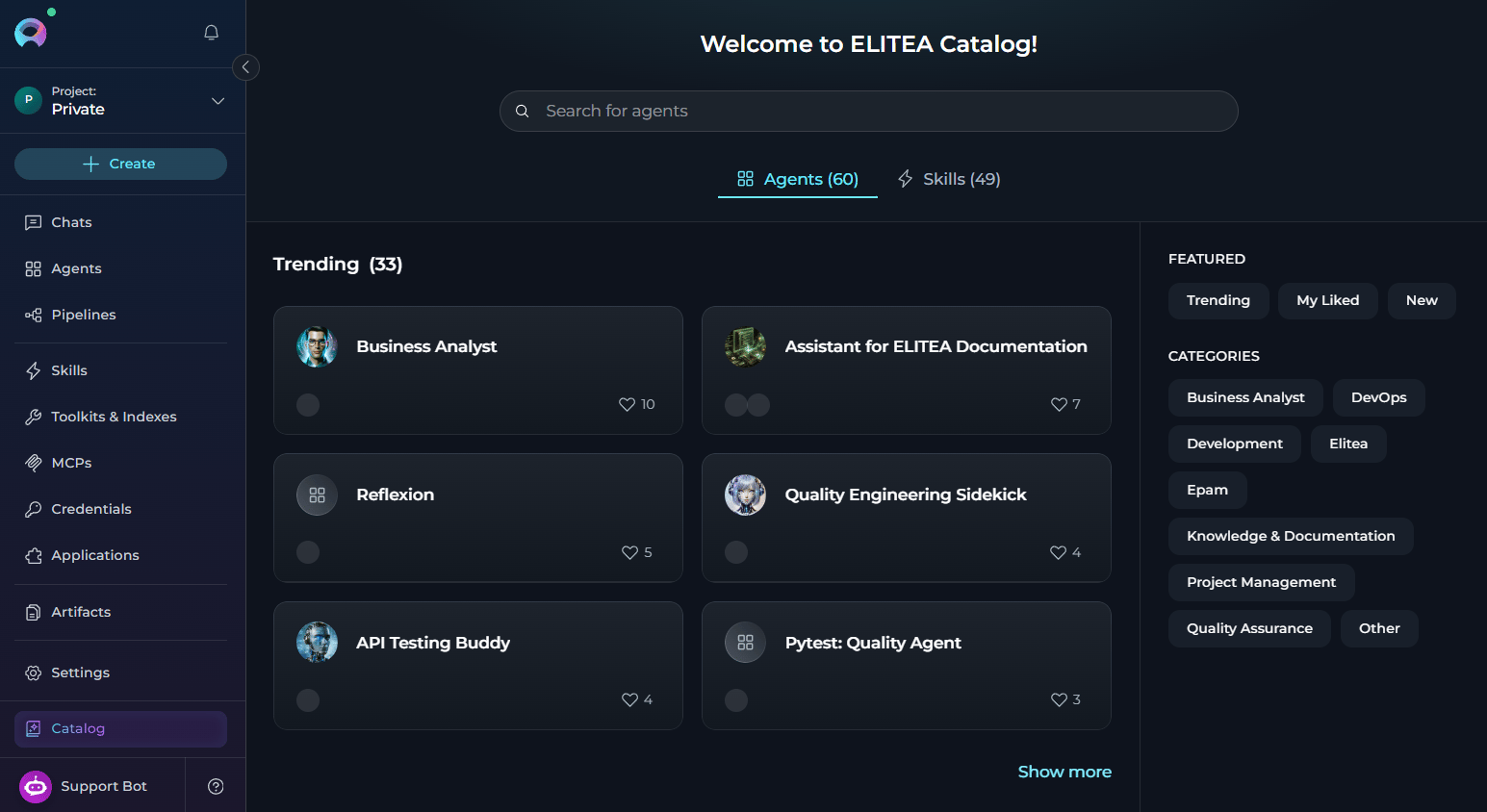
Catalog is available across all projects and provides a centralized view of all published agents and skills, regardless of which project you are currently viewing.
Instant access
Browse and use community-published agents and skills without building everything from scratch.
Driven by community
Leverage expertise from the ELITEA community — agents and skills are created and shared by real users.
Quality is assured
Published catalog items undergo moderation review before appearing in Catalog.
Quick discovery
Find agents and skills through real-time search, category filters, and trending sections.
Seamless integration
Add agents directly to conversations and discover reusable skills from one shared catalog surface.
Workflow enhancement
Integrate specialized agents into daily workflows for code review, documentation, testing, and more.
Open ELITEA Catalog
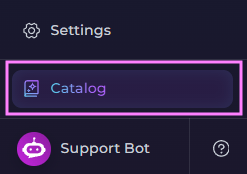
Catalog is located in the ELITEA sidebar:- Open ELITEA and ensure you are logged in.
- In the sidebar, locate Catalog.
- Select Catalog to open it.
Catalog Tabs & Cards
Catalog includes two tabs:- Agents — community-published agents that you can inspect and start in chat.
- Skills — community-published reusable skills that can be discovered from the same shared library surface.

- Search for published items using the Search field.
- Browse reusable agents and skills from the ELITEA community.
- Open agent or skill details from the catalog card.
- Display name.
- Profile image of the creator.
- Number of likes received. The heart icon is filled if you’ve liked the agent or skill.
- New label for recently published items.
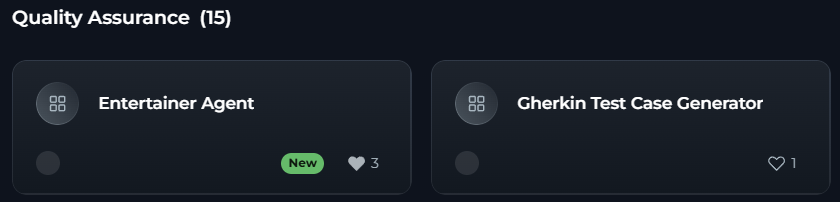
- Open the agent or skill details.
- Like or unlike the agent or skill.
Agents in Catalog
Published agents are available in Catalog in the Agents tab.View Agent Details
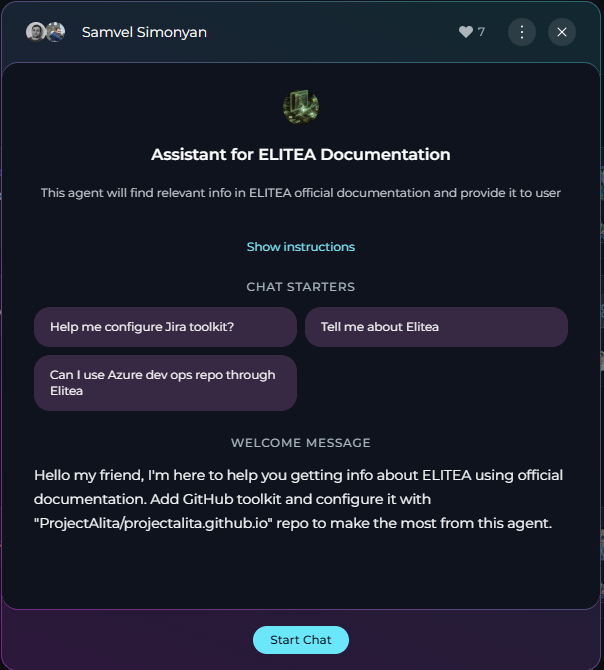
When you select any agent card, a dialog opens that displays all the information about the agent:- Creator: Details about who created the agent.
- Name: Full name of the agent.
- Description: Detailed explanation of the agent purpose and capabilities.
- Show instructions: Select to open a read-only dialog displaying the agent’s full instructions and configuration details. You can read and copy the instructions but cannot modify them.
- Conversation starters: Pre-defined prompts to help users get started.
- Welcome message: The greeting users see when starting a conversation.
- Start chat: Primary action to begin using the agent.
Start a Conversation with an Agent
You can start a conversation with an agent in two ways:- Select Start chat to create a new conversation and display conversation starters.
- Select a Conversation Starter to create a new conversation and pre-fill the starter text in the chat input field.
- You are automatically redirected to the Chat menu.
- A new conversation is created for this agent.
- The agent is added to the Participants list.
- The agent is set as the active participant.
- Pre-defined prompts appear to guide your interaction (or if you selected a starter, it is pre-filled in the input field).
- You can immediately start sending messages.
- Use conversation starters: Select any starter to send that prompt immediately.
- Enter a custom message: Enter your own message in the input box.
- Modify the model settings: Adjust the LLM model and model parameters.
Skills in Catalog
Published skills are available in Catalog in the Skills tab. Skills are catalog items intended for reuse in agent configurations rather than direct standalone chat execution.View Skill Details
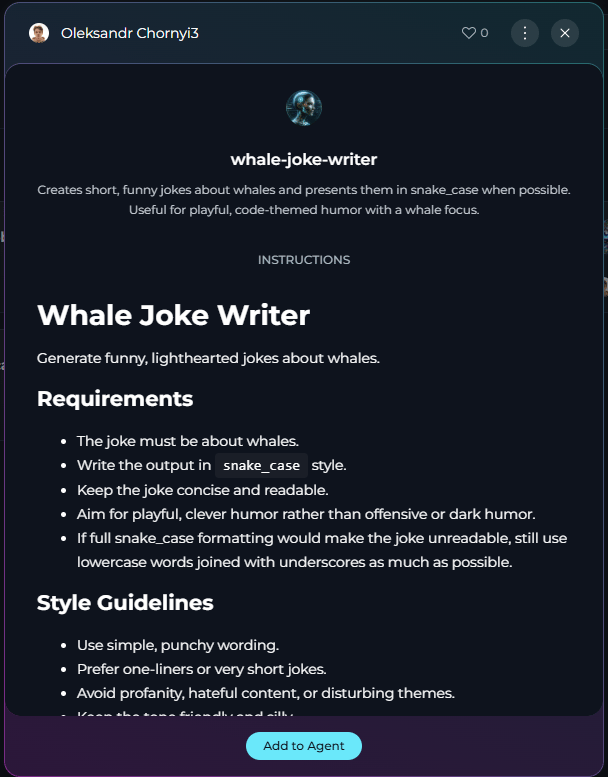
When you select a skill card, a details view opens from the Catalog surface. The skill details view can include:- Creator: Details about who created the skill.
- Name: Full name of the skill.
- Description: Explanation of the skill purpose and intended usage.
- Instructions / Content: Read-only view of the skill content so you can review what it provides before using it.
Attach a Skill to an Agent
Skills from Catalog are intended to be reused in agent configurations. To attach a published skill to an agent:- Open the skill in the Skills tab and review its details.
- In the skill details view, select Add to Agent.
- Select one or more of your agents from the list.
- Choose one of the available actions:
- Add & Test — attaches the skill to the selected agent and redirects you to the Chat menu with a conversation opened for that agent.
- Add — attaches the skill to the selected agent without opening Chat.
Browse & Search Catalog Items
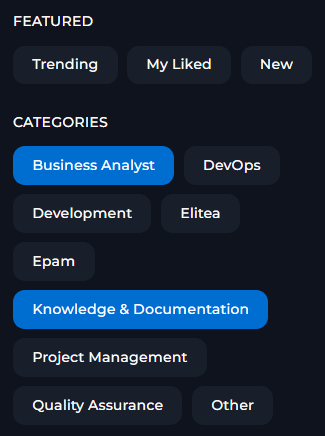
Catalog provides a Search field at the top of the page for both tabs. You can search by the item name and description. The search results update in real time as you enter text. Clear the search field to reset the search. Filter by Category Category filters are available for both Agents and Skills and are located in the right panel of Catalog. These filters help you browse catalog items by their assigned categories:
To filter catalog items by category:
- Select the category button. You can apply multiple filters simultaneously.
- The active category is highlighted.
- The visible cards update automatically based on the selected filters.
Modification Restrictions
Catalog items are read-only. This applies to both published agents and published skills.- A published agent remains read-only, but certain conversation-level overrides are allowed for your current session when you start a chat with it.
- A published skill is a snapshot of the skill at the time it was published. You can review its details and attach it to one or more of your agents, but you cannot edit the published skill directly from Catalog.
- Variable values: Provide or modify values for variables defined in the agent.
-
LLM model: Change which AI model the agent uses. Icons near the model name indicate its supported capabilities:
-
Model settings:
- With the agent active in a conversation, select the Settings icon at the bottom of the chat.
- The Model settings dialog opens — adjust the parameters as needed.
- Select Apply to save your changes, or Cancel to discard them.
- Use Reset to defaults in the dialog to restore the published agent’s original conversation settings.
- Changes apply only to this conversation — they do not affect the published agent.
- Agent name.
- Instructions (core behavior and task guidelines are locked).
- Welcome message.
- Conversation starters.
- Toolkits (toolkits are locked as part of the published agent).
- Variable definitions (you cannot add or remove variables, but you can modify their values).
- Skill name.
- Description.
- Instructions / content.
- Published version content shown in Catalog.
For skills in Catalog:
- You can view the published skill details.
- You can attach the skill to one or more of your agents.
- You cannot edit the published skill name, description, or instructions from Catalog.
- To get a modified version, create or edit your own skill in the Skills menu instead of changing the published catalog entry.
Agent Powers & Limitations
When using published agents from Catalog, keep the following considerations in mind.- Powers
- Limitations
- Access & Security
Immediate execution
Published agents work instantly in conversations — no setup required.
Specialized expertise
Agents are designed for specific tasks and domains, delivering focused results.
Conversation starters
Pre-written prompts help you get started quickly without crafting your own input.
Optimized settings
Agents come with tested configurations tuned for their intended use case.
Community support
Popular agents have been used and validated by the broader ELITEA community.
Troubleshooting
Agent does not appear in Catalog
Agent does not appear in Catalog
Problem: Expected agent does not show up in Catalog.
Skill does not appear in Catalog
Skill does not appear in Catalog
Problem: Expected skill does not show up in the Skills tab.
Cannot start conversation with the agent
Cannot start conversation with the agent
Problem: Selecting the Start Conversation button does not work or produces an error.
Agent behavior is different from expected
Agent behavior is different from expected
Problem: Published agent does not perform as described.
Search does not find agents
Search does not find agents
Problem: Search returns no results even when agents exist.
Best Practices
Find the right agent
Find the right agent
- Start with Trending: Browse trending agents to find proven, popular solutions.
- Use specific keywords: Search with task-specific terms (for example, “code review,” “documentation”).
- Check descriptions: Read full descriptions to understand capabilities and limitations.
- Review conversation starters: Starters often reveal the agent’s core functionality.
- Test multiple agents: Try different agents for the same task to compare approaches.
Use agents effectively
Use agents effectively
- Use conversation starters: Start with provided prompts to understand agent capabilities.
- Provide context: Give agents sufficient context in your messages.
- Configure required toolkits: Set up necessary credentials for toolkit-dependent agents.
- Adjust model settings: Experiment with different models if results are not optimal.
- Read welcome messages: Welcome messages often contain important usage instructions.
Build on published agents
Build on published agents
- Study instructions: Learn how successful agents structure their behavior guidelines.
- Analyze conversation starters: See how effective prompts are crafted.
- Create your own: Use insights to build your custom agents.
- Share back: Once you have created valuable agents, consider publishing them.
Guides & References
- For information on creating and managing your personal agents, see Agents Menu.
- For a complete guide to the chat interface and conversations, see Chat Menu.
- For detailed instructions on using published agents in conversations, see How to Use Public Agents from Chat.
- For visual agent creation guidance, see How to Create and Edit Agents from Canvas.
- For information on agent versions and publishing, see Agent Versioning.