

Introduction
This guide is your definitive resource for integrating and utilizing the Azure Repos (ADO Repos) toolkit within ELITEA. It provides a comprehensive, step-by-step walkthrough, from generating an Azure DevOps Personal Access Token to configuring the toolkit in ELITEA and effectively using it within your Agents, Pipelines, and Chat conversations. By following this guide, you will unlock the power of automated code management, streamlined Azure DevOps workflows, and enhanced team collaboration, all directly within the ELITEA platform. Brief Overview of Azure Repos Azure Repos is a core service within Azure DevOps, providing a robust and scalable cloud-hosted platform for version control and collaborative code management. It offers essential tools for development teams to manage their codebase efficiently and collaborate effectively throughout the software development lifecycle. Azure Repos includes features for:- Versatile Version Control: Supports both Git (distributed) and Team Foundation Version Control (TFVC - centralized), providing flexibility for diverse team preferences and project requirements.
- Enhanced Collaborative Development: Facilitates team-based software development with Pull Requests for code review, Branch Policies for quality enforcement, and Code Search for efficient code discovery.
- Seamless Azure DevOps Integration: Integrates with Azure Boards for work item tracking, Azure Pipelines for CI/CD, and Azure Test Plans for testing, creating a unified DevOps platform.
- Scalability and Reliability: Built on Azure cloud infrastructure, providing a highly scalable and reliable platform for repositories of any size.
- Advanced Security and Compliance: Offers granular access control, branch permissions, audit logging, and compliance certifications.
Toolkit’s Account Setup and Configuration in Azure DevOps
Account Setup If you do not yet have an Azure DevOps account and organization, please follow these steps to create one:- Visit Azure DevOps Website: Open your web browser and navigate to the Azure DevOps website: https://azure.devops.com/.
- Start Free or Sign In: Click on the “Start free” button to create a new Azure DevOps organization, or click “Sign in to Azure DevOps” if you already have an organization and wish to sign in.
-
Create an Organization (If Needed):
- If you are creating a new organization, click “Create an Organization” and follow the prompts to set up your new Azure DevOps organization. You will typically need to provide an organization name, choose a hosting region, and link it to an Azure account (if you have one).
- If you are signing into an existing organization, click “Sign in to Azure DevOps” and log in using your Microsoft account credentials.
- Enter Account Details: Provide the required details as prompted during the organization creation or sign-in process. This may include your email address, organization name, and region for hosting your Azure DevOps organization.
- Email Verification (If Prompted): Verify your email address if prompted by the Azure DevOps signup process. This usually involves clicking a confirmation link sent to your email inbox.
- Log In to Azure DevOps: Log in to the Azure DevOps dashboard using your newly created or existing Microsoft account credentials.
- Enable Basic Subscription (If Needed): Ensure that you have a Basic Azure DevOps subscription enabled for your account to access Azure Repos and related Azure DevOps services. For new organizations, the Basic subscription is typically enabled by default. For existing organizations, you may need to verify or enable it in the organization settings.
-
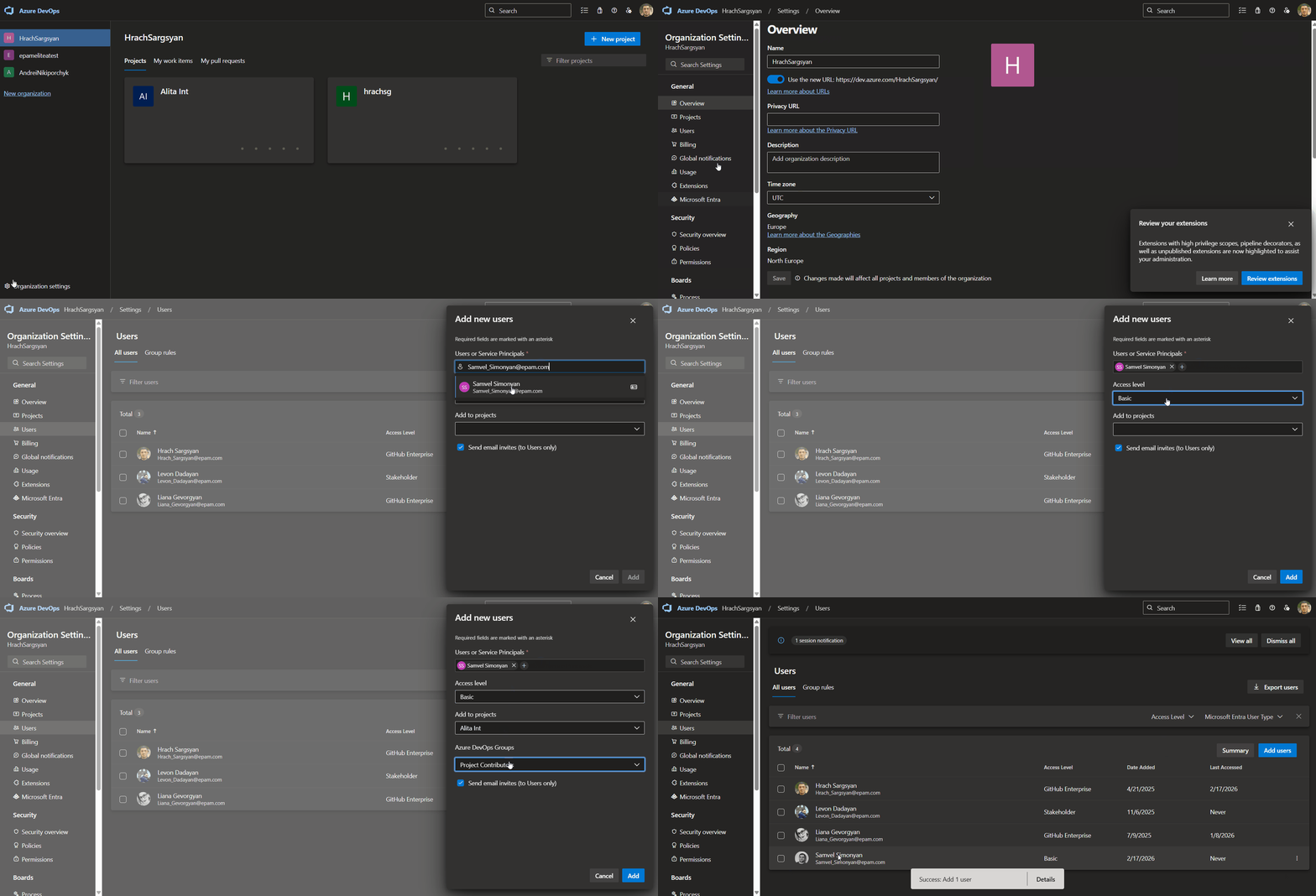
Add Users and Assign Basic Subscription (If Needed): To grant access to other users within your organization, navigate to your organization settings:
- Go to
https://dev.azure.com/{YourOrganizationName}/_settings/users(replace{YourOrganizationName}with your actual Azure DevOps organization name). - Click “Add users”.
- Enter the user’s email address or Microsoft account.
- Select “Basic” from the “Access level” dropdown to assign a Basic subscription to the user.
- Choose the relevant project(s) to grant the user access to.
- Click “Add” to add the user to your Azure DevOps organization.
- Go to
-
Add User to Project Member Group (If Needed): To ensure newly added users have the necessary permissions within a specific project:
- Navigate to “Project settings” for your desired project (located at the bottom left of the Azure DevOps interface).
- Select “Groups” under “Security” in the Project settings menu.
- Locate the “Project Valid Users” group (or a relevant group for your project’s members) and click on the group name.
- Click on the “Members” tab within the group details.
- Click “Add users or groups”.
- Enter the email address or name of the user you want to add to the project member group and click “Add”.
-
Verify Repo Access: After completing user setup, refresh the Azure DevOps page and ensure that the “Repos” feature is enabled and visible for your account within your Azure DevOps project. This confirms that you have successfully set up your Azure DevOps account and have access to Azure Repos.
Generate a Personal Access Token (PAT)
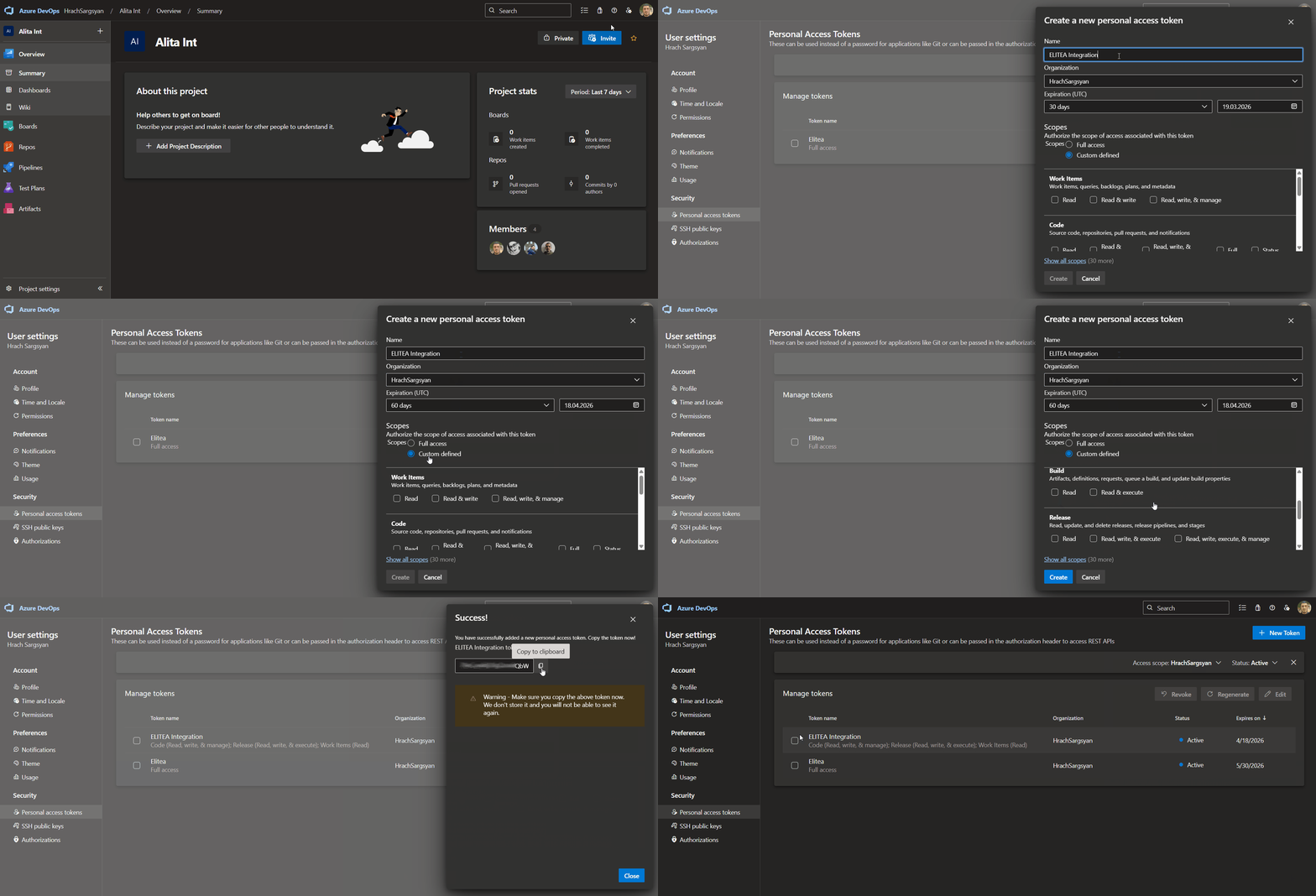
For secure integration with ELITEA, it is essential to use an Azure DevOps Personal Access Token (PAT). This method is significantly more secure than using your primary Azure DevOps account password directly and allows you to precisely control the permissions granted to ELITEA. Follow these steps to generate a Personal Access Token (PAT) in Azure DevOps:-
Log in to Azure DevOps: Access your Azure DevOps organization by navigating to
https://dev.azure.com/and logging in with your credentials. - Access User Settings: Click on the User settings icon in the top right corner, next to your profile picture. From the dropdown menu, select “Personal access tokens”.
- Generate New Token: Click the ”+ New Token” button to create a new PAT.
-
Configure Token Details: In the “Create a new personal access token” panel, configure the following:
- Name: Enter a descriptive label (e.g., “ELITEA Integration” or “ELITEA ADO Access”)
- Organization: Select “All accessible organizations” or choose specific organizations
- Expiration: Set an expiration date for enhanced security
- Scopes: Grant only the minimum necessary permissions
- Custom Defined - Select to manually choose granular scopes
- Code:
- Read & write (For full repository access)
- Read (If agent only needs to read repository content)
- Work items:
- Read (To read work item details)
- Write (To create or update work items - only if needed)
- Additional Scopes for Specific Functionality (Grant only if needed):
- Build (For Azure Pipelines builds interaction)
- Release (For Azure Pipelines releases interaction)
- Test Management (For Azure Test Plans interaction)
- Create Token: Click the “Create” button to generate your PAT.
-
Copy and Store Token: Copy the generated token immediately - this is your only chance to see it. Store it securely in a password manager or ELITEA’s Secrets feature.
System Integration with ELITEA
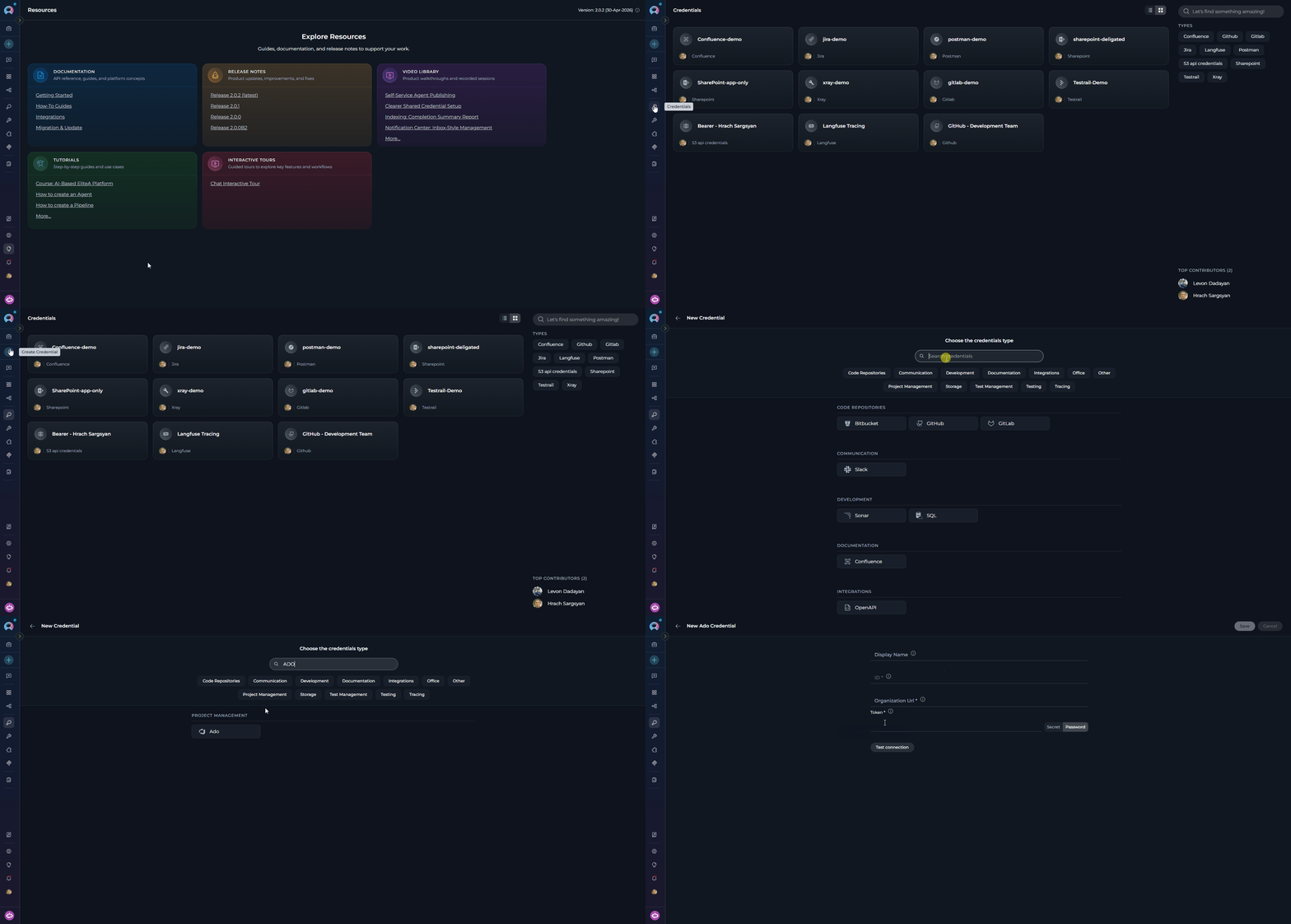
To integrate Azure Repos with ELITEA, you need to follow a three-step process: Create Credentials → Create Toolkit → Use in Agents/Pipelines/Chat. This workflow ensures secure authentication and proper configuration.Step 1: Create Azure DevOps Credentials
Before creating a toolkit, you must first create Azure DevOps credentials in ELITEA:- Navigate to Credentials Menu: Open the sidebar and select Credentials.
-
Create New Credential: Click the
+ Createbutton. -
Select Azure DevOps: Choose Ado as the credential type.
-
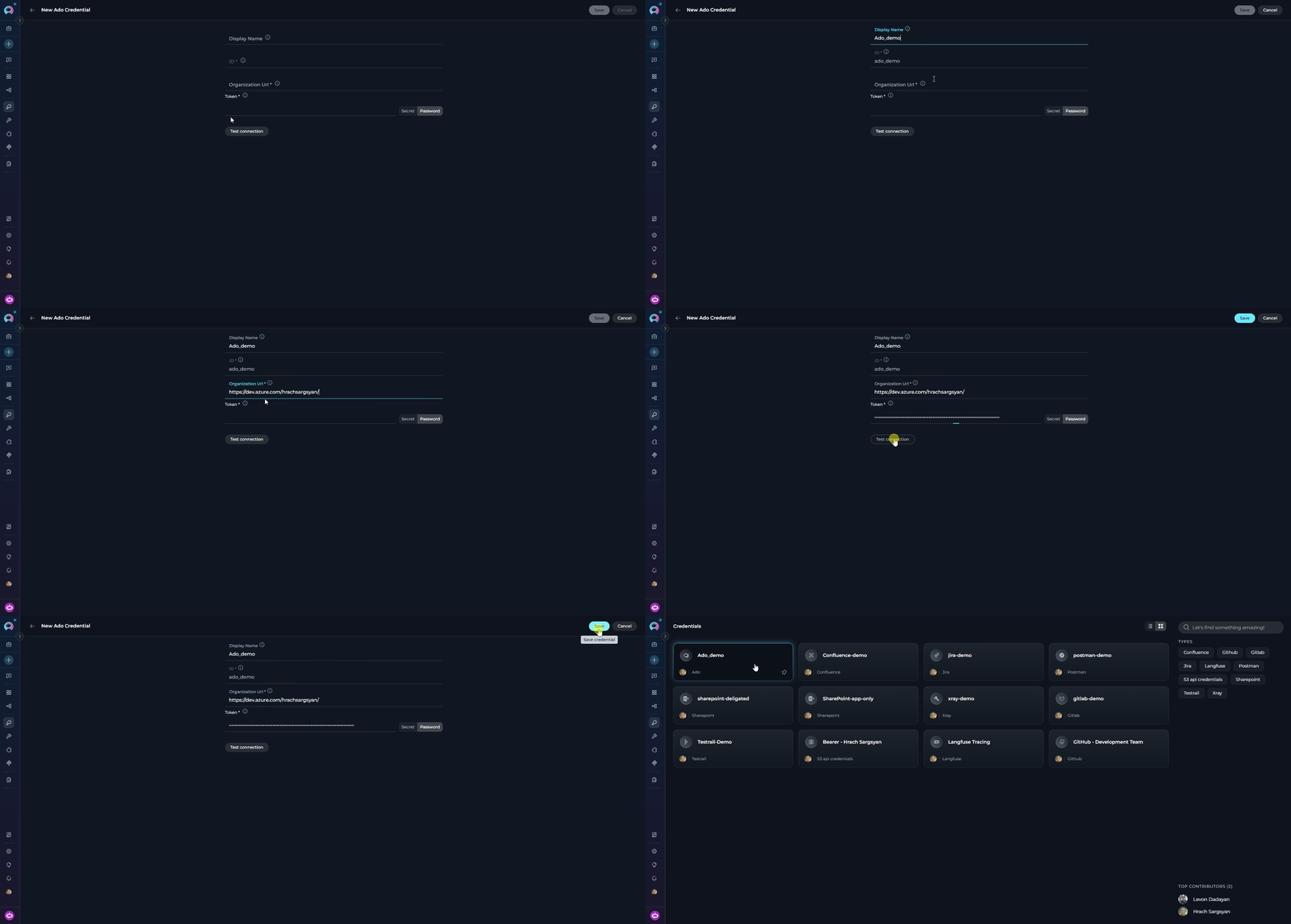
Configure Credential Details:
- Test Connection: Click Test Connection to verify your credentials are valid and ELITEA can connect to Azure DevOps
-
Save Credential: Click Save to create the credential. It will be available in the Credentials dashboard for use in toolkit configurations.
Step 2: Create Azure Repos Toolkit
Once your credentials are configured, create the Azure Repos toolkit:- Navigate to Toolkits Menu: Open the sidebar and select Toolkits & Indexes.
-
Create New Toolkit: Click the
+ Toolkitbutton. -
Select Azure Repos: Choose Azure Repos (ADO Repos) from the list of available toolkit types.
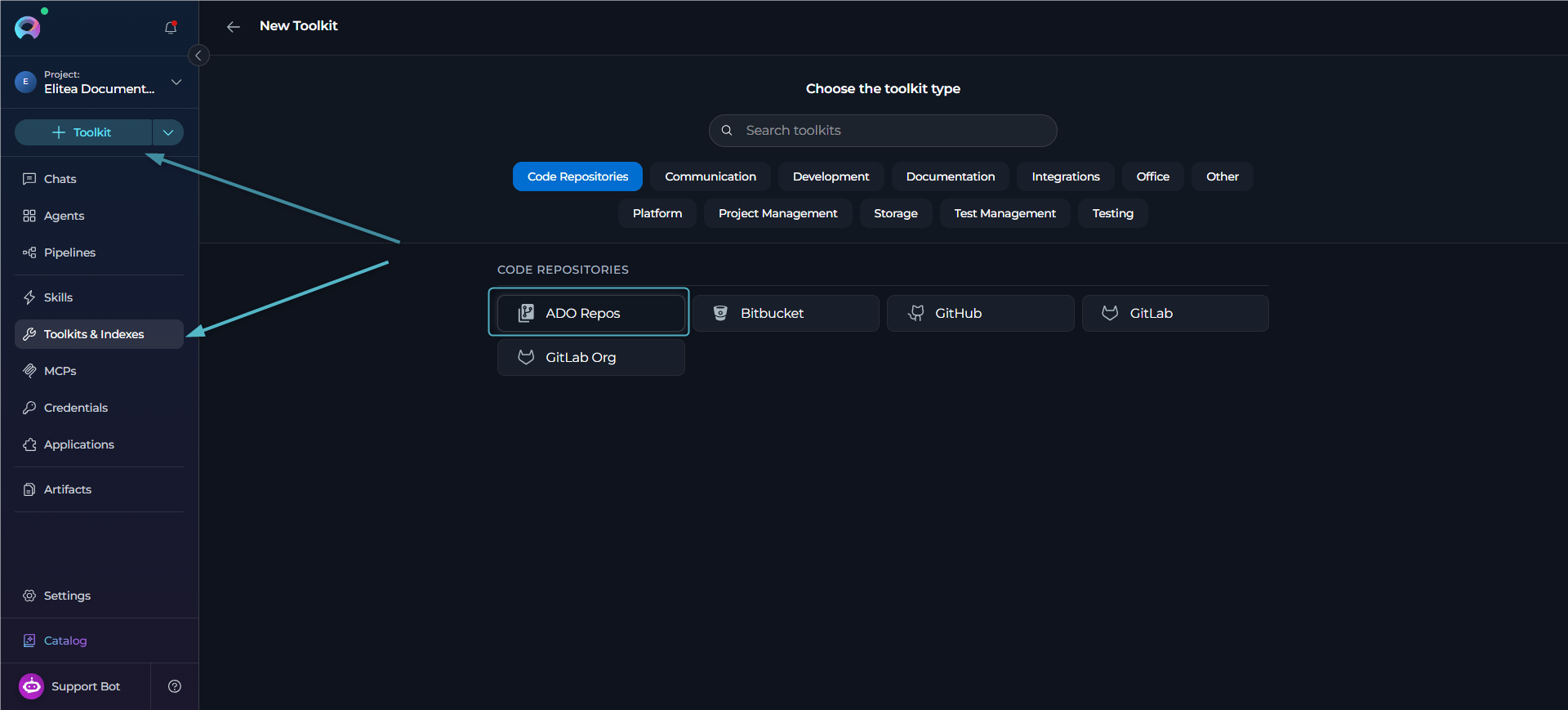
-
Configure Toolkit Settings:
-
Enable Desired Tools: In the “Tools” section, select the checkboxes next to the specific Azure Repos tools you want to enable. Enable only the tools your agents will actually use to follow the principle of least privilege
- Make Tools Available by MCP - (optional checkbox) Enable this option to make the selected tools accessible through the external MCP clients to use the toolkit’s capabilities
- Save Toolkit: Click Save to create the toolkit.
repository_id (name or ID), depending on how many repositories are configured:Available Tools
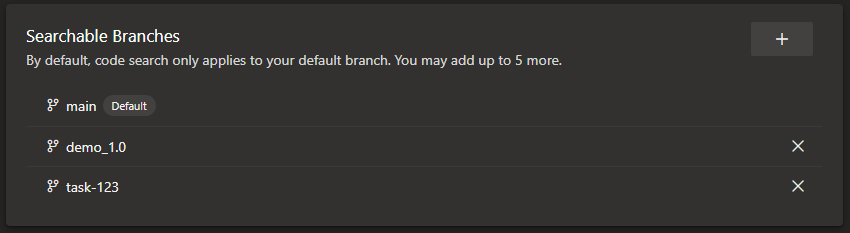
- Navigate to Project Settings → Repositories → Options → Searchable branches in your Azure DevOps project
- Add the specific branches you want to search
- Wait for Azure DevOps to index those branches
- Forked repositories are never indexed by Azure DevOps Code Search
- This indexing is handled on the Azure DevOps side and is separate from ELITEA’s Index data tool functionality
Testing Toolkit Tools
After configuring your Azure Repos toolkit, you can test individual tools directly from the Toolkit detailed page using the Test Settings panel. This allows you to verify that your credentials are working correctly and validate tool functionality before adding the toolkit to your workflows. General Testing Steps:- Select LLM Model: Choose a Large Language Model from the model dropdown in the Test Settings panel
- Configure Model Settings: Adjust model parameters like Creativity, Max Completion Tokens, and other settings as needed
- Select a Tool: Choose the specific Azure Repos tool you want to test from the available tools
- Provide Input: Enter any required parameters or test queries for the selected tool
- Run the Test: Execute the tool and wait for the response
- Review the Response: Analyze the output to verify the tool is working correctly and returning expected results
Step 3: Add Azure Repos Toolkit to Your Workflows
Now you can add the configured Azure Repos toolkit to your agents, pipelines, or use it directly in chat:In Agents:
- Navigate to Agents: Open the sidebar and select Agents.
- Create or Edit Agent: Either create a new agent or select an existing agent to edit.
-
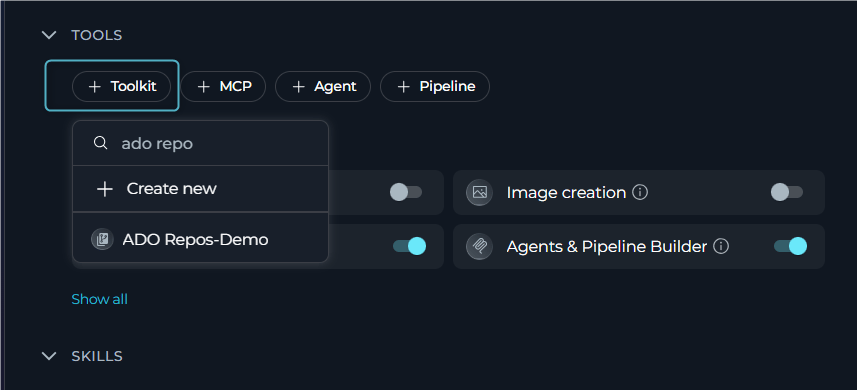
Add Azure Repos Toolkit:
- In the “TOOLS” section of the agent configuration, click the “+Toolkit” icon
- Select your configured Azure Repos toolkit from the dropdown list
- The toolkit will be added to your agent with the previously configured tools enabled
In Pipelines:
- Navigate to Pipelines: Open the sidebar and select Pipelines.
- Create or Edit Pipeline: Either create a new pipeline or select an existing pipeline to edit.
-
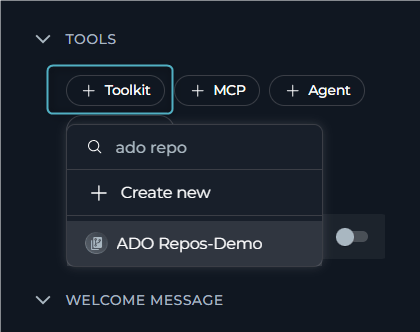
Add Azure Repos Toolkit:
- In the “TOOLS” section of the pipeline configuration, click the “+Toolkit” icon
- Select your configured Azure Repos toolkit from the dropdown list
- The toolkit will be added to your pipeline with the previously configured tools enabled
In Chat:
- Navigate to Chat: Open the sidebar and select Chat.
- Start New Conversation: Click + Conversation or open an existing conversation.
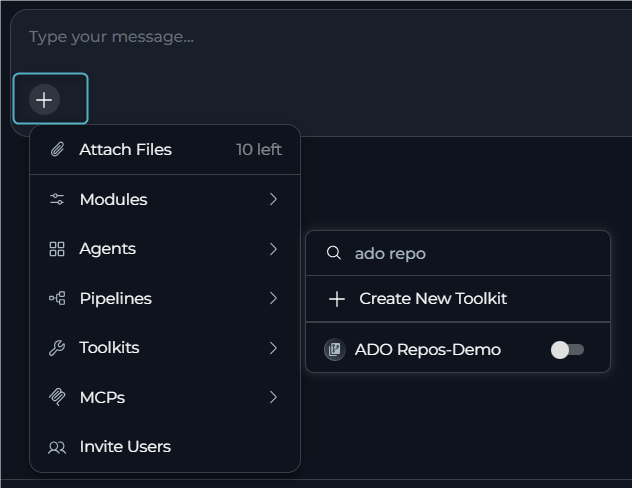
- Add Ado Repos Toolkit to Conversation:
- Click the
+icon in the chat input toolbar (tooltip: Add files, agents, toolkits and more…) - Hover over Toolkits in the popup menu
- Search for your Ado Repos toolkit by name
- Enable the toolkit to add it to your conversation
- Click the
- Verify Toolkit Added: The Ado Repos toolkit appears in the PARTICIPANTS panel on the right side under the Toolkits section.
- Use Toolkit in Chat: You can now directly interact with your Azure DevOps Repos by asking questions or requesting actions that will trigger the Ado Repos toolkit tools.
- “List all open pull requests in the repository that are in review.”
- “Create a new branch called ‘feature-authentication’ from the main branch.”
- “Show me the content of the README.md file.”
- “Create a pull request to merge ‘feature-login’ into ‘develop’ with the title ‘Add user authentication’.”
Instructions and Prompts for Using the Azure Repos Toolkit
To effectively instruct your ELITEA Agent to use the Azure Repos toolkit, you need to provide clear and precise instructions within the Agent’s “Instructions” field. These instructions are crucial for guiding the Agent on when and how to utilize the available Azure Repos tools to achieve your desired automation goals.Instruction Creation for Agents
When crafting instructions for the Azure Repos toolkit, especially for OpenAI-based Agents, clarity and precision are paramount. Break down complex tasks into a sequence of simple, actionable steps. Explicitly define all parameters required for each tool and guide the Agent on how to obtain or determine the values for these parameters. OpenAI Agents respond best to instructions that are:repository_id in your tool instructions. For example: “Tool: Use the ‘read_file’ tool. Parameters: repository_id: ‘backend-api’, file_path: ‘README.md’.”- Direct and Action-Oriented: Employ strong action verbs and clear commands to initiate actions. For example, “Use the ‘read_file’ tool…”, “Create a branch named…”, “List all open pull requests…”.
-
Parameter-Centric: Clearly enumerate each parameter required by the tool. For each parameter, specify:
- Its name (exactly as expected by the tool)
- The format or type of value expected
- How the Agent should obtain the value – whether from user input, derived from previous steps in the conversation, retrieved from an external source, or a predefined static value
- Contextually Rich: Provide sufficient context so the Agent understands the overarching objective and the specific scenario in which each Azure Repos tool should be applied within the broader workflow. Explain the desired outcome or goal for each tool invocation.
- Step-by-Step Structure: Organize instructions into a numbered or bulleted list of steps for complex workflows. This helps the Agent follow a logical sequence of actions.
- Add Conversation Starters: Include example conversation starters that users can use to trigger this functionality. For example, “Conversation Starters: ‘Show me the README file’, ‘What’s in the README.md?’, ‘Display the project documentation’”
- State the Goal: Begin by clearly stating the objective you want to achieve with this step. For example, “Goal: To retrieve the content of the ‘README.md’ file.”
- Specify the Tool: Clearly indicate the specific Azure Repos tool to be used for this step. For example, “Tool: Use the ‘read_file’ tool.”
-
Define Parameters: Provide a detailed list of all parameters required by the selected tool. For each parameter:
- Parameter Name:
<Parameter Name as defined in tool documentation> - Value or Source:
<Specify the value or how to obtain the value. Examples: "user input", "from previous step", "hardcoded value 'main'", "value of variable X">
- Parameter Name:
- Describe Expected Outcome (Optional but Recommended): Briefly describe the expected result or outcome after the tool is successfully executed. For example, “Outcome: The Agent will provide the content of the ‘README.md’ file.”
- Add Conversation Starters: Include example conversation starters that users can use to trigger this functionality. For example, “Conversation Starters: ‘Show me the README file’, ‘What’s in the README.md?’, ‘Display the project documentation’”
Chat Usage Examples by Tool Category
The following examples demonstrate how to interact with the Azure Repos toolkit in ELITEA Chat, organized by functional categories. Each example shows the user request and the expected agent behavior.Branch Management - Create Branch
Branch Management - Create Branch
- Uses
create_branchtool with parameters:- branch_name: “feature-user-authentication”
- base_branch: “main”
File Operations - Read File
File Operations - Read File
- Uses
read_filetool with parameters:- file_path: “README.md”
File Operations - Update File
File Operations - Update File
- Uses
read_fileto get current package.json content - Updates the version field
- Uses
update_filetool with parameters:- file_path: “package.json”
- content: [updated content]
- commit_message: “Update version to 2.0.0”
Pull Request Management - Create Pull Request
Pull Request Management - Create Pull Request
- Uses
create_pull_requesttool with parameters:- source_branch: “feature-login”
- target_branch: “develop”
- title: “Add user login functionality”
- description: [generated or provided description]
Pull Request Management - List Open Pull Requests
Pull Request Management - List Open Pull Requests
- Uses
list_open_pull_requeststool - Filters and formats the results
Work Item Integration - Get Work Items
Work Item Integration - Get Work Items
- Uses
get_work_itemstool with parameters:- pull_request_id: 247
Repository Discovery - List Repositories
Repository Discovery - List Repositories
- Uses
list_repositoriestool
Multi-Repository - Targeting a Specific Repository
Multi-Repository - Targeting a Specific Repository
- Uses
read_filetool with parameters:- file_path: “README.md”
- repository_id: “backend-api”
Troubleshooting
Credential Not Appearing in Toolkit Configuration
Credential Not Appearing in Toolkit Configuration
- Check Credential Scope: Ensure you’re working in the same workspace/project where the credential was created. Private credentials are only visible in your Private workspace, while project credentials are visible within the specific team project.
- Verify Credential Creation: Go to the Credentials menu and confirm that your Azure DevOps credential was successfully saved.
- Credential Type Match: Ensure you selected “Ado” as the credential type when creating the credential.
Connection Errors
Connection Errors
- Verify Organization URL: Ensure that the Organization Url field in the credential configuration is correctly set to your Azure DevOps organization URL in the format:
https://dev.azure.com/YourOrganization. Double-check spelling and capitalization. - Check Personal Access Token (PAT): Double-check that the Personal Access Token you have provided is accurate, has not expired, and is valid for your Azure DevOps account and the target project. Carefully re-enter or copy-paste the token to rule out typos.
- Verify Token Scopes: Review the scopes/permissions granted to your Personal Access Token in Azure DevOps. Ensure that the token has the necessary scopes (e.g.,
vso.code,vso.code_write,vso.work) for the specific Azure Repos tools your Agent is attempting to use. Insufficient scopes are a common cause of connection and permission errors. - Network Connectivity: Confirm that both your ELITEA environment and the Azure DevOps service are connected to the internet and that there are no network connectivity issues, firewalls, or proxies blocking the integration.
Incorrect Repository or Project Names
Incorrect Repository or Project Names
- Verify Project Name: Carefully verify that you have entered the correct Azure DevOps Project name in the credential configuration. Pay close attention to capitalization, spelling, and spacing. Even minor typos can cause errors.
- Check Repository Value: Ensure that the repository name or ID you are using exactly matches an entry in the toolkit’s Repositories field (or, if that field is empty, an actual repository in the project). Use the List repositories tool to confirm valid values.
- Verify Branch Names: Ensure branch names are spelled correctly and exist in the repository. Branch names in Git are case-sensitive. Use
list_branches_in_repoto verify available branches.
Repository Parameter Errors in Multi-Repository Toolkits
Repository Parameter Errors in Multi-Repository Toolkits
- The toolkit’s Repositories field is empty, so
repository_idmust be supplied on every tool call — but the Agent (or your instructions) didn’t provide one. - The toolkit’s Repositories field lists specific repositories, and the Agent tried to target one that isn’t in that list.
- If the toolkit has no configured repositories, instruct the Agent to call List repositories first to discover valid IDs/names, then pass one explicitly as
repository_idon subsequent tool calls. - If the toolkit has configured repositories, verify the
repository_idvalue matches one of them exactly (both names and IDs are accepted, but the value must match a configured entry). - To make an additional repository available, edit the toolkit and add it to the Repositories field, separated by a comma.
Repository ID Retrieval Issues
Repository ID Retrieval Issues
- Verify curl Command Format: Double-check that you’ve correctly replaced
{PAT},{organization}, and{project}placeholders, and that the PAT is formatted correctly:curl -u {PAT}:(note the colon after PAT). - Use the Repository Name Instead: The Repositories field also accepts repository names directly, so an ID is not strictly required.
Toolkit Configuration Issues
Toolkit Configuration Issues
- Verify Repository Value(s):.
- Check Branch Names: Verify that the base branch and active branch names match actual branches in your repository (commonly
mainormaster). - Credential Selection: Ensure you have selected the correct credential from the dropdown in the toolkit configuration.
- Refresh Configuration: After updating credential details, refresh or recreate the toolkit to ensure it picks up the latest configuration.
- PgVector Configuration: If using vector search tools, ensure PgVector configuration and embedding model are properly configured.
Branch Not Found Error at Toolkit Creation
Branch Not Found Error at Toolkit Creation
- Open your repository in Azure DevOps and verify the exact default branch name — it may be
main,master,develop, or a custom name - Correct the branch name(s) in the toolkit settings — ensure capitalization matches exactly
- If the branch was recently deleted or renamed, update the toolkit configuration accordingly
- After saving the toolkit, use the List branches in repo tool to confirm available branches
Search Code Returns No Results or Cannot Search Non-Default Branch
Search Code Returns No Results or Cannot Search Non-Default Branch
-
Add Branch to Searchable Branches:
- Navigate to Project Settings → Repositories → Options → Searchable branches in your Azure DevOps project
- Click Add branch and select the branch you want to search
- Wait for Azure DevOps to index the newly added branch (this may take a few minutes depending on repository size)
- Verify Default Branch: If you’re trying to search the default branch and still getting no results, verify that Code Search is enabled for your Azure DevOps organization
- Forked Repository Limitation: If you’re working with a forked repository, note that Azure DevOps Code Search does not index forked repositories. You must search the original repository instead.
- Indexing vs ELITEA Indexing: Remember that this Azure DevOps indexing is separate from ELITEA’s Index data tool functionality. The Search code tool uses Azure DevOps’ native Code Search, while Search index uses ELITEA’s own indexing.
Support Contact
If you encounter issues not covered in this guide or need additional assistance with Azure Repos integration, please refer to Contact Support for detailed information on how to reach the ELITEA Support Team.FAQ
Can I use my regular Azure DevOps password directly for the ELITEA integration instead of a Personal Access Token?
Can I use my regular Azure DevOps password directly for the ELITEA integration instead of a Personal Access Token?
- Navigate to Azure DevOps User Settings → Personal Access Tokens
- Click “New Token”
- Configure name, expiration, and scopes
- Copy the generated token immediately (you won’t be able to see it again)
- Store it securely in ELITEA Secrets or a password manager
What scopes/permissions are absolutely necessary for the Azure DevOps Personal Access Token to work with ELITEA?
What scopes/permissions are absolutely necessary for the Azure DevOps Personal Access Token to work with ELITEA?
read_file, list_files, get_pull_request):vso.code(Code - Read)vso.work(Work Items - Read) - if using work item tools
create_file, update_file, delete_file):vso.code(Code - Read)vso.code_write(Code - Read & Write)
create_pull_request, comment_on_pull_request):vso.code(Code - Read)vso.code_write(Code - Read & Write)
get_work_items):vso.work(Work Items - Read)vso.work_write(Work Items - Read & Write) if creating/updating work items
vso.code_full(Full access to code)vso.work(Work Items access)
What format does the Repositories field expect, and can I enter more than one?
What format does the Repositories field expect, and can I enter more than one?
my-serviceExample (multiple): my-service, my-service-testsCan a single Azure Repos toolkit work with more than one repository?
Can a single Azure Repos toolkit work with more than one repository?
How do I switch from the old Agent-based configuration to the new Credentials + Toolkit workflow?
How do I switch from the old Agent-based configuration to the new Credentials + Toolkit workflow?
- Create an Azure DevOps Credential: Navigate to Credentials menu → Create new credential → Select “Ado” type → Add your Organization URL, Project, and PAT
- Create an Azure Repos Toolkit: Navigate to Toolkits menu → Create toolkit → Select “Azure Repos (ADO Repos)” → Link your credential → Configure repository ID and branches → Select tools to enable
- Add Toolkit to Workflows: Add the toolkit to your agents, pipelines, or chat sessions
- Credentials stored securely in one place
- Reuse same credential across multiple toolkits
- Easier to update authentication without reconfiguring agents
- Better audit trail and access control
- Separate concerns: authentication vs. toolkit configuration
Can I use the same Azure DevOps credential across multiple toolkits and agents?
Can I use the same Azure DevOps credential across multiple toolkits and agents?
- One Azure DevOps credential can be used by multiple Azure Repos toolkits
- Each toolkit can be configured for different repositories or with different tool selections
- Each toolkit can be added to multiple agents, pipelines, and chat sessions
- Create one Azure DevOps credential with your Personal Access Token
- Create multiple toolkits using the same credential:
- Toolkit A: Frontend repository
- Toolkit B: Backend repository
- Toolkit C: Documentation repository
- Add different toolkits to different agents based on their purpose
Can I use Azure Repos toolkits with private repositories?
Can I use Azure Repos toolkits with private repositories?
- Personal Access Token with appropriate scopes (
vso.codefor read,vso.code_writefor write operations) - Your Azure DevOps account must have appropriate access to the private repository (project member with Contributor or higher role)
- The project containing the repository must be accessible to your account
Can I use the same toolkit across different workspaces (Private vs. Team Projects)?
Can I use the same toolkit across different workspaces (Private vs. Team Projects)?
- Credentials created in Private workspace are only visible to you
- Toolkits using private credentials are only accessible in your private workspace
- Cannot be shared with team members
- Credentials created in a team project are visible to all project members
- Toolkits using project credentials can be used by all project members
- Ideal for team collaboration
- Use Private workspace credentials for personal repositories or testing
- Use Team Project credentials for shared repositories and team collaboration
- Create separate toolkits for different repositories even if using the same credential
Why am I getting 'Repository not found' errors even though the repository exists?
Why am I getting 'Repository not found' errors even though the repository exists?
- Verify you’re using the repository UUID, not the repository name
- Re-run the repository ID retrieval command to get the correct ID
- Ensure there are no extra spaces or characters in the repository ID
- Verify the project name in your credential matches exactly (case-sensitive)
- Check for spelling errors or extra spaces
- Ensure you’re using the project name, not the project ID
- Confirm your account has access to the project and repository
- Verify you’re a member of the project in Azure DevOps
- Check that the repository hasn’t been deleted or moved
- Ensure the organization URL is correct:
https://dev.azure.com/YourOrganization - Check for typos in the organization name
- Test the credential connection in ELITEA Credentials menu
- Verify you can access the repository directly in Azure DevOps web interface
- Re-create the credential with fresh values
- Contact your Azure DevOps administrator to verify access permissions
How do I handle PAT expiration and rotation?
How do I handle PAT expiration and rotation?
- Generate New PAT: Create a new PAT in Azure DevOps with the same scopes
- Update Secret (Recommended): If using ELITEA Secrets, update the secret value with the new PAT
- Update Credential (Alternative): If not using Secrets, edit the credential and update the PAT directly
- Test Connection: Use the “Test Connection” button to verify the new PAT works
- No Toolkit Changes Needed: All toolkits using this credential will automatically use the new PAT
- Set PAT expiration dates (recommended: 90 days or less)
- Document when PATs need renewal
- Use ELITEA Secrets for easier rotation
- Consider using service accounts for production agents
- Update token in one place
- All credentials referencing the secret automatically updated
- Better audit trail
- Reduced risk of exposing tokens
Can I read only specific lines of a file instead of the entire file?
Can I read only specific lines of a file instead of the entire file?
read_file tool supports partial file reading using two optional parameters:offset— the 1-indexed starting line number (e.g.,offset=50starts reading from line 50)limit— the maximum number of lines to return from the offset (e.g.,limit=30returns 30 lines)
offset is omitted, reading starts from the beginning. If limit is omitted, all lines from the offset to the end of the file are returned.Can the agent add inline code comments to specific lines in a pull request?
Can the agent add inline code comments to specific lines in a pull request?
comment_on_pull_request tool supports inline comments targeting specific file lines or line ranges using the inline_comments parameter:right_line to target a single line, or right_range to target a range of lines. Use left_line/left_range for comments on the old (base) version of the file.- Create and Edit Agents from Canvas - Learn how to quickly create and edit agents directly from chat canvas for rapid prototyping and workflow automation.
- Create and Edit Toolkits from Canvas - Discover how to create and configure Azure Repos toolkits directly from chat interface for streamlined workflow setup.
- Create and Edit Pipelines from Canvas - Guide to building and modifying pipelines from chat canvas for automated Azure DevOps workflows.
- Indexing Overview - Comprehensive guide to understanding ELITEA’s indexing capabilities and how to leverage them for enhanced search and discovery.
- Index Repo Data - Detailed instructions for indexing repository data to enable advanced search, analysis, and AI-powered insights across your codebase.
- Azure DevOps REST API Documentation: https://learn.microsoft.com/en-us/rest/api/azure/devops/ - Navigate to the official Azure DevOps REST API reference for comprehensive endpoint documentation and usage examples.
- Personal Access Tokens Guide: https://learn.microsoft.com/en-us/azure/devops/organizations/accounts/use-personal-access-tokens-to-authenticate - Learn how to create, manage, and secure Personal Access Tokens for Azure DevOps authentication.
- Repository Permissions Reference: https://learn.microsoft.com/en-us/azure/devops/repos/git/set-git-repository-permissions - Understand Azure DevOps repository permission levels and how to configure access control.
- Azure DevOps Services REST API Overview: https://learn.microsoft.com/en-us/azure/devops/integrate/ - Access comprehensive integration documentation, including REST APIs, webhooks, and service hooks.