

Introduction
Purpose of this Guide This guide is your definitive resource for integrating and utilizing the OpenAPI toolkit within ELITEA. It provides a comprehensive, step-by-step walkthrough, from understanding OpenAPI specifications to configuring the toolkit in ELITEA and effectively using it within your Agents. By following this guide, you will unlock the power of universal REST API integration, enabling your ELITEA agents to interact with virtually any API that provides an OpenAPI specification. This integration empowers you to leverage AI-driven automation to extend ELITEA’s capabilities across diverse platforms and services, transforming API documentation into actionable agent tools. Brief Overview of OpenAPI OpenAPI (formerly known as Swagger) is an industry-standard specification format for describing REST APIs. It provides a language-agnostic way to document API endpoints, parameters, request/response formats, and authentication methods. The OpenAPI specification serves as a contract between API providers and consumers, making API integration predictable and automated. Key Features of OpenAPI:- Standardized API Documentation: Define API structure using JSON or YAML format with consistent schema
- Operation Definitions: Each API endpoint has an operationId, description, parameters, and response schemas
- Authentication Schemes: Built-in support for various authentication methods including API Key, OAuth 2.0, and Basic Auth
- Request/Response Validation: Schema definitions ensure data consistency and validation
- Tool Generation: Enables automated tool creation from API documentation
- Multi-Language Support: Works across programming languages and platforms
- JSON (recommended for consistency and broad compatibility)
- YAML (also fully supported for human readability)
- URL (pointing to publicly accessible OpenAPI specifications)
- Raw text (containing complete specification content)
Toolkit’s Account Setup and Configuration
API Access Requirements
Before integrating with ELITEA, ensure you have the following from your API provider:- OpenAPI Specification File: The complete API documentation in OpenAPI format (JSON or YAML)
- API Access: Valid credentials or API keys if the API requires authentication
- Base URL: The API’s base URL
- From API Provider: Most API providers publish their OpenAPI specifications in their developer documentation. Look for links labeled “API Specification,” “OpenAPI Schema,” or “Swagger Documentation.”
- Generate from Code: If you have access to the API implementation, many frameworks can automatically generate OpenAPI specifications (e.g., FastAPI for Python, Swashbuckle for .NET, SpringDoc for Java).
- Manual Creation: Use Swagger Editor to create or edit OpenAPI specifications manually.
- Convert YAML to JSON: If you have a YAML specification and prefer JSON, use Swagger Editor or online conversion tools.
Authentication Credentials
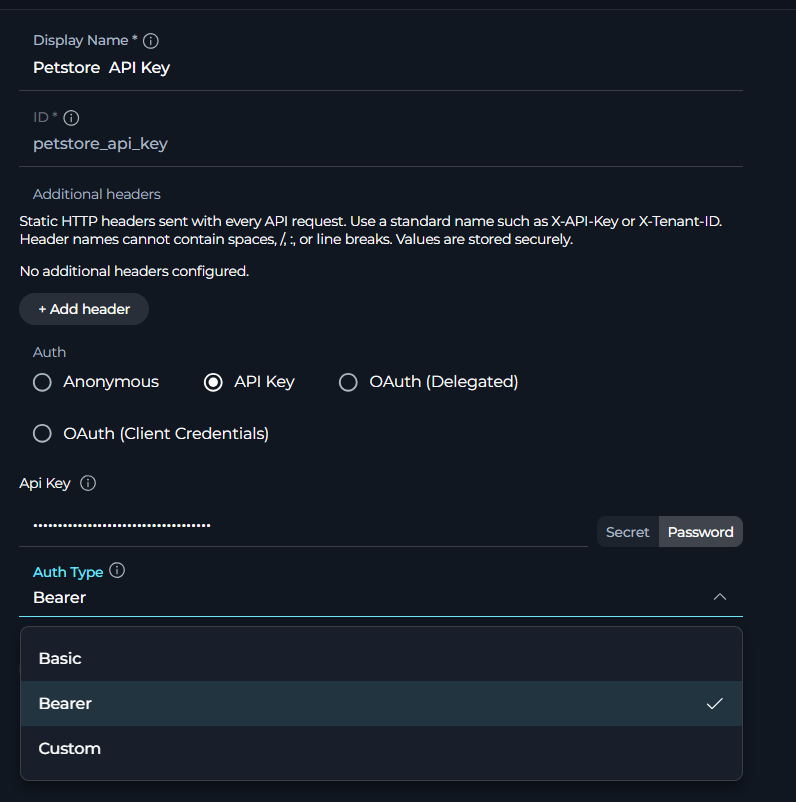
Depending on your API’s security requirements, you may need: For API Key Authentication:- API Key or Token value
- Authentication type (Bearer, Basic, or Custom Header)
- Custom header name (if using Custom authentication type)
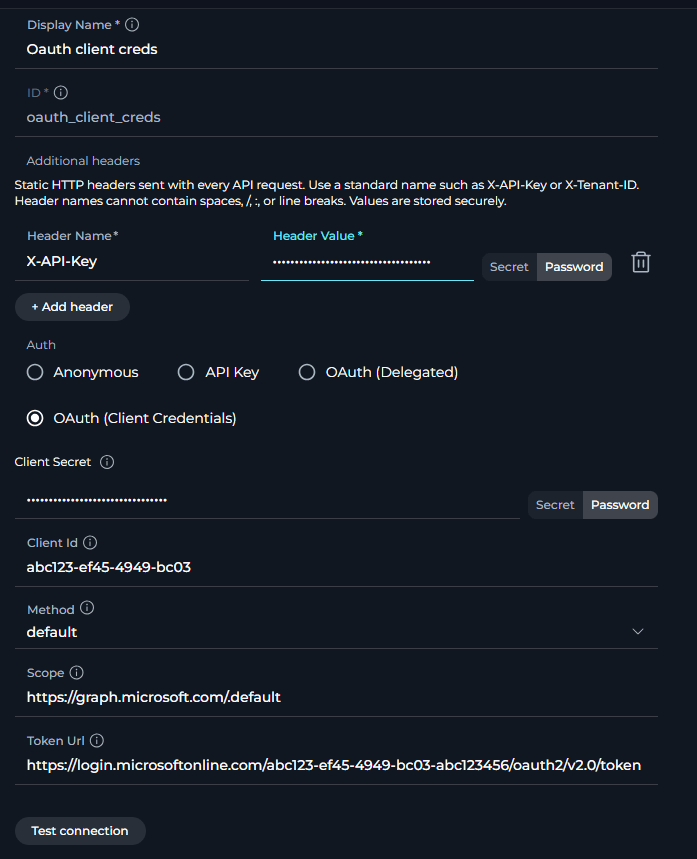
- Client ID
- Client Secret
- Token URL (OAuth token endpoint)
- Authorization URL (optional, for authorization code flows)
- Scope (optional, space-separated permissions)
- No authentication credentials required
- One or more custom header name/value pairs to send with every request (for example, an API gateway key or tenant ID alongside your primary authentication)
System Integration with ELITEA
To integrate OpenAPI with ELITEA, you need to follow a three-step process: Create Credentials → Create Toolkit → Use in Agents. This workflow ensures secure authentication and proper configuration.Step 1: Create OpenAPI Configuration Credentials
Before creating a toolkit, you must first create OpenAPI Configuration credentials in ELITEA:- Navigate to Credentials Menu: Open the sidebar and select Credentials.
-
Create New Credential: Click the
+ Createbutton. -
Select OpenAPI Configuration: Choose OpenAPI Configuration as the credential type.

-
Configure Credential Details:
- Fill Authentication Fields: Depending on your selected authentication method (see Authentication Methods Reference below for detailed field descriptions)
-
Save Credential: Click Save to create the credential
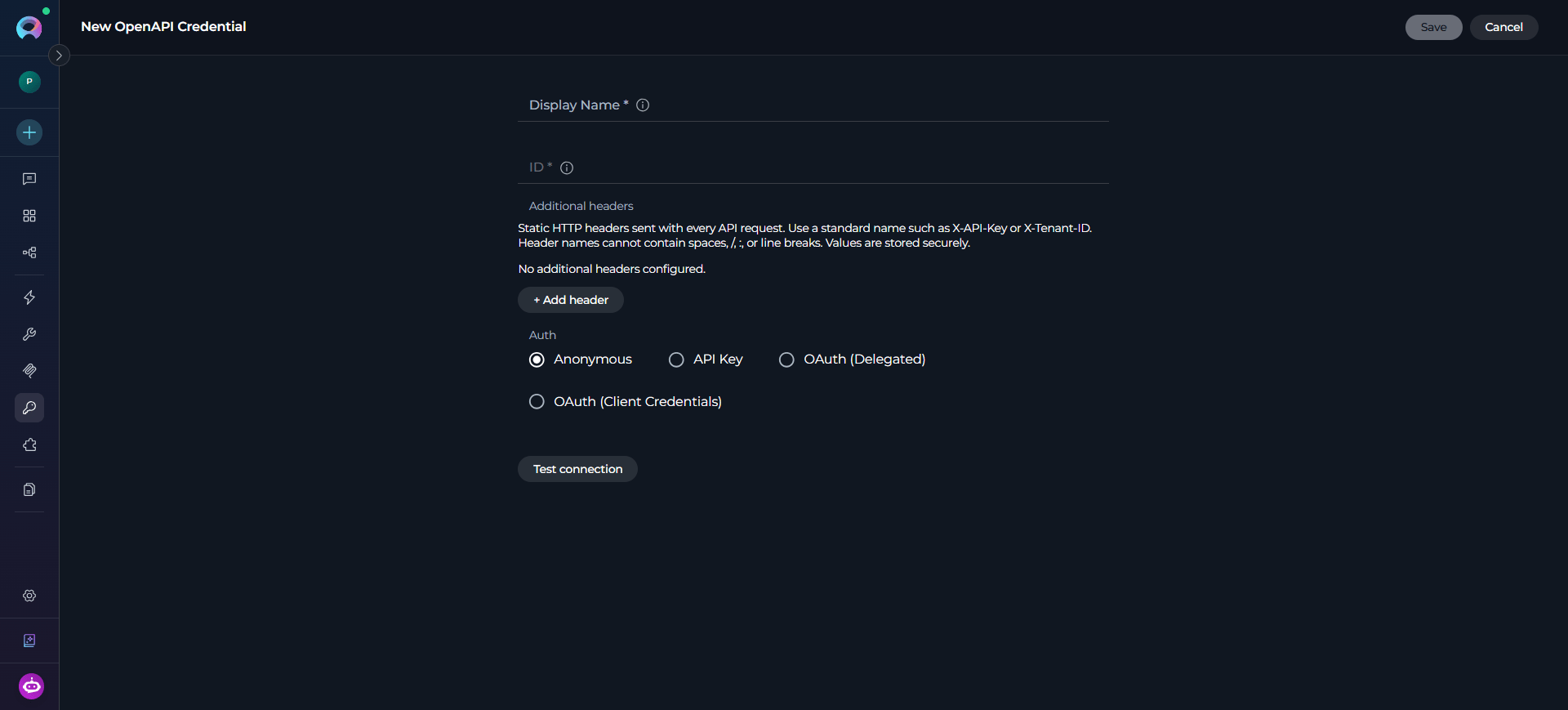
Authentication Methods Reference
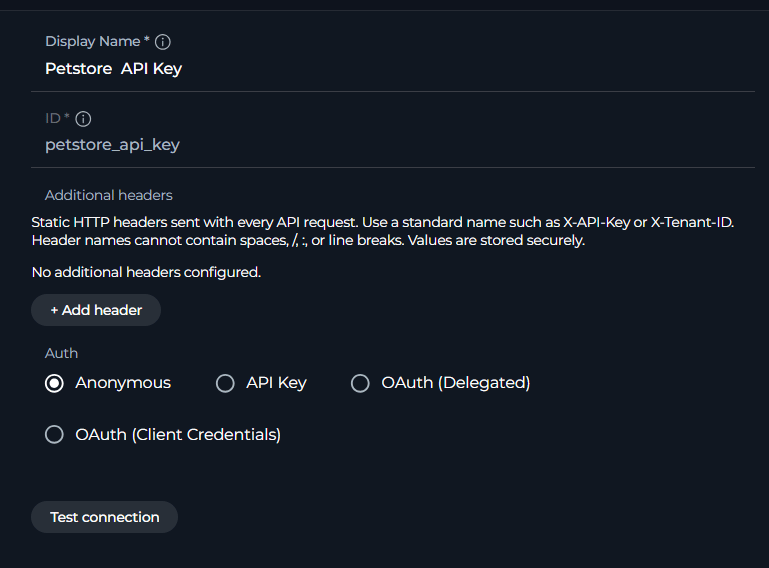
The OpenAPI Configuration credential supports multiple authentication methods. Configure the appropriate method based on your API’s security requirements:- Anonymous
- API Key
- OAuth (Delegated)
- OAuth (Client Credentials)
- Select the Anonymous option when creating your OpenAPI Configuration credential
- Leave all authentication fields empty
- No authentication headers will be added to requests
- Note: Uncommon for production APIs; most APIs require some form of authentication
Additional Headers
Independently of the authentication method selected above, you can attach one or more static headers to every request the toolkit sends — useful for APIs that require a secondary key alongside the primary authentication, such as an API gateway key, a tenant/organization header, or a partner identifier.- Available in the Additional Headers section of the OpenAPI Configuration credential, for any authentication method, including Anonymous.
- Click + Add header, then provide a Header Name and a Header Value for each pair.
- Header values are masked and stored with the same encryption as other credential secrets.
- Header names cannot contain spaces,
/,:, or line breaks; values cannot be empty or contain line breaks.
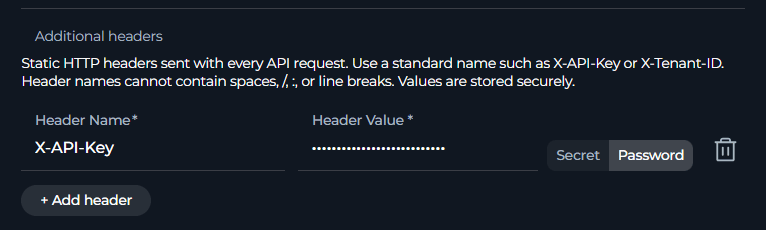
Authorization), the primary authentication value is used and the additional header is ignored. Additional headers cannot override or spoof authentication headers.Step 2: Create OpenAPI Toolkit
Once your credentials are configured, create the OpenAPI toolkit:- Navigate to Toolkits Menu: Open the sidebar and select Toolkits.
-
Create New Toolkit: Click the
+ Createbutton. - Select OpenAPI: Choose OpenAPI from the list of available toolkit types.
-
Configure Toolkit Details:
- Toolkit Name: Enter a descriptive name for your toolkit (e.g., “GitHub API - Public Repos”, “Petstore API”)
- Description: Optional multiline text field for adding context about your toolkit and its purpose.
-
Configure Credentials:
- OpenAPI credentials configuration: Select your previously created OpenAPI Configuration credential from the dropdown (created in Step 1). For public APIs without authentication, select an Anonymous credential.
-
Configure Base URL (Optional):
- Base Url: Enter an absolute base URL (starting with
http://orhttps://) if your OpenAPI specification uses relative server URLs (e.g.,/api/v3) or has noserversentry. Example:https://petstore3.swagger.io. Leave empty if your specification already contains absolute server URLs.
- Base Url: Enter an absolute base URL (starting with
-
Configure OpenAPI Specification:
- Schema: Provide your OpenAPI specification using one of these methods:
- Copy & Paste: Copy the complete JSON or YAML content and paste directly into the field
- Drag & Drop: Drag your specification file (
.json,.yaml,.yml) directly into the Schema field - File Upload: Click the “choose file” link and select your specification file
- The editor supports both JSON and YAML syntax highlighting
- Click the fullscreen icon (⛶) for an expanded editing view when working with large specifications
- Schema: Provide your OpenAPI specification using one of these methods:
-
Review Available API Endpoints (Tools): After providing a valid specification, the “Api Endpoints” accordion displays all available operations. Each operation with
operationIdbecomes an available tool. You can expand rows to view details, sort by columns, and navigate using pagination for large specifications. - Save Toolkit: Click Save to create the toolkit
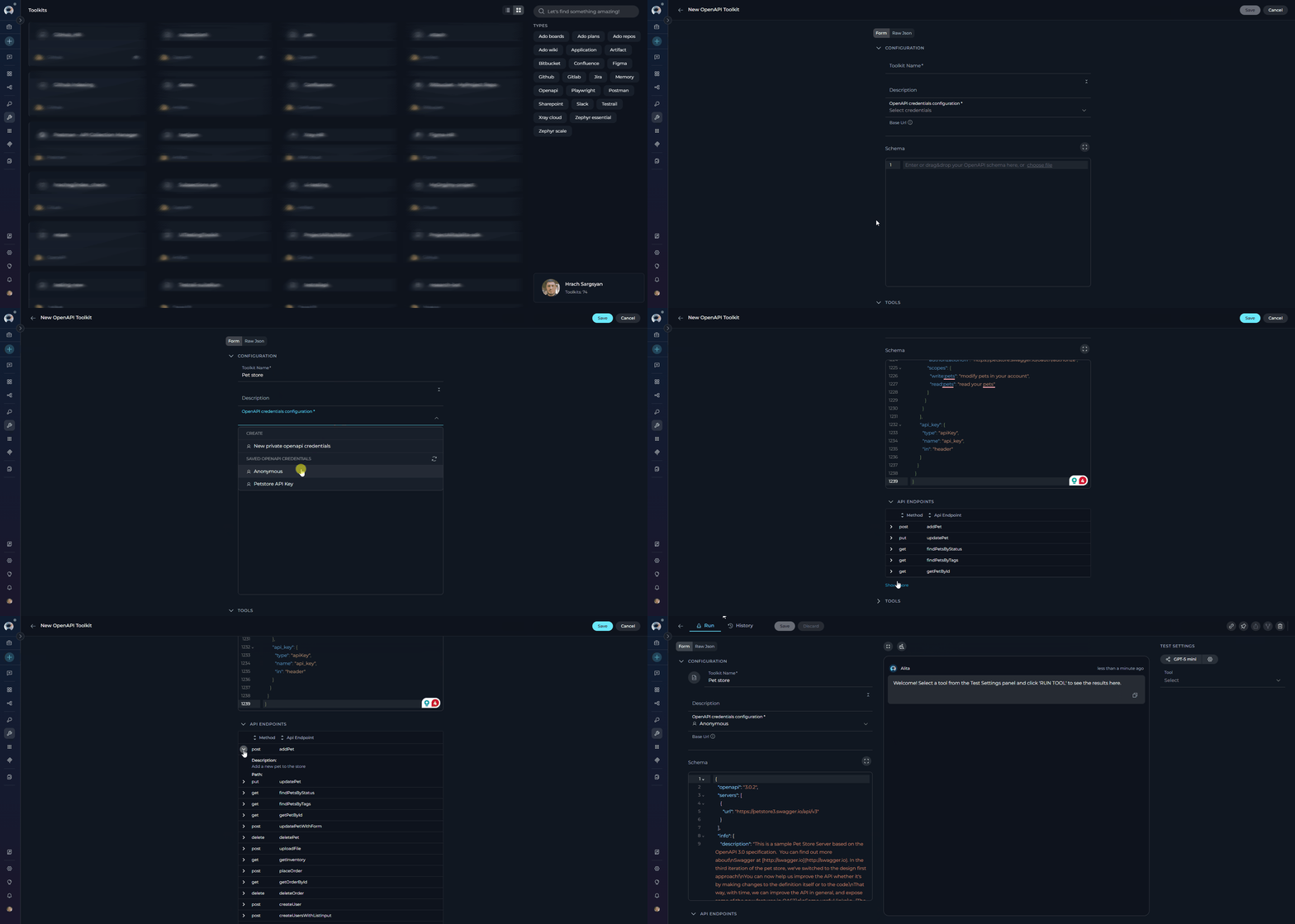

Example: Petstore API Specification
Example: Petstore API Specification
https://petstore3.swagger.io/api/v3/openapi.json or paste the complete specification directly into the Schema field.Understanding Generated Tools
How Tools Are Created The OpenAPI Toolkit automatically generates one tool per API operation (operationId) defined in your specification: Tool Naming:- Tool names come directly from the
operationIdfield in your OpenAPI specification - Example: If your spec has
operationId: "getPetById", the tool will be namedgetPetById - Important: If an operation lacks an
operationId, it will be skipped (not available as a tool)
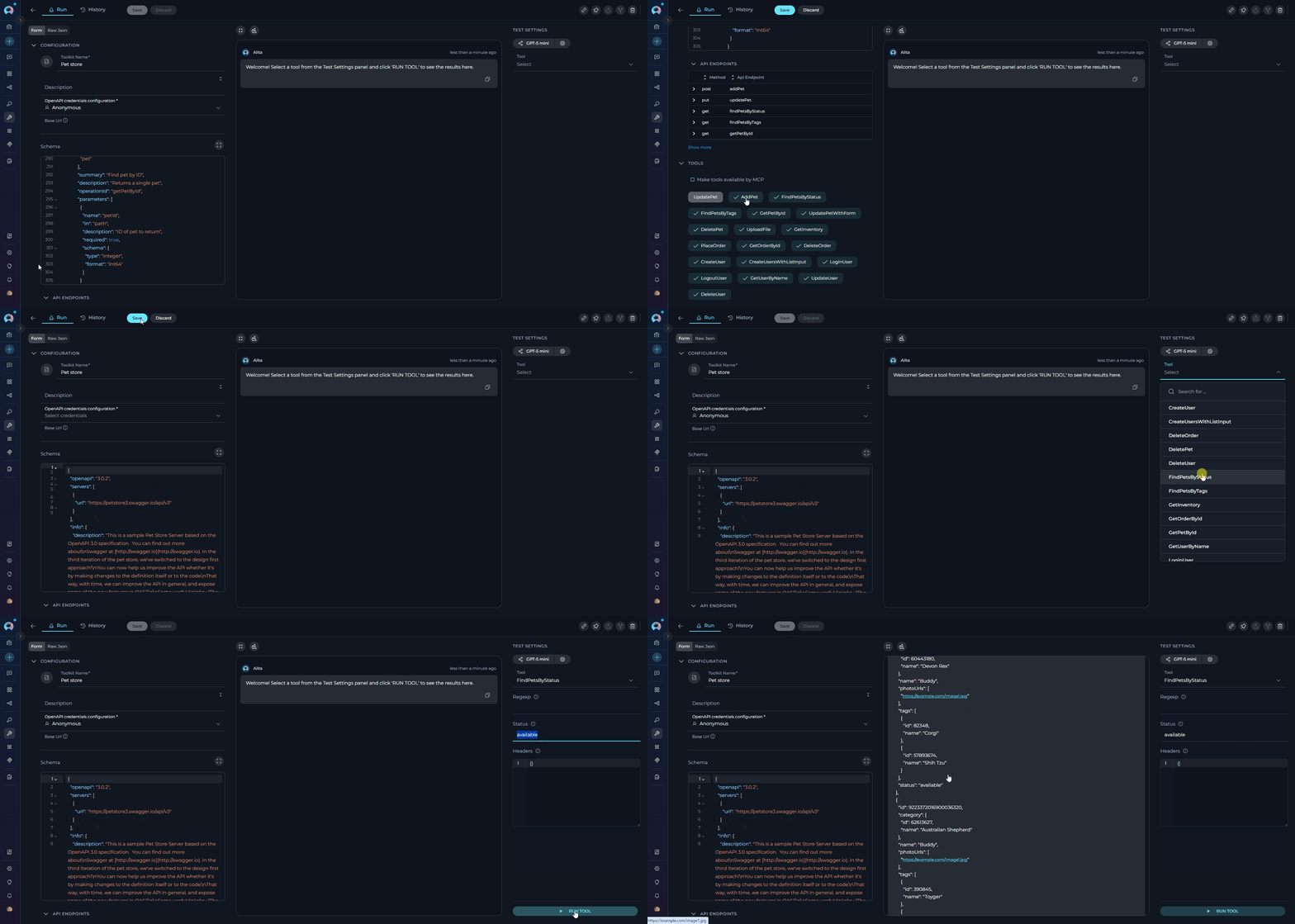
Accessing and Testing Tools After saving your toolkit, all generated tools become available in the TOOLS section on the toolkit’s detail page:
- View Available Tools: Navigate to your saved toolkit to see the TOOLS section displaying all generated operations
- Select a Tool: Click on any tool from the TOOLS list to open it
- Test in TEST SETTINGS Panel: Use the TEST SETTINGS panel on the right side to:
- Configure required parameters (path, query, headers)
- Provide request body data for POST/PUT/PATCH operations
- Execute the tool and view the API response
- Verify authentication and endpoint connectivity
- Debug parameter configurations before using in agents
Filtering and Limiting Large Responses
Every generated tool automatically includes three extra parameters, on top of the operation’s own path/query/body fields, so agents can keep large API responses from overwhelming the conversation:response_search and/or response_limit are used, the toolkit automatically locates the array or collection inside the JSON response (using the operation’s response schema when available, falling back to heuristics), ranks and/or truncates its items, and returns a bounded JSON payload wrapped with an _elitea_response_selection metadata object describing the collection path, total item count, matched item count, and whether the result was truncated. Plain-text (non-JSON) responses are split into paragraphs or lines and filtered the same way.
regexp predates structured response selection and only performs raw text removal. For new use cases, prefer response_search and response_limit, which understand the response’s JSON structure and return relevance-ranked, bounded results. Attempting to use regexp together with response_search or response_limit on the same call raises an incompatible_response_controls error.Step 3: Use OpenAPI Toolkit in Agents
Once your OpenAPI toolkit is created, you can use it in various ELITEA features:In Agents:
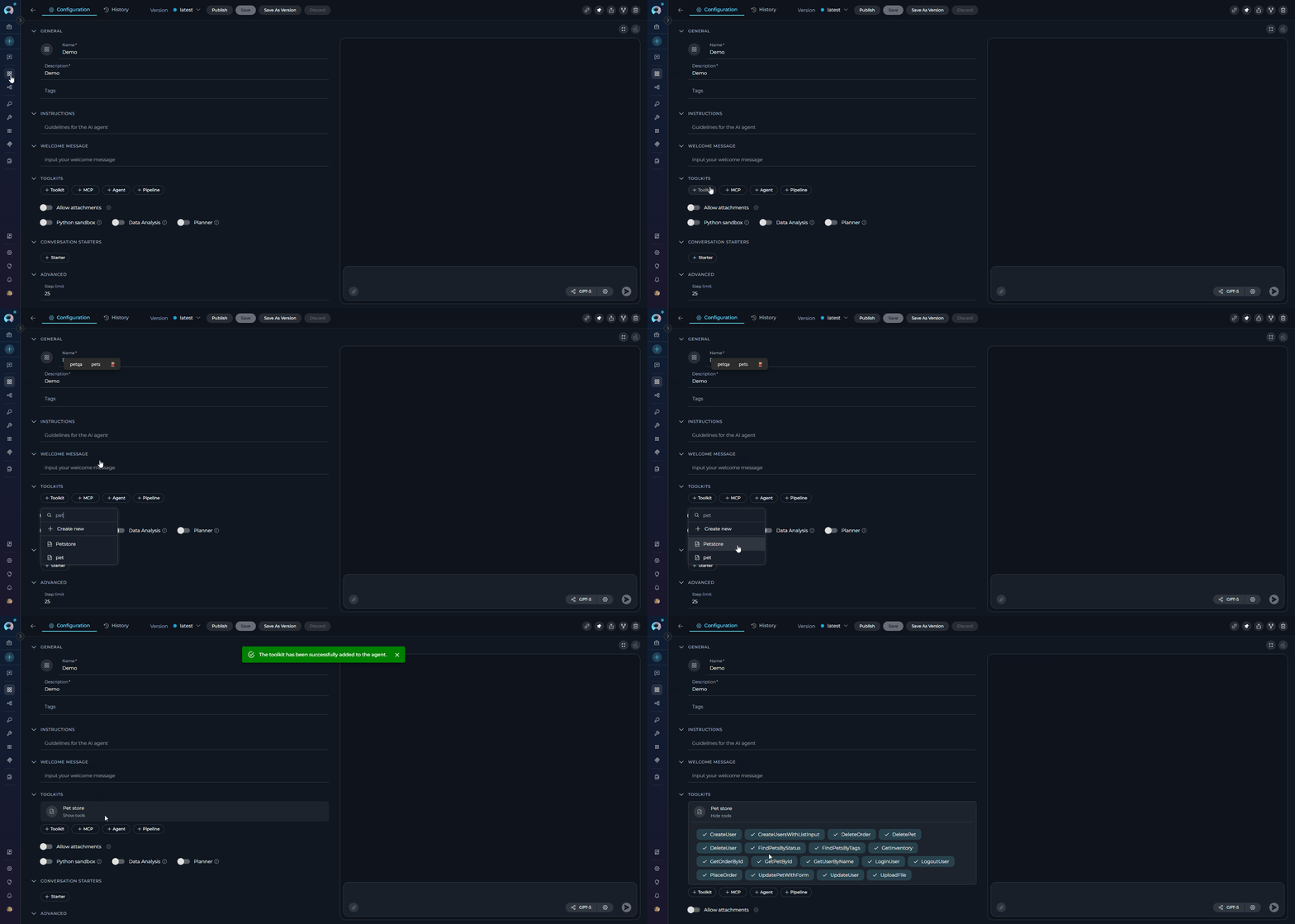
- Navigate to Agents: Open the sidebar and select Agents.
- Create or Edit Agent: Click
+ Createfor a new agent or select an existing agent to edit. - Add OpenAPI Toolkit:
- In the “TOOLKITS” section of the agent configuration, click the “+Toolkit” icon
- Select your OpenAPI toolkit from the dropdown menu
- The toolkit will be added to your agent with all configured API endpoints available as tools
In Pipelines:
- Navigate to Pipelines: Open the sidebar and select Pipelines.
- Create or Edit Pipeline: Either create a new pipeline or select an existing pipeline to edit.
- Add OpenAPI Toolkit:
- In the “TOOLKITS” section of the pipeline configuration, click the “+Toolkit” icon
- Select your OpenAPI toolkit from the dropdown menu
- The toolkit will be added to your pipeline with all configured API endpoints available
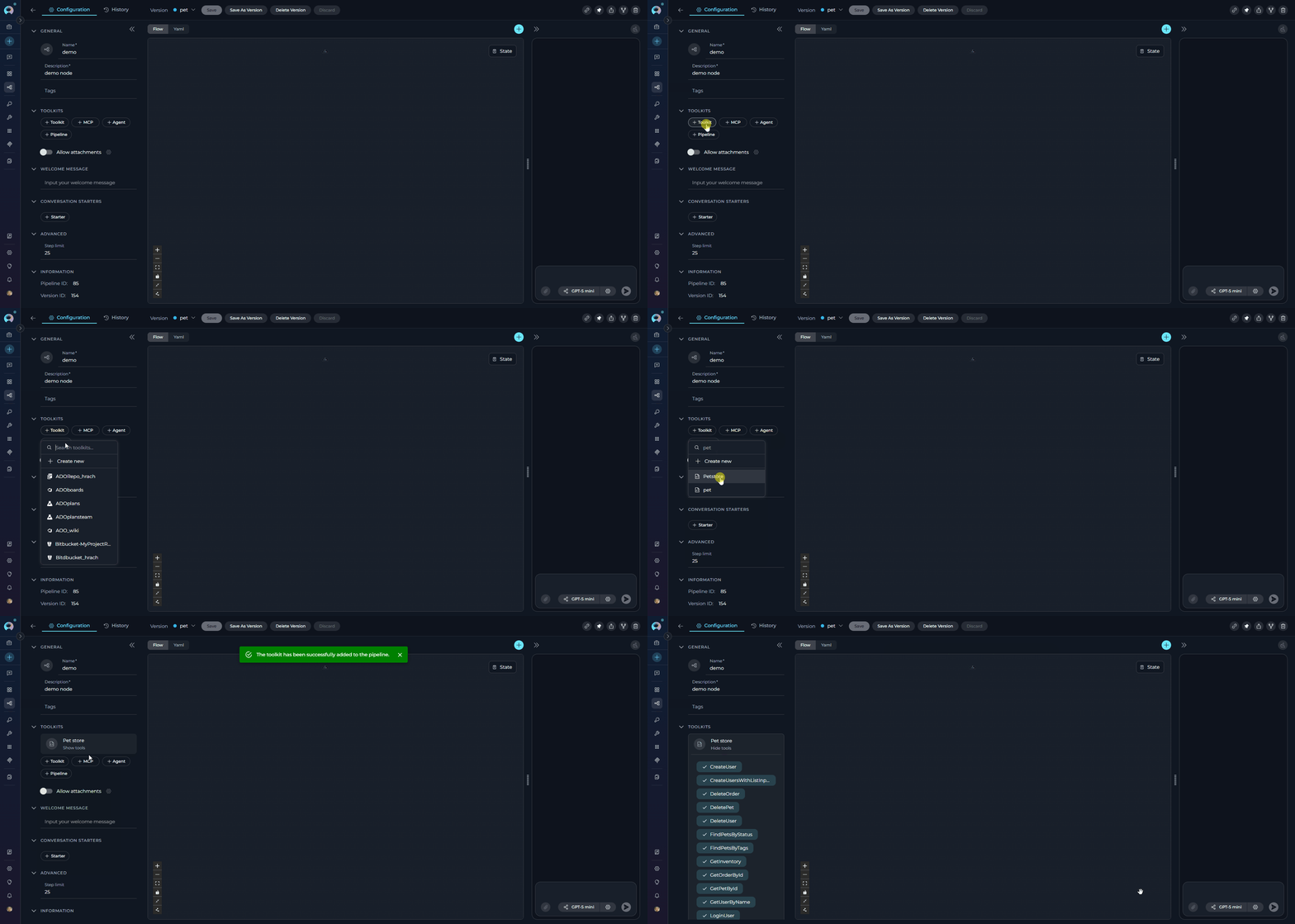
In Chat:
- Navigate to Chat: Open the sidebar and select Chat.
- Start New Conversation: Click +Create or open an existing conversation.
- Add Toolkit to Conversation:
- In the chat Participants section, look for the Toolkits element
- Click to add a toolkit and select your OpenAPI toolkit from the available options
- The toolkit will be added to your conversation with all API endpoints available as tools
- Use Toolkit in Chat: You can now directly interact with your API by asking questions or requesting actions that will trigger the OpenAPI toolkit tools.
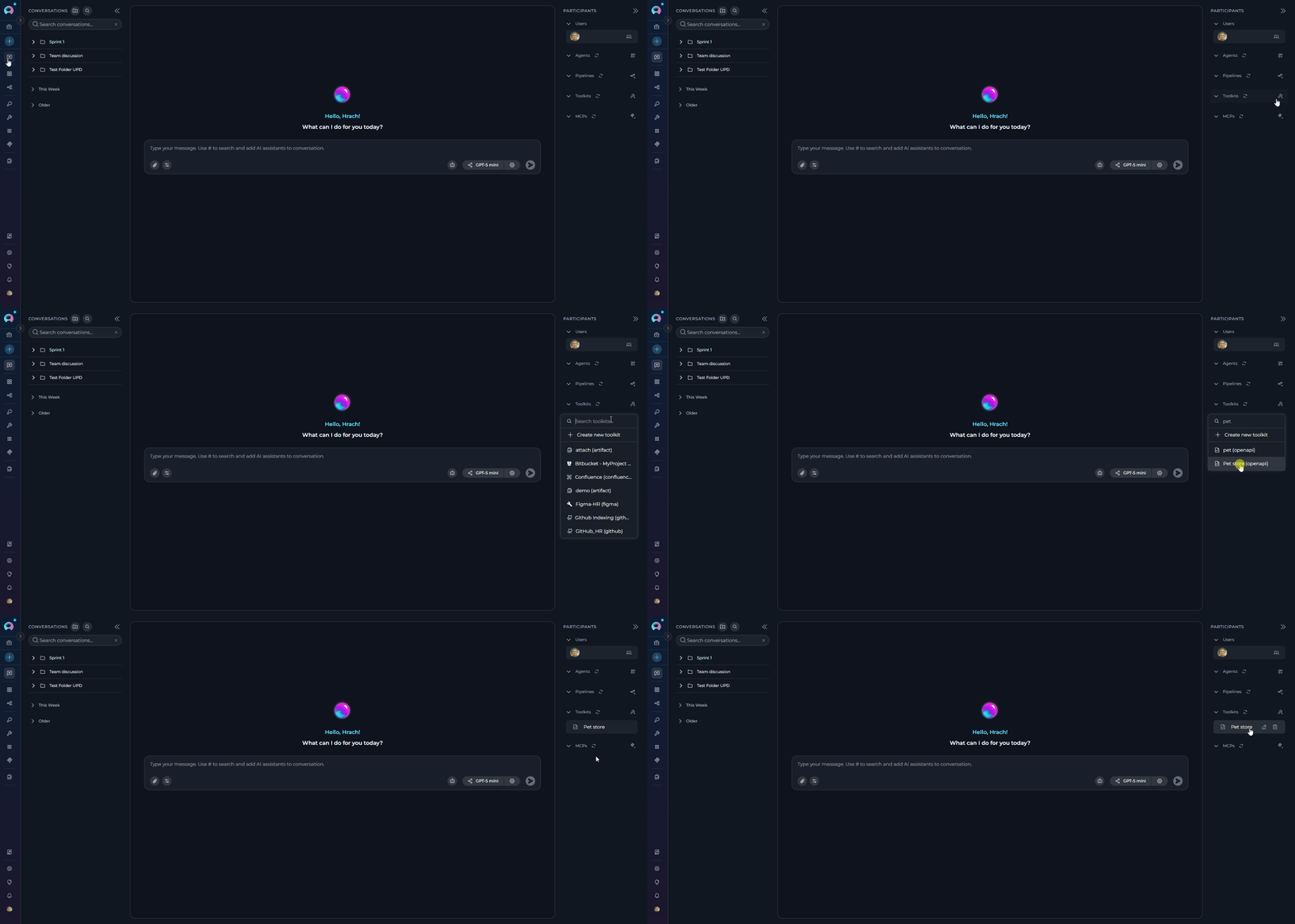
Instructions and Prompts for Using the OpenAPI Toolkit
To effectively instruct your ELITEA Agent to use the OpenAPI toolkit, you need to provide clear and precise instructions within the Agent’s “Instructions” field. These instructions are crucial for guiding the Agent on when and how to utilize the available API tools to achieve your desired automation goals.Instruction Creation for OpenAI Agents
When crafting instructions for the OpenAPI toolkit, especially for OpenAI-based Agents, clarity and precision are paramount. Break down complex tasks into a sequence of simple, actionable steps. Explicitly define all parameters required for each tool and guide the Agent on how to obtain or determine the values for these parameters. OpenAI Agents respond best to instructions that are:- Direct and Action-Oriented: Employ strong action verbs and clear commands to initiate actions. For example, “Use the ‘getPetById’ tool…”, “Create a task named…”, “Retrieve user data for…”.
-
Parameter-Centric: Clearly enumerate each parameter required by the tool. For each parameter, specify:
- Its name (exactly as defined in the OpenAPI specification)
- Its expected data type (string, integer, object, array, etc.)
- How the Agent should obtain the value – whether from user input, derived from previous steps in the conversation, retrieved from an external source, or a predefined static value
- Contextually Rich: Provide sufficient context so the Agent understands the overarching objective and the specific scenario in which each API tool should be applied within the broader workflow. Explain the desired outcome or goal for each tool invocation.
- Step-by-Step Structure: Organize instructions into a numbered or bulleted list of steps for complex workflows. This helps the Agent follow a logical sequence of actions.
- Add Conversation Starters: Include example conversation starters that users can use to trigger this functionality. For example, “Conversation Starters: ‘Show me pet with ID 42’, ‘Create a new pet named Fluffy’, ‘List all available pets’”
- State the Goal: Begin by clearly stating the objective you want to achieve with this step. For example, “Goal: To retrieve details of a specific pet by its ID.”
- Specify the Tool: Clearly indicate the specific API tool (operationId) to be used for this step. For example, “Tool: Use the ‘getPetById’ tool.”
-
Define Parameters: Provide a detailed list of all parameters required by the selected tool. For each parameter:
- Parameter Name:
<Parameter Name as defined in OpenAPI specification> - Value or Source:
<Specify the value or how to obtain the value. Examples: "user input", "from previous step", "hardcoded value '123'", "value of variable X">
- Parameter Name:
- Describe Expected Outcome (Optional but Recommended): Briefly describe the expected result or outcome after the tool is successfully executed. For example, “Outcome: The Agent will display the full details of the specified pet.”
- Add Conversation Starters: Include example conversation starters that users can use to trigger this functionality. For example, “Conversation Starters: ‘Show me pet 42’, ‘Get details for pet ID 123‘“
Example Agent Instruction
Agent Instruction for Petstore API:Chat Usage Example
The following example demonstrates how to interact with the OpenAPI toolkit in ELITEA Chat: Chat Example - Petstore API:Use Cases
The OpenAPI toolkit unlocks numerous automation possibilities for REST API integration within ELITEA:Data Retrieval and Analysis
Data Retrieval and Analysis
- Access external data without manual API calls
- Automated data aggregation and analysis
- Real-time insights from multiple data sources
- Intelligent data interpretation by LLM
Resource Management
Resource Management
- Streamline resource lifecycle management
- Reduce manual operations overhead
- Ensure consistent resource configuration
- Automate repetitive administrative tasks
Workflow Automation and Orchestration
Workflow Automation and Orchestration
- End-to-end process automation across multiple systems
- Reduced manual intervention and human error
- Consistent execution of complex workflows
- Intelligent decision-making at each step
Multi-Service Integrations
Multi-Service Integrations
- Seamless integration across development tools
- Automated status synchronization
- Reduced context switching for developers
- Consistent workflow enforcement
Common Integration Patterns
Pattern 1: Read-Only Data Access
Pattern 1: Read-Only Data Access
Pattern 2: CRUD Operations
Pattern 2: CRUD Operations
Pattern 3: Multi-Step Workflows
Pattern 3: Multi-Step Workflows
Pattern 4: Polling and Monitoring
Pattern 4: Polling and Monitoring
Pattern 5: Event-Driven Actions
Pattern 5: Event-Driven Actions
Troubleshooting and Support
Troubleshooting
Schema Parsing Errors
Schema Parsing Errors
- Verify JSON/YAML syntax using JSONLint or YAML Lint
- Validate OpenAPI structure using Swagger Editor
- Check that
pathsobject exists and contains operations - Ensure each operation has both
descriptionandoperationIdfields - Verify parameter definitions include
name,in, and schema/type
Missing Operation IDs
Missing Operation IDs
- Review your OpenAPI specification for operations without
operationId - Add unique
operationIdto every operation (e.g.,"operationId": "getPetById") - Re-upload the updated specification to the toolkit
- Refresh the toolkit configuration to see all endpoints
Missing Descriptions
Missing Descriptions
- Review your OpenAPI specification for operations without
descriptionfield - Add description to every operation (e.g.,
"description": "Find pet by ID") - Re-upload the updated specification
- Save and test the toolkit
Authentication Failures
Authentication Failures
- Verify API key/credentials are correct and not expired
- Check authentication type matches API requirements (Bearer, Basic, Custom, OAuth)
- For Custom auth, ensure
custom_header_namematches API expectations - For OAuth, verify all required fields (client_id, client_secret, token_url) are provided
- Test authentication outside ELITEA using curl or Postman
- Check if API requires additional headers or scopes
Additional Header Validation Errors
Additional Header Validation Errors
- Check the Header Name field — it cannot be empty and cannot contain spaces,
/,:, or line breaks - Check the Header Value field — it cannot be empty and cannot contain line breaks
- Remove any duplicate header names; each name must be unique within the credential
- Remember that an additional header sharing a name with your primary authentication header (e.g.
Authorization) is ignored, not an error — rename it if you intended it to take effect
Response Filtering Errors
Response Filtering Errors
incompatible_response_controls error - “‘regexp’ cannot be combined with ‘response_search’ or ‘response_limit’”, or invalid_response_selection error when calling a toolTroubleshooting Steps:- Use either the legacy
regexpparameter orresponse_search/response_limiton a given call, never both - Ensure
response_searchuses valid syntax: bare words,"quoted phrases", and-excludedterms; a lone-is not valid - Ensure
response_limitis an integer between 1 and 200 - If the error mentions an ambiguous or missing collection, the response may not contain a clear array/collection for the toolkit to filter — omit
response_search/response_limitand inspect the raw response instead
Missing Base URL
Missing Base URL
missing_base_url error - “Cannot execute HTTP request because the OpenAPI spec does not contain an absolute server URL”Troubleshooting Steps:- Check if your specification’s
servers[0].urlis relative (e.g.,/api/v3) - In toolkit configuration, set the
base_urlfield with absolute URL (e.g.,https://api.example.com) - Alternatively, update your specification to use absolute server URLs
- Save the toolkit and test again
Missing Required Parameters
Missing Required Parameters
missing_required_inputs error when executing API operationsTroubleshooting Steps:- Review the error details to identify which parameters are missing
- Update agent instructions to explicitly provide all required parameters
- Check OpenAPI specification for parameter requirements (required: true)
- Ensure parameter names in agent instructions match specification exactly
- For body parameters, verify
body_jsoncontains all required fields
Invalid JSON Body
Invalid JSON Body
invalid_json_body error - “body_json must be valid JSON”Troubleshooting Steps:- Validate JSON syntax in the
body_jsonparameter - Ensure JSON is properly escaped in agent instructions
- Use JSONLint to verify JSON structure
- Check for common issues: trailing commas, unescaped quotes, missing brackets
- Provide JSON examples in agent instructions to guide the LLM
HTTP Errors (4xx, 5xx)
HTTP Errors (4xx, 5xx)
http_error with various status codes (400, 404, 500, etc.)Troubleshooting Steps:- Review the full error message for HTTP status code and response
- 400 Bad Request: Check request parameters and body format
- 404 Not Found: Verify endpoint path and resource ID are correct
- 429 Too Many Requests: API rate limit exceeded; implement retry logic
- 500 Internal Server Error: API server issue; contact API provider
- Test the same request directly using curl or Postman to isolate the issue
Operation Not Found
Operation Not Found
operation_not_found error - specified operation doesn’t exist in specificationTroubleshooting Steps:- Verify the operationId exists in your OpenAPI specification
- Check for typos in the operation name used by the agent
- Ensure the operation is included in
selected_tools(if tool selection is used) - Review the Api Endpoints table to see all available operations
- Update agent instructions with correct operation names
FAQ
Can I use multiple OpenAPI toolkits in the same agent?
Can I use multiple OpenAPI toolkits in the same agent?
Does the toolkit support OpenAPI 2.0 (Swagger) specifications?
Does the toolkit support OpenAPI 2.0 (Swagger) specifications?
Can I use YAML instead of JSON for my OpenAPI specification?
Can I use YAML instead of JSON for my OpenAPI specification?
What happens if my API specification is very large (hundreds of endpoints)?
What happens if my API specification is very large (hundreds of endpoints)?
selected_tools feature to limit available tools to only those your agent needs.Can I update my OpenAPI specification after creating the toolkit?
Can I update my OpenAPI specification after creating the toolkit?
How do I handle APIs that require multiple authentication methods?
How do I handle APIs that require multiple authentication methods?
headers parameter to add additional authentication headers per request.Can I use the toolkit with internal/private APIs?
Can I use the toolkit with internal/private APIs?
What if my API uses custom authentication not supported by standard methods?
What if my API uses custom authentication not supported by standard methods?
custom_header_name to specify any header name your API requires. For complex authentication, you may need to handle token generation externally.How do I test if my OpenAPI toolkit is configured correctly?
How do I test if my OpenAPI toolkit is configured correctly?
Can I use the same OpenAPI Configuration credential across multiple toolkits?
Can I use the same OpenAPI Configuration credential across multiple toolkits?
How do I find the OpenAPI specification for an API?
How do I find the OpenAPI specification for an API?
- Check API Documentation: Look for “API Reference”, “Developer Documentation”, “Integration Guides”, or “OpenAPI Specification”
- Common Locations:
/swagger.json,/openapi.json, or/api-docsendpoints - File Names:
swagger.json,openapi.json,swagger.yaml,openapi.yaml,api-spec.json - Request from Provider: Contact the API provider if not publicly available
- Generate from Code: Use tools like Swagger Codegen, FastAPI (Python), or Springdoc (Java Spring Boot)
How do I determine which tool name to use in agent instructions?
How do I determine which tool name to use in agent instructions?
operationId field in your OpenAPI specification. After uploading your specification, check the “Api Endpoints” accordion in the toolkit configuration to see all available tool names. Use the exact operationId in your agent instructions.What's the difference between OpenAPI Configuration and direct toolkit authentication?
What's the difference between OpenAPI Configuration and direct toolkit authentication?
How do I pass request bodies to POST/PUT/PATCH operations?
How do I pass request bodies to POST/PUT/PATCH operations?
body_json parameter with a valid JSON string. The JSON must use double quotes, have no trailing commas, and be passed as a string (not an object). The toolkit parses and sends it as the request body.How can I add custom headers to specific API calls?
How can I add custom headers to specific API calls?
headers parameter available on all generated tools. Authentication headers from OpenAPI Configuration are automatically added; the headers parameter is for additional per-call headers.How do I handle APIs with pagination?
How do I handle APIs with pagination?
How do I keep a large API response from overwhelming the agent?
How do I keep a large API response from overwhelming the agent?
response_search and response_limit parameters available on every generated tool — see Filtering and Limiting Large Responses. response_limit alone caps the number of items returned (1–200, default 50); response_search additionally ranks and filters items by relevance using words, quoted phrases, and -excluded terms.Why aren't all my API endpoints showing up?
Why aren't all my API endpoints showing up?
operationId (operations are skipped without it), invalid specification (validate at Swagger Editor), or missing descriptions. Add both operationId and description fields to all operations.Is there a limit on the number of API endpoints I can use?
Is there a limit on the number of API endpoints I can use?
selected_tools to enable only needed operations or break very large APIs into focused specifications per use case.Support Contact
For issues, questions, or assistance with OpenAPI integration, please refer to Contact Support for detailed information on how to reach the ELITEA Support Team.- OpenAPI Initiative: Official OpenAPI home and community resources
- OpenAPI Specification: Complete specification documentation and schema reference
- Swagger Editor: Online editor for creating, editing, and validating OpenAPI specifications
- JSONLint: JSON validation tool for checking syntax errors
- YAML Lint: YAML validation tool for checking syntax errors