

Introduction
This guide is your comprehensive resource for integrating and utilizing the TestRail toolkit within ELITEA. It provides detailed, step-by-step instructions, from setting up your TestRail API Key to configuring the toolkit in ELITEA and effectively using it within your Agents, Pipelines, and Chat conversations. By following this guide, you will unlock the power of automated test management, streamlined testing workflows, and enhanced team collaboration, all directly within the ELITEA platform. Brief Overview of TestRail TestRail, by Gurock Software (a subsidiary of Idera, Inc.), is a comprehensive web-based test management platform built to help teams of all sizes organize, manage, and track their software testing efforts. It provides a centralized ecosystem for professional teams working on quality assurance, offering features for:- Comprehensive Test Case Management: Create, organize, and manage test cases with rich text formatting, attachments, and custom fields. Structure test cases into projects, suites, and sections for easy navigation and maintenance.
- Test Execution & Tracking: Plan and execute test runs and test plans, track test results in real-time, and assign tests to team members. Gain a clear overview of testing progress and identify areas needing attention.
- Robust Reporting & Metrics: Generate insightful reports and metrics on test coverage, test results, and team performance. Use dashboards and charts to visualize testing progress and identify trends.
- Seamless Integrations: Integrates with issue trackers like Jira, bug tracking systems, and automation frameworks, making it a central hub for your testing ecosystem.
- Customization & Scalability: Adapt TestRail to your specific testing processes with customizable workflows, fields, templates, and custom fields. Scale TestRail as your team and projects grow.
Toolkit’s Account Setup and Configuration
Account Setup If you don’t have a TestRail account yet, here’s how to get started with a free trial:- Visit TestRail Website: Open your web browser and navigate to TestRail’s official website.
- Start a Free Trial: On the homepage, locate and click the “Free Trial” button.
- Fill Out the Registration Form: Provide your details in the registration form. This typically includes your name, company email address, company name, and other relevant information. For professional use, it’s highly recommended to use your company email.
-
Submit the Form: Click on the “Start Free Trial” or similar button to submit the form. TestRail will send a confirmation email to the email address you provided.
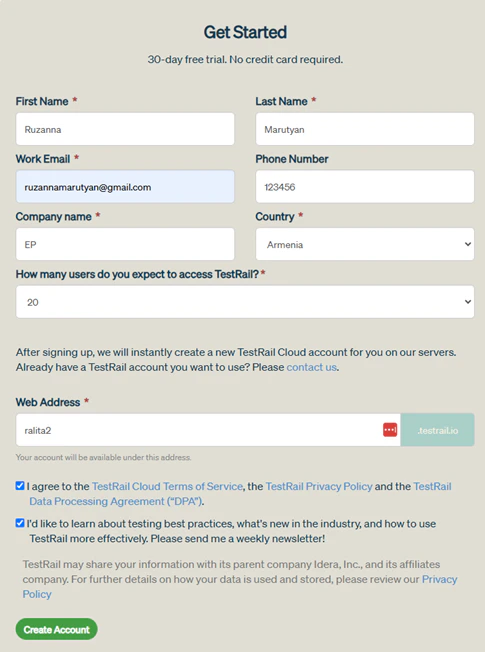
- Verify Your Email: Open the confirmation email from TestRail and click on the verification link provided within the email. This step is crucial to activate your TestRail trial account.
- Access Your Account: After email verification, you will be redirected to your new TestRail instance or prompted to log in. Follow any on-screen instructions to complete the setup and access your TestRail account.
Generate an API Key
For secure integration with ELITEA, it is essential to use a TestRail API Key. This method is significantly more secure than using your primary TestRail account password directly and allows you to precisely control the permissions granted to ELITEA. Follow these steps to generate an API Key in TestRail:- Log in to TestRail: Access your TestRail account using your credentials.
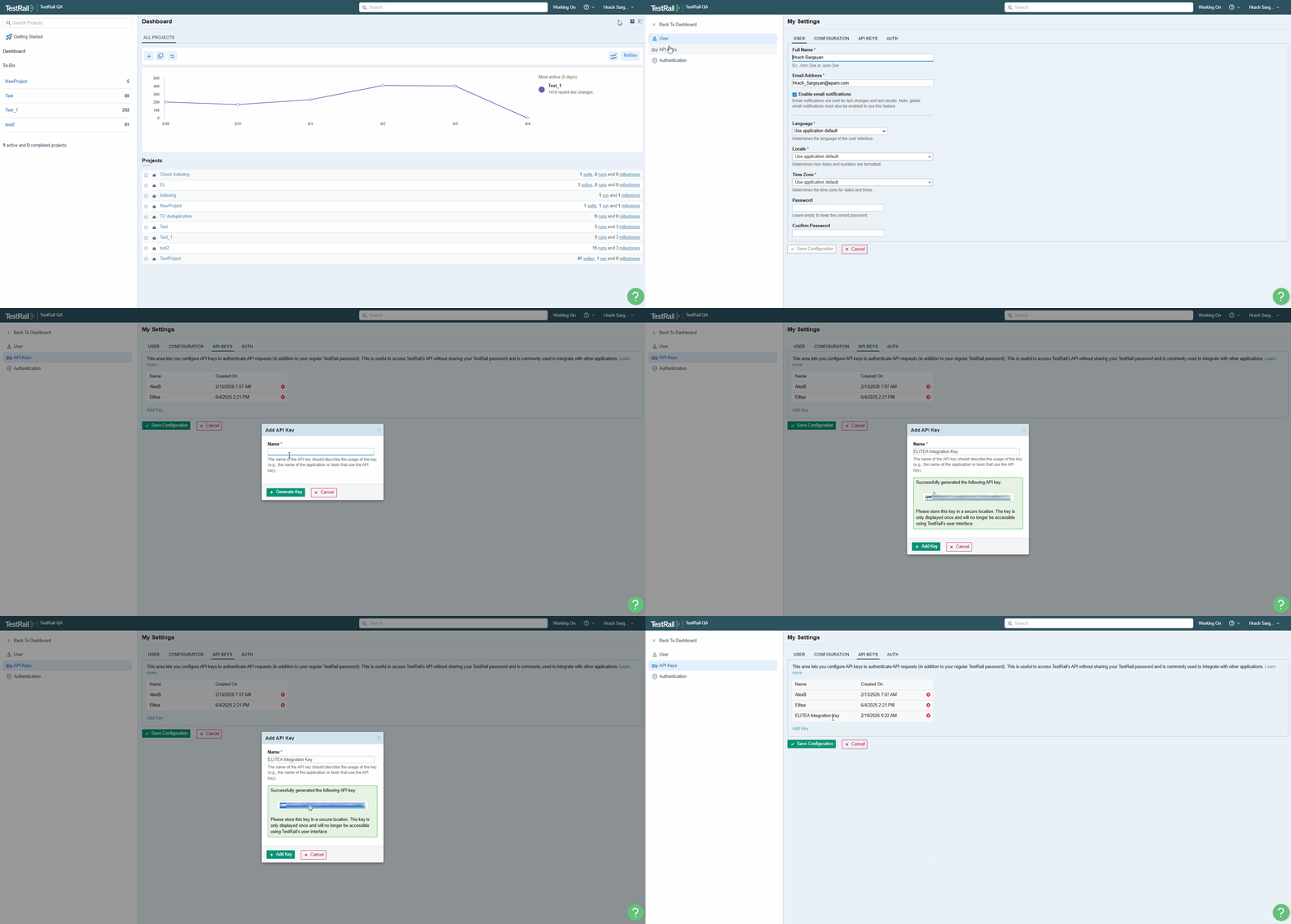
- Access My Settings: Click on your profile name in the top right corner of the TestRail interface. From the dropdown menu, select “My Settings”.
- Navigate to API Keys: In the “My Settings” page, find and click on the “API keys” tab.
- Add API Key: Click the “Add Key” button to create a new API key.
- Name the API Key: In the “Name” field, enter a descriptive name for the API key, such as “ELITEA Integration Key”. This will help you identify the purpose of this key later.
- Generate API Key: Click the “Generate Key” button. TestRail will generate a new API key and display it to you.
-
Securely Copy and Store Your API Key: Immediately copy the generated API key. This is the only time it will be displayed in full. Store it securely in a password manager or, preferably, ELITEA’s built-in Secrets feature for enhanced security within ELITEA. You will need this API key to configure the TestRail toolkit in ELITEA.
System Integration with ELITEA
To integrate TestRail with ELITEA, you need to follow a three-step process: Create Credentials → Create Toolkit → Use in Agents. This workflow ensures secure authentication and proper configuration.Step 1: Create TestRail Credentials
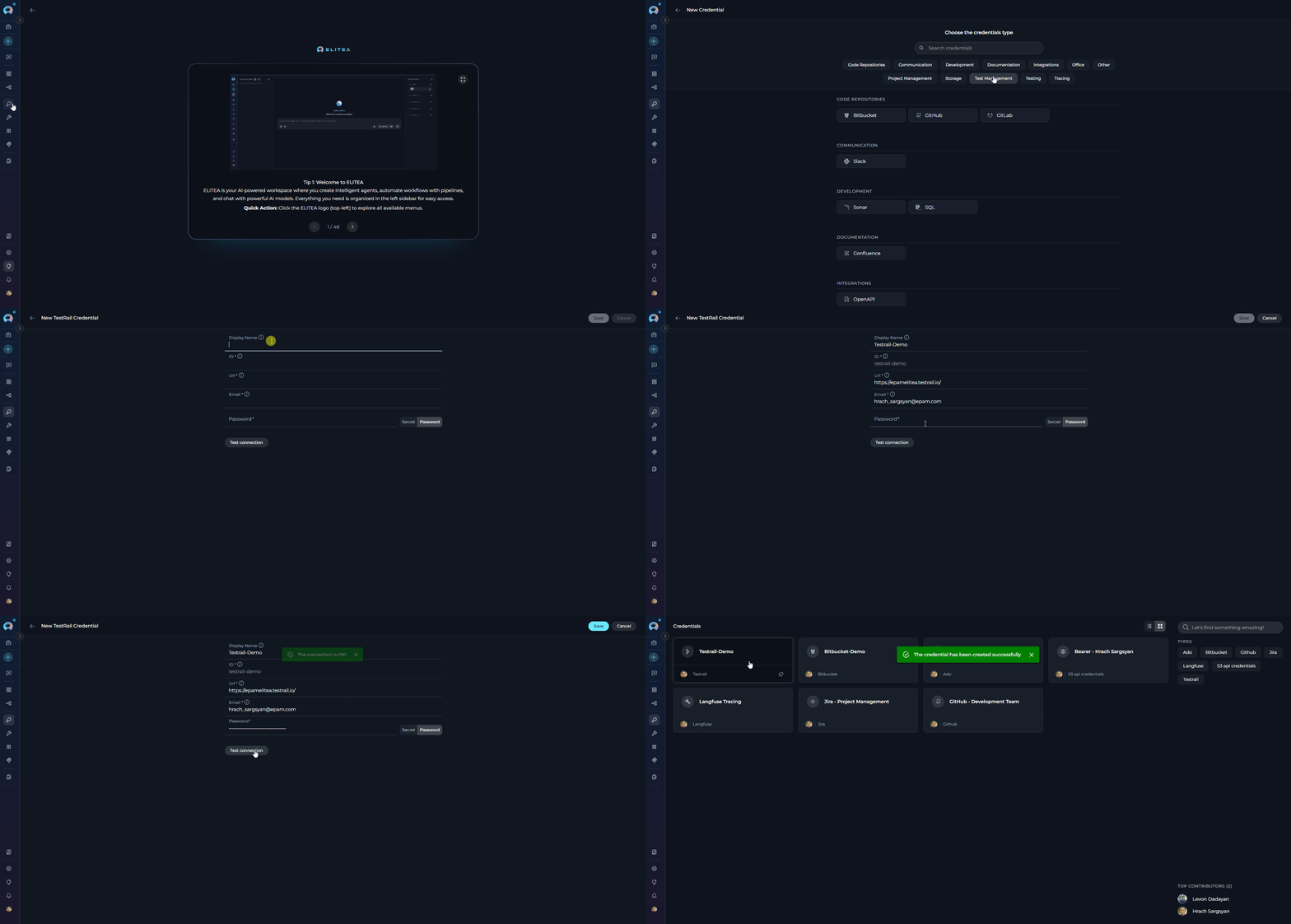
Before creating a toolkit, you must first create TestRail credentials in ELITEA:- Navigate to Credentials Menu: Open the sidebar and select Credentials.
-
Create New Credential: Click the
+ Createbutton. - Select TestRail: Choose TestRail as the credential type.
-
Configure Credential Details:
- Test Connection: Click Test Connection to verify your credentials are valid and ELITEA can connect to TestRail
-
Save Credential: Click Save to create the credential
Step 2: Create TestRail Toolkit
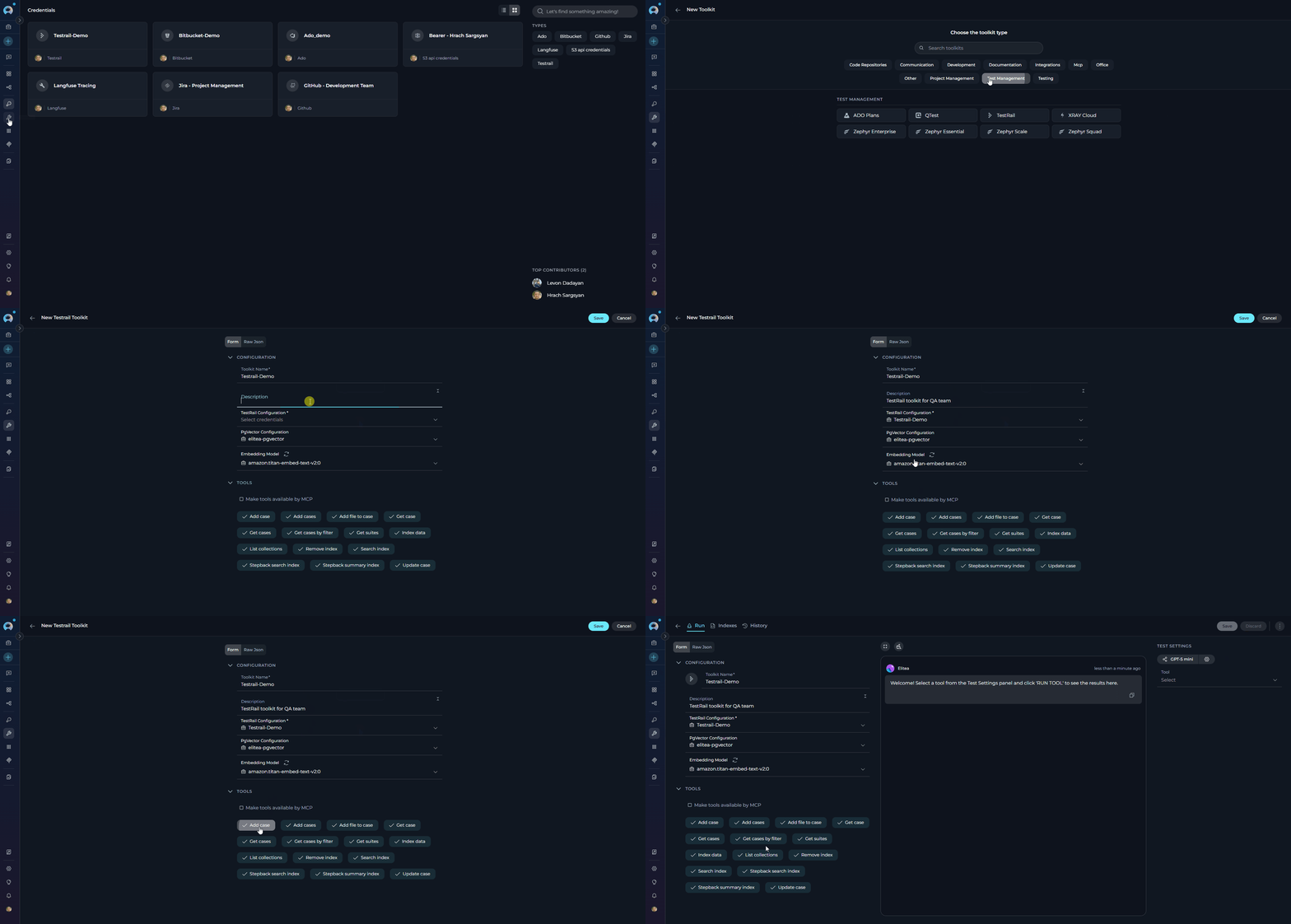
Once your credentials are configured, create the TestRail toolkit:- Navigate to Toolkits Menu: Open the sidebar and select Toolkits.
-
Create New Toolkit: Click the
+ Createbutton. - Select TestRail: Choose TestRail from the list of available toolkit types.
-
Configure Toolkit Settings:
-
Enable Desired Tools: In the “Tools” section, select the checkboxes next to the specific TestRail tools you want to enable. Enable only the tools your agents will actually use
- Make Tools Available by MCP - (optional checkbox) Enable this option to make the selected tools accessible through external MCP clients
-
Save Toolkit: Click Save to create the toolkit
Available Tools:
The TestRail toolkit provides the following tools for interacting with TestRail test cases, suites, and attachments, organized by functional categories:Testing Toolkit Tools
After configuring your TestRail toolkit, you can test individual tools directly from the Toolkit detailed page using the Test Settings panel. This allows you to verify that your credentials are working correctly and validate tool functionality before adding the toolkit to your workflows. General Testing Steps:- Select LLM Model: Choose a Large Language Model from the model dropdown in the Test Settings panel
- Configure Model Settings: Adjust model parameters like Creativity, Max Completion Tokens, and other settings as needed
- Select a Tool: Choose the specific TestRail tool you want to test from the available tools
- Provide Input: Enter any required parameters or test queries for the selected tool
- Run the Test: Execute the tool and wait for the response
- Review the Response: Analyze the output to verify the tool is working correctly and returning expected results
Step 3: Use TestRail Toolkit in Agents
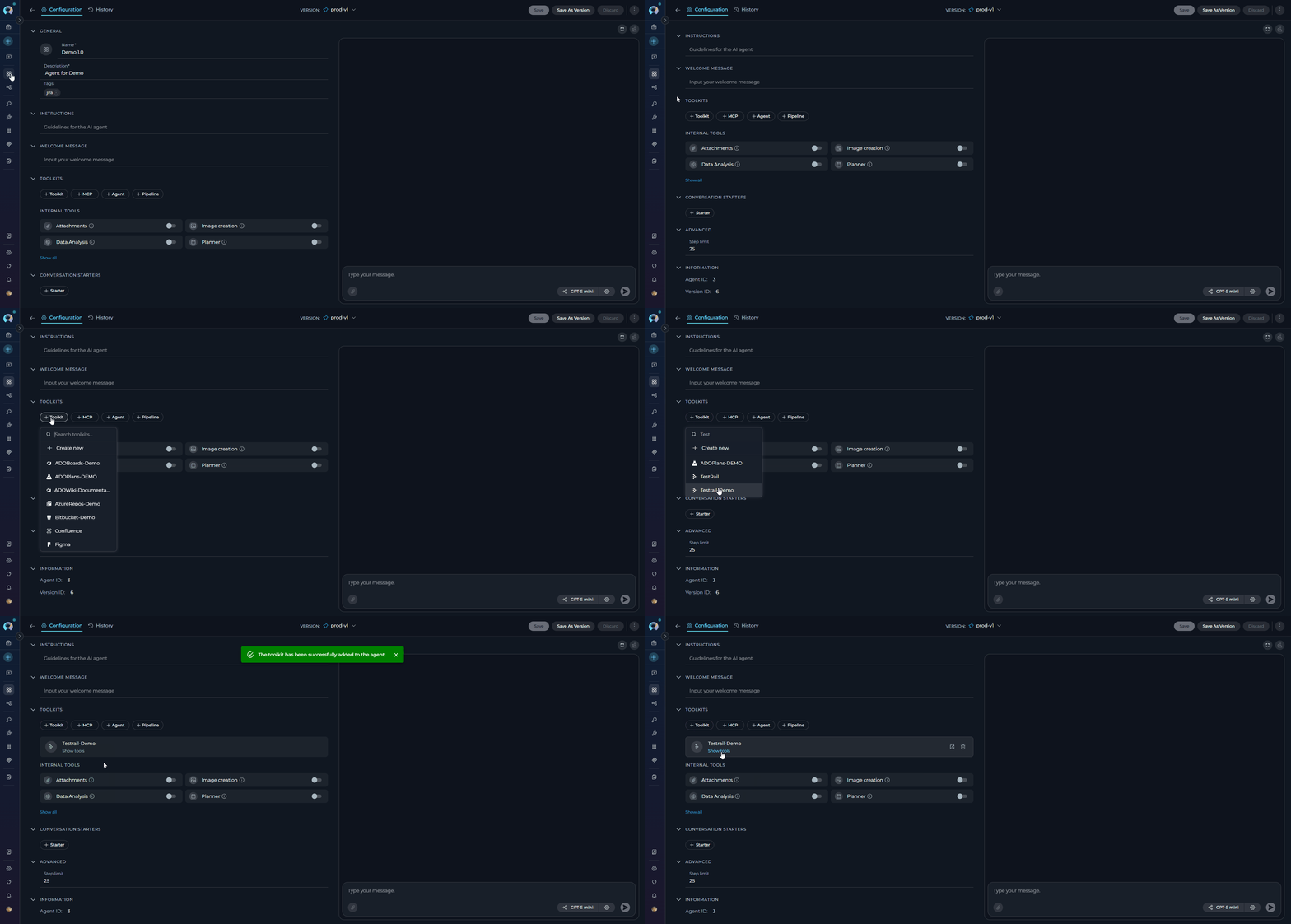
Once your TestRail toolkit is created, you can use it in various ELITEA features:In Agents:
- Navigate to Agents: Open the sidebar and select Agents.
- Create or Edit Agent: Click
+ Createfor a new agent or select an existing agent to edit. - Add TestRail Toolkit:
- In the “Tools” section of the agent configuration, click the “+Toolkit” icon
- Select your TestRail toolkit from the dropdown menu
- The toolkit will be added to your agent with the previously configured tools enabled
In Pipelines:
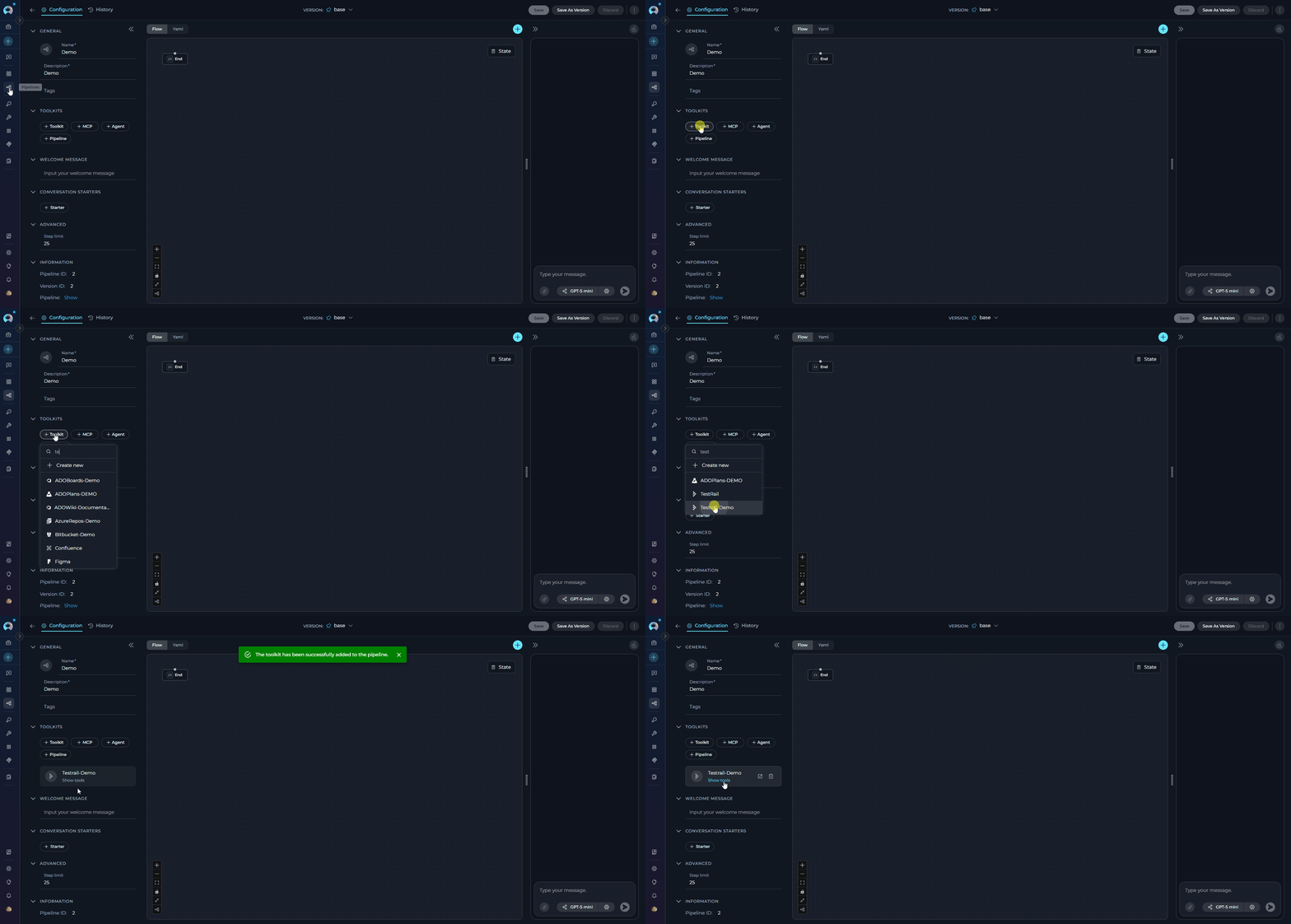
- Navigate to Pipelines: Open the sidebar and select Pipelines.
- Create or Edit Pipeline: Either create a new pipeline or select an existing pipeline to edit.
- Add TestRail Toolkit:
- In the “Tools” section of the pipeline configuration, click the “+Toolkit” icon
- Select your TestRail toolkit from the dropdown menu
- The toolkit will be added to your pipeline with the previously configured tools enabled
In Chat:
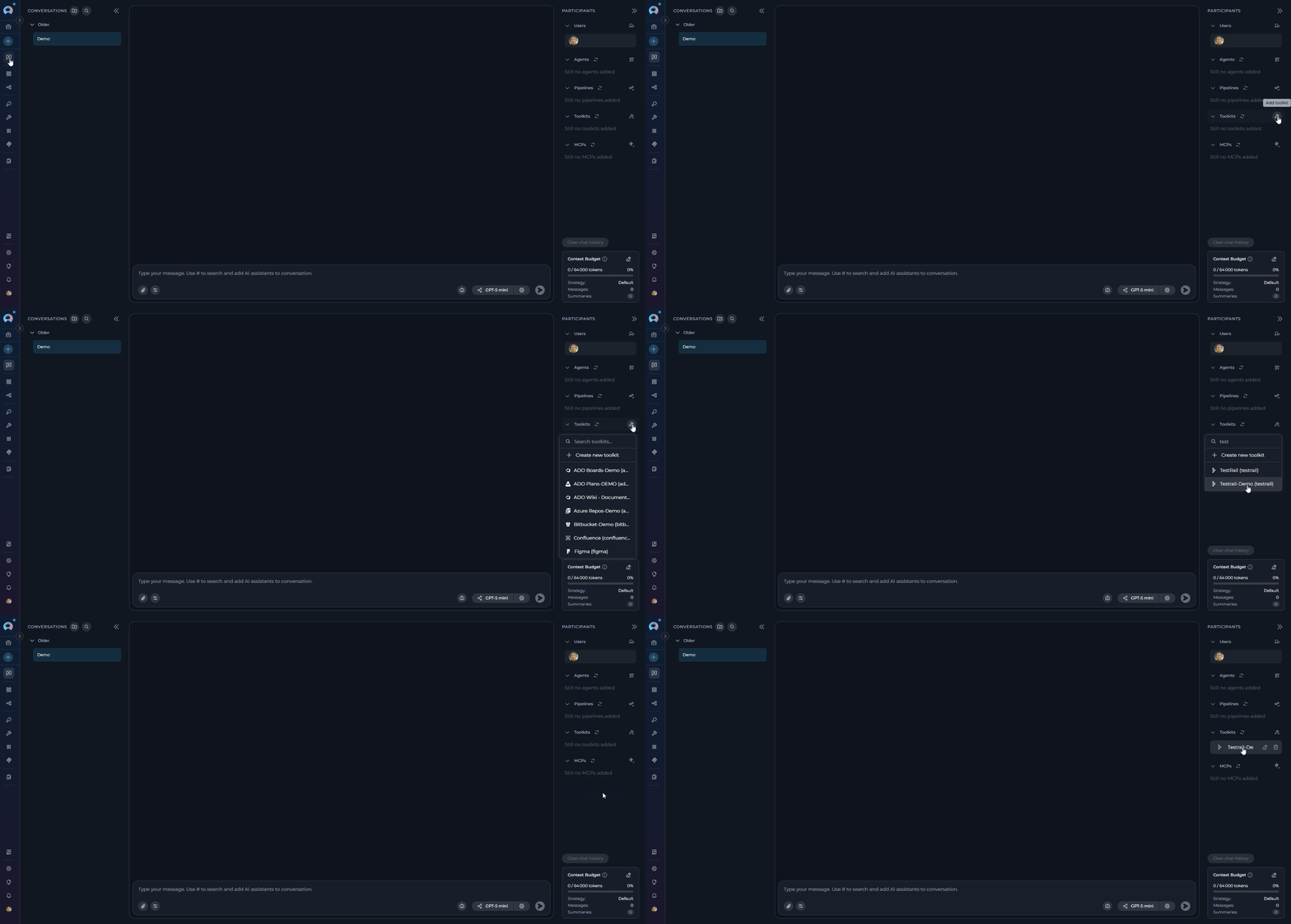
- Navigate to Chat: Open the sidebar and select Chat.
- Start New Conversation: Click +Create or open an existing conversation.
- Add Toolkit to Conversation:
- In the chat Participants section, look for the Toolkits element
- Click to add a toolkit and select your TestRail toolkit from the available options
- The toolkit will be added to your conversation with all previously configured tools enabled
- Use Toolkit in Chat: You can now directly interact with your TestRail instance by asking questions or requesting actions that will trigger the TestRail toolkit tools.
- Example Chat Usage:
Instructions and Prompts for Using the TestRail Toolkit
To effectively instruct your ELITEA Agent to use the TestRail toolkit, you need to provide clear and precise instructions within the Agent’s “Instructions” field. These instructions are crucial for guiding the Agent on when and how to utilize the available TestRail tools to achieve your desired automation goals.Instruction Creation for Agents
When crafting instructions for the TestRail toolkit, especially for OpenAI-based Agents, clarity and precision are paramount. Break down complex tasks into a sequence of simple, actionable steps. Explicitly define all parameters required for each tool and guide the Agent on how to obtain or determine the values for these parameters. Agents respond best to instructions that are:- Direct and Action-Oriented: Employ strong action verbs and clear commands to initiate actions. For example, “Use the ‘get_case’ tool…”, “Create a test case named…”, “Search for test cases containing…”.
-
Parameter-Centric: Clearly enumerate each parameter required by the tool. For each parameter, specify:
- Its name (exactly as expected by the tool)
- Its expected data type (string, integer, JSON object, etc.)
- How the Agent should obtain the value – whether from user input, derived from previous steps in the conversation, retrieved from an external source, or a predefined static value
- Contextually Rich: Provide sufficient context so the Agent understands the overarching objective and the specific scenario in which each TestRail tool should be applied within the broader workflow. Explain the desired outcome or goal for each tool invocation.
- Step-by-Step Structure: Organize instructions into a numbered or bulleted list of steps for complex workflows. This helps the Agent follow a logical sequence of actions.
- Add Conversation Starters: Include example conversation starters that users can use to trigger this functionality. For example, “Conversation Starters: ‘Show me test case 123’, ‘Create a new login test’, ‘Find all high priority test cases’”
- State the Goal: Begin by clearly stating the objective you want to achieve with this step. For example, “Goal: To retrieve details of test case with ID 123.”
- Specify the Tool: Clearly indicate the specific TestRail tool to be used for this step. For example, “Tool: Use the ‘get_case’ tool.”
-
Define Parameters: Provide a detailed list of all parameters required by the selected tool. For each parameter:
- Parameter Name:
<Parameter Name as defined in tool documentation> - Value or Source:
<Specify the value or how to obtain the value. Examples: "user input", "from previous step", "hardcoded value '123'", "value of variable X">
- Parameter Name:
- Describe Expected Outcome (Optional but Recommended): Briefly describe the expected result or outcome after the tool is successfully executed. For example, “Outcome: The Agent will display the full details of test case 123.”
- Add Conversation Starters: Include example conversation starters that users can use to trigger this functionality. For example, “Conversation Starters: ‘Show me test case 123’, ‘Create a new login test’, ‘Find all high priority test cases’”
Chat Usage Examples by Tool Category
The following examples demonstrate how to interact with the TestRail toolkit in ELITEA Chat, organized by functional categories. Each example shows the user request and the expected agent behavior.Test Case Access - Get Case
Test Case Access - Get Case
Test Case Access - Get Cases by Filter
Test Case Access - Get Cases by Filter
Test Case Management - Add Case
Test Case Management - Add Case
Test Case Management - Update Case
Test Case Management - Update Case
Suite Management - Get Suites
Suite Management - Get Suites
Indexing & Search - Search Index
Indexing & Search - Search Index
Use Cases
The TestRail toolkit unlocks numerous automation possibilities for software testing workflows within ELITEA. Here are some key use cases:Automated Test Case Review
Automated Test Case Review
get_caseBenefit: Saves time and allows for faster decision-making during test reviewsExample Workflow:- User requests test case details via Chat or Agent
- Agent uses
get_casetool with case_id - Complete test case information displayed instantly
- User can review steps, preconditions, and expected results without context switching
Test Coverage Analysis
Test Coverage Analysis
get_cases, get_cases_by_filter, get_suitesBenefit: Provides insights into testing scope and identifies coverage gapsExample Workflow:- Use
get_suitesto understand project organization - Use
get_casesto export all test cases in structured format - Analyze distribution by priority, type, and sections
- Identify untested features or missing test scenarios
- Generate coverage reports in markdown, CSV, or JSON format
Automated Test Case Creation
Automated Test Case Creation
add_case, add_casesBenefit: Reduces manual effort, ensures consistency, and accelerates test case developmentExample Workflow:- Agent analyzes requirements document or user story
- Generates test case structure with steps and expected results
- Uses
add_casefor single test case oradd_casesfor bulk creation - Automatically assigns appropriate priority, type, and custom fields
- Links test cases to requirements via refs field
Test Case Maintenance
Test Case Maintenance
update_caseBenefit: Keeps test cases up-to-date efficiently across large test suitesExample Workflow:- Identify test cases needing updates using
get_cases_by_filter - Agent iterates through filtered test cases
- Updates specific fields (priority, steps, custom fields) using
update_case - Maintains consistency across related test cases
- Tracks changes for audit and reporting purposes
Priority-Based Test Selection
Priority-Based Test Selection
get_cases_by_filterBenefit: Enables targeted testing and efficient resource allocationExample Workflow:- Use
get_cases_by_filterwith priority_id filter (e.g., High priority) - Optionally filter by milestone, type, or custom fields
- Export results in preferred format for test execution planning
- Assign high-priority cases to QA team members
- Focus testing efforts on critical functionality
Semantic Test Case Discovery
Semantic Test Case Discovery
index_data, search_index, stepback_search_indexBenefit: Improves test case discoverability and enables intelligent test recommendationsExample Workflow:- Index test case repository using
index_data(one-time setup) - User asks: “Find all test cases related to payment processing errors”
- Agent uses
search_indexwith natural language query - Semantic search returns relevant cases even without exact keyword matches
- Use
stepback_search_indexfor complex queries requiring broader context - Discover similar test cases, identify duplicates, or find coverage gaps
Test Documentation Generation
Test Documentation Generation
get_cases with different output formats (json, csv, markdown)Benefit: Automates documentation creation and supports various reporting needsExample Workflow:- Use
get_caseswithoutput_format="markdown"for documentation - Export to CSV for spreadsheet analysis or stakeholder reports
- Export to JSON for integration with other tools or systems
- Customize field selection using
keysparameter - Automate periodic documentation updates as part of CI/CD pipeline
Test Case Attachment Management
Test Case Attachment Management
add_file_to_caseBenefit: Enriches test cases with visual aids and supporting materialsExample Workflow:- Generate screenshots or test artifacts during test execution
- Upload files to ELITEA artifact storage
- Use
add_file_to_caseto attach artifacts to relevant test cases - Include error logs, configuration files, or test data samples
- Maintain comprehensive test case documentation with visual references
Troubleshooting
Connection Issues
Connection Issues
- “Cannot connect to TestRail at [URL]: connection refused”
- “Connection to TestRail at [URL] timed out”
- “SSL certificate verification failed”
- “TestRail API endpoint not found”
-
Verify URL Format
- Ensure URL starts with
http://orhttps:// - Remove trailing slashes from the URL
- TestRail Cloud:
https://yourcompany.testrail.io - TestRail Server:
https://testrail.yourcompany.com
- Ensure URL starts with
-
Check Network Connectivity
- Verify your network allows connections to TestRail
- Check firewall rules and proxy settings
- Test connectivity using browser or curl
-
SSL Certificate Issues
- For self-signed certificates, configure certificate validation
- Ensure SSL certificate is valid and not expired
-
API Endpoint Validation
- TestRail API uses endpoint:
/index.php?/api/v2/get_user_by_email - Verify the API is enabled in your TestRail instance
- Check with your TestRail administrator if API access is restricted
- TestRail API uses endpoint:
Authentication Errors
Authentication Errors
- “Authentication failed: invalid email or password” (HTTP 401)
- “Access forbidden: check user permissions” (HTTP 403)
- “Please, verify you API key/password”
- “Bad request: check email format and URL” (HTTP 400)
-
Verify Credentials
- Ensure email address matches your TestRail account
- Verify API key is correctly copied (no extra spaces)
- Check that API key hasn’t been revoked or expired
- API key should not be empty
-
API Key Permissions
- Verify the API key is active in TestRail (My Settings → API Keys)
- Regenerate API key if needed
- Some TestRail instances may have API key expiration policies
-
User Permissions Check
- Ensure your TestRail user has access to the projects
- Check project-level permissions in TestRail
- Verify user account is not locked or disabled
-
Email Format
- Use the exact email address registered in TestRail
- Check for typos in email address
- Email is case-sensitive in some TestRail configurations
Project and Suite Access Issues
Project and Suite Access Issues
- “Unable to extract test cases: [error]”
- “No test cases found in the extracted data”
- “Unable to extract test suites: [error]”
- “Project not found or access denied”
-
Project ID Verification
- Find project ID in TestRail URL:
/projects/overview/{project_id} - Use numeric project ID, not project name
- Verify project exists and is accessible to your user
- Find project ID in TestRail URL:
-
Suite Mode Understanding
- Single Suite Mode: All test cases in one suite (no suite_id needed)
- Single Suite with Baseline: Similar to single suite mode
- Multiple Suites Mode: Must specify
suite_idwhen accessing test cases - Check project mode in TestRail Project Settings
-
Section ID Issues
- Find section ID in TestRail URL:
/suites/view/{suite_id}&group_id={section_id} - Sections are nested under suites
- Use
get_suitestool to discover available suites first
- Find section ID in TestRail URL:
-
Access Rights
- Verify read access to projects and suites
- Check if project is archived or inactive
- Confirm user group has appropriate permissions
Test Case Creation/Update Failures
Test Case Creation/Update Failures
- “Unable to add new testcase [error]”
- “Section not found”
- “Invalid template_id”
- “Custom field error: [field_name]”
-
Section ID Validation
- Ensure section_id exists in the project/suite
- Section IDs are numeric values
- Use TestRail UI to find correct section ID
-
Template Selection
- Template 1 (Simple Steps): Use
custom_steps(string) andcustom_expected(string) - Template 2 (Separated Steps): Use
custom_steps_separated(list of dictionaries) - Verify template is enabled in your TestRail project
- Check available templates in Project Settings → Case Templates
- Template 1 (Simple Steps): Use
-
Custom Fields Format
- Custom fields must be prefixed with
custom_ - Example:
custom_preconds,custom_automation_type - Check field system names in TestRail Administration → Customizations
- Ensure custom field types match expected values (int, string, list, etc.)
- Custom fields must be prefixed with
-
Case Properties
priority_id,type_id,template_idare numeric- IDs vary by TestRail instance configuration
- Use TestRail API or UI to determine valid IDs
- Common priority IDs: 1=High, 2=Medium, 3=Low (but verify for your instance)
-
Write Permissions
- Verify user has write permissions to the project
- Check if project or suite is locked
- Some fields may be read-only based on project configuration
Indexing and Search Issues
Indexing and Search Issues
- “PgVector configuration is required for indexing”
- “Embedding model is required for indexing”
- “Unable to extract test cases for indexing”
- “No test cases found to index”
-
PgVector Configuration
- Ensure PgVector is configured in toolkit settings
- Verify PgVector database is accessible
- Test PgVector connection independently
-
Embedding Model Selection
- Select an embedding model in toolkit configuration
- Supported models:
amazon.titan-embed-text-v2:0,text-embedding-ada-002 - Verify embedding model is available in your ELITEA environment
-
Index Creation Prerequisites
- Project must have accessible test cases
- Use
get_casesto verify test cases are retrievable - For multiple suite mode, specify
suite_idin index_data parameters
-
Search Query Formatting
- Use natural language queries for semantic search
- Be specific in search queries for better results
- Try broader queries if no results are found
-
Attachment Indexing
- Set
include_attachments: trueto index attachments - Note: Increases indexing time and storage requirements
- Use
skip_attachment_extensionsto exclude specific file types - Supported: text files, PDFs, images (with OCR)
- Set
Suite Mode and API Compatibility Issues
Suite Mode and API Compatibility Issues
- “Unable to extract test cases: [error]”
- “No test cases found in the extracted data” (when cases exist)
- TestRail API returns unexpected response structure
- Suite-related operations fail inconsistently
-
Identify Project Suite Mode
- Check Project Settings → Test Suite Mode in TestRail
- Mode 1: Single Suite (no suite_id needed)
- Mode 2: Single Suite + Baselines (suite_id optional)
- Mode 3: Multiple Suites (suite_id required for most operations)
-
Suite ID Requirements by Mode
- Single Suite (Mode 1): Omit
suite_idparameter fromget_casescalls - Multiple Suites (Mode 3): Always provide
suite_idparameter - Not Sure?: Use
get_suitestool to check available suites
- Single Suite (Mode 1): Omit
-
Automatic Suite Handling
- SDK automatically detects suite mode and handles accordingly
- If
suite_idnot provided in Mode 3, SDK fetches all suites and aggregates - Can cause performance issues with large projects
-
TestRail API Version Compatibility
- SDK supports both old and new TestRail API response formats
- Old format: Direct array
[case1, case2, ...] - New format: Wrapped object
{"cases": [case1, case2, ...]} - SDK handles both automatically
-
Section ID Hierarchies
- Sections are nested under suites in Multiple Suites mode
- When creating cases, ensure section belongs to correct suite
- Section IDs are unique across project, but suite context matters
- Use TestRail UI to verify section-suite relationships
Rate Limiting and Performance Issues
Rate Limiting and Performance Issues
- “HTTP 429: Too Many Requests”
- Slow response times from TestRail API
- Timeout errors during bulk operations
- Indexing operations taking excessive time
-
TestRail API Rate Limits
- TestRail Cloud has rate limiting (typically 180 requests/minute per user)
- Bulk operations (
add_cases, indexing) make multiple API calls - Implement delays between large batches of operations
- Consider spreading operations across multiple sessions
-
Optimize Bulk Operations
- Use
add_cases(bulk) instead of multipleadd_casecalls - Batch test cases in groups of 50-100 for balance
- For 1000+ cases, split into multiple batches with delays
- Monitor rate limit headers in responses
- Use
-
Indexing Performance
- Small Projects (<500 cases): Index entire project at once
- Medium Projects (500-2000 cases): Index by suite
- Large Projects (>2000 cases): Index by suite + section, schedule overnight
- Exclude attachments initially for faster indexing
- Use
skip_attachment_extensionsto reduce processing time
-
Network and Timeout Issues
- Increase timeout settings for slow networks or large responses
- TestRail Cloud instances in different regions have varying latency
- Self-hosted TestRail: Check server resources and network
- Consider using
limitparameter inget_cases_by_filterfor pagination
-
Reduce API Call Volume
- Cache suite and section information locally
- Use
get_caseswith filters instead of multipleget_casecalls - Fetch test cases once and process locally when possible
- Use
keysparameter to limit returned fields
- Pagination: Use
limitandoffsetfor large result sets - Filtering: Apply filters server-side rather than fetching all cases
- Parallel Processing: Avoid parallel calls to same TestRail instance
- Caching: Store frequently accessed data (projects, suites, field definitions)
- Scheduling: Run large operations (indexing, bulk updates) during off-peak hours
- Track operation execution times
- Log API response times
- Monitor rate limit warnings
- Set alerts for timeout errors
Bulk Operations and Data Validation Issues
Bulk Operations and Data Validation Issues
- “Invalid parameter for json_case_arguments: [error]”
- “json_case_arguments must be a JSON string or dictionary”
- “Failed to decode JSON from document: [error]”
- “Unable to add new testcase [error]” (multiple times)
-
JSON String Format Validation
- Ensure
add_test_cases_datais a valid JSON string, not an object - Properly escape quotes in JSON strings
- Validate JSON syntax using online JSON validators
- Check for trailing commas, missing quotes, or unmatched brackets
- Ensure
-
Array vs Single Value Parameters
- Parameters like
priority_id,type_id,milestone_idin filters can accept arrays or comma-separated strings - Example:
"priority_id": [1, 2]or"priority_id": "1,2" - Single values still need to be in correct format:
"priority_id": [1]
- Parameters like
-
Template and Steps Mismatch
template_id: 1requirescustom_steps(string) andcustom_expected(string)template_id: 2requirescustom_steps_separated(array of objects)- Using wrong step format for template causes validation errors
- Verify template configuration in TestRail Project Settings
-
Bulk Create Error Handling
add_casesprocesses each case sequentially- One invalid case can fail the entire batch
- Test with 1-2 cases first to validate structure
- Check all section IDs are valid before bulk operations
-
Data Type Validation
- Numeric IDs must be integers, not strings (inside JSON structure)
- Boolean fields require
true/false, not “true”/“false” - Date fields must match TestRail instance format
- Estimate fields must match pattern: ”30s”, “1m 45s”, “2h 30m”
File Attachment Issues
File Attachment Issues
- “Unable to attach file to test case”
- “Artifact not found”
- “File type not supported”
-
Artifact Validation
- Verify artifact exists and is accessible
- Check artifact path is correct
- Ensure artifact is uploaded to ELITEA first
-
File Type Support
- TestRail supports various file types
- Check TestRail file size limits
- Some file types may be restricted by admin settings
-
Test Case ID
- Verify test case ID is correct
- Ensure test case exists and is not deleted
- User must have permission to modify the test case
Support Contact
If you encounter issues not covered in this guide or need additional assistance with Testrail integration, please refer to Contact Support for detailed information on how to reach the ELITEA Support Team.FAQ
Q: Can I use my regular TestRail password instead of an API Key?
Q: Can I use my regular TestRail password instead of an API Key?
- Enhanced Security: Can be revoked without changing your password
- Audit Trail: Track API usage separately from UI access
- Granular Control: Each integration can have its own key
- Best Practice: Aligns with security standards for application integrations
Q: Where do I find Project IDs, Suite IDs, and Section IDs?
Q: Where do I find Project IDs, Suite IDs, and Section IDs?
- Navigate to project overview:
/projects/overview/{project_id} - Example:
https://yourcompany.testrail.io/projects/overview/1→ Project ID is1
- Navigate to a suite:
/suites/view/{suite_id} - Example:
https://yourcompany.testrail.io/suites/view/5→ Suite ID is5 - Use
get_suitestool to list all suites in a project
- Navigate to a section:
/suites/view/{suite_id}&group_id={section_id} - Visible in URL when viewing test cases in a section
- Sections are hierarchical and nested under suites
- Use TestRail API directly:
/api/v2/get_projects,/api/v2/get_suites/{project_id} - Use ELITEA tools:
get_suitesto discover suite IDs programmatically
Q: What are the priority_id and type_id values for my TestRail instance?
Q: What are the priority_id and type_id values for my TestRail instance?
1= High2= Medium3= Low
1= Acceptance2= Accessibility3= Automated4= Compatibility5= Destructive6= Functional7= Other8= Performance9= Regression10= Security11= Smoke & Sanity12= Usability
-
TestRail Administration Panel:
- Navigate to Administration → Customizations → Priorities
- Navigate to Administration → Customizations → Case Types
-
TestRail API:
- Use
/api/v2/get_prioritiesendpoint - Use
/api/v2/get_case_typesendpoint
- Use
-
Contact TestRail Administrator:
- Your TestRail admin can provide the exact IDs for your instance
- Custom priorities and types may have been configured
Q: How do I know which template_id to use when creating test cases?
Q: How do I know which template_id to use when creating test cases?
- Uses simple text format for steps and expected results
- Fields:
custom_steps(string),custom_expected(string),custom_preconds(string, optional) - Best for: Simple, narrative-style test cases
- Tool Parameters:
section_id: “5” (string)title: “Verify user login with valid credentials”case_properties: (dictionary below)
- case_properties Example:
- Uses structured format with individual step objects
- Field:
custom_steps_separated(list of dictionaries) - Supports shared steps via
shared_step_id - Best for: Detailed, step-by-step test cases with individual expected results
- Tool Parameters:
section_id: “5” (string)title: “Verify user login with step-by-step validation”case_properties: (dictionary below)
- case_properties Example:
shared_step_id field references a shared step already defined in TestRail, allowing reuse of common test steps.How to Determine Available Templates:- TestRail UI: Project Settings → Case Templates
- TestRail API: Use
/api/v2/get_templates/{project_id}endpoint - Default: If unsure, use
template_id: 1as it’s most common - Custom Templates: Your instance may have custom templates with different IDs
Q: Can I index test case attachments?
Q: Can I index test case attachments?
- Text files: .txt, .md, .log (fully indexed)
- Documents: .pdf, .docx (content extracted and indexed)
- Images: .png, .jpg, .gif (can be processed with OCR if configured)
- Unsupported: Binary files, compressed archives
- Processing Time: Attachment indexing significantly increases indexing duration
- Storage: Requires more vector database storage
- Filtering: Use
skip_attachment_extensionsto exclude unnecessary file types - Performance: Start with smaller projects to test attachment indexing
- Index attachments only if needed for search requirements
- Exclude image files unless OCR is required
- Monitor vector database storage usage
- Consider indexing subsets (by suite or section) for large projects
Q: What's the difference between single suite and multiple suite modes?
Q: What's the difference between single suite and multiple suite modes?
- TestRail UI: Project Settings → Test Suite Mode
- Visual Indicator: Multiple suites mode shows suite selector in UI
- Use get_suites: Returns one suite for single mode, multiple for multiple mode
- Single Suite: Simpler, all cases in one location, no suite management
- Multiple Suites: Better organization, separate suites for versions/modules, requires suite_id parameter
- “Unable to extract test cases” when suite_id is missing in multiple suites mode
- Specify suite_id explicitly when working with multiple suites projects
Q: How do custom fields work in TestRail?
Q: How do custom fields work in TestRail?
- All custom fields are prefixed with
custom_ - Field name format:
custom_{system_name} - Example:
custom_preconds,custom_automation_type,custom_testrail_bdd_scenario
-
TestRail Administration:
- Navigate to Administration → Customizations → Case Fields
- Look for “System Name” column (e.g.,
preconds→ use ascustom_preconds)
-
TestRail API:
- Use
/api/v2/get_case_fieldsendpoint - Returns all custom fields with system names and types
- Use
- Example API Response:
custom_precondsCommon Custom Fields:custom_preconds: Preconditionscustom_steps: Test steps (template 1)custom_expected: Expected result (template 1)custom_steps_separated: Separated steps (template 2)custom_automation_type: Automation typecustom_testrail_bdd_scenario: BDD scenario
Q: Why do I get 'Invalid parameter for json_case_arguments' error?
Q: Why do I get 'Invalid parameter for json_case_arguments' error?
get_cases_by_filter tool receives improperly formatted JSON.Common Causes:- Passing Object Instead of String:
- Invalid JSON Syntax:
- Missing quotes around keys or string values
- Trailing commas
- Unescaped quotes in string
- Incorrect Data Types:
- Using strings instead of integers for IDs
- Using single values instead of arrays where required
suite_id(int): Suite IDsection_id(int): Section IDpriority_id(list or comma-separated string): Priority IDstype_id(list or comma-separated string): Type IDsmilestone_id(list or comma-separated string): Milestone IDscreated_by(list or comma-separated string): Creator user IDscreated_after(int/datetime): Unix timestampcreated_before(int/datetime): Unix timestampupdated_by(list or comma-separated string): Updater user IDsupdated_after(int/datetime): Unix timestampupdated_before(int/datetime): Unix timestampfilter(str): Title search stringlimit(int): Max results (default: 250)offset(int): Results offset for paginationtemplate_id(list or comma-separated string): Template IDsrefs(str): Reference ID
json_case_arguments as either a string or dictionary internally, but when calling through an agent or API, always pass as a properly escaped JSON string to avoid parsing errors.Q: Can I bulk create test cases from a spreadsheet or file?
Q: Can I bulk create test cases from a spreadsheet or file?
add_cases tool to bulk create multiple test cases at once.Input Format:The add_cases tool accepts a JSON string (not a JSON object) containing an array of test case objects.Tool Parameter:add_test_cases_data: String containing JSON array
- The entire JSON array must be passed as a string to the
add_test_cases_dataparameter - Each test case object requires:
section_id(string),title(string), andcase_properties(dict) case_propertiesis optional and can be an empty dictionary{}- All section IDs must be valid for the target project
- Prepare Data: Organize test cases in spreadsheet (CSV or Excel)
- Convert to JSON: Use ELITEA Agent to convert spreadsheet to JSON format
- Validate Structure: Ensure JSON matches required format
- Bulk Create: Use
add_casestool with the JSON array - Verify: Check TestRail for created test cases
- Create hundreds of test cases in seconds
- Maintain consistency across test cases
- Automate test case generation from requirements
- Reduce manual data entry errors
Q: How do I attach files to test cases?
Q: How do I attach files to test cases?
add_file_to_case tool to upload files from ELITEA artifact storage to TestRail test cases.Tool Parameters:case_id(string): TestRail test case ID to attach file tofilepath(string): File path in artifact storage format:/{bucket}/{filename}filename(string, optional): Custom filename for attachment (defaults to original filename)
- Upload to Artifact Storage: Files must first be uploaded to ELITEA’s artifact storage (typically
__temp__bucket) - Get Artifact Path: Obtain the artifact filepath in format
/{bucket}/{filename} - Attach to Case: Use
add_file_to_casewith the artifact path - Verify: Check TestRail test case for attachment
- Images: .png, .jpg, .jpeg, .gif, .bmp
- Documents: .pdf, .docx, .xlsx, .txt, .md
- Code Files: .py, .java, .js, .json, .xml, .yaml
- Logs: .log, .txt
- Archives: .zip (check TestRail instance configuration)
- “Failed to download artifact ”: Artifact doesn’t exist or path is incorrect
- “Failed to attach file to test case ”: TestRail API error (check permissions, file size limits)
- Verify artifact exists before attempting attachment
- Check TestRail instance file size limits (typically 256MB max)
- Use descriptive filenames for better organization
- Keep file sizes reasonable (<10MB when possible)
- Attach screenshots for visual test steps
- Attach test data files for data-driven tests
- Clean up artifact storage after successful attachment
Q: How can I debug TestRail API errors?
Q: How can I debug TestRail API errors?
HTTP 400: Bad request - Invalid parameters or malformed JSONHTTP 401: Unauthorized - Invalid credentials or API keyHTTP 403: Forbidden - Insufficient permissionsHTTP 404: Not found - Invalid project_id, suite_id, or case_idHTTP 429: Rate limit exceeded - Too many requests
- “Unable to add new testcase”: Check section_id, template_id, required fields
- “Unable to extract testcase”: Invalid case_id or access denied
- “Unable to extract test cases”: Project/suite access or suite_id issues
- “No test cases found”: Empty project/suite or filter returned no results
- “Invalid parameter for json_case_arguments”: JSON parsing error
-
Verify Credentials:
- Test connection using TestRail UI with same credentials
- Ensure API key hasn’t expired or been revoked
- Check email address matches TestRail account exactly
-
Check Resource IDs:
- Verify project_id exists:
/projects/overview/{project_id} - Verify suite_id exists: use
get_suitestool - Verify section_id belongs to correct project/suite
- Check case_id format (numeric, not prefixed with ‘C’)
- Verify project_id exists:
-
Validate Permissions:
- User has read access for get operations
- User has write access for add/update operations
- Project isn’t archived or read-only
- User is assigned to project
-
Test with Simple Cases:
- Start with minimal test:
get_casewith known case_id - Test
get_suitesto verify project access - Create test case with only required fields (title, section_id)
- Gradually add complexity once basic operations work
- Start with minimal test:
-
Review Tool Responses:
- ToolException messages include specific error details
- StatusCodeError provides HTTP status and TestRail error message
- Read error messages carefully - they often indicate exact issue
- Include full error message in support requests
- Provide anonymized example of parameters used
- Share TestRail version and instance type (Cloud/Server)
- Describe what worked previously if applicable
Q: What happens when test case indexing fails?
Q: What happens when test case indexing fails?
-
PgVector Connection Issues:
- Error: “PgVector configuration is required for indexing”
- Cause: Missing or invalid PgVector configuration
- Solution: Verify PgVector credentials and connection in toolkit settings
-
Embedding Model Errors:
- Error: “Embedding model is required for indexing”
- Cause: No embedding model configured or model unavailable
- Solution: Select valid embedding model in toolkit configuration
-
Test Case Extraction Failures:
- Error: “Unable to extract test cases for indexing”
- Cause: Suite mode issues, permissions, or invalid project_id
- Solution: Use
get_casesto verify test case access before indexing
-
Attachment Processing Errors:
- Error: “Unable to parse attachment content”
- Cause: Unsupported file type, corrupted file, or AI service issues
- Result: Attachment skipped, but test case still indexed
- Solution: Check attachment file types and exclude problematic extensions
-
Vector Storage Limits:
- Error: Database storage limits exceeded
- Cause: Too many test cases or attachments indexed
- Solution: Remove old indexes, filter by suite/section, or increase storage
- Indexing continues despite individual case errors
- Successfully indexed cases remain searchable
- Review logs to identify failed cases
- Re-run indexing for specific suites/sections
- Check PgVector connection first
- Verify embedding model availability
- Test with single suite before full project
- Use
remove_indexto clean up partial data
- Test Small First: Index single suite before entire project
- Exclude Attachments Initially: Add
"include_attachments": falseuntil core cases indexed - Monitor Progress: Large projects can take significant time
- Handle Timeouts: Break large projects into suite-by-suite indexing
- Verify Completion: Use
search_indexto test indexed data
- Use
list_collectionsto see existing indexes - Use
remove_indexto delete corrupted or outdated indexes - Create separate collections for different projects
- Clean up indexes for archived projects
Q: How does semantic search work with TestRail test cases?
Q: How does semantic search work with TestRail test cases?
-
Indexing Phase:
- Test case content is converted to vector embeddings using an AI model
- Embeddings capture semantic meaning of test cases
- Stored in PgVector database for fast similarity search
-
Search Phase:
- Your query is converted to a vector embedding
- Vector similarity search finds semantically related test cases
- Results ranked by relevance score
- PgVector Configuration: Vector database for storing embeddings
- Embedding Model: AI model for text-to-vector conversion (e.g.,
amazon.titan-embed-text-v2:0) - Indexed Data: Must run
index_datatool first
- Query: “login test” → Only finds cases with exact words “login” and “test”
- Query: “authentication validation” → Finds:
- Login test cases
- Password verification tests
- Session management tests
- SSO authentication tests
- All semantically related authentication scenarios
- Use natural language queries: “test cases for payment processing errors”
- Be specific for better results: “mobile app login with biometric authentication”
- Use
stepback_search_indexfor complex queries requiring broader context - Reindex periodically to include new test cases
- Find duplicate or similar test cases
- Discover existing tests for a new feature
- Identify gaps in test coverage
- Generate test recommendations based on requirements
Q: What fields can I update in a test case?
Q: What fields can I update in a test case?
update_case tool supports partial updates of test cases. You can update any combination of the following fields:Standard Fields:title: Test case title (string)section_id: Move to different section (integer)template_id: Change template layout (integer)type_id: Change case type (integer)priority_id: Change priority (integer)estimate: Execution time estimate (string, e.g., ”30s”, “1m 45s”)milestone_id: Link to milestone (integer)refs: Requirements/references (comma-separated string)
- All custom fields with
custom_prefix - Examples:
custom_preconds,custom_steps,custom_expected,custom_steps_separated
- Partial updates supported - only include fields you want to change
- Unspecified fields remain unchanged
- When updating steps, include complete step content (not partial)
section_idrequires TestRail 6.5.2 or later
Q: Can I update multiple test cases at once?
Q: Can I update multiple test cases at once?
update_case tool updates one test case at a time. For bulk updates, use an Agent to iterate:Approach 1 - Sequential Updates:- Start with a small batch to test the update logic
- Verify one update before processing hundreds
- Use get_cases_by_filter to target specific test cases
- Consider TestRail’s built-in bulk update features for very large updates (100+)
- Bulk update functionality may be added to the toolkit in future versions
- Contact ELITEA support if bulk update capability is critical for your workflow
Guides and References
- Create and Edit Agents from Canvas — Quick agent creation for TestRail automation
- Create and Edit Toolkits from Canvas — Streamline TestRail toolkit configuration
- Create and Edit Pipelines from Canvas — Build automated TestRail workflows
- Indexing Overview — Enable semantic search across TestRail test cases
- Index TestRail Data — Step-by-step guide for indexing TestRail test cases
- TestRail Website — Main TestRail platform and product information
- TestRail API Documentation — Official API reference and endpoints
- TestRail Support Portal — TestRail knowledge base and support
- TestRail API Client Library — Python library for TestRail API
- ELITEA Support — Contact support team for assistance