

Introduction
This guide is your comprehensive resource for integrating and utilizing the GitLab toolkit within ELITEA. It provides detailed, step-by-step instructions, from setting up your GitLab Personal Access Token to configuring the toolkit in ELITEA and effectively using it within your Agents, Pipelines, and Chat conversations. By following this guide, you will unlock the power of automated code management, streamlined development workflows, and enhanced team collaboration, all directly within the ELITEA platform. Brief Overview of GitLab GitLab is a powerful, web-based DevOps platform that provides a comprehensive suite of tools for the entire software development lifecycle, delivered as a single, integrated application. It is widely adopted by development teams for its robust features and collaborative environment, offering features for:- Centralized Git Repository Management: GitLab provides a robust and scalable platform for hosting and managing Git repositories, ensuring efficient version control, code organization, and secure access management for your entire codebase.
- Enhanced Collaboration Features: GitLab fosters seamless team collaboration with features such as Merge Requests for code review, robust Issue Tracking for project management, Wikis for documentation, and in-line Code Review tools, facilitating a collaborative and transparent development process.
- Integrated CI/CD Pipelines: GitLab CI/CD is a powerful built-in Continuous Integration and Continuous Delivery system that automates the entire software pipeline, from building and testing code to deploying applications, enabling rapid and reliable software releases.
- Comprehensive Project Management Tools: GitLab includes a rich set of project planning and management features, such as Issue Boards for agile task management, Milestones for tracking progress against deadlines, and Time Tracking to monitor effort, streamlining software development workflows and improving project visibility.
- DevSecOps Capabilities: GitLab integrates security scanning and testing throughout the DevOps lifecycle, enabling teams to build secure applications and proactively address vulnerabilities early in the development process.
Toolkit’s Account Setup and Configuration
Account Setup If you don’t have a GitLab account yet, here’s how to get started:- Visit GitLab Website: Open your web browser and navigate to GitLab’s official website.
- Sign Up: Click on the “Register” or “Sign Up” button, typically located in the top right corner of the homepage.
- Fill Out the Registration Form: Provide your details in the registration form. This typically includes your username, email address, full name, and a secure password. For professional use, it’s highly recommended to use your company email.
- Submit the Form: Click on the “Register” or similar button to submit the form. GitLab will send a confirmation email to the email address you provided.
- Verify Your Email: Open the confirmation email from GitLab and click on the verification link provided within the email. This step is crucial to activate your GitLab account.
- Access Your Account: After email verification, you will be redirected to your GitLab account or prompted to log in. You are now ready to proceed with GitLab configuration.
Generate a Personal Access Token
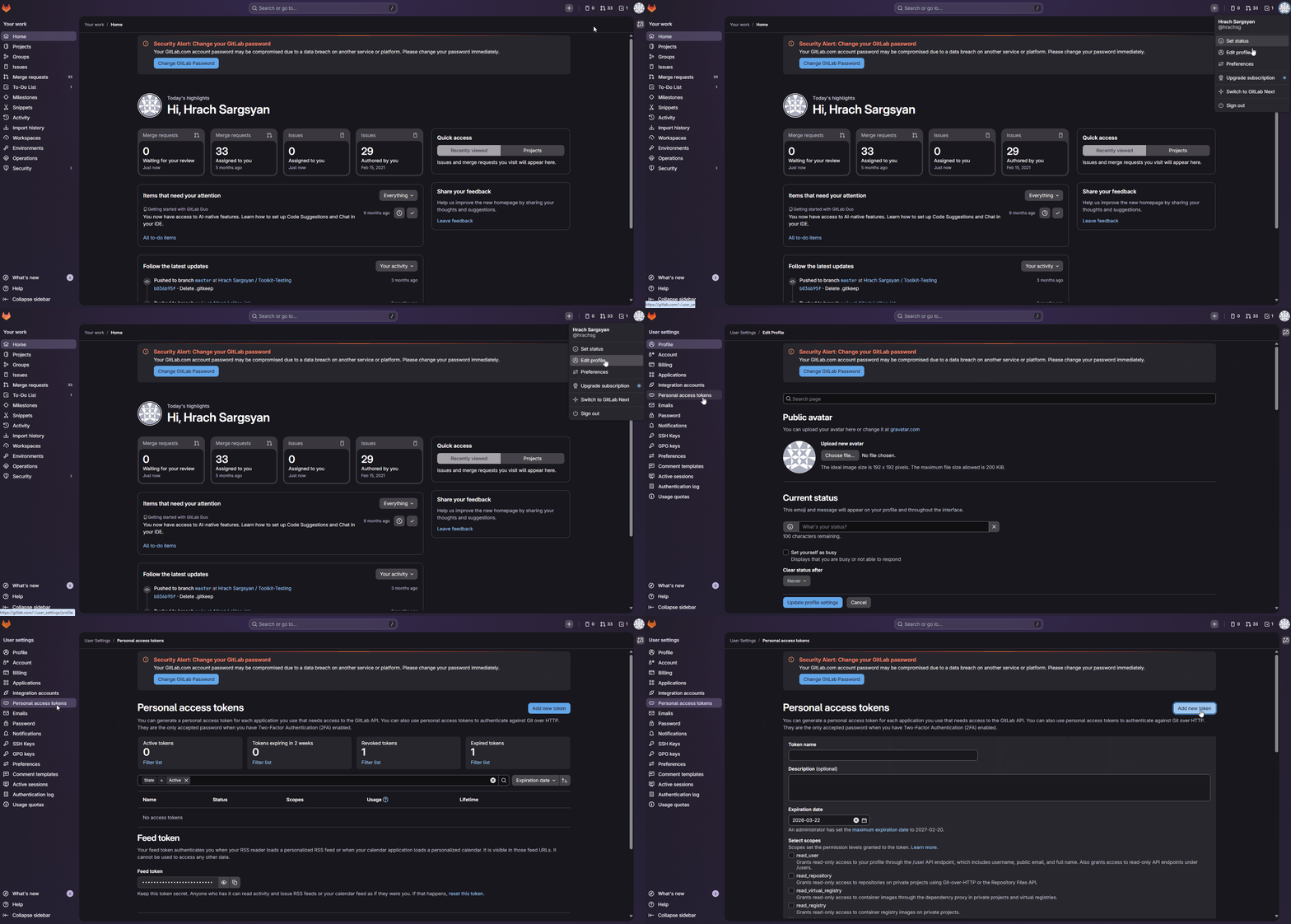
For secure integration with ELITEA, it is essential to use a GitLab Personal Access Token. This method is significantly more secure than using your primary GitLab account password directly and allows you to precisely control the permissions granted to ELITEA. Follow these steps to generate a Personal Access Token in GitLab:- Log in to GitLab: Access your GitLab account using your credentials.
- Access User Settings: Click on your profile avatar in the top right corner of the GitLab interface. From the dropdown menu, select “Edit profile”.
- Navigate to Access Tokens: In the left-hand sidebar of your profile settings, click on “Access Tokens”.
-
Add New Token: Click the “Add new token” button to create a new Personal Access Token.
-
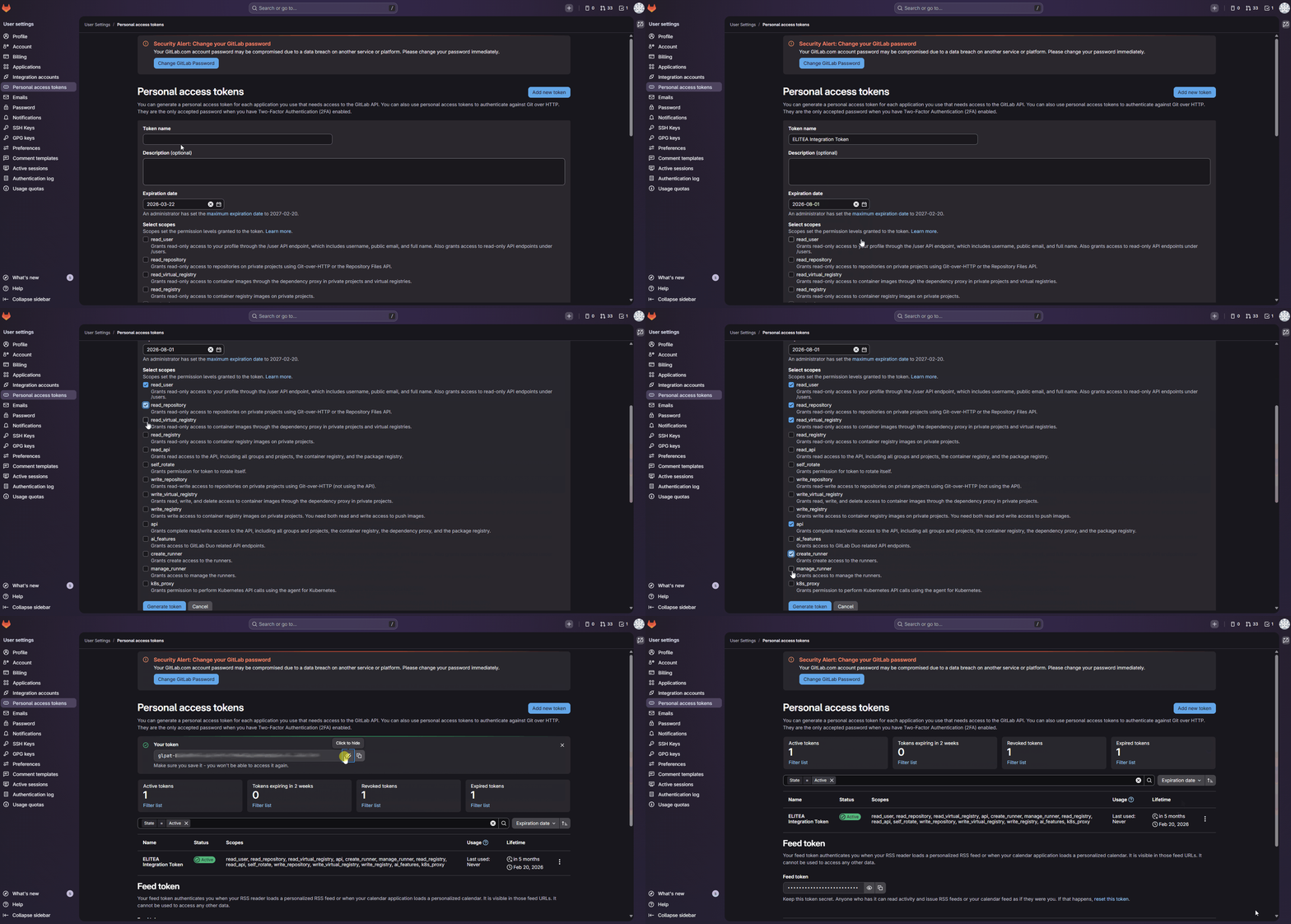
Configure Token Details:
- Token name: In the “Token name” field, enter a descriptive name for the token, such as “ELITEA Integration Token”. This will help you identify the purpose of this token later.
- Expiration date (Recommended): For enhanced security, it is strongly recommended to set an Expiration date for your token. Choose a reasonable validity period that aligns with your security policies and integration needs.
-
Select Scopes - Grant Least Privilege (Crucial for Security): Carefully select the scopes or permissions you grant to this Personal Access Token. It is crucial to grant only the minimum necessary permissions required for your ELITEA Agent’s intended interactions with GitLab.
!!! tip “Token Scopes”
Minimal Scopes for Common Use Cases:
- api: Provides full access to the GitLab API. If possible, for enhanced security, consider using more granular scopes
- read_api: Read-only access to the API
- read_repository: Read-only access to repositories
- write_repository: Write access to repositories. Include only if your Agent needs to modify repositories
- read_user: Read access to user profiles
- read_issue: Read access to issues
- write_issue: Write access to issues. Include only if your Agent needs to manage issues
- read_merge_requests: Read access to merge requests
- write_merge_requests: Write access to merge requests. Include only if your Agent needs to manage merge requests
- Create Personal Access Token: Click the “Create personal access token” button to generate your token.
-
Securely Copy and Store Your Token: Immediately copy the generated Personal Access Token. This is the only time it will be displayed in full. Store it securely in a password manager or, preferably, ELITEA’s built-in Secrets feature for enhanced security within ELITEA. You will need this token to configure the GitLab toolkit in ELITEA.
System Integration with ELITEA
To integrate GitLab with ELITEA, you need to follow a three-step process: Create Credentials → Create Toolkit → Use in Agents. This workflow ensures secure authentication and proper configuration.Step 1: Create GitLab Credentials
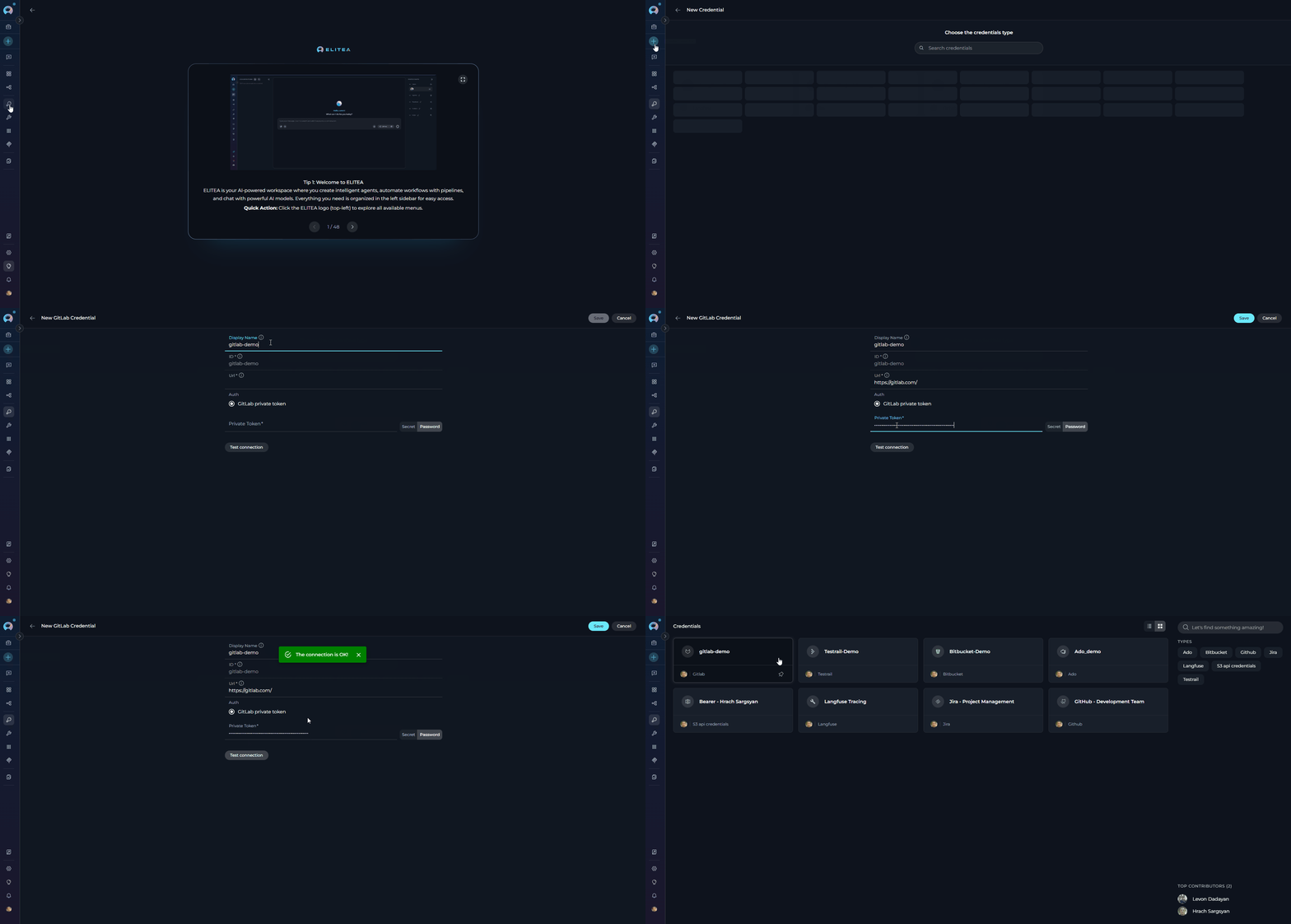
Before creating a toolkit, you must first create GitLab credentials in ELITEA:- Navigate to Credentials Menu: Open the sidebar and select Credentials.
-
Create New Credential: Click the
+ Createbutton. - Select GitLab: Choose GitLab as the credential type.
-
Configure Credential Details:
- Test Connection: Click Test Connection to verify your credentials are valid and ELITEA can connect to GitLab
-
Save Credential: Click Save to create the credential
Step 2: Create GitLab Toolkit
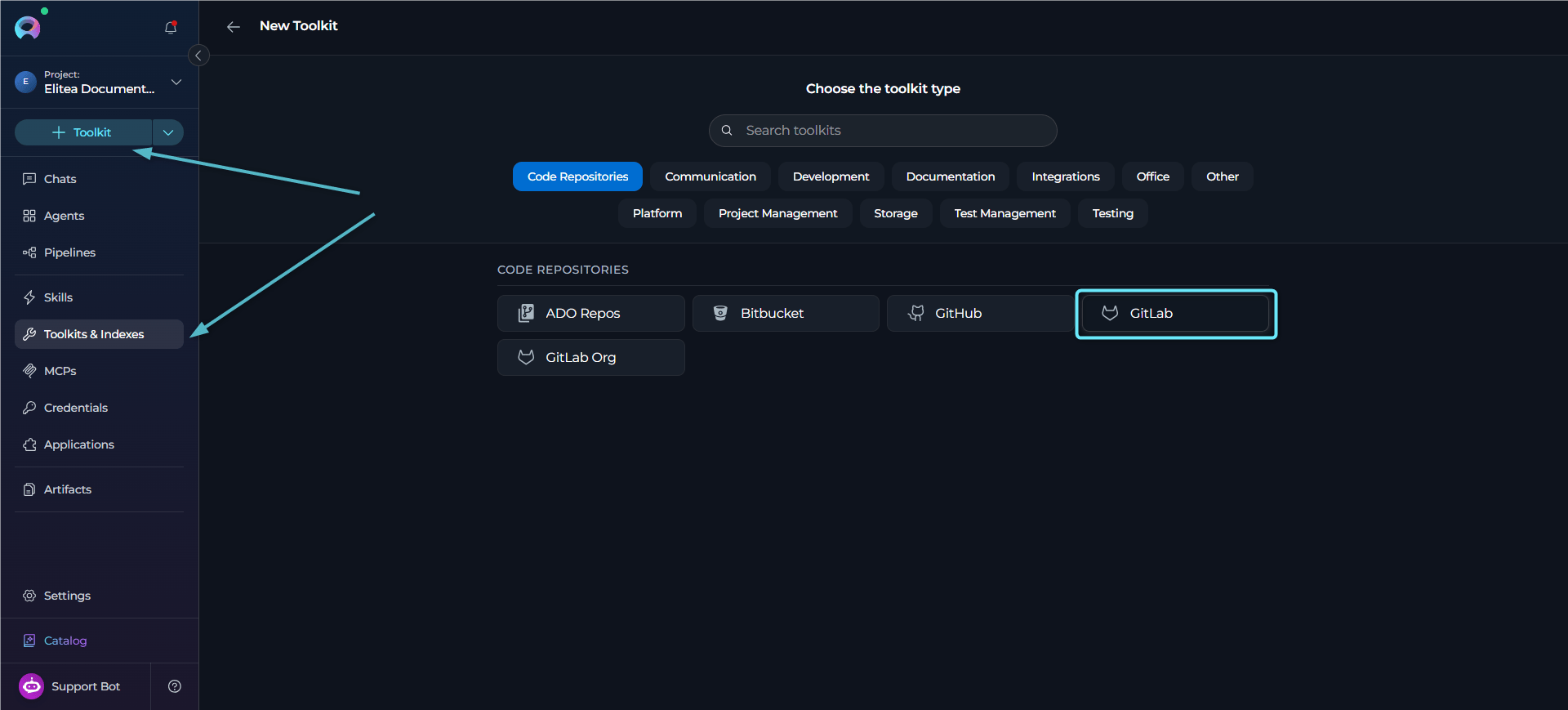
Once your credentials are configured, create the GitLab toolkit:- Navigate to Toolkits Menu: Open the sidebar and select Toolkits & Indexes.
-
Create New Toolkit: Click the
+ Toolkitbutton. -
Select GitLab: Choose GitLab from the list of available toolkit types.
-
Configure Toolkit Settings:
-
Enable Desired Tools: In the “Tools” section, select the checkboxes next to the specific GitLab tools you want to enable. Enable only the tools your agents will actually use
- Make Tools Available by MCP - (optional checkbox) Enable this option to make the selected tools accessible through external MCP clients
- Save Toolkit: Click Save to create the toolkit
Available Tools:
The GitLab toolkit provides the following tools for interacting with GitLab repositories, organized by functional categories:Testing Toolkit Tools
After configuring your GitLab toolkit, you can test individual tools directly from the Toolkit detailed page using the Test Settings panel. This allows you to verify that your credentials are working correctly and validate tool functionality before adding the toolkit to your workflows. General Testing Steps:- Select LLM Model: Choose a Large Language Model from the model dropdown in the Test Settings panel
- Configure Model Settings: Adjust model parameters like Creativity, Max Completion Tokens, and other settings as needed
- Select a Tool: Choose the specific GitLab tool you want to test from the available tools
- Provide Input: Enter any required parameters or test queries for the selected tool
- Run the Test: Execute the tool and wait for the response
- Review the Response: Analyze the output to verify the tool is working correctly and returning expected results
Step 3: Use GitLab Toolkit in Agents
Step 3: Use GitLab Toolkit in Agents
Once your GitLab toolkit is created, you can use it in various ELITEA features:In Agents:
- Navigate to Agents: Open the sidebar and select Agents.
-
Create or Edit Agent: Click
+ Createfor a new agent or select an existing agent to edit. -
Add GitLab Toolkit:
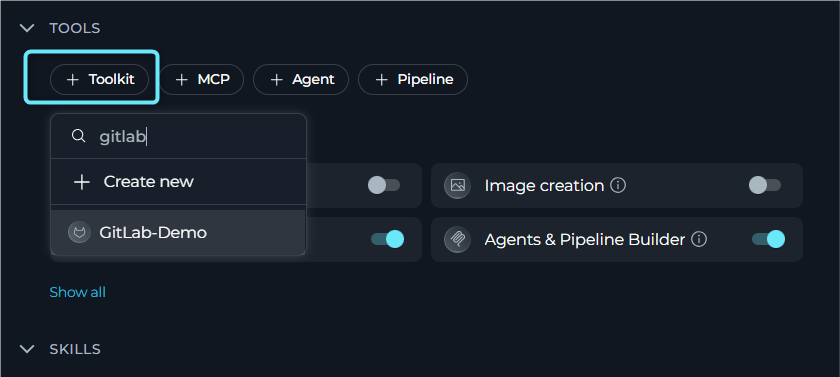
- In the “TOOLS” section of the agent configuration, click the “+Toolkit” icon
- Select your GitLab toolkit from the dropdown menu
- The toolkit will be added to your agent with the previously configured tools enabled
In Pipelines:
- Navigate to Pipelines: Open the sidebar and select Pipelines.
- Create or Edit Pipeline: Either create a new pipeline or select an existing pipeline to edit.
-
Add GitLab Toolkit:
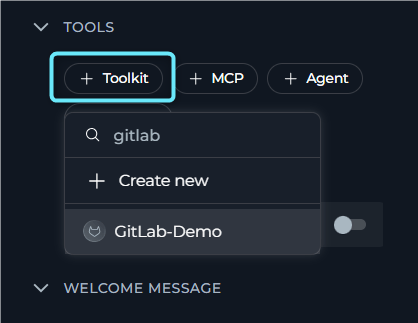
- In the “TOOLS” section of the pipeline configuration, click the “+Toolkit” icon
- Select your GitLab toolkit from the dropdown menu
- The toolkit will be added to your pipeline with the previously configured tools enabled
In Chat:
- Navigate to Chat: Open the sidebar and select Chat.
- Start New Conversation: Click + Conversation or open an existing conversation.
-
Add GitLab Toolkit to Conversation:
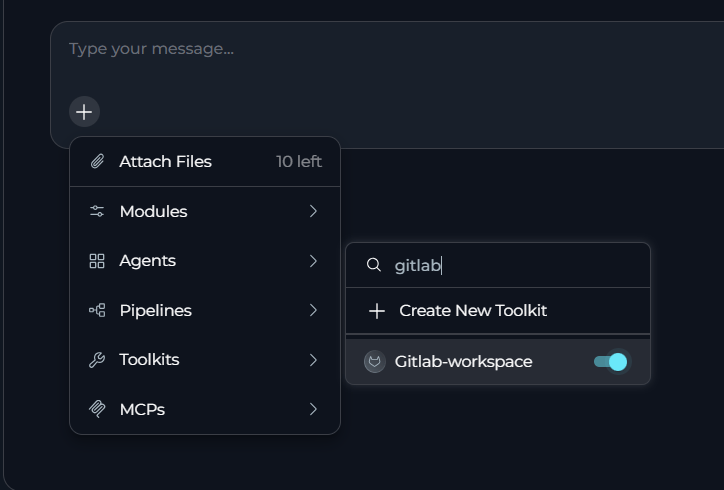
- Click the
+icon in the chat input toolbar (tooltip: Add files, agents, toolkits and more…) - Hover over Toolkits in the popup menu
- Search for your GitLab toolkit by name
- Enable the toolkit to add it to your conversation
- Click the
- Verify Toolkit Added: The GitLab toolkit appears in the PARTICIPANTS panel on the right side under the Toolkits section.
-
Use Toolkit in Chat: You can now directly interact with your GitLab repositories by asking questions or requesting actions that will trigger the GitLab toolkit tools.
Instructions and Prompts for Using the GitLab Toolkit
To effectively instruct your ELITEA Agent to use the GitLab toolkit, you need to provide clear and precise instructions within the Agent’s “Instructions” field. These instructions are crucial for guiding the Agent on when and how to utilize the available GitLab tools to achieve your desired automation goals.Instruction Creation for Agents
When crafting instructions for the GitLab toolkit, especially for OpenAI-based Agents, clarity and precision are paramount. Break down complex tasks into a sequence of simple, actionable steps. Explicitly define all parameters required for each tool and guide the Agent on how to obtain or determine the values for these parameters. Agents respond best to instructions that are:- Direct and Action-Oriented: Employ strong action verbs and clear commands to initiate actions. For example, “Use the ‘read_file’ tool…”, “Create a branch named…”, “List all open issues…”.
-
Parameter-Centric: Clearly enumerate each parameter required by the tool. For each parameter, specify:
- Its name (exactly as expected by the tool)
- Its expected data type (string, integer, JSON object, etc.)
- How the Agent should obtain the value – whether from user input, derived from previous steps in the conversation, retrieved from an external source, or a predefined static value
- Contextually Rich: Provide sufficient context so the Agent understands the overarching objective and the specific scenario in which each GitLab tool should be applied within the broader workflow. Explain the desired outcome or goal for each tool invocation.
- Step-by-Step Structure: Organize instructions into a numbered or bulleted list of steps for complex workflows. This helps the Agent follow a logical sequence of actions.
- Add Conversation Starters: Include example conversation starters that users can use to trigger this functionality. For example, “Conversation Starters: ‘Create a new branch’, ‘Show me the README’, ‘List all open issues’”
- State the Goal: Begin by clearly stating the objective you want to achieve with this step. For example, “Goal: To retrieve the content of the ‘README.md’ file.”
- Specify the Tool: Clearly indicate the specific GitLab tool to be used for this step. For example, “Tool: Use the ‘read_file’ tool.”
-
Define Parameters: Provide a detailed list of all parameters required by the selected tool. For each parameter:
- Parameter Name:
<Parameter Name as defined in tool documentation> - Value or Source:
<Specify the value or how to obtain the value. Examples: "user input", "from previous step", "hardcoded value 'main'", "value of variable X">
- Parameter Name:
- Describe Expected Outcome (Optional but Recommended): Briefly describe the expected result or outcome after the tool is successfully executed. For example, “Outcome: The Agent will display the file content to the user.”
- Add Conversation Starters: Include example conversation starters that users can use to trigger this functionality.
Chat Usage Examples by Tool Category
The following examples demonstrate how to interact with the GitLab toolkit in ELITEA Chat, organized by functional categories. Each example shows the user request and the expected agent behavior.Branch Management - Create Branch
Branch Management - Create Branch
Branch Management - List Branches
Branch Management - List Branches
File Operations - Create File
File Operations - Create File
File Operations - Read File
File Operations - Read File
Issue Management - Get Issues
Issue Management - Get Issues
Merge Request Management - Create Merge Request
Merge Request Management - Create Merge Request
Version Control - Get Commits
Version Control - Get Commits
Use Cases
The GitLab toolkit unlocks numerous automation possibilities for software development workflows within ELITEA. Here are some key use cases:Automated Branch Creation
Automated Branch Creation
create_branch, set_active_branchBenefit: Ensure consistent branch naming and automatic branch activationExample Workflow:- User requests new feature branch through Chat
- Agent creates branch with standardized naming (e.g.,
feature-<description>) - Branch automatically becomes active for subsequent operations
- User can immediately start working on the new branch
Code Review Automation
Code Review Automation
create_pull_request, get_pr_changes, create_pr_change_commentBenefit: Streamline code review process and provide automated feedbackExample Workflow:- Agent creates merge request from feature branch to develop
- Retrieves changes using get_pr_changes
- Analyzes code modifications
- Adds targeted comments on specific lines
- Notifies reviewers of merge request creation
Issue Tracking and Management
Issue Tracking and Management
get_issues, get_issue, comment_on_issueBenefit: Efficient issue triage and automated status updatesExample Workflow:- Agent retrieves all open issues
- Analyzes issue content and labels
- Provides summary and prioritization recommendations
- Automatically adds comments with analysis or status updates
- Links related issues for better context
Documentation Generation
Documentation Generation
read_file, create_file, update_file, list_filesBenefit: Keep documentation synchronized with code changesExample Workflow:- Agent scans repository structure using list_files
- Reads source files to extract documentation comments
- Generates or updates README, API documentation, or changelog
- Creates new documentation files or updates existing ones
- Commits changes with descriptive messages
Repository Analysis
Repository Analysis
list_files, list_folders, read_file, get_commitsBenefit: Understand codebase structure and development patternsExample Workflow:- Agent explores directory structure with list_folders
- Identifies key files and their purposes
- Analyzes commit history for development activity
- Provides insights on code organization and hotspots
- Recommends refactoring or architectural improvements
Semantic Code Search
Semantic Code Search
index_data, search_index, stepback_search_indexBenefit: Find code patterns and implementations using natural languageExample Workflow:- Index repository content using index_data
- User asks natural language questions about codebase
- Agent performs semantic search across indexed content
- Returns relevant code snippets and files
- Provides context and explanations for found code
Continuous Integration Support
Continuous Integration Support
get_commits, read_file, comment_on_issueBenefit: Automate CI/CD processes and provide intelligent feedbackExample Workflow:- Agent monitors recent commits using get_commits
- Analyzes commit messages and changed files
- Triggers appropriate CI/CD pipelines
- Reviews test results and code quality metrics
- Updates related issues with commit references and status
File Management Automation
File Management Automation
create_file, update_file, delete_file, append_fileBenefit: Efficiently manage multiple files and maintain repository hygieneExample Workflow:- Agent identifies obsolete or temporary files
- Creates new configuration or documentation files as needed
- Updates multiple files with consistent changes
- Appends log entries or changelog updates
- Removes deprecated files to keep repository clean
Troubleshooting
Connection Issues
Connection Issues
- “Cannot connect to GitLab”
- “Connection timeout”
- “Network error”
-
Incorrect GitLab URL
Solution: Verify the URL in credential configuration matches your GitLab instance:
- GitLab.com:
https://gitlab.com - Self-hosted:
https://gitlab.yourcompany.com - Remove any trailing slashes or
/api/v4paths
- GitLab.com:
-
Network Connectivity Issues
Solution: Verify network connectivity to GitLab
- Check firewall settings and proxy configuration
- Test access to GitLab from your browser
-
SSL Certificate Issues
Solution: For self-hosted GitLab with custom certificates
- Ensure certificates are properly configured
- Contact your GitLab administrator if certificate validation fails
Authentication Errors
Authentication Errors
- “Authentication failed: invalid private token”
- “Access forbidden: token lacks required permissions”
- “401 Unauthorized”
- “403 Forbidden”
-
Invalid or Expired Token
Solution: Verify your Personal Access Token in GitLab settings
- Check token expiration date
- Generate a new token if necessary
- Update credential configuration with new token
-
Insufficient Token Scopes
Solution: Review token scopes in GitLab
- Ensure token has required permissions:
apifor full API accessread_repositoryfor reading fileswrite_repositoryfor modifying repositories- Additional scopes for issues and merge requests as needed
- Generate new token with appropriate scopes
- Ensure token has required permissions:
-
Token Not Properly Configured
Solution: Verify token is correctly entered in credential configuration
- Check for extra spaces or hidden characters
- Use Secrets feature for secure token storage
Repository Access Issues
Repository Access Issues
- “Repository not found”
- “Project not found”
- “Permission denied”
-
Incorrect Repository Format
Solution: Ensure repository name follows format:
namespace/repository-name- Examples:
mygroup/my-project,username/repo-name - Verify namespace and repository name spelling
- Check for correct capitalization
- Examples:
-
Insufficient Repository Permissions
Solution: Verify GitLab account has access to repository
- Check project membership and role (Guest, Reporter, Developer, Maintainer)
- Ensure token has appropriate repository access permissions
-
Repository Doesn’t Exist
Solution: Verify repository exists in GitLab
- Check repository hasn’t been renamed or deleted
- Confirm you’re accessing correct GitLab instance
Branch Operation Failures
Branch Operation Failures
- “Branch not found”
- “Branch already exists”
- “Cannot delete active branch”
- “Cannot delete main branch”
-
Branch Name Issues
Solution: Verify branch name spelling and capitalization
- Check branch exists in repository
- Use list_branches_in_repo to see available branches
-
Protected Branch Restrictions
Solution: Check if branch is protected in GitLab settings
- Protected branches may have restrictions on:
- Who can push
- Who can merge
- Who can delete
- Request appropriate permissions or use unprotected branches
- Protected branches may have restrictions on:
-
Branch Creation Conflicts
Solution: Choose a different branch name if branch already exists
- Delete old branch first if intentionally replacing
- Use unique, descriptive branch names
File Operation Failures
File Operation Failures
- “File not found”
- “File already exists”
- “Permission denied”
- “Invalid file path”
-
File Path Issues
Solution: Verify file path is correct and relative to repository root
- Use forward slashes
/in file paths - Check file actually exists before reading/updating
- Use list_files to verify file locations
- Use forward slashes
-
File Already Exists
Solution: Use update_file instead of create_file for existing files
- Check if file exists first before creating
- Delete old file before creating new one if intentionally replacing
-
Encoding Issues
Solution: Ensure file content uses proper encoding (UTF-8)
- Avoid special characters that may cause encoding problems
- Binary files may require special handling
Merge Request Issues
Merge Request Issues
- “Merge request creation failed”
- “Source branch not found”
- “Target branch not found”
- “Merge conflicts detected”
-
Branch Issues
Solution: Verify source and target branches exist
- Ensure branches are specified correctly
- Check that source branch has commits different from target
-
Merge Conflicts
Solution: Resolve conflicts manually in GitLab
- Update source branch to incorporate target branch changes
- Use Git merge tools to resolve conflicts locally
-
Insufficient Permissions
Solution: Verify token has write_merge_requests scope
- Check project permissions allow merge request creation
- Ensure user role permits creating merge requests
Indexing and Search Issues
Indexing and Search Issues
- “PgVector configuration not found”
- “Embedding model not configured”
- “Index creation failed”
- “Search failed”
-
Missing Configuration
Solution: Configure PgVector in toolkit settings
- Select appropriate embedding model
- Ensure PgVector database is accessible
-
Indexing Failures
Solution: Check repository size and content
- Verify sufficient resources for indexing
- Review indexing logs for specific errors
- Try indexing smaller subsets if needed
-
Search Limitations
Solution: Ensure data is indexed before searching
- Use appropriate search queries
- Consider stepback search for complex queries
- Review indexed collections with list_collections
Python-GitLab Library Issues
Python-GitLab Library Issues
- “python-gitlab is not installed”
- “ModuleNotFoundError: No module named ‘gitlab’”
- “Import error”
-
Missing Python-GitLab Package
Solution: Install the required python-gitlab library
- Run:
pip install python-gitlab - Verify installation:
pip show python-gitlab - Ensure package is installed in correct Python environment
- Run:
-
Version Compatibility Issues
Solution: Check python-gitlab version compatibility
- Update to latest version:
pip install --upgrade python-gitlab - Verify Python version is compatible (Python 3.7+)
- Check for conflicting package versions
- Update to latest version:
-
Environment Issues
Solution: Ensure correct Python environment is active
- Activate virtual environment if using one
- Verify pip is installing to correct environment
- Use
python -m pip install python-gitlabto ensure correct Python
Support Contact
If you encounter issues not covered in this guide or need additional assistance with GitLab integration, please refer to Contact Support for detailed information on how to reach the ELITEA Support Team.FAQ
Q: Can I use my regular GitLab password instead of a Personal Access Token?
Q: Can I use my regular GitLab password instead of a Personal Access Token?
- More secure than using account passwords
- Allow granular permission control through scopes
- Can be easily revoked without changing password
- Support expiration dates for enhanced security
- Enable audit trails for API access
Q: What are the minimum required scopes for the Personal Access Token?
Q: What are the minimum required scopes for the Personal Access Token?
read_api- Read-only API accessread_repository- Read repository content
api- Full API access (recommended for most integrations)- Alternatively, use granular scopes:
read_repository+write_repositoryfor repository operationsread_issue+write_issuefor issue managementread_merge_requests+write_merge_requestsfor MR operations
Q: What is the correct format for specifying the repository name?
Q: What is the correct format for specifying the repository name?
namespace/repository-name:Examples:- User repository:
username/my-project - Group repository:
mygroup/project-name - Subgroup repository:
mygroup/subgroup/repo-name
- Include both namespace and repository name
- Use forward slashes to separate components
- Match exact capitalization as it appears in GitLab
- Do not include the GitLab URL or
.gitextension
Q: Can I use both GitLab.com and self-hosted GitLab instances?
Q: Can I use both GitLab.com and self-hosted GitLab instances?
- GitLab.com: Use URL
https://gitlab.com - Self-hosted: Use your instance URL like
https://gitlab.yourcompany.com
- Ensure URL includes
https://prefix - Do not include
/api/v4or other API paths - Self-hosted instances may require additional network configuration
- Verify SSL certificates are properly configured for self-hosted instances
Q: How do I switch the active branch for operations?
Q: How do I switch the active branch for operations?
set_active_branch tool to switch the active branch:Example Agent Instruction:- Sets the specified branch as active for subsequent operations
- All file operations will use the active branch unless explicitly specified
- Validates branch exists before switching
- Returns error if branch not found
Q: Why am I getting 'Permission Denied' errors?
Q: Why am I getting 'Permission Denied' errors?
- Check your Personal Access Token scopes in GitLab
- Ensure token has required permissions for the operation:
write_repositoryfor creating/modifying fileswrite_issuefor managing issueswrite_merge_requestsfor creating merge requests
- Verify your GitLab account has access to the repository
- Confirm you have appropriate role (Developer or Maintainer for write operations)
- Check project visibility settings
- Ensure token hasn’t expired
- Confirm token wasn’t revoked
- Check for any typos in token value
- Some branches may be protected from direct modifications
- Check GitLab project settings → Repository → Protected branches
- Use merge requests for protected branches instead
Q: How do merge requests (MRs) work in GitLab vs pull requests (PRs) in other platforms?
Q: How do merge requests (MRs) work in GitLab vs pull requests (PRs) in other platforms?
- Terminology: GitLab uses “Merge Request” instead of “Pull Request”
- Functionality is identical: propose changes from one branch to another
- The toolkit tool is named
create_pull_requestfor consistency with other integrations - In GitLab UI, you’ll see these as “Merge Requests”
Q: Can I work with multiple repositories in one toolkit?
Q: Can I work with multiple repositories in one toolkit?
- In toolkit settings, enter multiple repositories separated by commas or semicolons
- Example:
mygroup/repo1,mygroup/repo2,mygroup/repo3
- Specify
repositoryparameter in tool calls to target specific repository - If only one repository configured, it’s used by default
- If multiple repositories configured without specifying, agent may need clarification
- For complex multi-repository workflows, consider creating separate toolkits for better organization
- Use descriptive toolkit names to identify which repositories they manage
Q: How does semantic search work with GitLab repositories?
Q: How does semantic search work with GitLab repositories?
- Configure PgVector in toolkit settings
- Select an embedding model (e.g.,
amazon.titan-embed-text-v2:0) - Run
index_datatool to index repository content
- Indexes all repository files and content
- Creates vector embeddings of code and documentation
- Enables natural language searches
- Finds semantically similar code even without exact keyword matches
- “Find authentication logic” - locates auth-related code
- “Database connection code” - finds DB connection implementations
- “Error handling patterns” - discovers error handling approaches
- Discover code without knowing exact function names
- Find similar implementations across codebase
- Understand unfamiliar codebases quickly
- Generate insights from code patterns
Q: What's the difference between update_file, edit_file, and append_file?
Q: What's the difference between update_file, edit_file, and append_file?
- Replaces specific content using OLD/NEW markers
- Delegates to
edit_fileinternally for processing - Accepts file path on first line followed by OLD/NEW blocks
- Precise control over what changes
- Best for modifying existing code sections
- Requires old content to match exactly
- Direct file editing method using OLD/NEW markers
- More flexible - supports multiple replacements in one call
- Accepts file path as parameter and edit content separately
- Used internally by update_file
- Validates OLD content exists before making changes
- Adds new content to end of file
- Does not modify existing content
- Best for log files, changelogs, or incremental additions
- Simpler than update_file for adding new content
- Use
update_fileoredit_filewhen modifying existing content - Use
append_filewhen adding new content to end - Use
create_filefor entirely new files - Avoid editing protected branches directly - use merge requests instead
Q: How do I handle errors in file operations?
Q: How do I handle errors in file operations?
- Verify file path is correct relative to repository root
- Use
list_filesto confirm file location - Check you’re on the correct branch
- Ensure file hasn’t been renamed or deleted
- Use
update_fileinstead ofcreate_filefor existing files - Check with
list_filesbefore creating files - Delete old file first if intentionally replacing
- Verify token has
write_repositoryscope - Check repository permissions (need Developer role or higher)
- Confirm branch isn’t protected (use MRs for protected branches)
- Check file encoding (use UTF-8)
- Verify content format is appropriate for file type
- Avoid special characters that may cause issues
- Always check file existence before operations
- Use descriptive commit messages
- Test file operations on non-protected branches first
- Handle errors gracefully with user-friendly messages
Q: Can I delete branches, and are there any restrictions?
Q: Can I delete branches, and are there any restrictions?
delete_branch tool, but there are important restrictions and considerations:Restrictions:- Cannot delete the currently active branch
- Cannot delete the main/default branch (usually
mainormaster) - Cannot delete protected branches without proper permissions
- Requires Developer role or higher in the repository
- Switch to a different branch first using
set_active_branch - Use
delete_branchtool with branch name parameter - Verify deletion was successful
- “Cannot delete active branch” - Switch to another branch first
- “Cannot delete main branch” - Main branch is protected from deletion
- “Permission denied” - Check repository permissions and token scopes
- “Branch not found” - Verify branch name spelling and existence
- Always merge or back up important changes before deleting
- Use
list_branches_in_repoto see available branches - Delete obsolete feature branches after merging
- Consider branch naming conventions to identify deletable branches
Q: What are read_file_chunk and read_multiple_files tools used for?
Q: What are read_file_chunk and read_multiple_files tools used for?
- Reads a specific portion of a file using offset and limit
- Useful for large files where you only need specific sections
- Reduces data transfer and processing time
- Supports head/tail options for reading beginning or end of files
file_path: Path to the filebranch: Branch to read fromoffset: Starting byte position (optional)limit: Maximum bytes to read (optional)head: Number of lines from start (optional)tail: Number of lines from end (optional)
- Reads multiple files in a single operation
- More efficient than calling read_file multiple times
- Returns dictionary mapping file paths to their contents
- Useful for comparing files or reading related files together
file_paths: List of file paths to readbranch: Branch to read from
- Reading configuration files and their related documentation
- Comparing multiple versions or implementations
- Analyzing large log files (read specific sections)
- Batch processing multiple related files
Q: How do commit messages work, and can I customize them?
Q: How do commit messages work, and can I customize them?
create_file: “Create ”update_file: “Update ”append_file: “Append ”delete_file: “Delete ” (customizable)
delete_fileaccepts optionalcommit_messageparameteredit_fileaccepts optionalcommit_messageparameter- Provide descriptive messages for better version history
- Use clear, descriptive commit messages
- Follow conventional commit format when possible
- Include ticket/issue numbers for traceability
- Describe what changed and why
- “Update API endpoint URL for production environment”
- “Fix authentication bug in login handler - ISSUE-123”
- “Add error handling to file upload function”
- “Remove deprecated configuration settings”
- Direct commits to protected branches (like
main) are blocked - Error message: “Cannot commit directly to the branch”
- Solution: Create a feature branch and use merge requests
Q: What should I do about 'Change for file wasn't found in PR' errors?
Q: What should I do about 'Change for file wasn't found in PR' errors?
- File path doesn’t match the path shown in the diff
- File wasn’t actually changed in the merge request
- Incorrect file path format (old_path vs new_path)
-
Get the PR changes first:
- Use
get_pr_changestool with the merge request number - Review the diff output to see which files changed
- Note the exact file paths as shown in the diff
- Use
-
Verify file path format:
- Check if file was renamed (old_path vs new_path)
- Use exact path from diff output
- Include full path relative to repository root
-
Check line number:
line_numberparameter is 0-based index from diff- Count lines in the diff output to find correct index
- Use get_pr_changes output as reference
- Always call
get_pr_changesbeforecreate_pr_change_comment - Line numbers are diff line indices, not file line numbers
- Comments can only be added to lines that appear in the diff
- Create and Edit Agents from Canvas — Quick agent creation for GitLab automation
- Create and Edit Toolkits from Canvas — Streamline GitLab toolkit configuration
- Create and Edit Pipelines from Canvas — Build automated GitLab workflows
- Indexing Overview — Enable semantic search across GitLab repositories
- Index Repo Data — Instructions for indexing repository content (applicable to GitLab)
- GitLab Website — Main GitLab platform and product information
- GitLab API Documentation — Official API reference and endpoints
- GitLab Personal Access Tokens — Token creation and management documentation
- GitLab Help Center — Official GitLab documentation and guides
- ELITEA Support — Contact support team for assistance