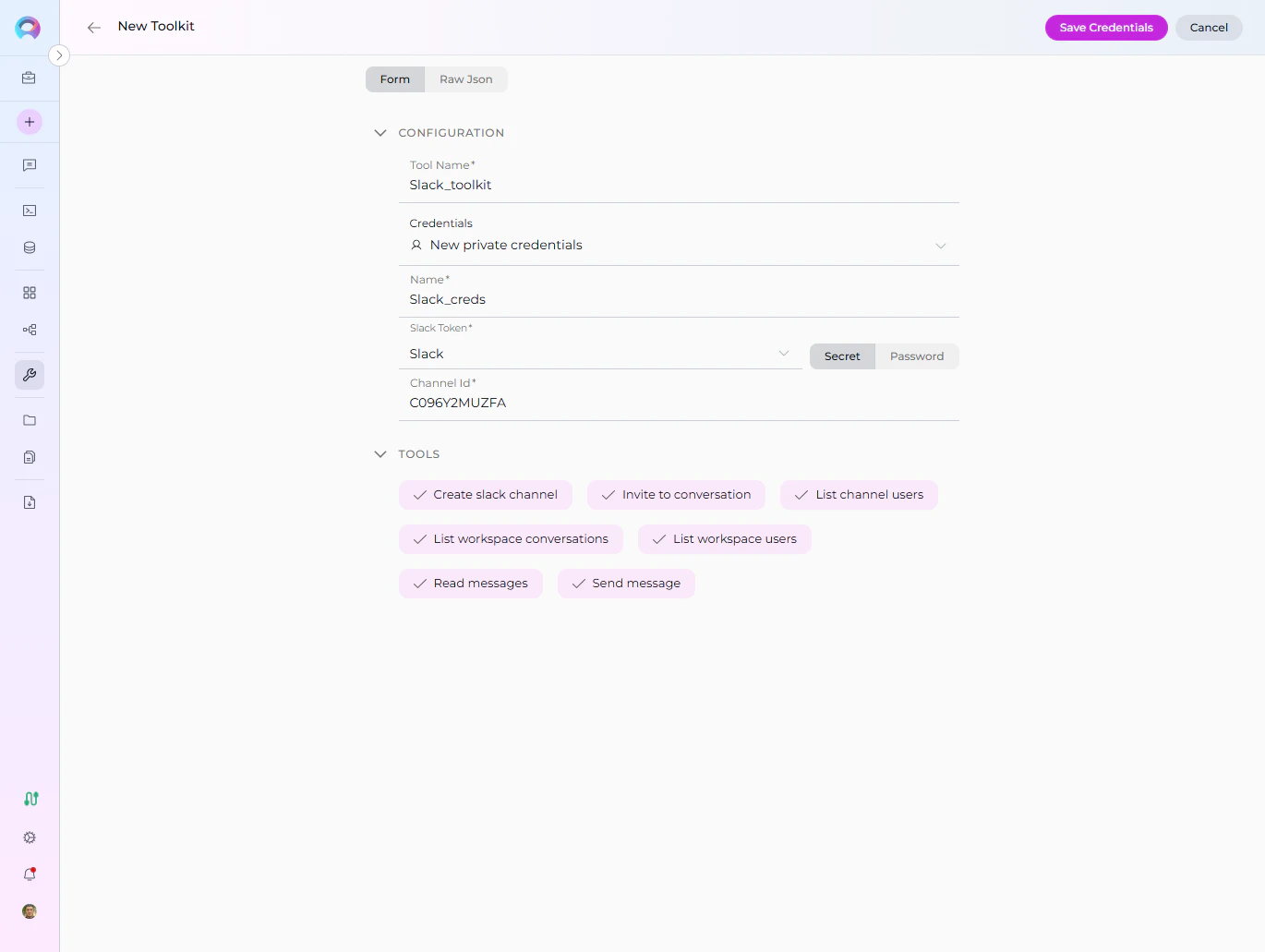
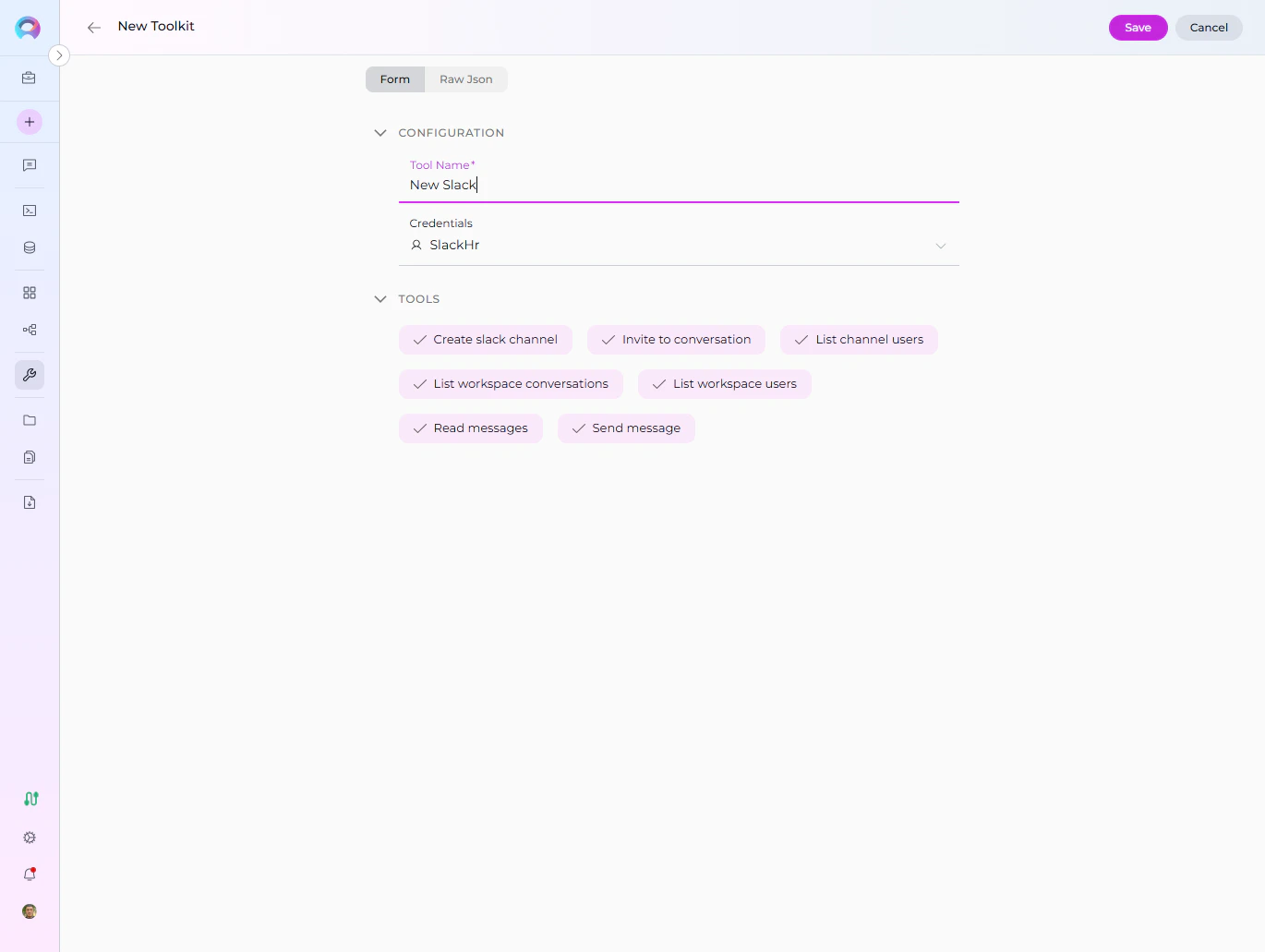
### Conversation Starters

Use these conversation starters to interact with your Slack-integrated Agent and test the toolkit's capabilities:

* "Send a message to channel C87654321."
* "Create a new channel called project-updates."
* "Invite user U12345678 to channel C87654321."
* "List all users in channel C87654321."
* "List all users in the workspace."
* "Read the last 10 messages from channel C87654321."

## Use Cases

The Slack toolkit unlocks extensive automation and management possibilities for communication workflows within ELITEA. Here are some key use cases, demonstrating how each tool can be applied:

* **Automated Notifications:**
    * **Scenario:** Send deployment or incident notifications to a channel.
    * **Tools Used:** `Send message`
    * **Example Instruction:** "Use the 'Send message' tool to post a deployment update in channel C87654321."

* **Channel Creation and Management:**
    * **Scenario:** Create new channels for projects or teams.
    * **Tools Used:** `Create slack channel`, `Invite to conversation`
    * **Example Instruction:** "Create a channel called project-updates and invite user U12345678."

* **User Management:**
    * **Scenario:** List users in a channel or workspace for onboarding or reporting.
    * **Tools Used:** `List channel users`, `List workspace users`, `Invite to conversation`
    * **Example Instruction:** "List all users in channel C87654321 and invite new members."

* **Message Retrieval and Analysis:**
    * **Scenario:** Retrieve and analyze recent messages for sentiment or action items.
    * **Tools Used:** `Read messages`
    * **Example Instruction:** "Read the last 10 messages from channel C87654321."

These use cases demonstrate how the Slack toolkit can streamline communication, automate notifications, and improve team collaboration within ELITEA.

## Troubleshooting and Support

### Troubleshooting

* **Connection Issues:**
    * **Problem:** Agent fails to connect to Slack, resulting in errors during toolkit execution.
    * **Troubleshooting Steps:**
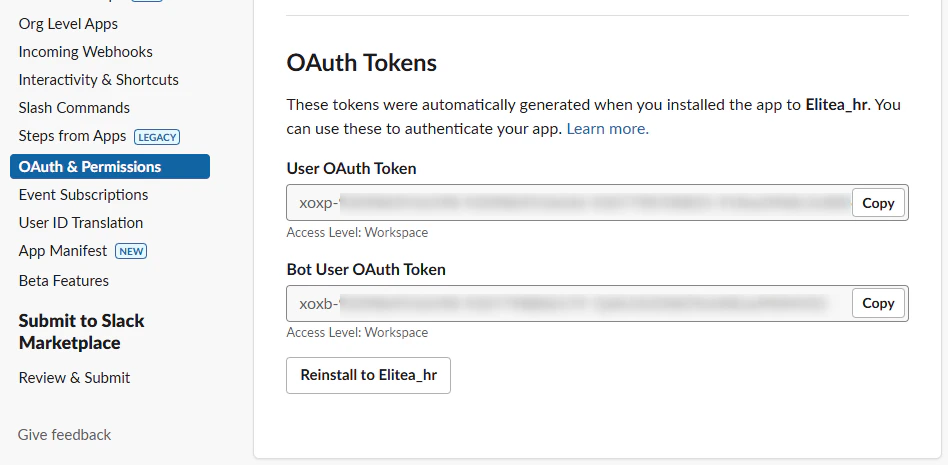
        1. **Verify OAuth Token:** Ensure the token is correctly entered and has the necessary permissions.
        2. **Check Workspace Access:** Double-check your Slack workspace and channel access.
        3. **Token Generation:** Re-generate a new token in Slack and try using that if you suspect the token might be invalid.
        4. **Network Connectivity:** Verify that both ELITEA and Slack have internet access and no network issues are blocking the connection.

* **Authorization Errors (Permission Denied):**
    * **Problem:** Agent receives "Permission Denied" or "Unauthorized" errors when accessing Slack resources.
    * **Troubleshooting Steps:**
        1. **Token Validity:** Ensure the token is valid and has not been revoked in Slack.
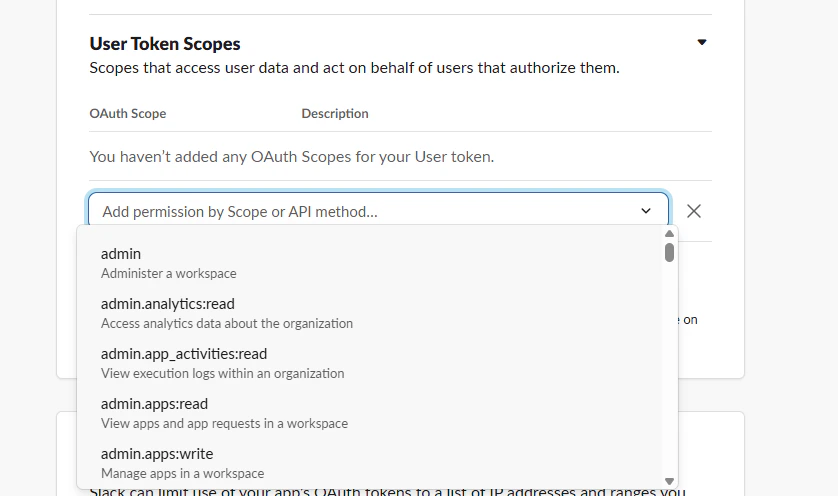
        2. **App Permissions:** Confirm that the Slack app associated with the token has the necessary permissions to access the specified workspace and perform the requested actions.

* **Incorrect Channel or Workspace IDs:**
    * **Problem:** Agent fails to find channels or workspaces, especially when posting or retrieving details.
    * **Troubleshooting Steps:**
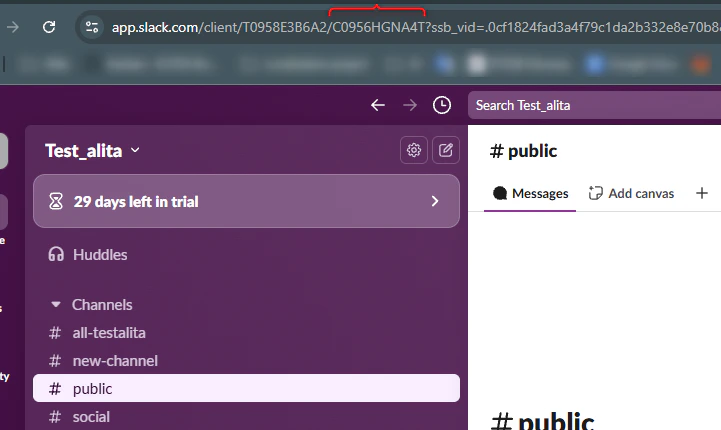
        1. **Verify Channel ID:** Double-check the Channel ID in your Slack workspace. You can usually find the Channel ID in the URL or via the Slack API.
        2. **Verify Workspace ID:** Similarly, verify the Workspace ID. Ensure the Workspace ID is valid within the specified workspace.

### FAQ

1. **Q: Can I use my regular Slack password instead of a Bot/User OAuth Token?**
    * **A:** No, for secure integration with ELITEA, you **must use a Slack Bot/User OAuth Token**. Using your regular password directly is not supported and is a security risk.
2. **Q: Where do I find Channel and Workspace IDs in Slack?**
    * **A:** Channel and Workspace IDs are typically visible in the URL when you navigate to a specific channel or workspace within Slack. You can also find these IDs through the Slack API.
3. **Q: What if I don't know the exact permissions needed for the OAuth Token?**
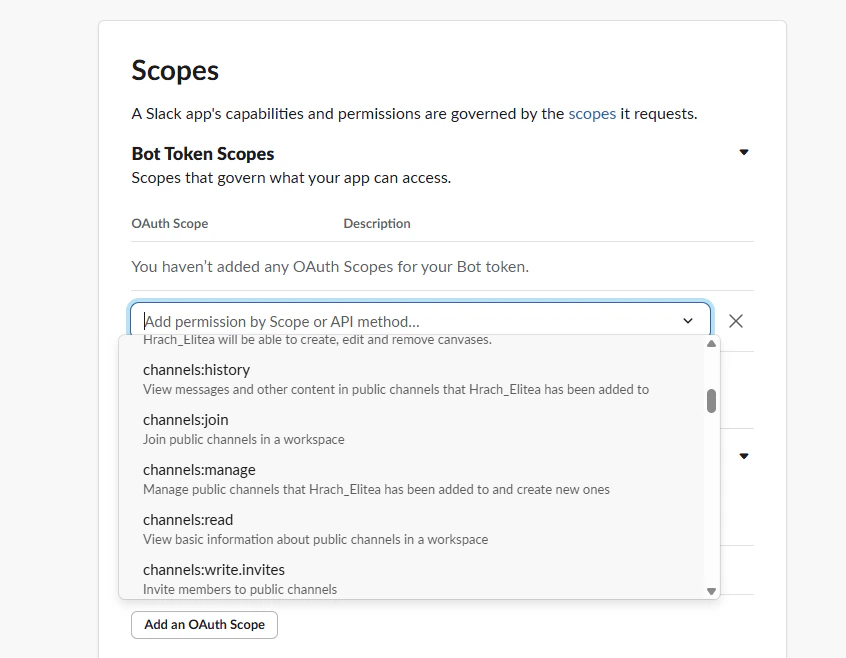
    * **A:** Slack allows you to set scopes/permissions when creating an app. For ELITEA integration, ensure the token has access to the channels and actions you want to manage. Contact your Slack administrator if you are unsure about these permissions.

### Support Contact

For any issues, questions, or further assistance with the Slack integration or ELITEA Agents, please reach out to our dedicated ELITEA Support Team. We are committed to providing prompt and effective support to ensure your success with ELITEA.

**Contact ELITEA Support:**

* **Email:**  **[SupportAlita@epam.com](mailto:SupportAlita@epam.com)**

**Best Practices for Effective Support Requests:**

To help us understand and resolve your issue as quickly as possible, please ensure you provide the following information in your support email:

* **ELITEA Environment:** Clearly specify the ELITEA environment you are using (e.g., "Next" or the specific name of your ELITEA instance).
* **Project Details:**  Indicate the **Project Name** and whether you are working in your **Private** workspace or a **Team** project.
* **Detailed Issue Description:** Provide a clear, concise, and detailed description of the problem you are encountering. Explain what you were trying to do, what you expected to happen, and what actually occurred.
* **Relevant Configuration Information:**  To help us diagnose the issue, please include relevant configuration details, such as:
    * **Agent Instructions (Screenshot or Text):** If the issue is with an Agent, provide a screenshot or copy the text of your Agent's "Instructions" field.
    * **Toolkit Configurations (Screenshots):** If the issue involves the Slack toolkit or other toolkits, include screenshots of the toolkit configuration settings within your Agent.
* **Error Messages (Full Error Text):** If you are encountering an error message, please provide the **complete error text**. In the Chat window, expand the error details and copy the full error message. This detailed error information is crucial for diagnosis.
* **Your Query/Prompt (Exact Text):** If the issue is related to Agent execution, provide the exact query or prompt you used to trigger the issue.

**Before Contacting Support:**

Please, study this guide. You may also find answers to common questions or solutions to known issues in the broader ELITEA documentation.

## Guides and References

To learn more about integrating Slack with ELITEA, explore these related guides and references:

* **[Slack Website](https://slack.com/)**: Access the main Slack platform to create an account or log in and explore Slack features.
* **[Slack API Documentation](https://api.slack.com/methods)**:  Refer to the official Slack API documentation for detailed information on API endpoints, data structures, and advanced usage.
* **[ELITEA Secrets](../../menus/settings/secrets)**: Learn how to securely store your Slack OAuth Token using ELITEA's Secrets management feature for enhanced security.
* **[ELITEA Agents Configuration](../../menus/agents)**:  Find out more about creating and configuring Agents in ELITEA, where you integrate the Slack toolkit to automate your workflows.
* **[ELITEA Support Email](mailto:SupportAlita@epam.com)**: Contact the ELITEA support team for direct assistance with Slack integration or any other questions and issues you may encounter.