

Overview
Each history entry captures:- Date and time of the run
- Version of the agent/pipeline used
- Duration of the execution
- Complete conversation with all messages exchanged
- Execution details for troubleshooting
- Debugging: Review failed runs to identify issues
- Performance analysis: Track execution times across different versions
- Audit trail: Maintain records of all agent/pipeline interactions
- Testing: Verify behavior changes between versions
- Learning: Study how the agent/pipeline responded in various scenarios
Prerequisites
Before accessing Run History, ensure you have:- Project access: You must be a member of the project containing the agent or pipeline
- Agent or Pipeline: At least one agent or pipeline must exist in the project
- Run history: The agent or pipeline must have been executed at least once
In team projects, regular users can view only their own runs in the Run History panel. Only administrators can see runs created by other users.
Accessing Run History
- Navigate to the Agents or Pipelines menu in the left sidebar.
- Click on the agent or pipeline you want to review.
- In the agent/pipeline page, look at the right panel (embedded chat area).
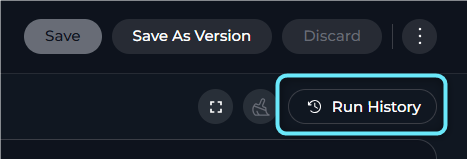
- Click the Run History button (clock icon) in the top bar of the right panel. The tooltip reads “View run history”.
-
The page is replaced by the Run History panel. Click the ✕ (Close) button in the top-left to return.
Understanding the Run History View
The Run History panel replaces the current page view and has a two-panel layout: a header bar at the top with a close button and “Run History” title, a left panel listing all past runs, and a right panel showing the selected conversation replay.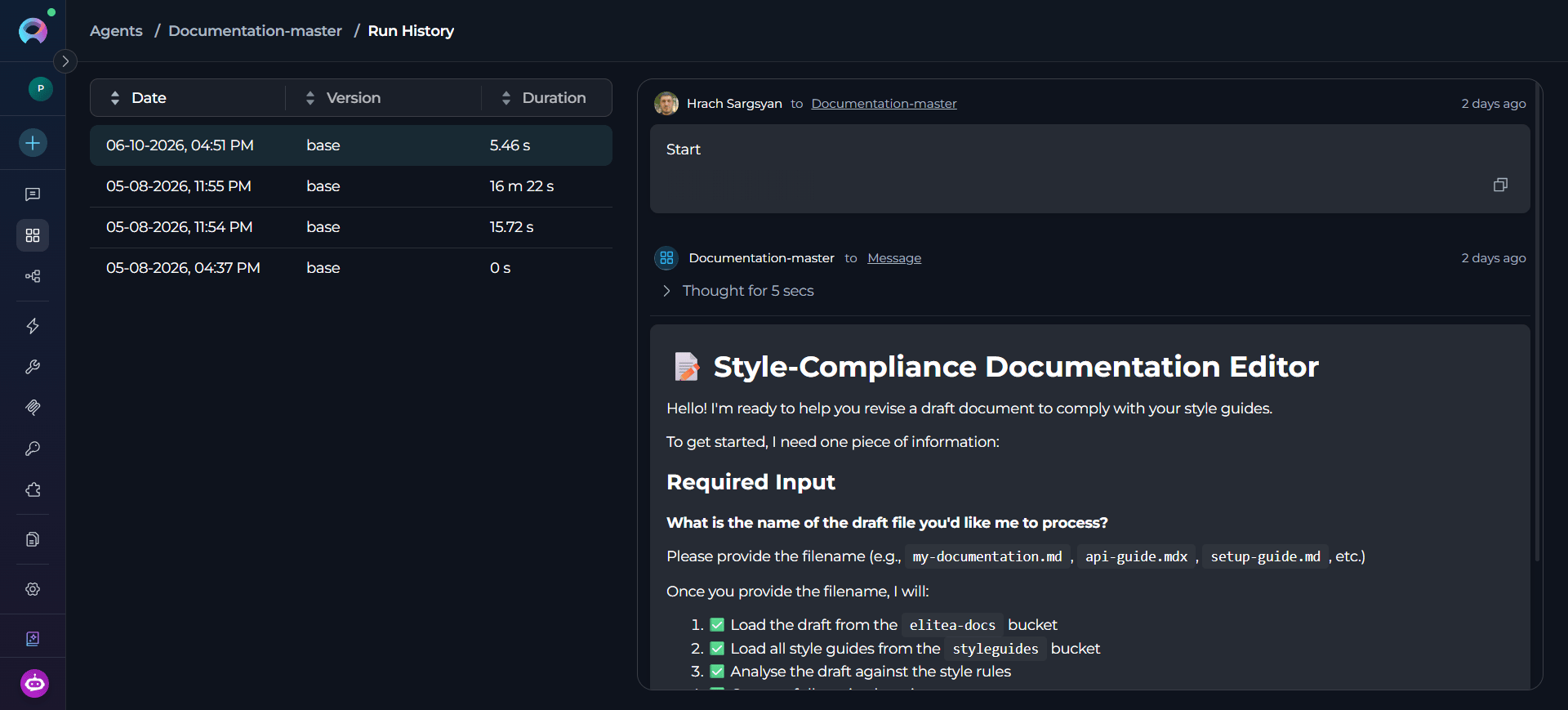
All column headers are clickable to sort the list ascending or descending by that column.
Features:
- Infinite scroll: As you scroll down, more runs are automatically loaded
- Selection: Click on any row to view its conversation in the right panel
- Visual indicator: The selected run is highlighted
- Default order: Newest runs appear first (sorted by Date descending)
- Three-dot menu (⋮): Each row has a context menu with actions available on hover
- All messages: Both user inputs and agent/pipeline responses
- Message order: Messages appear in the order they were exchanged
- Formatting: Messages retain their original formatting, including code blocks and lists
- Read-only: This is a replay view—you cannot modify or continue the conversation
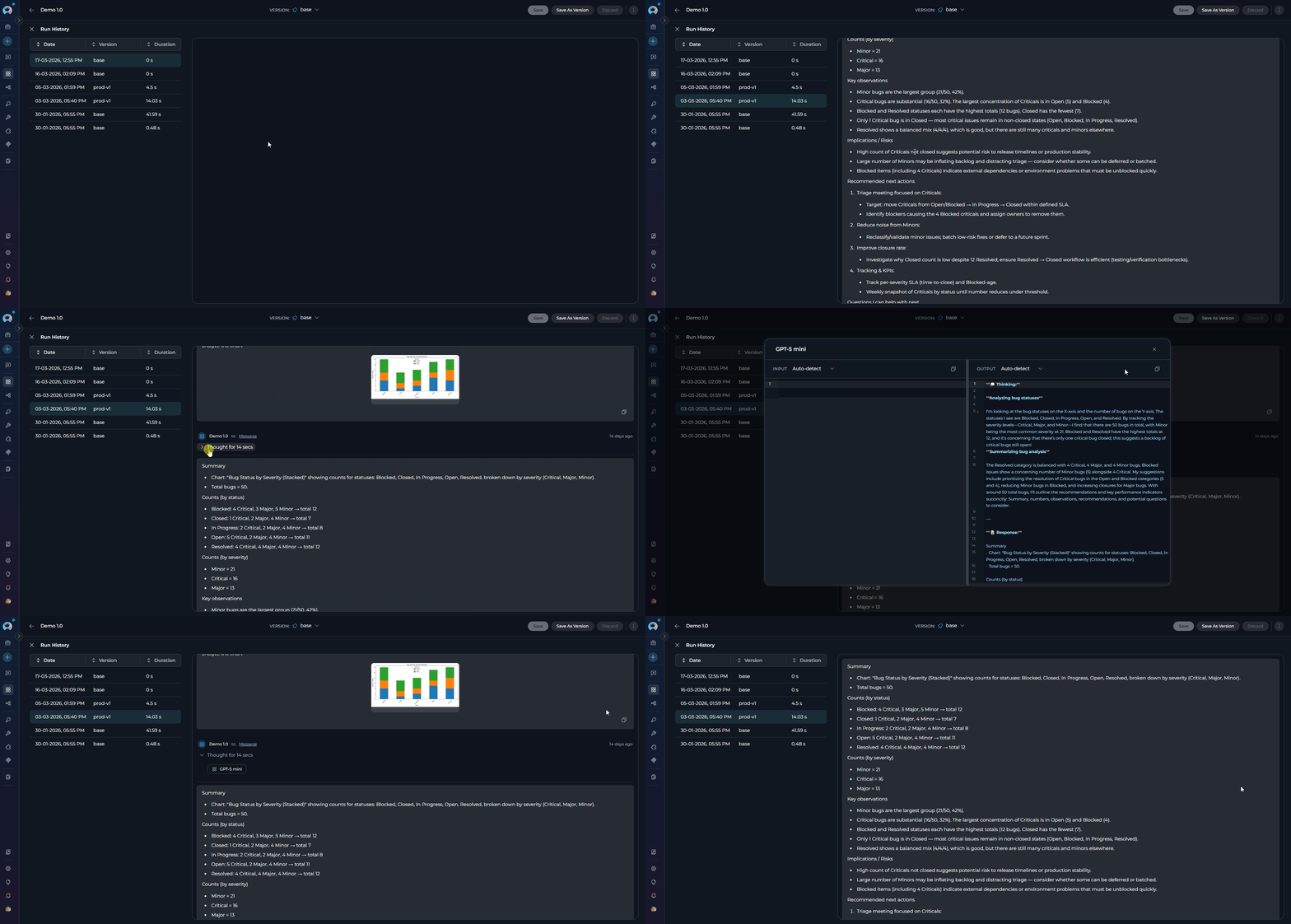
Empty StateWhen no run is selected, the right panel remains empty. Select a run from the left panel to view its conversation.
Using Run History
Viewing a Past Run
- Access Run History
- Browse the list of runs in the left panel
- Click on the run you want to review
- The complete conversation for that run appears in the right panel
- Scroll through the messages to review the interaction
-
Click ✕ (Close) when done to return to the agent/pipeline page
Run Analytics
Selecting Analytics from a run’s three-dot menu opens a dedicated page scoped to that single run only—no other runs or ordinary chats are mixed in. The header shows the run date and the agent/pipeline version used. Use Refresh data to reload the figures, or Export to Excel to download them.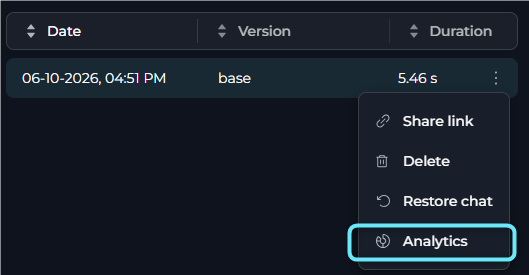
- Costs
- Tokens
- Tools
- Health
Opens by default. Five cards—Total Cost, Input Token Cost, Output Token Cost, Cache Read Cost, and Cache Write Cost—summarize spend for the run, with a note that costs are estimated from a local model-price table and may differ from your provider’s invoice. Below the cards, Cost by User and Cost by Model tables break the same figures down by who ran the request or which model served it, with a Share column showing each row’s percentage of the run’s total cost.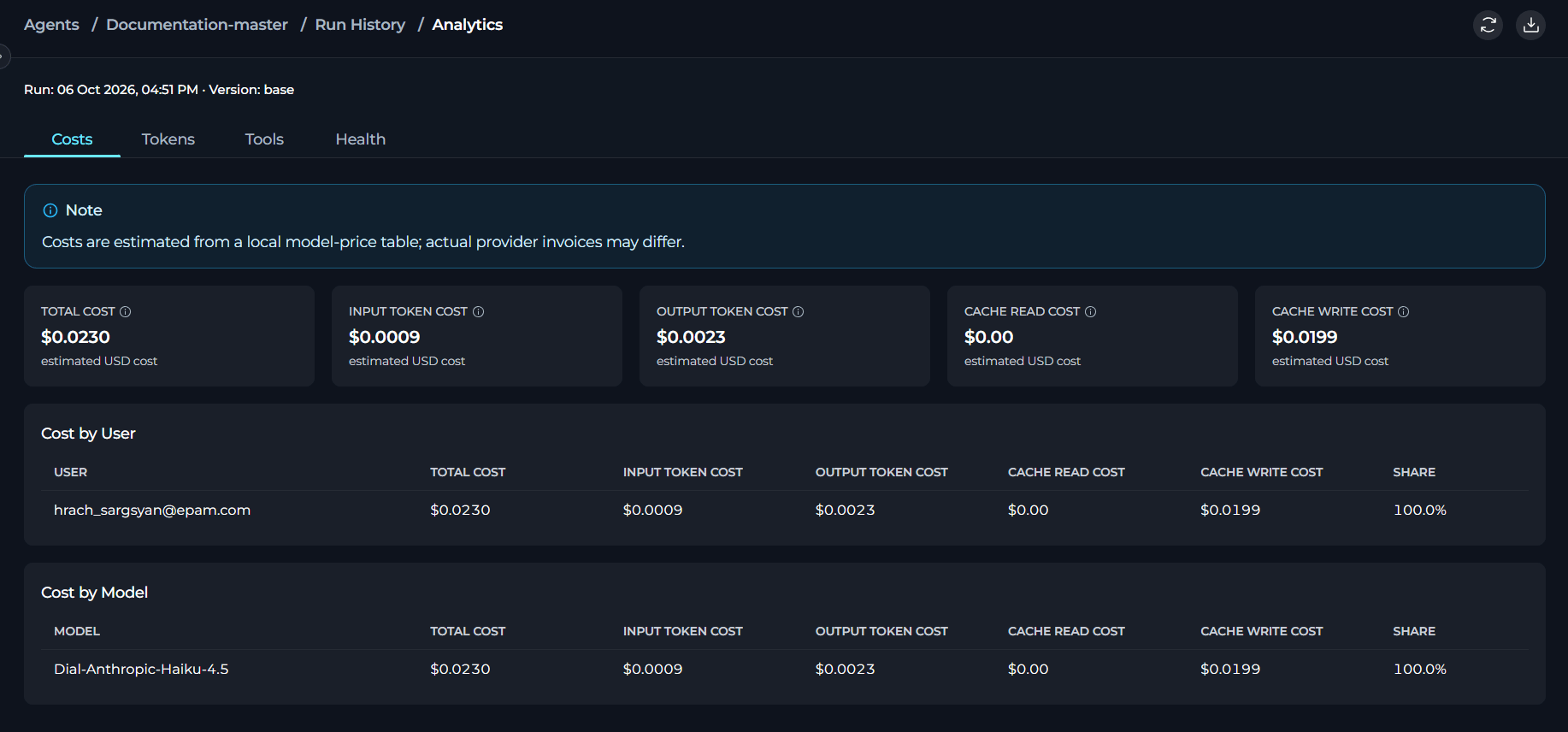
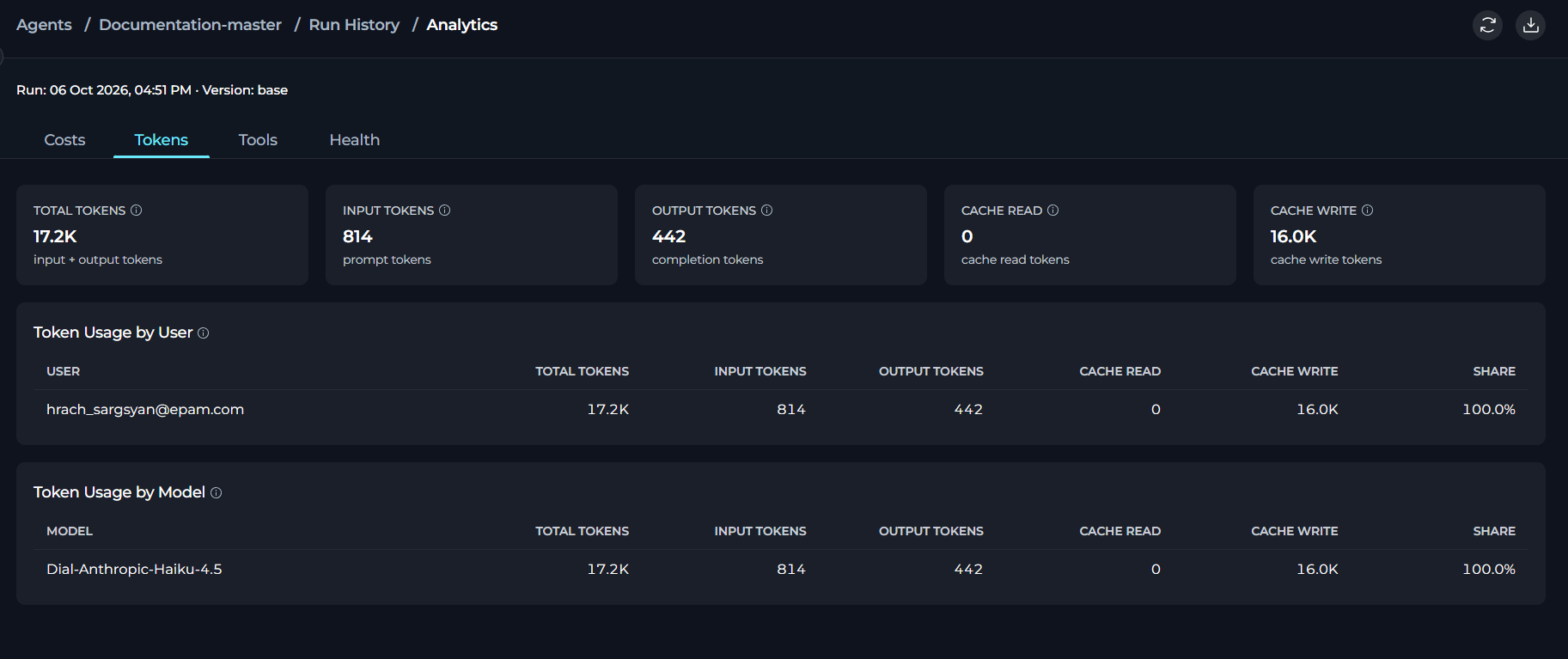
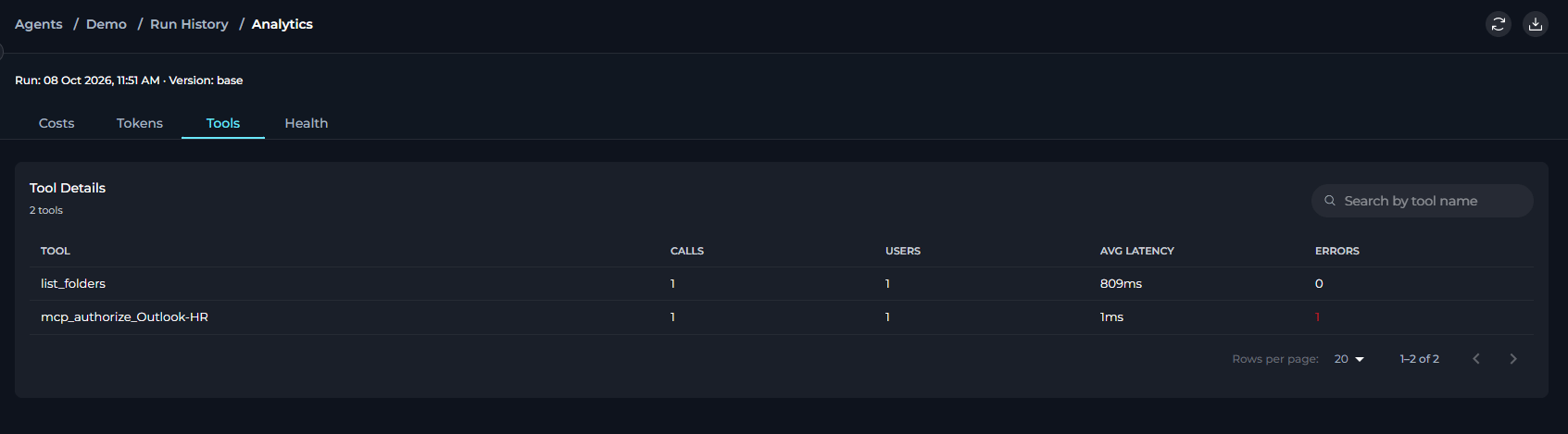
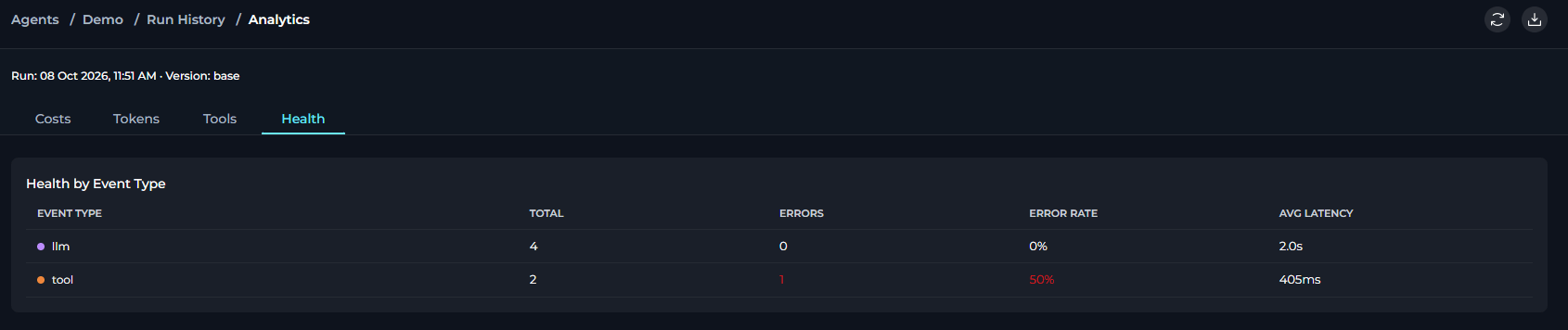
Export to ExcelDownloads one worksheet per tab—Costs, Tokens, Tools, and Health—covering every row for this run, not just the rows visible on the current table page. Each worksheet also includes the project, agent/pipeline, version, and run date for reference.
AvailabilityAnalytics is not available for previous runs—usage-tracking data is only recorded for runs created after release 2.0.7. The menu item does not appear for any run older than that.
Finding a Specific Run
Since runs are sorted by date (newest first) by default, you can:- Recent runs: Look at the top of the list
- Specific date: Scroll down or click the Date column header to reverse the sort order
- Specific version: Click the Version column header to sort alphabetically by version name
- By duration: Click the Duration column header to sort by execution time
Comparing Versions
To compare how different versions of your agent or pipeline performed:- Identify two runs with different versions in the Version column
- Select the first run and review its conversation
- Select the second run and review its conversation
- Compare the responses, duration, and behavior
Analyzing Performance
To analyze execution performance:- Look at the Duration column for execution times
- Select slower runs to identify what might have caused delays
- Compare durations across different versions to measure improvements
Copying a Run Link
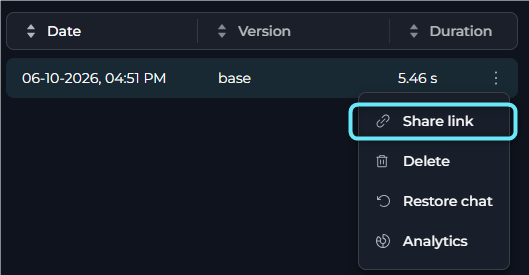
To share a specific run with team members or save it for later reference:- Hover over the run you want to share in the left panel
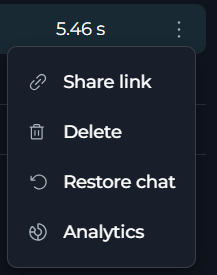
- Click the ⋮ (three-dot menu) icon that appears
- Select Share link
- A success toast appears confirming the link was copied to your clipboard
-
Share the link — when opened it navigates directly to the Run History panel with that run selected
Deleting a Run
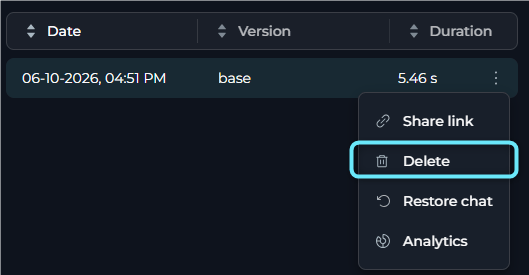
If you need to remove a specific run from history:- Hover over the run you want to delete in the left panel
- Click the ⋮ (three-dot menu) icon that appears
- Select Delete
- Confirm the deletion in the “Remove run?” dialog
-
The run is permanently removed from history
Restoring a Chat
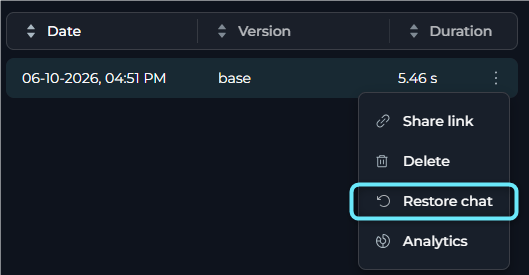
The Restore chat action pre-populates the embedded test chat (right panel of the agent/pipeline page) with the message history from a selected run. This lets you quickly resume or replay an earlier conversation without manually re-entering the same inputs. To restore a past conversation:- Open the Run History panel by clicking the clock icon (🕐) in the right panel top bar
- Find the run whose conversation you want to restore
- Hover over that run row and click the ⋮ (three-dot menu) icon
- Select Restore chat
-
The embedded chat on the right now shows the restored message history — continue the conversation from there
Common Use Cases
Debugging a Failed Run
Debugging a Failed Run
Scenario: An agent produced unexpected results or failed to complete.Steps:
- Open the agent and click the clock icon (🕐) in the right panel top bar
- Find the failed run by date or version
- Select the run to view the conversation
- Review the messages to identify:
- What input triggered the issue
- Where the agent’s response went wrong
- Any error messages or unexpected behavior
- Use this information to fix the agent’s configuration or prompts
Performance Optimization
Performance Optimization
Scenario: You want to optimize your pipeline’s execution time.Steps:
- Open the pipeline and click the clock icon (🕐) in the right panel top bar
- Review the Duration column across multiple runs
- Click the Duration column header to sort by execution time
- Select the longest-running runs to see what operations were performed
- For a slow run recent enough to have usage data, open Analytics from its three-dot menu to review tool call counts, latency, and token usage on the Tools and Tokens tabs
- Optimize the pipeline based on the longest-running operations
Version Comparison
Version Comparison
Scenario: You updated your agent and want to verify improvements.Steps:
- Create a new version of the agent and run the same test inputs on both versions
- Open the agent and click the clock icon (🕐) in the right panel top bar
- Click the Version column header to group runs by version
- Compare runs from the old version vs. the new version
- Verify that the new version produces better results
Audit and Compliance
Audit and Compliance
Scenario: You need to provide evidence of what your agent processed.Steps:
- Open the agent and click the clock icon (🕐) in the right panel top bar
- Find the relevant run by date
- Review the complete conversation
- Use Share link from the ⋮ menu to save a direct URL to the run for documentation
Learning and Training
Learning and Training
Scenario: You want to understand how your agent handles different inputs.Steps:
- Open the agent and click the clock icon (🕐) in the right panel top bar
- Review multiple runs in the left panel
- Study patterns in successful responses
- Identify common failure scenarios
- Use these insights to improve your agent’s instructions or configuration
Troubleshooting
No History Entries Appear
No History Entries Appear
Problem: The Run History panel is empty or shows no runs.Solutions:
- Verify runs: Make sure the agent or pipeline has been executed at least once
- Check project: Confirm you’re viewing the correct agent/pipeline in the correct project
- Wait for sync: If you just ran the agent, wait a few seconds and refresh the page
- Check permissions: Ensure you have access to view this agent/pipeline
Selected Run Shows No Messages
Selected Run Shows No Messages
Problem: When you click a run, the right panel remains empty.Solutions:
- Wait for loading: The conversation may still be loading—look for a loading indicator
- Check selection: Ensure the run is highlighted in the left panel
- Refresh: Try selecting another run, then select the original run again
- Network issues: Check your internet connection and try again
Cannot Delete a Run
Cannot Delete a Run
Problem: The delete option doesn’t appear or deletion fails.Solutions:
- Hover properly: Make sure you hover directly over the run row to reveal the ⋮ menu
- Use the menu: Click the ⋮ icon and select Delete, then confirm in the dialog
- Check permissions: You may not have permission to delete runs in this project
- Retry: If deletion fails, wait a moment and try again
List Not Loading More Runs
List Not Loading More Runs
Problem: Scrolling to the bottom doesn’t load more historical runs.Solutions:
- Check total count: You may already have all available runs loaded
- Network issues: Check your internet connection
- Scroll position: Try scrolling back up slightly, then scroll down again to trigger loading
Analytics Option Missing or Shows No Data
Analytics Option Missing or Shows No Data
Problem: The Analytics item does not appear in a run’s three-dot menu, or the Analytics page shows “No analytics data is available for this run.”Solutions:
- Check run age: Analytics requires usage-tracking data that is only recorded for runs recent enough to carry it. Older runs never show the menu item.
- Check the conversation: Analytics is only offered for runs that have a conversation to analyze.
- Refresh: On the Analytics page, select Refresh data to re-fetch the figures.
Duration Shows Unusual Values
Duration Shows Unusual Values
Problem: The duration column shows unexpected values like very short or very long times.Explanation:
- Very short durations (< 1 second): The agent/pipeline responded very quickly
- Very long durations (> several minutes): The execution involved complex processing, multiple tool calls, or external API delays
- This is normal: Duration reflects actual execution time and can vary widely
Best Practices
Regular Review
Regular Review
- Check history periodically: Click the clock icon (🕐) regularly to review your agent/pipeline runs and catch issues early
- Monitor trends: Track performance over time to identify degradation
- Version tracking: Always note which version was used for important runs
Performance Monitoring
Performance Monitoring
- Baseline duration: Establish a baseline for normal execution times
- Alert on anomalies: If a run takes much longer than usual, investigate immediately
- Version comparison: After each update, compare new runs to previous versions
Debugging Workflow
Debugging Workflow
- Reproduce issues: When a problem is reported, click the clock icon (🕐) and find the run in history first
- Analyze context: Review what led to the issue in the conversation
- Test fixes: After fixing, run the same scenario and compare in history
- Document findings: Use Share link from the ⋮ menu to save a direct URL to the key runs as documentation
Data Management
Data Management
- Clean old runs: Periodically delete very old runs that are no longer needed
- Keep important runs: Don’t delete runs that serve as examples or evidence
- Version milestones: Keep at least one run from each major version for reference
Security Considerations
Security Considerations
- Sensitive data: Be aware that all messages are stored in run history
- Access control: Ensure only authorized users can access agents/pipelines with sensitive data
- Retention policy: Consider establishing a policy for how long to retain run history
Related Resources
- Agents Menu - Learn about managing agents
- Pipelines Menu - Learn about managing pipelines
- Entity Versioning - Understanding version management