

Introduction to the Credentials Menu
What Are Credentials?
Credentials in ELITEA are secure records containing sensitive information—such as API keys, OAuth tokens, usernames, or passwords—used to authenticate your agents and toolkits with external platforms. By storing credentials centrally, ELITEA helps ensure secure access control and simplifies credential management across all your integrations.Navigating the Credentials Menu
The Credentials menu is accessible from the main platform navigation. Upon entering the Credentials section, you’ll see a dashboard listing all saved credentials.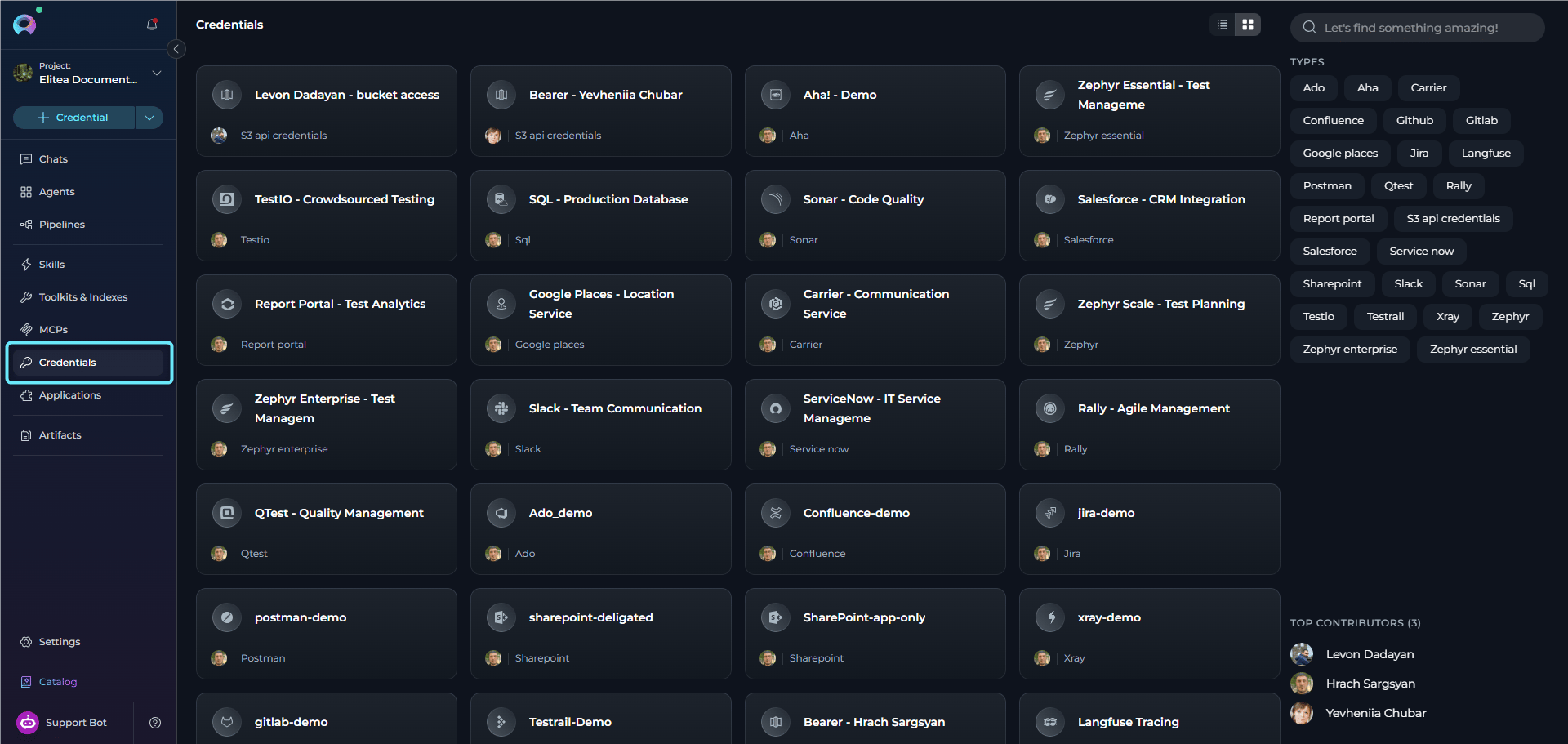
Main Elements:
- Credential Cards: Each card displays the credential’s name and type.
- Search and Filter: Use the search bar to quickly locate credentials by name or type.
- Add Credential Button: Use the
+ Createbutton to create new credentials.
Credentials Dashboard
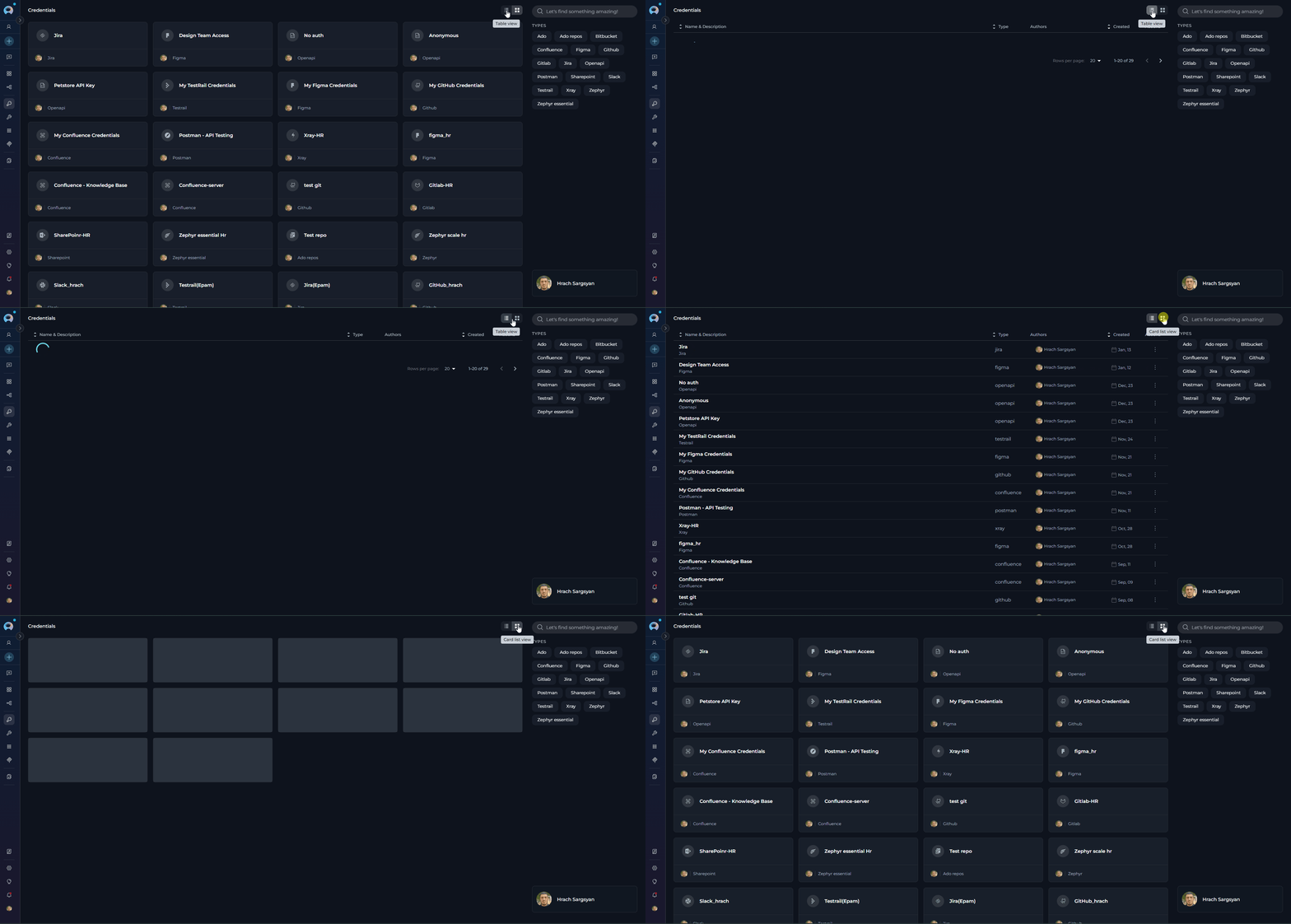
The Credentials dashboard provides multiple ways to view and manage your credentials: View Options- Card View - Visual cards displaying credential name, type, and key information. Ideal for browsing and quick identification.
- Table View - Organized list format with columns for detailed credential information. Better for managing large numbers of credentials.
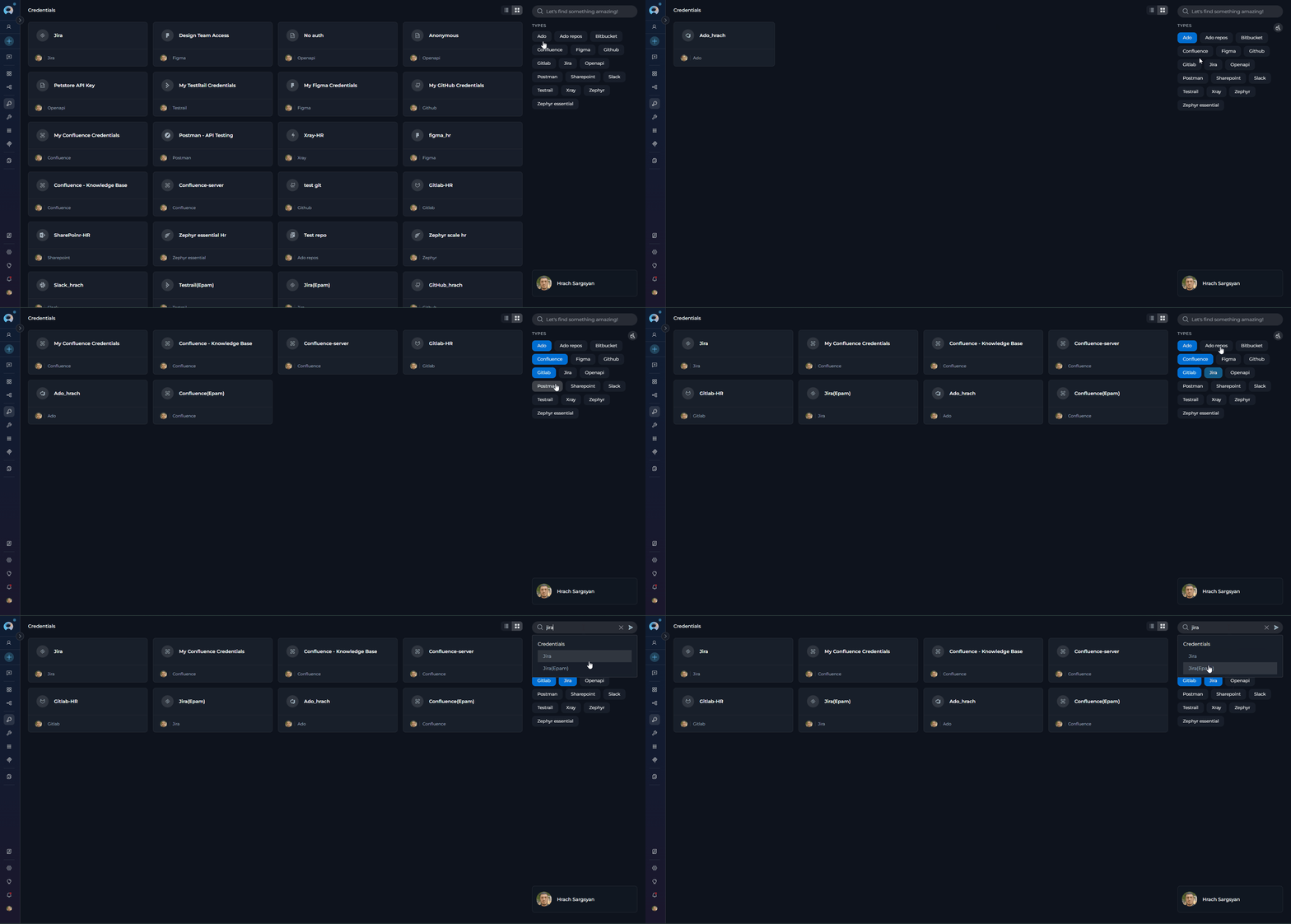
- Search Bar - Quickly find credentials by typing the credential name or related keywords
- Filter by Type - Filter credentials by their type/category (e.g., show only GitHub, Jira, or Slack credentials). Select one or multiple types to narrow down the list.
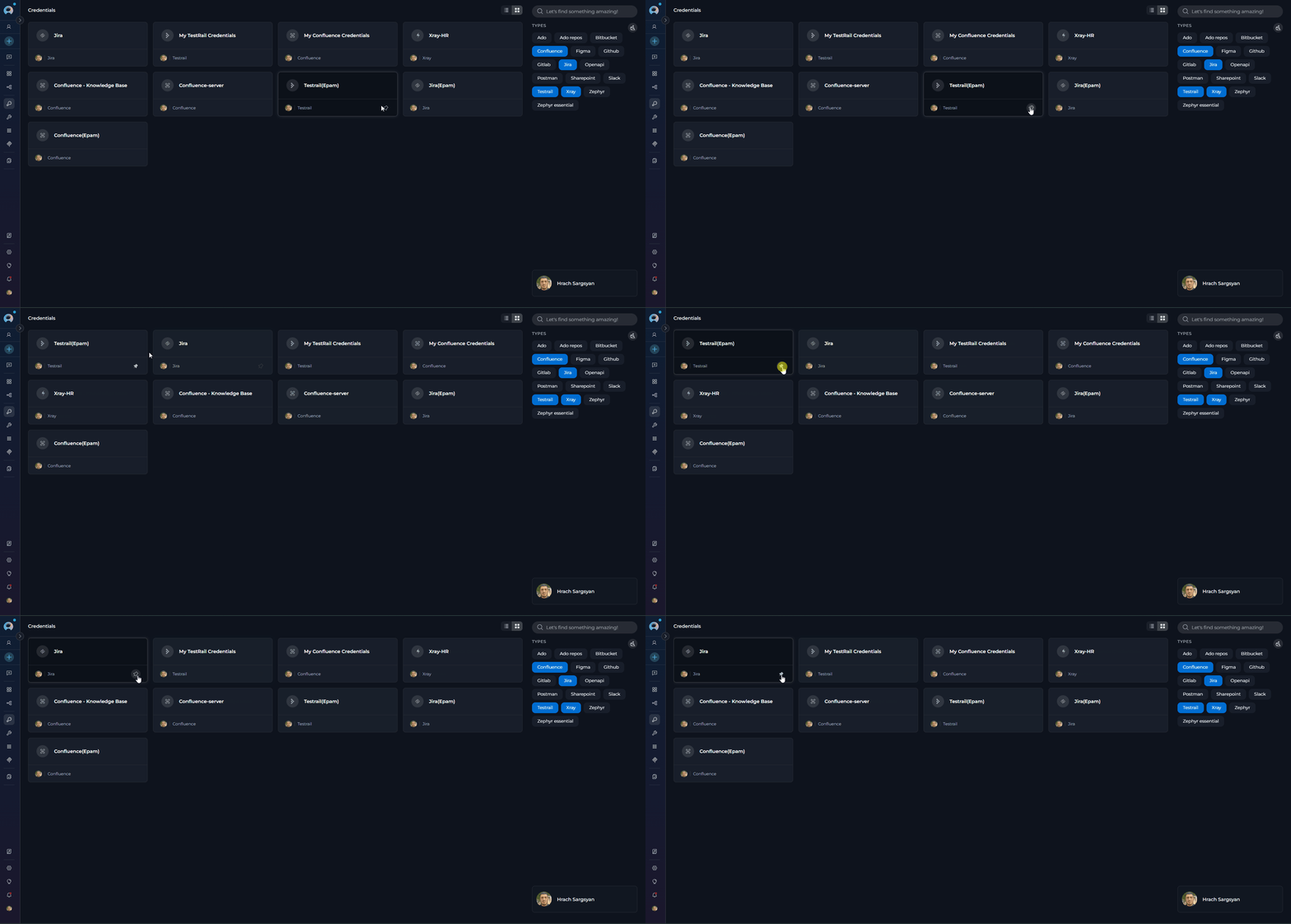
- Locate the credential you want to pin
- Click the pin icon (📌) on the credential card or in the table row
- Pinned credentials will appear at the top of the list, separated from unpinned ones
- Click the pin icon again to unpin the credential
Supported Credential Types
The ELITEA platform currently supports the following credential types, organized by category to help you quickly find the integration you need:Organize Credentials with Folders
Folders help you organize credentials into logical groups for better navigation and management. You can create folders, move credentials between folders, and control folder access within team projects.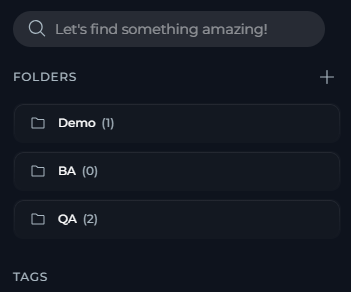
- In the Credentials dashboard right panel, locate the Folders section.
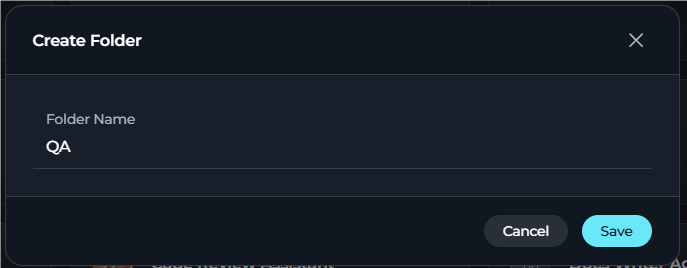
- Select + Create Folder.
- Enter a folder name (up to 128 characters).
-
Select Save.
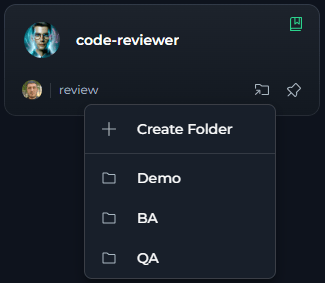
- Hover over a Credential card: A “Move to folder” icon (folder with arrow) appears on the card.
- Click the folder icon: Opens a menu with folder options.
-
Select a folder from the list: The menu displays:
- + Create Folder option at the top
- A scrollable list of existing folders
- Pinned folders are marked with a pin icon
- The current folder (if any) is highlighted and marked with a checkmark
-
The Credential is moved to the selected folder.
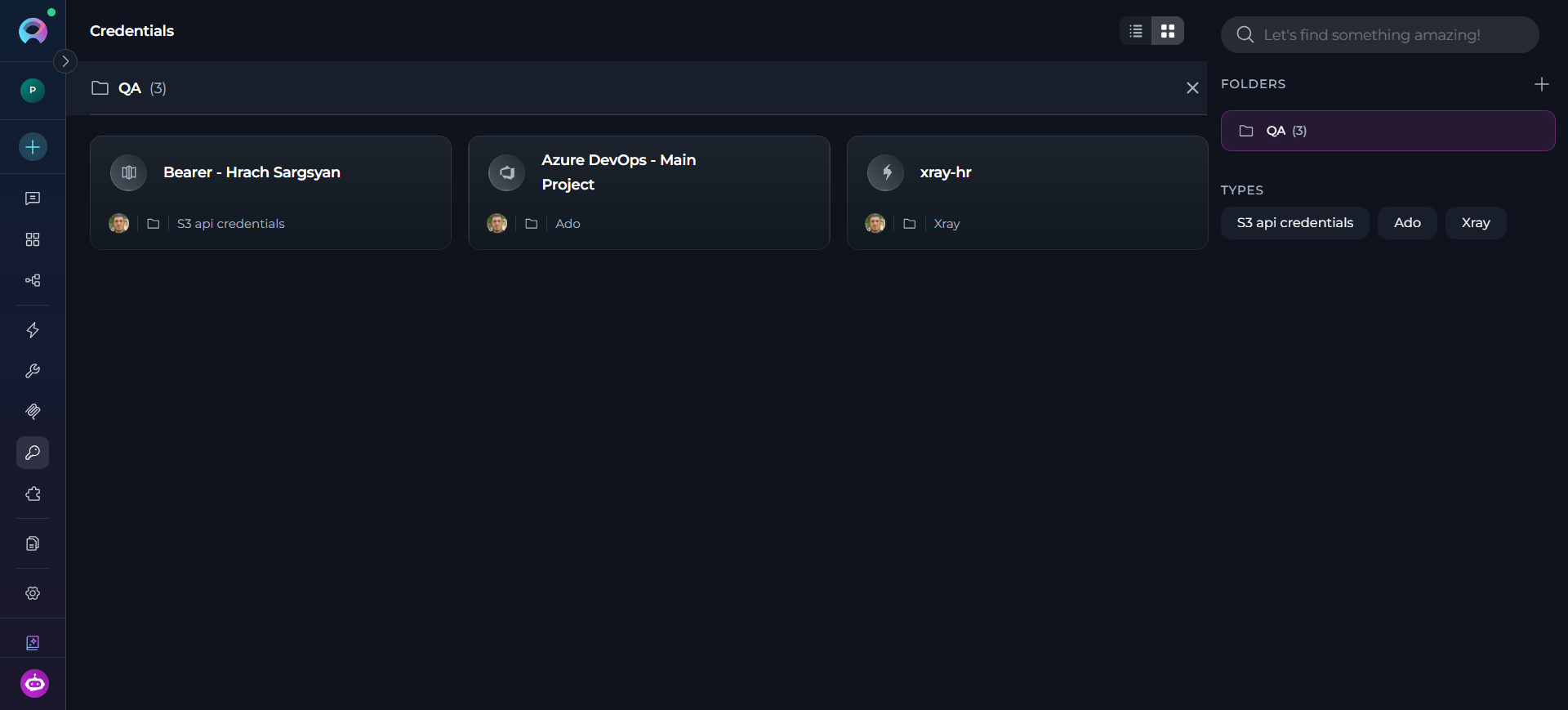
Remove a Credential from a Folder:
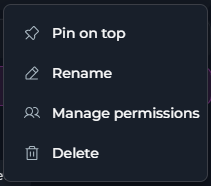
- Open the credential card’s three-dot menu (⋮).
- Select Remove from Folder.
- The Credential returns to the main credentials list and the folder icon is removed from its card.
Folders are available in team and personal projects. In team projects, folder access can be restricted to specific users. The Public project does not support folders.
Folder Permission Management
In team projects, you can control which users can view and modify specific folders by setting permission exceptions. By default, users retain the permissions granted by their project roles. Permission exceptions can only restrict access. Access Folder Permissions:- In the Credentials dashboard right panel, locate the folder in the Folders list.
- Select the folder’s three-dot menu (⋮).
- Select Manage Access.
- The Manage Permissions dialog opens.
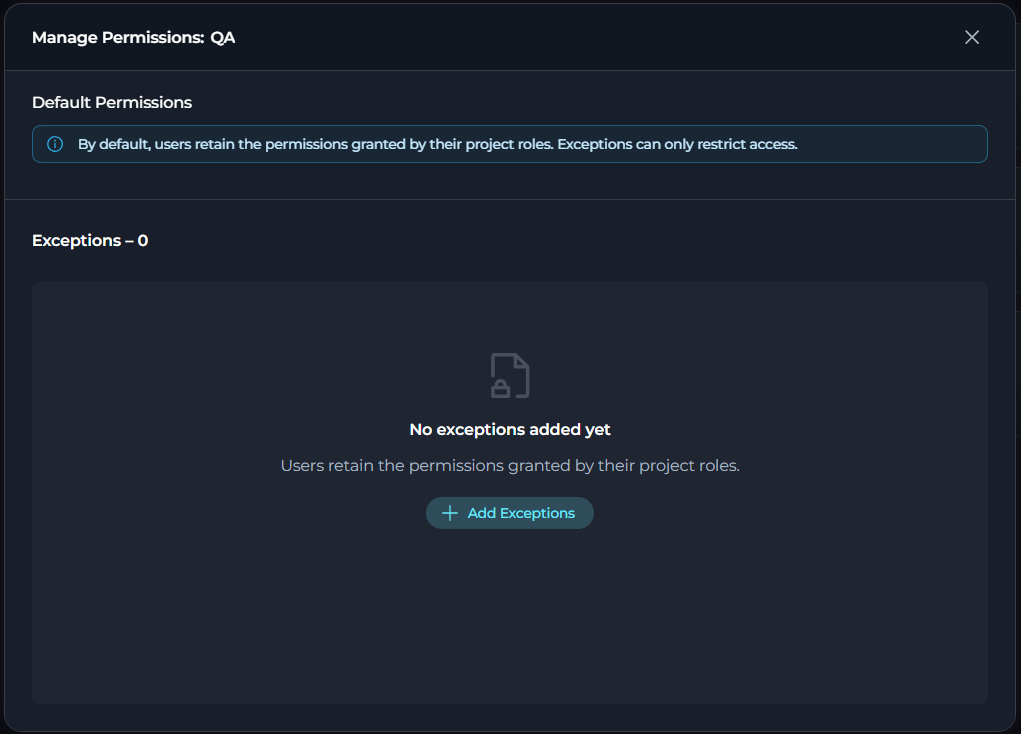
- In the Manage Permissions dialog, select + Add Exception.
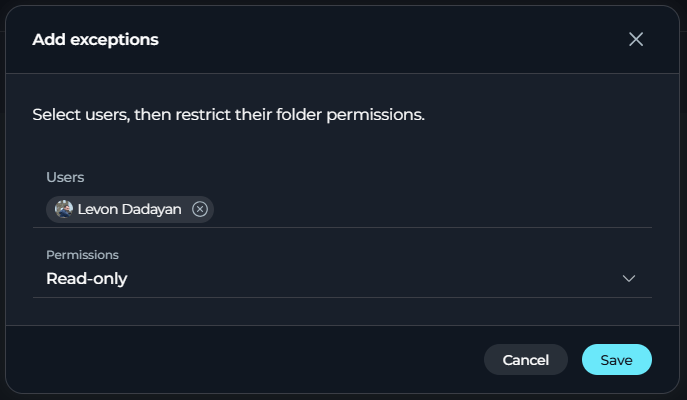
- Search for and select one or more users from the project.
- Choose a permission level: Read-only or No access.
-
Select Add. The selected users are added to the permissions table.
Edit Permission Exceptions:
- To modify an existing exception, locate the user in the permissions table and select the Edit (pencil) icon in the Actions column. Change the permission level to your desired setting and select Save.
- To remove an exception and return the user to default permissions, change the permission level to Read/write (default). When saved, the user is removed from the exceptions table and inherits permissions based on their project role.
Permission exceptions apply only to the folder itself. Users with no access to a folder cannot see it in their folders list or view its contents.
Creating a New Credential
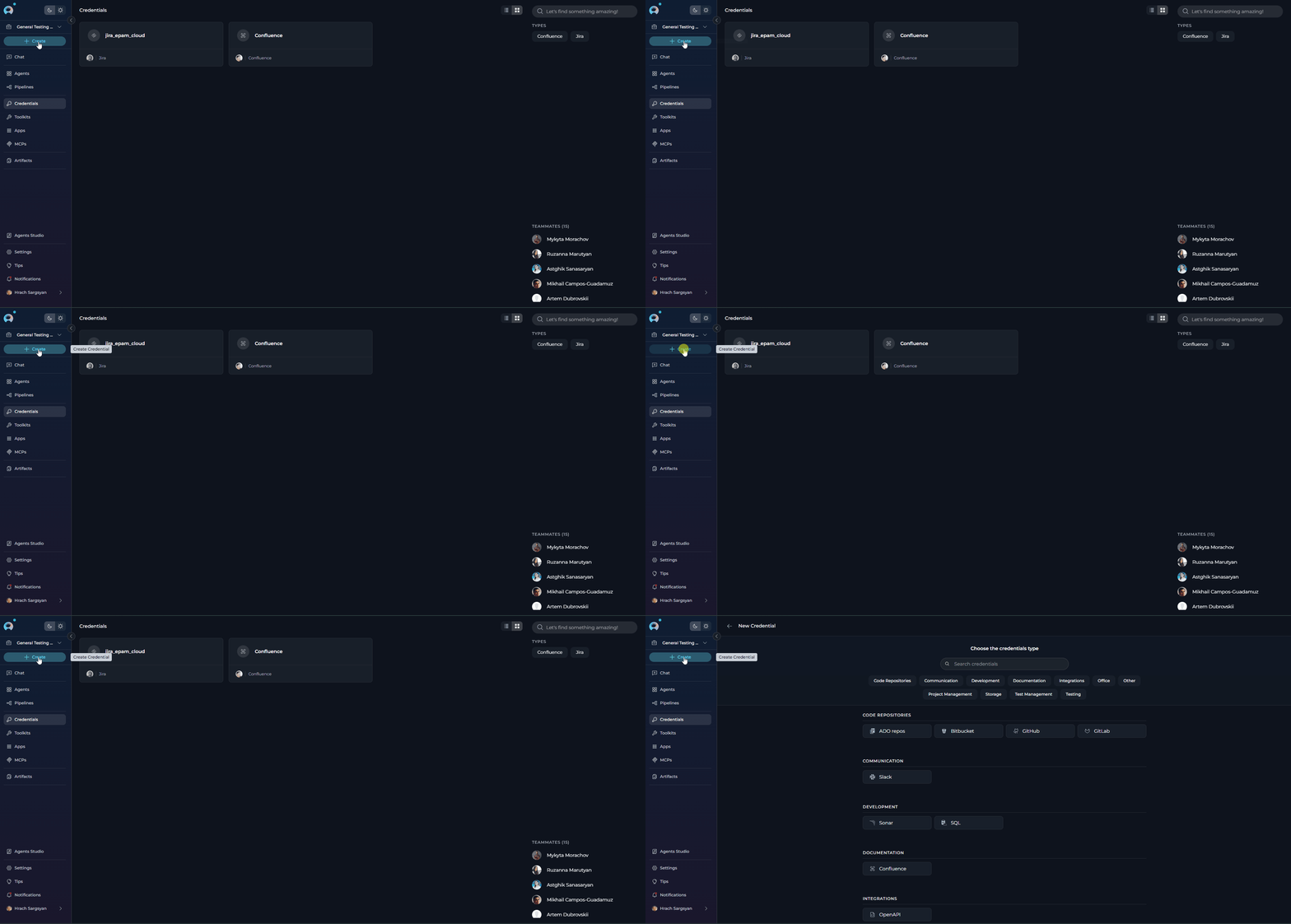
You can add new authentication records to the platform by creating a credential through the Credentials menu. How to Create a New Credential Follow these steps to add authentication details to the platform:- Open the Credentials Menu: Go to the Credentials section from the main navigation bar.
- Click
+ Create: Find the+ Createbutton at the top of the sidebar.
Only users with the necessary permissions can create or configure credentials. If the
+ Create button is disabled, contact your platform administrator.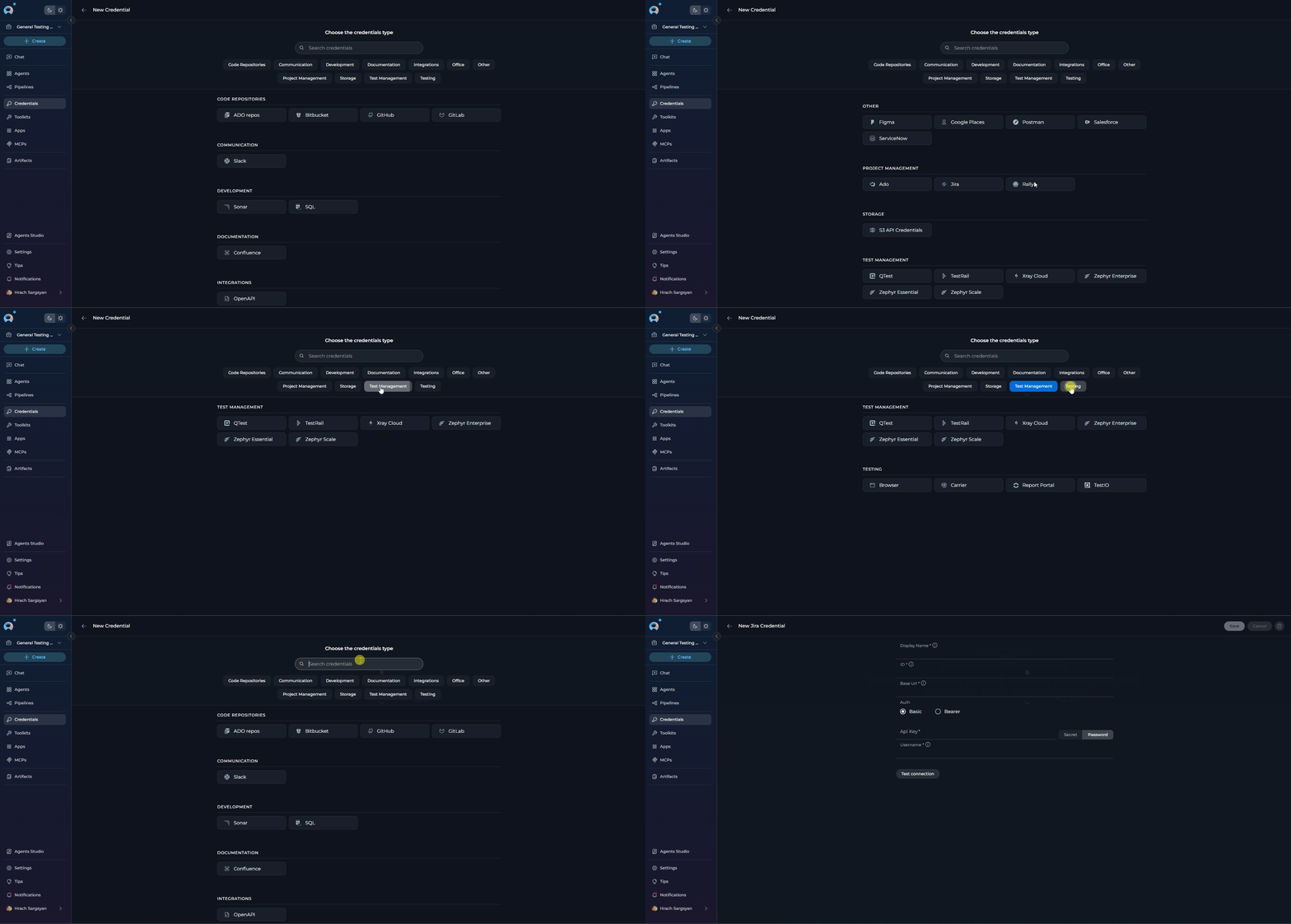
Configuring Credential Details
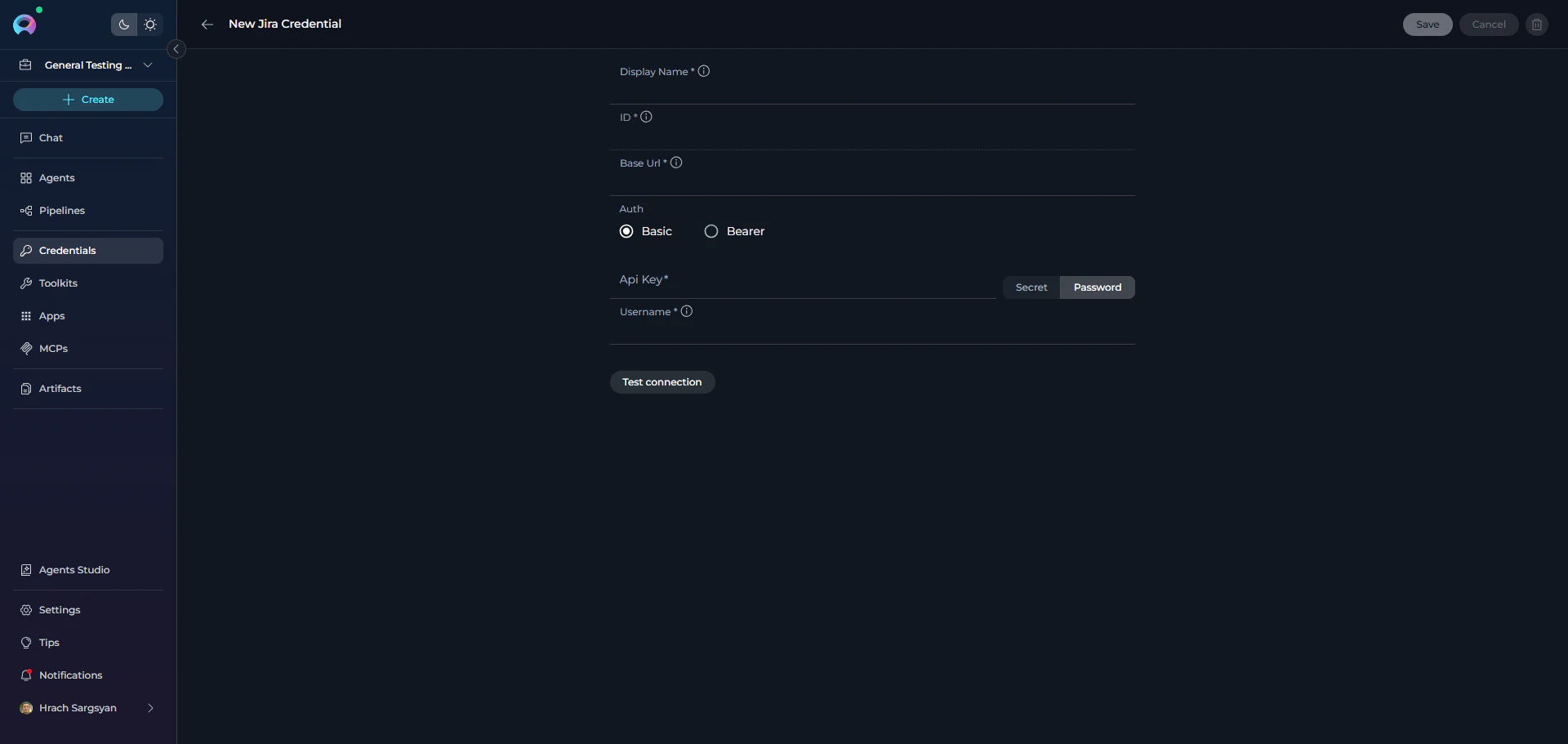
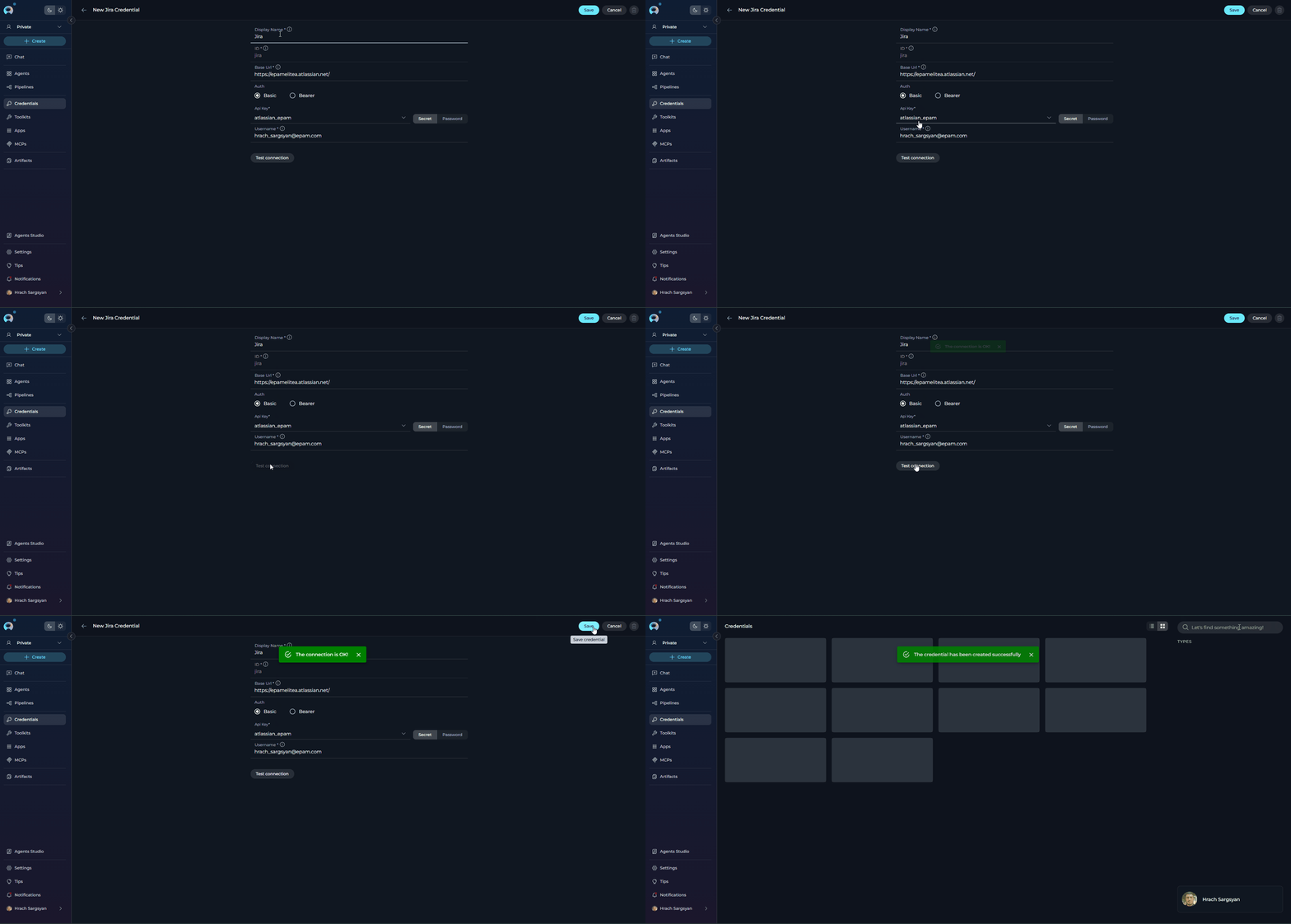
Once you’ve selected a credential type, you’ll need to configure the following fields: Main Configuration Fields:- Display Name* - A clear, descriptive name for your credential that helps identify its purpose
- ID* - A unique identifier for the credential (auto-generated or customizable depending on the platform configuration)
- Parameters - Integration-specific fields that vary by credential type, such as:
- API Key/Token* - Authentication key or token (requirements vary by integration)
- Can reference a Secret for enhanced security
- Can use a Password field type for masked input
- URLs - Service endpoints or base URLs
- Usernames - Account identifiers
- Additional Fields - Other integration-specific parameters
- API Key/Token* - Authentication key or token (requirements vary by integration)
Editing and Managing Credentials
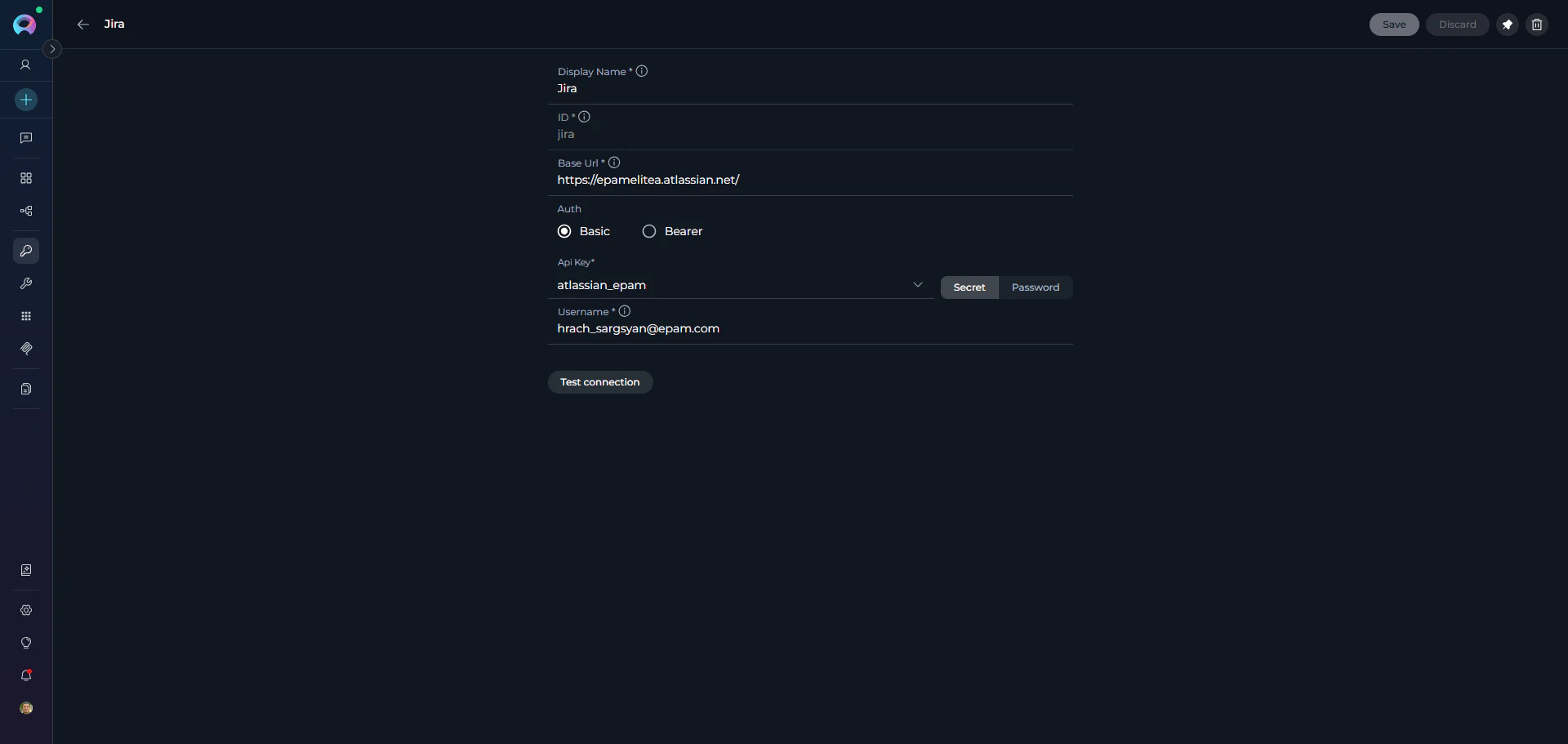
How to Edit an Existing Credential To edit a credential, open its detailed page from the Credentials dashboard. On this page, you can:- Edit Credential Details: Update the name and parameters (API keys, tokens, URLs).
- Save Changes: Click Save to apply your updates. Changes are applied immediately and reflected in the dashboard.
- Delete Credential: Use the “Delete” icon (top right) to remove the credential. Enter the name of the credential and Confirm deletion in the dialog.
Assigning Credentials to Toolkits and Agents
Once a credential is created, it is available for assignment when configuring toolkits or agents:- When adding or editing a toolkit, open the Credentials dropdown.
- Select an existing credential from the list or create a new one.
- Save your changes to apply the credential to your toolkit or agent.
For more information on creating and managing Toolkits, see the Toolkits documentation
Troubleshooting
Failed Authentication
Failed Authentication
Double-check credential values and permissions. Verify that:
- The API keys, tokens, or passwords are correct and haven’t expired
- Your account has the necessary permissions for the integration
- The service URLs are accurate and accessible
Credential Not Appearing
Credential Not Appearing
If a credential doesn’t show up in your list:
- Refresh the credential list or reload the page
- Verify your permissions - you may not have access to view certain credentials
- Check if you’re viewing the correct project scope (personal vs. project credentials)
Toolkit/Agent Cannot Use Credential
Toolkit/Agent Cannot Use Credential
When a toolkit or agent can’t access a credential:
- Ensure the credential is correctly assigned to the toolkit or agent
- Verify the credential type is compatible with the integration
- Check that the credential hasn’t been deleted or modified by another user
Support Contact
If you encounter issues not covered in this guide or need additional assistance with credential management, please refer to Contact Support for detailed information on how to reach the ELITEA Support Team.Explore these related guides to enhance your credential management experience:
- Glossary — Definitions of common terms used across the platform
- Toolkits — Complete guide to the Toolkits menu interface and advanced configuration options
- How to Use Credentials — Step-by-step guide for creating and managing credentials
- Secrets Management — Secure credential storage best practices