

Overview
ELITEA Agents are customizable AI-powered virtual assistants that automate tasks and streamline workflows within the ELITEA platform. Each agent is purpose-built to handle specific tasks or workflows based on custom instructions, integrated toolkits, and AI model capabilities you configure. Agents can interact with external services, make intelligent decisions, and perform complex actions—from creating Jira tickets and managing GitHub repositories to analyzing data and generating documentation. Why Use Agents?Task Automation
Automate repetitive and complex multi-step workflows without constant human intervention.
Increased Productivity
Reduce manual effort by delegating routine tasks to intelligent agents.
Consistency
Ensure standardized processes and outputs across your team.
Integration
Seamlessly connect multiple tools and services to create powerful automated workflows.
Scalability
Deploy agents across different domains and scale operations as your needs grow.
- Instructions: Define the agent’s behavior, goals, and decision-making logic through custom instructions.
- Toolkits & Integrations: Connect external services (GitHub, Jira, Slack, etc.) and modules (Attachments, Image creation, Data Analysis, Planner, Python sandbox, Swarm Mode, Smart Tools Selection) to extend capabilities.
- AI Model Configuration: Select and configure the appropriate language model (GPT-4o, GPT-5.1, Auto, etc.) with optimal settings for your use case.
- Autonomous Operation: Independently executes tasks and makes decisions based on predefined instructions and goals.
- Proactive Problem-Solving: Determines optimal next steps to achieve objectives, even without explicit guidance.
- Multi-Service Integration: Combines external toolkits (project management, version control, testing tools) with internal capabilities.
- Flexible Customization: Tailor instructions, tools, and model settings to match specific requirements and workflows.
- Version Management: Create, manage, and publish different versions of agents for various use cases.
- Context Awareness: Maintain conversation context and manage token budgets for efficient, focused interactions.
Navigate the Agents Menu
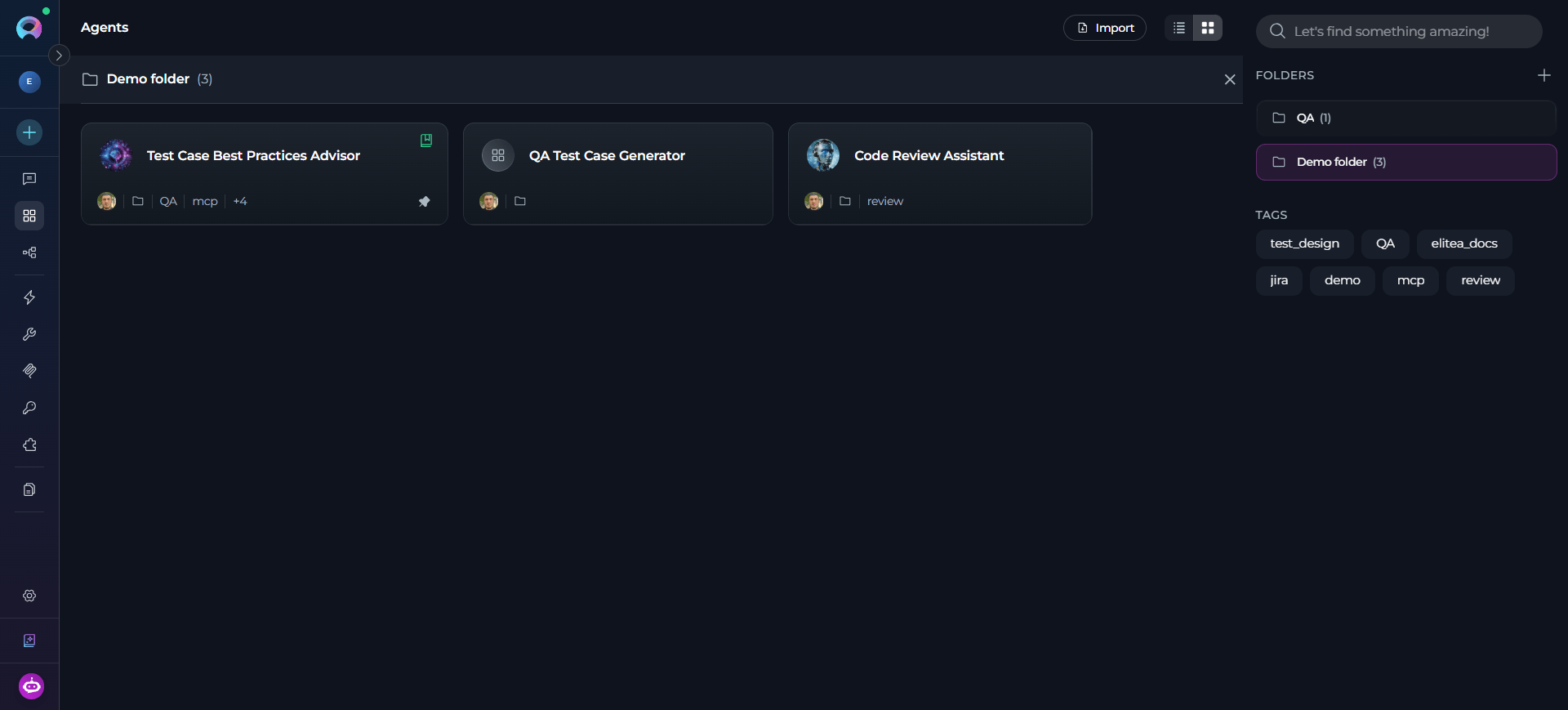
Select Agents in the main sidebar to open the Agents dashboard—a list of all agents in the current project. The dashboard supports card and table views, search by name or keyword, tag-based filtering, pinning agents to the top of the list, and organizing agents into folders.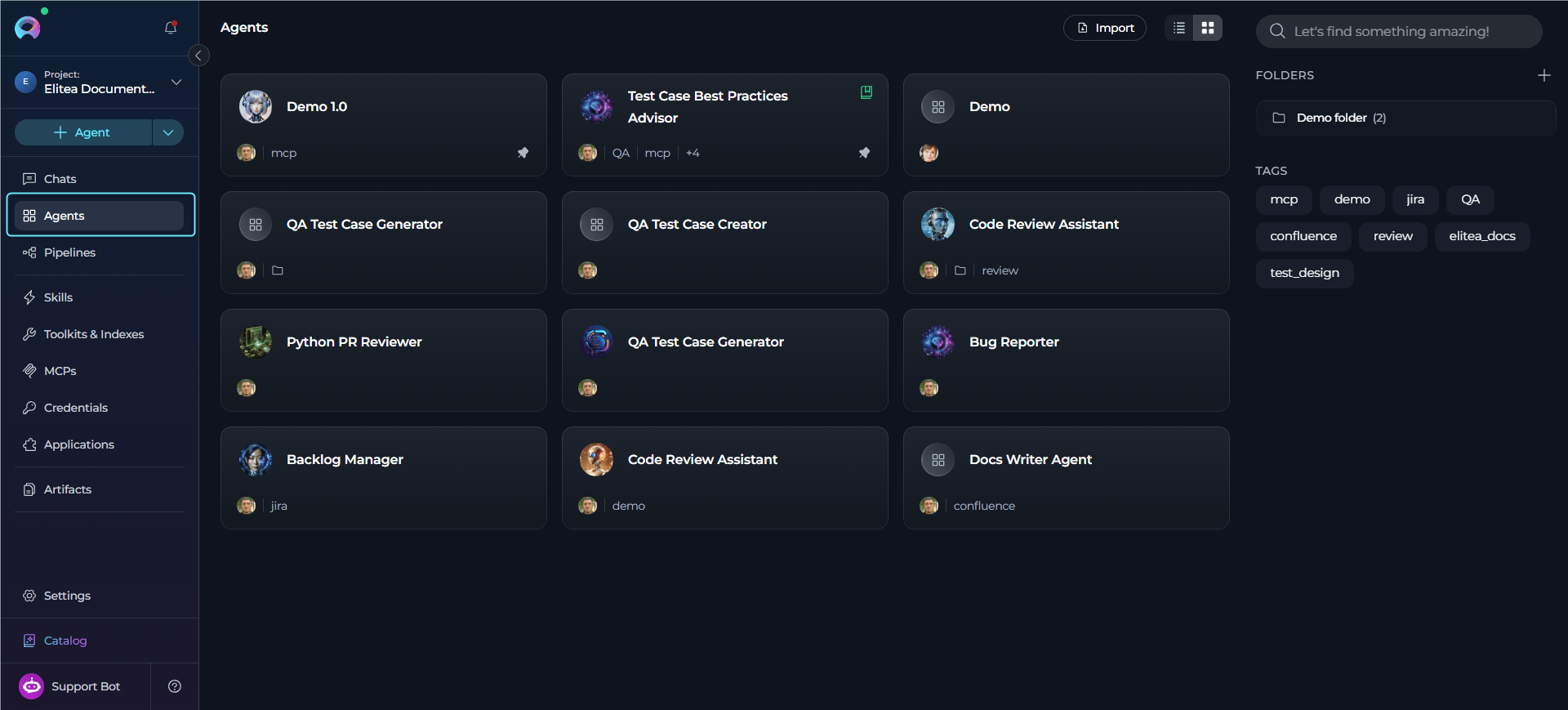
Organize Agents into Folders
Folders help you organize agents into logical groups for better navigation and management. You can create folders, move agents between folders, and control folder access within team projects.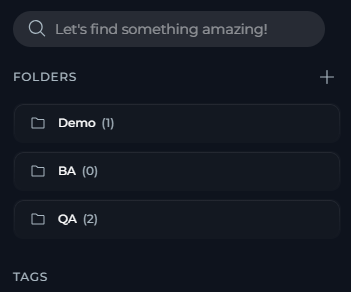
- In the Agents dashboard right panel, locate the Folders section.
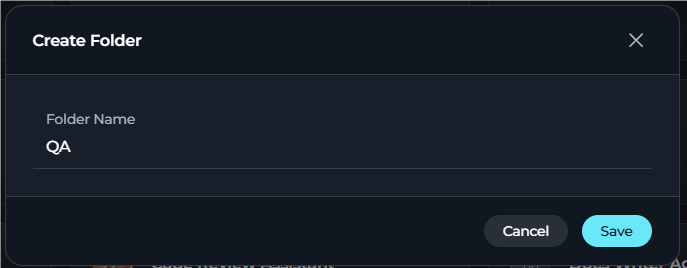
- Select + Create Folder.
- Enter a folder name (up to 128 characters).
-
Select Save.
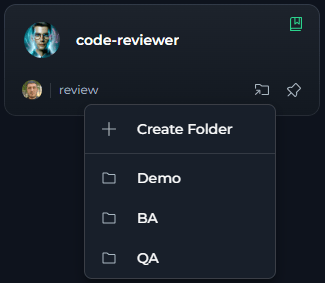
- Hover over an Agent card: A “Move to folder” icon (folder with arrow) appears on the card
- Click the folder icon: Opens a menu with folder options
-
Select a folder from the list: The menu displays:
- + Create Folder option at the top
- A scrollable list of existing folders
- Pinned folders are marked with a pin icon
- The current folder (if any) is highlighted and marked with a checkmark
-
The Agent is moved to the selected folder
Remove an Agent from a Folder:
- Open the agent card’s three-dot menu (⋮).
- Select Remove from Folder.
- The agent returns to the main agents list and the folder icon is removed from its card.
Folders are available in team and personal projects. In team projects, folder access can be restricted to specific users. The Public project does not support folders.
Folder Permission Management
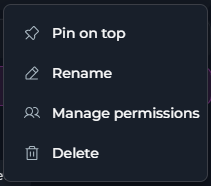
In team projects, you can control which users can view and modify specific folders by setting permission exceptions. By default, users retain the permissions granted by their project roles. Permission exceptions can only restrict access. Access Folder Permissions:- In the Agents dashboard right panel, locate the folder in the Folders list.
- Select the folder’s three-dot menu (⋮).
- Select Manage Access.
- The Manage Permissions dialog opens.
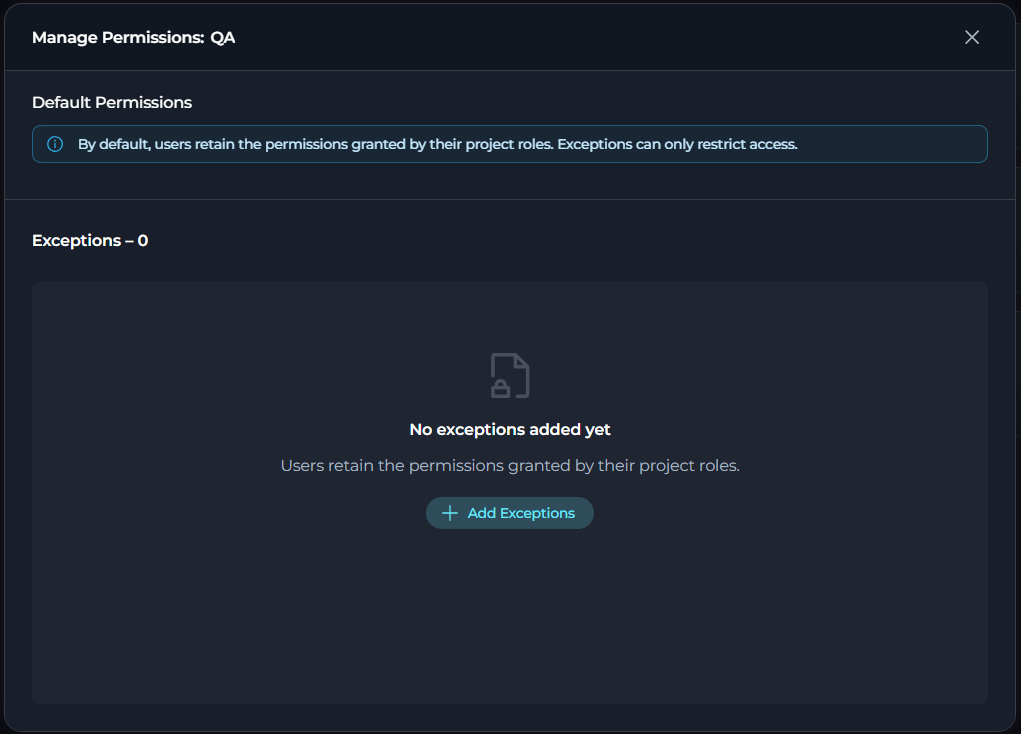
- In the Manage Permissions dialog, select + Add Exception.
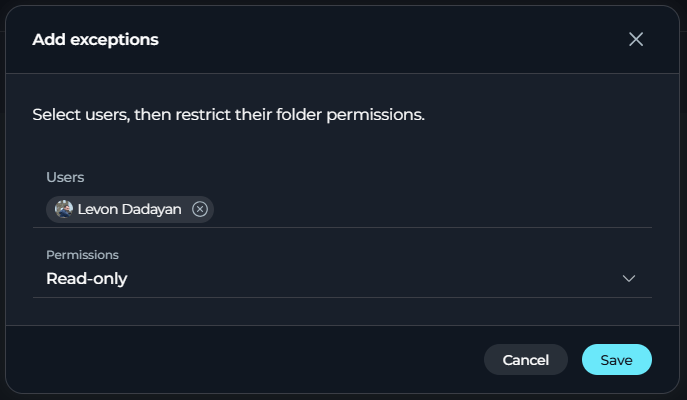
- Search for and select one or more users from the project.
- Choose a permission level: Read-only or No access.
-
Select Add. The selected users are added to the permissions table.
Edit Permission Exceptions:
- To modify an existing exception, locate the user in the permissions table and select the Edit (pencil) icon in the Actions column. Change the permission level to your desired setting and select Save.
- To remove an exception and return the user to default permissions, change the permission level to Read/write (default). When saved, the user is removed from the exceptions table and inherits permissions based on their project role.
Permission exceptions apply only to the folder itself. Users with no access to a folder cannot see it in their folders list or view its contents.
Create an Agent
Create Agent from Chat
You can create agents directly from your chat conversation using the Agent & Pipeline Builder module. When enabled, simply ask the AI to create an agent with specific capabilities, and it will guide you through the configuration process within the chat interface. How it works:- Enable the Agent & Pipeline Builder module in your project settings or chat modules.
- In your chat, describe the agent you want to create (e.g., “Create a code review agent that checks for security issues”).
- The AI will create the agent based on your description and add it to the Participants panel.
- The newly created agent is automatically activated and ready to use in your conversation.
- “Create an agent that reviews Python code for best practices”
- “Build a Jira ticket creation agent with my Jira toolkit”
- “Make an agent that summarizes meeting notes”
The Agent & Pipeline Builder module must be enabled in your project settings to create agents from chat. Created agents appear in the Participants panel and can be edited anytime through the agent configuration interface. For more details, see Agent & Pipeline Builder.
Create Agent from Sidebar
To set up a new agent from the sidebar:-
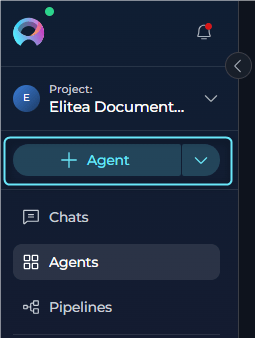
Select the + Agent button at the top of the main sidebar.
-
Complete the agent configuration fields:
-
Select Save.
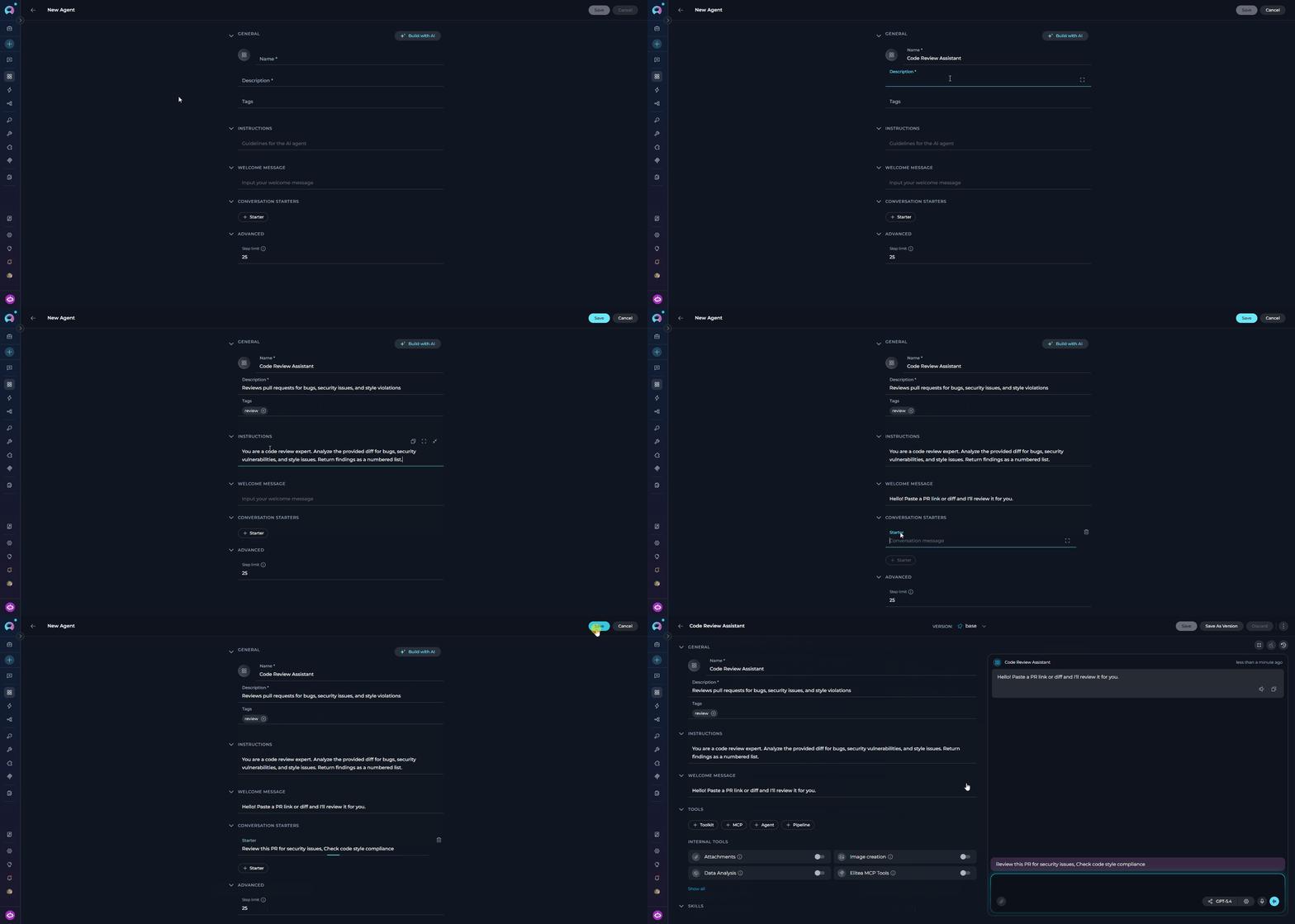
- Left panel—the configuration form with all settings sections (General, Instructions, Variables, Welcome Message, Toolkits, Skills, Conversation Starters, Advanced, Editor Notes, Information).
- Right panel—an embedded live chat panel for interactively testing the agent without leaving the configuration view.
- Add Toolkits, agents, MCPs (Model Context Protocol servers), and pipelines.
- Attach Skills.
- Select AI Model and configure model settings.
- Turn on Modules.
- Set Variable Values.
- Test Interactively using the embedded chat panel.
- View Run History.
Build Agent with AI
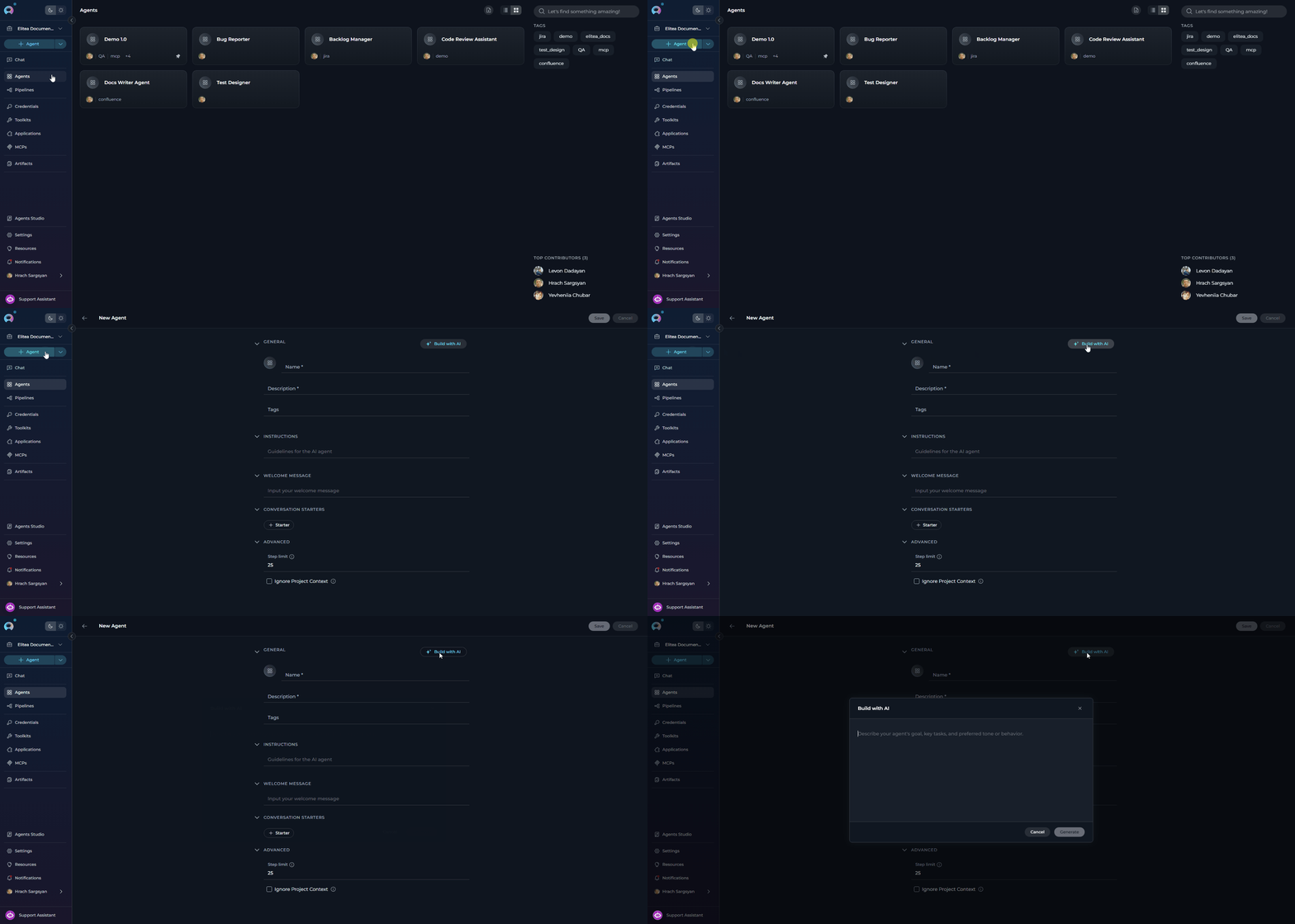
Instead of completing the form manually, use Build with AI to generate a complete agent draft from a plain-language description.- Open the agent creation form (+ Create > select Agent, or Agents > + Create).
- In the General section header, select the Build with AI button (✨ sparkle icon).
- In the dialog, describe what the agent should do—its goal, tasks, and preferred tone.
- Select Generate. ELITEA drafts a Name, Description, Instructions, Welcome Message, and Conversation Starters for you.
- Review and edit each field. Select any suggested toolkits or child agents to attach.
- Select Create Agent to save.
For the full Build with AI workflow—including how suggested resources work and how to use it from Chat—see the Build Agent with AI guide.
Edit Agent with AI
After an agent has been created and saved, use Edit with AI to propose targeted updates to the existing configuration instead of editing every field manually.- Open an existing saved agent.
- In the General section header, select Edit with AI
-
In the dialog, describe the changes you want to make. For example:
- Select Generate Draft. ELITEA analyzes the current agent and produces a proposed draft update.
-
Review the generated draft step by step. Depending on what changed, ELITEA shows review steps for:
- General fields such as Name and Description.
- Instructions.
- User interaction fields such as Welcome Message and Conversation Starters.
- Tools & Skills suggestions, including toolkits, MCPs, agents, pipelines, and Skills to add, keep, or remove.
- A final Summary step before applying changes.
- Choose which changes to keep. You can selectively apply or skip individual field updates before saving.
-
Finish by selecting either:
- Save to apply the selected changes to the current version.
- Save as Version to create a new version with the selected AI-generated changes.
Edit with AI is available only for existing saved agents. It is shown in the General section of the agent editor and is not available while creating a brand-new unsaved agent.
When you save AI-generated edits, ELITEA can update both content fields and attached resources. Suggested toolkits, MCPs, agents, pipelines, and Skills can be reviewed before they are added or removed.
When configuring Agents, you can personalize their profiles by adding a custom image along with the Name and Description. This feature lets you create a unique, visually distinct identity for each Agent, making them easier to recognize and manage.To add an image: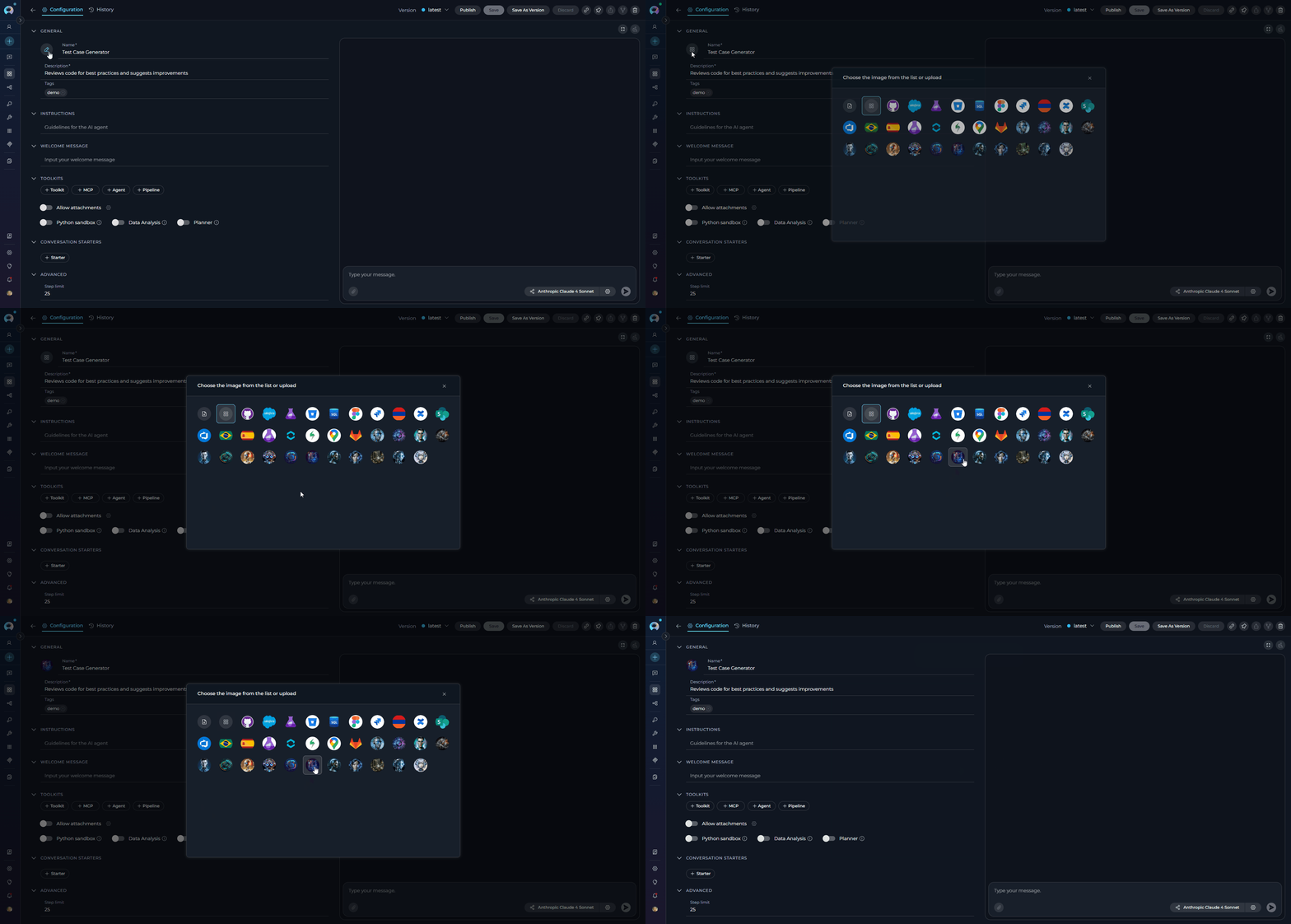
- Select the Pen Icon next to the image placeholder to open the image upload interface.
- Select the Upload a Custom Image icon to upload a custom image from your local system.
- Select Use Default Images to choose from a set of default images provided by the platform.
Select & Configure Toolkits
Toolkits are integrations with external or ELITEA internal services that enhance your agent’s capabilities by allowing it to interact with various resources and perform specific tasks. In addition to toolkits, you can also add other Agents, MCPs (Model Context Protocol servers), and Pipelines to extend your agent’s functionality. You can add these resources to your agent during the creation process or edit them later. Add Resources to Your Agent:- In the agent creation or editing interface, go to the TOOLS section.
- Use the dedicated add buttons to attach resources. Each button opens its own searchable dropdown:
- +Toolkit: Browse and select from available toolkits, or select “Create new” to create a new toolkit. See Toolkits.
- +MCP: Browse and select Model Context Protocol servers, or select “Create new” to create a new MCP. See MCPs.
- +Agent: Browse and select classic agents in the project to add as nested agents.
- +Pipeline: Browse and select pipelines in the project. See Pipelines.
- Each dropdown supports inline search and paginated scrolling to locate resources quickly.
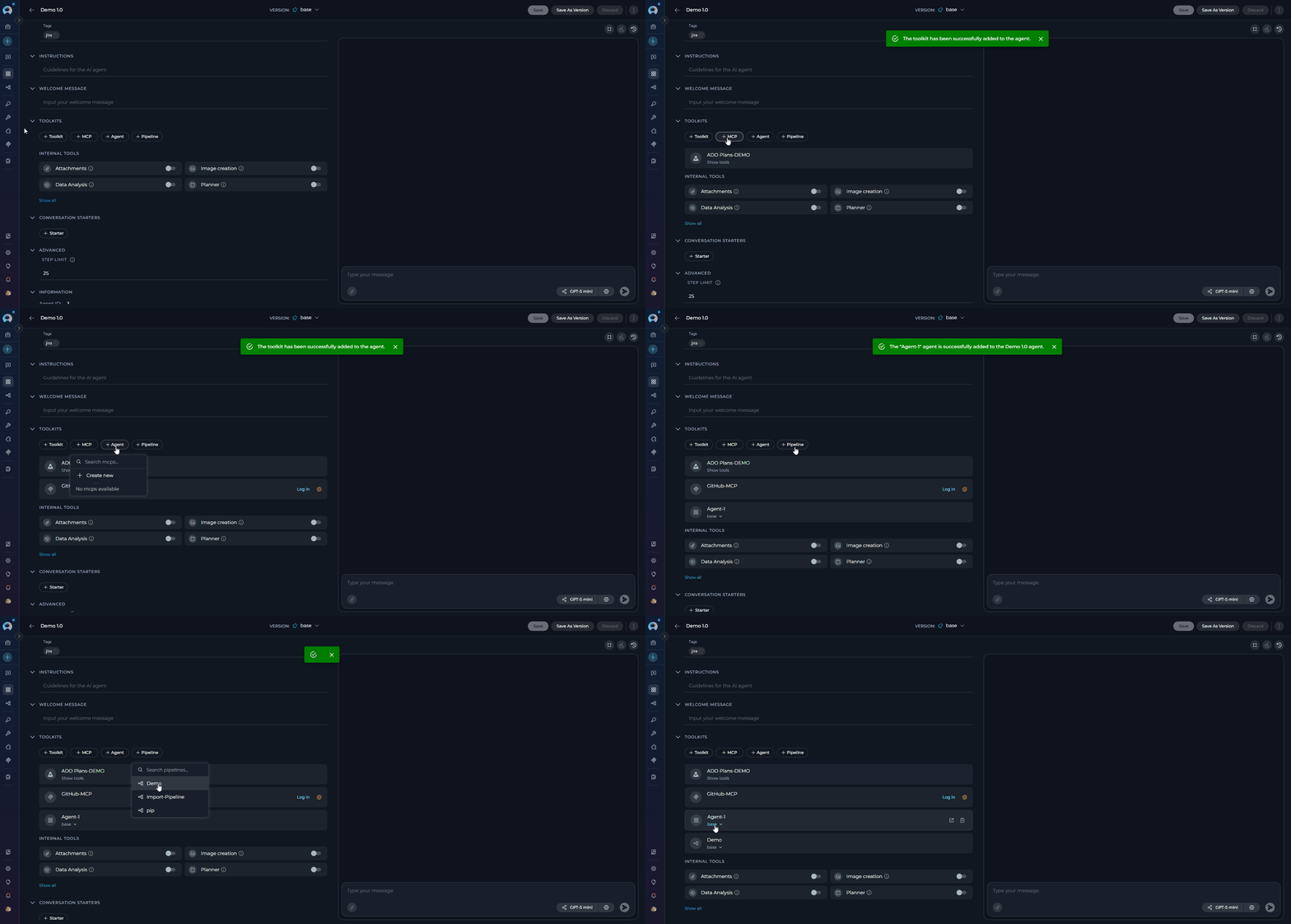
Your changes are saved automatically when you add or remove resources.
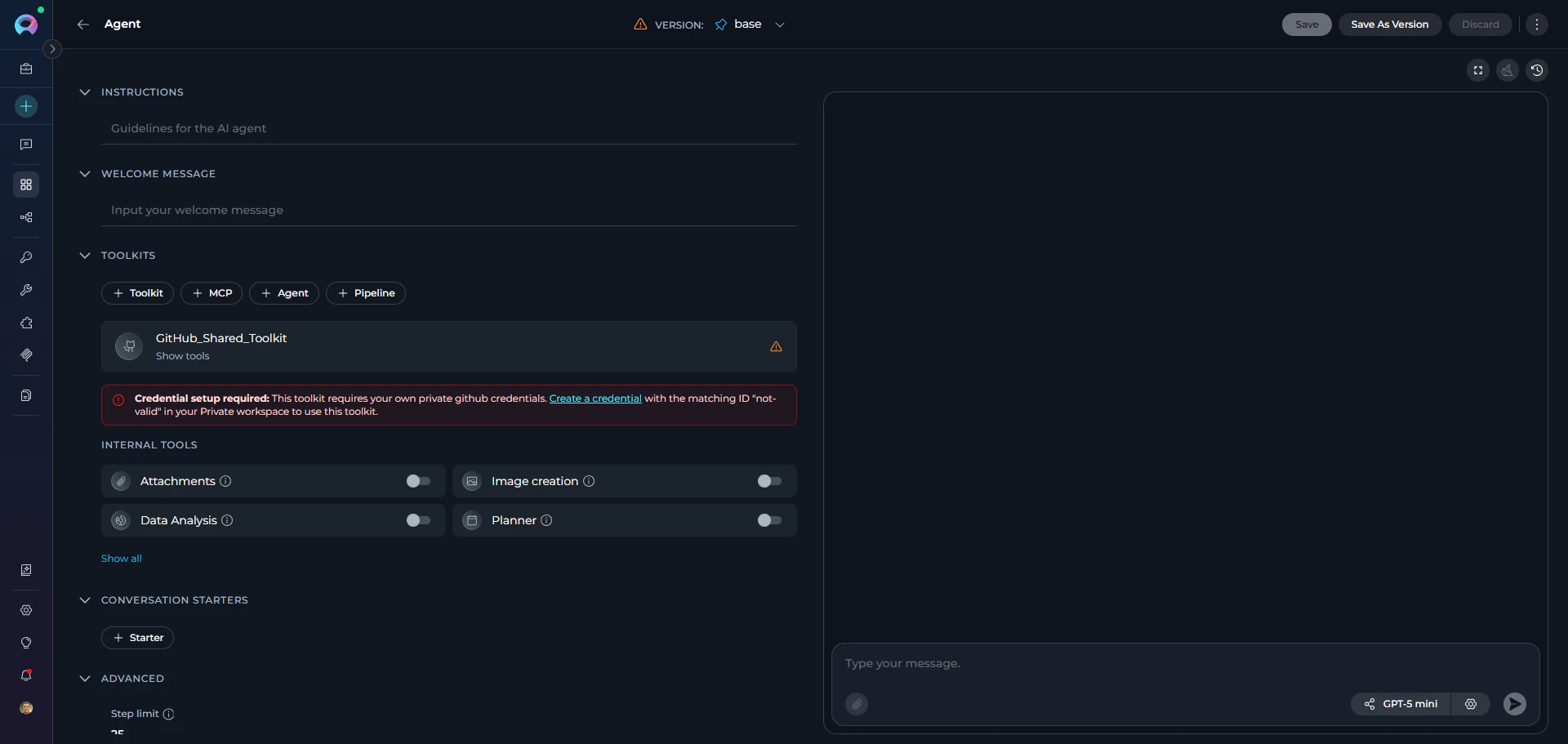
If a toolkit added to your agent uses shared credentials that require each user to supply their own private copy, a Credential setup required warning banner appears on the tool card. Select the Create a credential link in the banner to create a matching private credential in your Personal workspace. See Shared Toolkit Credentials for details.
Skills
Skills are reusable, Markdown-based instruction sets that you attach to an agent version to give it named, on-demand capabilities—without duplicating instructions across multiple agents.A maximum of five Skills can be attached to a single agent version. The counter in the Skills section shows how many are currently attached (for example,
2/5 skills added). The Skills section is only available in team and personal projects—it is hidden when the Public project is selected.- In the agent configuration form, scroll to the Skills accordion section.
- Select the
+ Skillbutton to open the skill picker.- The button is inactive if the agent has not been saved yet (tooltip: “Save the agent first, then add skills”) or if the five-skill limit has been reached.
- Search for the Skill by name, then select it to attach. It attaches using the Skill
baseversion by default.
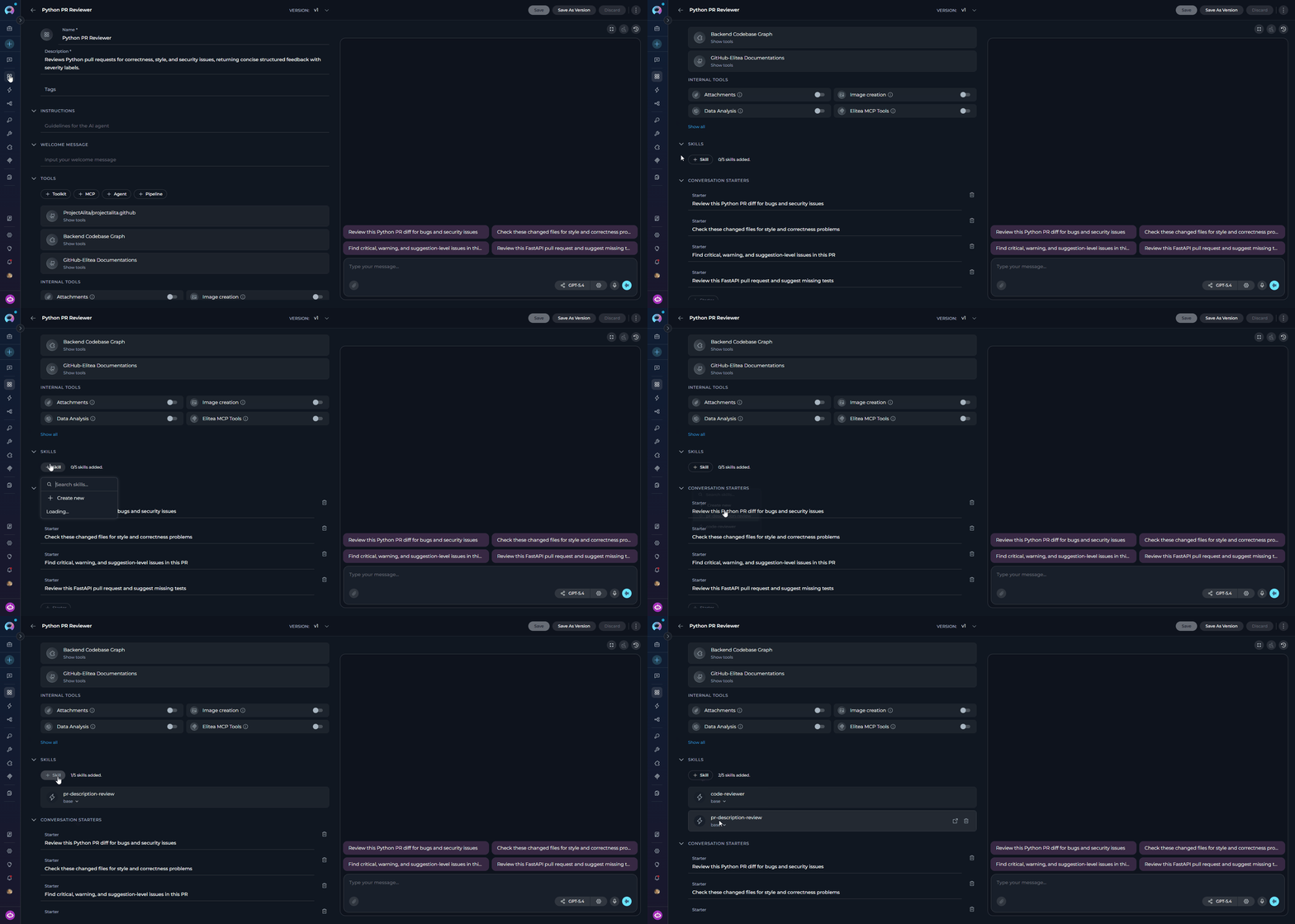
For full details on creating, versioning, and invoking Skills, see the Skills documentation.
Modules
ELITEA provides built-in modules that extend your agent’s capabilities without requiring external integrations. These modules let your agents perform specialized tasks directly within the platform. Available Modules:
Turn On Modules:
- In the TOOLS section, scroll to the bottom to find the MODULES subsection.
- Each module has its own toggle switch. If not all modules are visible, select Show all to expand the full list.
-
Turn on the modules you need:
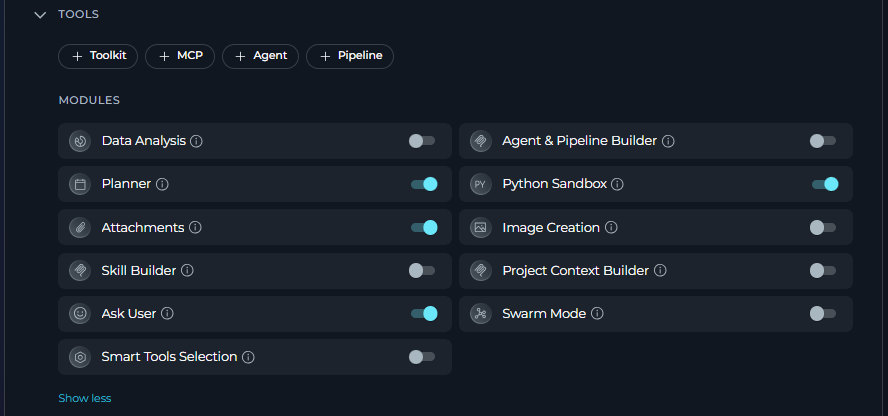
Create Instructions
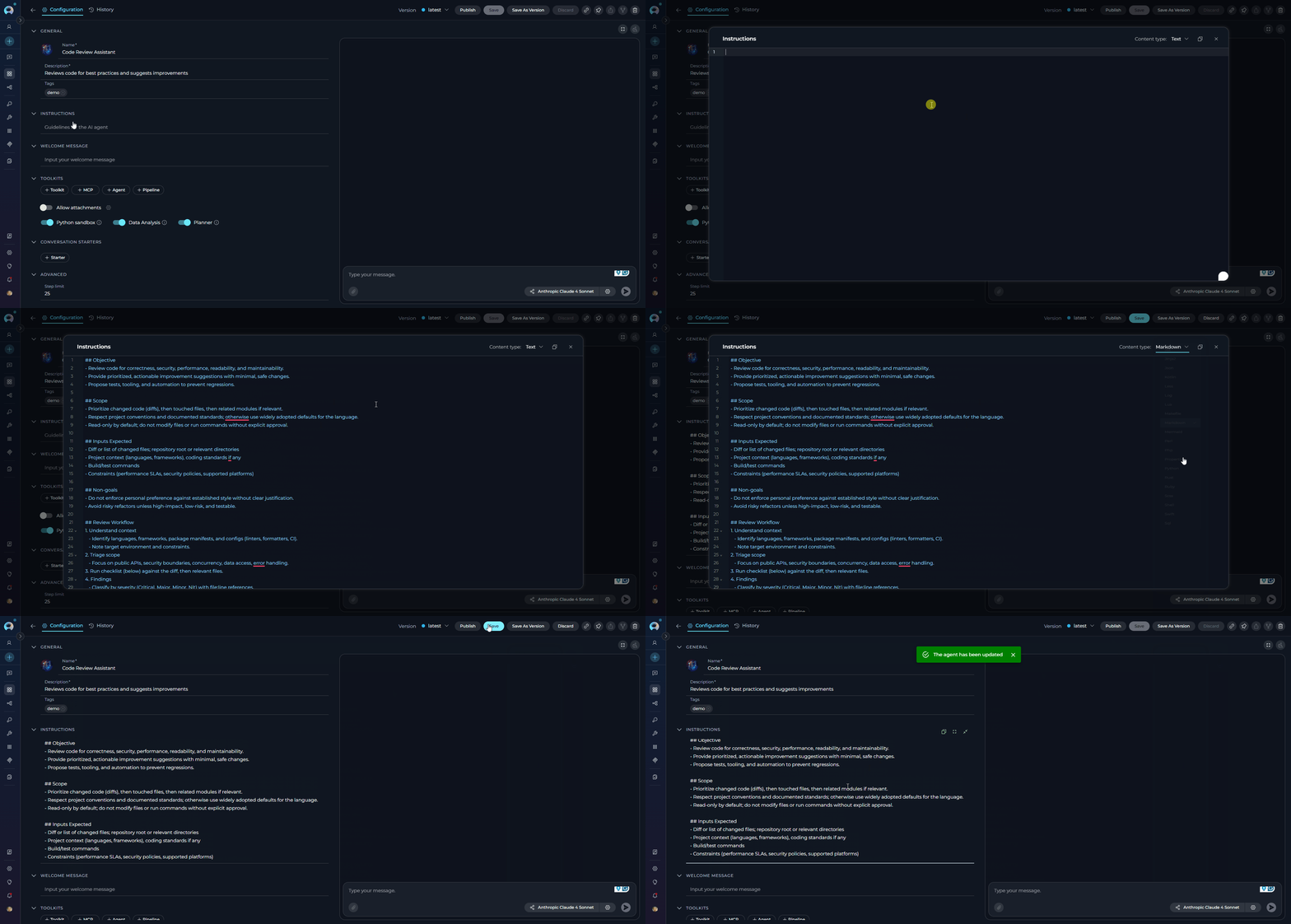
The Instructions section is the core component where you define how your agent should behave and what tasks it should perform. This field serves as the foundational knowledge base that guides the AI model in understanding and processing your specific requests. How to Input Instructions:- Identify Key Information: Before entering data into the Instructions field, identify the essential details or instructions that the model must know to fulfill your request effectively. This includes the topic, specific terms, relevant background information, or the scope of the task.
-
Enter the Details: In the Instructions field, clearly and concisely input the identified information. Ensure that the information is directly relevant to the task to maintain the agent’s focus and efficiency.
Mentions in Instructions
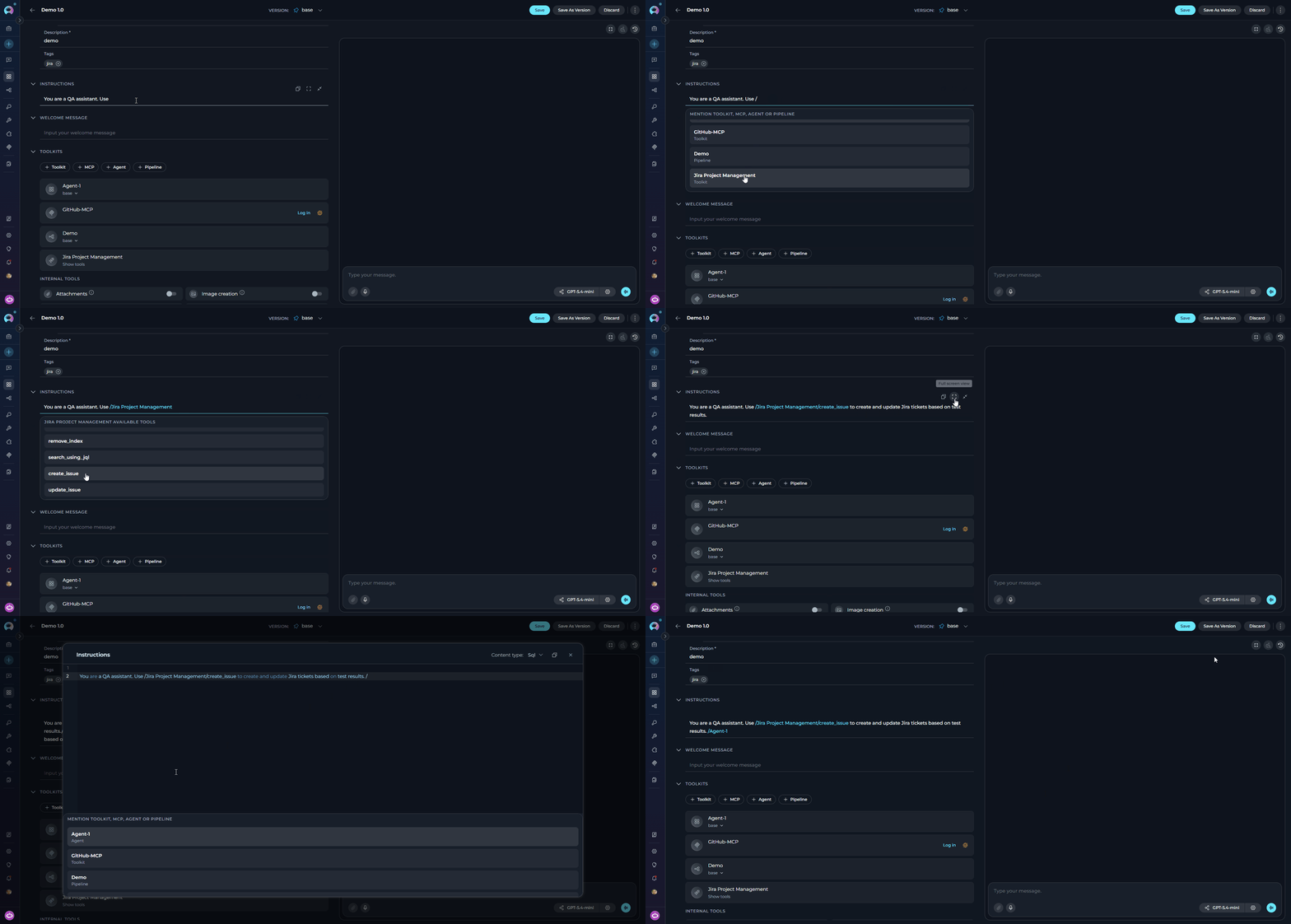
The Instructions field supports/ mentions to reference tools and ~ mentions to reference Skills added to the agent directly in the instruction text. Inserted mentions are highlighted in the field so you can see at a glance which resources are referenced.
Mentions are supported in both the standard Instructions field and the full-screen editor. Inserted mentions are highlighted in both views.
-
Type
/anywhere in the Instructions field to open the suggestion dropdown for toolkits, MCPs, agents, and pipelines. -
Type
~to open the suggestion dropdown for Skills attached to the agent. -
Start typing after
/or~to filter the list by name. - Use the arrow keys to navigate the list and Enter to select, or select an item directly.
- For toolkits and MCPs, selecting an item opens a second phase to optionally pick a specific tool within that toolkit. Type to filter tools and select one, or press Enter or select the toolkit name without a tool to mention the whole toolkit.
-
Press Escape at any point to dismiss the dropdown without inserting a mention.
Variables
The Variables section appears automatically in the left configuration panel when your agent’s instructions contain one or more template placeholders in the{{variable_name}} syntax.
Each placeholder is extracted and displayed as a separate input field, allowing you to define reusable values without hardcoding them directly in instructions.
How Variables Work:
- In the Instructions field, include placeholders using double curly braces: for example,
{{project_name}},{{jira_ticket_id}}. - After saving, the Variables accordion appears below Instructions with an input field for each detected placeholder.
- Enter the default or current value for each variable.
- During execution, the placeholders are substituted with the provided values before the instructions are sent to the model.
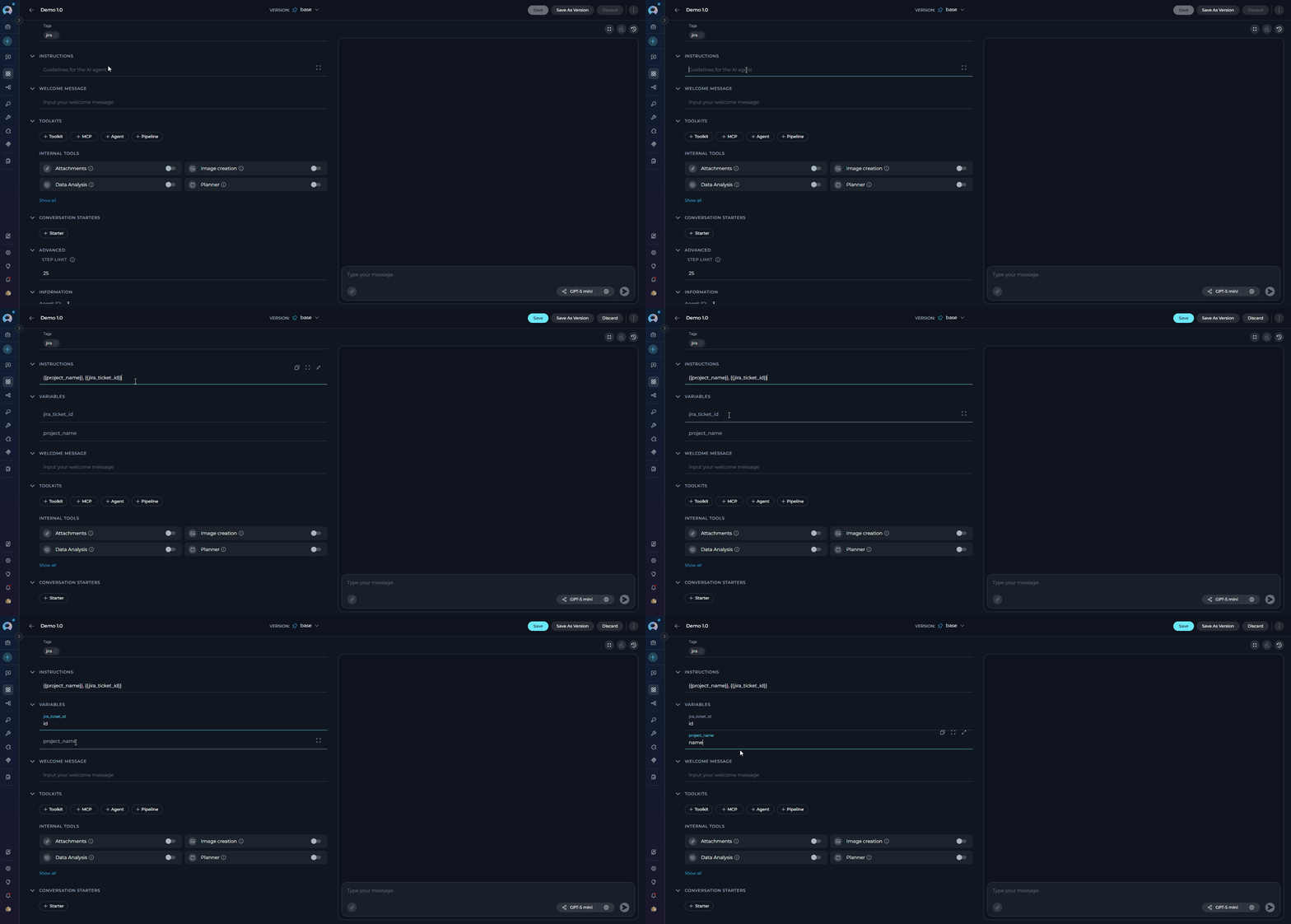
The Variables section is only visible when instructions contain at least one
{{variable}} placeholder. It does not appear for agents without template variables.Editor Notes
The Editor Notes section is a separate accordion in the left configuration panel. It is intended for internal documentation about the current agent version.Use this field to record implementation notes, review comments, rollout reminders, or other editor-facing context that should stay with the agent configuration.
The content is not sent to the LLM, not included in chat or execution, and not used in monitoring.
Use this version for staging validation only.Pending toolkit credential rotation before production rollout.Draft variant created for testing alternative instructions.
Welcome Message
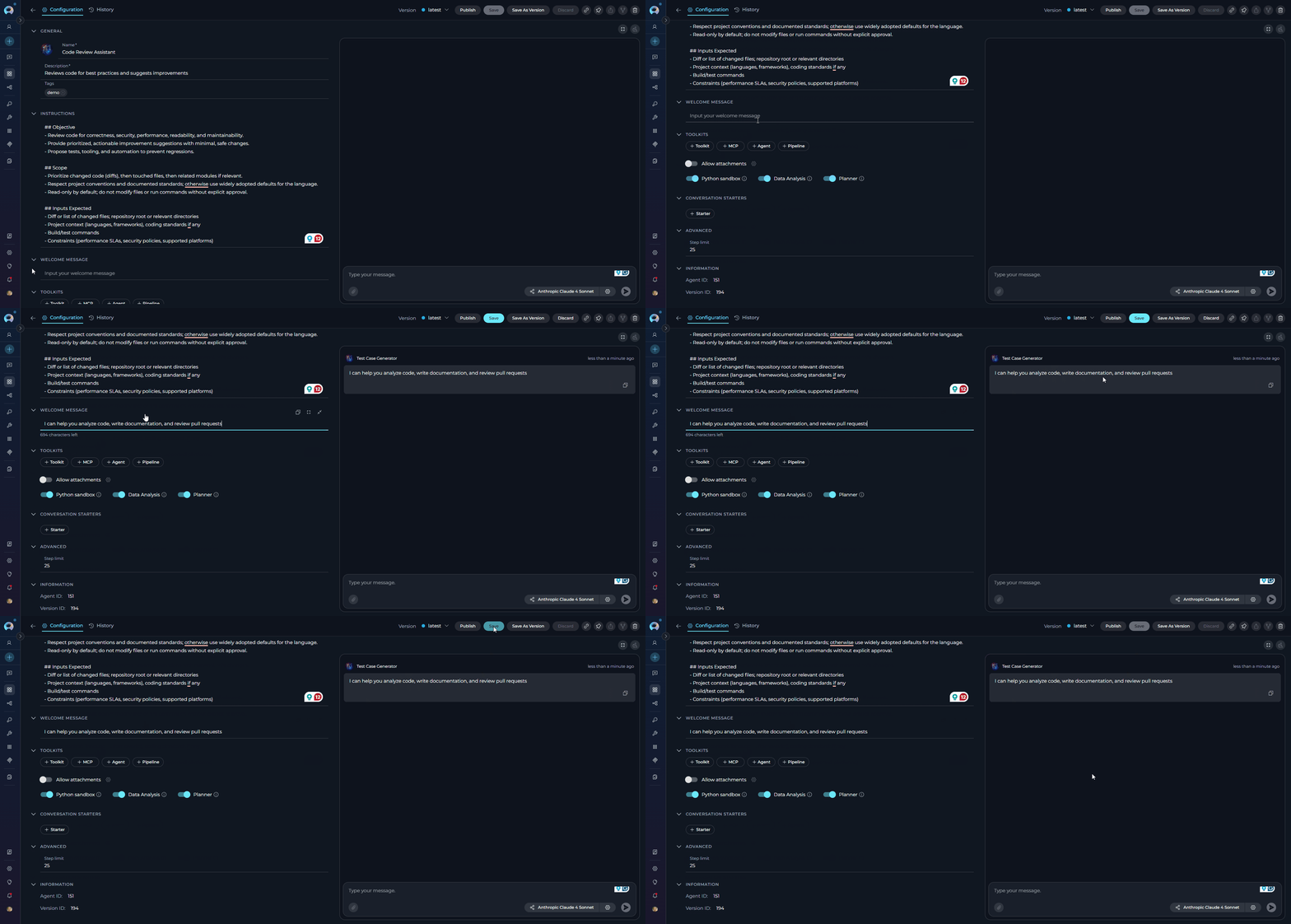
The Welcome Message feature lets you provide additional context and instructions that appear when users interact with your agent in the chat interface. This message helps set expectations and guide users on how to use the agent. Add the Welcome Message:- In the agent creation or configuration interface, go to the Welcome Message section.
- In the input field, enter the welcome message text.
- Select Save to save the configuration. This makes the configured welcome message available to users in the Chat section.
- “Use this agent for generating manual test cases”
- “Do not forget to double-check the generated test cases”
- “I can help you analyze code, write documentation, and review pull requests”
Chat Starters
The Chat Starter feature lets you configure predefined prompts that help users quickly initiate specific types of interactions with your agent. These starters appear as selectable options in the chat interface, making it easy for users to get started. Add a Chat Starter:- Go to the Chat Starter section in the agent creation or editing interface.
- Select the
+icon to open the text input field and enter the text you want to use as a chat starter. - Select Save to save the configuration. This makes the configured chat starter available for use.
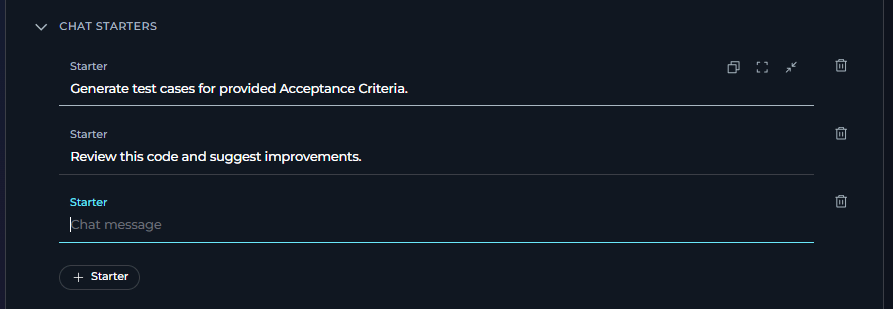
- “Generate test cases for provided Acceptance Criteria.”
- “Generate automatic test cases for selected [Test_Case_ID].”
- “Review this code and suggest improvements.”
- “Help me write documentation for this feature.”
Information
The Information section is an accordion at the bottom of the left configuration panel. It provides read-only metadata about the current agent and version.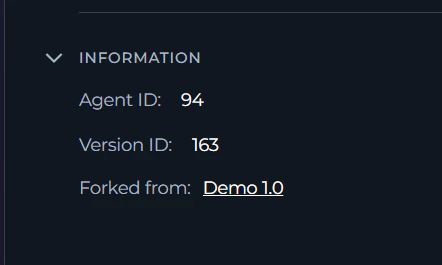
Chat Panel
The right panel of the agent page contains a live chat panel that lets you test the agent without navigating away. Controls in the top bar of the chat panel:
Context Budget widget (if context management is turned on): Appears above the chat panel after the first message. See Manage Context Budget for details.
Execute an Agent
To execute the agent and get the output:- Configure the Agent: Ensure your agent is properly configured with clear instructions and any necessary toolkits.
- Go to Chat: Go to the agent’s chat interface by selecting the agent from your agents list.
Select & Configure the AI Model
Before sending a message, you can choose which AI model processes the agent and optionally adjust its parameters.- Select the model chip in the chat input bar to open the model selector dropdown.
-
Choose the desired model from the list (for example,
gpt-4o,gpt-5.1), or select Auto at the top of the list to let ELITEA pick a model for each message automatically. -
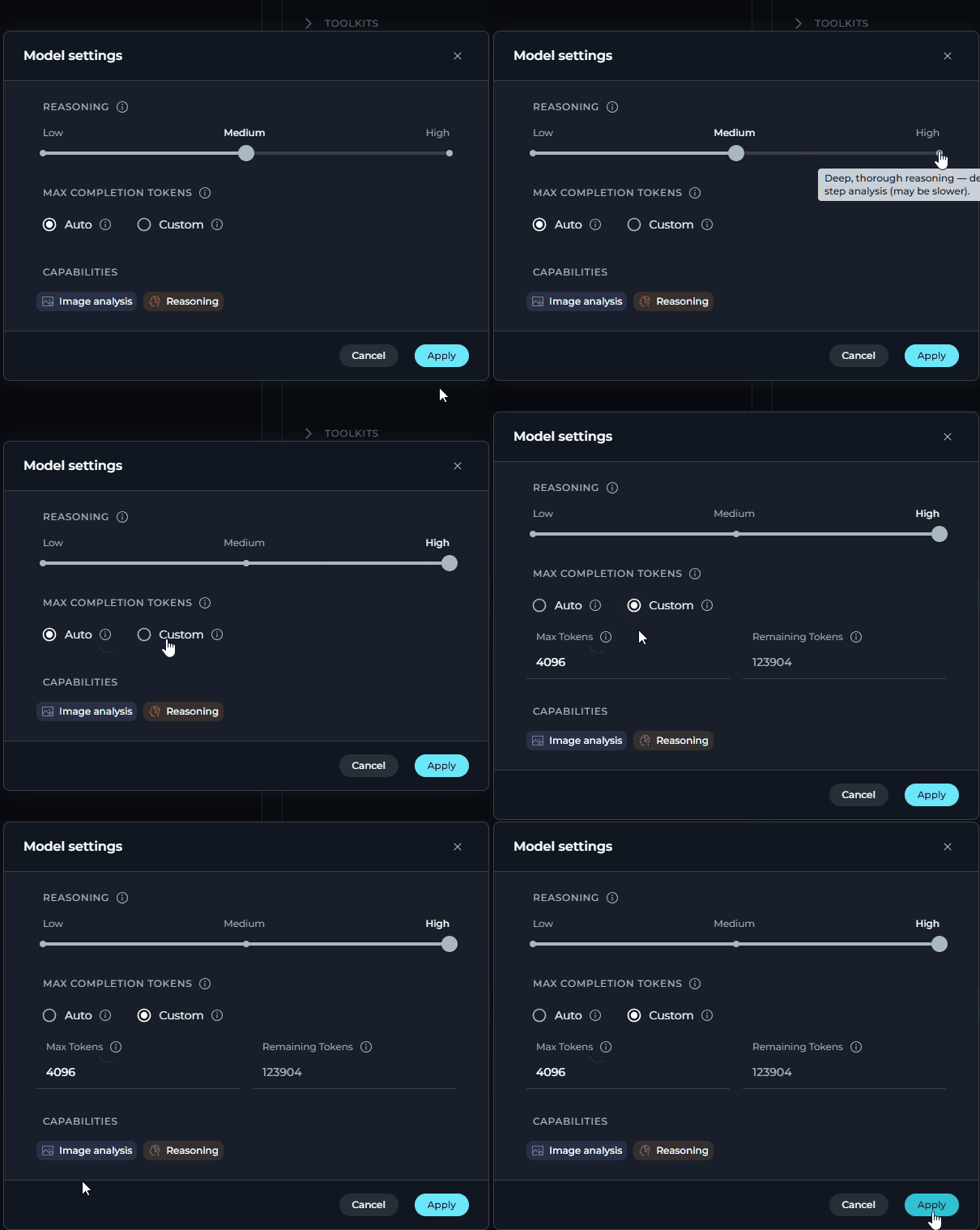
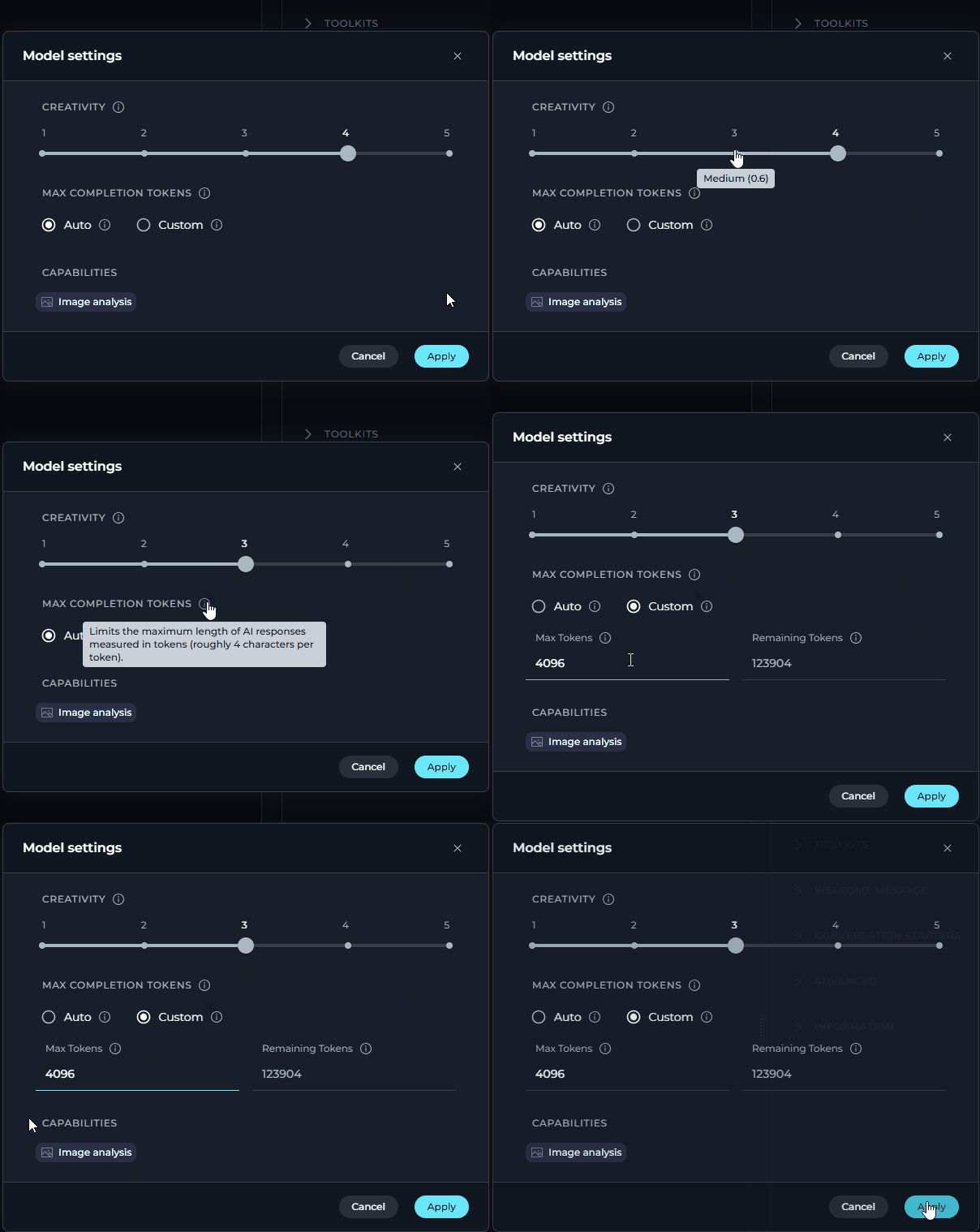
Select the Model Settings icon (⚙️) next to the model chip to adjust generation parameters.
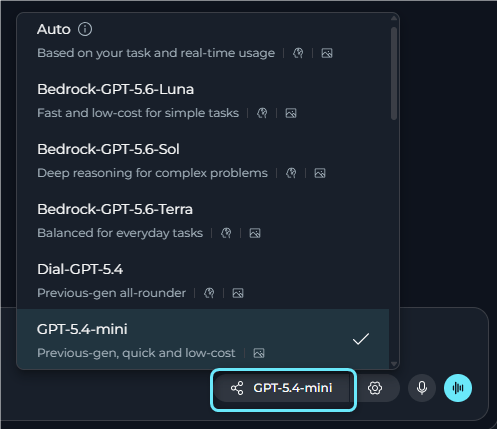
Auto Model SelectionAuto sends each message to the model that fits it best, based on the task and current availability—shown in the dropdown with the hint “Based on your task and real-time usage.” Choose a specific model instead if you need consistent, repeatable results.Auto only appears in the model selector when a project administrator has turned it on for the project in Settings > Project General > Chat Configuration > Auto model selection (options: Use platform default, Enabled, Disabled). If it is disabled at the project or platform level, the option does not appear.
- Reasoning Models (e.g. GPT-5.1)
- Standard Models (e.g. GPT-4o)
Manage Context Budget
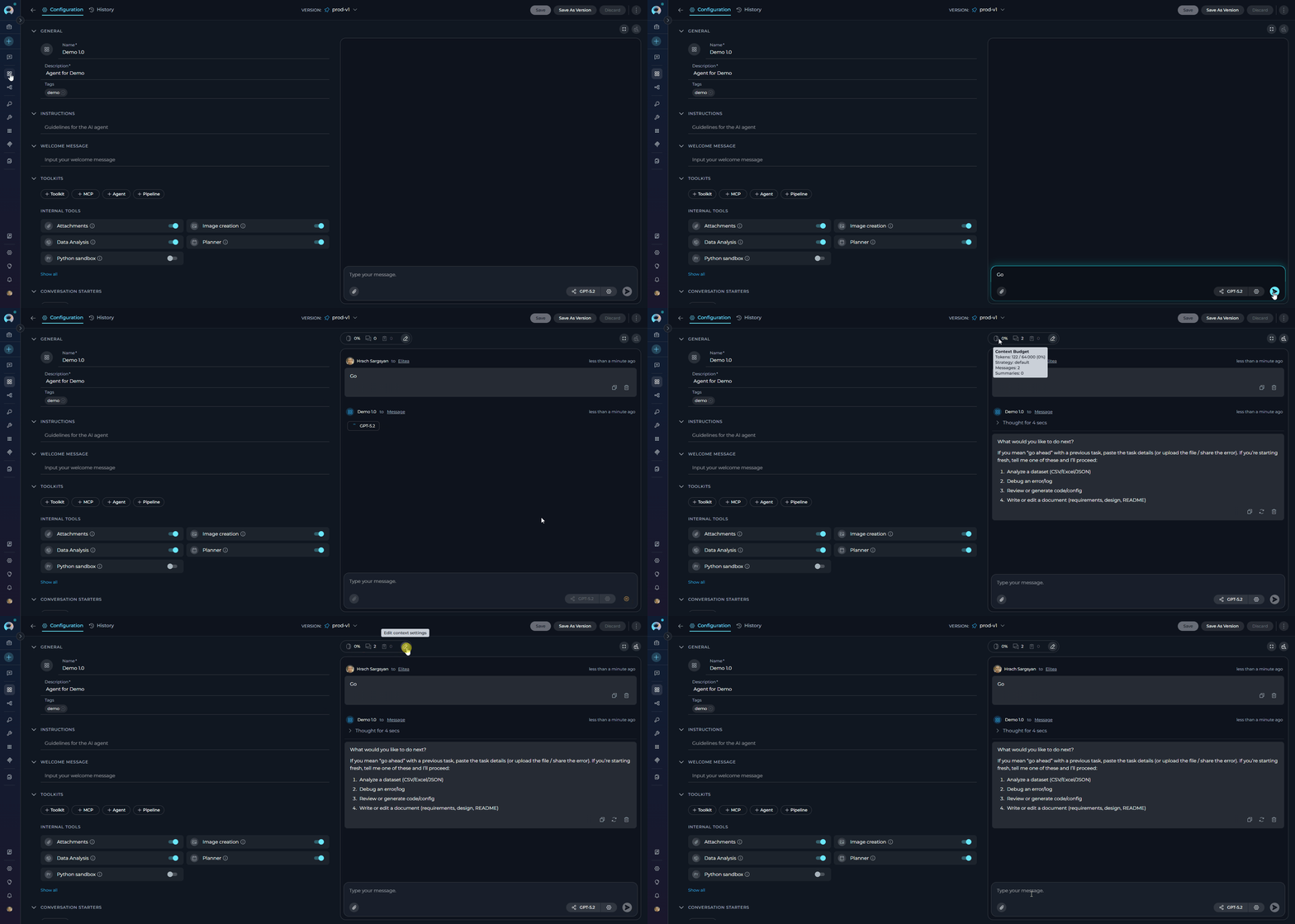
When thecontext_manager secret is turned on at the project level, the Context Budget widget appears above the chat interface to help you manage conversation token usage effectively.
For detailed information about context management configuration and best practices, see the Context & Budget Management guide.
- Ensure the
context_managersecret is set totruein your project settings (Settings > Secrets). - Send the first message to start the agent conversation.
- The Context Budget widget appears above the chat panel after the first message.
- Monitor real-time token usage and management status.
- Select the widget to expand and view detailed metrics.
- Collapsed View: Shows essential token usage status with a color-coded indicator (green: normal, orange: high usage).
- Compact View: Displays pruning strategy, message count, and summaries count.
- Expanded View: Provides comprehensive configuration options including:
- Context Strategy & Token Management (pruning strategy, max tokens, preserve recent messages).
- Summarization settings (turn on or off, summary parameters).
- System Messages management.
- Real-time tracking: Monitor token consumption as your agent processes requests.
- Automatic pruning: System removes older messages when context limit is reached.
- Summarization: Generate summaries of conversation history to preserve context.
- Message preservation: Configure how many recent messages to always keep.
Start & Interact with Your Agent
Start Interaction: Begin your conversation by:- Selecting a Conversation Starter (if configured) to use a predefined prompt.
- Entering your question or command directly into the chat input field.
- Using simple commands like “Go”, “Start Generating”, “Execute”, or “Run it” followed by selecting the Send button.
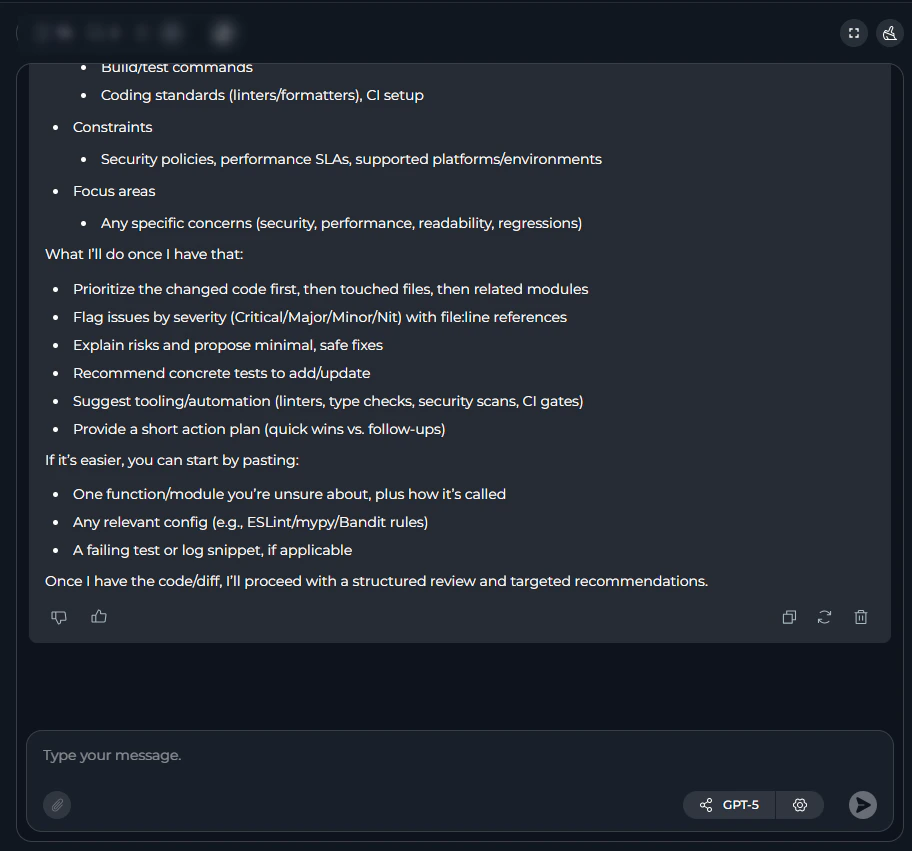
- Full Screen Mode: Expand the output window for better visibility and focus.
- Continue the Dialogue: Enter your next question or command in the chat box and select the Send icon.
- Copy the Output: Select the Copy to Clipboard icon to copy the generated text for use elsewhere.
- Regenerate Response: If the output is not satisfactory, select the Regenerate icon to prompt the AI to produce a new response.
- Delete Output: To remove the current output from the chat, select the Delete icon.
- Clear the Chat: To start fresh or clear sensitive data, select the Clean icon to erase the chat history.
- Like or Dislike the Output:
- Select the Like icon if the output meets your expectations.
- Select the Dislike icon if the output is not satisfactory. You will have the option to leave a comment explaining why the output did not meet your expectations. This feedback helps improve the system performance and relevance.
Mid-Turn Input (Beta)
Mid-Turn Input lets you send a message to an agent while it is still working, allowing you to steer the rest of the run without waiting for completion or starting over. Availability: Mid-Turn Input must be enabled at both the platform level and the project level:- Platform administrators control which projects have access to this feature through a project allowlist.
- Project administrators or editors can turn on Mid-Turn Input in Settings > Project General > Mid-turn Input (Beta) toggle.
- Start an agent interaction that produces a multi-step or long-running response.
- While the agent is still generating its response, the message input field remains active.
- Enter a new instruction or correction in the input field (for example, “Focus on security aspects only” or “Skip the implementation details”).
- Select Send. Your mid-turn message is injected into the agent’s current execution context.
- The agent adjusts its response based on your new input without restarting from the beginning.
Mid-Turn Input is a Beta feature. If the toggle is not visible in your project settings, contact your platform administrator to request access.
Voice Capabilities
The agent chat interface supports voice input and voice output, letting you dictate prompts and have agent responses read back to you.Voice Input
Dictate prompts into the chat input field. Transcribed text is inserted at the cursor position in real time.
Text-to-Speech
Have agent responses read aloud. Pause and resume playback from a mini-player pill in the input area.
Speaking Mode
Hands-free voice loop. ELITEA records, sends, speaks the agent’s response, and listens again—automatically.
Voice Input
Voice Input lets you dictate prompts directly into the agent chat input field. The transcribed text is inserted at the cursor position, so you can combine typed and spoken content in the same message. How to use Voice Input:- Select the microphone icon in the message input toolbar to start recording.
- Speak your prompt. A live transcript appears in the input field as you talk—interim results update in real time.
-
Select the Stop (■) button to finish recording. The final transcript is committed and focus returns to the input field.
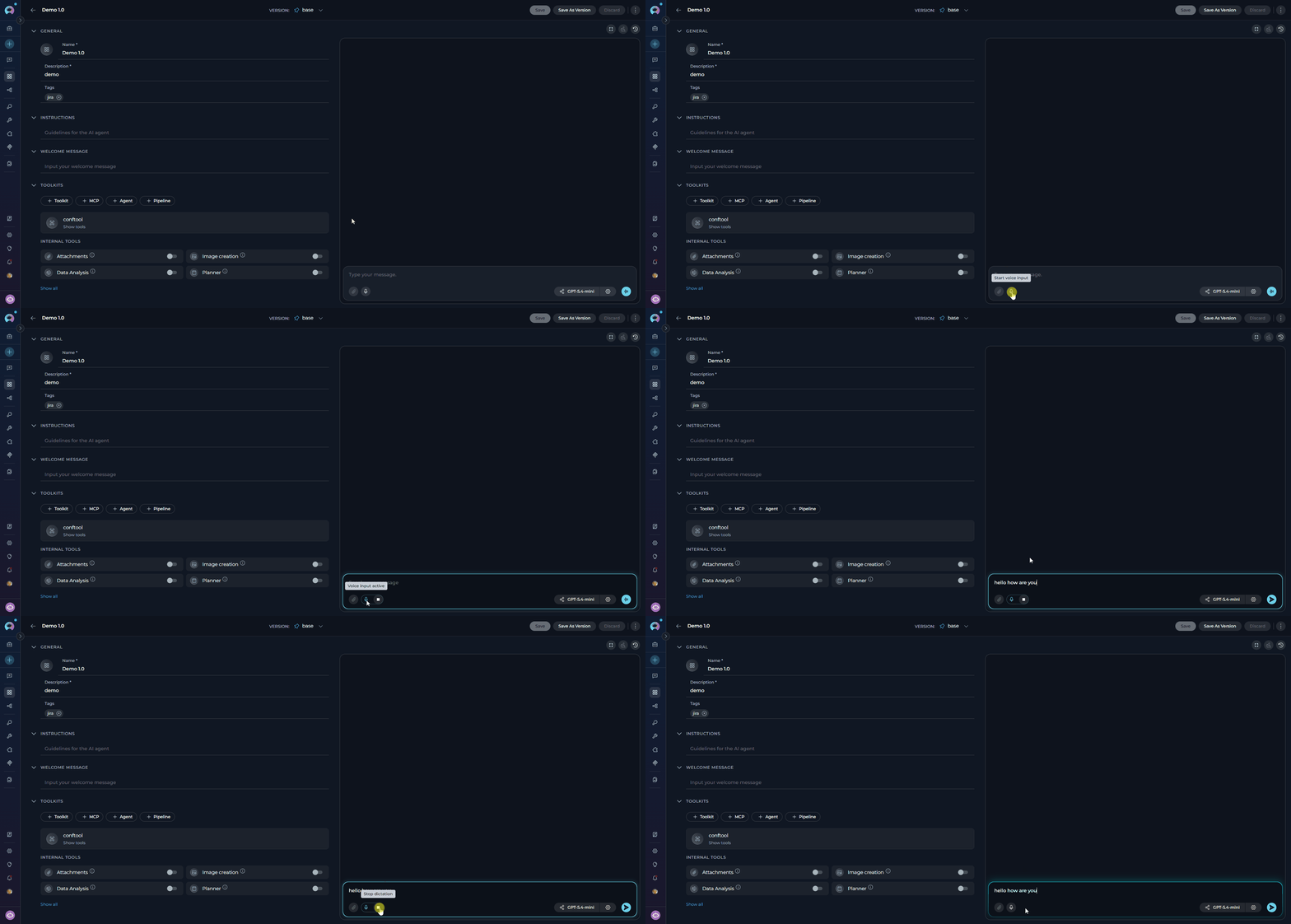
Voice Input uses a server-side ASR (automatic speech recognition) model if configured in Settings > AI Configuration, or falls back to the browser’s built-in Web Speech API. If neither is available, the microphone icon is hidden.
Text-to-Speech
Text-to-Speech reads agent responses aloud. A Read out button (megaphone icon) appears in the action bar below each agent response when the message contains speakable text. How to use Text-to-Speech:- Select the Read out (megaphone) button below an agent response to start playback.
- The text is highlighted as it is read aloud.
- A playback pill appears in the input area with Pause and Resume controls.
-
Select Pause to stop playback mid-sentence; select Resume to continue from where it left off.
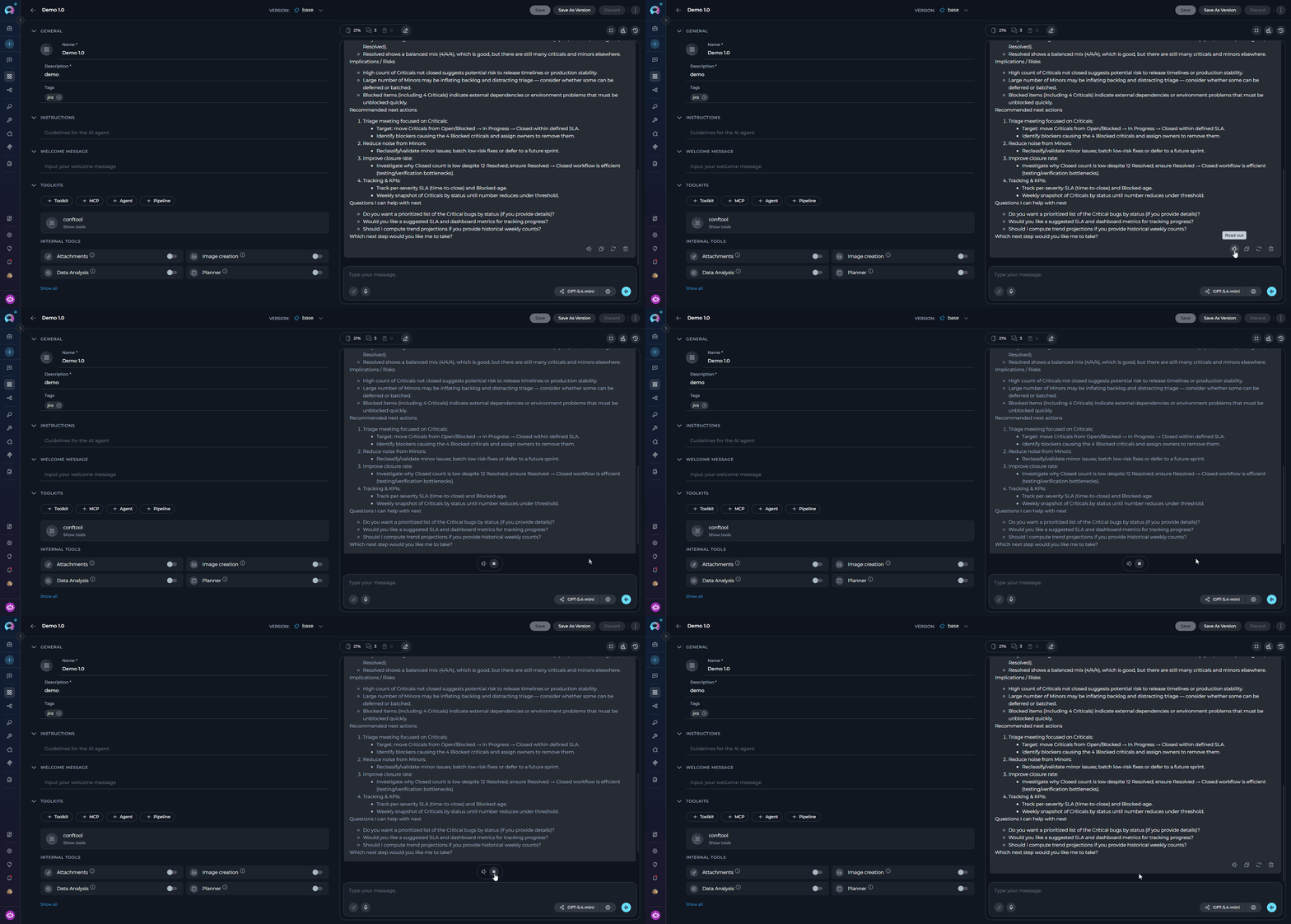
When a TTS model is configured in Settings > AI Configuration, ELITEA uses that model for audio generation. If no TTS model is configured, playback falls back to the browser’s built-in SpeechSynthesis API.
Speaking Mode
Speaking Mode is a continuous, hands-free voice loop. Once activated, ELITEA automatically records your speech, sends your prompt after a pause, plays back the agent’s response, and then starts listening again—without any manual interaction between turns. How to activate Speaking Mode:- Leave the message input field empty.
- Select the voicewave icon (shown in place of the Send button when the input is empty) to enter Speaking Mode.
- A voicewave pill with an Exit (✕) button replaces the send button, indicating Speaking Mode is active.
- Speak your prompt. After three seconds of silence, your message is automatically sent.
- The agent response streams in and is read aloud via Text-to-Speech.
- Once the response finishes playing, recording starts again for the next turn.
-
Select the ✕ button in the voicewave pill to exit Speaking Mode at any time.
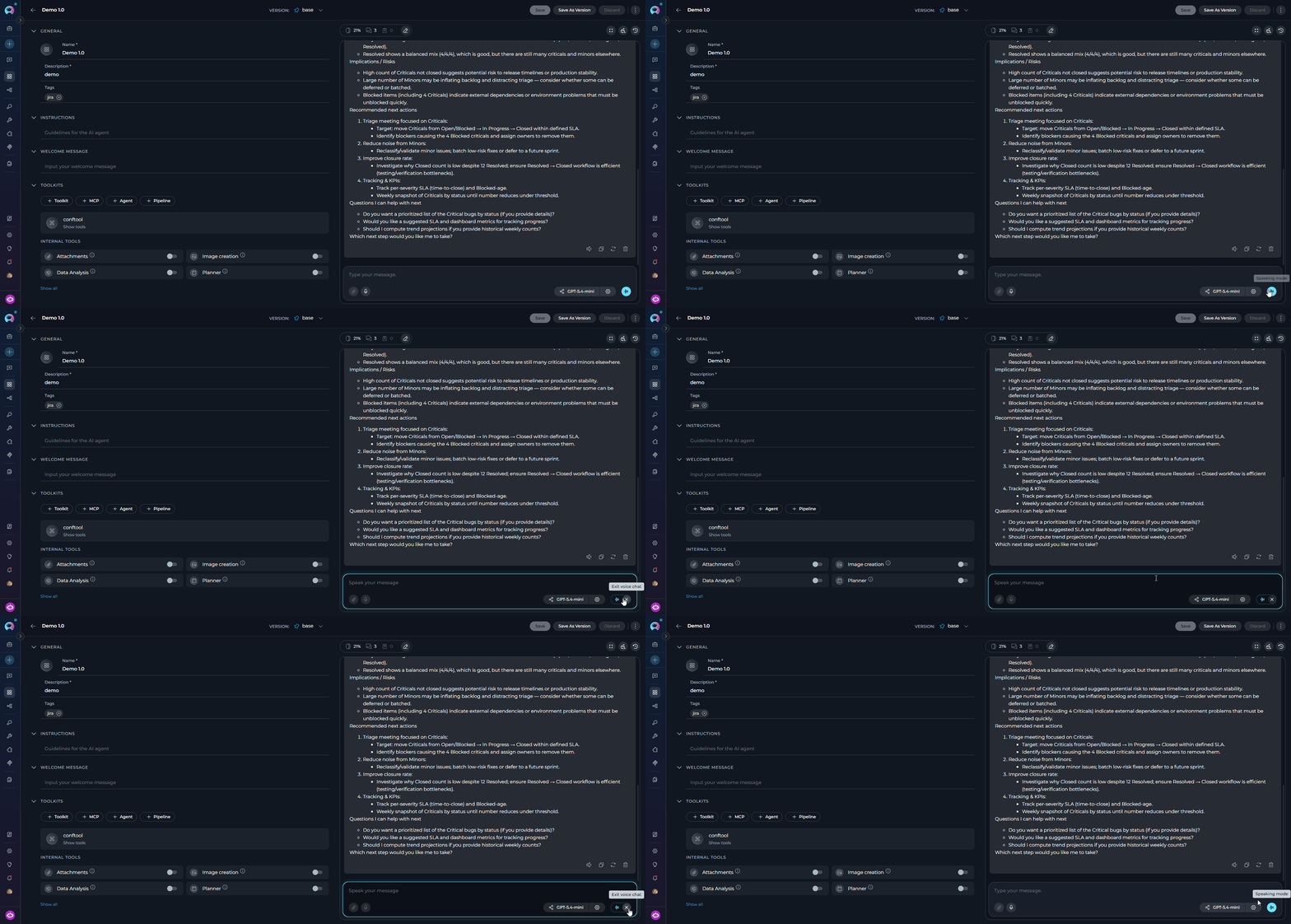
Speaking Mode requires a voice recognition source (server ASR model or browser Web Speech API) for input and uses Text-to-Speech for output. If you start manual voice input while Speaking Mode is active, Speaking Mode is automatically deactivated.
Agent Evaluation
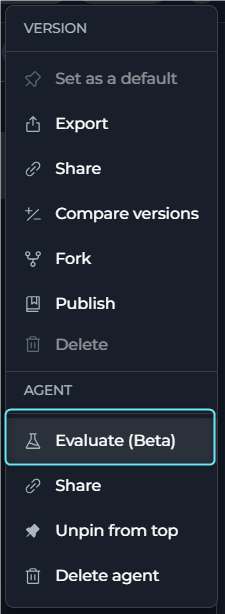
Agent Evaluation provides a comprehensive framework for measuring and improving agent performance through dimensions, test cases, and automated scoring. You can create evaluation suites that test your agent against predefined criteria and receive actionable feedback on how to improve instructions and behavior. Access Agent Evaluation:- Open any saved agent.
- Select the three-dot menu (⋮) in the agent tab bar.
- Select Evaluate (Beta).
-
The Agent Evaluation page opens with tabs for Suites, Dimensions, Datasets, and History.
- Dimensions: Define scoring criteria (for example, relevance, tone, accuracy) that can be scored by AI, humans, or custom code validation scripts.
- Datasets: Create collections of test cases with inputs and expected outputs to run against your agent.
- Suites: Combine dimensions and datasets into evaluation suites that score agent responses across multiple criteria.
- Runs: Execute evaluation suites to generate scored results and identify areas for improvement.
- Enhance with AI: Analyze failed checks and generate suggested fixes for your agent instructions or evaluation criteria.
For complete details on creating dimensions, datasets, suites, running evaluations, and using AI-powered enhancement features, see Agent Evaluation and Agent Evaluation FAQ.
Create & Manage Versions
To manage your agent, you must understand how to save and create versions. Follow these guidelines to save your agent, create versions, and manage them. Save an Agent:- To save your work on an agent for the first time, select the Save button. This creates the “base” version of your agent.
- You can continue to modify your agent and save the changes to the “base” version at any time by selecting the Save button again. To discard any changes made, select the Discard button before saving.
Create New Versions
For instances where you must create and manage different iterations of your agent:- Start a New Version: Select the Save As Version button.
- Name Your Version: Provide a version name that clearly identifies the iteration or changes made. Select Save to confirm your entry.
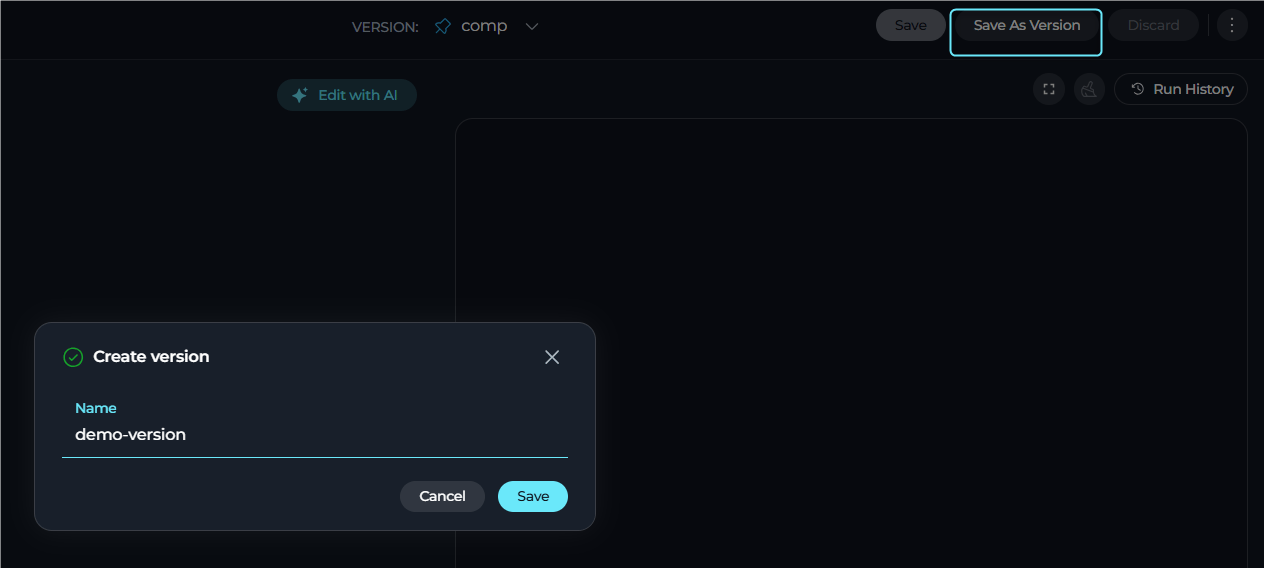
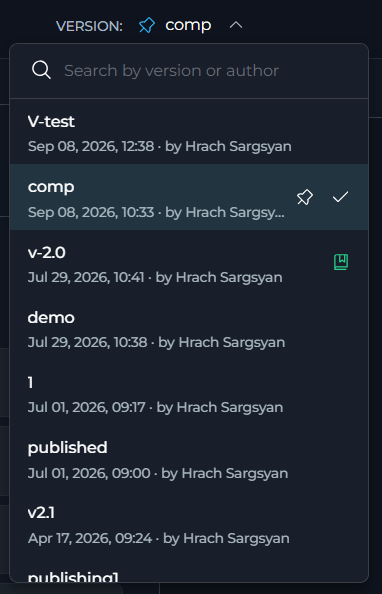
- Version Name: The name you assigned when creating the version.
- Creation Metadata: Date, time, and author information (format: Month DD, YYYY, HH:MM · by Author Name).
- Status Indicators:
- Pin icon: Marks the default version (the version that opens when you first access the agent).
- Published icon: Shows versions that have been published to Agents HUB.
- Sorting: Versions are sorted newest first by creation date. The “base” version always appears at the bottom of the list.
For detailed information on version management, naming conventions, and best practices, see the Entity Versioning guide.
Compare Versions
The Compare Versions feature lets you view side-by-side differences between two agent versions and selectively adopt changes from one version to the other without manual retyping. Access Compare Versions:- Open any saved agent with at least two versions.
- Select the three-dot menu (⋮) in the agent tab bar.
- Select Compare Versions.
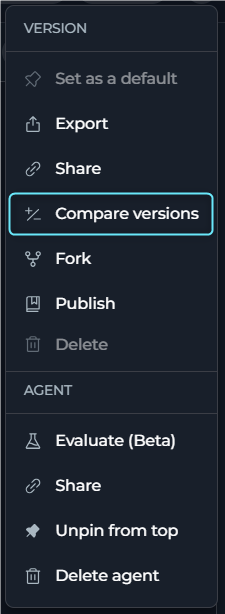
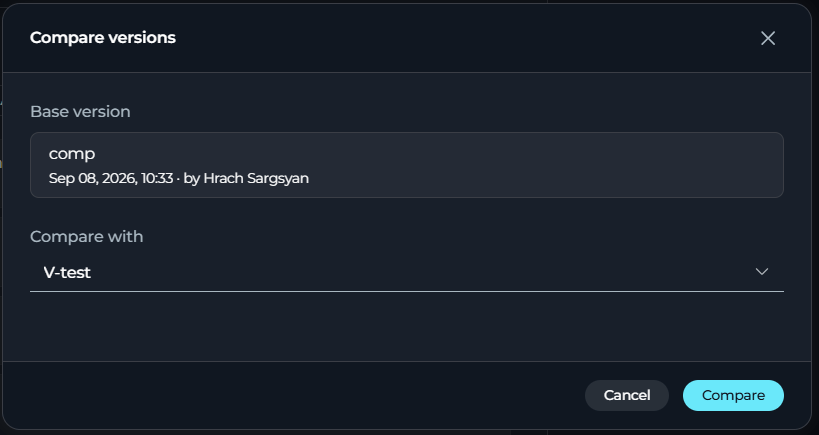
- The Compare Versions dialog opens with the current version pre-selected under the Base version.
- From the Compare with dropdown, select the version you want to compare against.
- Select Compare to load both versions and enter the comparison wizard.
-
Comparison Steps:
- Instructions: View a diff of the instructions field showing added, removed, and unchanged text.
- User Interaction: Compare Welcome Message and Conversation Starters side-by-side.
- Tools & Skills: See which toolkits, MCPs, agents, pipelines, and skills were added, removed, or kept the same between versions.
-
Make Changes: For each comparison step, you can selectively adopt changes from either version or keep both versions unchanged. Each editable section (Instructions, Welcome Message, Conversation Starters) has its own Save button to apply changes immediately.
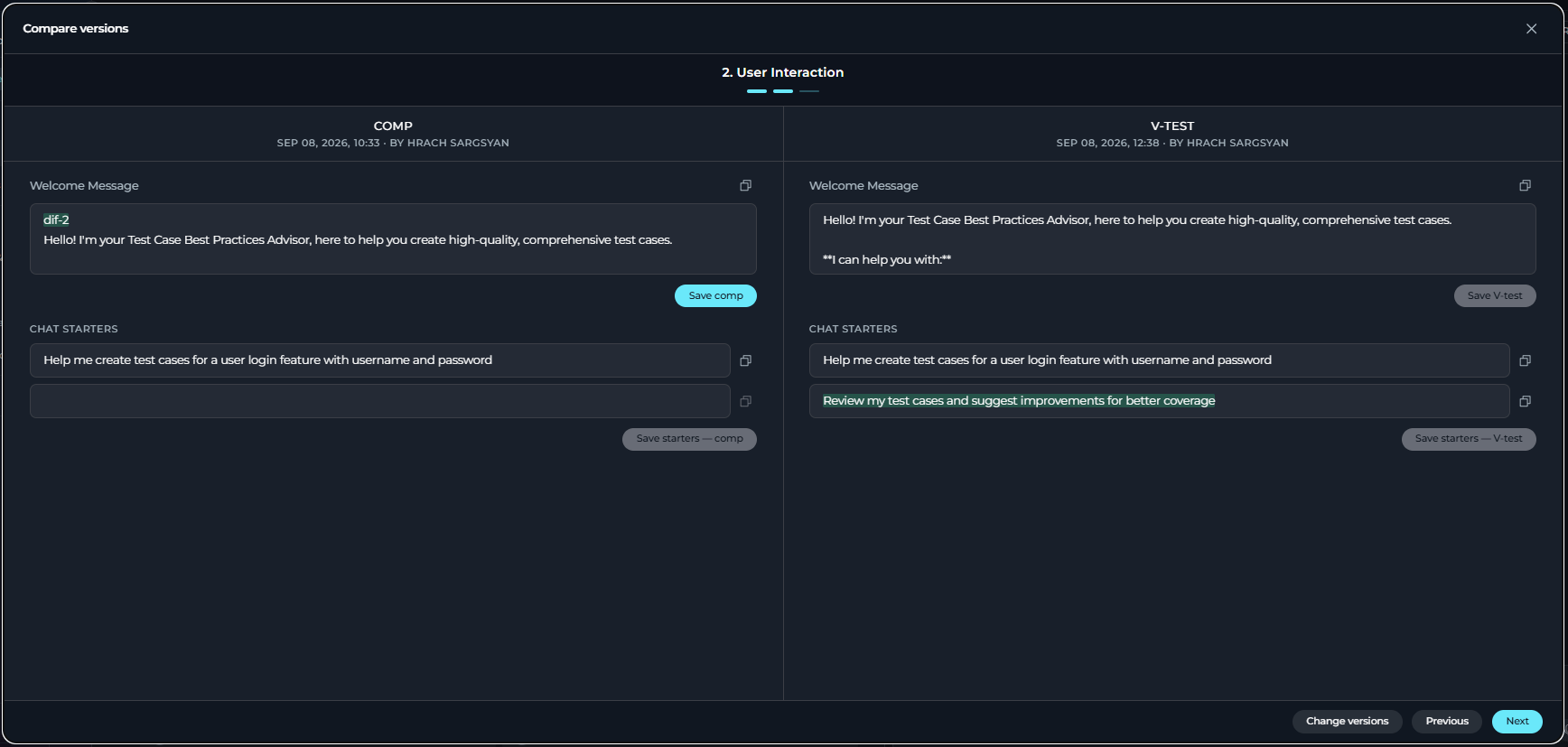
Compare Versions is read-only until you actively choose to adopt changes. Closing the dialog without saving discards all pending adoptions.
Publish an Agent Version
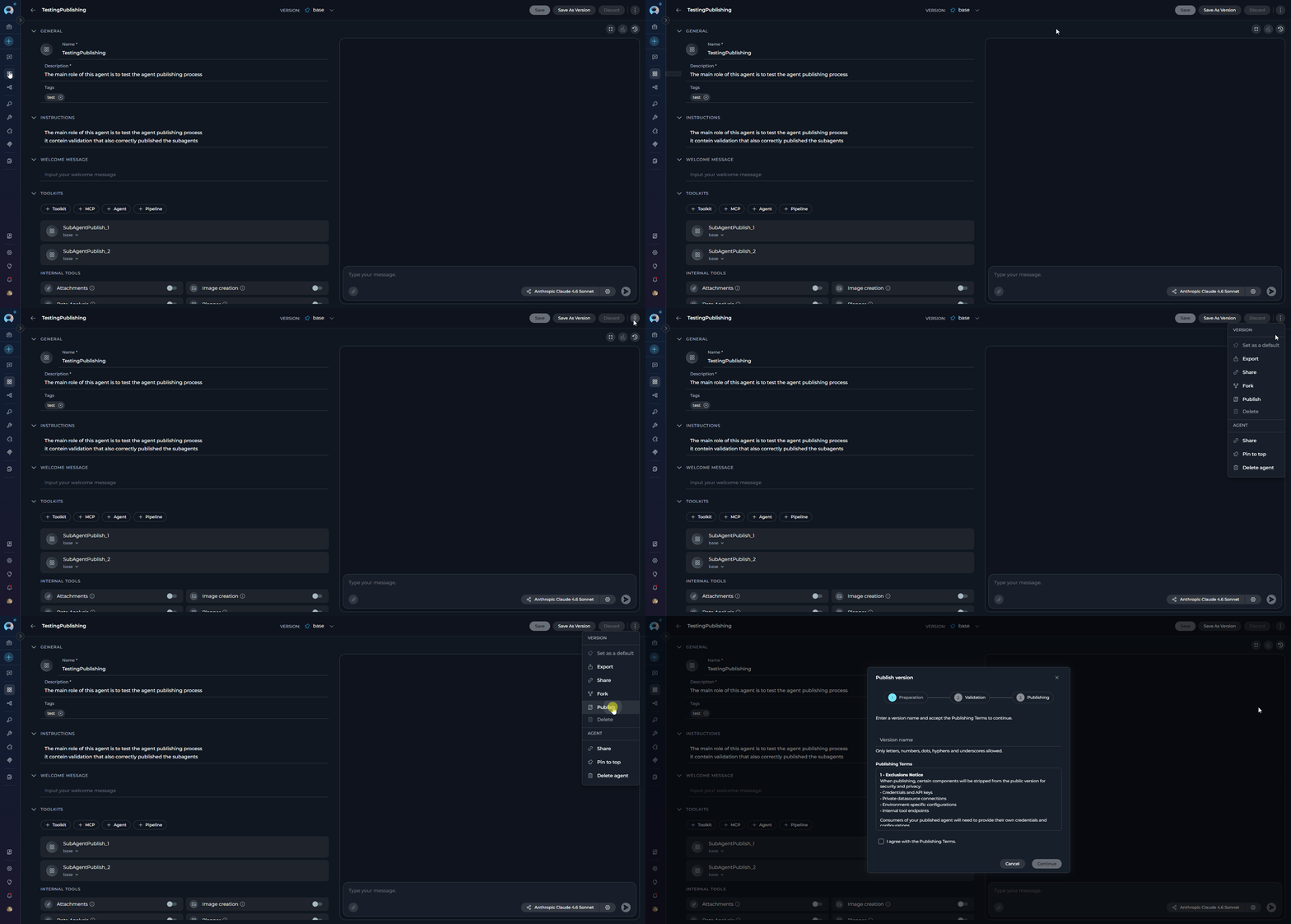
The Publish functionality lets you make a specificDraft version of your agent available in Agents HUB—a shared library accessible to all users in your ELITEA installation. Publishing uses a guided three-step wizard with AI-powered automated validation that checks your agent before it can be submitted.
Publish an Agent Version:
- Open the agent and select the Draft version you want to publish using the version selector.
- Select the three-dot menu (⋮) in the agent tab bar and select Publish.
- In the Preparation step, enter a version name and accept the Publishing Terms, then select Continue.
- The AI Validation step runs automatically—review the result (PASS, WARN, or FAIL). Address any critical issues if needed.
- Select Publish to submit. On success, the version is immediately live in Agents HUB.
- The version status updates to
Publishedand appears in your Published tab. - Community users can find and use the agent in Agents HUB without needing project access.
- You can unpublish at any time using the Unpublish option in the three-dot menu.
For the complete publishing flow—including validation details, token expiry, sub-agent handling, and troubleshooting—see the Agent Publishing guide.
Export & Import Agents
ELITEA lets you export the currently selected version of an agent as a file and import it into another project, making it easy to back up, share, and migrate your work. Export and import are always version-specific—there is no option to export the entire agent with all its versions at once. Export an Agent Version:- Open the agent and select the version you want to export using the version selector.
- Select the three-dot menu (⋮) in the toolbar.
- Select Export. The file downloads automatically to your device.
- If the selected version has no nested dependencies, a single
.mdfile is downloaded. - If the selected version references other agents as toolkits, the export is a
.zipfile containing all dependencies.
- If the selected version has no nested dependencies, a single
- In the Agents dashboard, select the Import button in the toolbar.
- Upload the
.mdor.zipfile previously exported from ELITEA. - The Import Wizard displays entity cards for the main agent and any nested dependencies. Review the configuration before confirming.
- Select Import to complete. The agent appears in the current project.
After import, toolkits requiring authentication will need their credentials reconfigured manually.
For complete details on file formats, nested dependencies, and advanced options, see the Import/Export Agents and Pipelines guide.
Fork Agents
Forking copies the currently selected version of an agent from one project to another within the same ELITEA environment—no file download required. Only one version is forked at a time; there is no option to fork the entire agent with all its versions. Fork an Agent Version:- Open the agent and select the version you want to fork using the version selector.
- Select the three-dot menu (⋮) in the toolbar and select Fork.
- In the Fork parameters wizard, choose a target project from the dropdown. No project is pre-selected; you must pick one manually.
- Review the entity cards—the main agent card and any nested agent dependencies that will be forked automatically.
- Select Fork. When complete, select Got it to go directly to the forked agent in the target project.
- Only the currently selected version is forked.
- If the agent uses other agents as toolkits (nested dependencies), those are automatically included.
- Model settings are preserved if the model is available in the target project; otherwise the first available model is used.
- Credentials for toolkits must be reconfigured manually after forking.
For complete details and pipeline forking, see the Fork Agents and Pipelines guide.
View Agent History
The Run History panel provides a complete audit trail of all past executions of your agent.In team projects, regular users can view only their own runs in the Run History panel. Only administrators can see runs created by other users.
- Open any saved agent.
-
In the right panel (embedded chat area), select the Run History in the top bar.
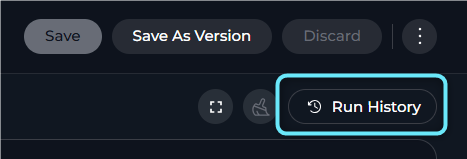
- The agent page is replaced by the two-panel Run History display. Select the ✕ (Close) button in the top-left to return.
- Review past conversations: View complete chat histories from previous agent runs.
- Track performance: Monitor execution duration across different versions.
- Debug issues: Replay conversations to identify where problems occurred.
- Compare versions: See how different agent versions performed with the same inputs.
- Audit trail: Maintain records of all agent interactions for compliance purposes.
-
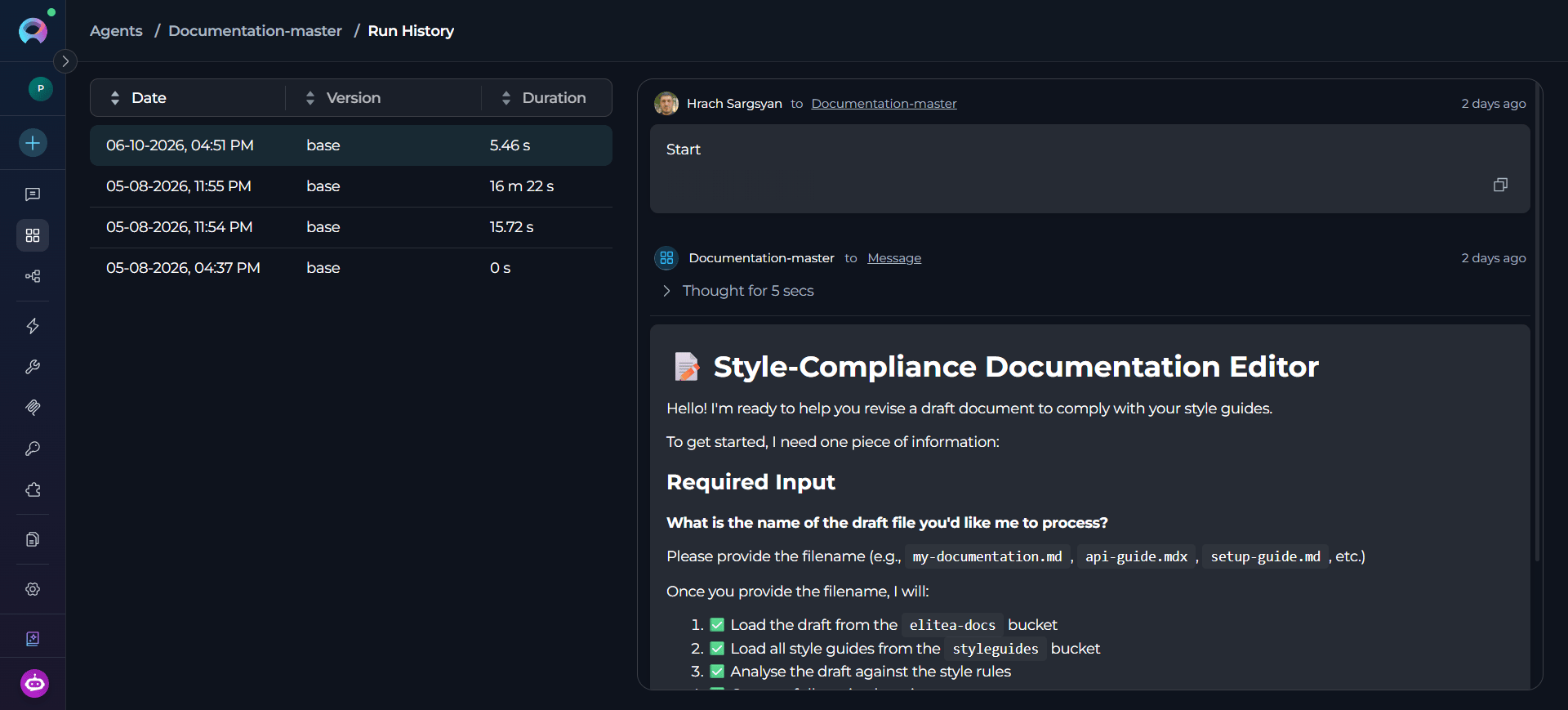
Left panel—sortable list of all past runs. Select any column header to sort by that column:
Select a row to load the conversation replay in the right panel. The list supports infinite scroll—additional runs load automatically as you scroll down.
- Right panel—full conversation replay of the selected run.
Run Analytics
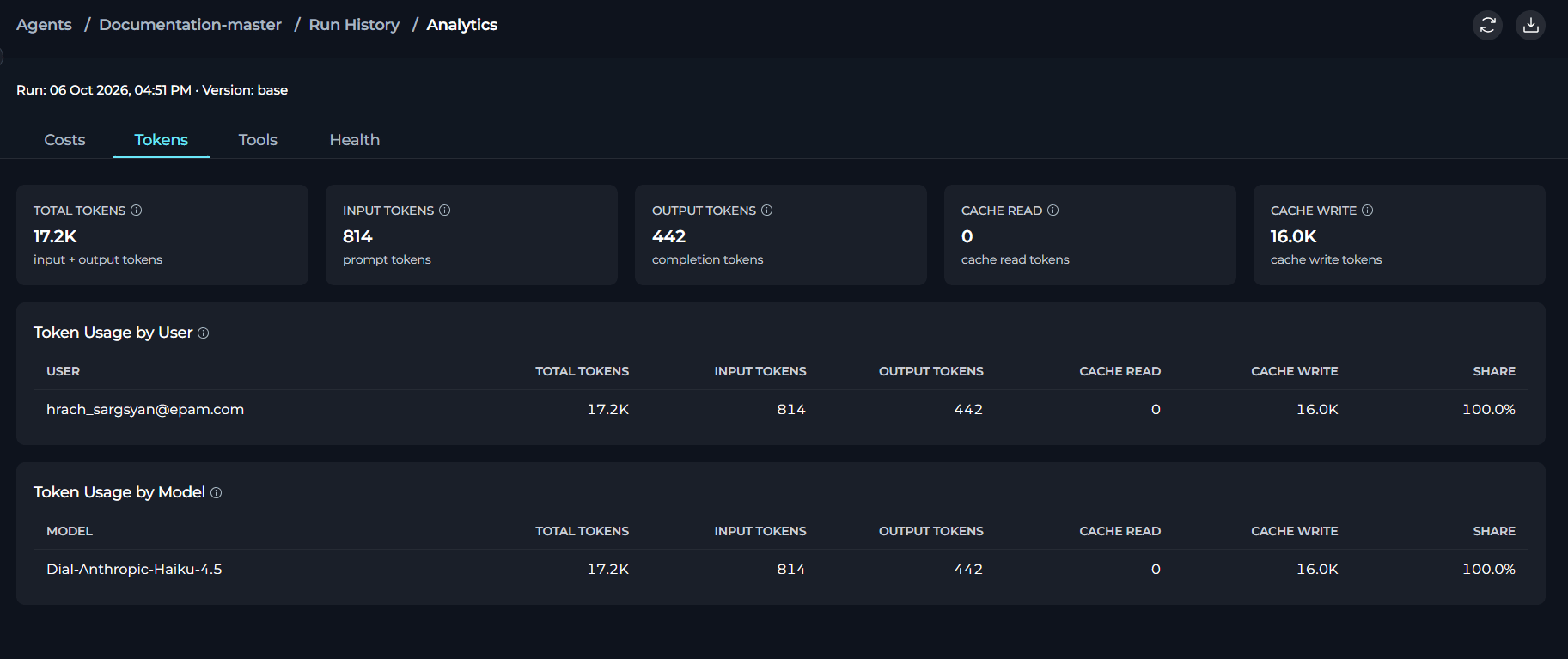
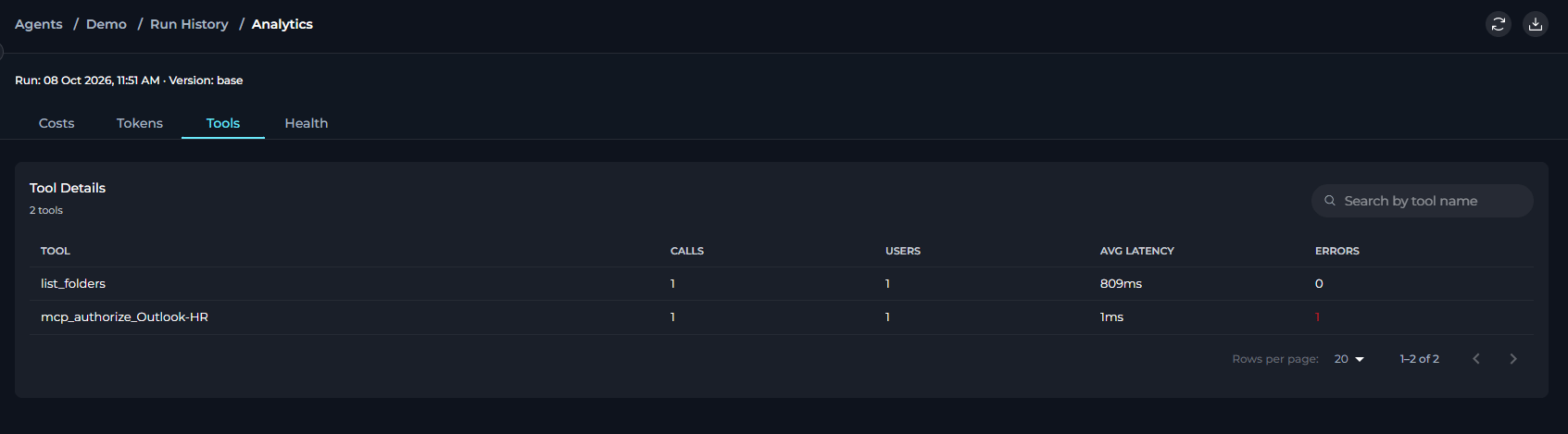
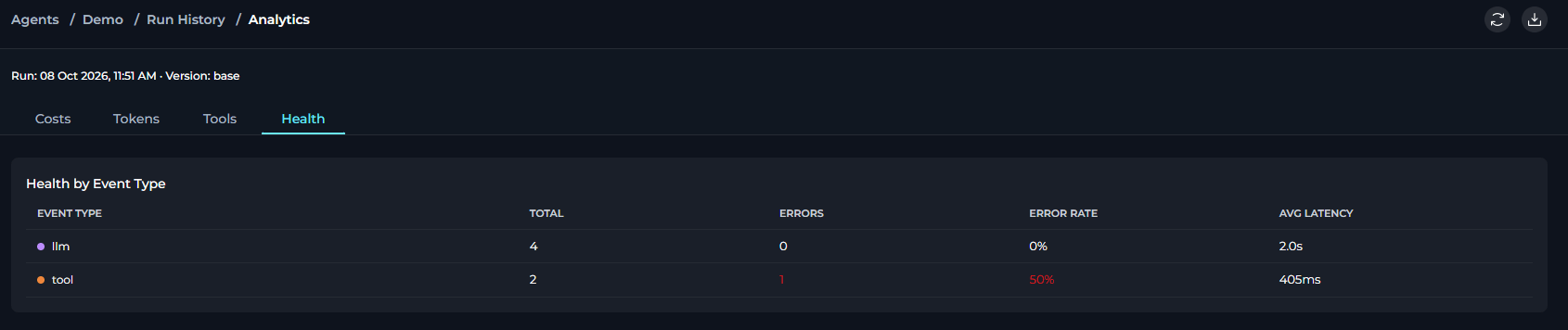
Selecting Analytics from a run’s three-dot menu opens a dedicated page scoped to that single run only—no other runs or ordinary chats are mixed in. The header shows the run date and the agent version used. Use Refresh data to reload the figures, or Export to Excel (one worksheet per tab) to download them.- Costs
- Tokens
- Tools
- Health
Estimated cost cards (total, input, output, cache read/write) plus Cost by User and Cost by Model tables.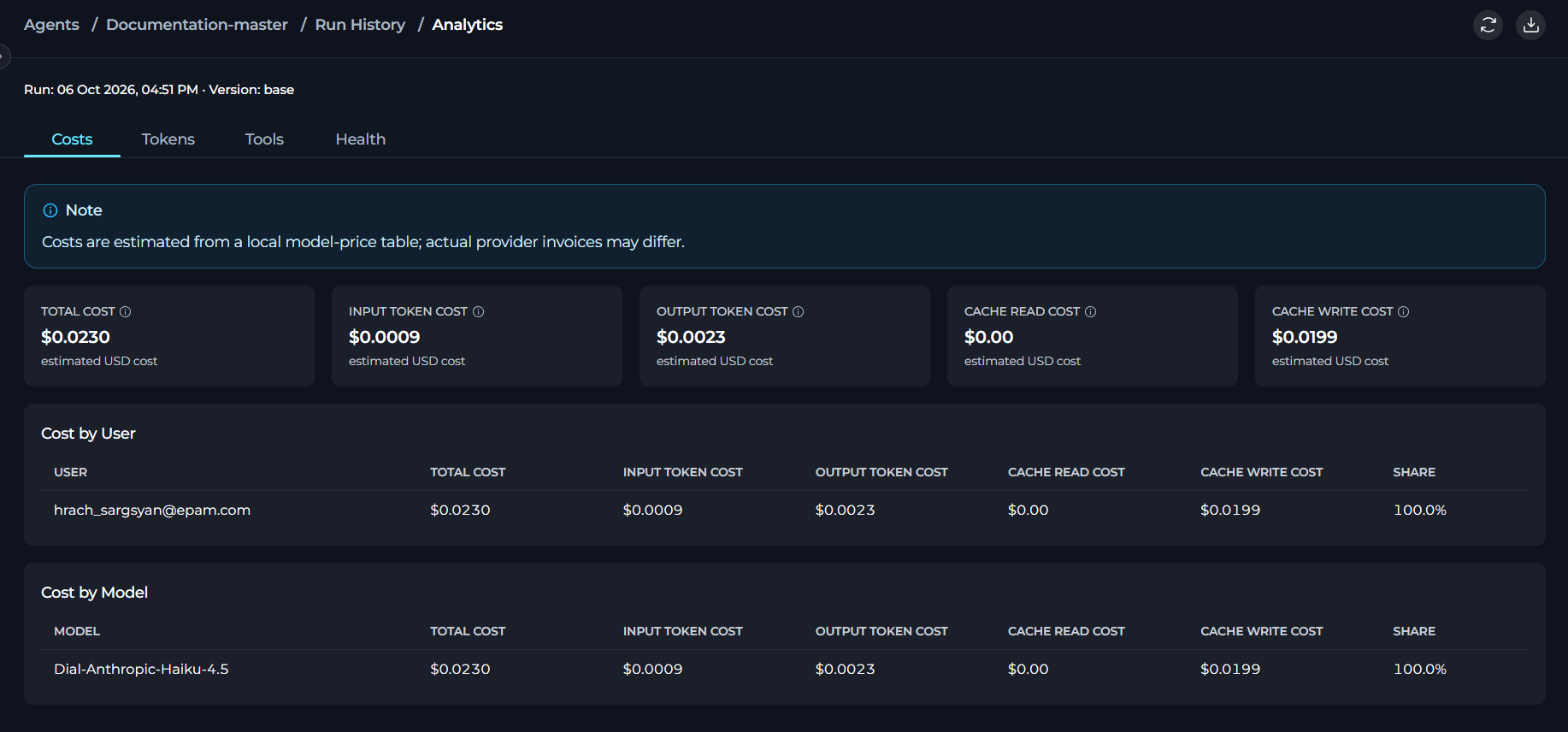
Export to ExcelDownloads one worksheet per tab—Costs, Tokens, Tools, and Health—covering every row for this run, not just the rows visible on the current table page. Each worksheet also includes the project, agent, version, and run date for reference.
AvailabilityAnalytics is not available for previous runs—usage-tracking data is only recorded for runs created after release 2.0.7. The menu item does not appear for any run older than that.
For detailed instructions on using the History panel, see the Agents and Pipelines History guide.
Best Practices
Write Clear Instructions
Write Clear Instructions
Provide specific, actionable instructions that clearly define your agent’s behavior and goals. Use examples and step-by-step guidance.
Test Your Agent Thoroughly
Test Your Agent Thoroughly
Test your agent with various inputs before deploying it. Use conversation starters to verify expected behavior.
Use Version Management
Use Version Management
Create named versions for significant changes. This lets you roll back if needed and compare different iterations.
Monitor Agent Performance
Monitor Agent Performance
Regularly review agent history to identify issues, track performance, and understand how users interact with your agent.
Keep Toolkits Updated
Keep Toolkits Updated
Ensure connected toolkits have valid credentials and up-to-date configurations. Test toolkit integrations regularly.
Turn On Context Management
Turn On Context Management
For long conversations, turn on context management to optimize token usage and maintain conversation quality.
Troubleshooting
Agent Not Responding or Slow
Agent Not Responding or Slow
Check your AI model selection and settings. High reasoning levels or large token limits may slow responses. Verify toolkit connections are working.
Unexpected or Incorrect Outputs
Unexpected or Incorrect Outputs
Review agent instructions for clarity. Ensure toolkits are properly configured. Check conversation history to understand context issues.
Toolkit Integration Failures
Toolkit Integration Failures
Verify credentials are valid and not expired. Test the toolkit independently using the Test Settings panel. Check network connectivity and permissions.
Cannot Publish Agent
Cannot Publish Agent
Ensure you have publishing permissions. Check that all required fields are completed. Review moderation guidelines if submission was rejected.
Version Not Available
Version Not Available
Verify the version was saved successfully. Check permissions if trying to access another user’s version. Refresh the page and try again.
Agent Not Appearing in List
Agent Not Appearing in List
Clear search filters and check status filters. Verify you are in the correct project. Refresh the agents dashboard.
Support
If you encounter issues not covered in this guide or need additional assistance with agent management, see Contact Support for detailed information on how to reach the ELITEA Support Team.For more detailed information on related topics, see the following documentation:
- Sensitive Action Authorization Guardrail - Learn how the guardrail intercepts sensitive tool calls mid-execution and requires human approval before proceeding.
- Skills - Create and manage reusable instruction sets to attach to agents.
- Build Agent with AI - Generate a complete agent draft from a plain-language description.
- Project Context - Define shared background context injected into every AI interaction in the project.
- Credentials - Learn how to create and manage credentials for toolkit integrations.
- Glossary - Definitions of key terms and concepts used in the ELITEA platform.
- How to Create and Edit Agents from Canvas - Create and configure agents directly from chat interface.
- How to Create and Edit Toolkits from Canvas - Set up toolkit integrations from conversations.
- How to Create and Edit Pipelines from Canvas - Design multi-step workflows from chat.
- How to Create and Edit MCPs from Canvas - Configure Model Context Protocol servers from chat.