

Introduction
Purpose of this Guide This guide is your definitive resource for integrating and effectively utilizing the Figma toolkit within ELITEA. It provides a detailed, step-by-step walkthrough, from setting up your Figma API credentials to creating and configuring the toolkit in ELITEA and seamlessly incorporating it into your Agents, Pipelines, or other modules. By following this guide, you will unlock the power of automated design interaction, enhanced collaboration with design assets, all directly within the ELITEA platform. This integration empowers you to leverage AI-driven automation to optimize your workflows involving Figma designs, enhance design productivity, and improve design-related processes within your projects.Brief Overview of Figma
Figma is a leading cloud-based design platform for collaborative interface design. It is widely used by designers and teams to create, prototype, and share user interface and user experience designs. Key features of Figma include:- Collaborative Design: Figma enables real-time collaboration, allowing multiple users to work on the same design file simultaneously, fostering teamwork and efficient design iterations.
- Vector Graphics and Prototyping: Provides powerful vector graphics editing tools and robust prototyping capabilities to create interactive and realistic design mockups.
- Web-Based Platform: As a web-based application, Figma is accessible from any modern web browser across different operating systems, facilitating seamless access and collaboration.
- Version History and Team Libraries: Maintains a comprehensive version history of design files and enables the creation of shared team libraries for reusable design components and styles, ensuring design consistency and efficient asset management.
Toolkit Account Setup and Configuration in Figma
Account Setup
To use the Figma Toolkit, you will need an active Figma account. To set up your Figma account, follow these steps:- Visit Figma Website: Open your web browser and navigate to the official Figma website: https://www.figma.com/.
- Get Started for Free or Log In: Click on the “Get started for free” button to create a new account or use the “Log in” option if you have an existing Figma account.
-
Follow Registration Process: Follow the on-screen instructions to complete the registration process and create your Figma account. You can sign up using your email address or connect with your Google account.
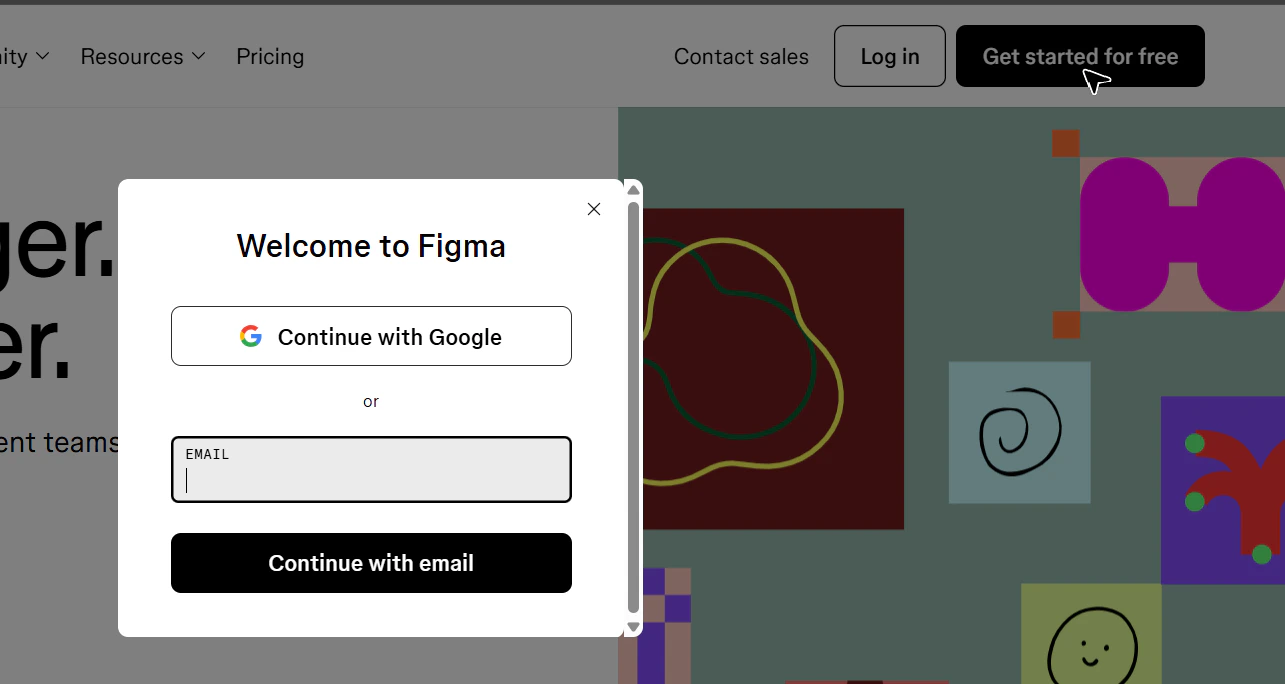
- Access Figma Home Page: Once your account is created and verified, you will be redirected to your Figma home page.
Token/API Key Generation: Creating a Figma Personal Access Token
For secure integration with ELITEA, users will need to use a Figma Personal Access Token. Follow these steps to generate a Figma Personal Access Token:-
Access Figma Settings: In Figma, click on your profile icon (typically your avatar or initials) located in the top left corner of the Figma interface and navigate to “Settings”. Note: Ensure you have the correct Figma account selected if you are logged into multiple Figma accounts.
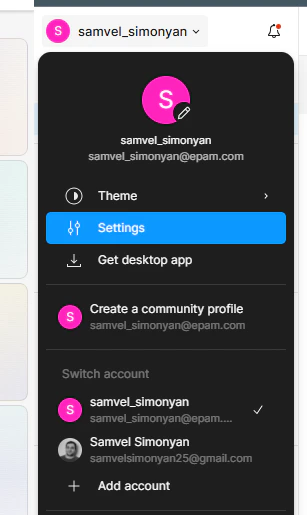
- Navigate to Security Tab: In the Settings menu, click on the “Security” tab.
-
Generate New Personal Access Token: Scroll down to the “Personal access tokens” section and click on the “Generate new token” button.
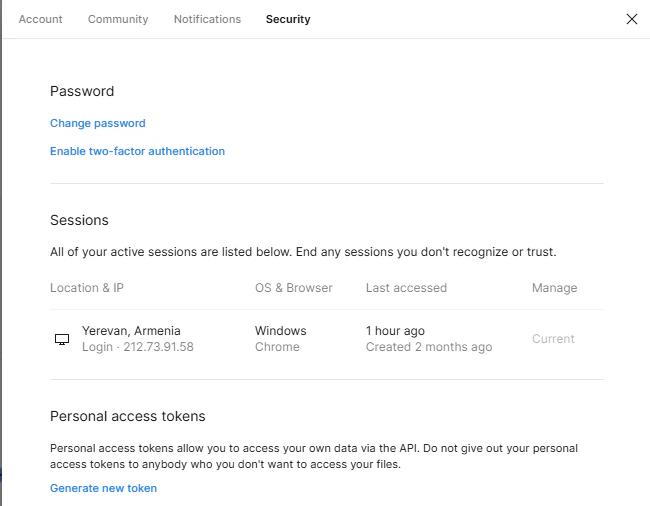
-
Configure Token Permissions (If Required): In the “New personal access token” window, enter a Token name to identify the token (e.g., “ELITEA Integration Token”).
Note: While the documentation mentions selecting permissions for comment posting, the Figma Personal Access Tokens currently have broad access and specific permission scopes are not configurable during token creation through the UI. Ensure you understand the access granted by Personal Access Tokens. You can set an Expiration date for the token if desired for security best practices.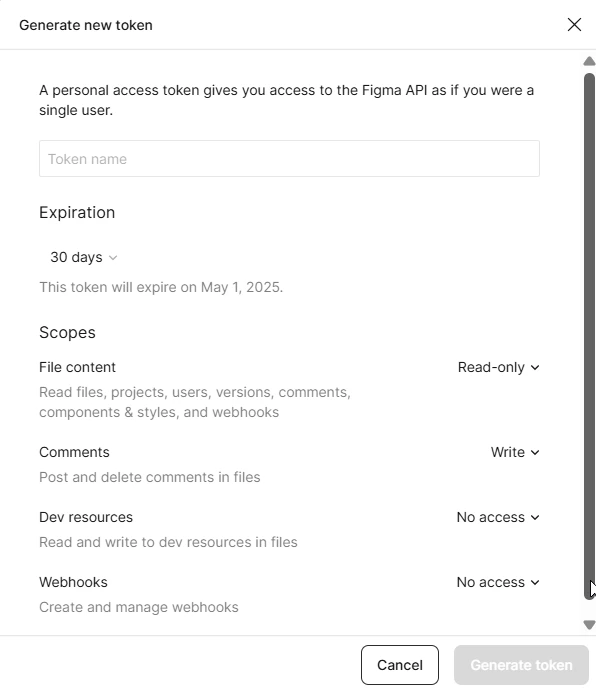
- Create Token: Click the “Generate token” button to create the Personal Access Token.
- Securely Copy and Store Your API Token: A dialog box will appear displaying your newly generated Personal Access Token. Immediately copy the generated API token. This is the only time you will see the full token value. Store it securely in a password manager or, preferably, ELITEA’s built-in Secrets feature for enhanced security within ELITEA. You will need this API token to configure the Figma toolkit in ELITEA.
System Integration with ELITEA
To integrate the Figma Toolkit with ELITEA, follow a streamlined process: Create Credentials → Create Toolkit → Use in Agents, Pipelines, or Chat. This workflow ensures secure authentication and proper configuration.Step 1: Create Figma Credentials
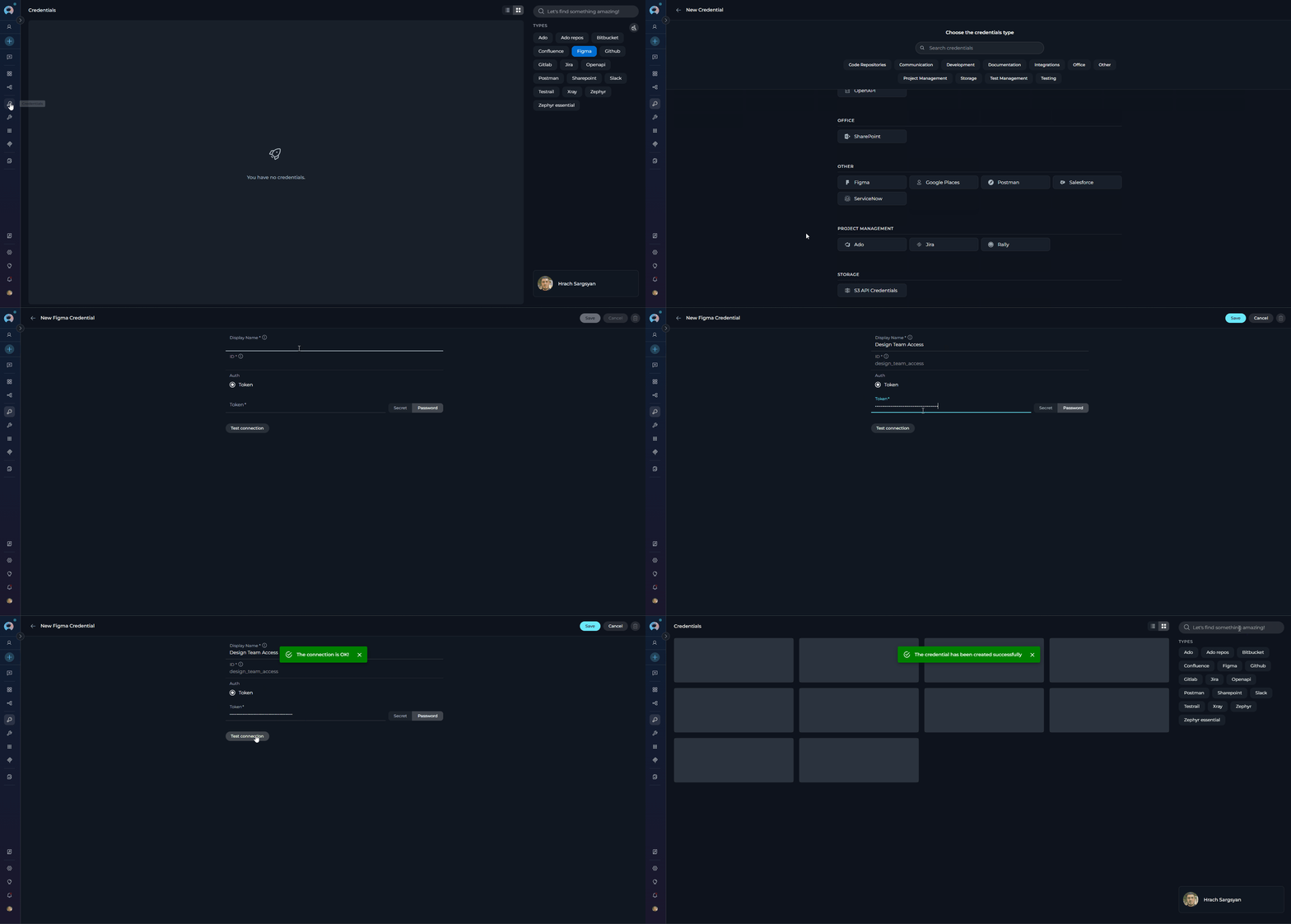
Before creating a toolkit, you must first create Figma credentials in ELITEA:- Navigate to Credentials Menu: Open the sidebar and select Credentials.
-
Create New Credential: Click the
+ Createbutton. - Select Figma: Choose Figma as the credential type.
-
Configure Credential Details:
- Display Name: Enter a descriptive name (e.g., “Figma - Design Team Access”)
- Token: Enter your Figma Personal Access Token (starts with
figd_)
-
Test Connection: Click the Test Connection button to verify your credentials are valid and can successfully connect to Figma’s API.
- ✔️ Success: You’ll see a confirmation message indicating the connection was successful
- ✘ Failure: Check that your token is correct, hasn’t expired, and has the necessary permissions
-
Save Credential: Once the test is successful, click Save to create the credential.
Step 2: Create Figma Toolkit
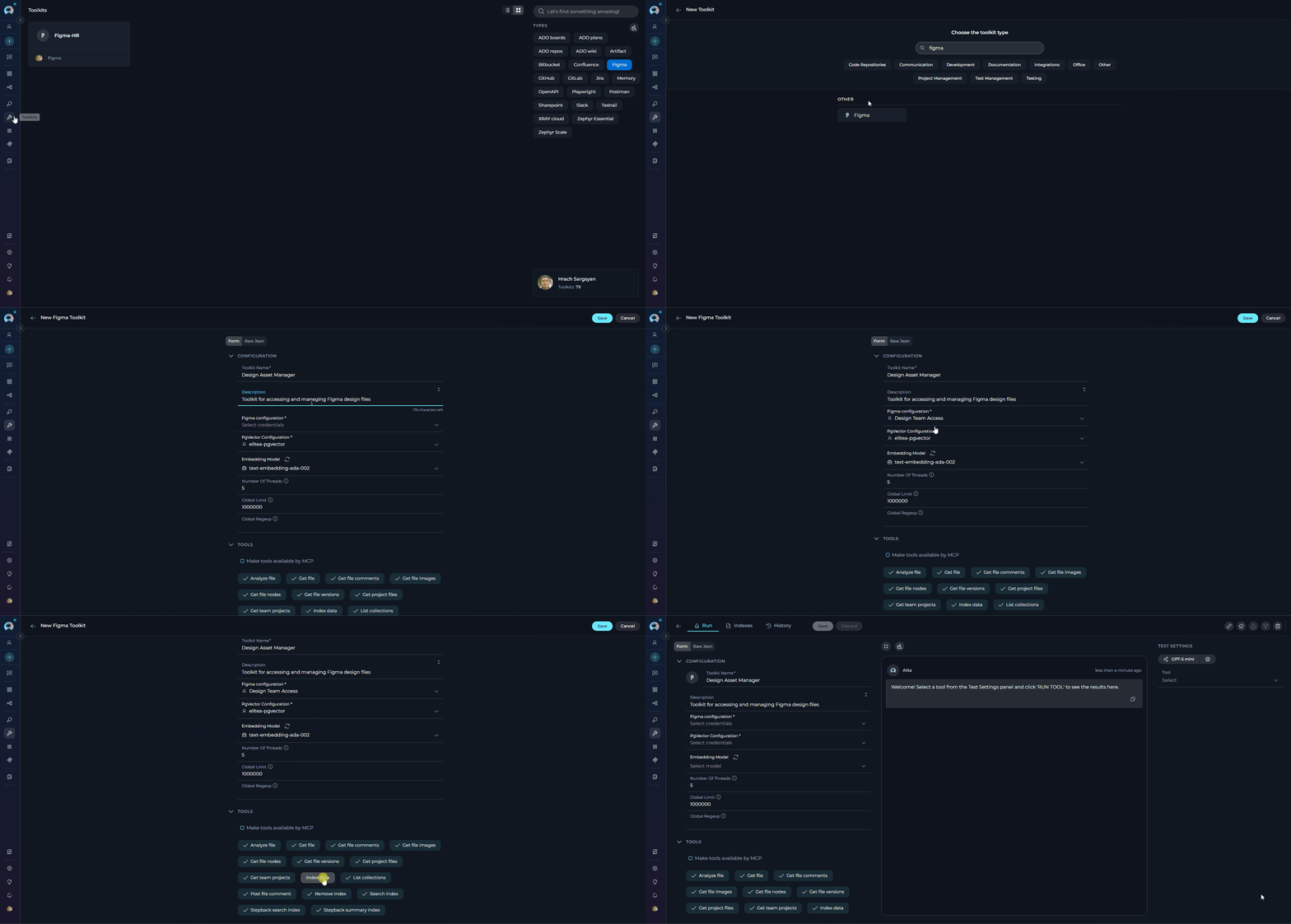
Once your credentials are configured, create the Figma toolkit:- Navigate to Toolkits Menu: Open the sidebar and select Toolkits.
-
Create New Toolkit: Click the
+ Createbutton. - Select Figma: Choose Figma from the list of available toolkit types.
-
Configure Toolkit Details:
- Name: Enter a descriptive name for your toolkit (e.g., “Design Asset Manager”)
- Description: Provide a brief description (e.g., “Toolkit for accessing and managing Figma design files”)
-
Configure Credentials:
- In the Configuration section, select your previously created Figma credential from the Credentials dropdown
-
Configure Advanced Options (Optional):
- PgVector Configuration: Select a PgVector connection for vector database integration
- Embedding Model: Select an embedding model for text processing and semantic search capabilities
- Number of Threads: Set the number of worker threads (1-5) for downloading and processing Figma images (default: 5)
- Global Limit: Set a character limit for API responses to ensure manageable content size
- Global Regexp: Enter a Regular Expression to filter results from Figma API responses (leave blank for no filtering)
- Enable Desired Tools: In the “Tools” section, select the checkboxes next to the specific Figma tools you want to enable. Enable only the tools your agents will actually use to follow the principle of least privilege
-
Save Toolkit: Click Save to create the toolkit.
Available Tools:
The Figma toolkit provides the following tools for interacting with Figma design files and managing design data, organized by functional categories:Step 3: Use Toolkit in Agents, Pipelines, or Chat
Now you can add the configured Figma toolkit to your agents, pipelines, or use it directly in chat:In Agents:
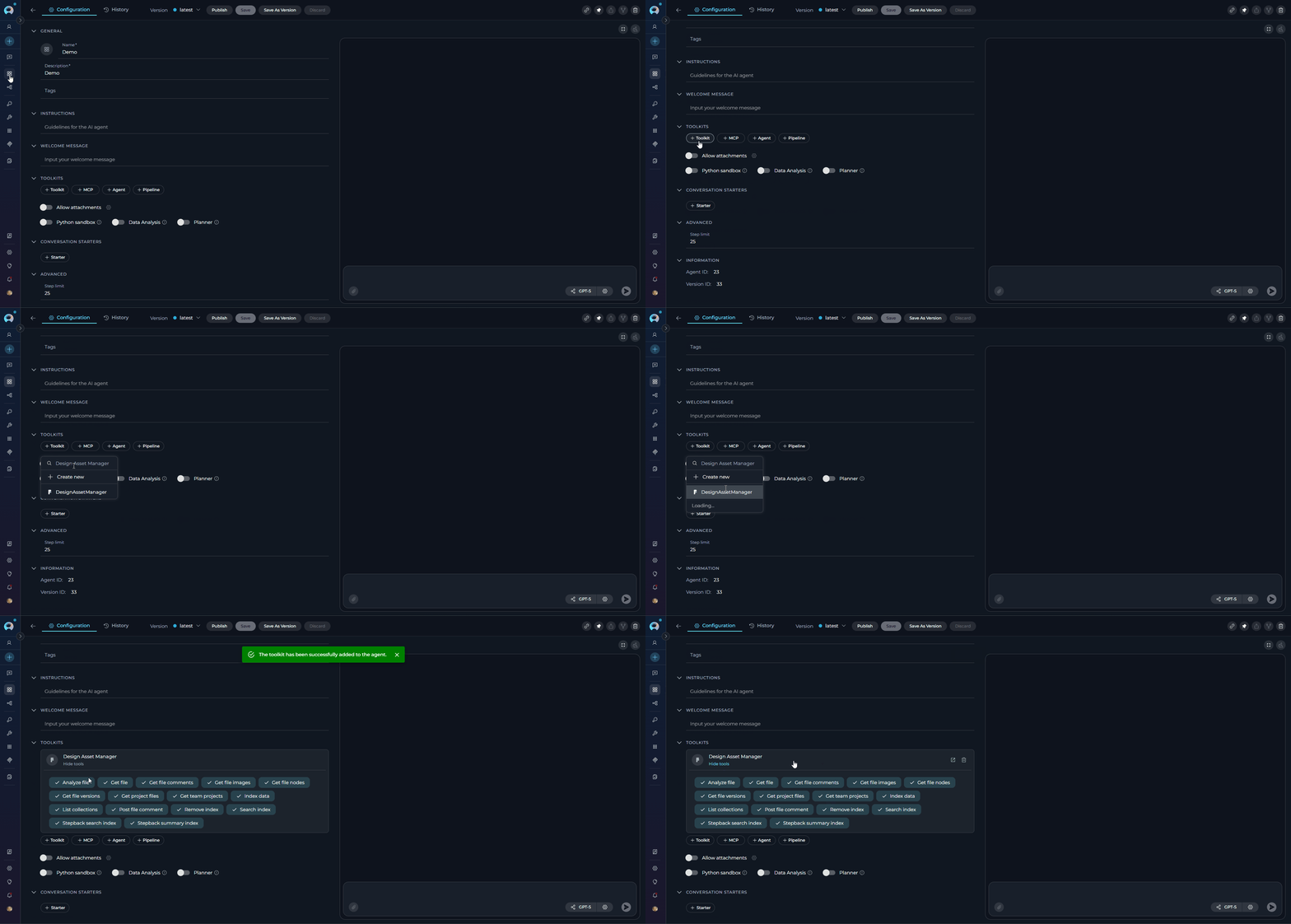
- Navigate to Agents: Open the sidebar and select Agents.
- Create or Edit Agent: Either create a new agent or select an existing agent to edit.
- Add Figma Toolkit:
- In the “TOOLKITS” section of the agent configuration, click the “+Toolkit” icon
- Select your configured Figma toolkit from the dropdown list
- The toolkit will be added to your agent with the previously configured tools enabled
In Pipelines:
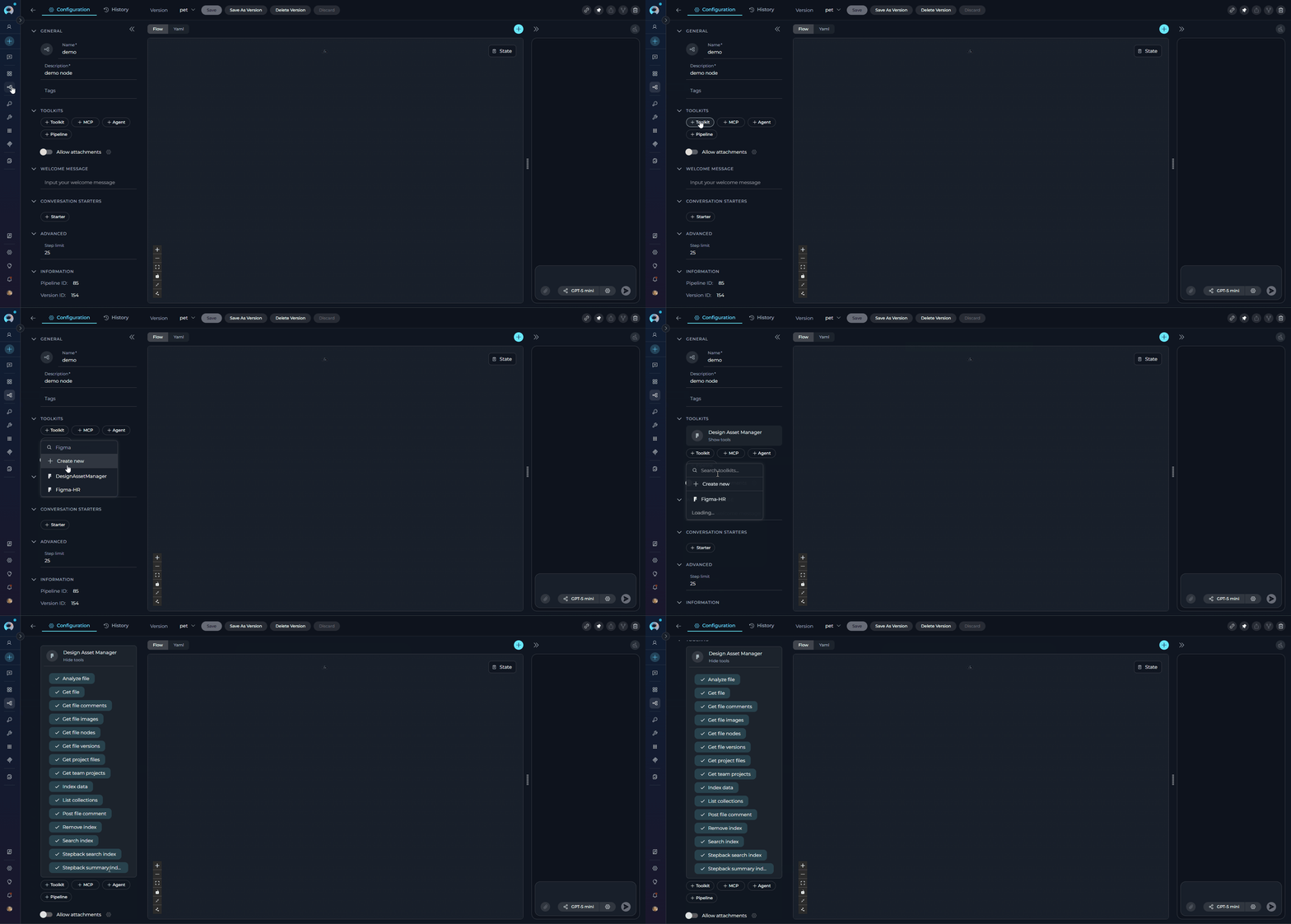
- Navigate to Pipelines: Open the sidebar and select Pipelines.
- Create or Edit Pipeline: Either create a new pipeline or select an existing pipeline to edit.
- Add Figma Toolkit:
- In the “TOOLKITS” section of the pipeline configuration, click the “+Toolkit” icon
- Select your configured Figma toolkit from the dropdown list
- The toolkit will be added to your pipeline with the previously configured tools enabled
In Chat:
- Navigate to Chat: Open the sidebar and select Chat or use the main chat interface.
- Start New Conversation: Click +Create or open an existing conversation.
- Add Toolkit to Conversation:
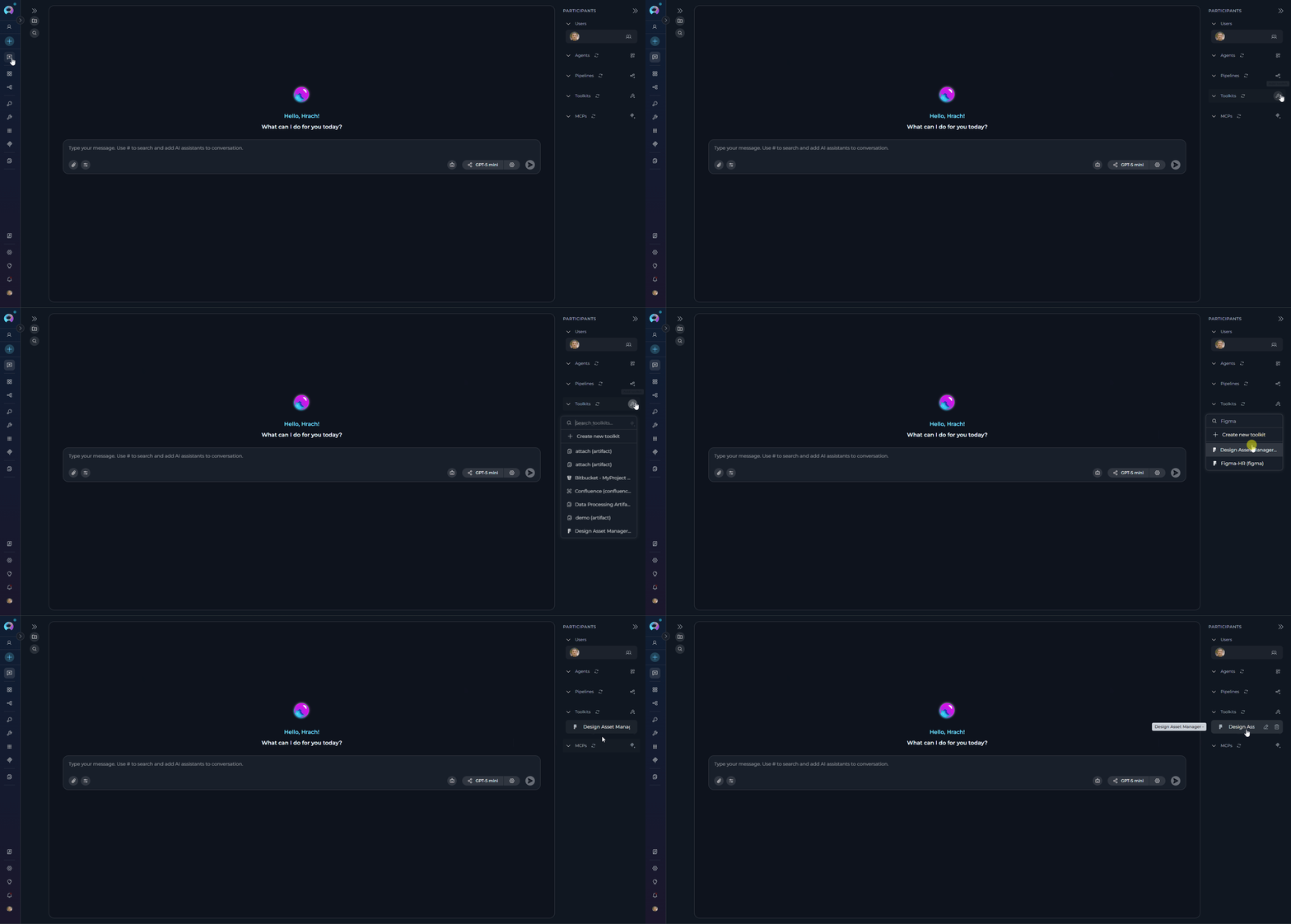
- In the chat Participants section, look for the Toolkits element
- Click the “Add Tools” icon to open the tools selection dropdown
- Select your configured Figma toolkit from the dropdown list
- The toolkit will be added to your conversation with all previously configured tools enabled
- Use Toolkit in Chat: You can now directly interact with your Figma files by asking questions or requesting actions that will trigger the Figma toolkit tools.
Figma Key Parameters
Common Parameters Used Across Tools:How to Find Figma Project ID:
For tools that require a Project ID, you can obtain the following ways:-
From Project URL (If You Are Project Admin) - Web & Desktop: When viewing a project in Figma (web or desktop app), the Project ID is in the URL:
For example, from
https://www.figma.com/files/project/123456789/Design-System, the Project ID is123456789. Desktop App: Use File → Copy link or Share to get the project URL with the same format.
- Request from Project Administrator: If you don’t have admin access to the project, contact the project administrator or team owner to provide you with the Project ID.
How to Find Figma File Key:
To use the Figma tools, you’ll need the File Key from your Figma file. You can extract it using either the web version or desktop app: Web Version:https://www.figma.com/file/ABC123DEF456/My-Design-File, the File Key is ABC123DEF456.
Desktop App:
- From File Menu: Open the file in Figma desktop app, go to File → Copy link or File → Share
- From Share Button: Click the Share button in the top-right corner, then Copy link
-
Extract from URL: The copied link will have the same format as the web version:
https://www.figma.com/file/[FILE_KEY]/[FILE_NAME] -
From Recent Files: Right-click on a file in your recent files list and select Copy link

How to Find Node IDs:
Node IDs are required for tools that target specific design elements. Here’s how to find them: Web Version:- Extract from URL: The copied URL contains the node ID:
https://www.figma.com/file/[FILE_KEY]/[FILE_NAME]?node-id=[NODE_ID] - From Layers Panel: Select an element and use Copy as → Copy link
- Right-click Method: Right-click on any design element and select Copy link
- Layer Selection: Select a layer in the layers panel, right-click, and choose Copy link
- Multiple Selection: Select multiple elements while holding Ctrl (Windows) or Cmd (Mac), then right-click and Copy link to get multiple node IDs
- From Properties Panel: With an element selected, you can sometimes see the node ID in the properties panel or developer tools
123:456 in the URL parameter node-id=123%3A456 (where %3A is the URL-encoded colon).

How to Find Figma Team ID:
For theget_team_projects tool, you need a Team ID:
Web Version:
-
From Team URL: When viewing your team in Figma, the Team ID is in the URL:
- From Organization Settings: In your Figma organization settings, you can find the team ID in the team management section.
- From Team Navigation: Navigate to your team view in the desktop app, then use File → Show in browser to open the web version with the team URL
- From Share Team: In team view, use the Share feature to get a team link containing the Team ID
- From Account Settings: Access your account settings in the desktop app and navigate to team management where Team IDs may be displayed

Real-World Usage Examples
The Figma toolkit provides versatile capabilities to enhance design workflows within ELITEA. Below are practical examples demonstrating how to leverage the toolkit in chat conversations and agents.1. Quick Design Analysis in Chat
1. Quick Design Analysis in Chat
analyze_file, get_file_commentsChat Interaction: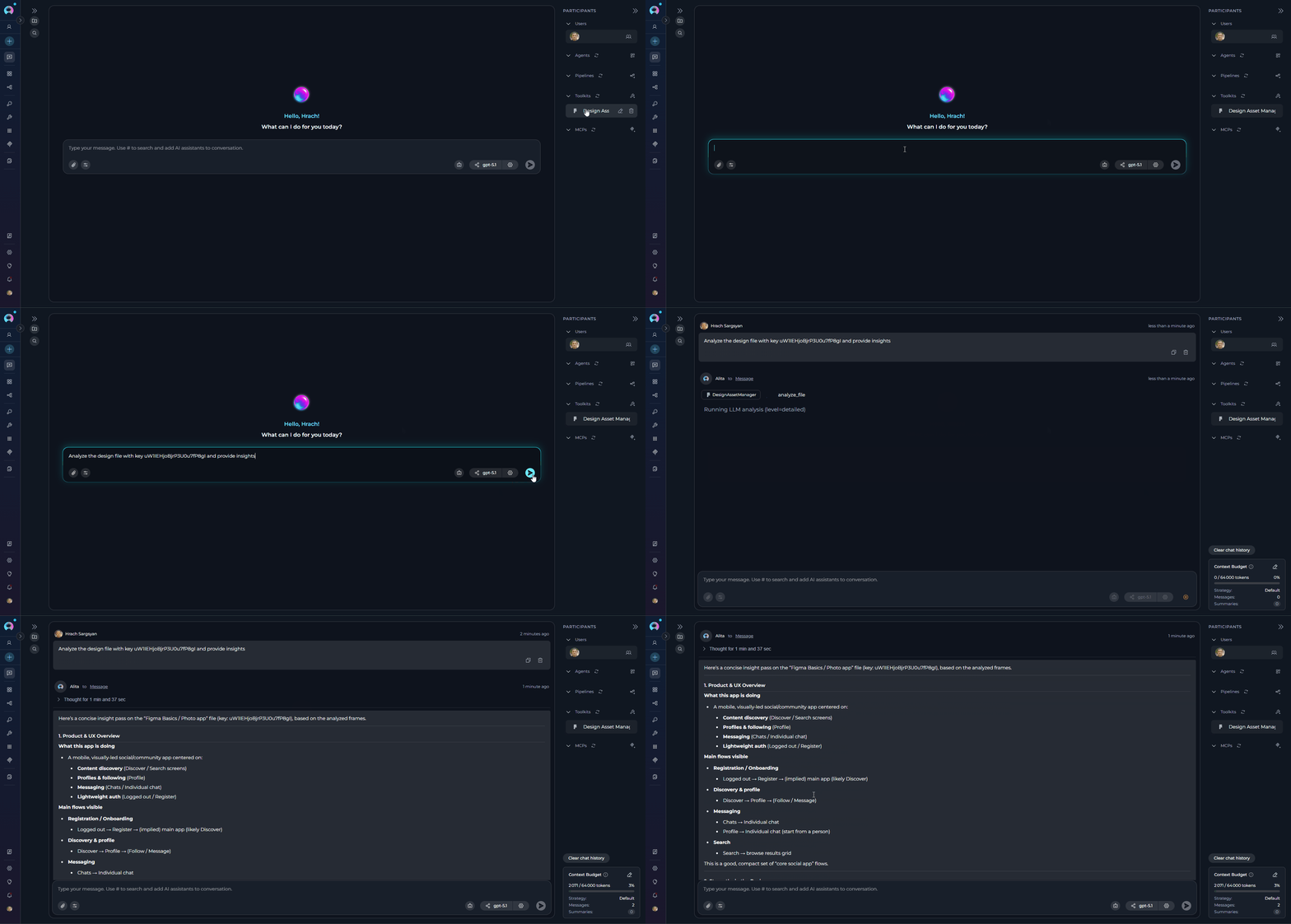
User: “Get all comments from this file to see what feedback needs addressing”Agent: [Uses get_file_comments tool]Agent: “Found 12 comments:
- 5 resolved (design approved)
- 4 pending (awaiting developer input on feasibility)
- 3 open issues: color contrast, button sizing, missing states”
2. Automated Design Review and Documentation in Chat
2. Automated Design Review and Documentation in Chat
analyze_file, get_file_comments, post_file_commentChat Interaction:- Automated design documentation generation
- Consistent review process
- Faster developer handoff
- Improved design-dev communication
3. Design System Audit in Chat
3. Design System Audit in Chat
analyze_file, get_project_files, search_indexChat Interaction:- Design system governance
- Identify inconsistencies early
- Track component adoption
- Maintain design consistency
4. UX Research and User Flow Analysis in Chat
4. UX Research and User Flow Analysis in Chat
analyze_fileChat Interaction:- Automated UX documentation
- Flow visualization and analysis
- Early identification of UX gaps
- Research-backed design decisions
5. Accessibility Compliance Check in Chat
5. Accessibility Compliance Check in Chat
analyze_file, post_file_commentChat Interaction:6. Version Comparison in Chat
6. Version Comparison in Chat
get_file_versions, analyze_file, get_file_commentsChat Interaction:7. Design Search with Indexing in Chat
7. Design Search with Indexing in Chat
index_data, search_index, list_collectionsChat Interaction:- Fast semantic search across multiple design files
- Find design patterns and components quickly
- Discover inconsistencies in design implementation
- Enable design system audits at scale
- Support cross-project design research
8. Automated Design Review Agent (Agent Configuration Example)
8. Automated Design Review Agent (Agent Configuration Example)
analyze_file, get_file_comments, post_file_commentAgent Configuration:Agent Name: Design Review AssistantAgent Instructions:- Consistent automated review process
- Scheduled design audits
- Automatic feedback posting to Figma
- Standardized documentation format
- Scalable across multiple projects
- File Structure Dependency: Instructions depend on how designers organize and name elements in Figma files
- Descriptive Naming: Ensure designers use clear, meaningful names for components and frames
- Large Files: Use “Global Regexp” filter in toolkit configuration to focus on required information
- Start with Get File: Begin by understanding overall file structure before detailed analysis
- Specific Node IDs: Target specific elements rather than entire files when possible
- Leverage Indexing: For large projects, create indexes first, then search for efficiency
Troubleshooting and Support
Troubleshooting
Credential Not Appearing in Toolkit Configuration
Credential Not Appearing in Toolkit Configuration
- Check Credential Scope: Ensure you’re working in the same workspace/project where the credential was created. Private credentials are only visible in your Private workspace, while project credentials are visible within the specific team project.
- Verify Credential Creation: Go to the Credentials menu and confirm that your Figma credential was successfully saved.
- Credential Type Match: Ensure you selected “Figma” as the credential type when creating the credential.
No File or Nodes Found Using Correct Request IDs
No File or Nodes Found Using Correct Request IDs
- Verify Credentials: Check that your Figma API credentials (Personal Access Token) are correct, valid, and not expired.
- Account Access: Ensure the Figma account associated with the token has access to the file and nodes. For private team files, verify the token has necessary permissions.
- File Key and ID Accuracy: Verify File Key and Node IDs are case-sensitive and match exactly. Copy them directly from the Figma UI to avoid typos.
- File Visibility: Ensure the Figma file sharing settings allow API access for your account.
Receiving Partial JSON or Incomplete Answers
Receiving Partial JSON or Incomplete Answers
- Increase Global Limit: The toolkit configuration includes a “Global Limit” filter that restricts the character count of the output. Try increasing the “Global Limit” value to a larger number (e.g., 5000, 10000, or higher).
- Remove Global Limit (for testing): Temporarily set the “Global Limit” to a very high value to see if you receive the full JSON response.
Values Cut by Global Regex Filter
Values Cut by Global Regex Filter
- Verify Global Regex: Review the “Global Regexp” value in your toolkit configuration. Ensure the regular expression is correctly written and matches your intended filtering.
- Test Regex: Use online regex testers with example Figma API JSON responses to verify your regex pattern.
- Refine or Remove Regex: If the regex is cutting off desired data, refine it or temporarily remove it (leave blank) to see the full response.
Toolkit Connection Fails
Toolkit Connection Fails
- Check Token Validity: Ensure your Personal Access Token is still valid and hasn’t been revoked in Figma.
- Verify Token Format: Personal Access Tokens should start with “figd_”. Ensure you’ve copied the complete token.
- Network Connectivity: Check that ELITEA can reach the Figma API endpoints.
- Credential Configuration: Verify that the credential is properly configured and selected in your toolkit.
Toolkit Fails to Post Comments
Toolkit Fails to Post Comments
post_file_comment tool fails to post comments to Figma files.Troubleshooting Steps:- Check Permissions: Ensure the account associated with the token has commenting permissions on the Figma file.
- Verify Token Scope: Confirm your Personal Access Token has the necessary permissions for commenting.
- Test Manual Comment: Try posting a comment manually in Figma with the same account to verify permissions.
FAQ
Can I use multiple Figma toolkits in the same agent?
Can I use multiple Figma toolkits in the same agent?
Does the toolkit support Figma Community files?
Does the toolkit support Figma Community files?
Can I use YAML for the Global Regexp filter?
Can I use YAML for the Global Regexp filter?
What happens if my Figma file is very large (hundreds of frames)?
What happens if my Figma file is very large (hundreds of frames)?
max_frames parameter in the Analyze file tool to limit frames analyzed per page.Can I update my Figma credentials after creating the toolkit?
Can I update my Figma credentials after creating the toolkit?
How do I handle multiple Figma teams or organizations?
How do I handle multiple Figma teams or organizations?
Can I use the toolkit with Figma files that require OAuth 2.0?
Can I use the toolkit with Figma files that require OAuth 2.0?
What if my Figma file uses custom plugins or extensions?
What if my Figma file uses custom plugins or extensions?
How do I test if my Figma toolkit is configured correctly?
How do I test if my Figma toolkit is configured correctly?
Can I use the same Figma credential across multiple toolkits?
Can I use the same Figma credential across multiple toolkits?
How do I find my Figma file key?
How do I find my Figma file key?
https://www.figma.com/file/ABC123DEF456/My-Design, the file key is ABC123DEF456. See the How to Find Figma File Key section for detailed instructions.Can I restrict which Figma tools are available to an agent?
Can I restrict which Figma tools are available to an agent?
Support Contact
If you encounter issues not covered in this guide or need additional assistance with Figma integration, please refer to Contact Support for detailed information on how to reach the ELITEA Support Team.- ELITEA Credentials Management - Learn how to securely store your Figma API Token using ELITEA’s Credentials management feature for enhanced security within ELITEA.
- Indexing Overview - Comprehensive guide to understanding ELITEA’s indexing capabilities and how to leverage them for enhanced search and discovery.
- Index Figma Data - Detailed instructions for indexing Figma design files to enable advanced search, analysis, and AI-powered insights across your design assets.
- Figma Website: https://www.figma.com/ - Access the main Figma product website for product information, documentation, and tutorials.
- Figma for Developers Documentation: https://www.figma.com/developers/api - Explore the official Figma API documentation for detailed information on Figma API endpoints, authentication, data structures, and developer guides.
- Figma OAuth 2.0 Documentation: https://www.figma.com/plugin-docs/oauth-with-plugins/ - Learn more about implementing OAuth 2.0 authentication for Figma applications and integrations.
- Figma Help Center: https://help.figma.com/hc/en-us - Access the official Figma Help Center for comprehensive articles, FAQs, and troubleshooting guides on all aspects of Figma usage.