

Introduction
The Artifacts menu provides a dedicated interface for managing artifact buckets and the files they contain. Use it to store, retrieve, and process files as part of automated agent workflows. This section describes the available features and how to use them.Navigate the Artifacts Menu
The Artifacts menu is accessible from the main platform navigation. Upon entering the Artifacts section, you see a dashboard displaying artifact buckets and their contained files.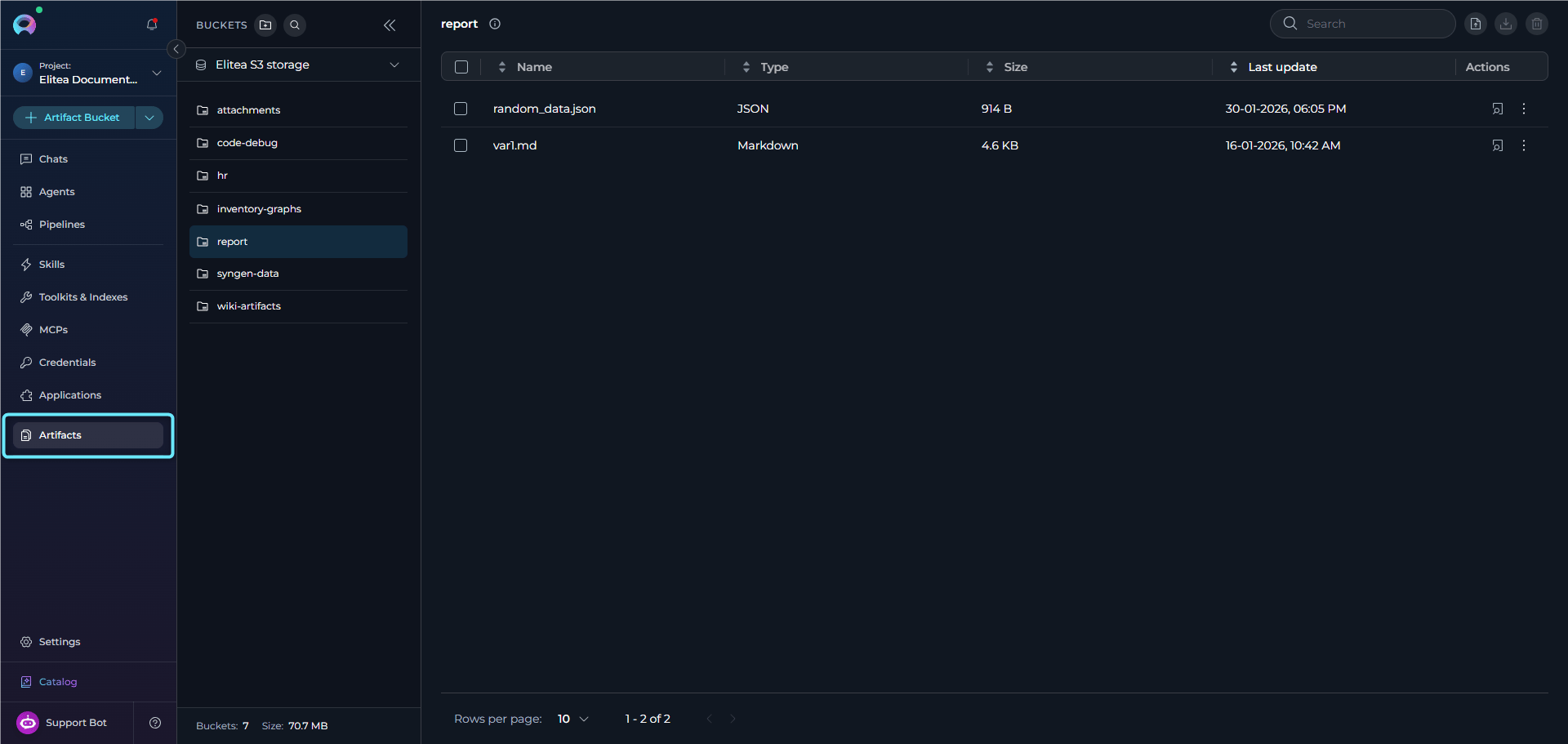
Main Elements
- Buckets Sidebar:
- A collapsible sidebar on the left displays all artifact buckets for the project.
- Shows a hierarchical tree structure with expandable buckets.
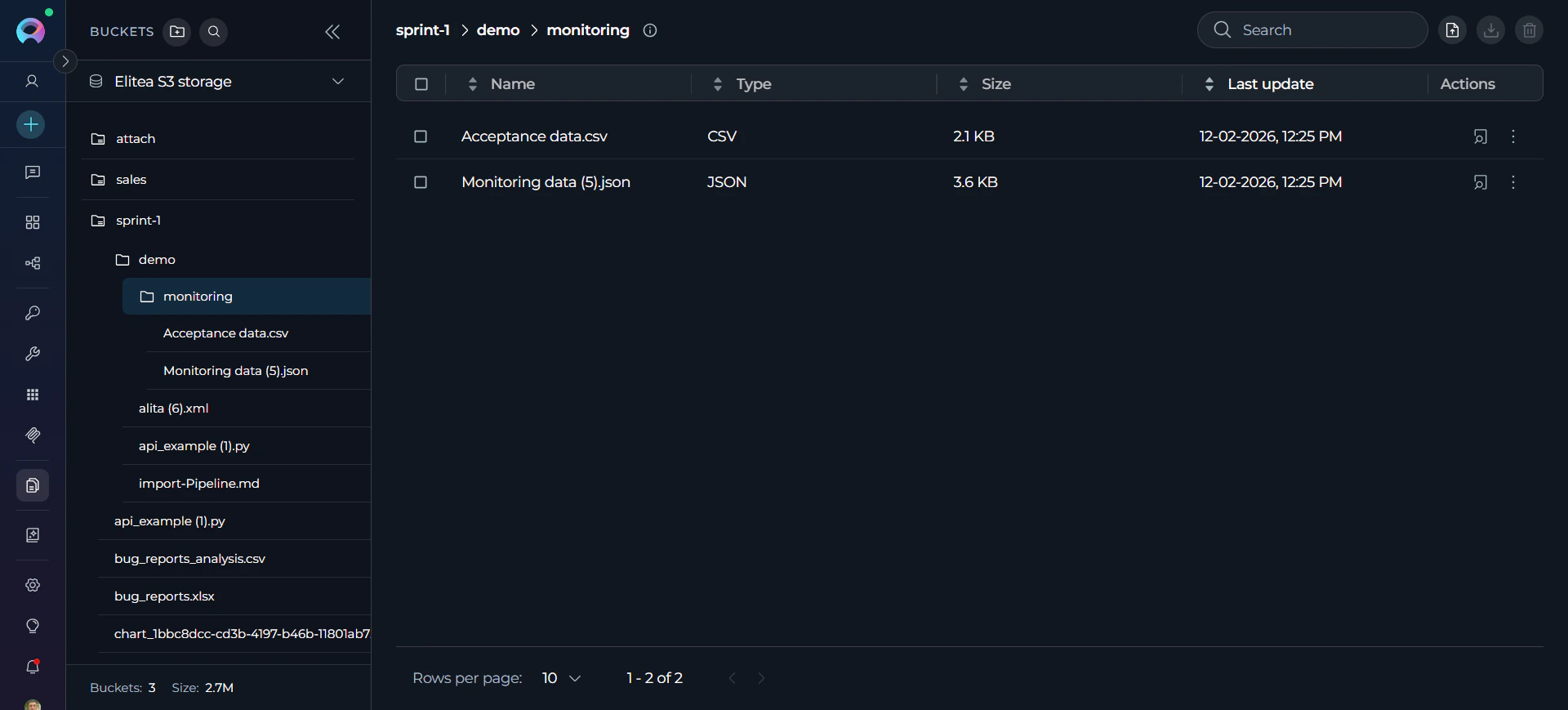
- Each bucket can be expanded to show its folder and file structure in a nested tree view.
- Includes bucket search functionality and a storage selector at the top.
- Displays bucket count and total size statistics at the bottom.
- Bucket Header:
- Located at the top of the sidebar.
- Contains the “Buckets” title.
- Create Bucket button—Initiates the bucket creation process.
- Search icon—Activates bucket search functionality.
- Collapse/Expand icon—Toggles sidebar visibility.
- Storage Settings Selector:
- Located below the bucket header in the sidebar.
- Displays the current storage configuration name and type.
- Select to open a dropdown menu showing all available storage configurations.
- Shows the storage type (for example, “S3 STORAGE”) for each option.
- Bucket Footer:
- Located at the bottom of the sidebar.
- Displays “Buckets:” count showing the total number of buckets.
- Displays “Size:” showing the total storage used across all buckets.
- File Table:
- Located to the right of the bucket sidebar.
- Displays files and folders for the selected bucket or folder.
- Shows breadcrumb navigation at the top when navigating into folders.
- File table columns: Name, Type, Size, Last update, Actions.
- The Actions column shows a View/Edit file icon (eye symbol) plus a three-dot (⋮) menu with Download, Rename, and Delete for each file.
- Supports drag-and-drop file upload directly into the table area.
- Includes a search bar, upload button, download button, and delete button in the toolbar.
- Bucket info tooltip shows the retention policy and file count.
Artifact Functionality
Buckets Sidebar- Sidebar: The sidebar on the left lists all artifact buckets for the project. The sidebar is collapsible, allowing users to show or hide it as needed for a more flexible workspace.
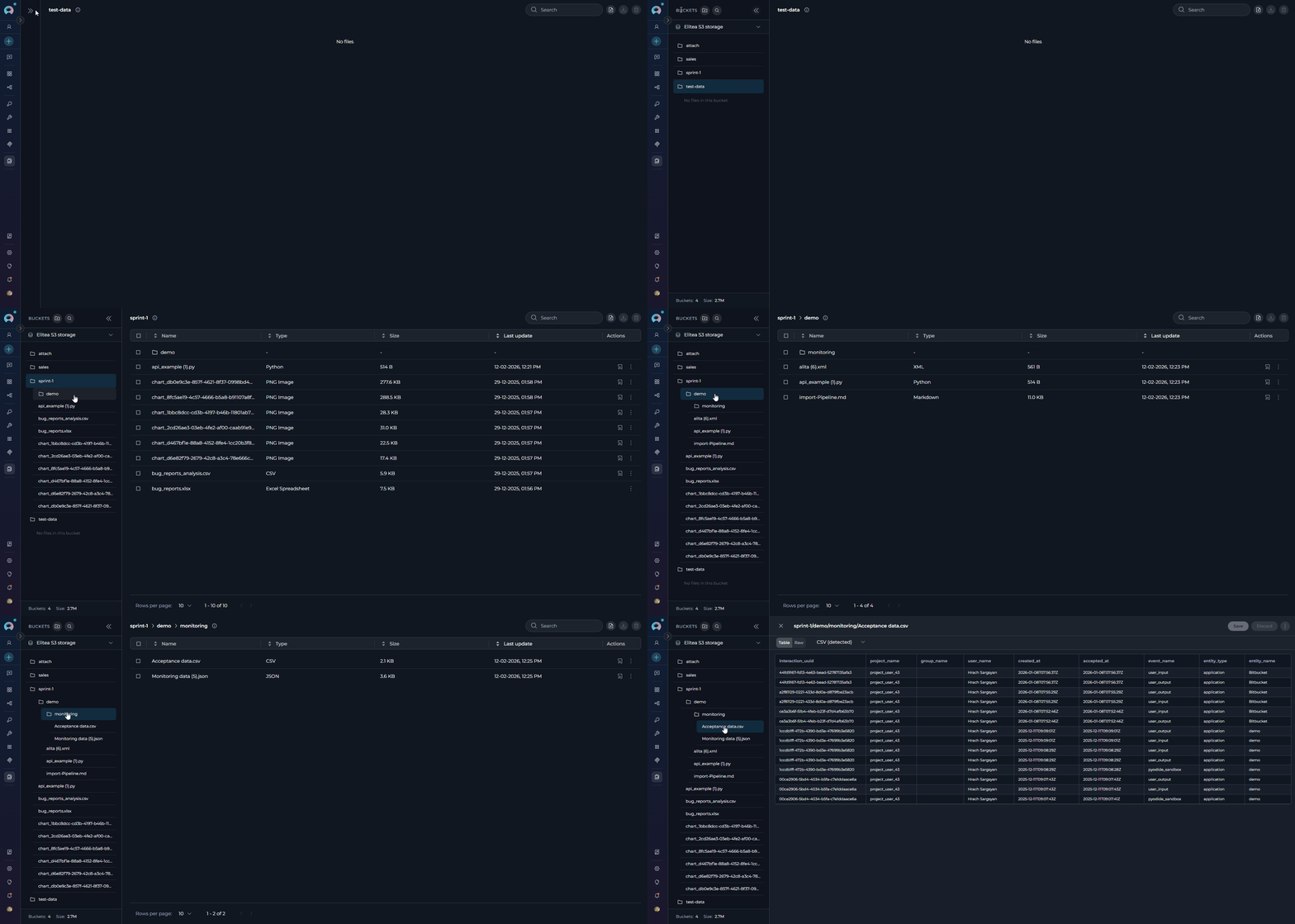
- Tree Structure: Buckets are displayed in a hierarchical tree view:
- Select a bucket to view its contents in the file table.
- Select a bucket again (when already selected) to expand or collapse its tree view.
- Expanded buckets show their folder and file structure in a nested tree directly in the sidebar.
- Folders are indicated with folder icons and can be expanded to show nested contents.
- Files are displayed with their names and can be selected to preview.
- Auto-expansion: When a bucket is selected, it automatically expands to show its file tree structure in the sidebar.
- Auto-selection: When no bucket is selected, the system automatically selects the most recently active bucket based on file activity.
- Bucket Sorting: Pinned buckets always appear at the top of the sidebar list, above all other buckets. Below pinned buckets, the remaining buckets are sorted by recent activity, with the most recently used appearing first.
Create a Bucket
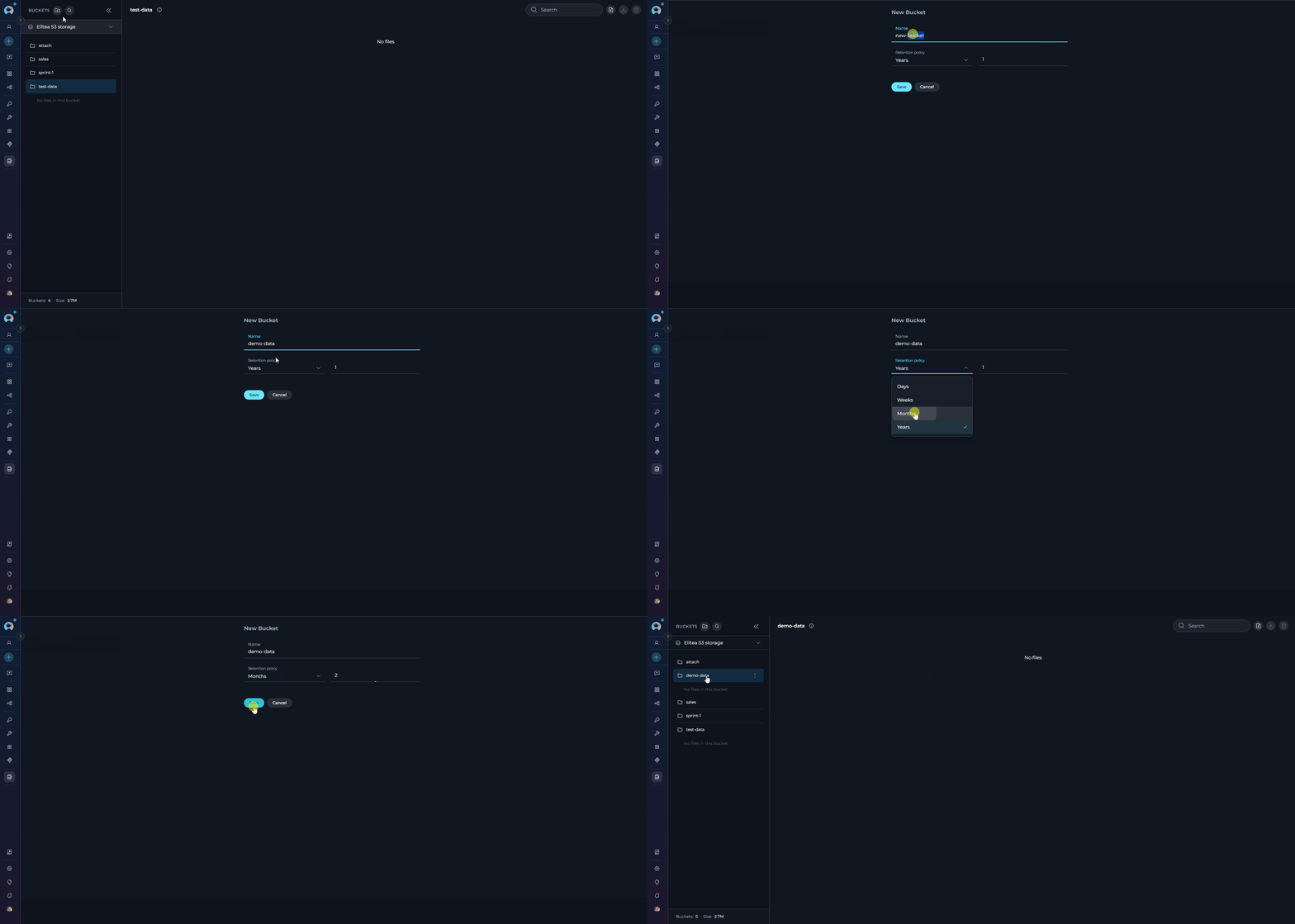
- Initiate bucket creation: Select the + Create Bucket button located at the top of the sidebar.
-
Bucket form: A bucket creation form appears with the following fields:
-
Name (Required): Enter a unique name for the bucket.
- Must start with a letter.
- Can contain only letters, numbers, and hyphens.
- Maximum length: 56 characters.
- Default placeholder: “new-bucket”.
-
Retention Policy (Required): Configure how long files are retained.
- Period Type: Select from the dropdown (Days, Weeks, Months, Years).
- Value: Enter a number (minimum: 1).
-
Name (Required): Enter a unique name for the bucket.
-
Save or cancel:
- Select Save to create the bucket with the specified configuration.
- Select Cancel to discard and return to the bucket list.
- The Save button is disabled if the name is invalid or missing.
- After creation: The bucket appears in the bucket list.
Bucket with name [bucket-name] already exists. Choose a different name to create a bucket.Storage Settings
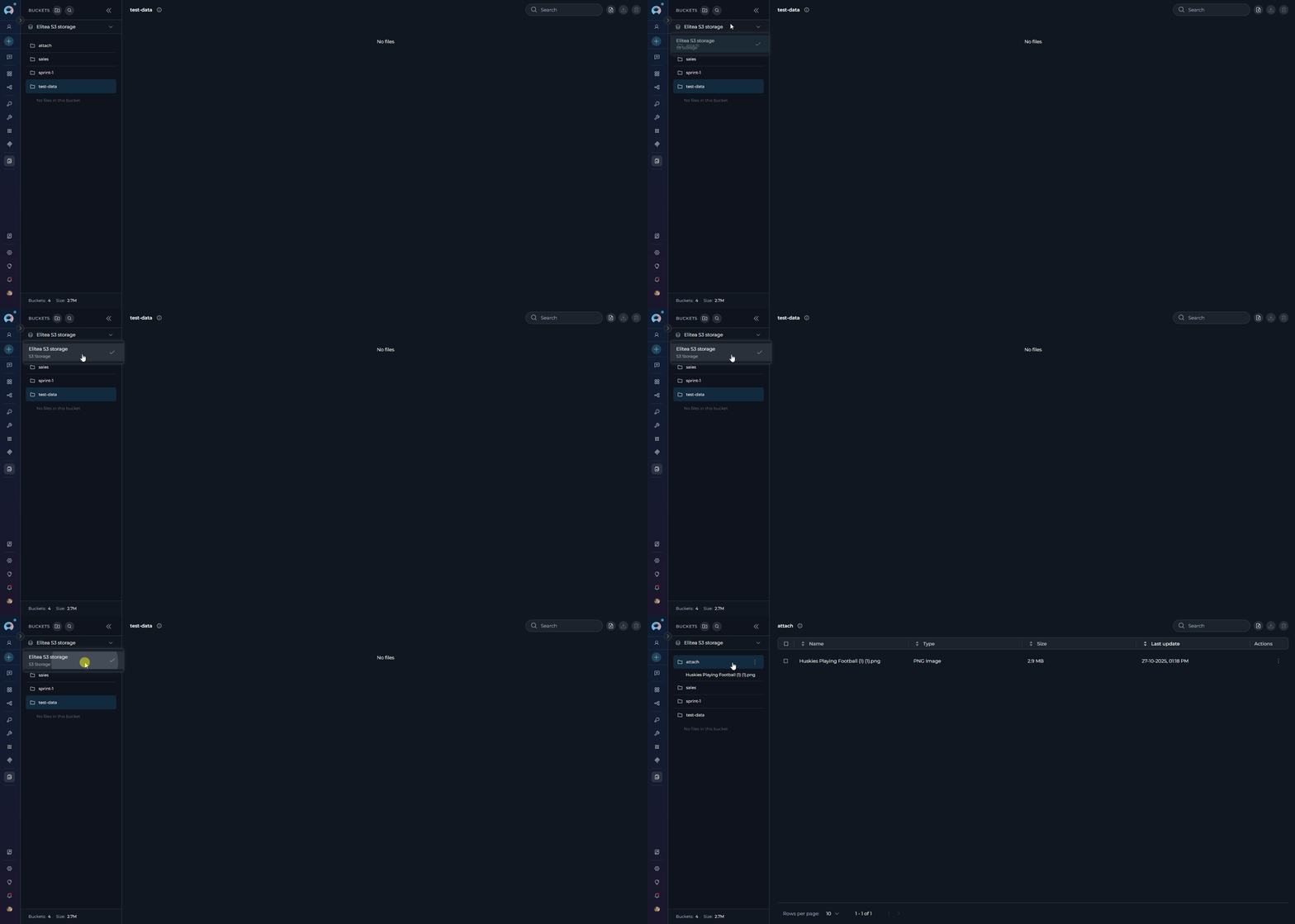
- Storage Selector: Located below the bucket header in the sidebar.
- Current Storage Display: Shows the selected storage configuration:
- Storage configuration name or label.
- Storage type in uppercase format (for example, “S3 STORAGE”).
- Select anywhere on the selector to open the storage menu.
- Storage Selection Menu: When opened, displays all available storage configurations:
- Each storage option shows:
- Storage configuration name or label.
- Storage type (for example, “S3 STORAGE”).
- Checkmark icon next to the selected storage.
- Select any storage option to switch to that configuration.
- The menu automatically closes after selection.
- Each storage option shows:
- Switching Storage: When you switch storage configurations:
- The bucket list updates to show buckets from the storage.
- Any file selection is cleared.
- The selection history for the previous storage is cleared.
Search & Filter Buckets
- Search Icon: Located in the bucket header at the top of the sidebar.
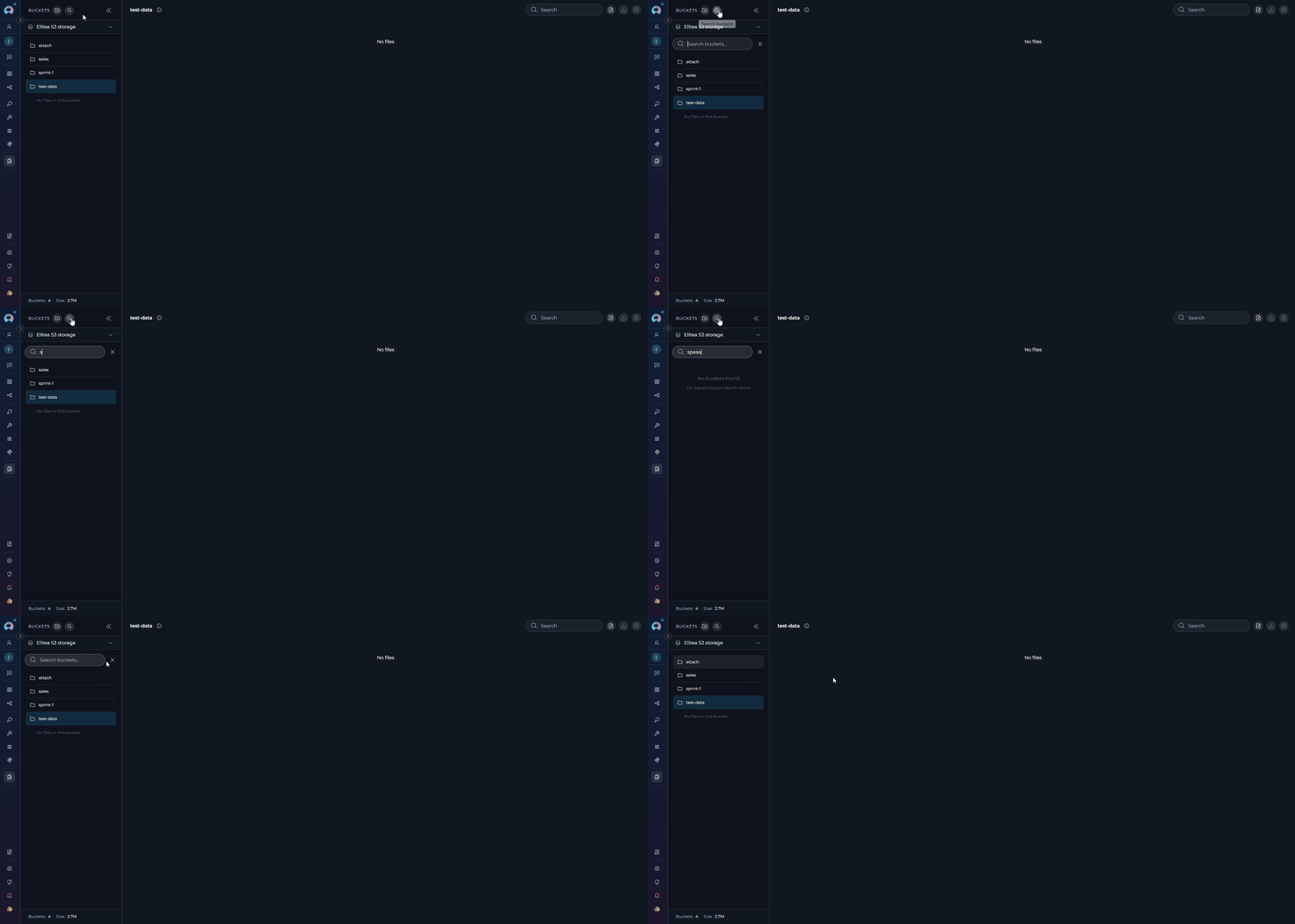
- Search Activation:
- Select the search icon to activate search mode.
- If the sidebar is collapsed, selecting the search icon automatically expands the sidebar first.
- Once activated, a search input field appears to enter search terms.
- Bucket Search:
- Search buckets by name.
- Results filter instantly as you enter text.
- Shows “No buckets found” when the search returns no results, with the suggestion to “Try adjusting your search terms.”
- Clear the search to return to the full bucket list.
- Storage Filter: Use the storage selector dropdown to switch between different storage configurations if multiple are available.
Manage Buckets
Pin a Bucket:- Pin to top: Hover over a bucket in the sidebar to reveal the pin icon, then select it to pin the bucket. Pinned buckets move to the top of the sidebar list, above all activity-sorted buckets.
- Unpin: Select the filled pin icon visible on any pinned bucket to unpin it. The bucket returns to its position in the activity-sorted list.
- Via context menu: Select the three dots icon next to any bucket and select Pin to top or Unpin from top from the menu. Pinning does not require any special permissions.
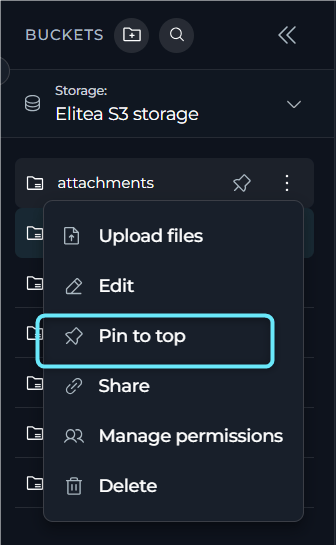
- Access edit mode: In the bucket list, select the three dots icon next to the bucket you want to modify. A context menu with an Edit icon appears. Select Edit.
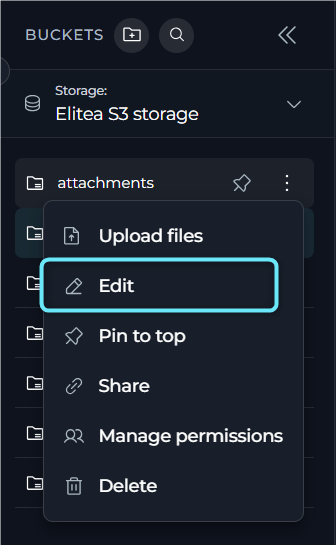
- Modify retention policy: The Edit Bucket dialog opens, displaying the current retention policy. Modify the Period Type and Value as needed to set a retention period. Note that you cannot change the bucket name in edit mode.
- Permission-based access: Edit functionality is available based on user permissions (bucket owner, or users with the
artifacts.buckets.updatepermission). - Save or discard changes:
- Select Save to apply the retention policy to the bucket.
- Select Cancel to discard the changes and revert to the original retention policy.
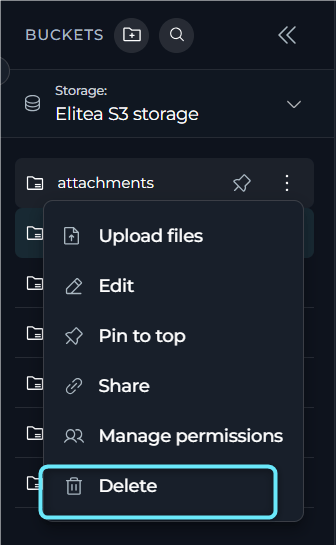
- Access delete mode: In the bucket list, select the three dots icon next to the bucket you want to delete. A context menu with a Delete icon appears. Select Delete.
- Confirmation dialog: A confirmation dialog appears, prompting you to confirm the bucket deletion.
- Delete bucket: Select Delete in the confirmation dialog to permanently delete the bucket and all files it contains.
Manage Bucket Access
ELITEA includes a dedicated bucket access exceptions interface for managing per-user access to individual artifact buckets. This feature is available in team and public projects. It is not available in personal or private projects. Available access levels:- In the bucket list, open the bucket action menu and select Manage permissions.
- The Manage Permissions dialog opens.
- Review the Exceptions section:
- If no exceptions exist, the dialog shows an empty state with the message No exceptions added yet and the note All users have read/write permissions by default.
- If exceptions exist, the dialog shows the exceptions table together with a search field, an Add exception button, and an Edit selected action.
- Select Add exception. The Add exceptions dialog opens.
- In the Add exceptions dialog:
- Use the Users picker to select one or more users.
- Use the Permissions dropdown to choose one of the available exception values:
- Read-only
- No access
- Select Save to create the exception entries for the selected users.
- Use the edit action on a single row to change one user’s bucket exception.
- Select multiple rows and apply a bulk edit to update several users at once.
- The edit dialog supports these values:
- Read/write (default)
- Read-only
- No access
Read-only maps to read, Read/write maps to read + write, and No access stores an explicit empty permission list for that bucket.Upload Files to a Bucket
There are three ways to upload files to a bucket:-
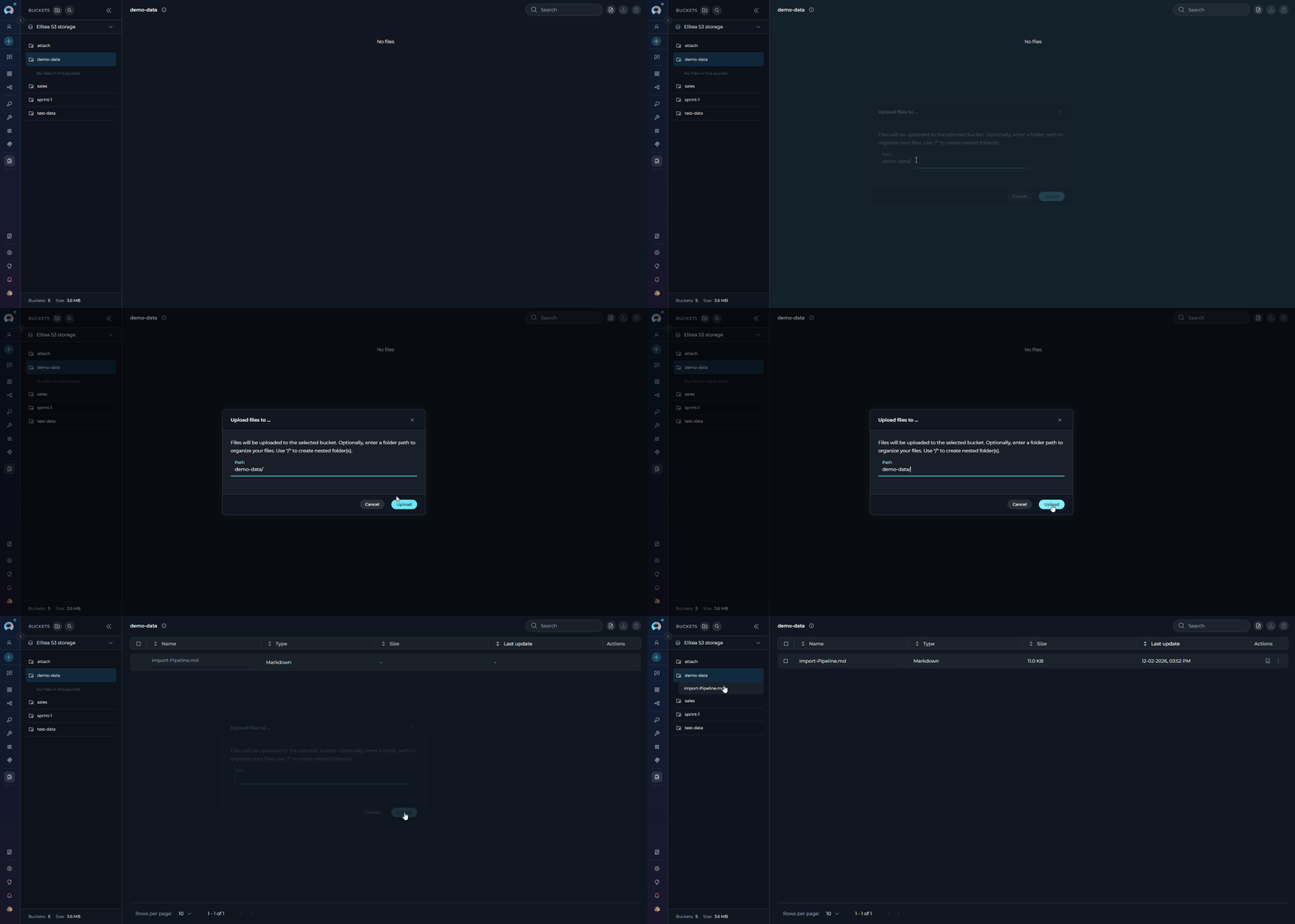
Drag and drop: Drag files from your computer’s file explorer and drop them directly into the file table area. A bucket or folder must be selected first.
-
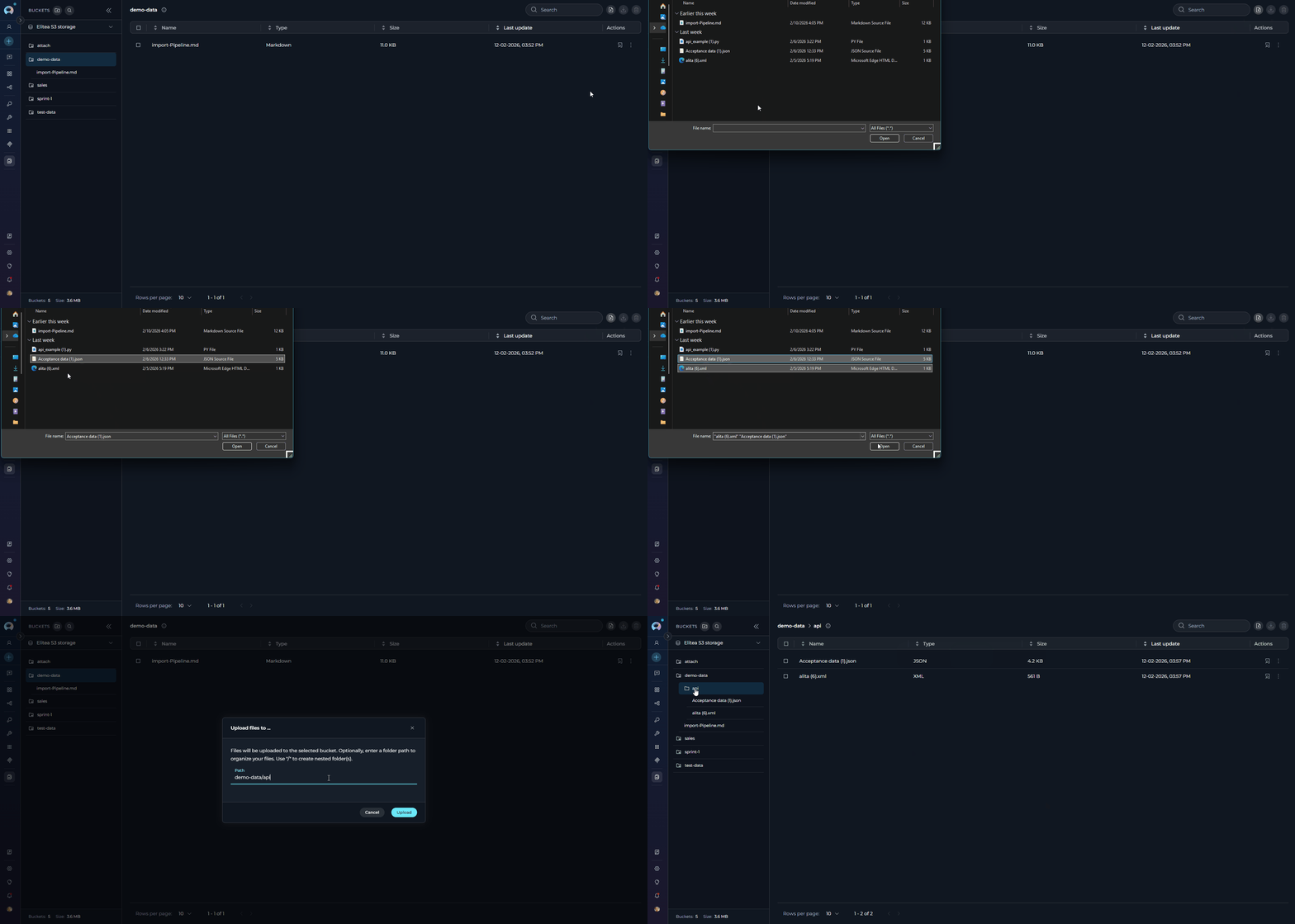
Upload button: Select the cloud upload icon in the file table toolbar to open a file browser and select files to upload. A bucket or folder must be selected.
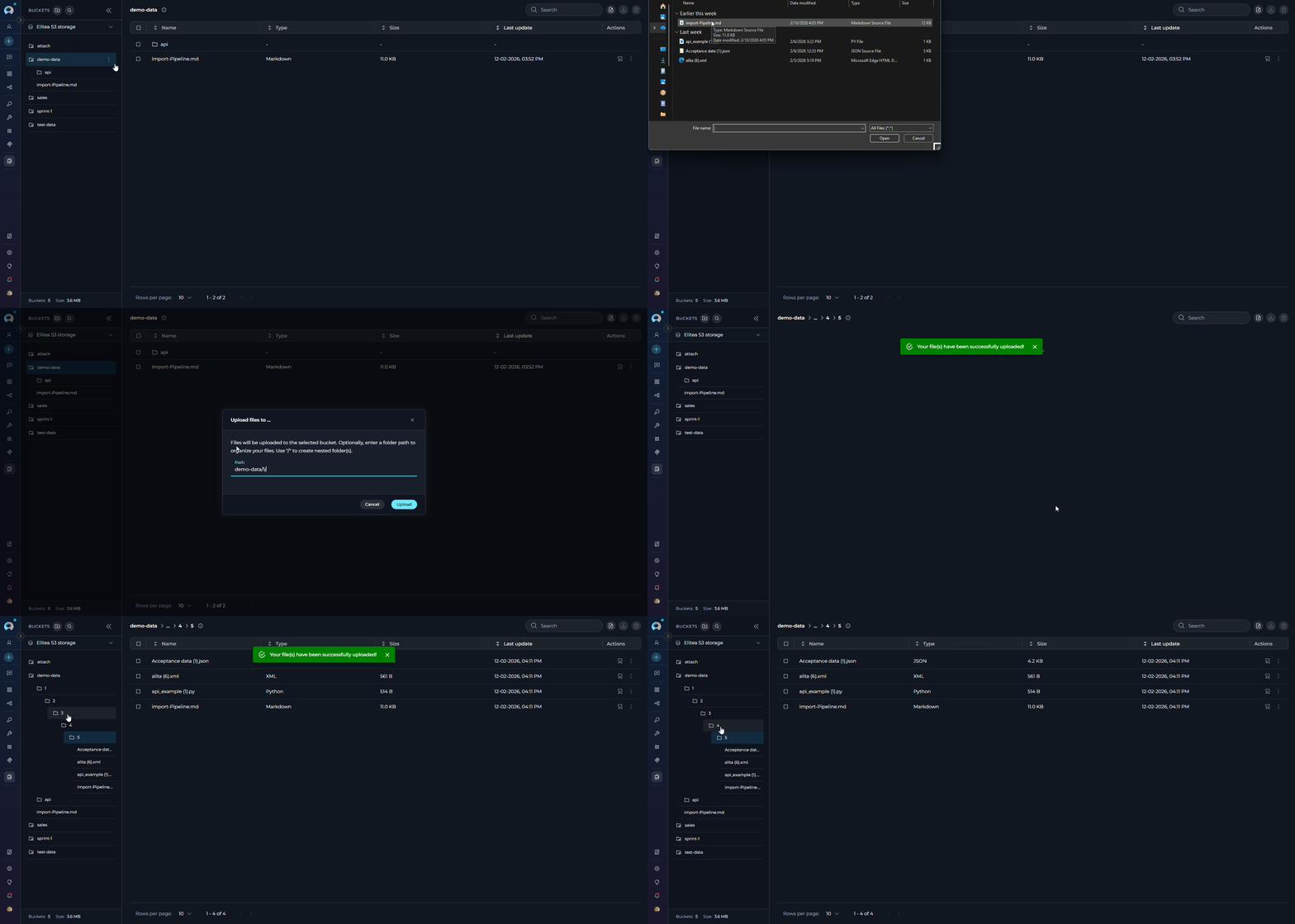
- Bucket action menu: Select the three dots icon next to any bucket in the sidebar and select Upload files from the context menu to upload directly to that bucket.
Upload Path Dialog
For all three upload methods, after you select files from your computer’s file browser, the Upload Path Dialog opens to let you specify the upload destination:- Purpose: Allows you to specify a folder path (new or existing) where the selected files are uploaded.
- Current Location: Shows the selected bucket name and current folder path if applicable.
- Folder Path Input:
- Enter a folder path to organize files (for example, “data/reports” or “images/icons”).
- Use ”/” to create nested folders.
- Leave empty to upload to the bucket root or current folder if already inside a folder.
- Folder Depth Limit: Maximum folder depth is 10 levels.
- The dialog shows the current folder depth and prevents exceeding the limit.
- If already at maximum depth, the folder path input is disabled.
- Actions:
- Select Cancel to abort the upload.
- Select Upload to confirm and upload the selected files to the specified path.
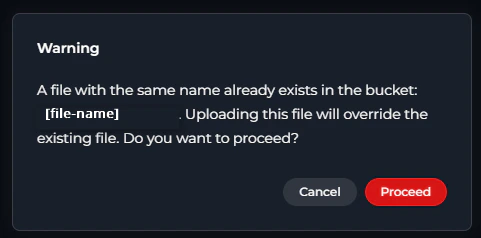
- Lists all duplicate filenames.
- Warns that uploading overrides existing files.
- Provides options to proceed or cancel.
- Once confirmed, files are overwritten without additional prompts.
View & Manage Files in a Bucket
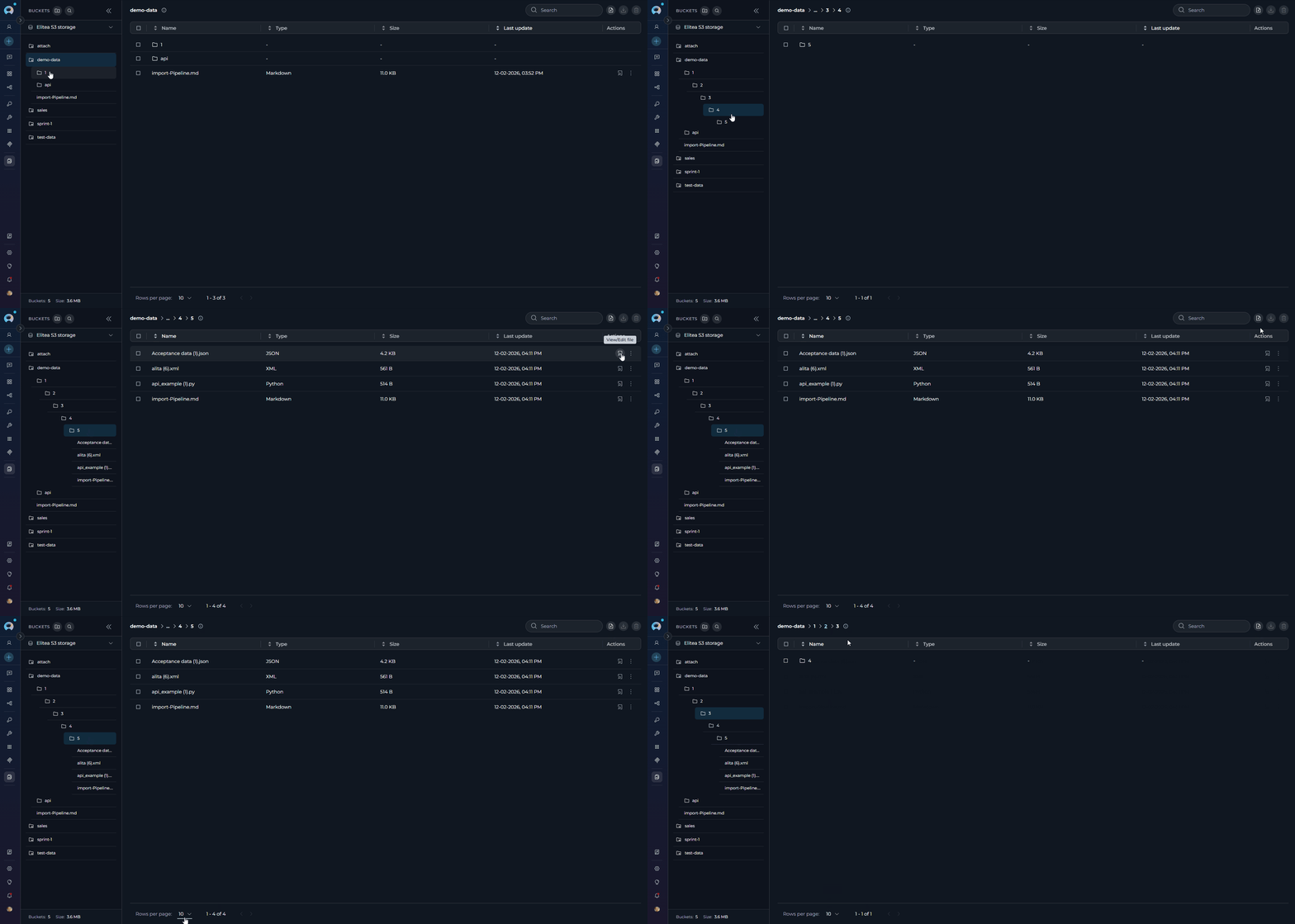
The following features are available when you select a bucket and view its files in the file table.- Select a bucket: Select a bucket in the sidebar to view its files in the file table.
- File Table: The table displays files and folders with the following columns:
- Name—File or folder name (folders always appear first, sorted separately from files).
- Type—File type.
- Size—File size.
- Last update—Last modification date and time in format “dd-MM-yyyy, hh:mm a”.
- Actions—a View/Edit file icon (eye symbol), plus a three-dot (⋮) menu with Download, Rename, and Delete for files.
- Folder Navigation:
- Breadcrumb Navigation: When inside a folder, breadcrumbs appear at the top of the file table showing the current path.
- Format:
[bucket name] > [folder1] > [folder2](with arrow separators). - Select any breadcrumb segment to navigate back to that level.
- Format:
- Navigate into Folders: Select a folder row in the table to navigate into it.
- Tree View Navigation: In the sidebar tree, select folders to expand or collapse them, or select to navigate.
- Breadcrumb Navigation: When inside a folder, breadcrumbs appear at the top of the file table showing the current path.
- File List Features:
- Pagination: Pagination controls appear below the file list (default: 50 files per page).
- Items Per Page: Use the “items per page” selector to choose: 10, 25, 50, or 100 files per page.
- Sorting: Select column headers (“Name,” “Type,” “Size,” “Last update”) to sort in ascending or descending order.
- Search: Use the search bar in the toolbar to filter files by name.
- Selection: Checkboxes allow selecting multiple files for batch operations (download or delete).
Preview a File
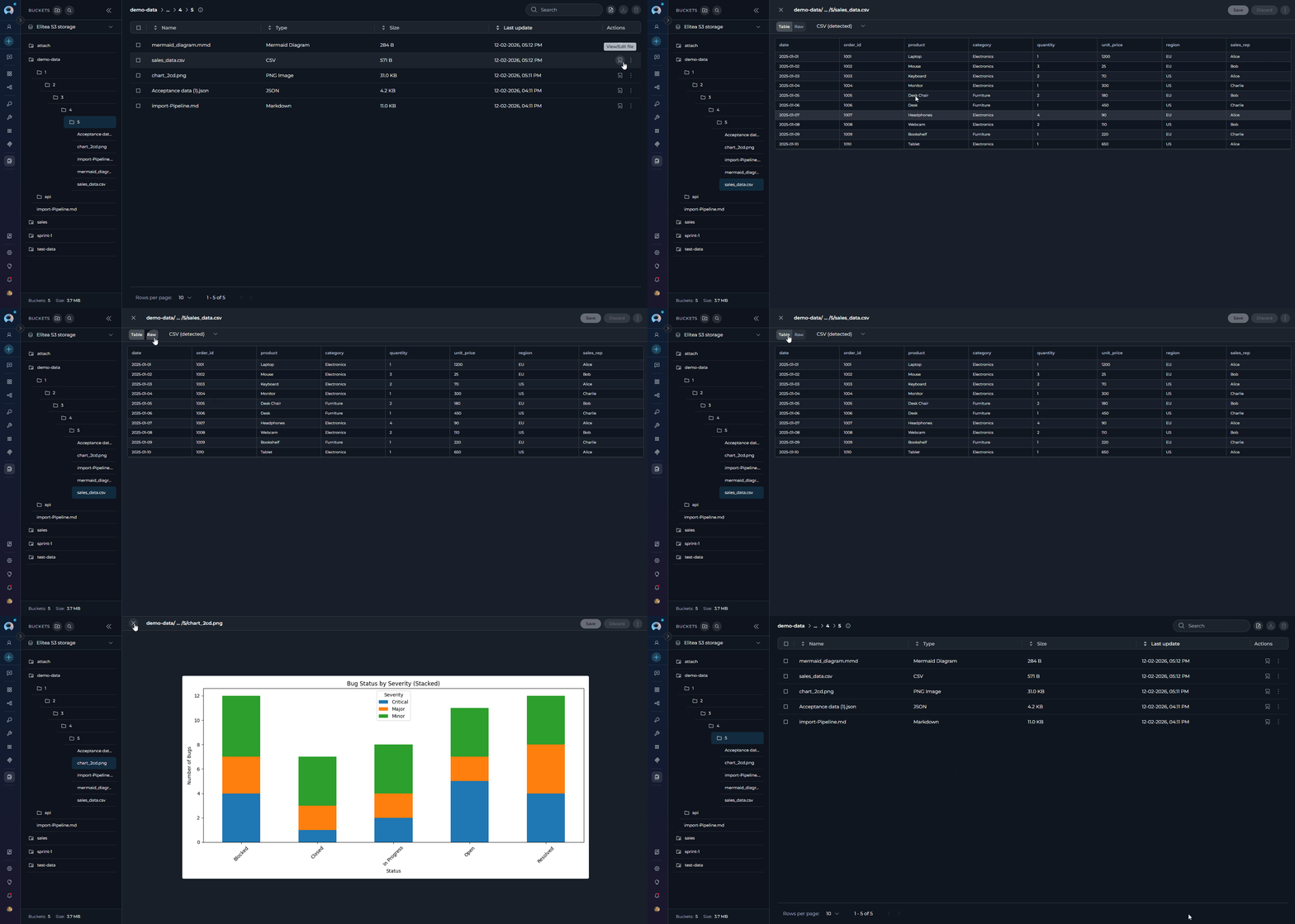
To preview a file, you can:- Select a file in the bucket tree: Select any file in the expanded bucket tree structure in the sidebar.
- Select the View/Edit File icon: In the file table, select the View/Edit icon (eye symbol) on the right side of the file entry.
- No network access—
fetch/XHRrequests and any outbound connections are blocked. - External
<script src="...">tags and embedded<iframe>,<object>, or<embed>elements are stripped before rendering; a warning banner reports how many were removed. - Only
data:andblob:images are allowed; other external resources do not load. - Links inside the preview never navigate—selecting one opens an External Link confirmation dialog showing the URL instead.
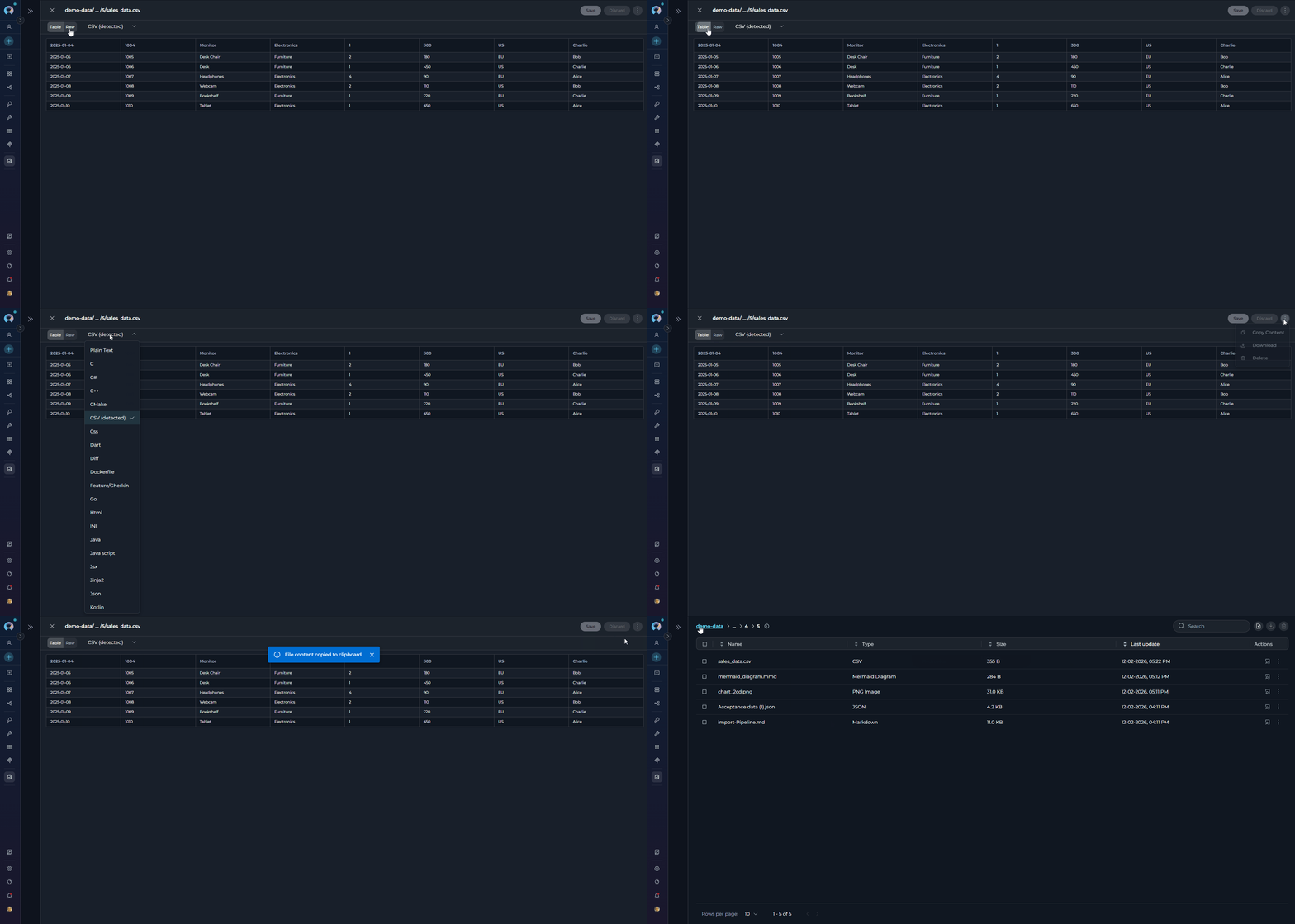
- Copy functionality: Copy the entire file content or selected portions using the Copy button in the preview toolbar.
- Language override: Manually select the syntax highlighting language from an extensive list of supported programming languages.
- Close/Navigation: Select the close button to return to the file list.
- Auto-detection: Supports a wide range of file types including programming languages, configuration files, documentation formats, data files, and more.
Edit Files in Artifacts
Canvas file editing allows you to edit files directly within the Artifacts interface without using external tools. You can work with code files, text documents, data files (CSV/TSV), Word documents (DOCX), and special formats like Markdown and Mermaid diagrams. How to edit files:- Open the file: Select a file in the bucket tree structure or select the View/Edit File icon (eye symbol) in the file table.
- Edit in Canvas Mode: The file opens in a dedicated preview panel with editing capabilities:
- Code Editor: Syntax highlighting, language dropdown, Find/Replace, code folding, Copy functionality, Undo/Redo.
- Table Editor: Toggle Raw/Table modes, edit cells, add or remove rows and columns, sort, filter, export to XLSX.
- Markdown Editor: Toggle Raw/Preview modes, edit Markdown source, view rendered output.
- Mermaid Diagram Editor: Edit diagram code in Raw mode, toggle to Diagram mode for visual diagram preview, export PNG, JPG, or SVG.
- DOCX Editor: Full WYSIWYG editor for
.docxfiles—formatting toolbar (bold, italic, alignment, fonts, lists, tables, etc.), ruler, and zoom control. Edits are made directly in the rendered document view, with no Raw mode toggle. Save overwrites the original.docxfile in the bucket. See The DOCX Editor for a full walkthrough. - Image Preview: View-only for JPG, PNG, GIF, BMP, WebP, SVG, TIFF.
- Save or discard changes:
- Save button: Select to save changes and overwrite the original file in the bucket.
- Discard button: Select to discard all unsaved changes.
- Close (X icon): If unsaved changes exist, an alert dialog appears asking you to confirm closure.
- The Save and Discard buttons are only active when you have unsaved changes.
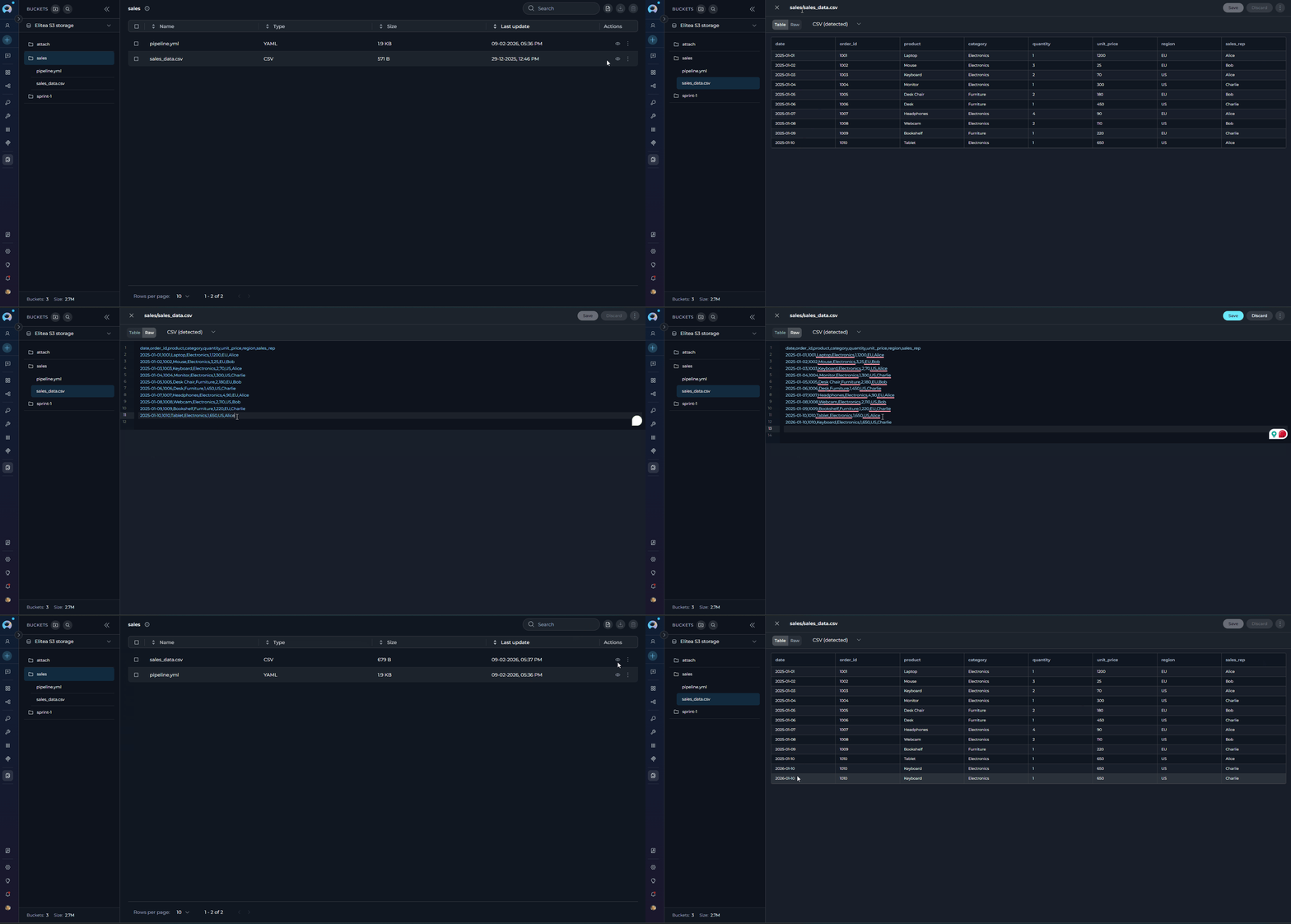
- CSV/TSV files can only be edited in Raw mode. Switch to Raw mode to make changes, then toggle back to Rendered mode to view the table.
- Markdown files can only be edited in Raw mode. Switch to Raw mode to edit the Markdown source, then toggle to Preview mode to see the rendered output.
- MDX files can only be edited in Raw mode. Switch to Raw mode to edit the MDX source, then toggle to Preview mode to evaluate and render the result.
- Mermaid diagrams can only be edited in Raw mode. Edit the diagram code in Raw mode, then toggle to Rendered mode to see the visual diagram.
- DOCX files are always opened in the WYSIWYG editor—there is no Raw mode for DOCX. The language dropdown selector is not available for DOCX files.
- Image files are view-only and cannot be edited.
- Files must be under 2 MB for editing.
- The file overwrites the original in the bucket with the same filename and location.
- Other users with bucket access see the updated version.
Rename a File
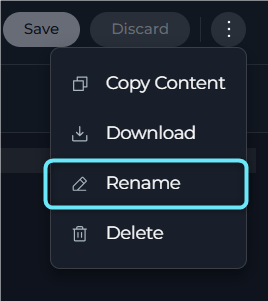
Select the three-dot (⋮) menu on a file’s row — or in the file preview header — and select Rename. Only the base file name can be edited; the extension and folder location stay fixed. The name cannot be empty, match the current name, or contain a slash (/).
Download Files from a Bucket
- Download progress: The system provides feedback during the download process.
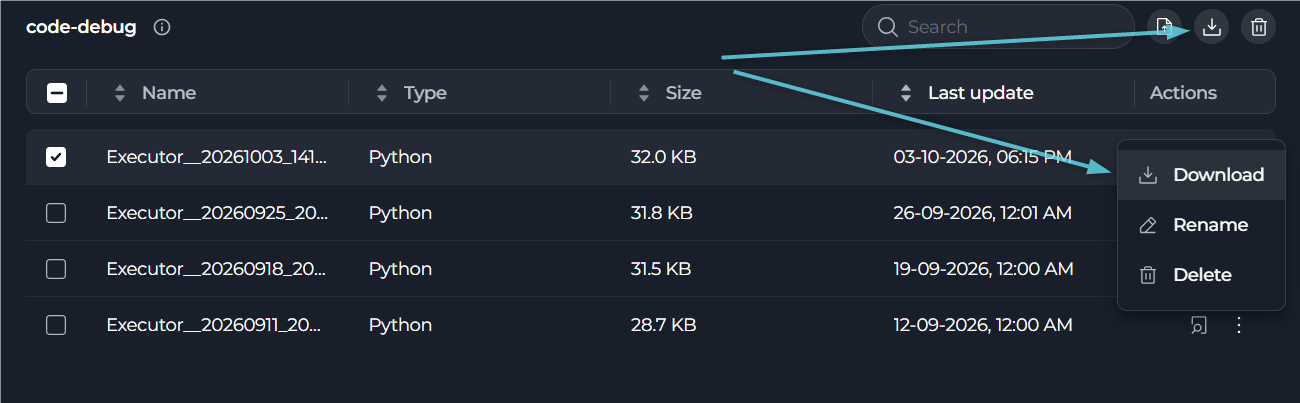
- Single file download: Go to the file list and select the three-dot (⋮) menu on the file’s row, then select Download to download the file to your local computer.
- Multiple file download: Select multiple files using the checkboxes, then select the Download files button in the toolbar to download all selected files as a ZIP archive.
Delete Files from a Bucket
- Access file list: Go to the file list of the bucket containing the files you want to delete.
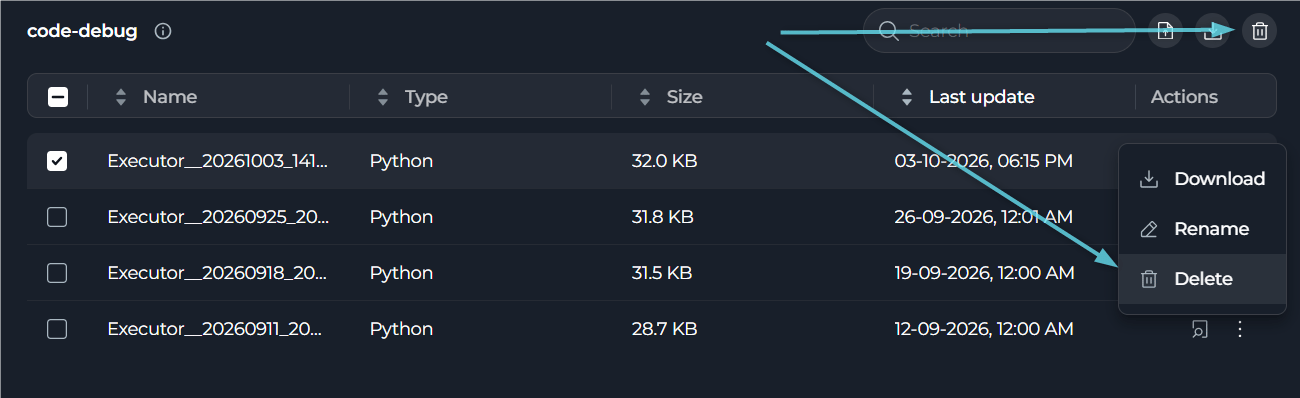
- Single file deletion: Select the three-dot (⋮) menu on the file’s row, then select Delete to delete individual files.
- Multiple file deletion: To delete multiple files at once:
- Select the checkboxes next to each file you want to delete in the file list.
- Once one or more files are selected, a Delete icon becomes active in the toolbar above the file list. Select this icon to delete all selected files.
- Permission requirements: Delete functionality requires appropriate permissions (
artifacts.deleteor bucket ownership). - Confirmation: You may be prompted to confirm the file deletion before it is permanently removed.
Troubleshooting
You can find answers to common questions or solutions to known issues in the broader ELITEA documentation.Cannot upload files to bucket
Cannot upload files to bucket
- No bucket is selected—Select a bucket from the sidebar before uploading.
- Insufficient permissions—Ensure you have the
artifacts.createorartifacts.buckets.createpermission. - Storage quota exceeded—Check storage usage in the storage settings menu.
- Network connectivity issues—Verify your internet connection and try again.
File preview not available
File preview not available
- File type not supported—Preview works only with supported file types (programming languages, data formats, configuration files, images, etc.).
- File size exceeds 2 MB limit—Files larger than 2 MB cannot be previewed. Download the file to view it locally.
- File is corrupted—Try re-uploading the file.
- Binary file format—Binary files cannot be previewed in the browser.
Bucket creation fails
Bucket creation fails
- Bucket name already exists—Choose a different unique name for the bucket.
- Invalid bucket name format—The name must start with a letter and contain only letters, numbers, and hyphens (max 56 characters).
- Insufficient permissions—Ensure you have the
artifacts.buckets.createpermission. - Invalid retention policy—Ensure the retention value is a positive integer and a period type is selected.
Cannot rename a file, or the Rename option is missing
Cannot rename a file, or the Rename option is missing
- Insufficient permissions—Ensure you have the
artifacts.editpermission (not required in your Private workspace). - Renaming a folder or bucket—Only files can be renamed; folders and buckets do not have a rename option (buckets can only have their retention policy edited).
- Previewing from Chat—The Rename option is hidden when a file is opened from a Chat conversation’s preview; rename it from the Artifacts page instead.
- Invalid new name—The name cannot be empty, cannot be the same as the current name, and cannot contain a slash (
/).
Cannot delete files or buckets
Cannot delete files or buckets
- Insufficient permissions—Ensure you have the
artifacts.deletepermission or are the bucket owner. - Files are in use—Wait for any ongoing operations to complete.
- Network issues—Check your connection and try again.
Upload shows duplicate file warning
Upload shows duplicate file warning
- This is a confirmation dialog, not an error—The system detects files with matching names in the bucket.
- Select Proceed to overwrite existing files or Cancel to abort the upload.
- Once confirmed, duplicate files are replaced without additional prompts.
Upload path dialog shows 'Maximum folder depth reached'
Upload path dialog shows 'Maximum folder depth reached'
- The maximum folder nesting depth is 10 levels.
- The dialog shows your current folder depth.
- If already at level 10, you cannot create deeper nested folders.
- Upload files to the current location or go to a shallower folder level.
Bucket tree not showing files or folders
Bucket tree not showing files or folders
- Bucket may be empty—Check the “No files in this bucket” message.
- Bucket may not be expanded—Select the bucket to expand its tree view.
- Network issues—Wait a moment and try expanding the bucket again.
- Check for “Loading files…” or “Failed to load files” messages in the tree.
Storage settings show 'Loading usage...'
Storage settings show 'Loading usage...'
- Storage data is being retrieved—Wait a few seconds for the information to load.
- Network latency—Check your internet connection.
- Storage configuration issues—Contact your administrator if the issue persists.
Files disappear from bucket
Files disappear from bucket
- Retention policy expired—Files are automatically deleted when the retention period ends.
- Manual deletion—Another user with appropriate permissions may have deleted the files.
- Agent actions—Agents with access to the Artifact Toolkit may have deleted files during workflow execution.
- Check retention policy settings and project activity logs for more information.
Support Contact
If you encounter issues not covered in this guide or need additional assistance with artifact management, see Contact Support for detailed information on how to reach the ELITEA Support Team.FAQ
What types of files can I upload?
What types of files can I upload?
How can I preview files?
How can I preview files?
Who can access artifact files?
Who can access artifact files?
artifacts.create for uploading, artifacts.edit for renaming files, artifacts.buckets.update for editing buckets, artifacts.delete for deleting files, etc. In your Private workspace, these actions are always available regardless of permissions. Bucket owners have full control over their buckets.Can I rename a file or a bucket?
Can I rename a file or a bucket?
Can I use multiple storage configurations?
Can I use multiple storage configurations?
How does the file size limit work for previews?
How does the file size limit work for previews?
What happens to my bucket selection when I switch projects?
What happens to my bucket selection when I switch projects?
Why does the bucket automatically expand when I select it?
Why does the bucket automatically expand when I select it?
Why do I get an error when creating a bucket?
Why do I get an error when creating a bucket?
Why are buckets displayed in a specific order?
Why are buckets displayed in a specific order?
Why are files missing from my bucket?
Why are files missing from my bucket?