

The available settings and configurations may vary depending on the selected project. Select the project in the project switcher to access its specific configurations.
Accessing AI Configuration
To find the AI Configurations, follow these steps:- Click on the Settings icon in the main navigation sidebar.
- Select AI Configuration from the settings menu.
- The AI Configuration interface will display with two tabs available:
- AI Configuration - Configurations management
- OpenAI Template - Code examples and templates
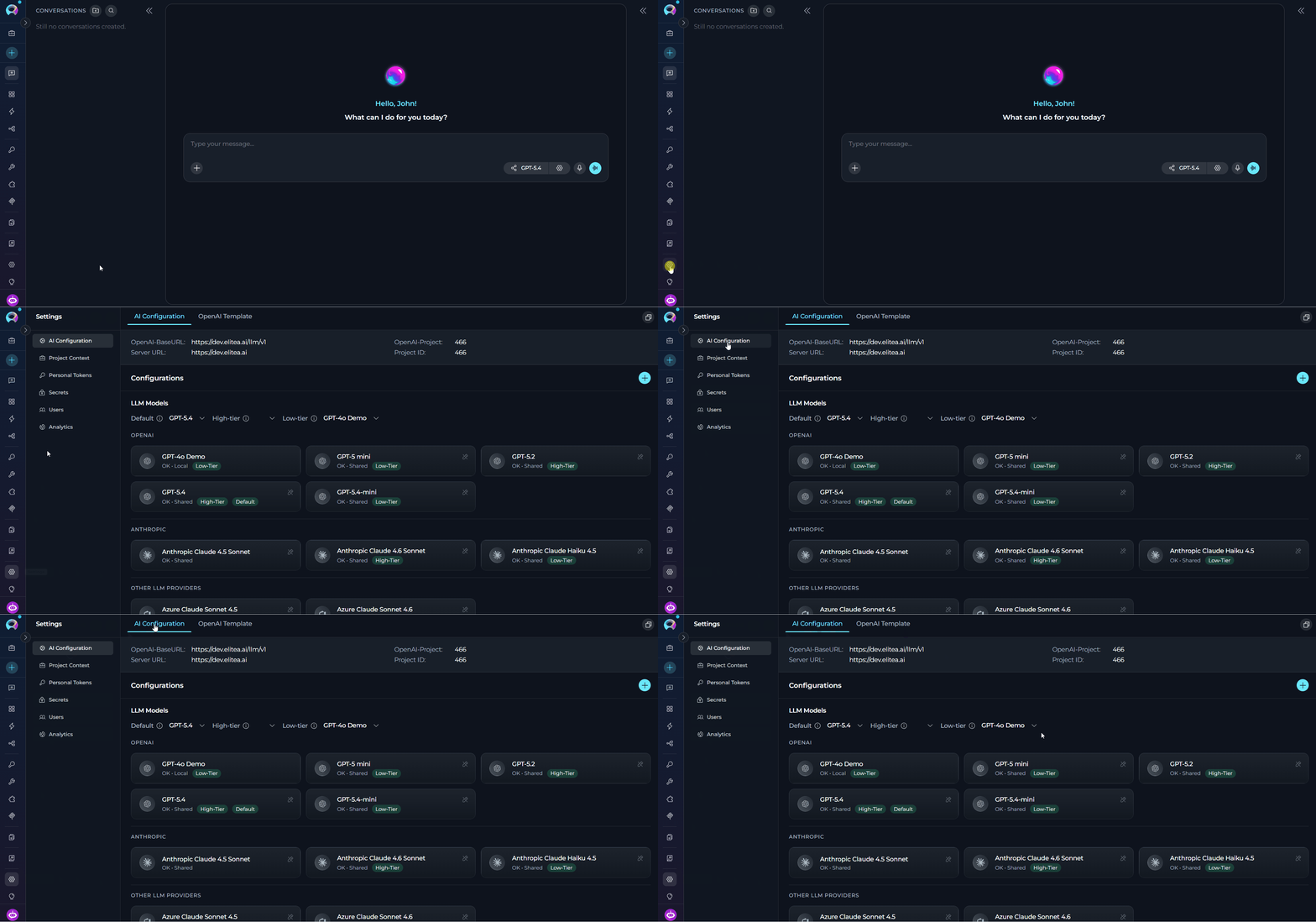
AI Configuration Tab
Server Configuration Fields
The top section displays essential server and project information with click-to-copy functionality:
Configurations
Here you can find all the available models and storages organized by their type. Click the + button in the header to add a new model or configuration.LLM Models
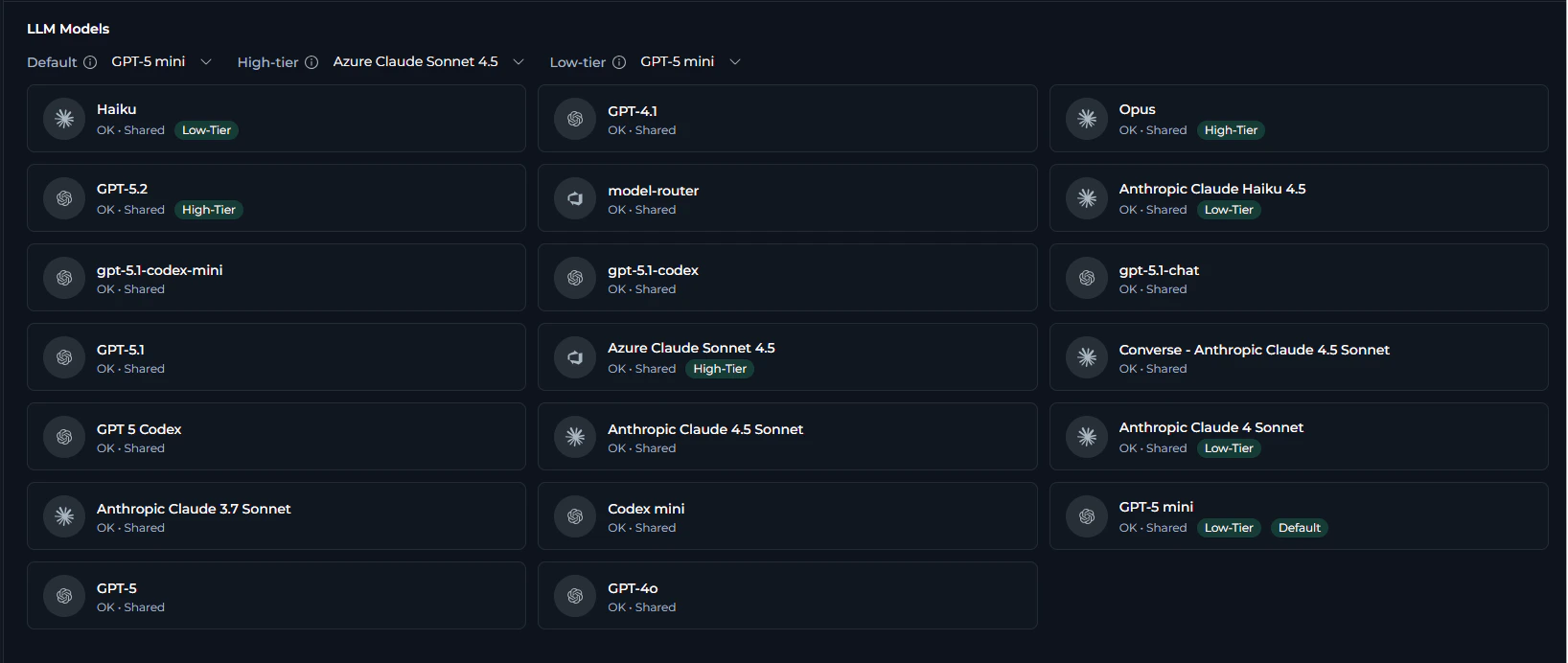
Each LLM configuration displays:
- Icon - Visual indicator of the provider (OpenAI, Azure, Vertex AI, Claude, Amazon Bedrock, Ollama, HuggingFace, AI Dial, etc.)
- Model Name - Display name of the configured model
- Status Indicator - Shows “OK • Shared” or “OK • Local” depending on sharing status
- Tier Badges - If applicable, displays “High-Tier”, “Low-Tier”, or “Default” badge
- Click to Edit - Click on any card to view or edit configuration details (if permissions allow)
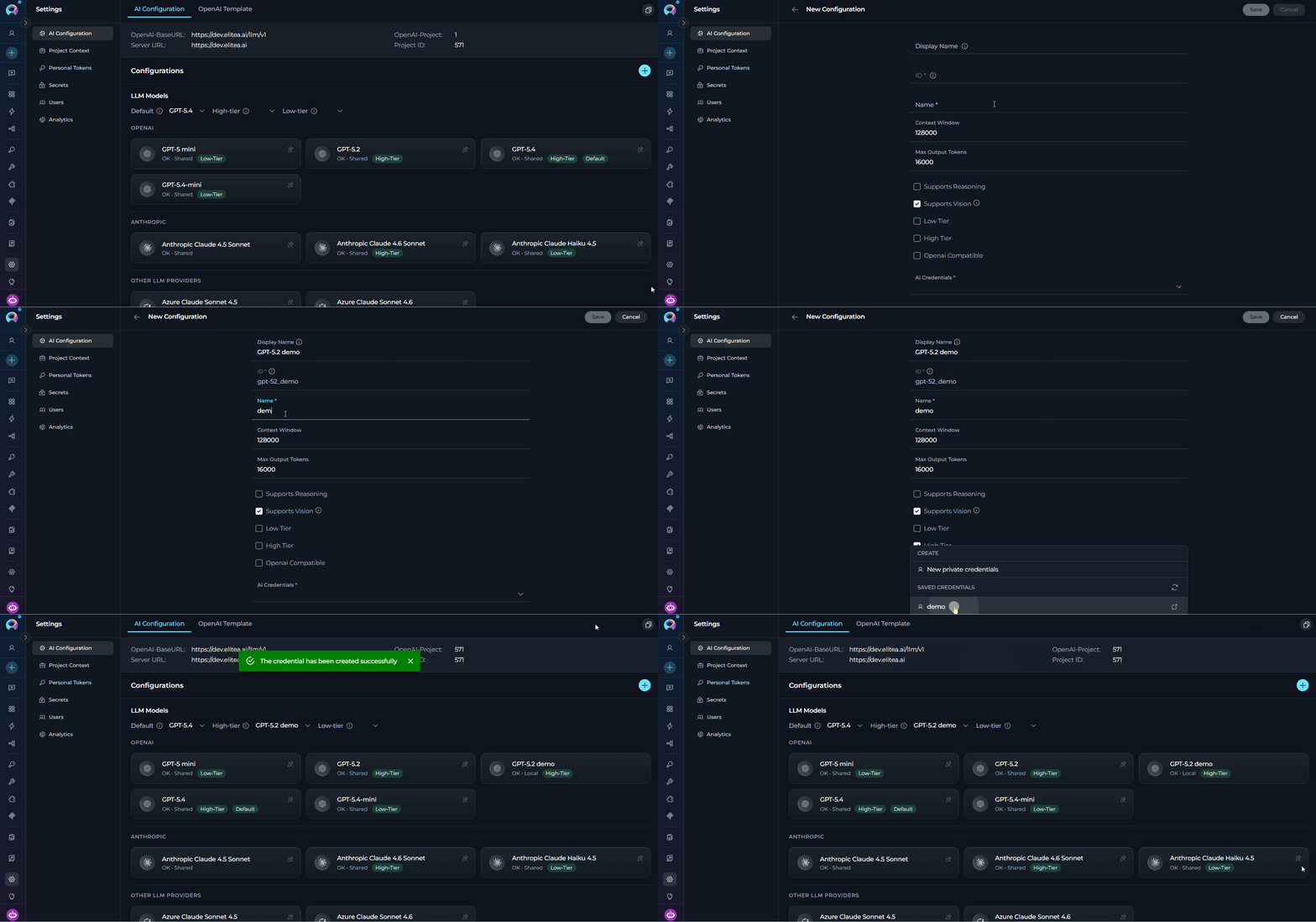
- Ensure that its credentials exist. If necessary, create AI credentials for your provider (see AI Credentials)
- Click the + button in the section header or the main sidebar
- Choose LLM Model from the available configuration types
-
Fill all the required fields:
- Click Save to add the model. After this, the new model will appear in the LLM Models section.
Embedding Models

Each embedding model configuration displays:
- Icon - Visual indicator of the provider (OpenAI, Azure, HuggingFace, etc.)
- Model Name - Display name of the configured embedding model
- Status Indicator - Shows “OK • Shared” or “OK • Local” depending on sharing status
- Click to Edit - Click on any card to view or edit configuration details (if permissions allow)
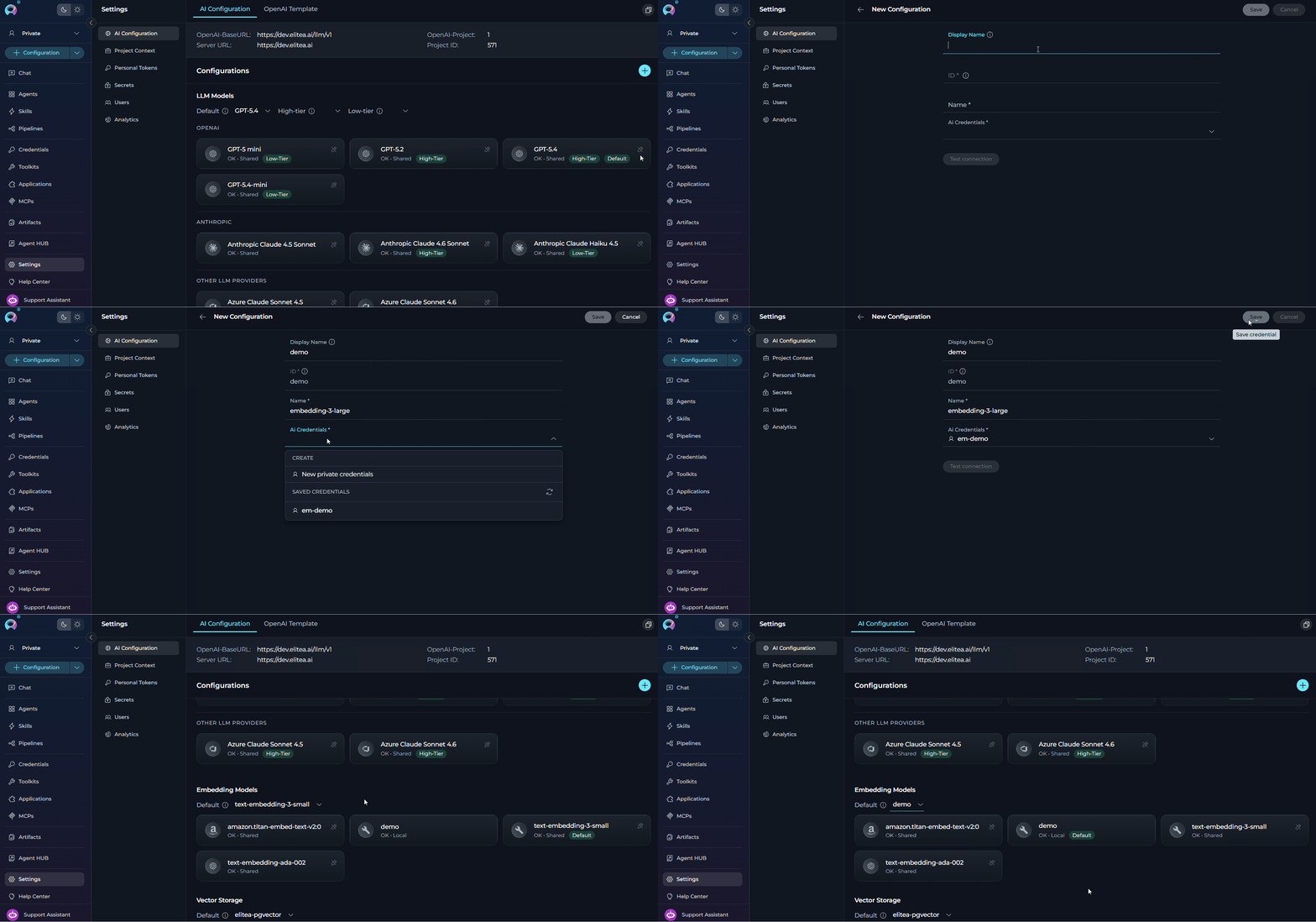
- Ensure that its credentials exist. If necessary, create AI credentials for your provider (see AI Credentials)
- Click the + button in the section header or the main sidebar
- Choose Embedding Model from the available configuration types
-
Fill all the required fields:
- Click Save to add the model. After this, the new model will beavailable for selecting
- OpenAI: text-embedding-3-large (3072 dims), text-embedding-3-small (1536 dims), text-embedding-ada-002 (1536 dims)
- Azure OpenAI: Same models as OpenAI, use your Azure deployment name
- HuggingFace: sentence-transformers/all-MiniLM-L6-v2 (384 dims), BAAI/bge-large-en-v1.5 (1024 dims)
- Vertex AI: textembedding-gecko@003 (768 dims)
Vector Storage

Each vector storage configuration displays:
- Icon - Visual indicator of the provider (PGVector, Chroma, etc.)
- Storage Name - Display name of the configured vector storage
- Status Indicator - Shows “OK • Shared” or “OK • Local” depending on sharing status
- Click to Edit - Click on any card to view or edit configuration details (if permissions allow)
- Click + button in the section header or the main sidebar
- Choose PGVector from the available configuration types
-
Fill all the required fields:
- Click Save to add the storage configuration
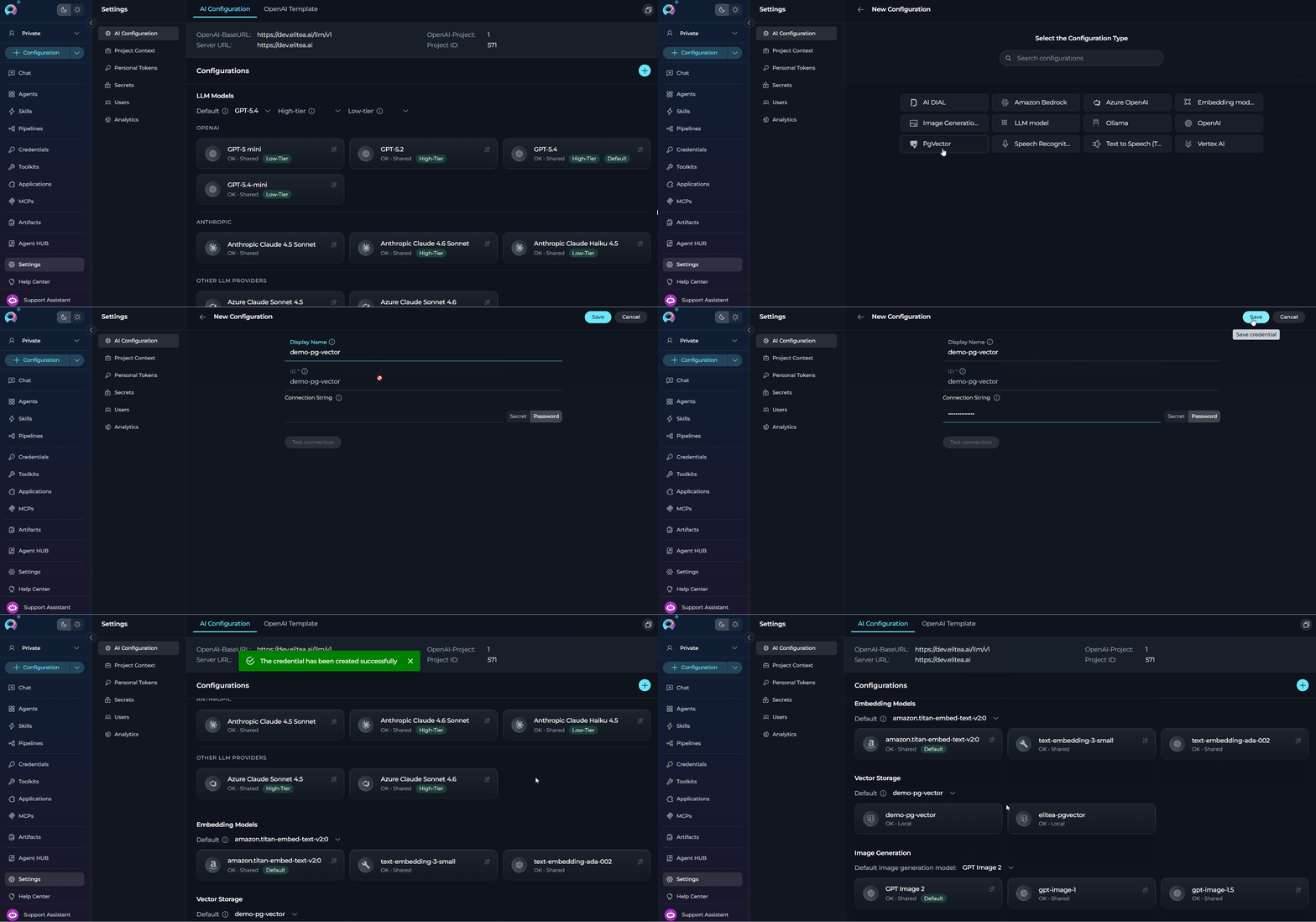
Image Generation
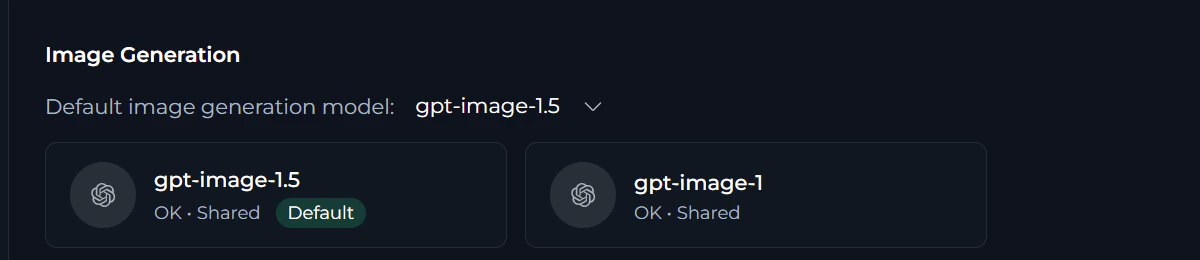
Each image generation model configuration displays:
- Icon - Visual indicator of the provider (OpenAI DALL-E, Azure, etc.)
- Model Name - Display name of the configured image generation model
- Status Indicator - Shows “OK • Shared” or “OK • Local” depending on sharing status
- Click to Edit - Click on any card to view or edit configuration details (if permissions allow)
- Ensure that its credentials exist. If necessary, create AI credentials for your provider (see AI Credentials)
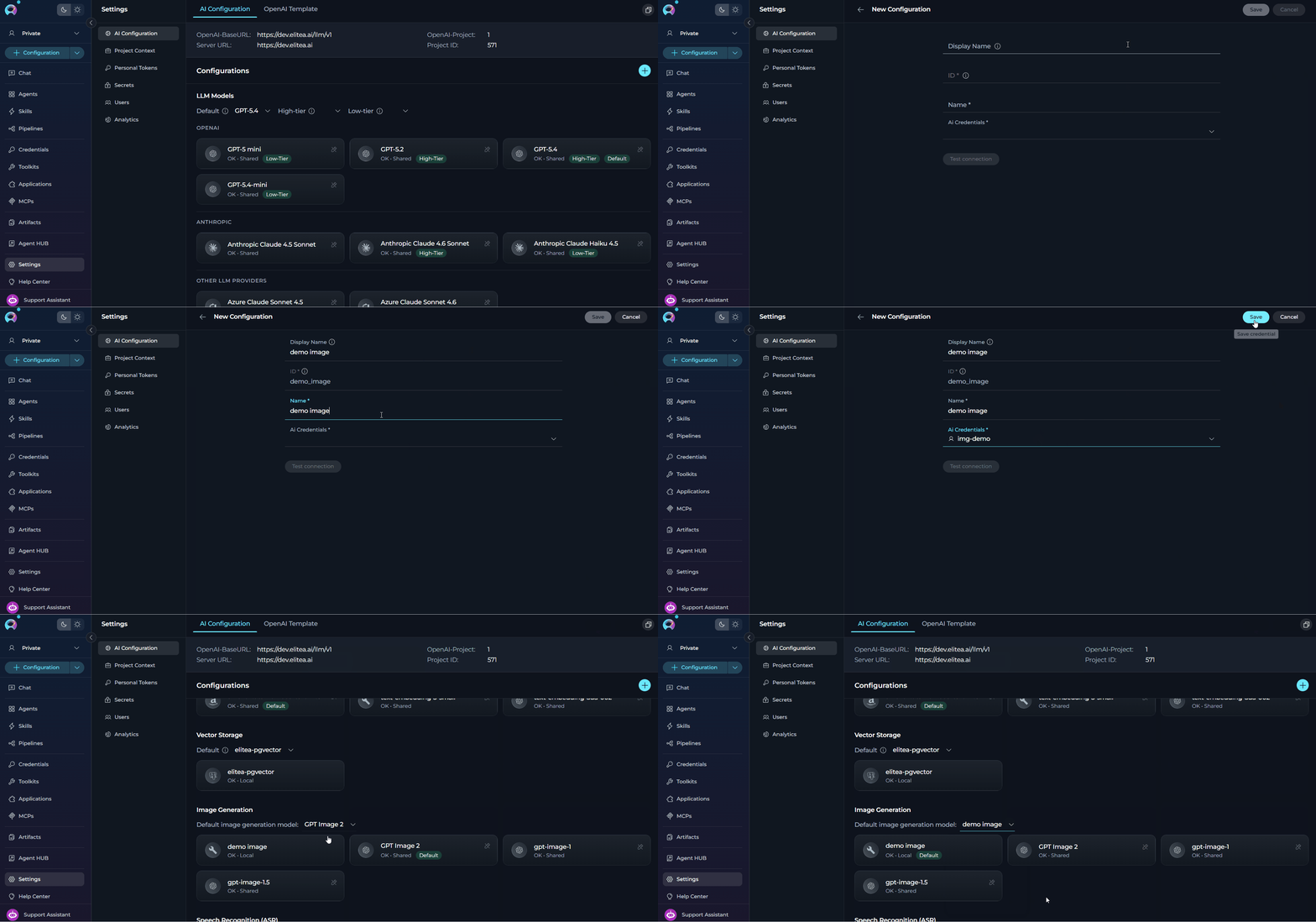
- Click the + button in the section header or the main sidebar
- Choose Image Generation Model from the available configuration types
-
Fill all the required fields:
- Click Save to add the model. After this, the new model will be available for the image generation.
- OpenAI DALL-E 3: High-quality image generation with text rendering capabilities
- OpenAI DALL-E 2: Fast image generation with good quality
- Azure OpenAI: DALL-E models through Azure endpoints
- Other Providers: Stability AI, Midjourney (if configured)
Speech Recognition (ASR)

Each ASR configuration card displays:
- Icon — Visual indicator of the provider
- Model Name — Display name of the configured ASR model
- Status Indicator — Shows “OK • Shared” or “OK • Local” depending on sharing status
- Click to Edit — Click on any card to view or edit configuration details (if permissions allow)
- Ensure that its credentials exist. If necessary, create AI credentials for your provider (see AI Credentials)
- Click the + button in the section header or the main sidebar
- Choose Speech Recognition (ASR) from the available configuration types
-
Fill all the required fields:
- Click Save to add the model. After this, the new model will appear in the Speech Recognition (ASR) section.
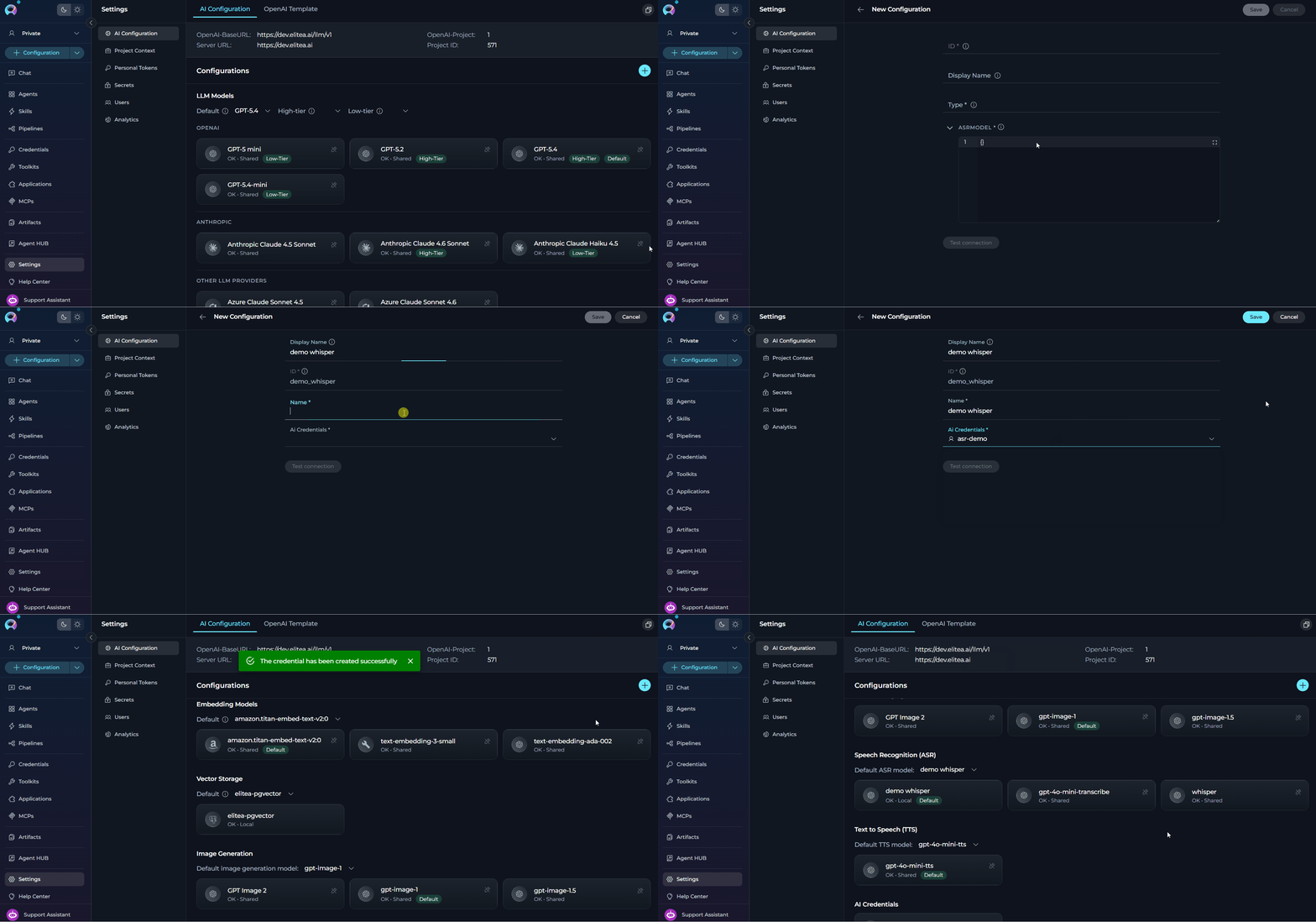
The model name determines transcription mode. Use
whisper-1 or gpt-4o-transcribe for batch transcription. For real-time streaming, configure a model from the OpenAI Realtime API (e.g., via an AI Dial or Azure OpenAI credential supporting Realtime).Text to Speech (TTS)
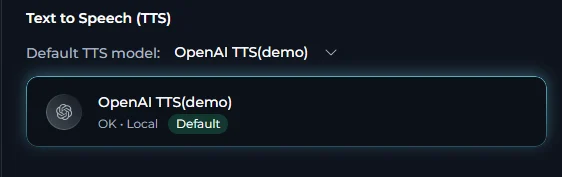
Each TTS configuration card displays:
- Icon — Visual indicator of the provider
- Model Name — Display name of the configured TTS model
- Status Indicator — Shows “OK • Shared” or “OK • Local” depending on sharing status
- Click to Edit — Click on any card to view or edit configuration details (if permissions allow)
- Ensure that its credentials exist. If necessary, create AI credentials for your provider (see AI Credentials)
- Click the + button in the section header or the main sidebar
- Choose Text to Speech (TTS) from the available configuration types
-
Fill all the required fields:
- Click Save to add the model. After this, the new model will appear in the Text to Speech (TTS) section.
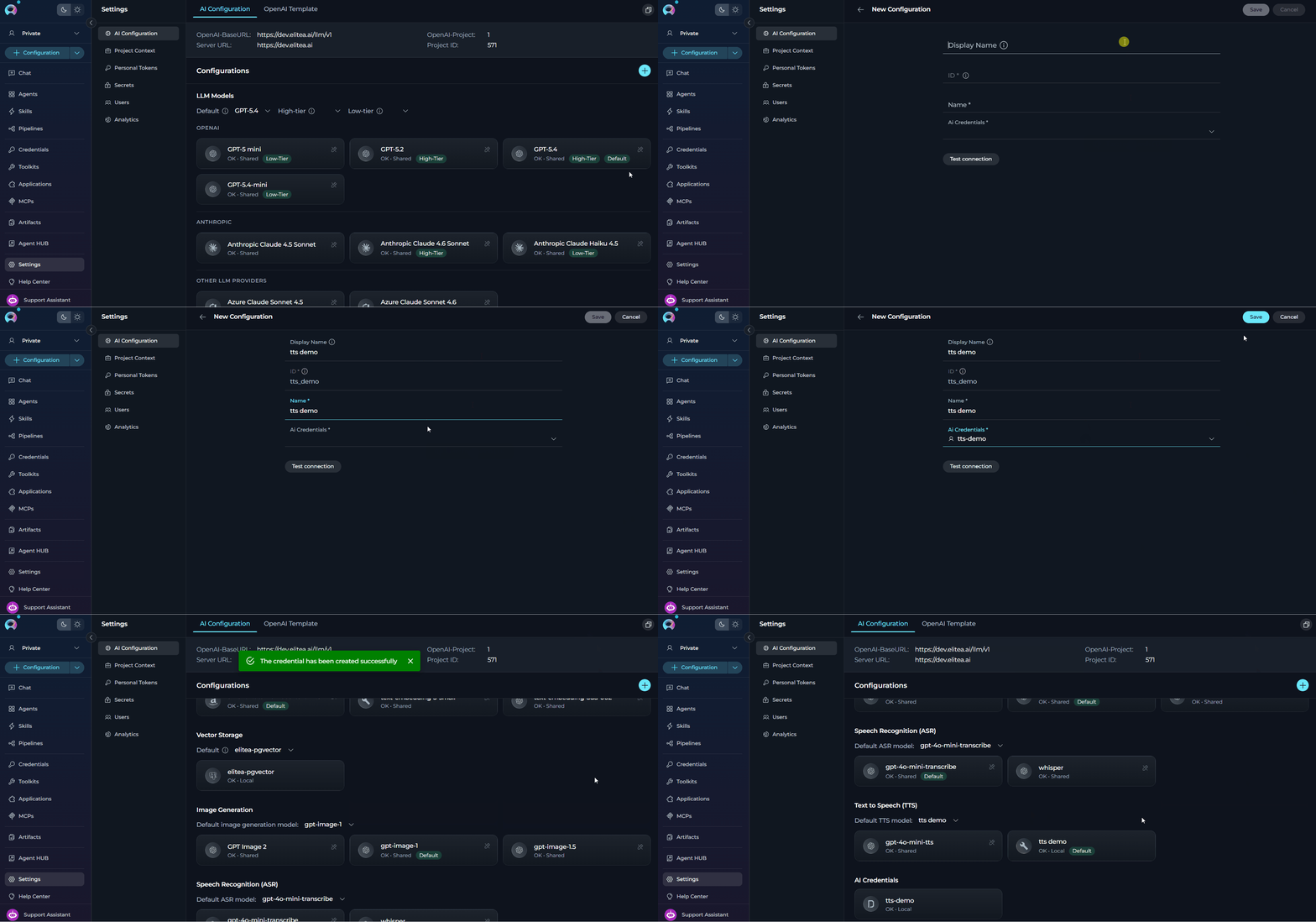
Server-side TTS delivers audio as PCM-16-LE chunks via Socket.IO, played back through the Web Audio API at 24 kHz. Text is highlighted in sync with playback. Pause and resume are fully supported for both server-side and browser-fallback TTS.
AI Credentials
AI Credentials are authentication configurations that store API keys, tokens, endpoints, and connection strings for accessing AI service providers. These credentials serve as the foundation for other configurations, enabling secure communication with external AI platforms without exposing sensitive authentication details in individual model configurations. Multiple models can use the same credentials, providing for the centralized credential management.Each AI Credentials configuration displays:
- Icon - Visual indicator of the provider (OpenAI, Azure, Anthropic, Vertex AI, etc.)
- Credential Name - Display name of the configured credentials
- Status Indicator - Shows “OK • Shared” or “OK • Local” depending on sharing status
- Click to Edit - Click on any card to view or edit configuration details (if permissions allow)
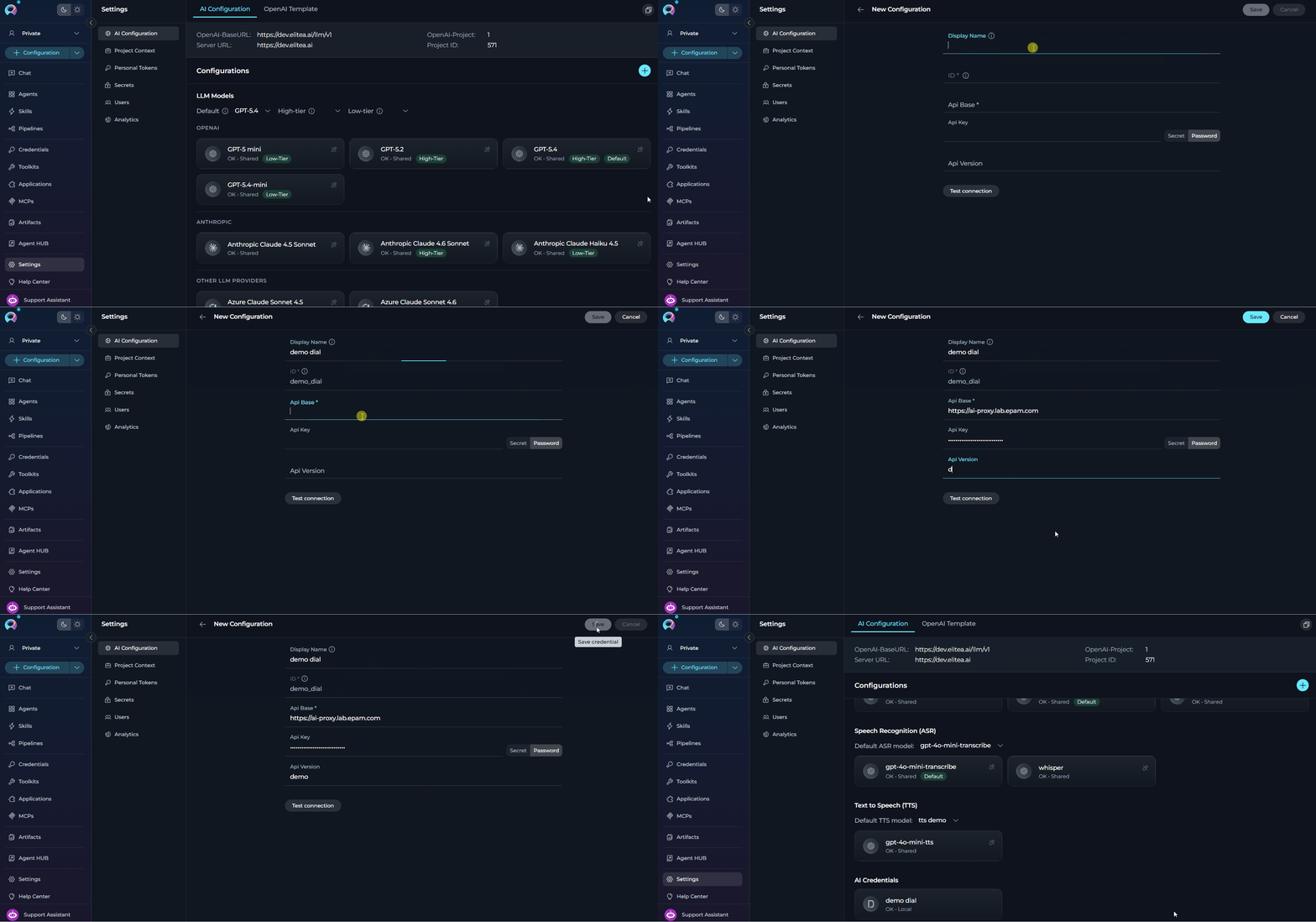
- Click the + button in the section header or the main sidebar
- Choose AI Credentials from the available configuration types
-
Choose the AI service provider you want to configure:
-
Fill in all the provider-specific fields:
For OpenAI:
For Azure OpenAI:For Vertex AI:For Amazon Bedrock:For AI Dial:For Ollama:
- Click Save to add the credentials.
Default Models
Default models control which models are automatically selected for new chats and agents:- Default model is used for most activities (new chats, agents, general operations)
- High-tier model is selected when high-capability processing is needed
- Low-tier model is used for routine, cost-effective tasks
- Default embedding model is used for text embedding operations
- Default vector storage is used for vector database operations
- Default image generation model is used for image generation tasks
- Default ASR model is used for server-side voice input (speech-to-text) in Chat, Agents, and Pipelines
- Default TTS model is used for reading AI responses aloud (text-to-speech) in Chat, Agents, and Pipelines
- New conversations use the default model unless manually changed.
- New agents use the default model unless manually configured.
- Existing conversations and agents retain their previously configured models.
- Changes apply immediately without requiring save.
OpenAI Template
The OpenAI Template tab generates ready-to-use code examples for integrating applications with ELITEA’s AI models using OpenAI-compatible API format. Templates are pre-configured with server settings and support cURL, Node.js, and Python, enabling quick implementation without manual setup. How to Access: Click “OpenAI Template” in the tab bar at the top of the AI Configuration section.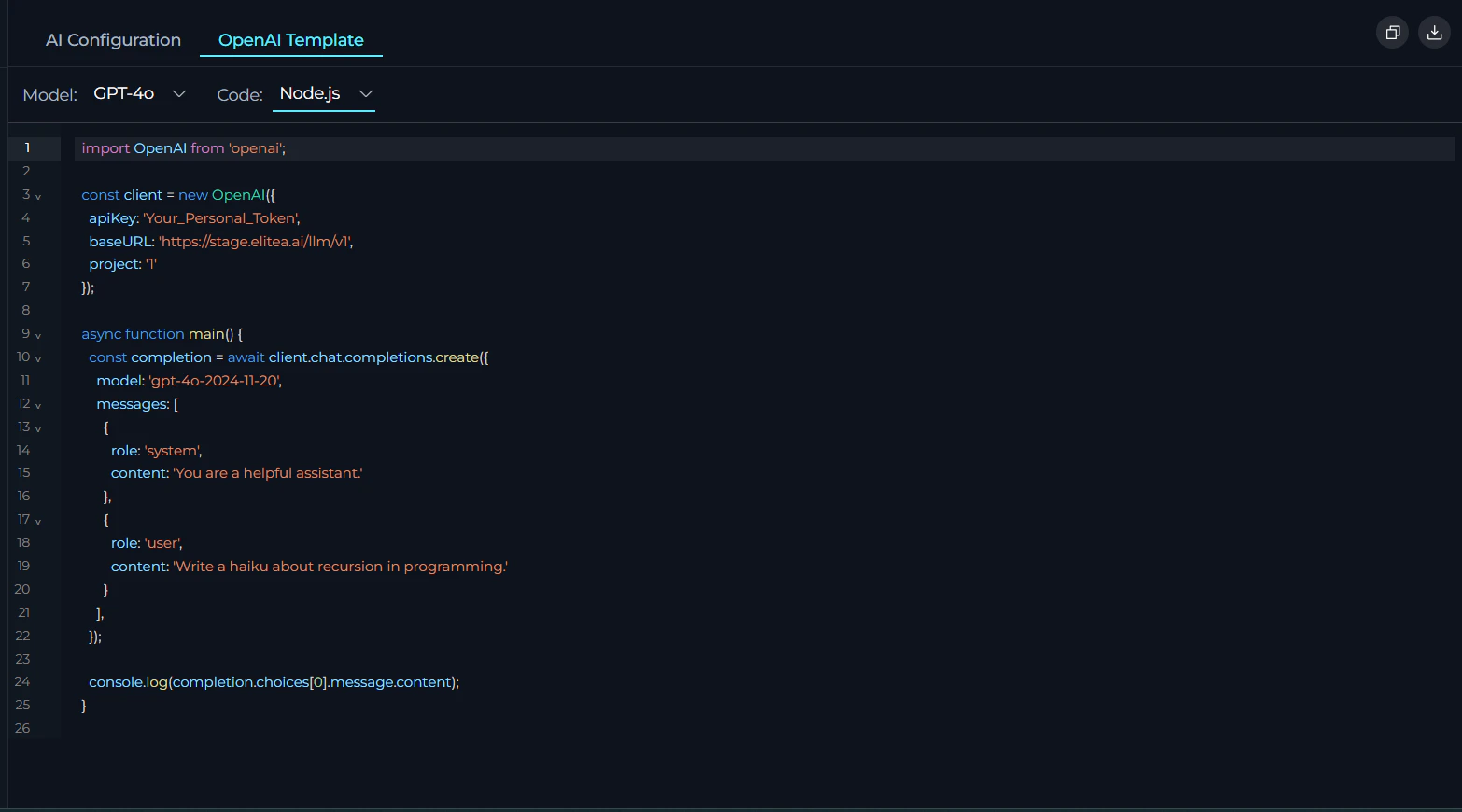
- Model dropdown - Select from available configured LLM models
- Code dropdown - Choose programming language (cURL, Node.js, or Python)
- Copy Button - Copy the code example to clipboard
- Download Button - Download code example file with appropriate extension:
- cURL →
api_example.sh - Node.js →
api_example.js - Python →
api_example.py
- cURL →
- Pre-configured with server URL, project ID, and model settings
- Dynamic updates based on selected model and language
- Includes authentication placeholder (
Your_Personal_Token) - Syntax highlighting for better readability
Troubleshooting
No access to LLM
No access to LLM
Problem: “No access to LLM” message is displayed when using custom LLM configurations. The exact message may vary depending on the provider.Solution Steps:
- Verify Provider Access: Use your model provider’s platform help center or documentation pages to confirm you have access to the specific LLM mentioned in your configuration
- Test Credentials: Use a CURL request to verify that your credentials can successfully access the model
- Check Model Availability: Ensure the model name exactly matches the provider’s model identifier
- Validate Authentication: Confirm your API keys, tokens, or authentication credentials are valid and not expired
Authentication failed
Authentication failed
Problem: Receiving 401 (Unauthorized) or 403 (Forbidden) errors when testing credentials.Solution Steps:
-
Check Credential Values:
- Verify API keys, tokens, or passwords are correct
- Ensure there are no extra spaces or hidden characters
- Confirm credentials haven’t expired
-
Verify Permissions:
- Ensure your account has necessary permissions
- Check if you need specific scopes or roles enabled
- Verify service URLs are accurate and accessible
-
Provider-Specific Checks:
- OpenAI: Verify your API key starts with
sk-and is from the correct organization - Azure OpenAI: Confirm the API version matches your deployment and endpoint URL is correct
- Vertex AI: Ensure the service account JSON has the required IAM permissions
- Amazon Bedrock: Verify IAM user has
bedrock:InvokeModelpermissions
- OpenAI: Verify your API key starts with
Connection errors
Connection errors
Problem: Unable to connect to AI provider endpoints (Connection refused, timeout, SSL errors).Solution Steps:
-
Network Connectivity:
- Verify you can reach the endpoint URL from your network
- Check if there are firewall or proxy restrictions
- Ensure the endpoint URL is correct and accessible
-
SSL/Certificate Issues:
- Verify the endpoint uses a valid SSL certificate
- Check if your organization uses custom certificates
- For self-hosted solutions, ensure certificates are properly configured
-
URL Format:
- Ensure URLs start with
http://orhttps:// - Remove trailing slashes from base URLs
- Verify the hostname is correct (no typos)
- Ensure URLs start with
Model not found
Model not found
Problem: Errors indicating the specified model doesn’t exist or isn’t available.Solution Steps:
-
Verify Model Name:
- Check the exact model identifier from provider documentation
- Model names are case-sensitive
- Ensure no extra spaces or characters in the model name
-
Check Model Availability:
- Confirm the model is available in your region
- Verify your subscription/account has access to the model
- Check if the model has been deprecated or renamed
-
Provider Documentation:
- OpenAI: Check platform.openai.com/docs/models
- Anthropic: Check docs.anthropic.com/claude/docs/models-overview
- Azure OpenAI: Use your deployment name from Azure portal
- Vertex AI: Check Google Cloud console for available models
EPAM AI Dial specific issues
EPAM AI Dial specific issues
Problem: EPAM AI Dial fails with personal tokens.Common Issues:
- Limited Model Access: EPAM AI Dial personal tokens provided to EPAMers have access to a very limited model list
- Permission Issues: Token may lack necessary permissions for specific models
- Token Scope: Personal tokens may have restricted capabilities
-
Verify Model Access:
- Review the AI Dial documentation for permission check procedures
- Execute permission verification requests for your specific model
- Confirm your token has access to the model you’re trying to use
-
Token Management:
- Check token expiration date
- Verify token permissions and scopes
- Consider using project-level tokens if available for broader model access
-
Contact Support:
- Contact EPAM AI Dial administrators if additional model access is required
- Request specific model permissions if needed
Credentials are not added
Credentials are not added
Problem: Newly created credentials don’t show up in dropdown menus or configurations lists.Solution Steps:
-
Verify Creation:
- Confirm the credential was successfully saved
- Check for any error messages during creation
- Refresh the page or credential list
-
Check Permissions:
- Ensure you have permissions to view the credential
- Verify you’re viewing the correct project scope
- Check if credential is marked as “Local” vs “Shared”
-
Credential Type:
- Confirm the credential type matches the configuration you want to use
- Verify the credential hasn’t been deleted by another user
Rate limiting or quota errors
Rate limiting or quota errors
Problem: Receiving rate limit or quota exceeded errors from AI providers.Solution Steps:
-
Check Usage Limits:
- Review your provider’s rate limits and quotas
- Check your current usage in the provider’s dashboard
- Verify your subscription tier and limits
-
Implement Best Practices:
- Use appropriate tier models (Low-tier for routine tasks)
- Implement retry logic with exponential backoff
- Consider upgrading your plan if consistently hitting limits
-
Monitor Usage:
- Track API usage across your team
- Set up alerts for approaching quota limits
- Consider using project-level credentials for better visibility