

Project SelectionSelect the appropriate project from the project dropdown menu to manage secrets specific to that project.
- Click on the Settings icon in the main navigation sidebar.
- Select Secrets from the vertical navigation drawer on the left.
-
The Secrets management interface will display in the main content area.
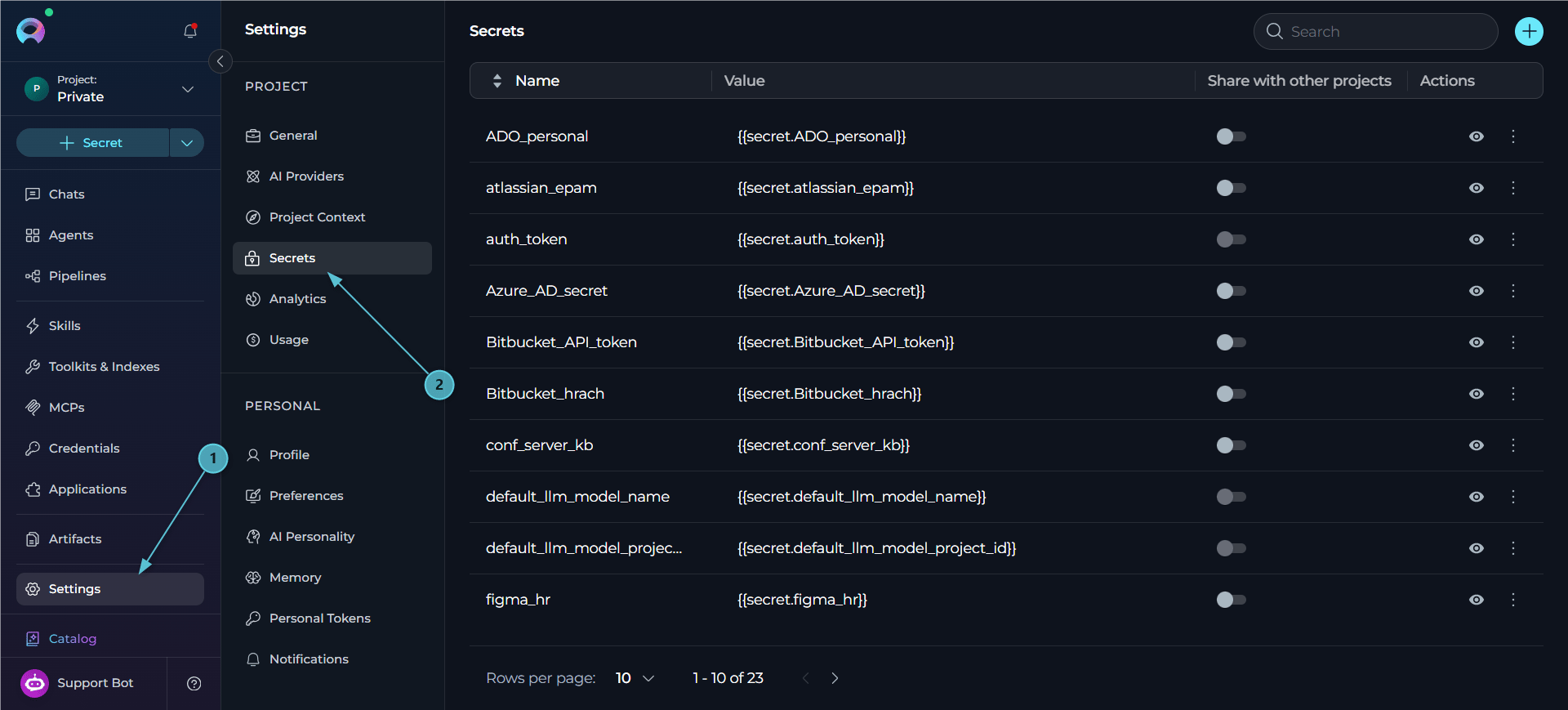
- Search Field: Located in the header, allows you to filter secrets by name
- + Button: Creates new secret entries (visible when you have secret creation permissions)
- Secrets Table: Displays all project secrets with columns for Name, Value, Share with other projects (Personal Project only), and Actions
- Pagination Controls: Located at the bottom of the table for navigating through secrets lists (supports 5, 10, 50, or 100 secrets per page)
- Action Icons: Show/Hide, Edit, and Delete options for individual secret management
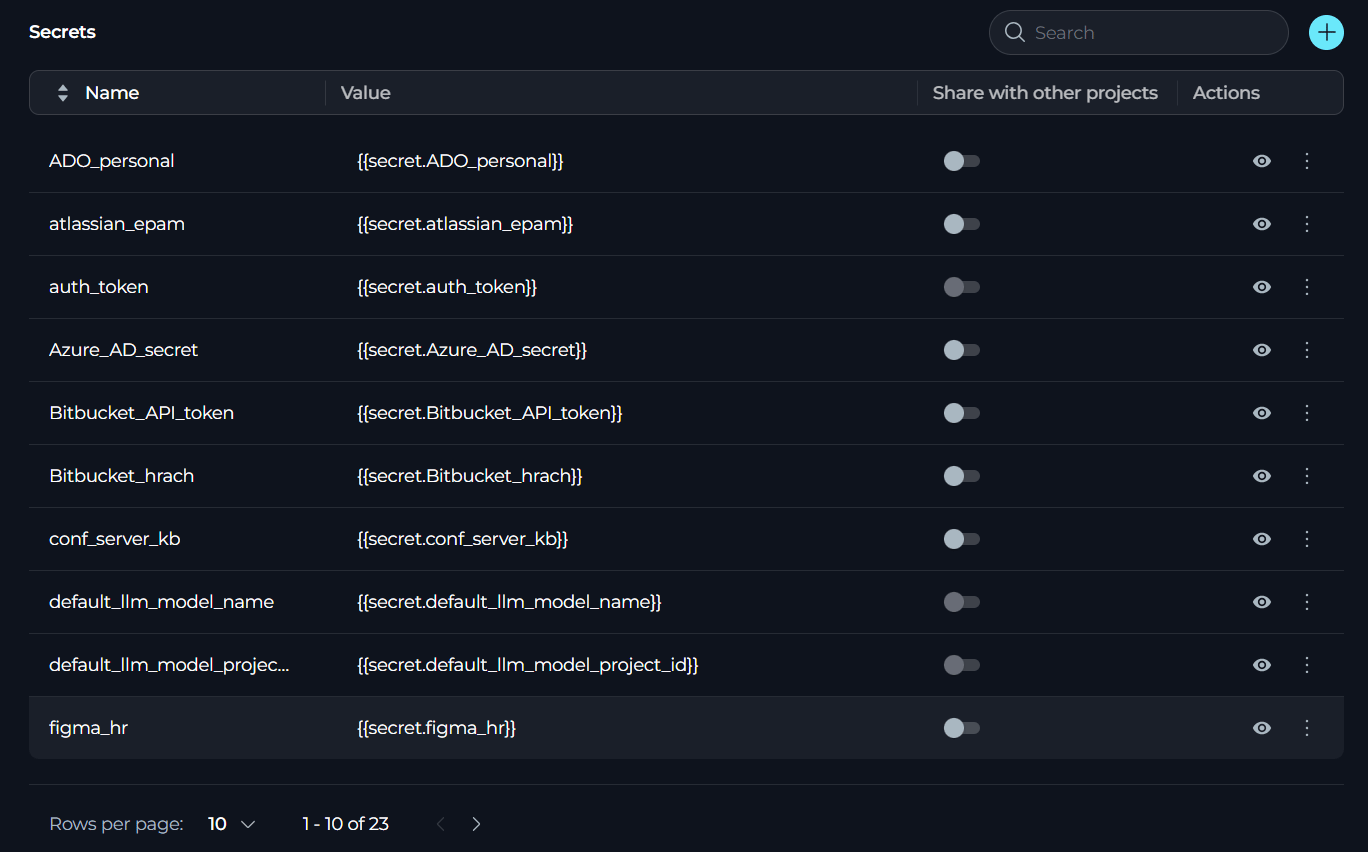
Secrets Table
Secrets display a table with the following information for each secret:- Name: The identifier for the secret (cannot be edited after creation)
- Value: The masked secret value (displayed as hidden by default for security)
- Share with other projects: A toggle that lets this secret be read from your other projects. Only shown in your Personal Project
-
Actions: Show/Hide, Edit, and Delete options for managing secrets
Creating a Secret
To add a new secret to your project:- Click the + button in the top-right corner of the Secrets section.
- A new editable row will appear at the current pagination position:
- Enter a unique name for the secret in the Name field
- Enter the secret value (password, token, API key, etc.) in the Value field
- In your Personal Project, optionally turn on Share with other projects to let agents and pipelines you run in other projects read this secret on your behalf
- Click the ✓ (checkmark) icon to save the secret, or click the ✗ (close) icon to cancel.

Secret Name Requirements
- Secret names must be unique within the project
- The name cannot be changed after the secret is created
- Allowed characters: letters (a-z, A-Z), numbers (0-9), and underscores (_)
- Hyphens and special characters are not permitted
- Choose descriptive names that clearly identify the secret’s purpose
Managing Secrets
The Secrets table provides several actions for managing your configured secrets:Default SecretsELITEA automatically creates default secrets that are critical for project functionality. These include system-provisioned authentication tokens, database connection strings, and other platform-critical credentials.Important Restrictions:
- Default secrets are read-only and cannot be modified or deleted
- Users can only view secret values using the eye icon
- Edit, Hide, and Delete actions are disabled for these secrets
Viewing Secrets
To reveal a secret’s value:- Click the 👁 (eye) icon in the Actions column.
- The secret value will be revealed in place of the masked value.
- Click the 👁🗨 (eye with slash) icon to hide the secret value again.
Copying Secrets
To copy a secret value to your clipboard:- Click the masked secret value in the Value column.
- The secret will be automatically copied to your clipboard.
Editing Secrets
To update a secret’s value:- Click the ⋮ (three dots) icon in the Actions column.
- Select Edit value from the menu.
- The Value field becomes editable (the Name field cannot be edited).
- Enter the new secret value.
- Click the ✓ (checkmark) icon to save, or click the ✗ (close) icon to cancel.

Sharing Secrets Across Projects
By default, a secret created in your Personal Project can only be read by agents and pipelines that run inside that same Personal Project. The Share with other projects column lets you opt in to cross-project reads so the same secret value can also be resolved for you when an agent or pipeline runs under your identity in a different (for example, team) project. To share a secret:- In your Personal Project, locate the secret in the Secrets table.
- Click the toggle in the Share with other projects column to turn it on.
Personal Project OnlyThe Share with other projects column only appears while you are viewing your Personal Project. Secrets in team projects do not have this column, since they already belong to that project rather than to an individual user.
Hide vs Delete: Understanding the Difference
It’s important to understand the distinction between hiding and deleting secrets, as they have different impacts on your credentials and integrations:Hiding Secrets
To permanently hide a secret from the UI:- Click the ⋮ (three dots) icon in the Actions column.
- Select Hide from the menu.
- In the confirmation dialog, type the secret name to confirm.
- Click Confirm to hide the secret.
- UI Removal: The secret is completely removed from the Secrets table and will no longer be visible in the interface
- Dropdown Availability: Hidden secrets will not appear in the secret selection dropdown when creating or editing credentials
- Existing Credentials: Credentials that already reference the hidden secret continue to function normally - the secret value continues to be used as a password for authentication
ExampleIf you hide
github_api_token that’s currently used by 3 credentials, those 3 credentials will continue to authenticate successfully, but you won’t be able to select this secret for any new credentials.Deleting Secrets
To remove a secret from the project:- Click the ⋮ (three dots) icon in the Actions column.
- Select Delete from the menu.
- In the confirmation dialog, type the secret name to confirm deletion.
- Click Delete to confirm, or Cancel to abort.
- Complete Removal: Both the secret and its value are permanently deleted from the system
- Existing Credentials Affected: All credentials referencing the deleted secret will fail authentication immediately
- Cannot Be Recovered: Deletion is permanent and cannot be undone
Using Secrets in Credentials
Secrets can be referenced in credentials to securely store authentication details for integrations and toolkits. This approach provides centralized management and enhanced security compared to storing values directly in each credential. When creating or editing a credential:- Navigate to the Credentials page from the main navigation.
- Create a new credential or edit an existing one.
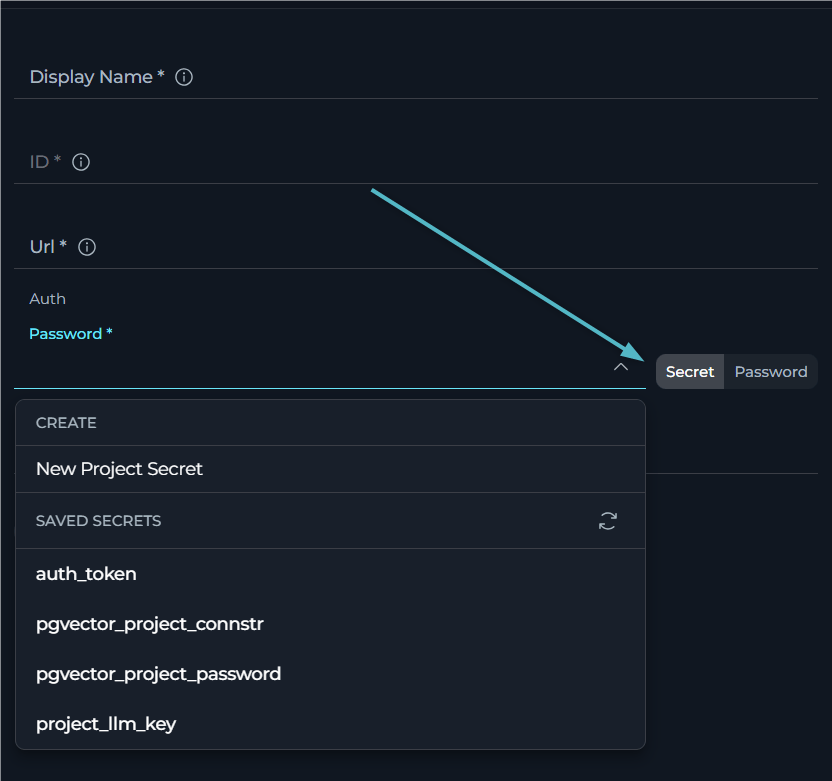
- For authentication fields (tokens, API keys, passwords), toggle between:
- Password: Direct value entry (plain text)
- Secret: Select from existing secrets dropdown
- Select your desired secret from the dropdown.
Create a Secret from the DropdownWhen the field is switched to Secret, the dropdown includes a Create section above Saved Secrets. From there, you can click New Project Secret or New Private Secret to open the Secrets page in a new browser tab and create a secret immediately. After saving the new secret, return to the credential form and use the Refresh secrets button in the dropdown to reload the list.
Best Practices
Hide Before Delete
Hide Before Delete
Before deleting a secret, consider hiding it first to prevent new usage while verifying that removing it won’t break existing integrations. Once you’ve confirmed no active credentials depend on it, you can proceed with deletion.
Use Descriptive Secret Names
Use Descriptive Secret Names
Choose clear, descriptive names for your secrets that indicate their purpose and where they’re used. For example, use names like
github_api_token or database_password_production rather than generic names like token1 or secret2.Avoid Copying Secrets with Trailing Spaces
Avoid Copying Secrets with Trailing Spaces
When copying secret values, ensure no trailing spaces or hidden characters are included. Use the copy functionality provided in the interface rather than manually selecting and copying text to avoid formatting issues.
Regular Secret Rotation
Regular Secret Rotation
Periodically rotate sensitive credentials to maintain security. Update secret values when team members leave, after suspected compromises, or according to your organization’s security policies.
Verify Secret Access Before Deletion
Verify Secret Access Before Deletion
Before deleting a secret, verify that it’s not being used by any agents, toolkits, or other components in your project. Deleting an active secret may cause functionality issues.
Document Secret Usage
Document Secret Usage
Maintain documentation about which secrets are used by which components or integrations. This helps prevent accidental deletion and makes troubleshooting easier.