

Introduction
This guide is your comprehensive resource for integrating and effectively utilizing the Artifact Toolkit within ELITEA. It provides detailed, step-by-step instructions from initial setup to advanced usage scenarios, enabling you to leverage artifacts for temporary data storage, context management, and inter-agent data sharing. By following this guide, you will unlock powerful capabilities for handling data within AI-driven workflows, enhancing your agents’ ability to process, store, and share information efficiently across your ELITEA environment.Brief Overview of the Artifact Toolkit
The Artifact Toolkit provides a versatile file storage mechanism designed specifically for AI agent workflows within ELITEA. It allows agents to create, read, update, and delete files within project-specific buckets (storage containers). This toolkit serves as a temporary workspace for agents, enabling them to:Store Temporary Data
Manage Context
Share Data Between Agents
Process Multiple File Formats
Handle Large Outputs
System Integration with ELITEA
To integrate the Artifact Toolkit with ELITEA, follow a streamlined process: Create Toolkit → Use in Agents, Pipelines, or Chat. Unlike other toolkits, the Artifact Toolkit does not require credentials since it uses ELITEA’s internal storage system.Step 1: Create Artifact Toolkit
You can create an Artifact Toolkit through multiple methods:Method 1: Create from Toolkits Menu
- Navigate to Toolkits Menu: Open the sidebar and select Toolkits.
-
Create New Toolkit: Click the
+ Createbutton. - Select Artifact: Choose Artifact from the list of available toolkit types.
-
Configure Toolkit Details:
- Toolkit Name: Enter a descriptive name for the toolkit (e.g., “Report Storage”, “Data Processing Artifacts”)
- Description: Add an optional description explaining the toolkit’s purpose
- PgVector Configuration: Select a PgVector connection for vector database integration and semantic search (optional)
- Embedding Model: Select an embedding model for text processing and semantic search capabilities (optional)
- Bucket Name: Specify the bucket (storage container) name
- Creating a New Bucket: Enter a new bucket name, and it will be automatically created when first used
- Using an Existing Bucket: Enter an existing bucket name to connect to it
- Naming Convention: Use lowercase letters, numbers, and hyphens only (underscores are automatically converted to hyphens)
- Best Practice: Use descriptive, unique names to avoid conflicts between different agents or workflows
- Select Tools: In the “Tools” section, select the checkboxes next to the specific tools you want to enable. Enable only the tools your agents will actually use to follow the principle of least privilege.
- Save Toolkit: Click Save to create the toolkit.
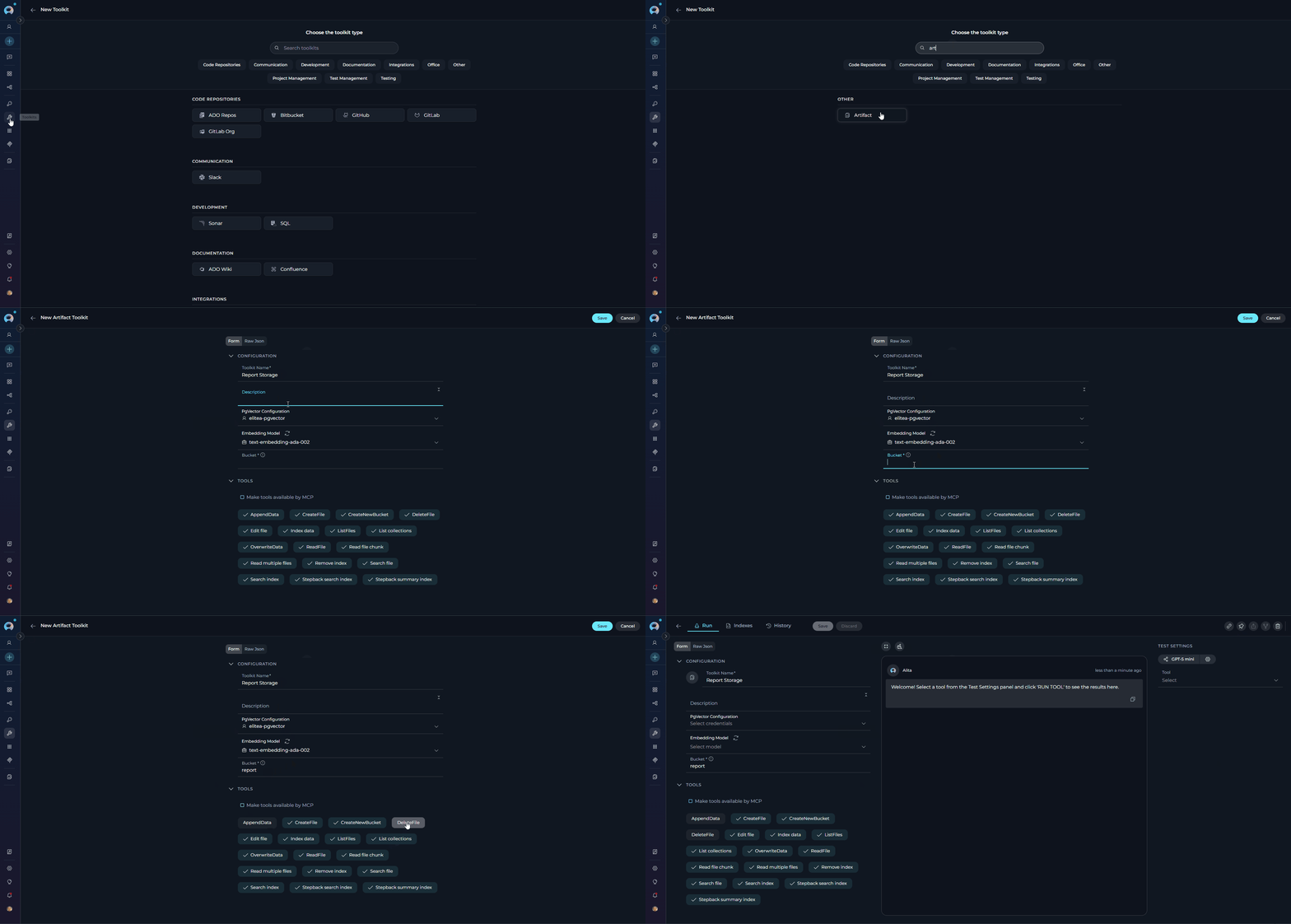
Available Tools:
The Artifact Toolkit provides the following tools for file and data management:Method 2: Create from Canvas (During Conversation)
You can create an Artifact Toolkit directly from a chat conversation using the canvas interface:- Navigate to Chat: Open the sidebar and select Chat.
- Start or Open Conversation: Create a new conversation or open an existing one.
- Access Toolkit Selection: In the PARTICIPANTS section, locate Toolkits and click the + Add toolkit icon.
- Create New Toolkit: In the “New Toolkit” dialog, click + Create new Toolkit.
- Choose Toolkit Type: The canvas interface displays available toolkit categories. Navigate to the appropriate category and select Artifact.
- Configure Settings: Follow the same configuration steps as Method 1 (display name, bucket name, tool selection).
- Save and Use: Click Save to create the toolkit. It will be immediately available in your current conversation.
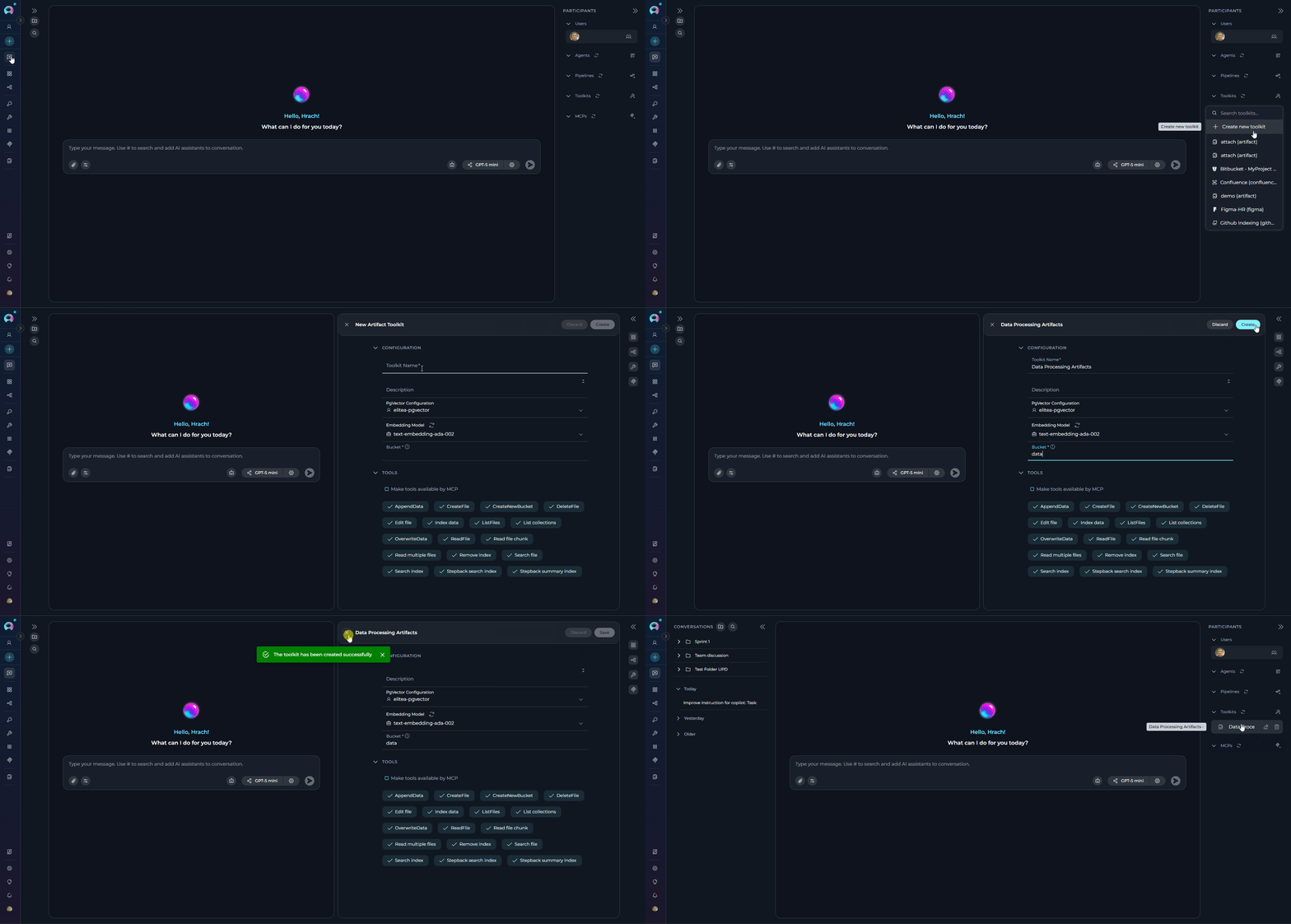
Method 3: Automatic Creation via Attachment Settings
When enabling attachments for agents, pipelines, or conversations, an Artifact Toolkit is automatically created if needed:- Enable Attachments: When configuring an agent, pipeline, or conversation, toggle the Allow attachments option.
- Configure Attachment Storage: In the Attachment settings popup:
- Option A: Select an existing Artifact Toolkit from the dropdown
- Option B: Select “Create new” and enter a bucket name to automatically create a new Artifact Toolkit
- Automatic Integration: The toolkit is created and linked to handle file uploads. Files attached in conversations are automatically stored in the specified bucket.
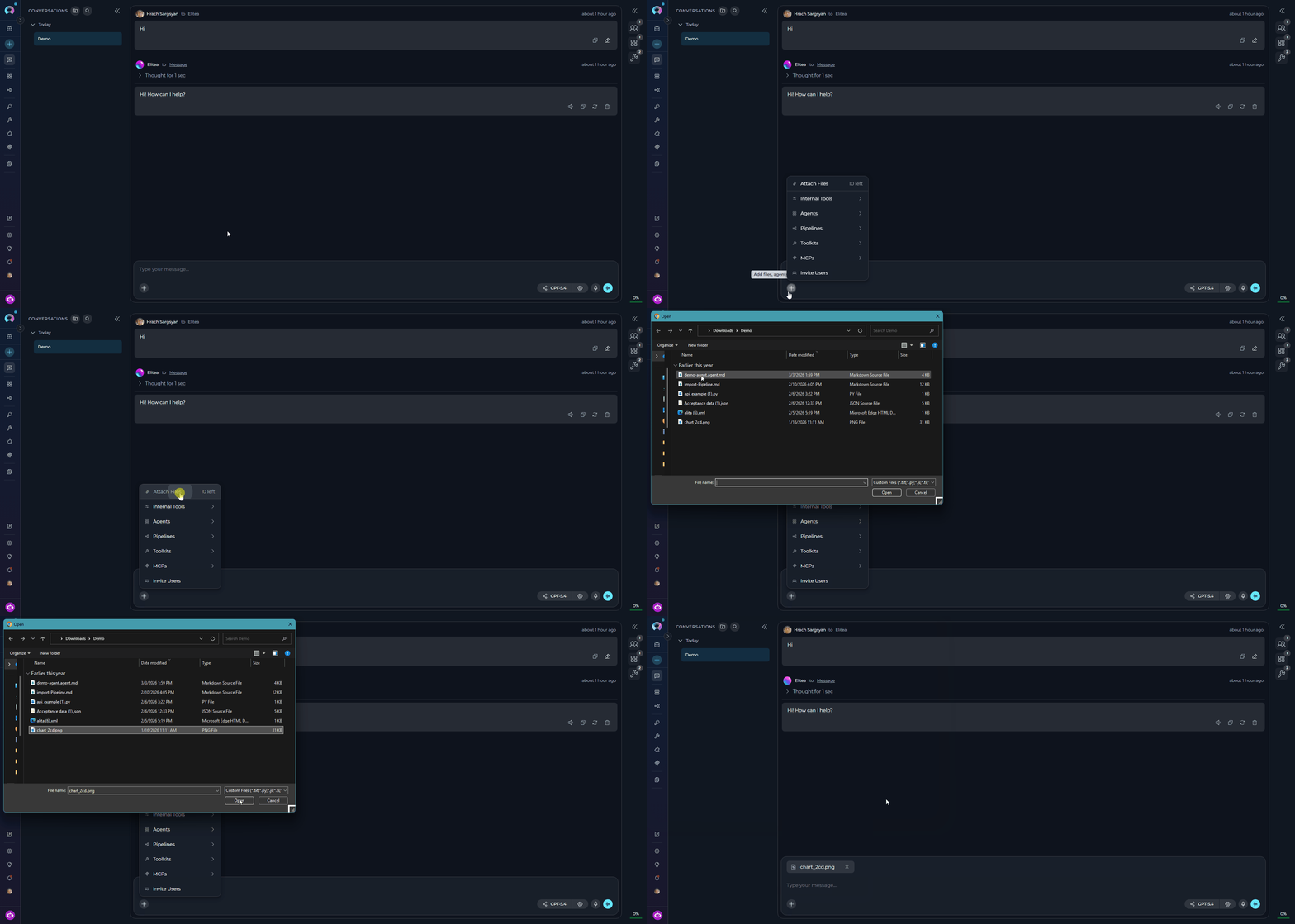
Step 2: Use Toolkit in Agents, Pipelines, or Chat
Once created, the Artifact Toolkit can be integrated into your agents, pipelines, or used directly in chat conversations:In Agents:
- Navigate to Agents: Open the sidebar and select Agents.
- Create or Edit Agent: Click
+ Createfor a new agent or select an existing agent to edit. - Add Artifact Toolkit:
- In the “TOOLKITS” section of the agent configuration, click the “+Toolkit” icon
- Select your Artifact toolkit from the dropdown list
- The toolkit will be added to your agent with the previously configured tools enabled
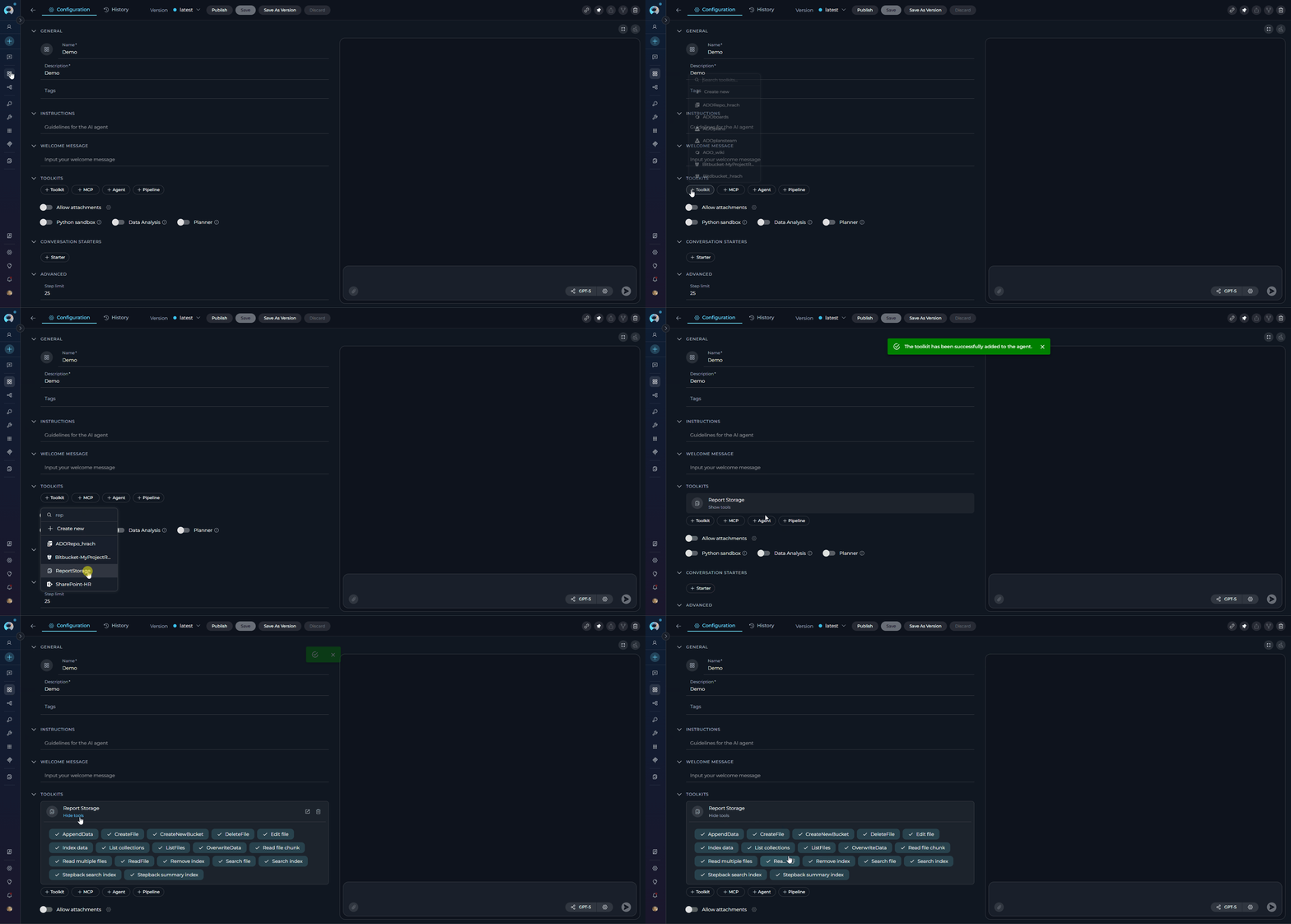
In Pipelines:
- Navigate to Pipelines: Open the sidebar and select Pipelines.
- Create or Edit Pipeline: Either create a new pipeline or select an existing pipeline to edit.
- Add Artifact Toolkit:
- In the “TOOLKITS” section of the pipeline configuration, click the “+Toolkit” icon
- Select your Artifact toolkit from the dropdown list
- The toolkit will be added to your pipeline with the previously configured tools enabled
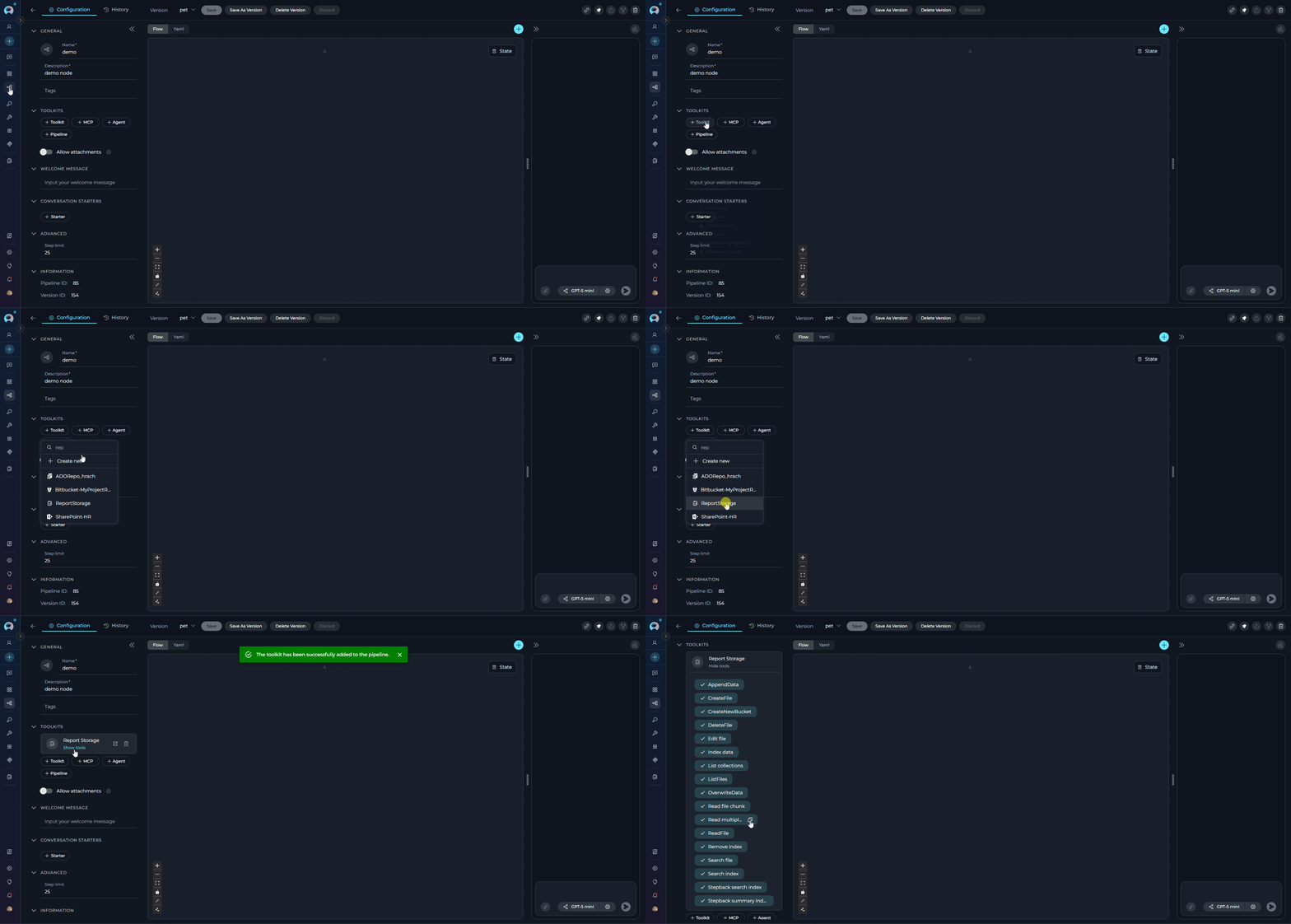
In Chat:
- Navigate to Chat: Open the sidebar and select Chat.
- Start New Conversation: Click +Create or open an existing conversation.
- Add Toolkit to Conversation:
- In the chat Participants section, look for the Toolkits element
- Click the “Add Tools” icon to open the tools selection dropdown
- Select your configured Artifact toolkit from the list
- The toolkit will be added to the conversation
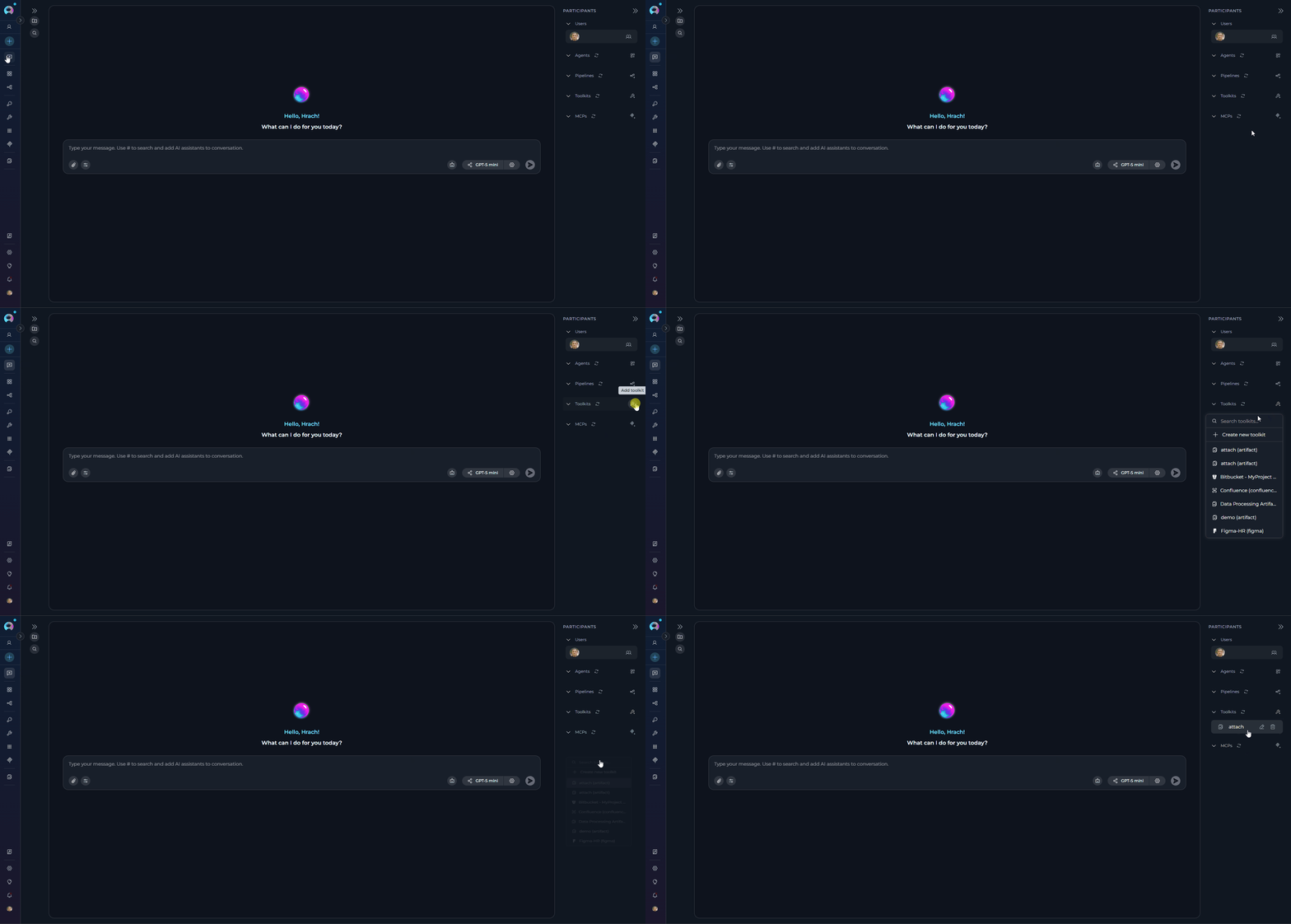
File Types and Capabilities
The Artifact Toolkit has different capabilities for reading and creating files, offering flexibility for various data processing workflows. File Types Supported for Reading The Artifact Toolkit can read and process a wide variety of file formats:- The LLM must be multimodal with image reading capabilities
- Compatible models: GPT-4 Vision, Claude 3, Gemini Pro Vision, or similar
- The image description is returned as text in the agent’s context
File Types Supported for Creation
Pass text content viafiledata — the file is stored with that content. Any file extension is accepted. Special format conversion applies only to two types:
.pdf, .pptx, .jpg, .png, etc.) cannot be generated from text content via filedata. Passing text to these extensions will store the raw string, not a valid binary file.File Types Supported for Editing (Edit file tool)
The Edit file tool uses targeted OLD/NEW marker edits and is restricted to text-editable extensions:
.md, .txt, .csv, .json, .xml, .html, .yaml, .yml, .ini, .conf, .log, .sh, .py, .js, .ts, .jsx, .tsx, .java, .go, .rb, .php, .c, .cpp, .h, .hpp, .cs, .sql, .r, .m, .swift, .kt, .rs, .scala
Security and Access Control
Bucket Accessibility and Security
- Project-Specific Buckets: Buckets created using the Artifact Toolkit are specific to the ELITEA project in which they are created. Buckets and files within one project cannot be directly accessed from another separate ELITEA project.
- Agent Access: Within a project, all agents configured with the Artifact Toolkit can potentially access files within their configured buckets. Agents can only access buckets specified in their toolkit configuration.
- User Access via Artifacts Page: All project members with access to the Artifacts page can view, download, and delete files within project buckets, regardless of which agent created them.
-
Shared Bucket Usage: If multiple agents or users within a project configure Artifact Toolkits to use the same bucket name, they will share the same storage space.
Recommendations:
- For independent tasks: Use unique bucket names per agent to avoid unintended data interference
- For collaborative workflows: Use shared buckets intentionally to enable data exchange
- File naming conventions: Use clear, descriptive filenames with identifiers to prevent accidental overwrites
- Regular cleanup: Remove obsolete files to maintain organization
-
Security Considerations:
- Users with agent configuration access can potentially access and manipulate bucket data
- Do not store highly sensitive data in artifacts without additional security measures
- Consider encryption for sensitive information before storing
- Be aware of project-level access controls
- Regularly review and audit artifact usage
Artifact Retention and Lifecycle
- Default Retention: Files created in Artifact buckets have a default retention period of 30 days. After this period, files are automatically deleted and cannot be recovered.
-
Custom Retention: You can set custom retention periods when creating buckets:
-
Retention Management: View and modify retention settings through the Artifacts page:
- View current retention settings per bucket
- Modify retention periods for existing buckets
- Monitor days remaining until file expiration
-
Manual Deletion: Files and buckets can be manually deleted at any time:
- By agents using the
deleteFiletool - By users through the Artifacts page
- Bulk deletion by removing entire buckets
- By agents using the
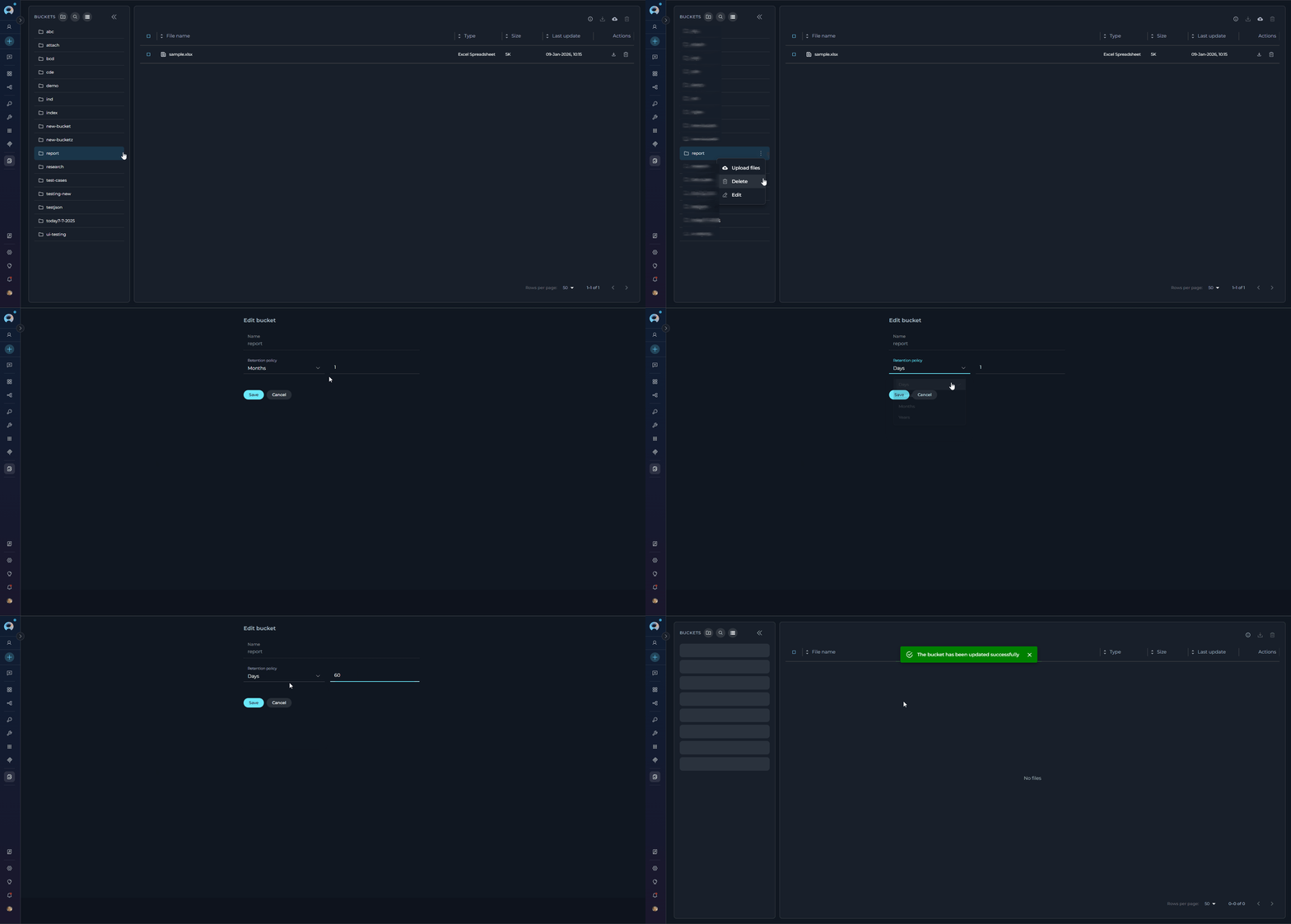
- Project Limit: Each project has a total storage limit of 9 GB for all artifacts combined
- Individual Files: No strict per-file size limit, but best practice is to keep files reasonably sized
- Performance Impact: Very large files may impact agent processing speed
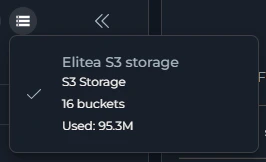
- Monitoring: Check storage usage in the Artifacts page to avoid exceeding limits
- Delete obsolete files
- Download and remove archived data
- Review retention policies
- Consider using external storage for large datasets
Real-World Usage Examples
The Artifact Toolkit provides versatile capabilities to enhance agent workflows within ELITEA. Here are key use cases and examples demonstrating how to leverage the toolkit effectively:1. Storing Large Generated Outputs
1. Storing Large Generated Outputs
createFile, appendDataImplementation:- Handle outputs exceeding context window limits
- Persistent storage for later retrieval
- Downloadable results for external use
2. Managing Workflow Context and State
2. Managing Workflow Context and State
createFile, readFile, appendData, deleteFileImplementation:- Persistent context across interactions
- Complex stateful workflows
- Progress tracking and recovery
3. Multi-Agent Collaboration
3. Multi-Agent Collaboration
createFile, appendData (Agent 1), readFile (Agent 2)Implementation:- Seamless inter-agent data exchange
- Sophisticated multi-agent workflows
- Clear data handoff between processing stages
4. Extended Clipboard Functionality
4. Extended Clipboard Functionality
createFile, appendData, readFile, listFilesImplementation:- Multiple clipboard entries
- Organized snippet management
- Easy retrieval and reuse
5. Automated Logging and Audit Trails
5. Automated Logging and Audit Trails
createFile, appendDataImplementation:- Automatic log generation
- Improved traceability
- Debugging and compliance support
6. Processing Pre-existing Data Files
6. Processing Pre-existing Data Files
listFiles, readFileImplementation:- Integration with existing data
- Versatile data source handling
- Support for uploaded user files
7. Document Analysis and Extraction
7. Document Analysis and Extraction
readFile (with attachments), createFile, appendDataImplementation:- Automated document processing
- Structured data extraction
- Persistent analysis results
8. Configuration Management
8. Configuration Management
createFile, readFile, overwriteData, listFilesChat Interaction Example:9. UI Test Execution and Results Storage
9. UI Test Execution and Results Storage
createFile, appendData, listFilesImplementation:- Automated test execution and result storage
- Persistent test history for trend analysis
- Centralized test artifacts for team review
- Easy access to screenshots and error logs
Troubleshooting and Support
Troubleshooting
File Not Found Errors
File Not Found Errors
read_file, delete_file, or append_data tools.Solutions:- Verify Filename: Double-check the filename specified in the agent instruction. Ensure it exactly matches the filename of the artifact in the bucket (including file extension)
- Check Bucket Name: Confirm that the correct bucket name is configured for the Artifact Toolkit
- List Files First: Use the
list_filestool to verify the file exists and check the exact filename spelling - Check Retention: Ensure the file hasn’t been automatically deleted due to exceeding the retention period
- Manual Deletion: Verify the file wasn’t accidentally deleted by another agent or user. Check the Artifacts page for file history
Bucket Access Issues
Bucket Access Issues
- Verify Bucket Name: Double-check the bucket name in the toolkit configuration. Ensure correct spelling and format (lowercase, hyphens instead of underscores)
- Project Scope: Buckets are project-specific. Ensure you’re accessing the bucket within the correct ELITEA project
- First Use: If the bucket is newly created, it will be empty until files are added
- Permissions: Verify you have the necessary project permissions to access artifacts
Data Not Saving or Appending Correctly
Data Not Saving or Appending Correctly
append_data or create_file tools don’t create or modify files as expected. Data is missing, incomplete, or not being saved.Solutions:- Check Execution Logs: Examine the agent’s execution logs or chat output for error messages related to tool calls
- File Type Limitations: For binary formats (PDF, images, etc.) use the
filepathcopy mode instead offiledata. For.xlsxprovide JSON; for.docxprovide HTML or Markdown. - Review Instructions: Verify that instructions given to the LLM are clear and align with tool capabilities
- Test with Simple Operations: Try creating a simple text file first to confirm basic functionality
- Check Bucket Configuration: Ensure the bucket is properly configured in the toolkit settings
Toolkit Not Appearing in Dropdown
Toolkit Not Appearing in Dropdown
- Verify Toolkit Saved: Ensure you clicked Save after creating the toolkit configuration
- Refresh Interface: Refresh your browser or reload the page
- Check Project Context: Toolkits are project-specific. Ensure you’re in the correct project
- Review Toolkit List: Navigate to the Toolkits menu to verify the toolkit was successfully created
File Upload/Attachment Issues
File Upload/Attachment Issues
- Verify Attachment Settings: Ensure attachments are enabled and linked to the correct Artifact Toolkit
- Check Bucket Name: Confirm the attachment settings point to the correct bucket
- File Size Limits: Verify files don’t exceed project storage limits (9 GB total per project)
- Review Artifacts Page: Check the Artifacts page to see if files were uploaded successfully
Support Contact
For issues, questions, or assistance with Artifact toolkit integration, please refer to Contact Support for detailed information on how to reach the ELITEA Support Team.Frequently Asked Questions
Can I create binary files like Excel or images in Artifacts?
Can I create binary files like Excel or images in Artifacts?
.docx or .pdf.You can create:- Plain text (
.txt) - CSV (
.csv) - JSON (
.json) - YAML (
.yaml,.yml) - Markdown (
.md) - Code files (
.py,.js,.ts,.html,.sql, etc.) - Excel files (
.xlsx) — provide filedata as JSON - Word documents (
.docx) — provide filedata as HTML or Markdown
What is the maximum file size for artifacts?
What is the maximum file size for artifacts?
- Keep individual files reasonably sized for optimal performance
- Extremely large files may impact agent processing efficiency
- Monitor your project’s total storage usage in the Artifacts page
- Delete unnecessary files regularly to maintain available space
How long are files stored in Artifacts?
How long are files stored in Artifacts?
- When creating a new bucket using the
createNewBuckettool - By modifying bucket settings in the Artifacts page
- Supported retention measures: days, weeks, months, years
Can I recover deleted files from Artifacts?
Can I recover deleted files from Artifacts?
- Manual deletions (by agents or users)
- Automatic deletions due to retention period expiration
How do I access and download files stored in Artifacts?
How do I access and download files stored in Artifacts?
- Navigate to Artifacts from the sidebar
- Browse buckets and view file lists
- Download individual files
- View file metadata (size, creation date, retention)
- Delete files or entire buckets
- Modify retention settings
readFile tool.Do I need credentials to use the Artifact Toolkit?
Do I need credentials to use the Artifact Toolkit?
Can I use artifacts across different projects?
Can I use artifacts across different projects?
- Download files from one project’s Artifacts page
- Upload them to the other project
- Consider using external storage integrations for cross-project data sharing
What happens when I enable attachments in a conversation?
What happens when I enable attachments in a conversation?
- Files you upload are automatically stored in the specified bucket
- The AI agent can access these files using the toolkit’s
readFiletool - Files are subject to the bucket’s retention policy
- You can manage uploaded files through the Artifacts page
What does filedata look like for creating a .docx file?
What does filedata look like for creating a .docx file?
CreateFile tool accepts either Markdown or HTML as filedata when creating a .docx file. The SDK auto-detects the format based on the presence of HTML tags.Option A — Markdown:Can agents read image files?
Can agents read image files?
- The LLM must be multimodal with image reading capabilities
- Supported models: GPT-4 Vision, Claude 3, Gemini Pro Vision, or similar
- Supported formats:
.jpg,.jpeg,.png,.gif,.bmp,.webp
- The image is sent to the LLM for analysis
- The LLM describes the image content
- The description is provided in the agent’s context
- Artifacts Menu Documentation - Comprehensive guide to managing artifacts through the UI
- Agents Menu Documentation - Complete guide to creating and configuring agents
- Pipelines Menu Documentation - Guide to building and managing pipelines
- Secrets Management - Secure storage for sensitive data
- How to Create and Edit Toolkits from Canvas - Creating toolkits from conversations
- Working with Chat Attachments - Using attachments with artifacts