

Overview
Testing toolkit tools is an essential step in the toolkit configuration workflow, enabling you to:- Verify Credentials: Confirm that authentication credentials are correctly configured
- Validate Tool Functionality: Test individual tools with real parameters
- Debug Tool Behavior: Understand how tools respond to different inputs
- Review Run Results: Inspect the returned output in the Results panel
- Adjust Model Settings: Change the selected model and its settings before running the test
Test Page
The toolkit test feature is a dedicated full-page interface, separate from the toolkit configuration page. To access the Test page:- Go to Toolkits & Indexes from the main navigation
- Click on a configured toolkit from the list to open its detail page
-
In the action bar on the left panel, click the Test button

-
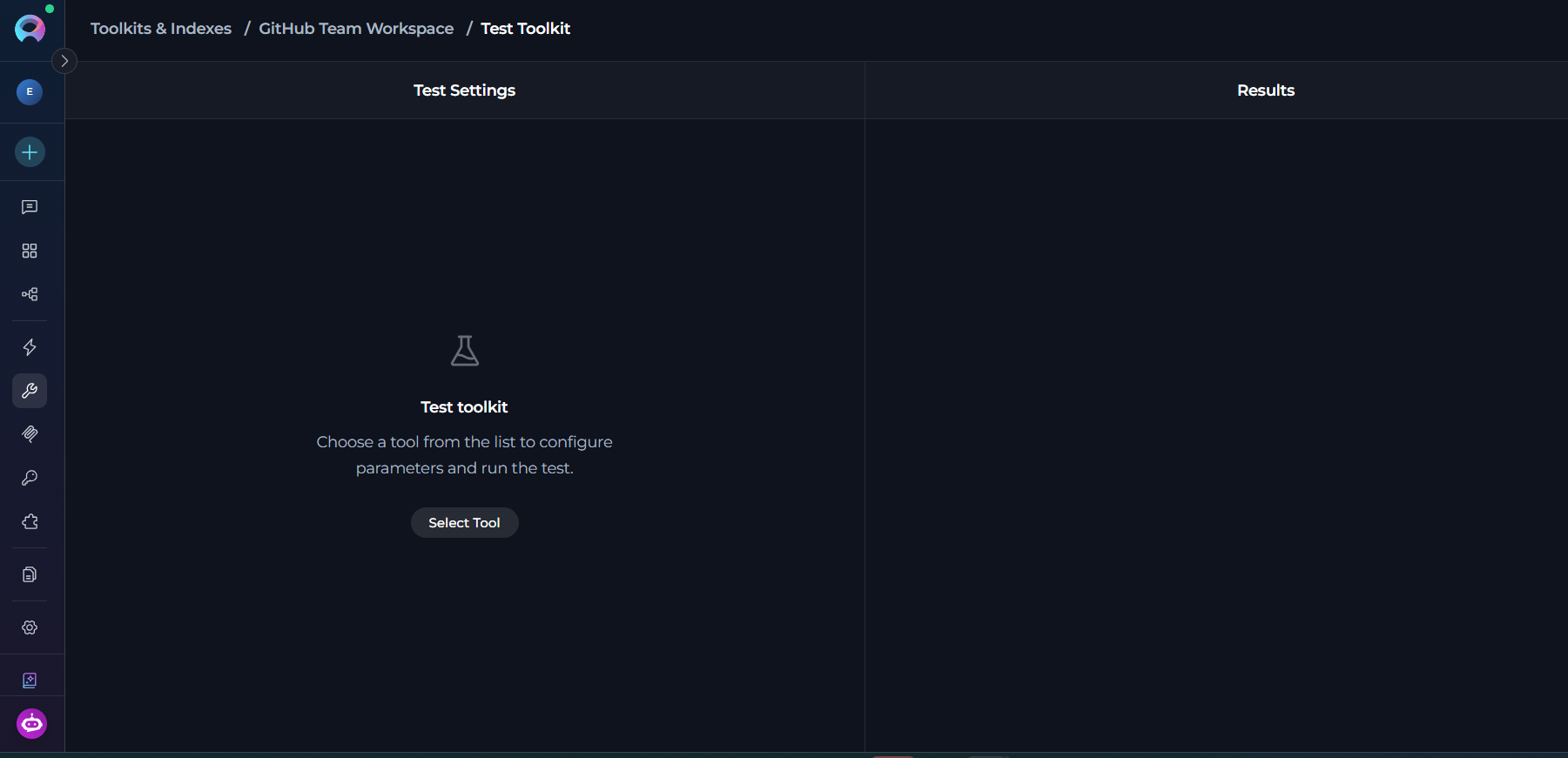
The Test page opens with a two-panel layout:
- Left panel: Test Settings for selecting tools, configuring parameters, and choosing models
- Right panel: Results showing test execution output
- The Test button is disabled if you have unsaved changes. Save your changes first to enable testing.
- The Test page includes breadcrumb navigation at the top, showing: Toolkits & Indexes > [Toolkit Name] > Test. Click any breadcrumb to navigate back.
Test a Toolkit Tool
The Test page uses a two-panel layout with Test Settings on the left and Results on the right. Test Settings Panel (Left):-
Select a tool
- Empty state: When no tool is selected, the panel displays a “Test toolkit” message with a Select Tool button
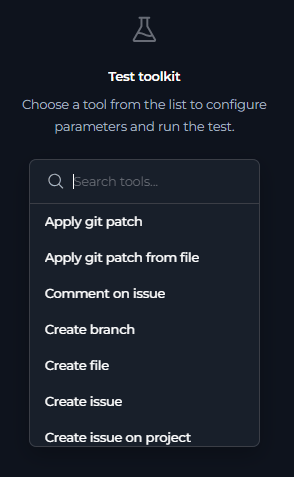
- Click Select Tool to open a searchable popover dropdown listing the toolkit’s available tools
- The dropdown includes a search field: “Search tools…”
-
Configure tool parameters
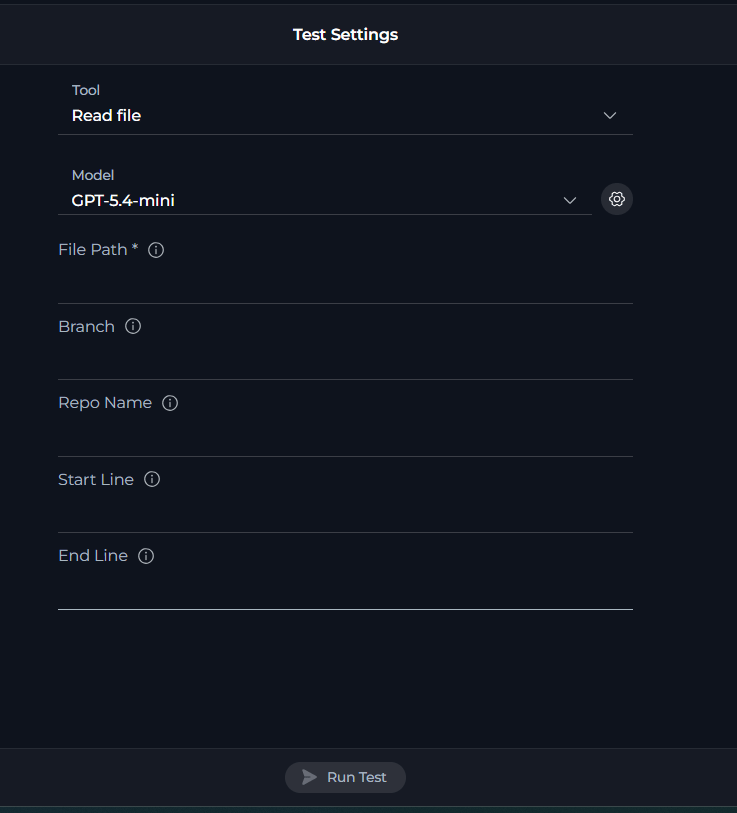
- After selecting a tool, the panel displays:
- Tool dropdown: Shows the selected tool (can be changed using the dropdown with search)
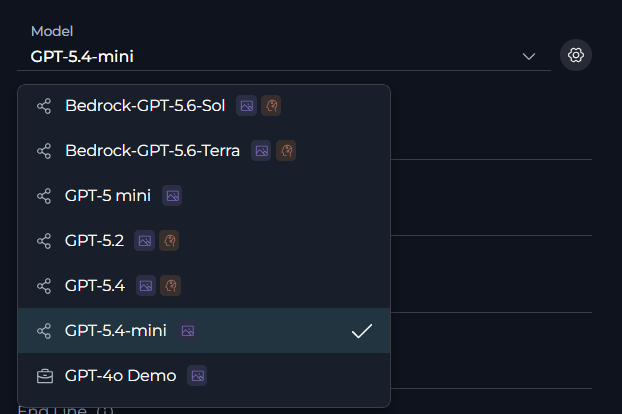
- Model selector: Choose from models available in the current project (default project model is selected automatically)
- Tool-specific parameter fields: Rendered from the tool’s schema with default values pre-populated when available
- After selecting a tool, the panel displays:
-
Select a model and adjust settings
- Use the Model selector to choose from models available in the current project
- Click Model Settings (gear icon) to open the settings dialog and adjust model behavior
- Reasoning-capable models
- Standard models
Setting Description Reasoning Controls the model reasoning effort Max Completion Tokens Sets the maximum output token limit; validation is applied against the selected model maximum output tokens Capabilities Shows whether the model supports reasoning or vision 
-
Provide required parameters and run the test
- Fill in the input fields rendered from the tool’s schema (default values are pre-populated when available)
- The Run Test button at the bottom of the left panel stays disabled until:
- All required inputs are valid
- No MCP PAT authentication is required (or it’s configured)
- Click Run Test (with send icon) to execute the tool
- During execution, the button is disabled and shows a loading state

- Initial state: Empty when no tests have been run
- Chat-style message list: Displays all test run results in chronological order
- Execution details: For each tool run, you can see:
- Execution status and time: Summary line showing success (✅) or failure (❌) and duration, e.g.,
✅ tool_name (0.523s) - Request body: The input parameters sent to the tool
- Response body: The raw output returned by the tool, rendered as formatted JSON or text
- Copy support: Copy any message or response body from the results
- Execution status and time: Summary line showing success (✅) or failure (❌) and duration, e.g.,
- Persistent history: The results panel keeps all run history visible while you stay on the Test page
- Auto-scroll: New results automatically scroll into view
Testing Index-Related ToolsIndex-related tools are handled outside the main toolkit test tool list. Use the Indexes interface for index creation, reindexing, search, and other index-specific operations.
Toolkit test runs are also available through the toolkit Run History page. Click the Run History button on the toolkit detail page to open the full history view.
Test Tools vs. Use in Agents
Understanding the differences between testing tools and using them in agents helps set appropriate expectations:
Key takeaway: Toolkit testing is the direct way to validate a specific tool configuration before using that toolkit in agents, pipelines, or chat workflows.
Troubleshooting
Authentication Errors
Authentication Errors
Problem: The tool run fails because the external service rejects authentication.Solutions:
- Verify the toolkit credential: Confirm the toolkit is using the correct credential configuration.
- Check external permissions: Ensure the credential has access to the requested operation.
- Update expired secrets: Replace expired tokens, API keys, or other authentication values.
Parameter Validation Errors
Parameter Validation Errors
Problem: The selected tool cannot be run because the input is incomplete or invalid.Solutions:
- Complete required fields: The Run Test button at the bottom of the Test Settings panel stays disabled until all required fields are valid.
- Check input types: Match the field values to the schema-driven input type shown in the form.
- Review object and array inputs carefully: Complex fields must match the expected structure.
Tool Not Available in the List
Tool Not Available in the List
Problem: The tool you expect to test does not appear in the Select Tool dropdown.Solutions:
- Check selected tools: The test list is built from the toolkit’s enabled or available tools.
- Save toolkit changes: If you changed tool selection, save the toolkit configuration first.
- Navigate back to Test: Click the Test button again to see the updated tool list.
- Remember index tools are excluded: Use the Indexes interface for index-related operations.
Model Configuration Issues
Model Configuration Issues
Problem: The selected model or model settings prevent the run from starting.Solutions:
- Select another project model: The model list comes from models available in the current project.
- Review max token validation: The Model Settings dialog validates max tokens against the selected model’s maximum output tokens.
- Apply settings before running: Changes in the settings dialog take effect after you click Apply.
PAT Required for MCP Toolkit Testing
PAT Required for MCP Toolkit Testing
Problem: The Run Test button is disabled and shows “PAT authentication required” tooltip.Solutions:
- Complete the required PAT setup: The Run Test button is disabled when internal MCP PAT validation fails.
- Check MCP authentication status: Review the MCP authentication banner that appears at the top of the Test page for MCP toolkits.
- Retry after authentication is configured: Once the required authentication is available, the Run Test button becomes enabled.
Cannot Change Tool or Parameters While Test is Running
Cannot Change Tool or Parameters While Test is Running
Problem: The Tool dropdown and parameter fields are disabled during test execution.Solutions:
- Wait for the current test to complete: All input controls are disabled while a test is running.
- Review the Results panel: The right panel shows the progress and results of the running test.
- Configure the next test after completion: Once the test finishes, all controls become enabled again.
Best Practices
Before Production Use
Before Production Use
- Test the exact tools you enabled: Validate the same toolkit tools you plan to expose to users or agents.
- Run tests after configuration changes: Re-test after updating credentials, tool selection, or model settings.
- Save configuration before testing: The Test button is only available when there are no unsaved changes.
- Use Run History: Review previous runs from the toolkit Run History page when comparing behavior over time.
Parameter Testing Strategy
Parameter Testing Strategy
- Start with the schema-driven defaults: The Test Settings panel initializes default values when the tool schema provides them.
- Validate required inputs first: Make the form valid before experimenting with optional fields (Run Test button is disabled until all required fields are valid).
- Change one variable at a time: Adjust parameters or model settings incrementally so result differences are easier to interpret.
- Review results in the right panel: The Results panel keeps the full test history visible while you configure and run additional tests.
Model Selection Strategy
Model Selection Strategy
- Choose a project model that fits the task: The Test page uses the same project model inventory available throughout the application.
- Use model settings intentionally: Reasoning-capable models expose reasoning controls, while standard models expose creativity controls.
- Keep max tokens within the model limit: The Model Settings dialog validates this before allowing the settings to be applied.
Use the Right Interface for the Right Tool
Use the Right Interface for the Right Tool
- Use the Test page for non-index toolkit tools: Access via the Test button on the toolkit detail page.
- Use the Indexes interface for index operations: Index-related tools are handled separately from the main tool selector.
- Use Run History for past executions: Open the toolkit history page via the Run History button on the toolkit detail page.
- Use breadcrumbs for navigation: Click breadcrumbs at the top to navigate back to Toolkits & Indexes or the toolkit detail page.
For more information on toolkit configuration and usage:
- Toolkits Menu—Complete guide to toolkit management and configuration
- Indexing Overview—Learn about indexing tools and data processing
- Toolkit Run History—View past toolkit test runs