

Introduction
This guide is your definitive resource for integrating and utilizing the SharePoint toolkit within ELITEA. It provides a comprehensive, step-by-step walkthrough, from registering your SharePoint application in Azure Active Directory to configuring the toolkit in ELITEA and effectively using it within your Agents. By following this guide, you will unlock the power of automated document management, streamlined collaboration workflows, and enhanced information access, all directly within the ELITEA platform. This integration empowers you to leverage AI-driven automation to optimize your SharePoint-driven workflows using the combined strengths of ELITEA and Microsoft SharePoint. Brief Overview of Microsoft SharePoint Microsoft SharePoint is a powerful web-based collaboration and document management platform that enables organizations to create sites, document libraries, lists, and other collaborative resources. It is a cornerstone of modern digital workplaces, facilitating teamwork, information sharing, and workflow automation. Key features of SharePoint include:- Centralized Document Management: SharePoint provides a central repository for storing, organizing, and managing documents, ensuring version control, secure access, and efficient document retrieval. Document libraries offer features like check-in/check-out, version history, and metadata tagging for robust document lifecycle management.
- Collaborative Workspaces and Team Sites: SharePoint enables the creation of team sites and collaboration workspaces, providing teams with a shared platform for communication, document sharing, task management, and project collaboration.
- Customizable Lists and Libraries: SharePoint lists and libraries are highly customizable and can be tailored to meet specific business needs. Lists can track tasks, manage contacts, or hold custom data tables, while libraries organize documents and media of all types.
- Workflow Automation: SharePoint supports workflow automation through Power Automate and SharePoint workflows, allowing organizations to automate business processes, streamline approvals, and automate document-centric workflows.
- Enterprise Search Capabilities: SharePoint offers robust enterprise search capabilities, enabling users to quickly find relevant information across sites, document libraries, lists, and other content sources.
Toolkit’s Account Setup and Configuration in SharePoint
Registering an App in Azure Active Directory (Azure AD)
To enable secure integration between ELITEA and SharePoint, you need to register an application in Azure Active Directory (Azure AD). This app registration will represent ELITEA and allow it to authenticate and access SharePoint resources.- Access Azure Portal: Open your web browser and navigate to the Azure Portal and log in using an account with sufficient permissions to register applications in Azure AD.
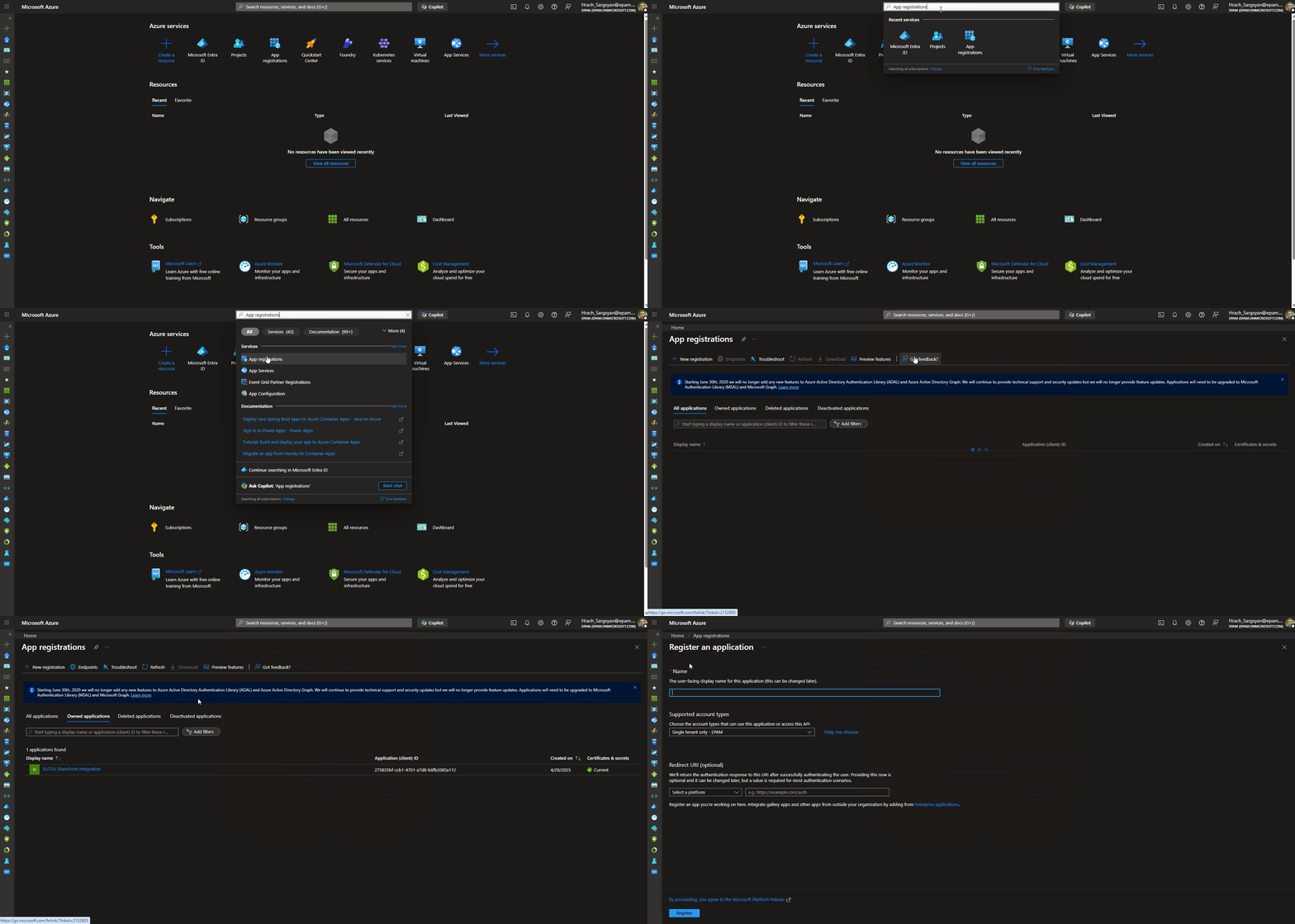
- Navigate to App Registrations: In the Azure portal, use the search bar at the top to search for “App registrations” and select “App registrations” from the search results under “Services”.
-
Create New Registration: On the “App registrations” page, click on ”+ New registration”.
-
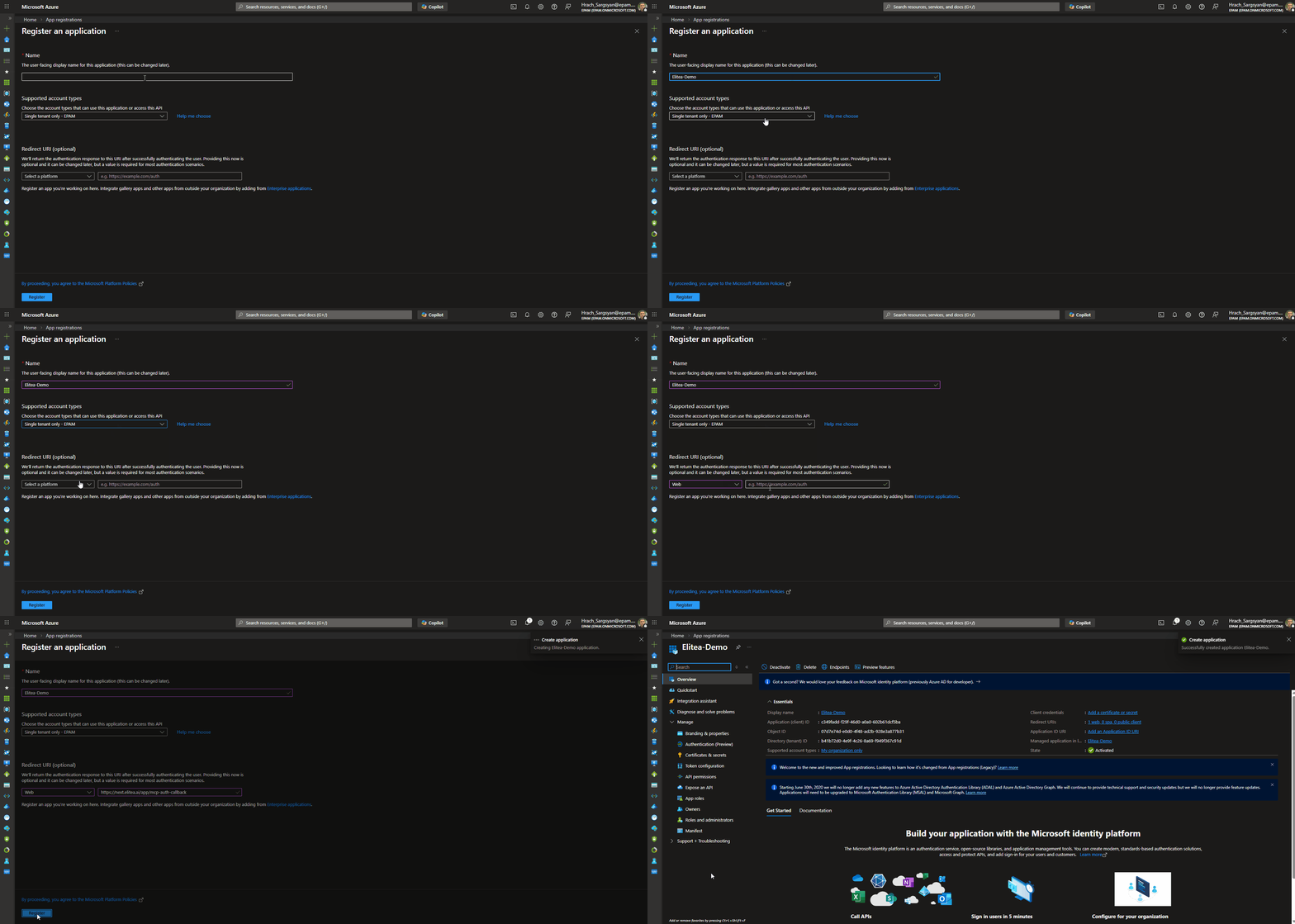
Configure App Registration Details: On the “Register an application” page, provide the following information:
- Name: Enter a meaningful and descriptive name for your application registration. For example, use “ELITEA SharePoint Integration” or “ELITEA Agent Access to SharePoint”. This name will help you identify the purpose of this app registration later.
- Supported account types: Select the appropriate account type based on your organization’s requirements. In most cases, “Accounts in this organizational directory only ([Your Organization Name] only - Single tenant)” is the recommended option for internal organizational use. If you need to access SharePoint resources across multiple organizations, you may need to select a different option.
-
Redirect URI: If you plan to use Delegated (User OAuth) authentication, set the redirect URI here during registration:
- In the “Select a platform” dropdown, select “Web”.
- In the URI field, enter the ELITEA callback URL for your instance. The correct value depends on your deployment — refer to the info callout below.
If you are using App-Only (Client Credentials) mode only, leave this field blank.
-
Register Application: After providing the application details, click the “Register” button at the bottom of the page to create the app registration.
Application Credentials
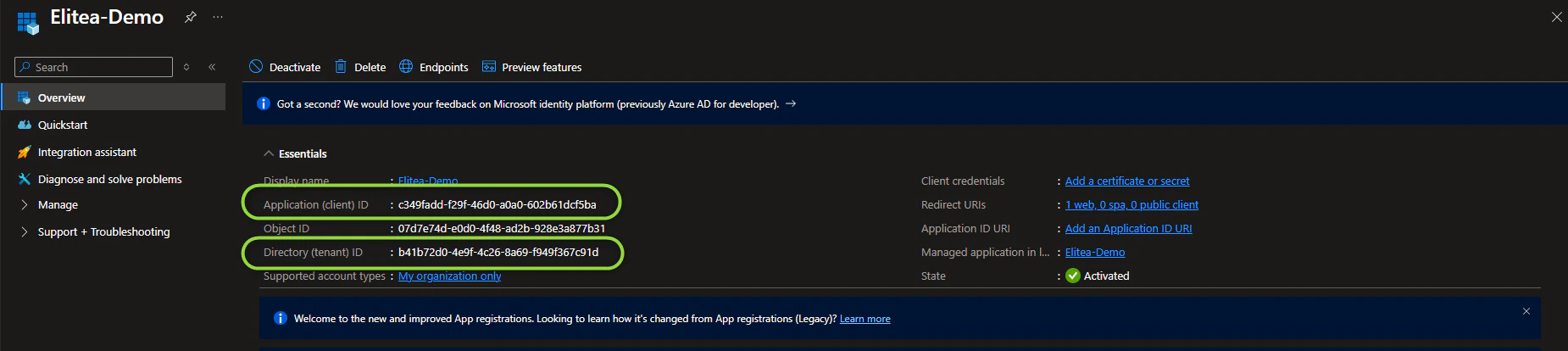
Once the app registration is created successfully, you will be redirected to the application’s Overview page. Note down the following credentials, as you will need them to configure the SharePoint toolkit in ELITEA:- Application (client) ID — Copy and store this value securely.
-
Directory (tenant) ID — Copy and store this value securely.
Configure API Permissions for the Registered App
To allow ELITEA to access SharePoint resources, you need to configure API permissions for your registered application. This involves granting the application the necessary permissions to interact with Microsoft Graph and SharePoint APIs.- Navigate to API Permissions: In your registered app within the Azure portal, navigate to the left-hand menu and click on “API permissions”.
- Add Permissions: On the “API permissions” page, click on ”+ Add a permission”.
-
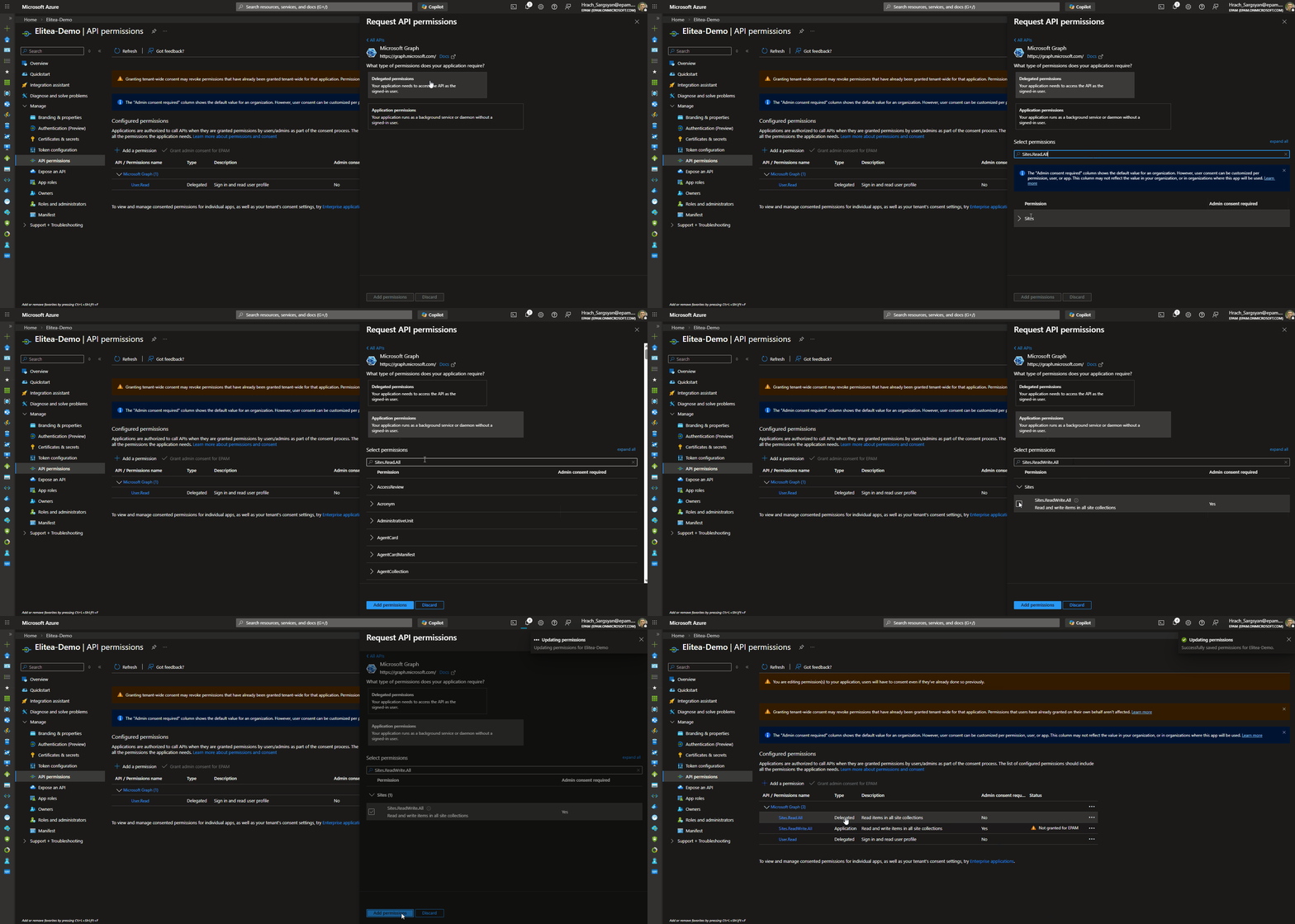
Select API Type - Microsoft Graph: In the “Request API permissions” panel, select the “Microsoft Graph” API tile. Microsoft Graph provides access to various Microsoft 365 services, including SharePoint.
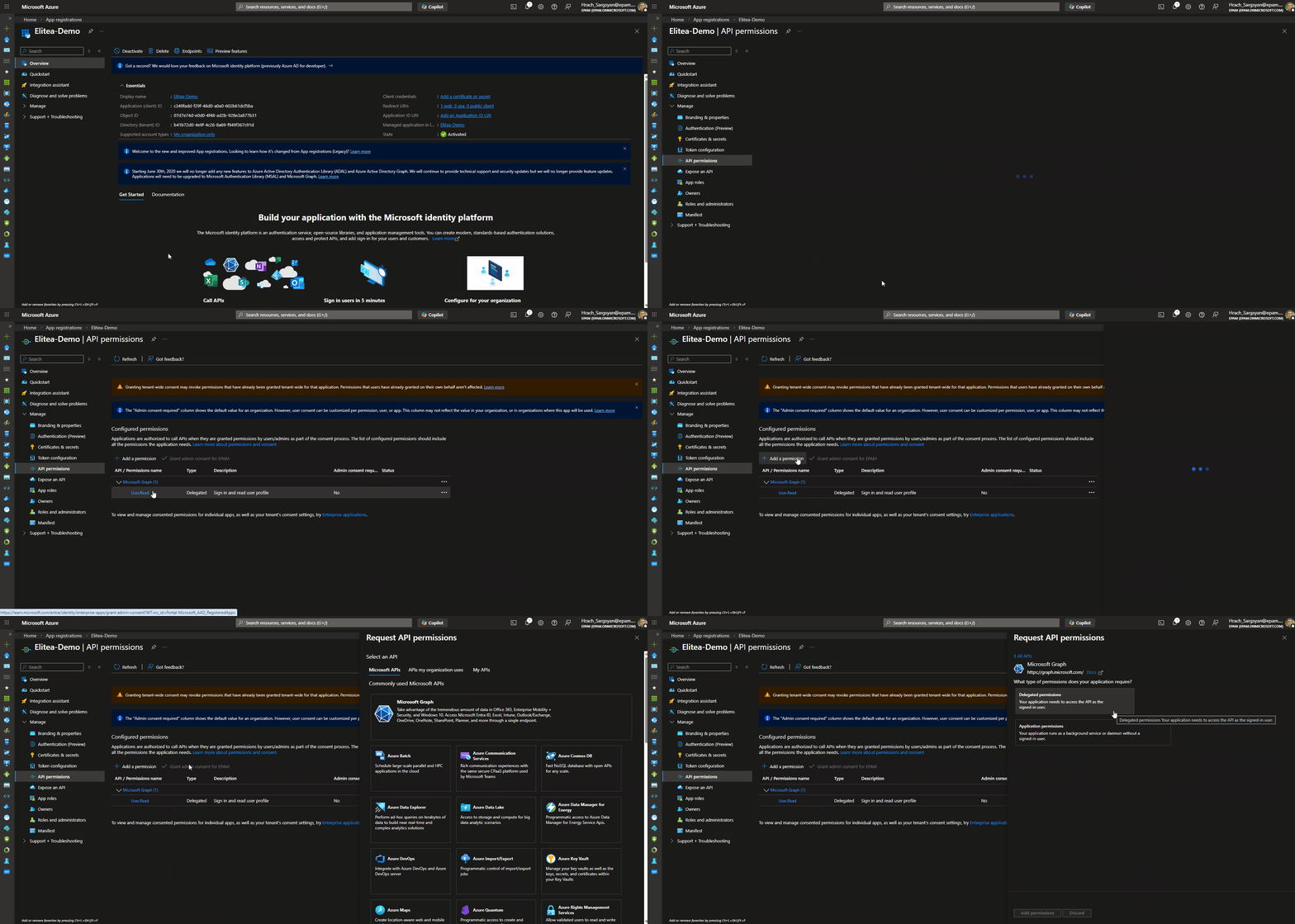
- Select Permission Type - Application permissions: Choose “Application permissions” as the permission type. Application permissions are used when the application acts without a signed-in user (App-Only mode). If you are using Delegated (User OAuth) mode, you may also need to add Delegated permissions.
-
Add Microsoft Graph Scopes: In the “Application permissions” section, use the search bar to search for and select the following scopes:
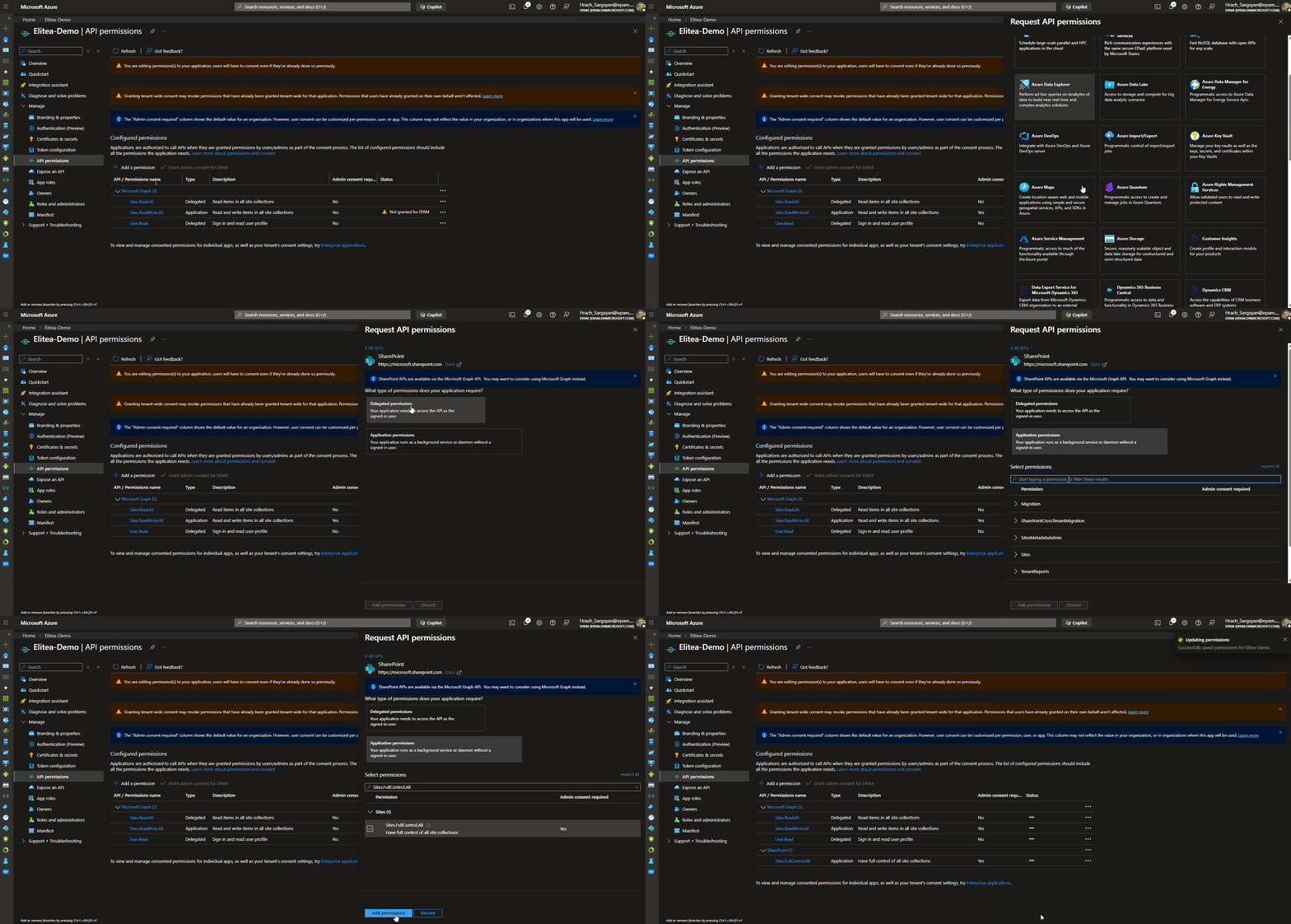
- Add Permissions - SharePoint API: Click ”+ Add a permission” again to add SharePoint-specific permissions. This time, in the “Request API permissions” panel, select the “SharePoint” API tile (you may need to scroll down to find it).
- Select Permission Type - Application permissions: Choose “Application permissions” as the permission type for the SharePoint API as well. If you are using Delegated (User OAuth) mode, select Delegated permissions instead.
-
Add SharePoint Scopes: In the “Application permissions” section for SharePoint API, use the search bar to search for and select the following scope:
-
Add Permissions: After selecting the necessary scopes for both Microsoft Graph and SharePoint APIs, click the “Add permissions” button at the bottom of the “Request API permissions” panel to add the selected permissions to your application registration.
- Grant Admin Consent: On the “API permissions” page, you will see the newly added permissions listed. Click the “Grant admin consent for [Your Organization Name]” button and then click “Yes” to grant admin consent for these permissions. Admin consent is required for application permissions to take effect.
Configure the Client Secret
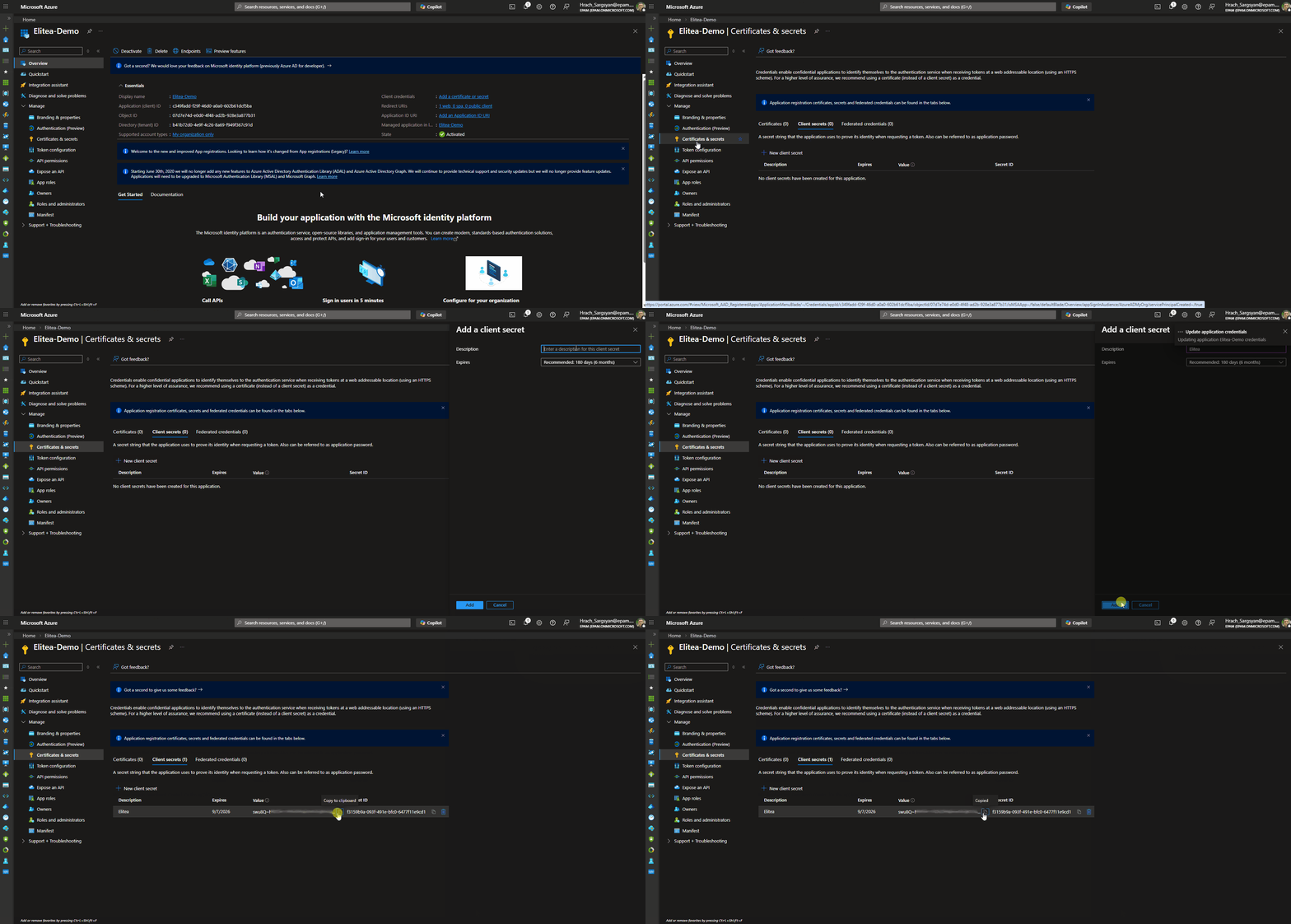
To securely authenticate your ELITEA Agents with SharePoint, you need to create a Client Secret for your registered application. The Client Secret acts as a password for your application when authenticating with Azure AD.- Navigate to Certificates & secrets: In your registered app within the Azure portal, navigate to the left-hand menu and click on “Certificates & secrets”.
- Create New Client Secret: On the “Certificates & secrets” page, click on “Client secrets” tab (if not already selected) and then click ”+ New client secret”.
-
Configure Client Secret Details: In the “Add a client secret” panel:
- Description: Enter a descriptive name for your client secret.
- Expiration: Choose an appropriate expiration period for the client secret from the “Expires” dropdown.
- Add Client Secret: Click the “Add” button at the bottom of the “Add a client secret” panel to create the client secret.
-
Securely Copy and Store Client Secret Value: Immediately copy the generated Client Secret Value displayed in the “Value” column. This is the only time you will see the full Client Secret Value. Store it securely in a password manager or in ELITEA’s Secrets feature. Do not store the value in plain text.
Grant App-Only Access to the SharePoint Site
AppInv.aspx page.
-
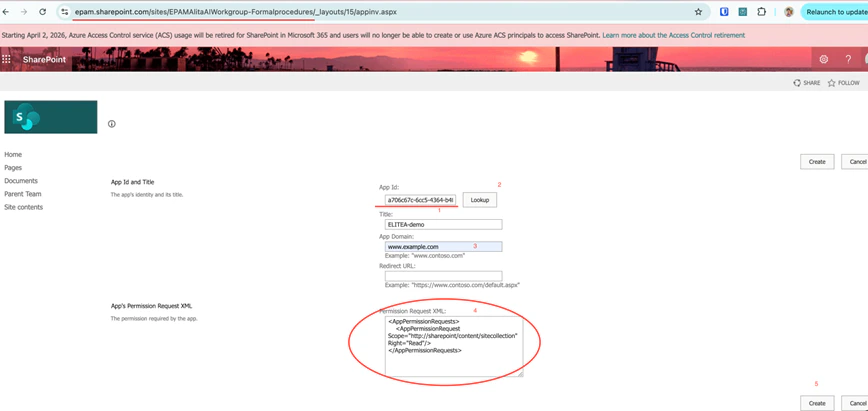
Navigate to the SharePoint AppInv.aspx page: Open your browser and go to the following URL, replacing
{your-tenant}and{site}with your values:Example: - Look Up the App: In the “App Id” field, enter your Application (client) ID and click “Lookup”. Verify that the Title, App Domain, and Redirect URL are populated correctly.
-
Define Permissions using XML: In the “Permission Request XML” field, enter one of the following XML blocks depending on the level of access your Agents require:
!!! example “Permission Request XML Options”
Full Control (read and write operations):
Read-Only Access:!!! warning “Principle of Least Privilege” Grant only the minimum required permissions. Avoid
FullControlunless your Agents need to create, modify, or delete SharePoint content. -
Create and Trust the App: Click “Create”, then click “Trust It” on the confirmation page to grant the requested permissions to your application.
System Integration with ELITEA
To integrate SharePoint with ELITEA, follow a three-step process: Create Credentials → Create Toolkit → Use in Agents. This workflow ensures secure authentication and proper configuration.Step 1: Create SharePoint Credentials
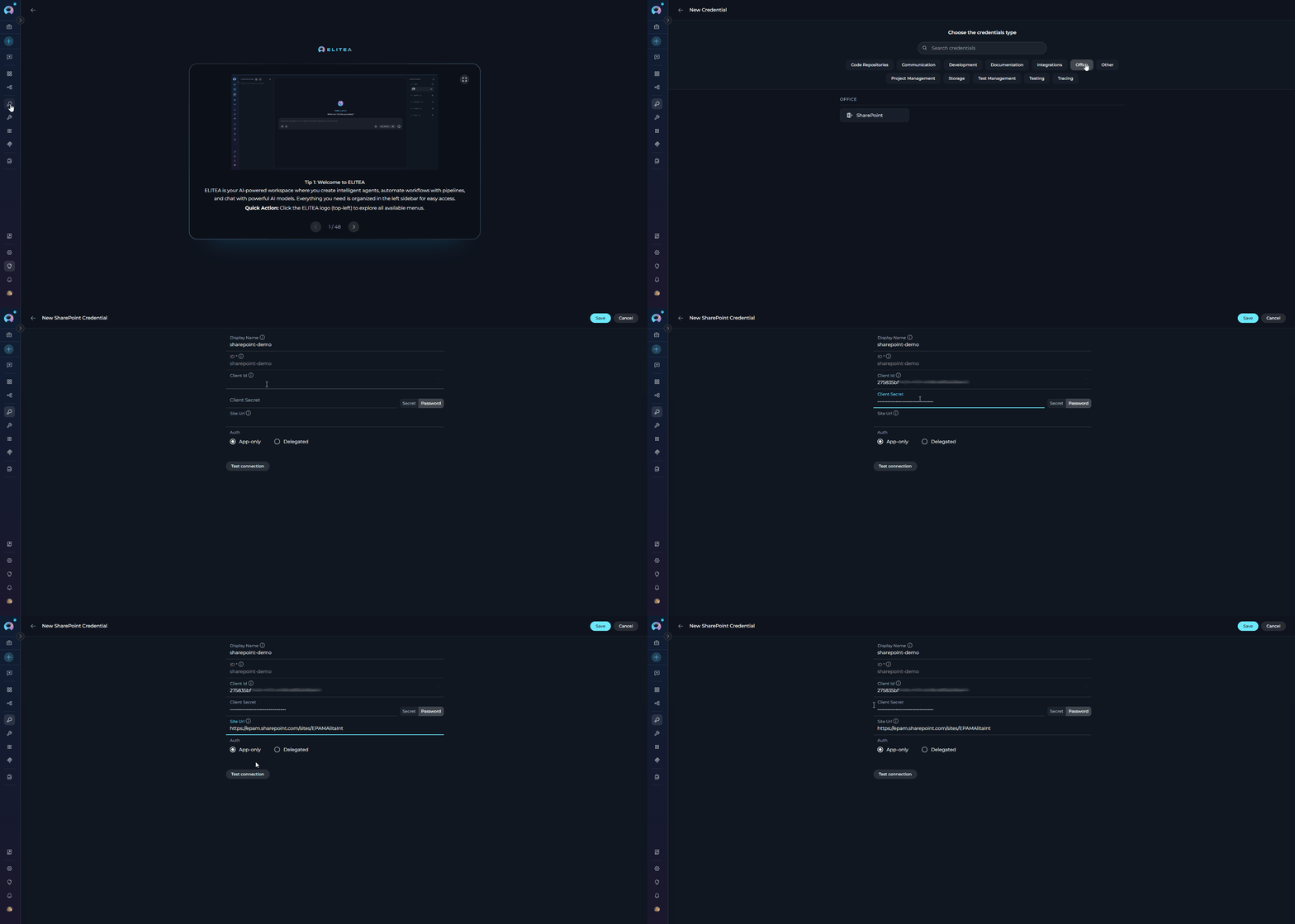
Before creating a toolkit, you must first create SharePoint credentials in ELITEA. The SharePoint credential supports two authentication modes — App-Only (the application acts as itself) and Delegated (the application acts on behalf of a signed-in user). For SharePoint Online, Delegated is the recommended option because Microsoft has retired Azure ACS and recommends moving to Microsoft Entra ID-based authentication. Select the tab in the ELITEA credential form that matches your organization’s access policy: Steps to create a SharePoint credential:- Navigate to Credentials Menu: Open the sidebar and select Credentials.
-
Create New Credential: Click the
+ Createbutton. - Select SharePoint: Choose SharePoint as the credential type.
-
Configure credential fields:
- Select the authentication tab: In the credential form, choose either “App-only” or “Delegated” depending on your access model.
App-Only (Client Credentials)
- Test Connection: Click Test Connectionto verify your credentials are valid and ELITEA can connect to SharePoint.
-
Save Credential: Click Save.
Delegated (User OAuth)
-
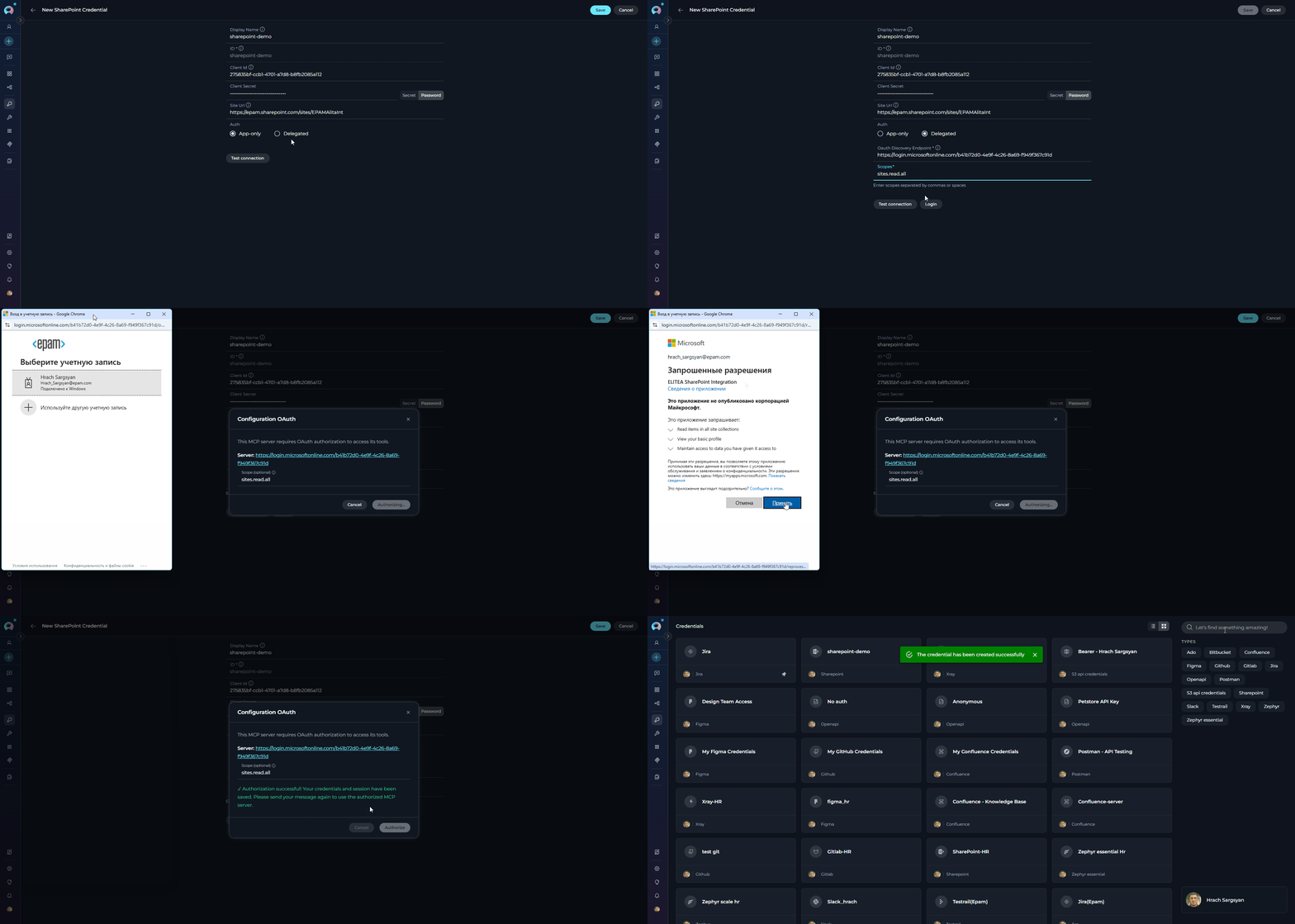
Configure additional Delegated fields:
-
Log in: Once the OAuth Discovery Endpoint field is filled in, a Login button appears next to the Test Connection button. Click Login to initiate the OAuth authorization flow — ELITEA calls the SharePoint check-connection endpoint, which redirects to Azure AD for user sign-in. After you authorize the application, the token is stored and the connection is verified via Microsoft Graph.
After a successful login, the Login button changes to Logout. Click Logout at any time to clear the stored token and disconnect the credential.
-
Save Credential: Click Save.
https://<tenant>.sharepoint.com/sites/<site>. For App-Only, the tenant name is extracted from this URL to construct the ACS endpoint. For Delegated, the full URL is passed to the Microsoft Graph sites API.Choosing an Authentication Mode
Use App-Only (Client Credentials) when:For SharePoint Online, review this option carefully against Microsoft’s Azure ACS retirement guidance. In most ongoing SharePoint Online scenarios, Delegated is the safer recommended choice.
- Your workflow runs automatically, without a user actively involved (e.g., a nightly report, a scheduled file sync, or a background data processing pipeline).
- You want a single shared connection that doesn’t depend on any individual user’s account.
- You need to read from or write to public team sites where user identity doesn’t matter. !!! example An ELITEA Agent that runs every morning, reads all items from a “Project Tasks” list, and generates a summary report — App-Only is the right choice here because no user interaction is needed.
- You need to access OneNote notebooks (only available in Delegated mode).
- Your organization’s SharePoint permissions are user-based — only specific people can see certain sites or libraries.
- The workflow involves a user actively working in ELITEA and you want actions to be logged under their identity.
- You’re building a personal assistant that reads documents or lists on behalf of the signed-in user.
-
You are configuring SharePoint Online access and want the authentication model aligned with Microsoft’s post-Azure-ACS guidance.
!!! example
An ELITEA Agent helping a team member search their department’s restricted SharePoint site and read OneNote meeting notes — Delegated is required because the site is access-controlled per user and OneNote needs a user token.
Step 2: Create SharePoint Toolkit
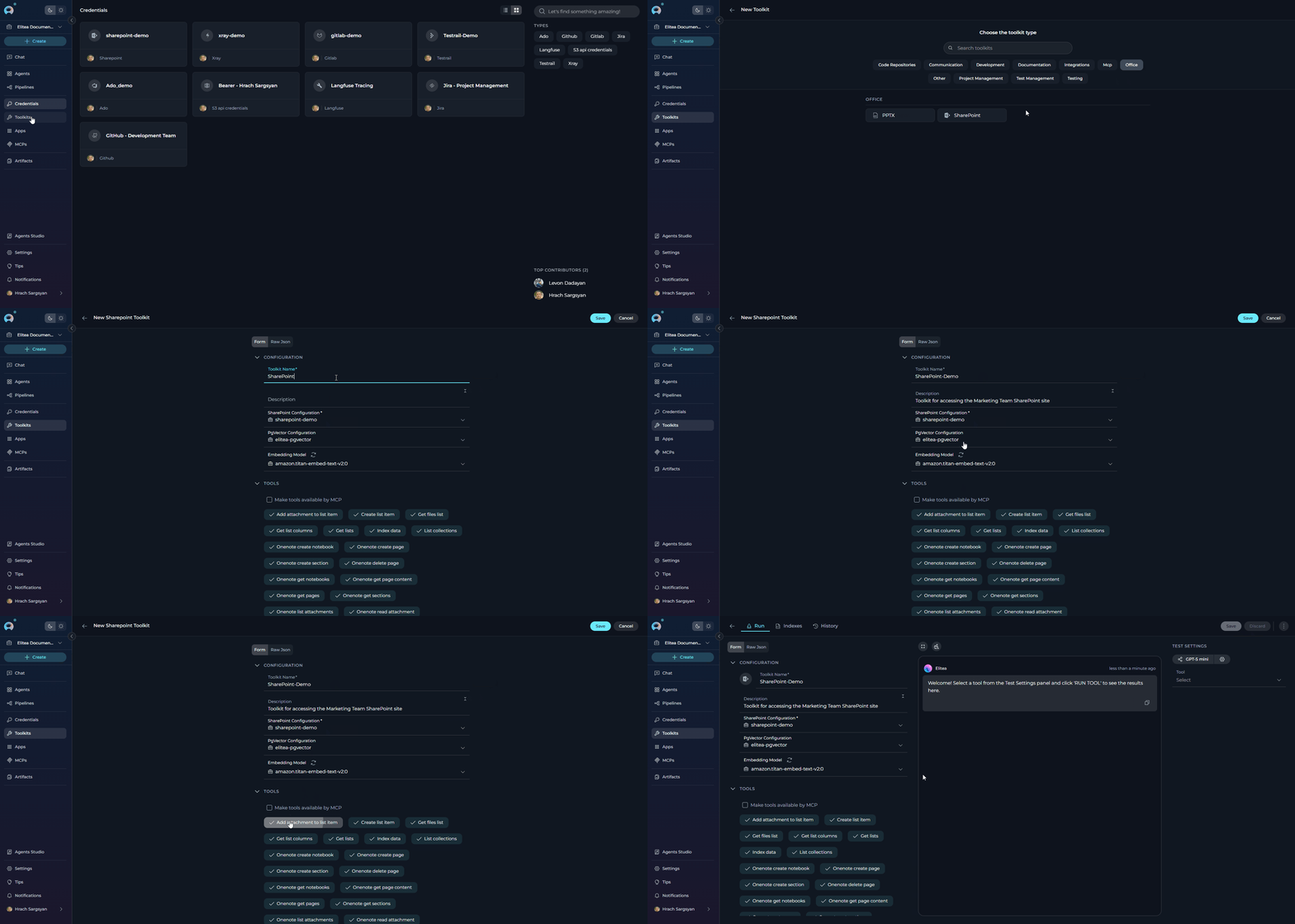
Once your credentials are configured, create the SharePoint toolkit:- Navigate to Toolkits Menu: Open the sidebar and select Toolkits.
-
Create New Toolkit: Click the
+ Createbutton. - Select SharePoint: Choose SharePoint from the list of available toolkit types.
-
Configure Toolkit Settings:
-
Enable Desired Tools: In the “Tools” section, select the checkboxes next to the specific SharePoint tools you want to enable. Enable only the tools your agents will actually use to follow the principle of least privilege.
- Make Tools Available by MCP — (optional checkbox) Enable this option to make the selected tools accessible through external MCP clients.
-
Save Toolkit: Click Save to create the toolkit.
OAuth Status Bar (Delegated mode only)
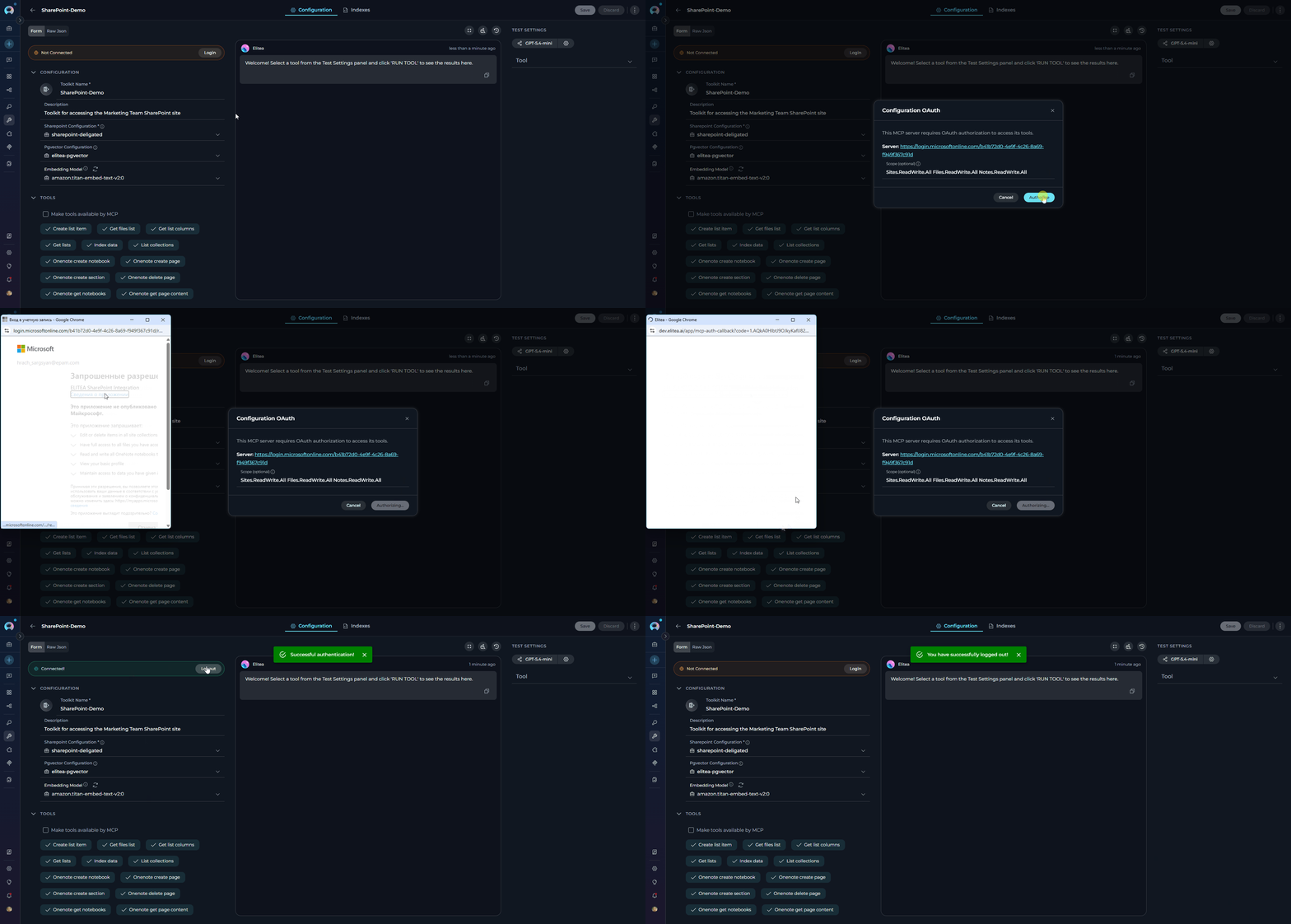
When the selected SharePoint credential uses Delegated (User OAuth) authentication, a connection status bar appears at the top of the toolkit configuration form. This bar is hidden for App-Only credentials. The status bar displays:- A colored status indicator with “Connected!” (green) when a valid OAuth token is present, or “Not Connected” (orange/warning) when no token exists or the token has expired.
- A Login button when not connected, or a Logout button when connected.
Available Tools
-
The SharePoint toolkit provides the following tools for interacting with SharePoint sites, document libraries, and lists, organized by functional categories:
!!! tip “Vector Search Tools” The tools Index data, List collections, Remove index, Search index, Stepback search index, and Stepback summary index require PgVector configuration and an embedding model. These enable advanced semantic search capabilities across your SharePoint documents.
Testing Toolkit Tools
After configuring your SharePoint toolkit, you can test individual tools directly from the Toolkit detail page using the Test Settings panel. This allows you to verify that your credentials are working correctly and validate tool functionality before adding the toolkit to your workflows. General Testing Steps:- Select LLM Model: Choose a Large Language Model from the model dropdown in the Test Settings panel.
- Configure Model Settings: Adjust model parameters like Creativity, Max Completion Tokens, and other settings as needed.
- Select a Tool: Choose the specific SharePoint tool you want to test from the available tools.
- Provide Input: Enter any required parameters or test queries for the selected tool.
- Run the Test: Execute the tool and wait for the response.
-
Review the Response: Analyze the output to verify the tool is working correctly and returning expected results.
!!! tip “Key benefits of testing toolkit tools:”
- Verify that SharePoint credentials and connection are configured correctly
- Test tool parameters and see actual responses from your SharePoint site
- Debug tool behavior and understand output formats
- Optimize tool settings before integrating with agents or pipelines
For detailed instructions on how to use the Test Settings panel, see How to Test Toolkit Tools.
Step 3: Add SharePoint Toolkit to Your Workflows
Now you can add the configured SharePoint toolkit to your agents, pipelines, or use it directly in chat:In Agents:
- Navigate to Agents: Open the sidebar and select Agents.
- Create or Edit Agent: Either create a new agent or select an existing agent to edit.
-
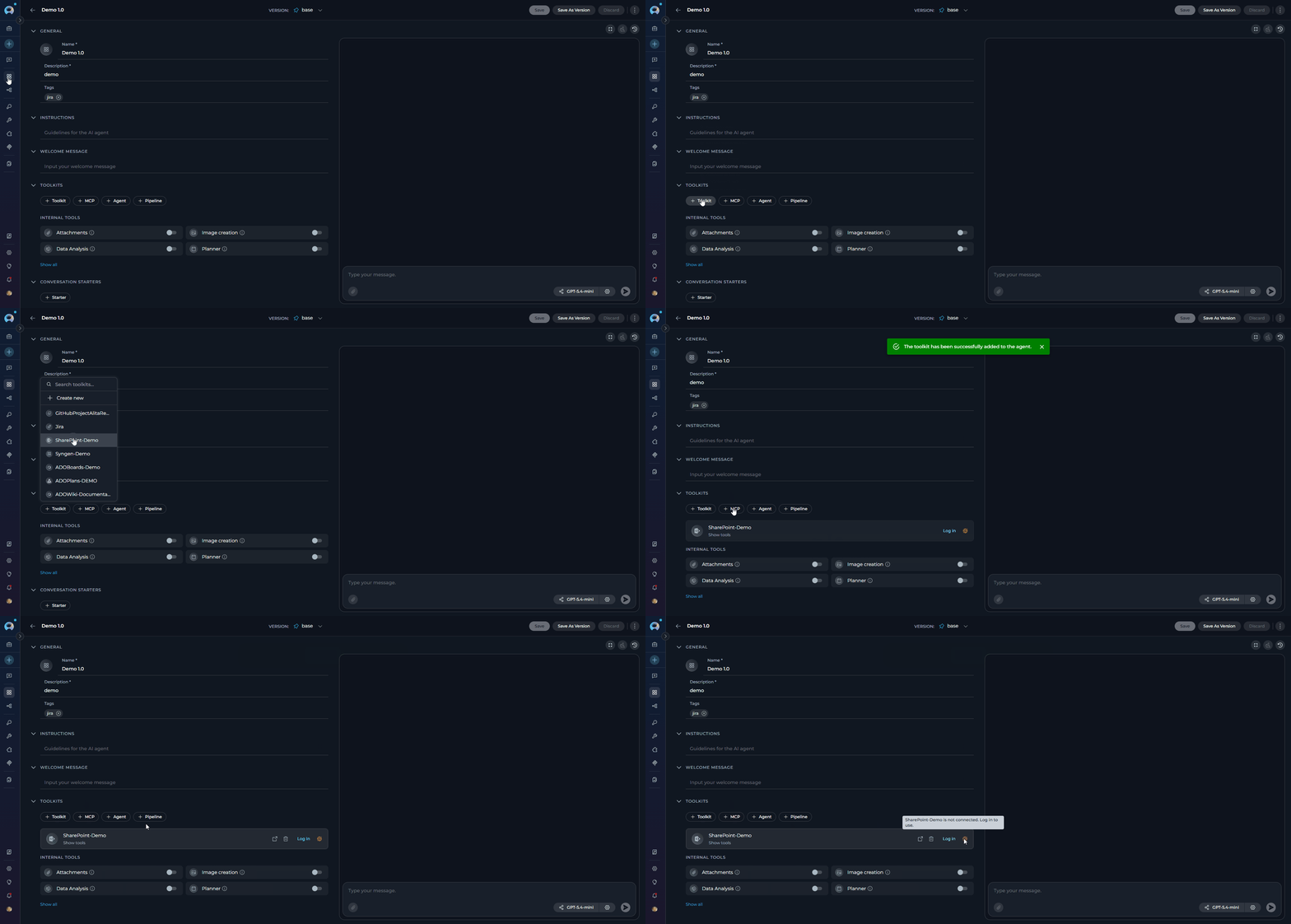
Add SharePoint Toolkit:
- In the “TOOLKITS” section of the agent configuration, click the “+Toolkit” icon.
- Select your configured SharePoint toolkit from the dropdown list.
- The toolkit will be added to your agent with the previously configured tools enabled.
- If the toolkit uses a Delegated (User OAuth) credential, a connection status icon (globe indicator) and a Log in button appear at the right side of the toolkit row. Click Log in to authorize the SharePoint connection directly from the agent configuration — no need to leave the page. Once authorized, the icon switches from offline (orange) to online (green).
In Pipelines:
- Navigate to Pipelines: Open the sidebar and select Pipelines.
- Create or Edit Pipeline: Either create a new pipeline or select an existing pipeline to edit.
-
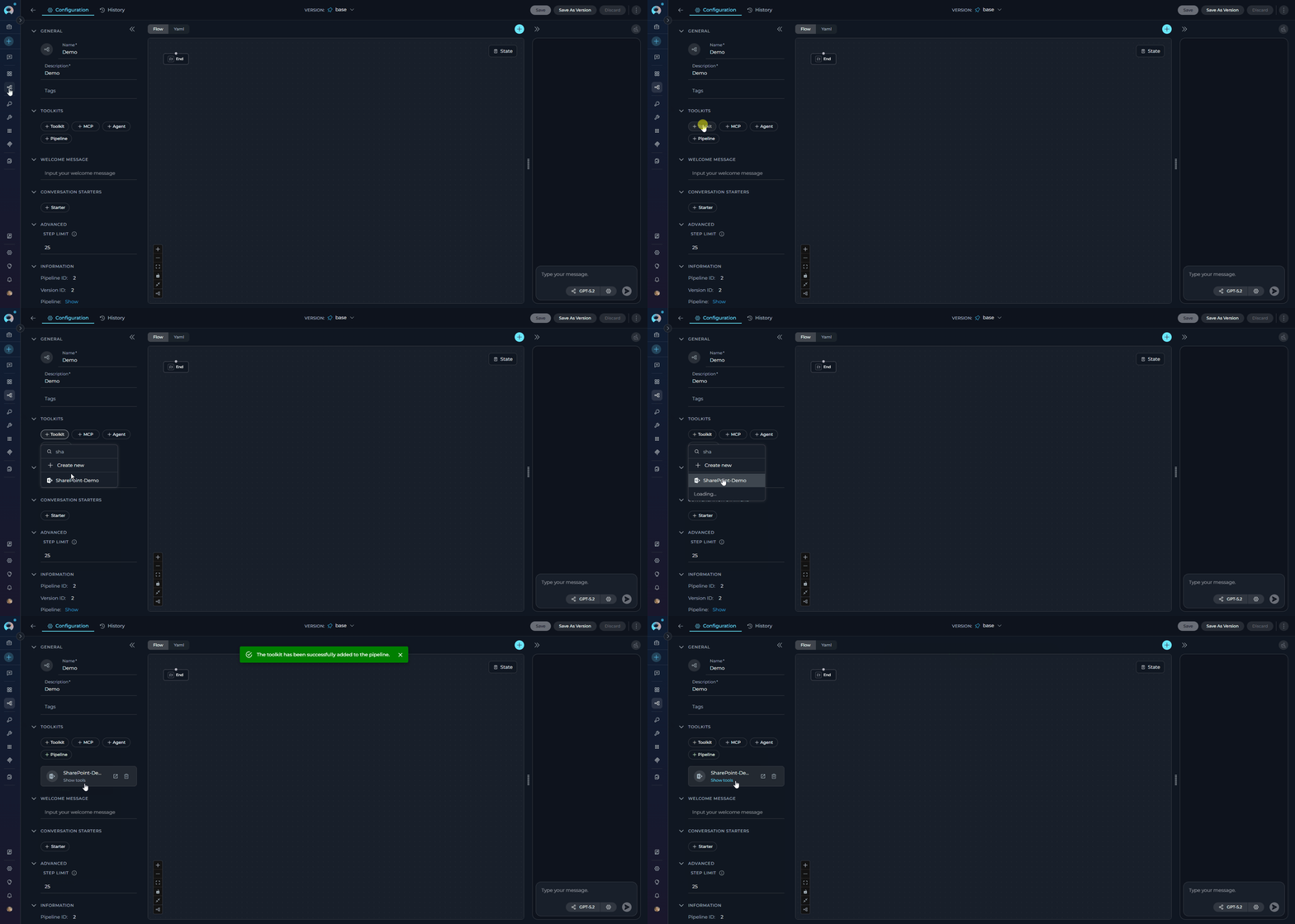
Add SharePoint Toolkit:
- In the “TOOLKITS” section of the pipeline configuration, click the “+Toolkit” icon.
- Select your configured SharePoint toolkit from the dropdown list.
- The toolkit will be added to your pipeline with the previously configured tools enabled.
In Chat:
- Navigate to Chat: Open the sidebar and select Chat.
- Start New Conversation: Click +Create or open an existing conversation.
-
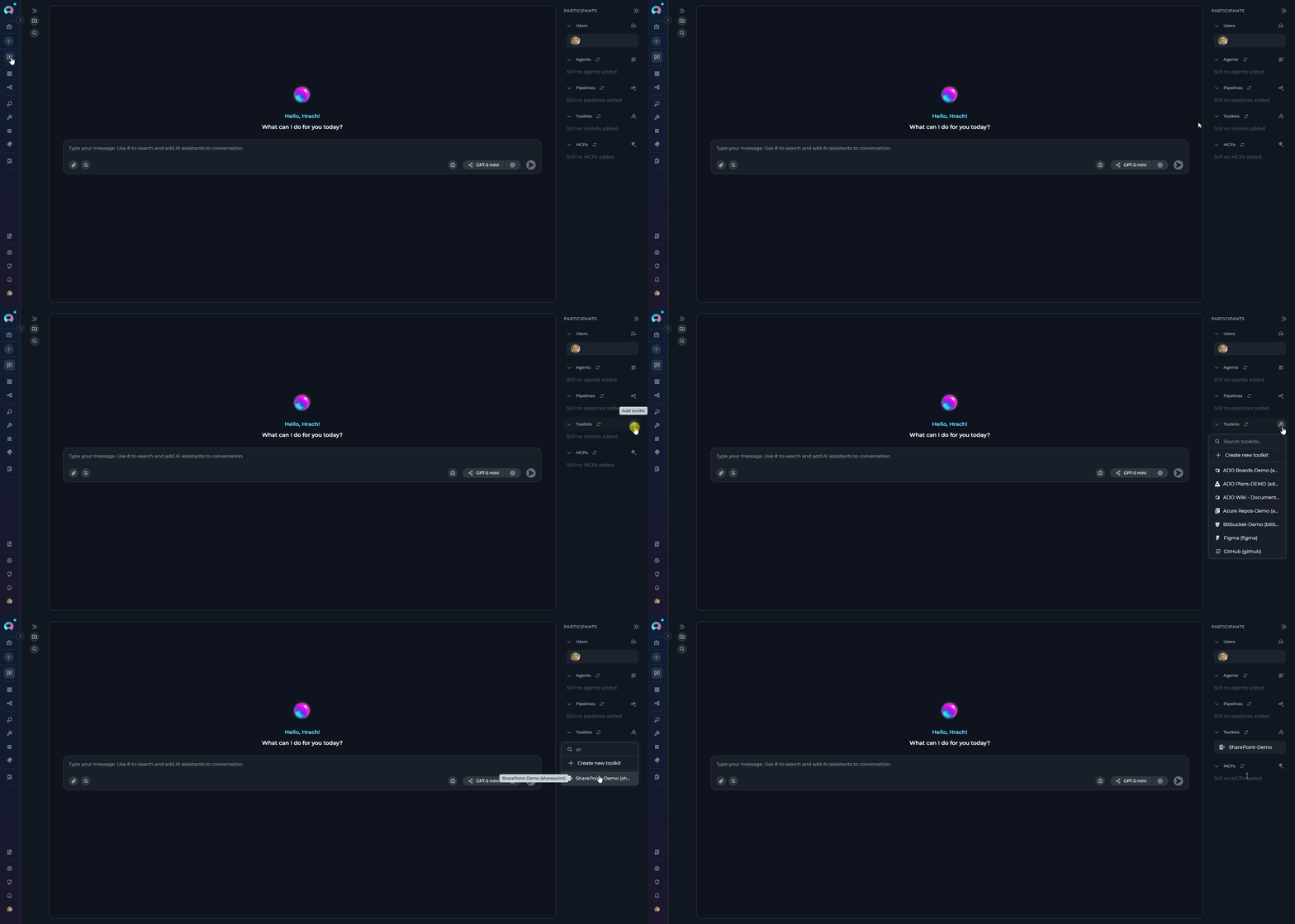
Add Toolkit to Conversation:
- In the chat Participants section, look for the Toolkits element.
- Click the “Add Tools” icon to open the tools selection dropdown.
- Select your configured SharePoint toolkit from the dropdown list.
- The toolkit will be added to your conversation with all previously configured tools enabled.
- If the toolkit uses a Delegated (User OAuth) credential, a connection status icon (globe indicator) appears next to the toolkit name in the Participants list — green when authorized, orange when not. If not authorized, a Log in link appears below the toolkit entry; click it to complete the OAuth flow without leaving the Chat.
-
Use Toolkit in Chat: You can now directly interact with your SharePoint site by asking questions or requesting actions that will trigger the SharePoint toolkit tools.
SharePoint requires authorization. Log in.Click the Log in link to complete the OAuth authorization flow without leaving the Chat. Once authorized, the connection icon next to the toolkit name in the Participants list changes from offline (orange) to online (green) and the warning disappears.
- “List all files in the ‘Shared Documents’ library”
- “Read the content of the project proposal at /sites/Marketing/Shared Documents/Q3 Proposal.docx”
- “Show me all items in the ‘Project Tasks’ list”
- “Create a new item in the ‘Bug Reports’ list with Title ‘Login page error’ and Status ‘Open‘“
Instructions and Prompts for Using the SharePoint Toolkit
To effectively instruct your ELITEA Agent to use the SharePoint toolkit, you need to provide clear and precise instructions within the Agent’s “Instructions” field. These instructions guide the Agent on when and how to use the available SharePoint tools to achieve your desired automation goals.Instruction Creation for Agents
When crafting instructions for the SharePoint toolkit, especially for OpenAI-based Agents, clarity and precision are paramount. Break down complex tasks into a sequence of simple, actionable steps. Explicitly define all parameters required for each tool and guide the Agent on how to obtain or determine the values for these parameters. Effective instructions are:- Direct and Action-Oriented: Use strong action verbs and clear commands. For example, “Use the ‘get_files_list’ tool…”, “Read the document at…”, “Create a list item in…”.
-
Parameter-Centric: Clearly enumerate each parameter required by the tool. For each parameter, specify:
- Its name (exactly as expected by the tool)
- The format or type of value expected
- How the Agent should obtain the value — whether from user input, from previous steps, or as a predefined value
- Contextually Rich: Provide sufficient context so the Agent understands the overall objective and the scenario in which each SharePoint tool should be applied.
- Step-by-Step Structure: Organize instructions into a numbered or bulleted list for complex workflows to help the Agent follow a logical sequence.
- Add Conversation Starters: Include example conversation starters that users can use to trigger this functionality. For example, “Conversation Starters: ‘List the files in the marketing folder’, ‘What’s in the Q3 report?’”
- State the Goal: Clearly state the objective for this step.
- Specify the Tool: Clearly indicate which SharePoint tool to use.
- Define Parameters: List all required parameters with their values or how to obtain them.
- Describe Expected Outcome (Optional but Recommended): Briefly describe the expected result.
-
Add Conversation Starters: Include examples that users can use.
!!! example “Example Agent Instructions”
Agent Instructions for Reading a List and Summarizing Tasks:
Chat Usage Examples by Tool Category
The following examples demonstrate how to interact with the SharePoint toolkit in ELITEA Chat, organized by functional categories.File Operations - Get All Files
File Operations - Get All Files
File Operations - Read Document
File Operations - Read Document
File Operations - Upload File
File Operations - Upload File
List & Data Operations - Get Lists
List & Data Operations - Get Lists
List & Data Operations - Read List
List & Data Operations - Read List
List & Data Operations - Create List Item
List & Data Operations - Create List Item
Indexing & Search - Search Index
Indexing & Search - Search Index
Troubleshooting
Credential Not Appearing in Toolkit Configuration
Credential Not Appearing in Toolkit Configuration
- Check Credential Scope: Ensure you are working in the same workspace/project where the credential was created. Private credentials are only visible in your Private workspace, while project credentials are visible within the specific team project.
- Verify Credential Creation: Go to the Credentials menu and confirm that your SharePoint credential was successfully saved.
- Credential Type Match: Ensure you selected “SharePoint” as the credential type when creating the credential.
Connection Errors
Connection Errors
- Verify Site URL Format: Ensure the SharePoint Site URL follows the exact format
https://<tenant>.sharepoint.com/sites/<site>. The URL must start withhttps://and contain.sharepoint.com. Remove any trailing slashes. - Check Client ID: Double-check that the Application (client) ID is entered correctly, matching the value on the Azure AD app registration Overview page.
- Check Client Secret: Ensure the Client Secret Value (not the Secret ID) is accurate and has not expired. If the secret has expired, generate a new one in Azure AD.
- Verify App-Only Access (App-Only mode only): If using App-Only (Client Credentials) authentication, confirm that you completed the
AppInv.aspxstep to grant App-Only access to the SharePoint site collection. Without this step, authentication tokens will be issued but access to the site will be denied. This step is not required for Delegated (User OAuth) mode. - Network Connectivity: Confirm that your ELITEA environment can reach SharePoint over the internet with no firewall or proxy blocking the connection.
OAuth Login Fails with 'No Reply Address Is Registered' Error
OAuth Login Fails with 'No Reply Address Is Registered' Error
AADSTS500113: No reply address is registered for the application.Cause: This error occurs when no Redirect URI has been registered in your Azure AD App Registration. Azure AD requires the redirect URI to be explicitly registered before it will send the authorization response back to ELITEA.Troubleshooting Steps:
- Open your App Registration: In the Azure Portal, go to Microsoft Entra ID → App registrations and select your app.
- Navigate to Authentication: In the left menu, click “Authentication”.
- Add a Redirect URI: If no Web platform exists, click ”+ Add a platform” → “Web”. If Web is already listed, click the Edit pencil next to it.
-
Enter the ELITEA callback URL: In the “Redirect URIs” field, enter the value matching your deployment:
This URL is derived from your deployment domain and is not shown in the ELITEA UI. Contact your ELITEA administrator if you are unsure which value applies.
- Save: Click “Configure” (or “Save” if editing), then click “Save” at the top of the page.
- Retry the OAuth flow: Return to your ELITEA SharePoint credential and click Log in again.
Incorrect Library or List Name
Incorrect Library or List Name
- Check Library/List Title: Verify you are using the exact title of the document library or list as it appears in SharePoint. Titles must be spelled correctly.
- Use
get_listsFirst: Run theget_liststool to retrieve the exact title of all visible lists on your site before attempting to read a specific one. - Use
get_files_listWithout Filters: Callget_files_listwithout specifying a folder to list all files and discover the correct library and path names. - Verify the Site URL: Confirm the Site URL in your credential points to the root of the site collection where the target library or list lives.
File Path Errors When Reading Documents
File Path Errors When Reading Documents
read_document tool returns “File not found” even though the file exists.Troubleshooting Steps:- Use Server-Relative Path: The
pathparameter forread_documentmust be a server-relative path (e.g.,/sites/MySite/Shared Documents/folder/file.docx), not a full URL. - Retrieve Path from
get_files_list: Useget_files_listfirst. Each result includes aPathfield containing the correct server-relative path to use withread_document. - Check for Special Characters: Use the raw path as returned by
get_files_list— do not URL-encode it when passing it toread_document.
Create List Item Fails with Field Errors
Create List Item Fails with Field Errors
create_list_item tool returns errors about invalid fields or missing required fields.Troubleshooting Steps:- Call
get_list_columnsFirst: Always callget_list_columnsbeforecreate_list_itemto discover available fields, their internal names, required flags, and valid choice values for the target list. - Use Internal Field Names: The
fieldsdictionary must use the internal field name (thenameproperty returned byget_list_columns), not the display label. - Choice Field Values: For choice fields, the value must exactly match one of the allowed choices returned by
get_list_columns. - DateTime Format: Use ISO 8601 format for date fields:
2026-04-01T00:00:00Z.
OneNote Tools Return 'Graph API Delegated Access Required' Error
OneNote Tools Return 'Graph API Delegated Access Required' Error
- Switch to Delegated credential: In ELITEA, navigate to your SharePoint credential and switch to the Delegated tab.
- Configure OAuth Discovery Endpoint: Enter
https://login.microsoftonline.com/{tenant_id}using your Directory (tenant) ID. - Configure Scopes: Enter the required scopes:
Sites.ReadWrite.All Files.ReadWrite.All Lists.ReadWrite.All Notes.ReadWrite.All. - Complete the OAuth flow: Click Log in to authorize. Once authorized with Delegated credentials, all OneNote tools become available.
Support Contact
If you encounter issues not covered in this guide or need additional assistance with SharePoint integration, please refer to Contact Support for detailed information on how to reach the ELITEA Support Team.FAQ
Do I need to complete the AppInv.aspx step even if I already granted Microsoft Graph permissions in Azure AD?
Do I need to complete the AppInv.aspx step even if I already granted Microsoft Graph permissions in Azure AD?
Sites.Read.All, etc.) and the SharePoint App-Only access via AppInv.aspx are two separate authorization layers. Graph permissions allow the app to call the Microsoft Graph API, while AppInv.aspx grants the app direct access to the specific SharePoint site collection via the SharePoint REST API. The ELITEA toolkit uses the SharePoint REST API as its primary method and falls back to Graph API. Both steps are required for full functionality.Important: App-Only credentials will authenticate successfully (obtain a token) but receive Access Forbidden (403) responses from SharePoint unless the AppInv.aspx site collection grant has been completed. Authentication ≠ authorization — the token is issued, but access is denied until the site-level grant is in place.Do I need to register a Redirect URI for the Delegated auth flow?
Do I need to register a Redirect URI for the Delegated auth flow?
AADSTS500113: No reply address is registered. This step is not required for App-Only (client credentials) authentication.You can set it during app registration (step 4 in Registering an App) or add it later to an existing registration:- In the Azure Portal, go to Microsoft Entra ID → App registrations and select your app.
- In the left menu, click “Authentication”.
- If no Web platform exists yet, click ”+ Add a platform” → “Web”. If Web already exists, click the Edit pencil next to it.
-
In the “Redirect URIs” field, enter the value matching your deployment:
This URL is derived from your deployment domain and is not shown in the ELITEA UI. Contact your ELITEA administrator if you are unsure which value applies.
- Click “Configure” (or “Save” if editing), then click “Save” at the top of the page.
- Scroll down to verify the URI appears under Web → Redirect URIs.
How do I find my Directory (Tenant) ID?
How do I find my Directory (Tenant) ID?
- In the Azure Portal, search for “Microsoft Entra ID” and select it.
- On the Overview page, copy the “Tenant ID” value.
- In the Azure Portal, go to Microsoft Entra ID → App registrations and select your app.
- On the Overview page, copy the “Directory (tenant) ID” value.
Which tools require PgVector and an Embedding Model?
Which tools require PgVector and an Embedding Model?
- Index data — Indexes documents into the vector store.
- List collections — Lists available indexed collections.
- Remove index — Removes an indexed collection.
- Search index — Searches the vector index semantically.
- Stepback search index — Contextual search with broader scope.
- Stepback summary index — Generates summaries from indexed content.
get_files_list, read_document, read_list, get_lists, get_list_columns, create_list_item, upload_file) work without a vector database configuration.Do OneNote tools work with App-Only (Client Credentials) mode?
Do OneNote tools work with App-Only (Client Credentials) mode?
onenote_get_notebooks, onenote_get_sections, onenote_get_pages, onenote_get_page_content, onenote_read_page, onenote_read_page_items, onenote_list_attachments, onenote_read_attachment, onenote_create_notebook, onenote_create_section, onenote_create_page, onenote_update_page, onenote_replace_page_content, onenote_delete_page) require Delegated (User OAuth) authentication. They communicate exclusively with the Microsoft Graph API using a user-context access token and will return an error when called with App-Only credentials.To use OneNote tools:- Configure your SharePoint credential using the Delegated tab.
- Set the OAuth Discovery Endpoint to
https://login.microsoftonline.com/{tenant_id}. - Set Scopes to include at minimum:
Sites.ReadWrite.All Files.ReadWrite.All Lists.ReadWrite.All Notes.ReadWrite.All. - Complete the OAuth Log in flow to authorize.
Can I use the same toolkit across different workspaces (Private vs. Team Projects)?
Can I use the same toolkit across different workspaces (Private vs. Team Projects)?
- Private Workspace: Credentials and toolkits are only visible to you.
- Team Project Workspace: Credentials and toolkits are visible to all project members.
Why is create_list_item failing with a validation error?
Why is create_list_item failing with a validation error?
get_list_columns on the target list first — this returns each column’s internal name (name field), its type, required flag, and valid choices. Use the internal name (not the display label) as the key in the fields dictionary passed to create_list_item.Why am I consistently encountering 'Permission Denied' errors even though I believe I configured everything correctly?
Why am I consistently encountering 'Permission Denied' errors even though I believe I configured everything correctly?
AppInv.aspx step for the exact site collection specified in your Site URL. App-Only permissions granted on one site collection do not apply to sub-sites or other site collections.2. Azure AD Admin Consent:
Verify that admin consent was granted for the API permissions in Azure AD. Without admin consent, application permissions have no effect.3. Client Secret Validity:
Check that the Client Secret has not expired. Review the expiration date in Azure AD under Certificates & Secrets and regenerate if needed.4. Site URL Accuracy:
Confirm the Site URL in your ELITEA credential exactly matches the site collection where App-Only access was granted.5. Permission Level:
If the error occurs on write operations (upload, create item), verify that Right="FullControl" or Right="Write" was specified in the AppInv.aspx XML — Right="Read" is insufficient for write operations.- Create and Edit Agents from Canvas — Learn how to quickly create and edit agents directly from chat canvas for rapid prototyping and workflow automation.
- Create and Edit Toolkits from Canvas — Discover how to create and configure SharePoint toolkits directly from the chat interface.
- Create and Edit Pipelines from Canvas — Guide to building and modifying pipelines from chat canvas for automated SharePoint workflows.
- Indexing Overview — Comprehensive guide to understanding ELITEA’s indexing capabilities for enhanced search and discovery.
- Index SharePoint Data — Detailed instructions for indexing SharePoint document library data to enable advanced semantic search.
- Azure Portal: https://portal.azure.com — Manage your Azure AD App Registrations, API permissions, and Client Secrets.
- Azure AD App Registrations: https://portal.azure.com/#blade/Microsoft_AAD_RegisteredApps/ApplicationsListBlade — View and manage your registered applications in Azure Active Directory.
- Microsoft Graph Permissions Reference: https://learn.microsoft.com/en-us/graph/permissions-reference — Detailed reference for Microsoft Graph API permission scopes.
- SharePoint REST API Reference: https://learn.microsoft.com/en-us/sharepoint/dev/sp-add-ins/get-to-know-the-sharepoint-rest-service — Official documentation for the SharePoint REST API.
- Microsoft SharePoint: https://www.microsoft.com/en-us/microsoft-365/sharepoint/collaboration — Main Microsoft SharePoint product page.