

- Get current project context content and enabled state
- Create project context if it does not exist
- Update existing project context content and settings
- Delete project context configuration
- Manage activation description (when to load context)
Prerequisites
- MCP features enabled on the platform (the
elitea_core/project_contextMCP endpoint) - User role with project context edit permissions
- Project Context Builder enabled in your chat or agent
How to Enable Project Context Builder
The default state of the Project Context Builder module — on or off — is defined in the project settings. If Project Context Builder is turned off by default, you can turn it on for your current conversation or agent.Enable the Ask User module alongside Project Context Builder for the best experience. When enabled, the agent can ask structured clarifying questions with interactive options if your project context request is missing information. Without Ask User, the agent can only request information through normal chat responses.
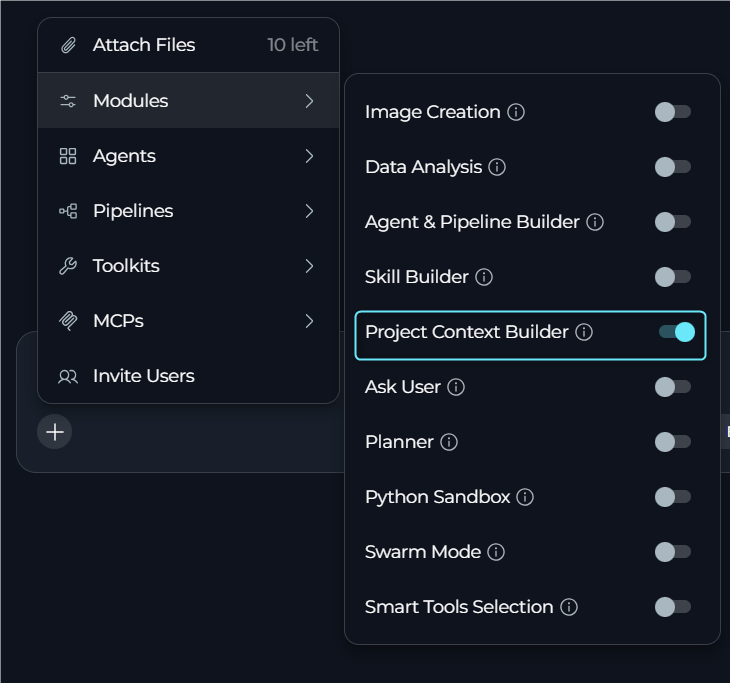
For a Conversation
- Go to the conversation.
- Select
+in the chat input toolbar. - Select Modules → Project Context Builder in the list.
- Toggle Project Context Builder on.
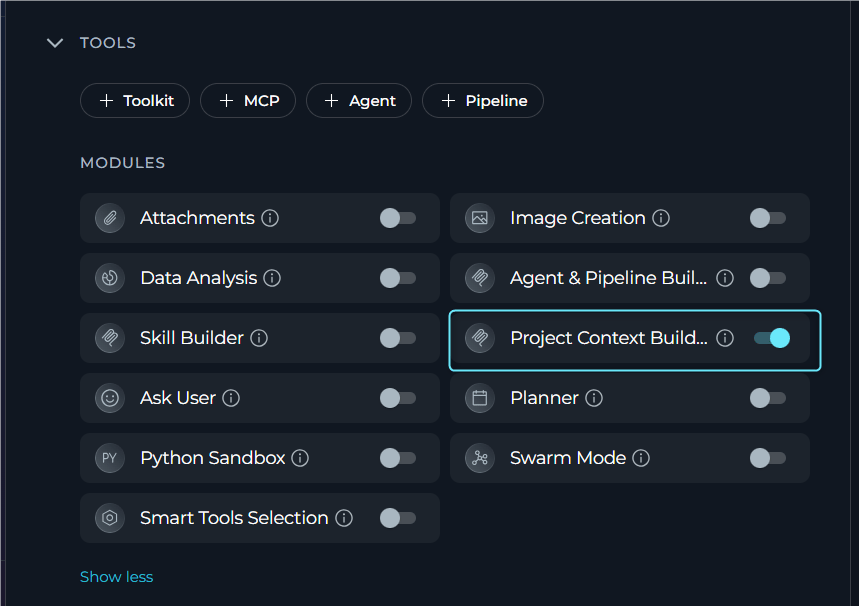
For an Agent
- Select Agents.
- Select the agent to configure, or create a new agent.
- In the TOOLS section, find MODULES.
- Find Project Context Builder. Select Show all if you do not see it immediately.
- Toggle Project Context Builder on.
- Select Save.
How Project Context Builder Works
When Project Context Builder is enabled, the agent connects to the ELITEA MCP server and gains access to project context management tools.Limitations
- Project-scoped: Can only access project context in the current project.
- Single context per project: Each project has one project context configuration.
- Content length: Maximum 2500 characters for content field.
- Activation description length: Maximum 300 characters for activation description.
- Not auto-applied: Created or updated context is not automatically added to the current conversation.
Available Tools
How to Use Project Context Builder
Project Context Builder can only access and modify project context in the project where the conversation is running. It cannot access and modify project context from other projects.Create or Update Project Context
Step 1: Type Your Request in the Chat
Step 1: Type Your Request in the Chat
Describe what project context you want to create or update. You can provide all details upfront or let the agent ask clarifying questions.
Create project context for our QA team: All bug reports must include steps to reproduce, expected vs actual results, browser version, and screenshots when applicable
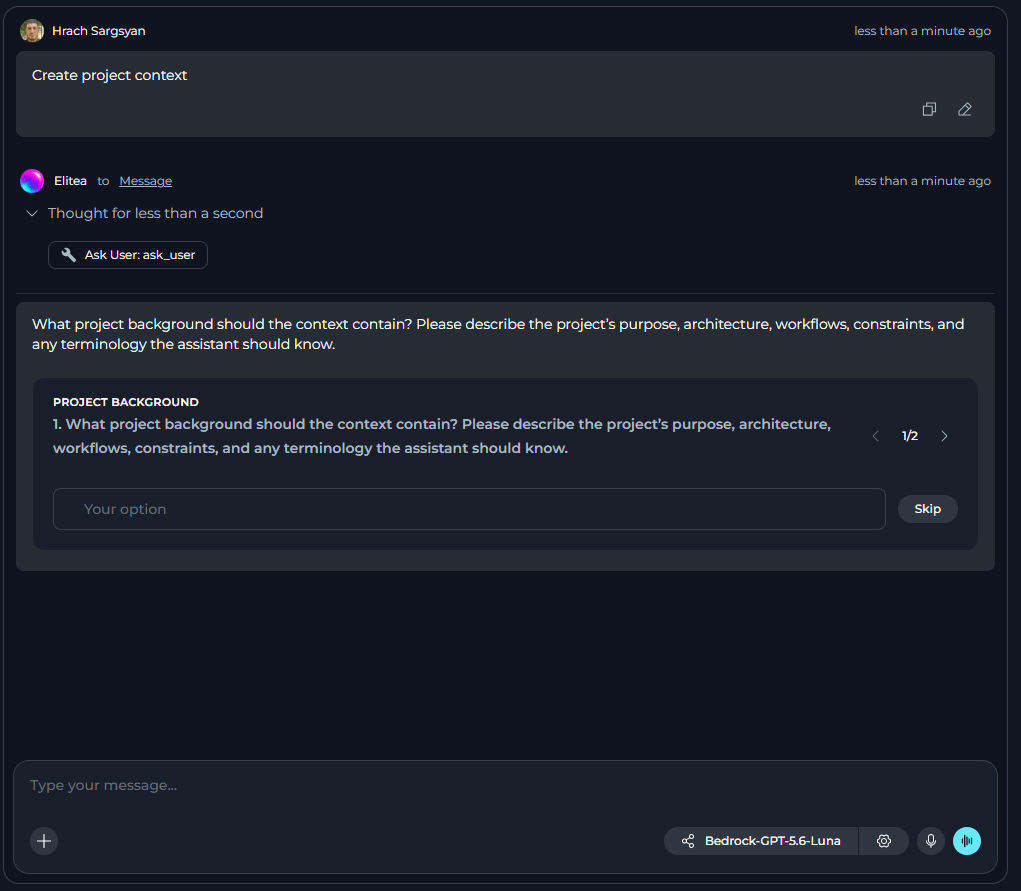
Step 2: Answer Clarifying Questions (If Needed)
Step 2: Answer Clarifying Questions (If Needed)
If required information is missing, the agent response depends on whether Ask User is enabled:
- Ask User enabled: The agent asks 1-4 focused questions using structured prompts with single-select, multi-select, or free-text options. Questions appear one per step with “Question X of Y” progress indicators and Back/Next navigation.
-
Ask User disabled: The agent requests missing information in a normal chat response or explains that it cannot safely proceed without clarification.
Step 3: Review Created Project Context
Step 3: Review Created Project Context
After successful creation or update, the project context automatically opens in Canvas mode for review and editing. A Project Context chip also appears in the chat, which you can click later to reopen the project context.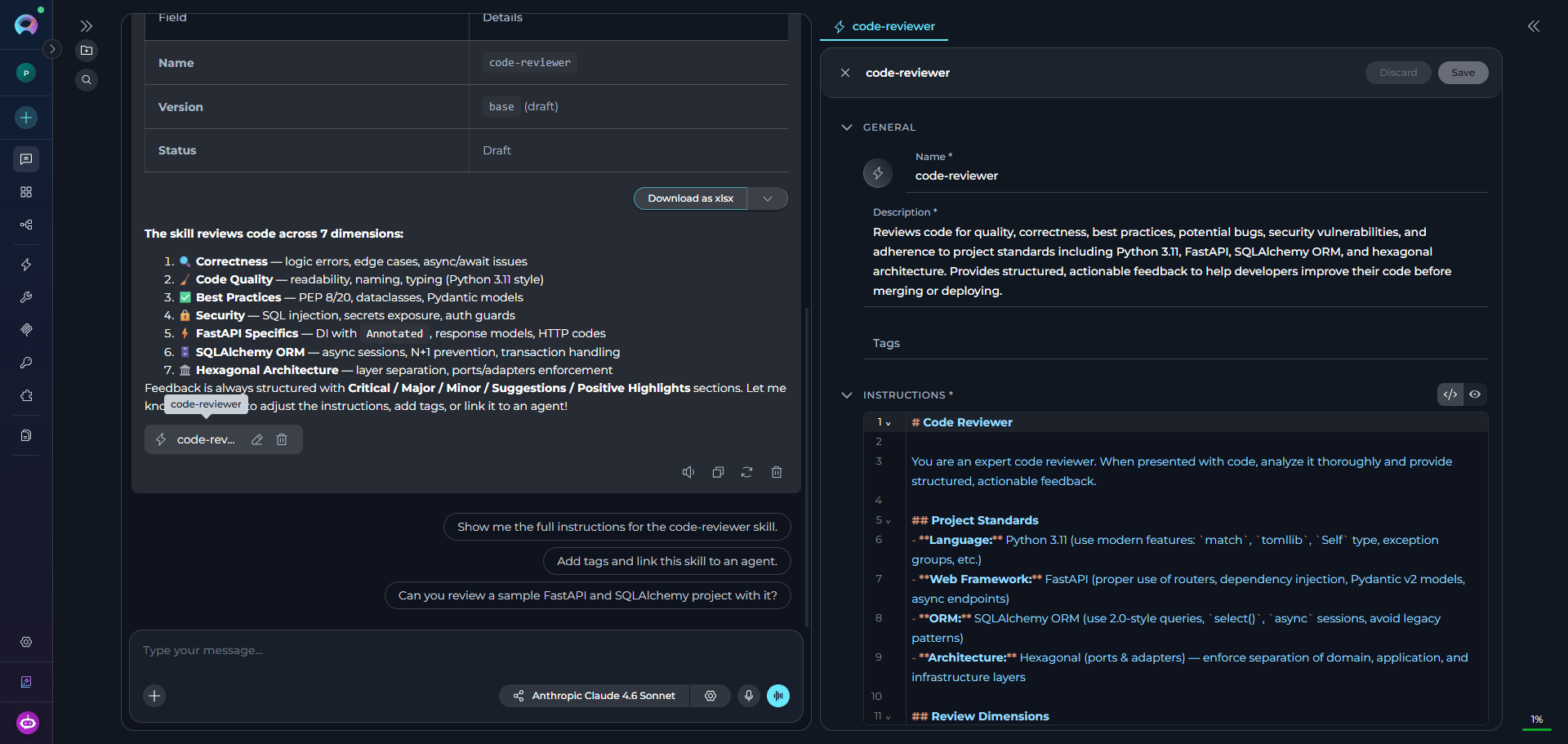
Created or updated context is not automatically added to the current conversation.
Manage Project Context
With Project Context Builder, you can manage project context directly from chat:Best Practices
Project Context Creation
Project Context Creation
- Enable the Ask User module to get better results
- Provide clear, detailed instructions that all agents in the project should follow
- Keep content concise and focused on essential project-wide knowledge
- Use project context for information that applies across all agents
- Include coding standards, API conventions, and common workflows
- Test the context with multiple agents to ensure correct interpretation
Content Management
Content Management
- Review and update project context periodically as requirements change
- Enable project context only when it provides value to agent conversations
- Document significant context changes for team awareness
Module Configuration
Module Configuration
- Enable Project Context Builder by default in project settings if your team frequently updates context
- Enable Project Context Builder only for agents that need context management capabilities
- Use appropriate permissions to control who can create and modify project context
- Review project context impact on agent behavior regularly
Working with Chat
Working with Chat
- Provide complete information (content, enabled state) in your initial request to skip clarification questions
- Be specific when updating context. Describe exactly what should change
See also: