

Prerequisites
To generate images, you need:- An LLM model that supports image generation
- Image Creation enabled in your chat or agent
- An image generation model configured and selected in your project (Settings > AI Providers)
- Proper project configuration by your administrator
If the Image Creation module is not available, contact your administrator to enable image generation for your project.
How to Enable Image Creation
The default state of the Image Creation module — on or off — is defined in the project settings. If Image Creation is turned off by default, you can turn it on for your current conversation or agent.For a Conversation
To generate images, your project must have the configured image generation provider toolkit. Without it, the Image Creation module is silently omitted from the list. Contact your administrator if you do not see it in the Modules list.
- Go to the conversation.
- Select + in the chat input toolbar.
- Select Modules → Image Creation in the list.
- Toggle Image Creation on.
- Use the model selector to choose a model with image generation capabilities.

For an Agent
- Select Agents.
- Select the agent to configure, or create a new agent.
- In the TOOLS section, find Modules.
- Find Image Creation. Select Show all if you do not see it immediately.
- Toggle Image Creation on.
- Use the model selector to choose a model with image generation capabilities.
- Select Save.

How to Generate Images
Technical Limitations
- Available features depend on the specific image generation model.
- Higher quality images take longer to generate.
- Maximum image size varies by model.
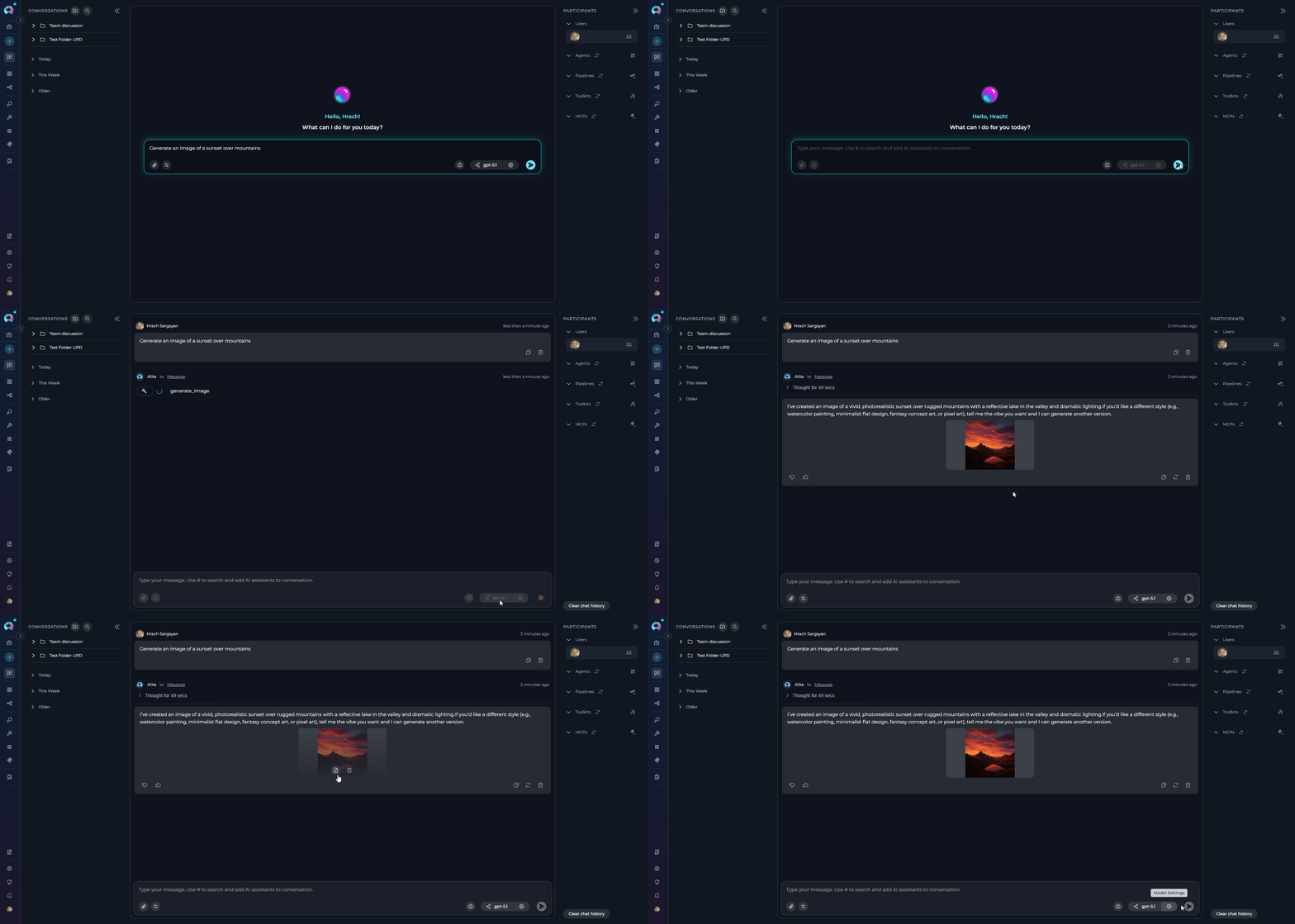
- In the message input field, type a prompt describing the image you want to create.
- Press Send or hit
Enter. ELITEA will automatically invoke the image generation tool. - Generated image(s) will appear inline in the conversation.
Generated images are automatically saved in Artifacts in the
attachments bucket, inside a dedicated images folder. This folder is created automatically the first time you generate an image if it doesn’t already exist.- “Generate an image of a sunset over mountains”
- “Create a diagram showing a microservices architecture”
- “Generate an illustration of a friendly robot assistant”
- “Make an image of a modern office workspace”
- number of images
- image quality
- image size
- style
How to View and Manage Images
You can preview, download, and delete generated images both from the chat and from Artifacts.In Chat
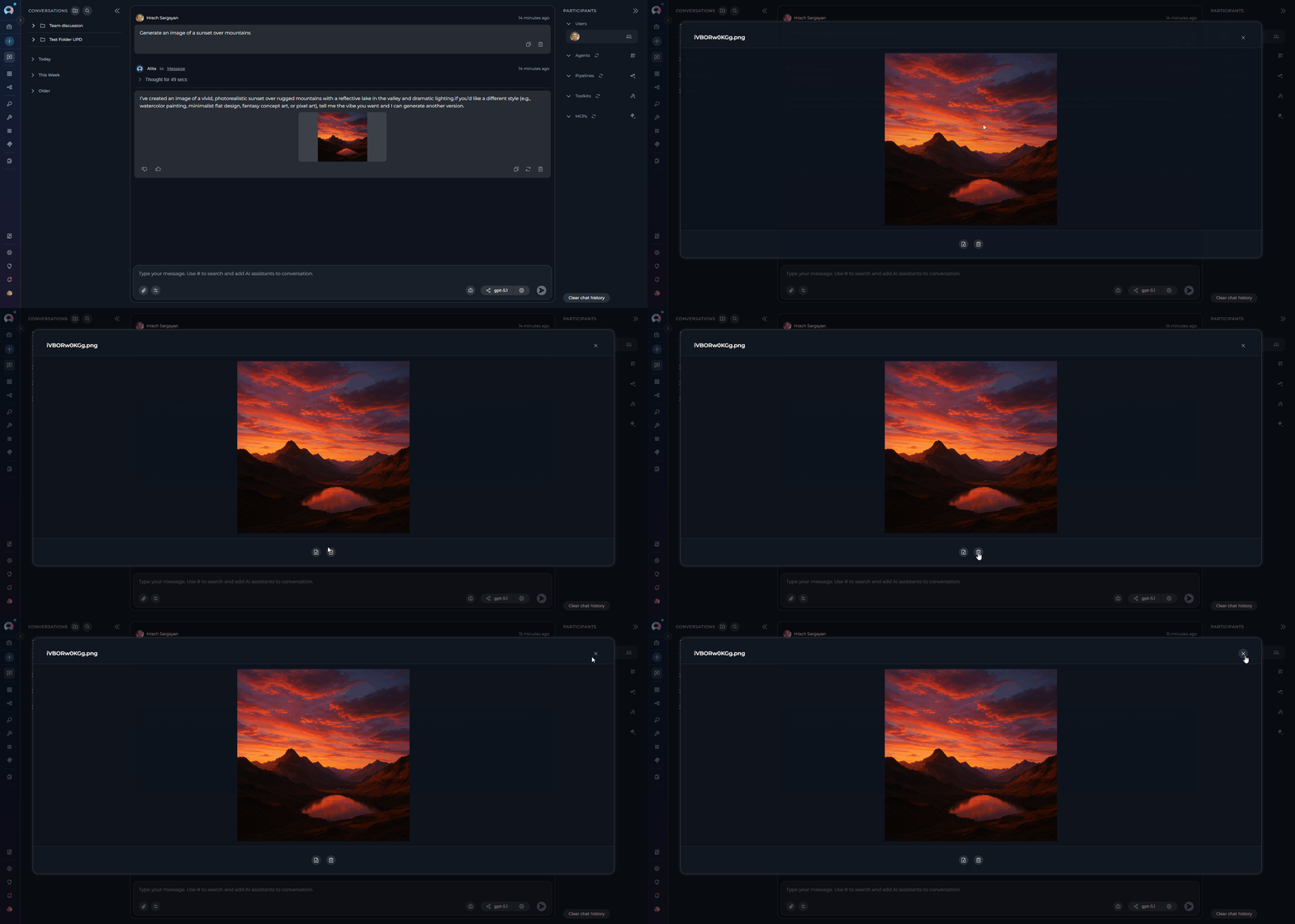
To view the image in chat:- Click the thumbnail to open the fullscreen modal.
- Press
Escapeor click outside to close.
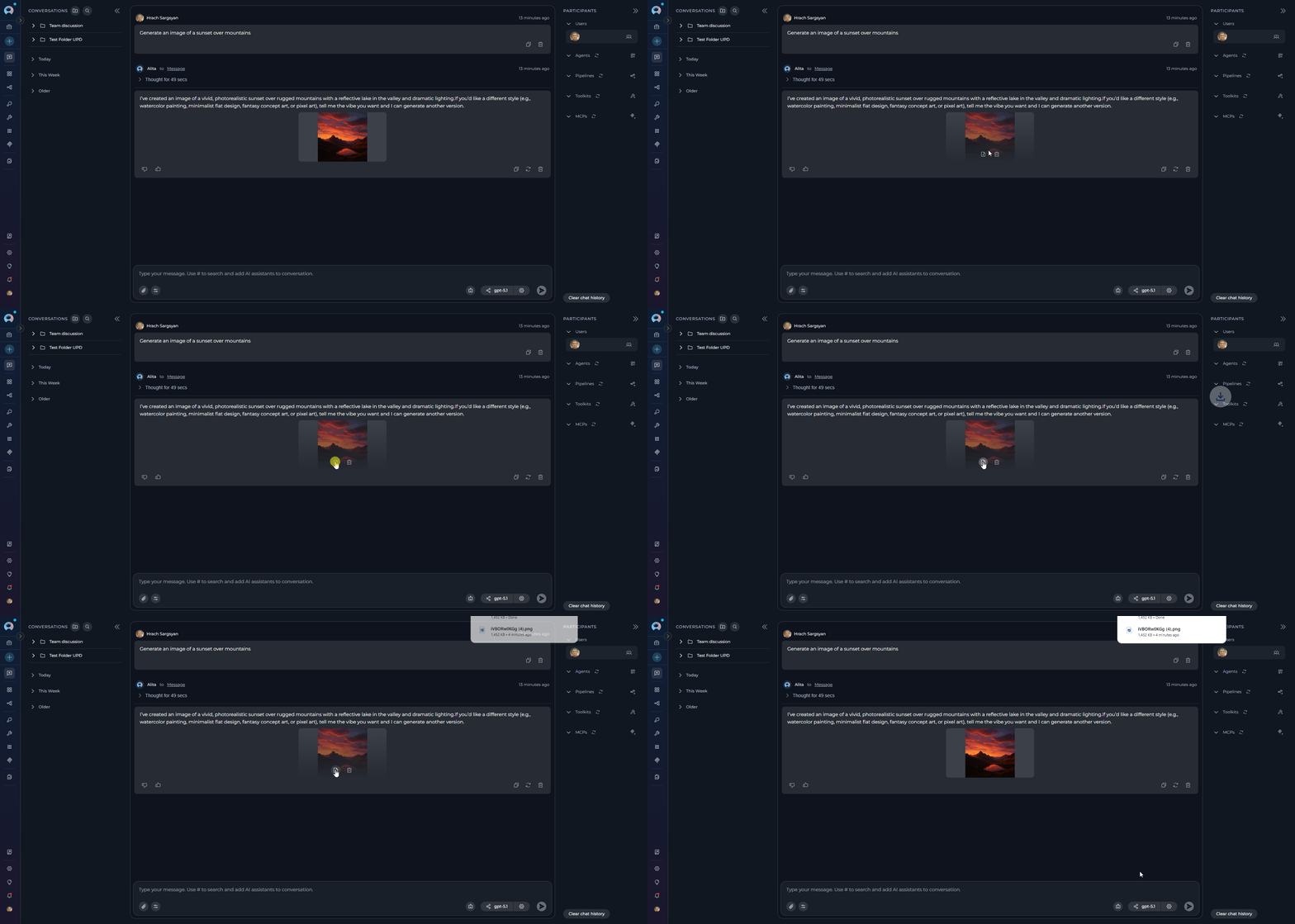
- Hover over the generated image thumbnail.
- Click the Download icon.
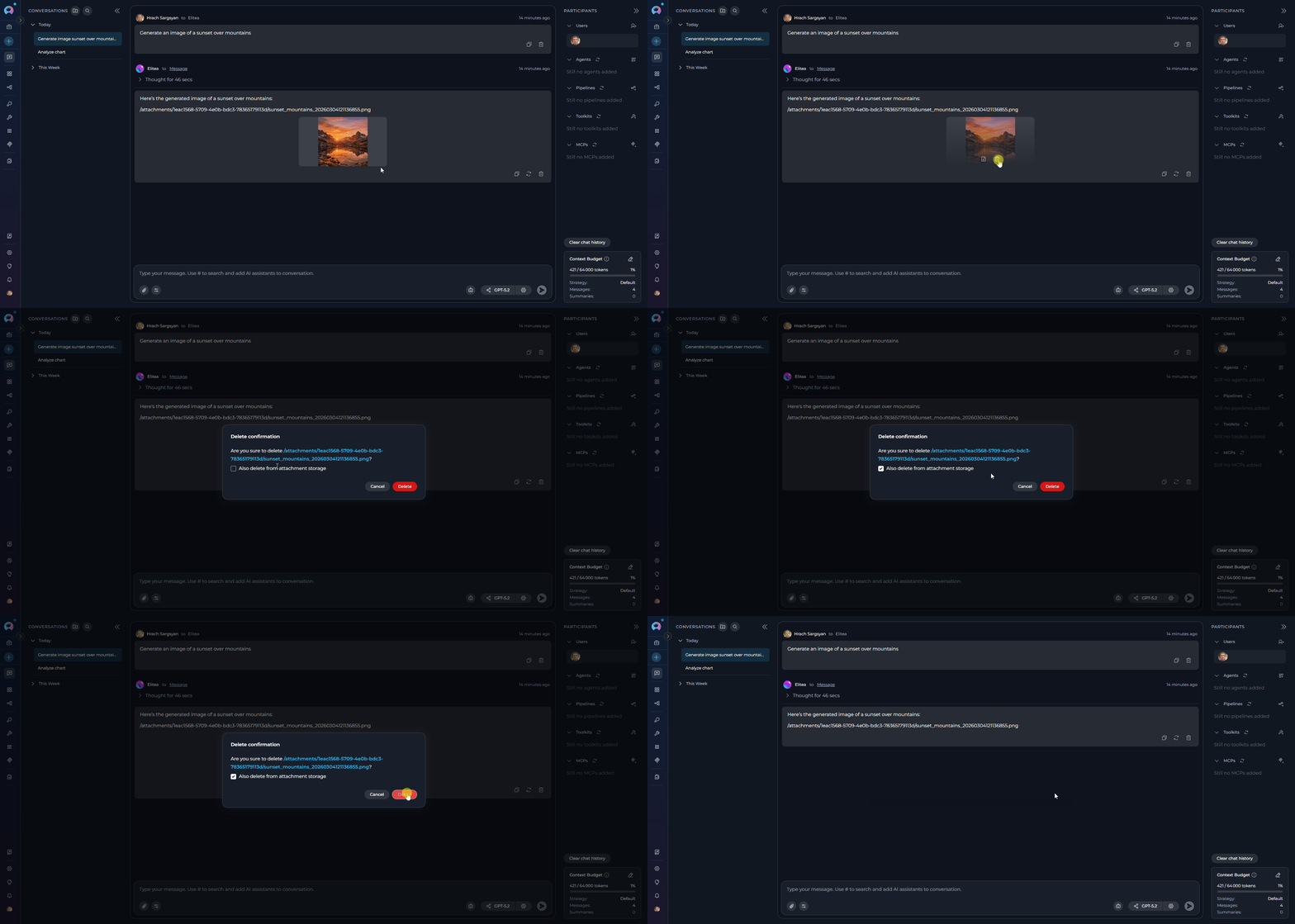
- Hover over the generated image thumbnail.
- Select Delete.
- A confirmation dialog opens showing the image filename.
- The dialog includes an “Also delete from attachment storage” checkbox (unchecked by default):
- Leave it unchecked to remove the image only from the chat view
- Check it to delete the file from the Artifacts as well.
- Select Delete.
In Artifacts
To view the image in Artifacts:- Navigate to Artifacts.
- Open the
attachmentsbucket. - Navigate to the folder inside the bucket.
- All generated images are stored here with their timestamps.
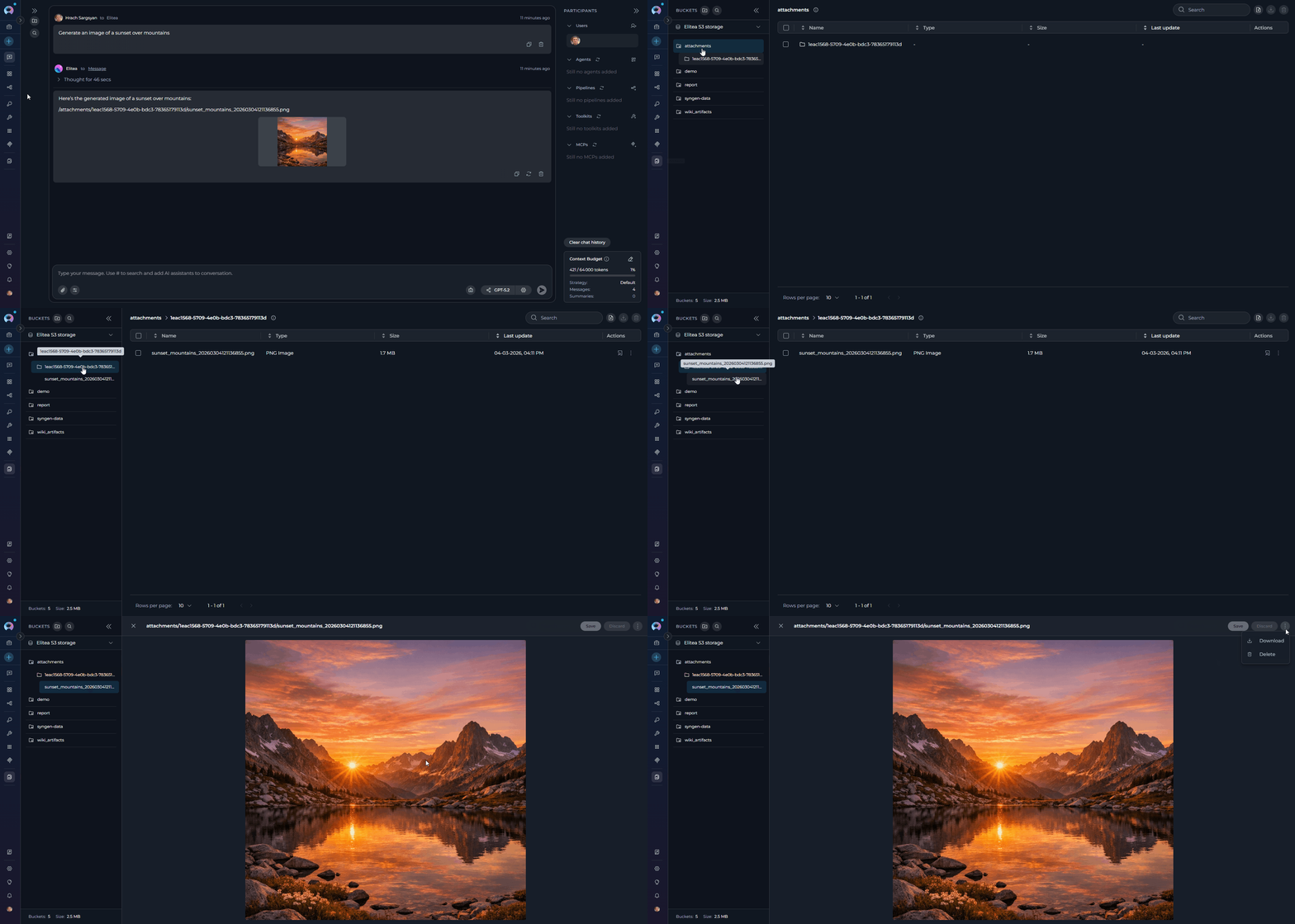
- Select an image in the bucket.
- Select Delete in the image’s overflow menu.
- Confirm deletion in the opened window.
Usage Scenarios
Technical diagrams
Technical diagrams
Use case: Generate architecture diagrams, flowcharts, or system designsBest practices:
- Be specific about components and relationships
- Mention diagram type (flowchart, sequence diagram, architecture diagram)
- Specify colors or styles if needed
- Request multiple variations to choose the best one
- “Create a diagram showing a three-tier web application architecture with load balancer, web servers, and database”
- “Generate a flowchart for a user authentication process”
- “Make a network diagram showing VPN connection between offices”
Illustrations and concept art
Illustrations and concept art
Use case: Create visual content for presentations, documentation, or creative projectsBest practices:
- Describe the mood and style (modern, minimalist, vibrant, professional)
- Specify color schemes when important
- Include context about the intended use
- Generate multiple options for comparison
- “Generate an illustration of a team collaborating in a modern office”
- “Create a hero image for a SaaS landing page showing productivity features”
- “Make an icon set for a project management application”
Design mockups and prototypes
Design mockups and prototypes
Use case: Quickly visualize UI/UX concepts or product designsBest practices:
- Specify device type (mobile, tablet, desktop)
- Mention key UI elements to include
- Describe the color palette and brand style
- Request specific layout patterns if needed
- “Generate a mockup of a mobile app dashboard for fitness tracking”
- “Create a landing page design for an AI-powered writing assistant”
- “Make a product card design for an e-commerce website”
Data visualization
Data visualization
Use case: Create charts, graphs, or infographics from described dataBest practices:
- Clearly describe the data and labels
- Specify chart type (bar, line, pie, scatter)
- Mention color preferences for different data series
- Include title and axis labels in your description
- “Generate a bar chart comparing quarterly sales for 2024”
- “Create an infographic showing the software development lifecycle”
- “Make a pie chart showing market share distribution”
Educational and training content
Educational and training content
Use case: Generate visual aids for learning materialsBest practices:
- Focus on clarity and simplicity
- Request labels or annotations
- Use clear, step-by-step descriptions
- Consider your audience’s technical level
- “Create an illustration explaining how photosynthesis works”
- “Generate a diagram showing the layers of the OSI network model”
- “Make an image demonstrating proper ergonomic sitting posture”
Best Practices
Crafting Effective Prompts
Crafting Effective Prompts
- Be specific and descriptive to get more accurate results.
- Include context and purpose to help AI understand your intended use and style.
- Specify style and mood.
- Ask for several variants to choose from.
Managing Generated Content
Managing Generated Content
- Download images promptly with descriptive filenames.
- Use browser download management or dedicated folders to stay organized.
- Review initial generations critically and refine with feedback.
- Keep a record of effective prompts and document style preferences that provide consistent results.
Performance Optimization
Performance Optimization
- Use faster models for quick iterations, and switch to high-quality models for final outputs.
- Consider model capabilities for specific image types when choosing a model.
- Generate multiple variations in one request when possible, but avoid requesting too many images at once.
- Balance quantity with quality for better results.
Troubleshooting
I do not see the Image Creation module
I do not see the Image Creation module
Possible causes:
- Image Creation is not enabled
- No image generation provider toolkit is configured for the project
- Modules are hidden because the project has no available modules
- Network connectivity issues
- Refresh the page and try again.
- Enable Image Creation in Modules.
- Contact your project administrator.
ELITEA cannot generate an image
ELITEA cannot generate an image
Possible cause:The selected model lacks image generation capabilities.Solution:
- Select a different model.
- Verify model configuration with your project administrator.
- Check integration settings for the image generation endpoint.
I cannot preview the generated image
I cannot preview the generated image
Possible causes:
- Image data format error
- Browser compatibility issues
- Base64 encoding problems
- Network interruption during generation
- Refresh the page and regenerate the image.
- Try a different browser (Chrome, Firefox, Edge).
- Check the browser console for errors.
- Ensure that your network connection is stable.
Image quality is too low
Image quality is too low
Possible causes:
- Vague or ambiguous prompt
- Model limitations
- Size constraints
- Refine your prompt: Add more specific details and context.
- Try different models: Some models excel at specific image types.
- Specify larger sizes: Request specific dimensions (e.g., 1024x1024).
I cannot download the generated image
I cannot download the generated image
Possible causes:
- Browser blocks downloads
- Base64 conversion error
- Network timeout
- Insufficient browser storage
- Check browser download permissions.
- Right-click the image and select “Save Image As”.
- Refresh the page and retry downloading.
- Clear browser cache and retry downloading.
Image generation takes too long
Image generation takes too long
Possible causes:
- Complex prompts require more processing
- Server load or API rate limits
- Network latency
- Simplify your prompt for faster generation.
- Generate one image at a time instead of bulk generation.
- Wait for current operations to complete.
- Try during off-peak hours if the rate is limited.
See also: