

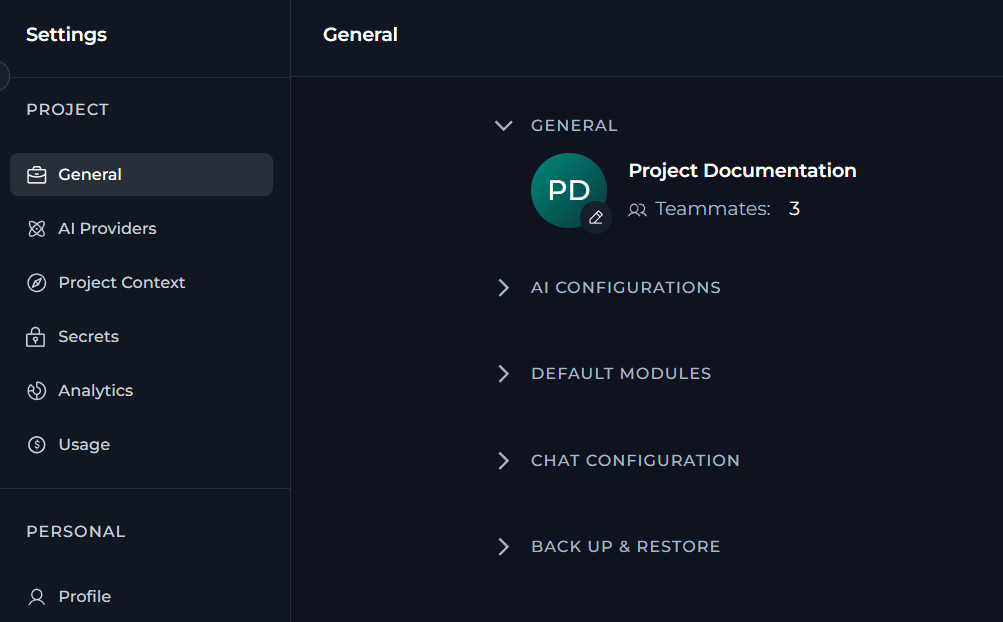
General
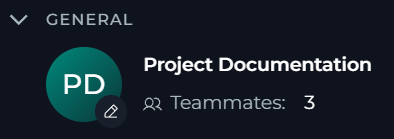
Review the project icon, project name and teammate count.
AI Configurations
Copy project connection values and open the OpenAI template view.
Default Modules
Select what modules will be turned on for chats and agents by default.
Chat Configuration
Specify default chat settings.
Back Up & Restore
Back up or restore the project data.
- General is a part of the project settings section.
- Module toggles within Default Modules are shown only to users who can view project context settings.
- To edit the project icon and select default modules, you need permissions for editing the project context settings.
- Mid-turn input is shown only if the mid-turn input is turned on for the project and you have permission to view project context settings.
- Back Up & Restore is shown only to users who have permission to download or restore project backups.
Project Details
In General, you can see current project identity details.- Project icon
- Project name
- Number of teammates in the project
For the public project, ELITEA hides the teammate count.
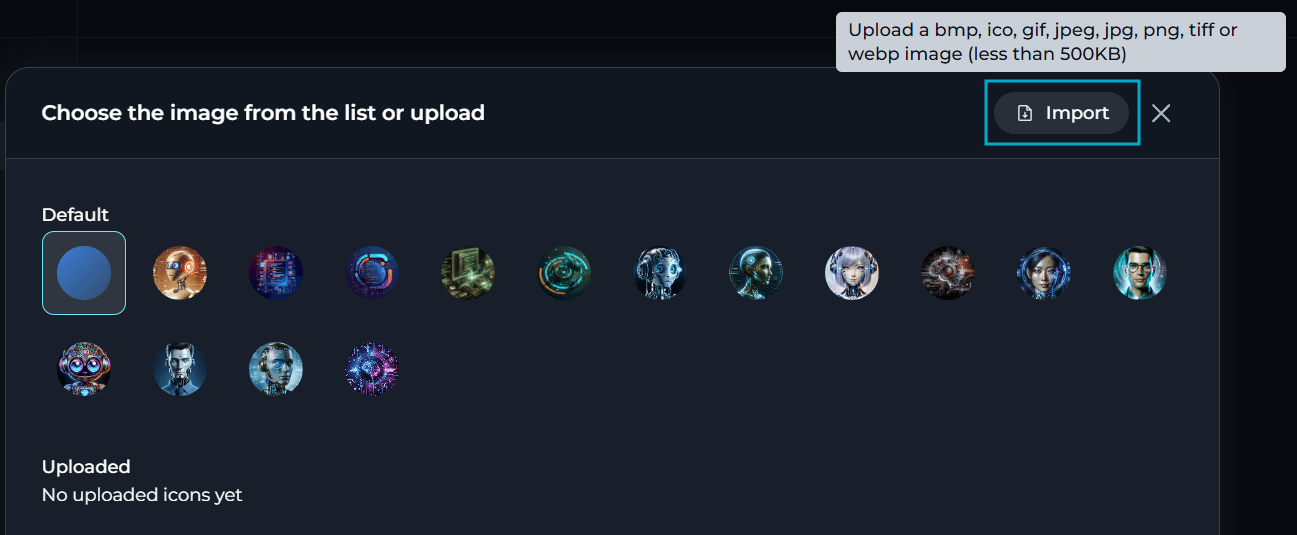
- In General, select the edit icon on the project avatar.
- In the icon dialog, choose one of these options:
- Select a default icon.
- Select an uploaded icon.
- Upload a new image.
- Wait for ELITEA to save the change.
bmp, gif, ico, jpeg, jpg, png, tiff and webp.
The image must be smaller than 500 KB.
AI Configurations
In AI Configurations, you can view and copy project connection details to use them for connecting external OpenAI-compatible clients or SDKs to this project.
Basic
The Basic tab shows the current project configuration values for OpenAI-compatible services.
To copy the displayed configuration details to the clipboard, select Copy:

OpenAI Template
The OpenAI Template tab shows a code example that uses the current project model configuration.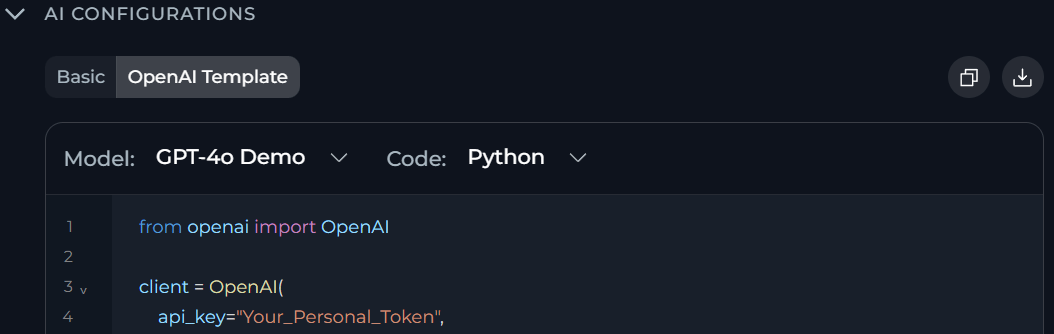
- Select a model configuration
- Switch the example language
- Copy the generated code example
- Download the generated code example
Default Modules
Default Modules controls which modules will be turned on by default for team members in chats and agents. Each module has a separate Chats toggle and Agents toggle.Default Modules settings apply to the whole project. Team members cannot change these defaults, but they can turn a module on or off for their own chats or agents.
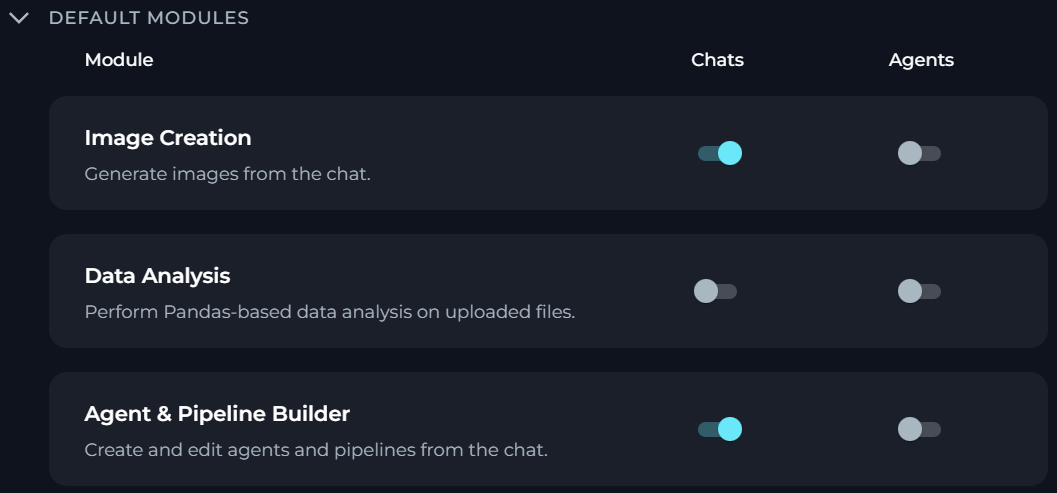
If you do not have permission to edit project context settings, ELITEA shows Default Modules as read-only.
To change a module setting for chats or agents, select or clear its corresponding toggle.
Chat Configuration
In Chat Configuration, you can specify default chat settings.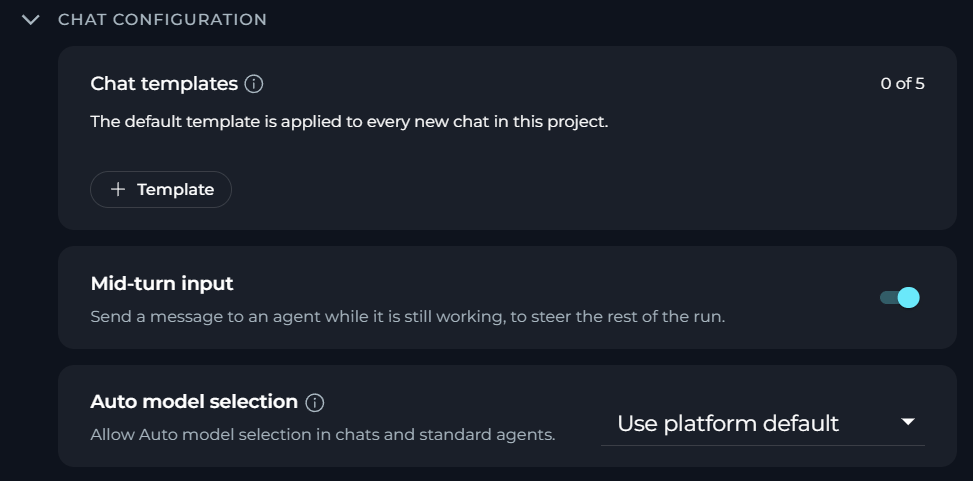
If you do not have permission to edit project context settings, ELITEA shows Chat Configuration as read-only.
For detailed information, see Work with Chat Templates.
For detailed information about the effect this setting has on your chat interactions, see Send a Message While the Agent Is Working.
For detailed information, see Select a Model and Auto.
Back Up & Restore
In Back Up & Restore, you can download your project data as an encrypted SQL file or restore them from this backup file, if needed.Consider creating a backup before making large changes to your project.

If you do not have permission to download or restore project backups, ELITEA hides Back Up & Restore.
Included in the backup file
- Agents
- Skills
- Pipelines
- Toolkits
- MCP servers
Excluded from the backup file
- Credentials
- Tokens
For detailed information, see Back Up & Restore Project Data.
See also: