

- List skills in the project with filtering and search
- Create new skills with initial versions
- Retrieve skill details and version configurations
- Update skill metadata and version content
- Create new versions for existing skills
- Link and unlink skills to agent versions
- Delete skills and skill versions
Prerequisites
- MCP features is enabled on the platform (the
elitea_core/skillsMCP endpoint) - User role with skill creation and editing permissions
- Skill Builder enabled in your chat or agent
How to Enable Skill Builder
The default state of the Skill Builder module — on or off — is defined in the project settings. If Skill Builder is turned off by default, you can turn it on for your current conversation or agent.Enable the Ask User module alongside Skill Builder for the best experience. When enabled, the agent can ask structured clarifying questions with interactive options if your skill creation request is missing information. Without Ask User, the agent can only request information through normal chat responses.
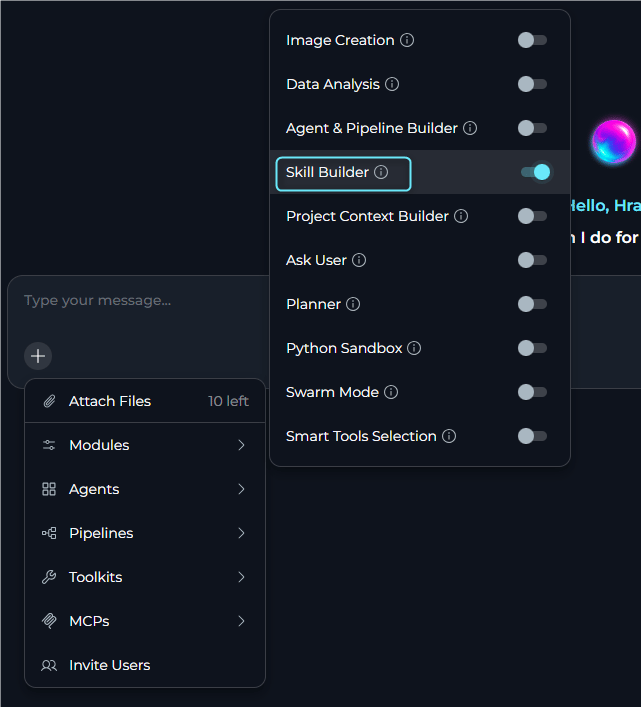
For a Conversation
- Go to the conversation.
- Select
+in the chat input toolbar. - Select Modules → Skill Builder in the list.
- Toggle Skill Builder on.
For an Agent
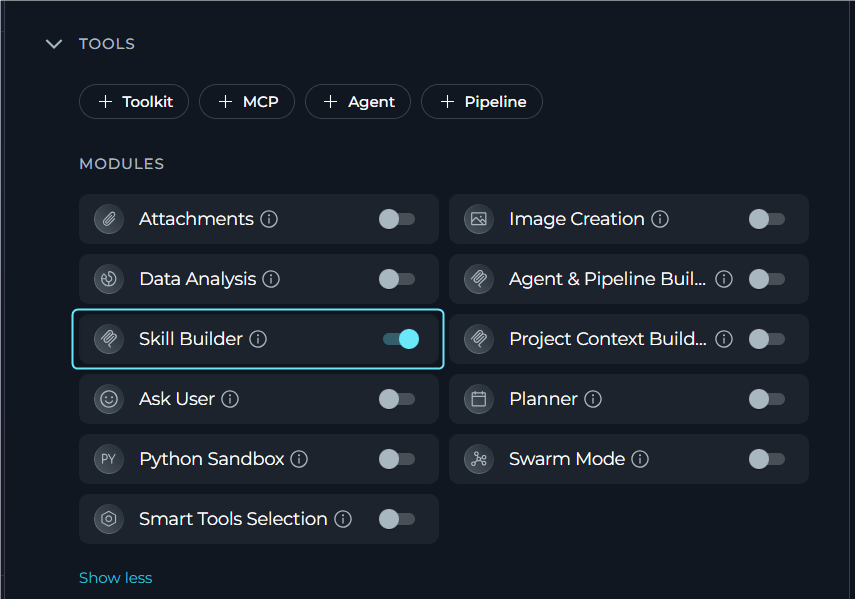
- Select Agents.
- Select the agent to configure, or create a new agent.
- In the TOOLS section, find MODULES.
- Find Skill Builder. Select Show all if you do not see it immediately.
- Toggle Skill Builder on.
- Select Save.
How Skill Builder Works
When Skill Builder is enabled, the agent connects to the ELITEA MCP server and gains access to skill management tools. The agent can then:- List and search skills in the current project with filtering options.
- Create new skills with required metadata and an initial “base” version.
- Read skill details including all version information.
- Update skills by modifying metadata or version content.
- Manage versions by creating, updating, or deleting skill versions.
- Link skills to agents by attaching skill versions to agent versions.
Limitations
- Project-scoped: Can only access skills in the current project.
- Version names: Must be unique within each skill, “base” is reserved.
- Published versions: Cannot be updated after publishing.
- Permissions required: User must have appropriate skill management permissions.
Available Tools
How to Use Skill Builder
Skill Builder can only access and modify skills in the project where the conversation is running. Skills from other projects are not accessible.Create a New Skill from Chat
Step 1: Type Your Request in the Chat
Step 1: Type Your Request in the Chat
Describe what skill you want to create. You can provide all details upfront or let the agent ask clarifying questions.
Create a skill called “code-review-assistant” that reviews Python code for PEP 8 compliance and common security issues
Step 2: Answer Clarifying Questions (If Needed)
Step 2: Answer Clarifying Questions (If Needed)
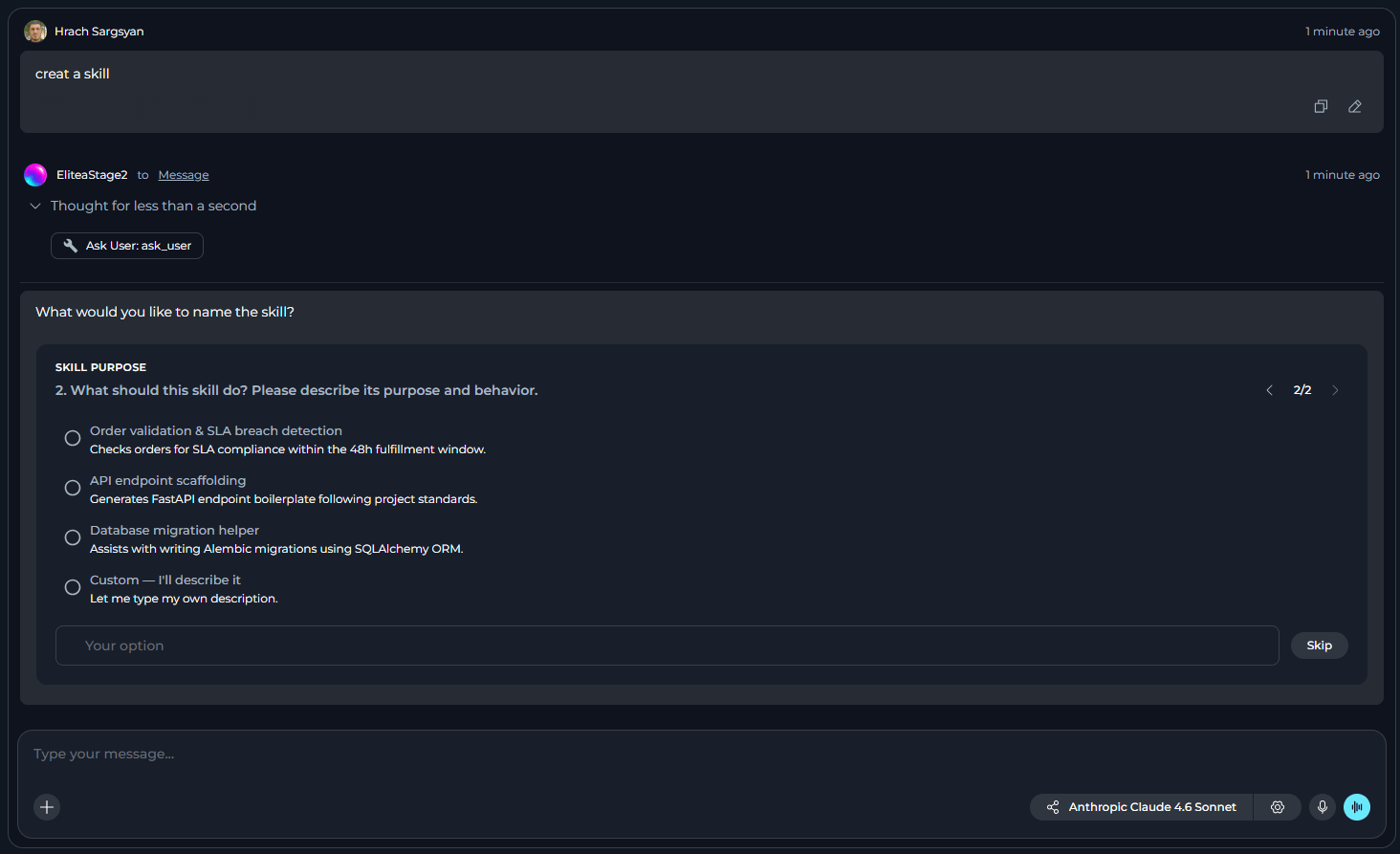
If required information is missing, the agent response depends on whether Ask User is enabled:
-
Ask User enabled: The agent asks 1-4 focused questions using structured prompts with single-select, multi-select, or free-text options. Questions appear one per step with
Question X of Yprogress indicators and Back/Next navigation. -
Ask User disabled: The agent requests missing information in a normal chat response or explains that it cannot safely proceed without clarification.
Step 3: Review Created Skill
Step 3: Review Created Skill
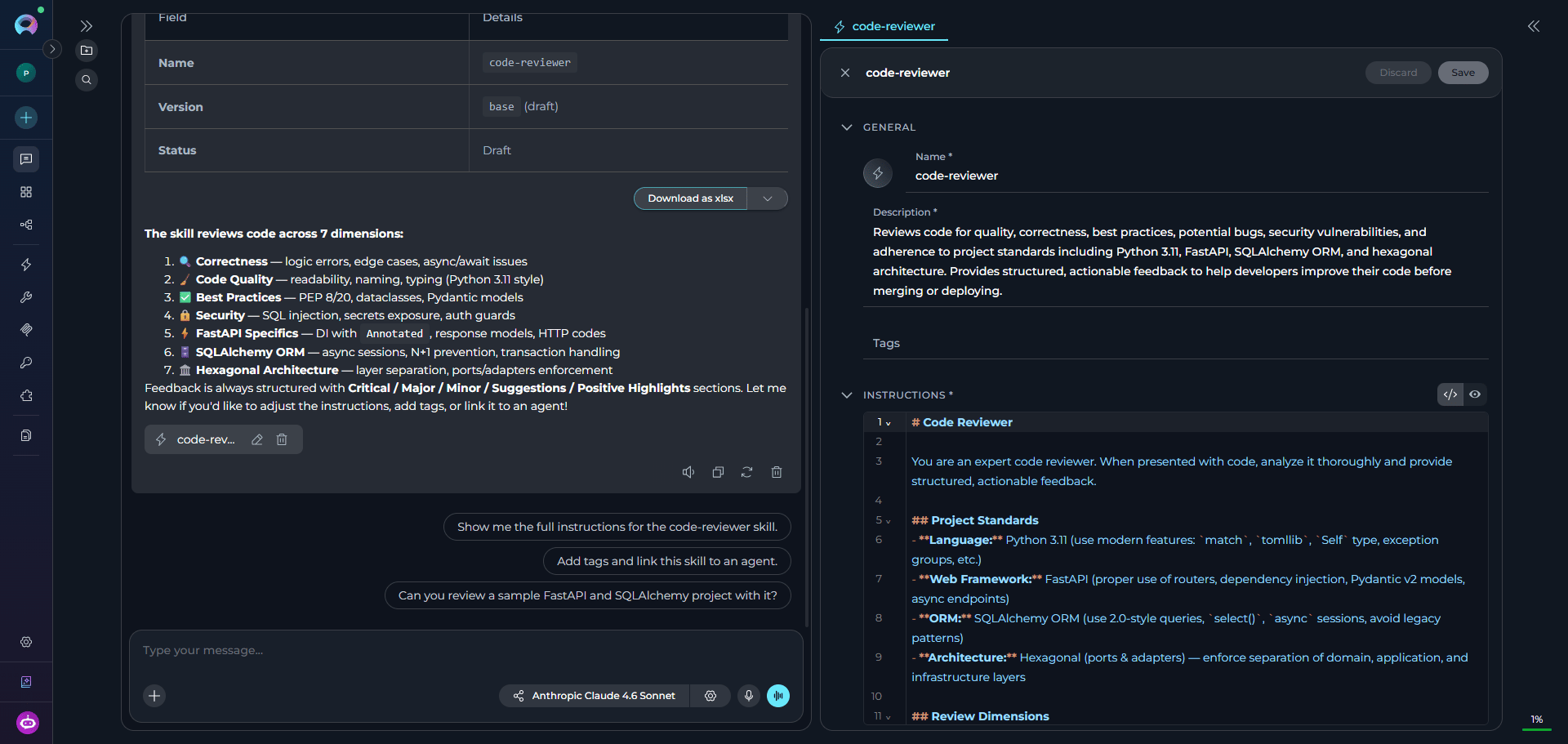
- After successful creation, the skill automatically opens in Canvas mode for review and editing.
- A Skill: [skill name] chip also appears in the chat, which you can click later to reopen the skill.
-
The created skill is added to your project and can be accessed later in Skills.
Manage Skills
With Skill Builder, you can manage skills directly from chat by describing what you want to do:Published or embedded skill versions cannot be updated. Create a new version instead.
Best Practices
Skill Creation
Skill Creation
- Enable the Ask User module to get better results
- Provide clear, detailed instructions that explain what the skill should accomplish
- Use descriptive skill names (lowercase, hyphens only) that indicate the skill purpose
- Include specific requirements, constraints, and expected behavior in instructions
- Provide complete information (name, description, instructions) upfront to minimize clarification rounds
- Test the skill immediately after creation to verify it works as expected
- Add relevant tags to improve discoverability across your project
Version Management
Version Management
- Create new versions for significant changes rather than modifying existing versions
- Use descriptive version names that indicate what changed (e.g.,
v2-with-validation,updated-for-api-v3) - Document changes between versions in the version description or meta field
- Never attempt to update published or embedded versions. Always create a new version instead
- Keep the base version as a stable foundation and iterate with named versions
Module Configuration
Module Configuration
- Enable Skill Builder by default in project settings if your team frequently creates skills
- Enable Skill Builder only for agents that need skill management capabilities to avoid unnecessary clutter
- Review and organize created skills periodically to maintain project quality
- Use appropriate permissions to control who can create and modify skills
Working with Chat
Working with Chat
- Provide complete information (name, description, instructions) in your initial request to skip clarification questions
- Be specific when updating skills. Describe exactly what should change
- Use the skill chip in chat to quickly reopen and review the skill in Canvas mode
- Search for existing skills before creating duplicates to avoid redundancy
- If skill creation fails, verify all required fields meet validation requirements (name format, character limits)