

Introduction
Understanding Project Scopes:- Private Workspace: Your personal and private area within ELITEA to create and manage your Entities. Only you have access to your Private workspace.
- Team Projects: Collaborative spaces for teams to work together on projects, sharing and managing Entities. Access to Team projects is controlled by project roles and permissions.
- Public Project: A shared, community space within ELITEA where published entities are available for all users to discover and utilize.
Importance of Organizing Entities in ELITEA
As you build and utilize more Entities within ELITEA, effective organization becomes paramount. Without a robust organizational system, managing a growing number of entities can become challenging, leading to:- Difficulty in Finding Entities: Spending excessive time searching for the right Prompt, Datasource, or Agent among a long, unorganized list.
- Reduced Efficiency: Slower workflows and decreased productivity due to the time wasted on searching and managing entities.
- Inconsistent Naming and Duplication: Lack of a clear organizational structure can lead to inconsistent naming conventions and accidental duplication of entities, creating clutter and confusion.
- Hindered Collaboration: Sharing and collaborating on entities becomes difficult when they are not properly categorized and organized, hindering team efficiency and knowledge sharing.
Overview of Tags
In ELITEA, Tags are your essential tool for categorizing and labeling individual Entities. Think of tags as keywords or labels that you attach to each Entity, allowing you to create a flexible and searchable organizational system. Tags are designed to:- Categorize Entities: Assign Entities to relevant categories based on topic, function, project, team, or any other criteria that makes sense for your workflow.
- Improve Searchability: Make it easy to find specific Entities by filtering and searching based on assigned tags.
- Enable Flexible Grouping: Group Entities based on multiple criteria by assigning multiple tags to each item.
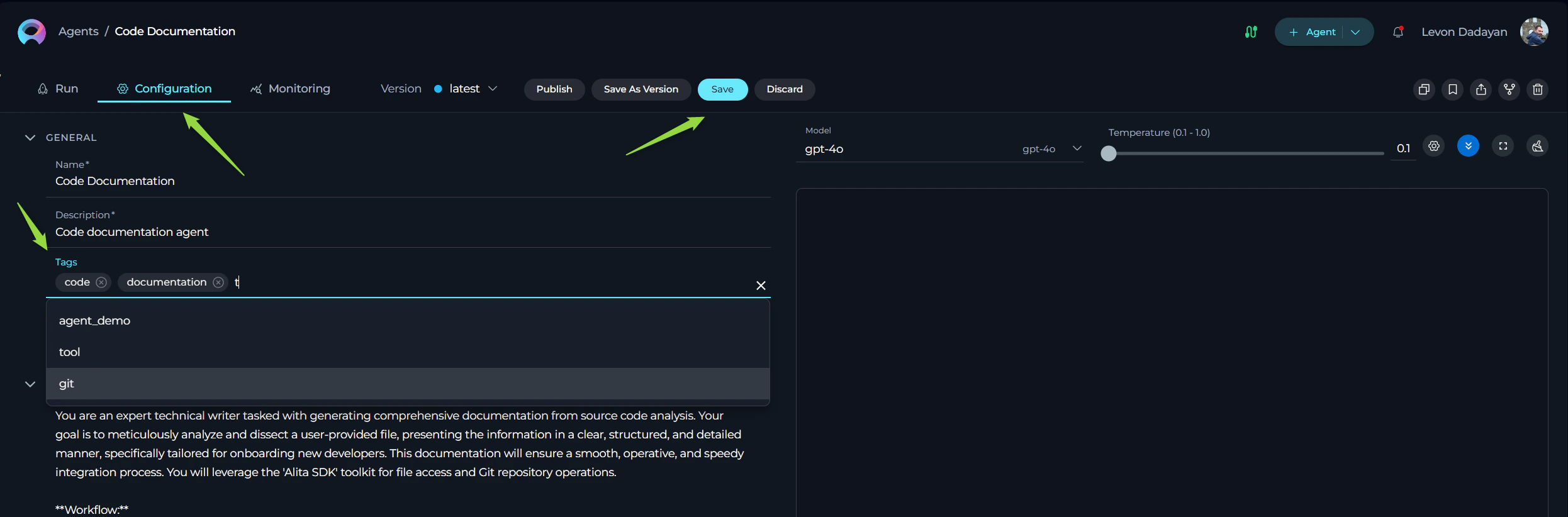
- Access Entity Configuration: Open the configuration settings for the Entity you want to tag.
- Locate “Tags” Input Box: Within the Configuration tab, find the Tags input box.
- Add Tags:
- Type a Tag Name: Begin typing the desired tag name.
- Select or Create: Select a suggested tag or create a new one by pressing Enter.
- Save Configuration: Click the Save button to save the Entity with the selected tags.
code is reserved for integration with the Alita Code extension. If you create and assign the tag code to Prompts, Agents, or Datasources within your ELITEA project, it enables a special synchronization feature.
Functionality of the code Tag:
- Alita Code Extension Connection: When you set up the Alita Code extension and connect it to your ELITEA project, the extension will recognize and utilize Entities that are tagged with code.
- Synchronization and Usage in Code Editor: Entities tagged with code become accessible and usable directly within your IDE through the Alita Code extension. This allows you to seamlessly integrate your ELITEA-managed AI artifacts into your local coding workflows.
- Multi-Dimensional Labeling: Assign multiple tags to each Entity for flexible categorization.
- Free-Form Text: Create custom tags relevant to your specific needs.
- Searchable and Filterable: Easily locate Entities using tag-based search and filtering.
- Visual Identification: Tags are displayed as labels for quick identification.
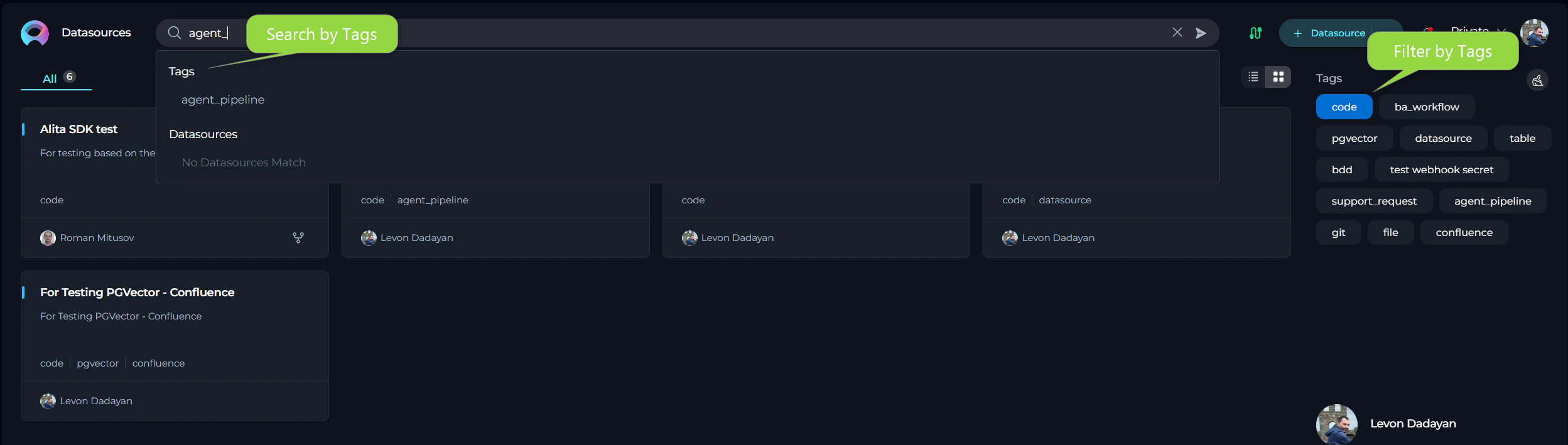
- Search by Tags: Use the Search bar in any Entity menu (Prompts, Datasources, Agents) and type a tag name to filter the list.
- Filter by Tags: Use the Tags” section in entity menus to select tags and narrow down the displayed list.
Overview of PINs
For comprehensive information about using PINs, including step-by-step instructions, best practices, and FAQs, please refer to the dedicated Pin Entities Guide.
- Quick Access: Keep frequently used entities at the top of lists
- Personal Organization: Each user maintains their own pins
- Simple Toggle: One click to pin, one click to unpin
- Persistent: Pinned items remain at the top across sessions
- Universal: Works across all entity types (Agents, Pipelines, Credentials, Toolkits, MCPs)
- Card View: Hover over an entity card and click the pin icon in the bottom-left corner
- Table View: Hover over an entity row and click the pin icon that appears
- Detail View: Click the pin icon in the toolbar when viewing entity details
- Pin entities you access frequently during active projects
- Keep 5-10 pinned items per entity type for optimal effectiveness
- Review and update your pins weekly to keep your workspace current
- Unpin entities when projects are completed or priorities change
Best Practices and Examples: Organizing Entities in ELITEA
Effective organization with Tags and PINs is crucial for managing your AI assets in ELITEA. Here are some best practices and examples to guide you: Tagging Strategies:- Tag by Topic or Subject Area: Examples:
#UserStories,#CodeDocumentation,#CompetitiveAnalysis. - Tag by Function or Purpose: Examples:
#Drafting,#Summarization,#DataRetrieval. - Tag by Project or Team: Examples:
#ProjectAlpha,#TeamBeta,#MarketingDepartment. - Tag by User Skill Level: Examples:
#BeginnerFriendly,#AdvancedUsers. - Maintain Consistency: Establish and document a consistent tagging system.
- Combine General and Specific Tags: Use a mix of tag granularity for effective categorization.
- Prompt: “Draft User Story for Checkout Feature”: Tags:
#UserStories,#Jira,#Drafting,#BeginnerFriendly,#ProjectAlpha. - Agent: “Confluence Page Publisher”: Tags:
#Confluence,#Publishing,#Documentation,#TeamBeta. - Datasource: “Competitor Pricing Data - Web Scraper”: Tags:
#CompetitiveAnalysis,#DataRetrieval,#MarketingDepartment.
- Group by Use Case or Workflow: Example: “User Story Management Toolkit.”
- Group by Project or Client: Example: “Project Alpha - AI Assets Collection.”
- Group by Theme or Topic: Example: “Code Documentation Prompts Collection.”
- Create “Starter Kits” or Template Collections: Develop template collections for common tasks.
- Curate “Best Practices” Collections: Share collections showcasing best practices within your organization.
- Collection: “User Story Management Toolkit”: Contains Prompts, Agents, and Datasources for user story management.
- Collection: “Code Documentation Automation”: Contains Prompts and Agents for code documentation.
- Collection: “Marketing Content Generation - Social Media”: Contains Prompts and Datasources for social media marketing content.
- Collections for High-Level Grouping: Use Collections as thematic folders.
- Tags for Granular Filtering: Use Tags for detailed categorization within Collections.
- Example: “Marketing Content Generation” Collection with tags like
#SocialMedia,#BlogPosts,#EmailMarketing.
Guides and References
To learn more about organizing Entities and utilizing Collections within ELITEA, explore these related guides and references:- ELITEA Public Project Guide: Explore the ELITEA Public Project to discover and utilize community-shared Prompts and Collections. Learn more about the purpose and guidelines of the Public project.
- Export and Import Guide: Refer to the detailed Export and Import Guide for in-depth instructions on exporting and importing individual Entities and entire Collections within ELITEA. Example Tagging Scenarios:
-
Agent: “JIRA Issue Analyzer”: Tags:
#Jira,#Analysis,#ProjectAlpha,#TeamBeta. -
Pipeline: “Code Review Workflow”: Tags:
#CodeReview,#Automation,#Development. -
Toolkit: “Confluence Integration”: Tags:
#Confluence,#Documentation,#Publishing.
- Pin Active Project Resources: Keep entities for current projects pinned for quick access
- Limit Pinned Items: Maintain 5-10 pinned items per entity type for optimal effectiveness
- Review Regularly: Update your pins weekly during project check-ins
- Unpin Completed Work: Remove pins when projects are finished or priorities change
- Use for Temporary Organization: Think of pins as your “working set” of frequently accessed entities
- Active Sprint: Pin the 3-5 agents and pipelines you’re using most frequently this week
- Project Switch: Unpin last week’s resources and pin entities for the new project
- Onboarding: Pin essential toolkits and credentials needed for daily work
- Experimentation: Pin experimental agents you’re actively testing and iterating on
- Tags for Categorization: Use Tags to create a permanent organizational structure
- PINs for Quick Access: Use PINs to highlight entities you need right now
- Example Workflow:
- Tag all agents by project and function
- Pin the 5 agents you’re actively using this week
- Search by tags when you need to find something specific
- Adjust pins as your work priorities change---
Guides and References
To learn more about organizing Entities within ELITEA, explore these related guides and references:- Pin Entities Guide: Comprehensive guide to using PINs for quick access to frequently used entities
- Search Entities: Learn how to efficiently search and filter entities in ELITEA
- Export and Import Guide: Instructions on exporting and importing entities