

How to Work with Users
User collaboration features are only available in team projects, not in your private/personal project workspace.
Add Users to a Chat
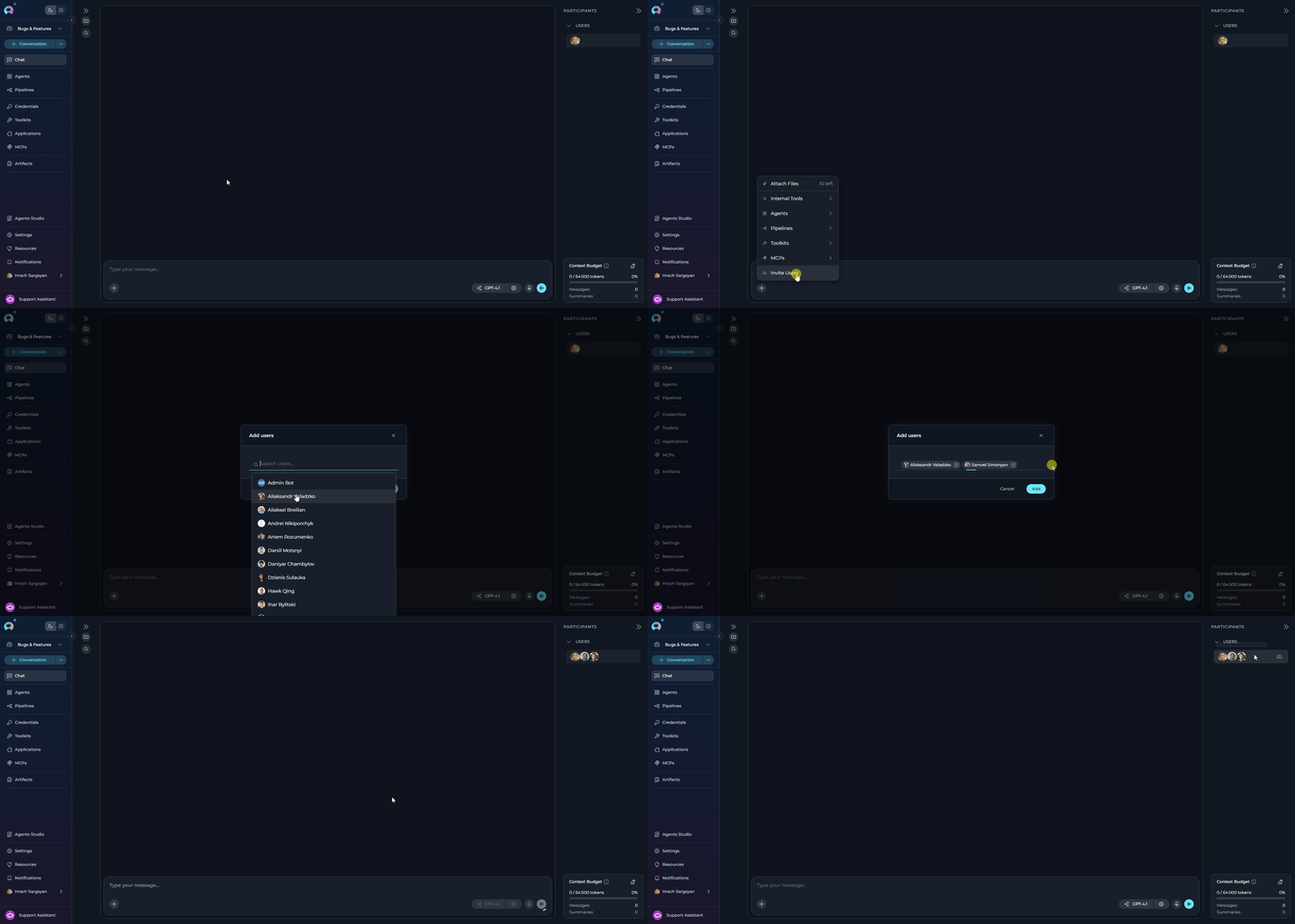
Users (team members) can only be added to in team projects. They cannot be added to private conversations. To add users:- In the chat input toolbar, click the
+icon. - Select Invite Users from the popup menu.
- The Add users modal will appear with a search bar.
- Use the search bar to find teammates by name.
- Select one or more users from the list by clicking on them.
- Click Add to confirm. The selected users will appear in the Users section of the PARTICIPANTS panel.
- Added users will receive notifications about being added to the conversation.
- Users can also join a public conversation implicitly by interacting with it.
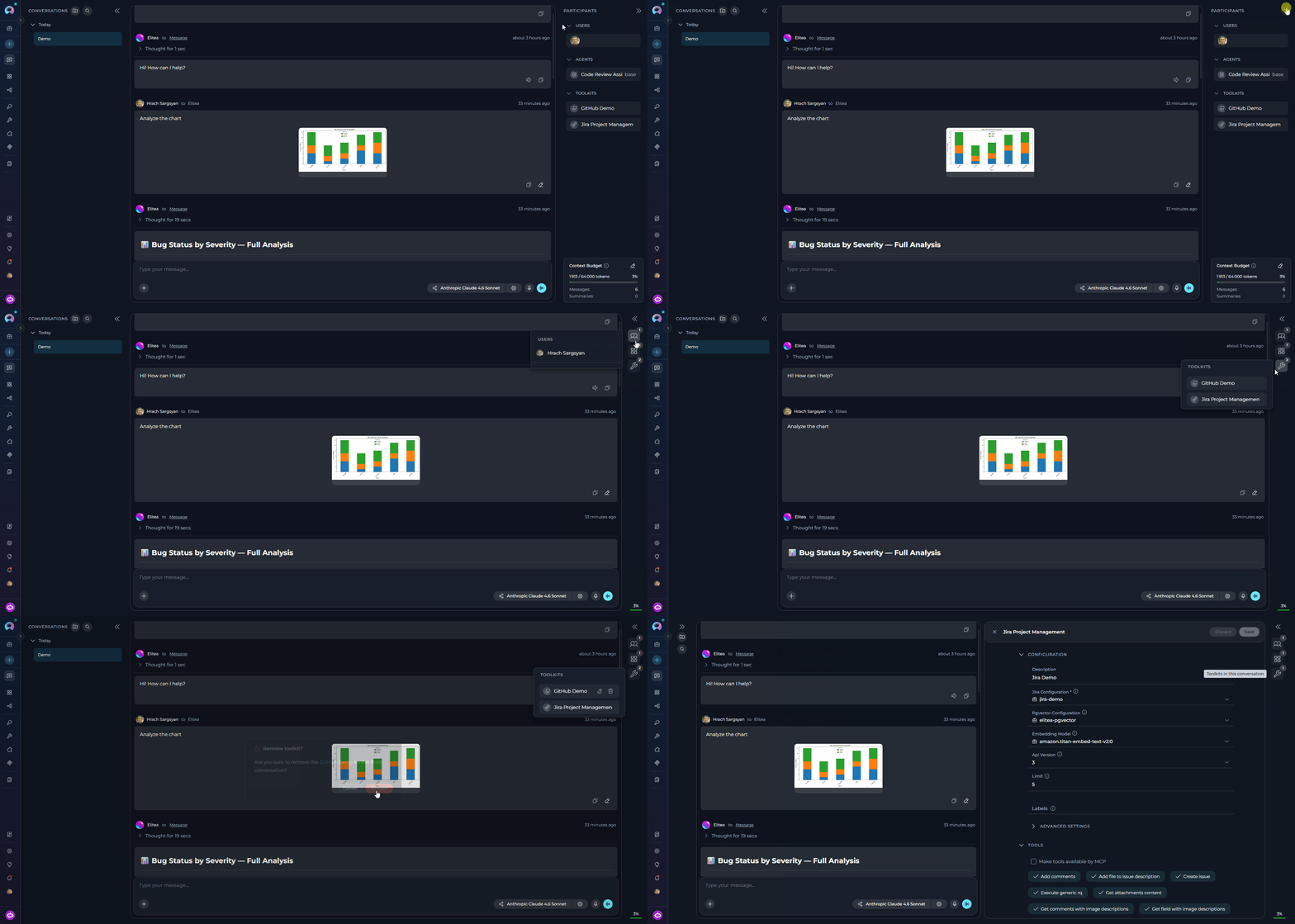
- Users can be removed by hovering over their avatar in the Users section of the Participants panel and clicking the remove icon.
- Use
@mentions to notify specific teammates in a conversation. - Group related conversations into folders for better navigation.
- Define roles, responsibilities, and deadlines directly in the chat.
- Regularly post progress updates and flag blockers in the conversation.
View Users
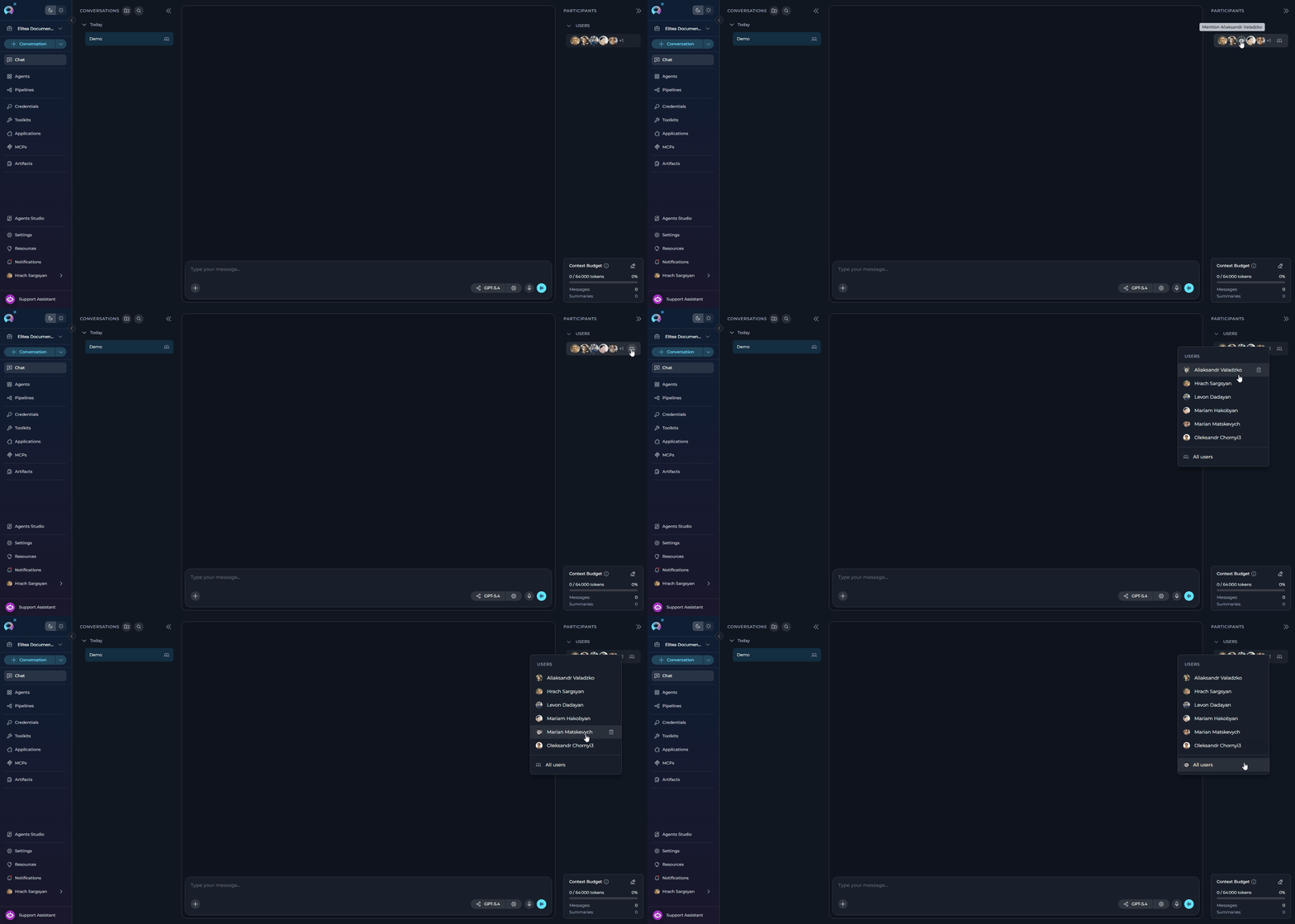
All conversation participants are visible in the PARTICIPANTS panel on the right side of the chat interface:- Users Section: Shows human teammates as circular avatars
- Visual Display: When multiple users are present, their avatars are displayed in a row
- Participant Count: If there are more users than can fit in the display, a count indicator (e.g., “+3”) shows additional participants
- Users Dropdown: Hover over the Users section to reveal the users icon, then click it to see the complete list of all conversation participants
-
Sorted List: Users appear in alphabetical order by name in the dropdown menu
Mention Users
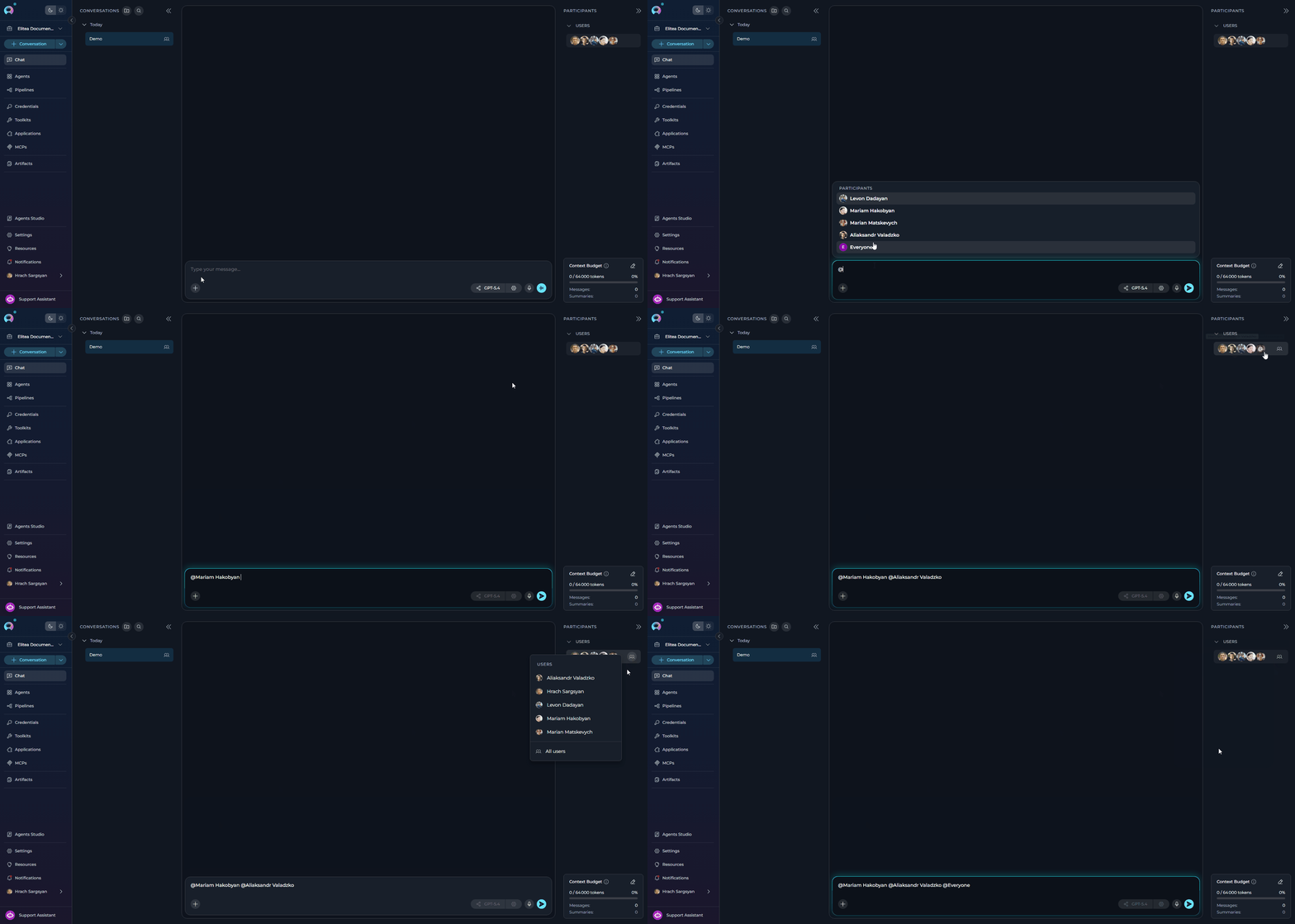
Mentioning teammates directs messages to them and highlights their name in the conversation for better visibility. How to Mention a Specific User: Method 1: Using the Participants Panel- In the PARTICIPANTS panel, hover over the Users section to reveal the users icon.
- Click the users icon to open the users dropdown.
- Hover over the user’s name you want to mention — an @ symbol overlay appears.
- Click the user’s name (or the @ overlay) to insert the mention into your message.
- In the chat input field, type @
- A suggestion list appears showing all users in the conversation
- Select the user you want to mention from the list (or continue typing their name to filter)
- The mention is inserted into your message
- In the PARTICIPANTS panel, hover over the Users section to reveal the users icon.
- Click the users icon to open the users dropdown.
- Select “All users” from the dropdown (appears at the bottom after the divider, only shown when there are 2 or more users).
- The
@Everyonemention is inserted into your message. - Complete your message and send.
Remove Users from the Chat
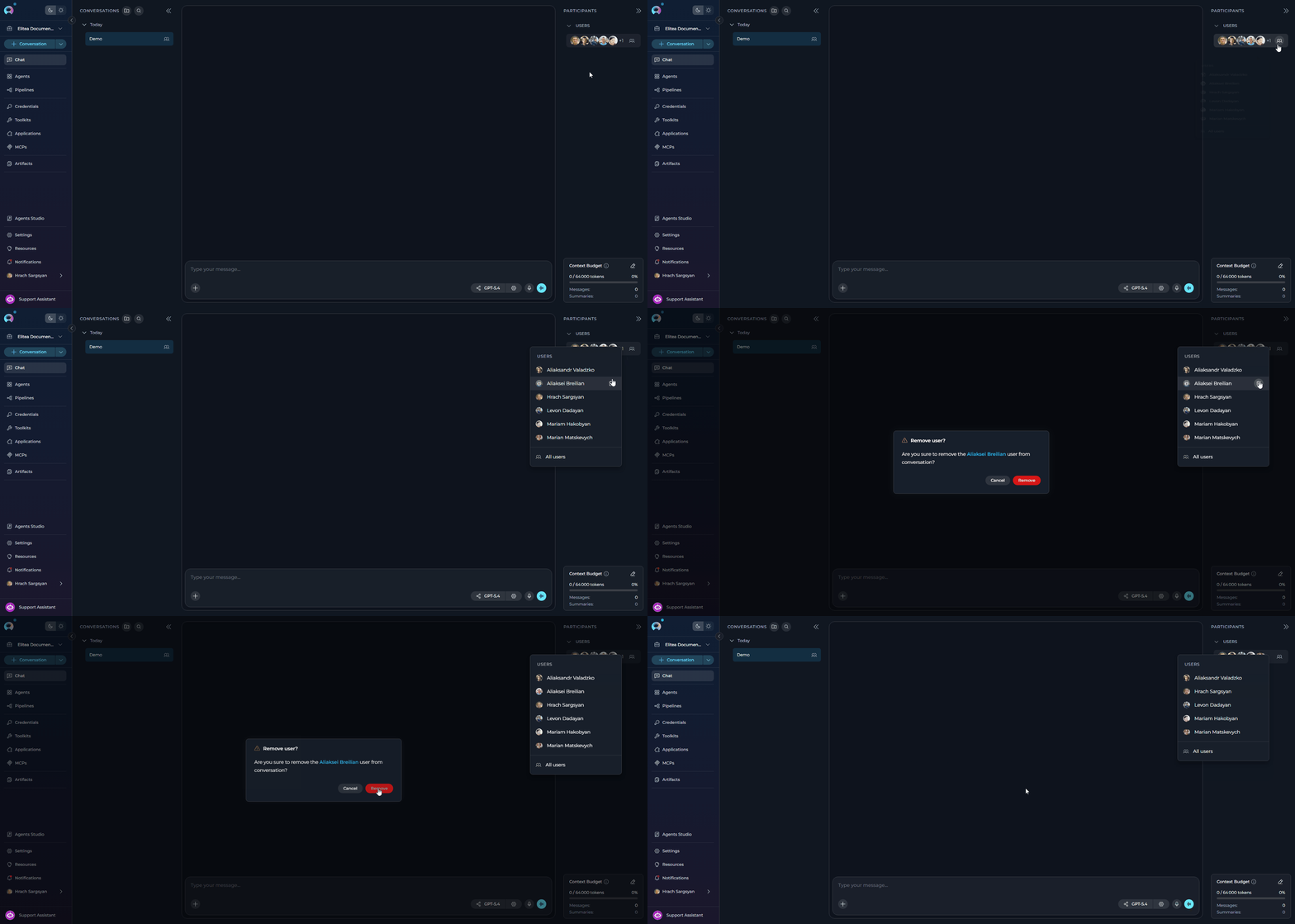
To remove a user from the chat:- In the PARTICIPANTS panel, hover over the Users section to reveal the users icon.
- Click the users icon to open the dropdown.
- Hover over the user’s name — a Delete icon appears on the right.
- Click the Delete icon.
- In the confirmation dialog (“Remove user? Are you sure to remove the [name] user from conversation?”), click Remove to confirm.
Working with AI Participants
AI participants — Agents, Pipelines, Toolkits, MCPs — are the core components you interact with within a conversation.Add Existing AI Participants
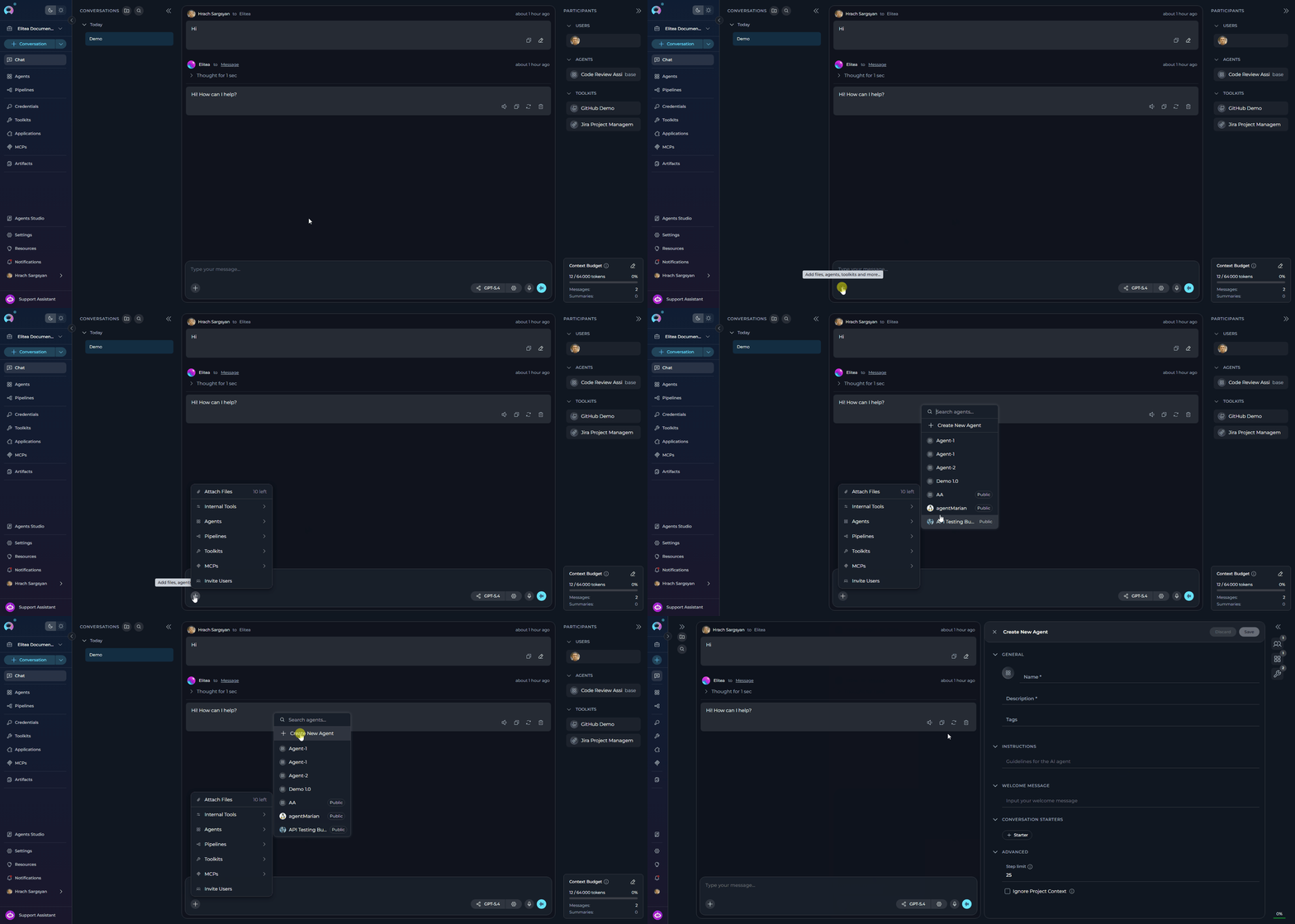
You can add various AI participants to enhance your conversations:- In the chat input toolbar, select the
+icon (tooltip: Add files, agents, toolkits and more…). - A popup menu opens. Hover over the category you want:
- Agents — shows a searchable list of available agents
- Pipelines — shows a searchable list of available pipelines
- Toolkits — shows a searchable list of available toolkits (with a Public/Private toggle)
- MCPs — shows a searchable list of available MCP servers (with a Public/Private toggle)
- Search by name in the submenu search box, then select a participant to add it.
- The added participant appears in the PARTICIPANTS panel on the right side of the screen.
- For Agents and Pipelines: selecting the participant in the panel activates it. An AgentEditorPanel strip appears above the input area showing the participant name, version selector, variables and a settings button.
#opens a Search results dropdown of available agents and pipelines.&opens the same dropdown restricted to private agents and pipelines only (public ones are excluded).
- In the chat input box, type
#or&. - Continue typing to filter by name (e.g.,
#Jirawill show matching results). - Select a participant from the filtered list.
- The selected participant appears in the PARTICIPANTS panel.
Create New AI Participants
You can create new participants directly from the chat interface via the+ menu:
- Select the
+icon in the input toolbar. - Hover over the relevant category (Agents, Pipelines, Toolkits or MCPs).
- Select the Create New {Type} option at the bottom of the submenu.
- The corresponding Canvas editor opens inline.
If a toolkit in your Chat uses shared credentials that are not yet configured in your Personal workspace, a Misconfiguration errors found. Check the toolkit. message appears on the toolkit card. Clicking Check the toolkit opens the toolkit in the Canvas editor, where the Credential setup required warning banner is displayed. Click the Create a credential link to create the matching credential. See Shared Toolkit Credentials for details.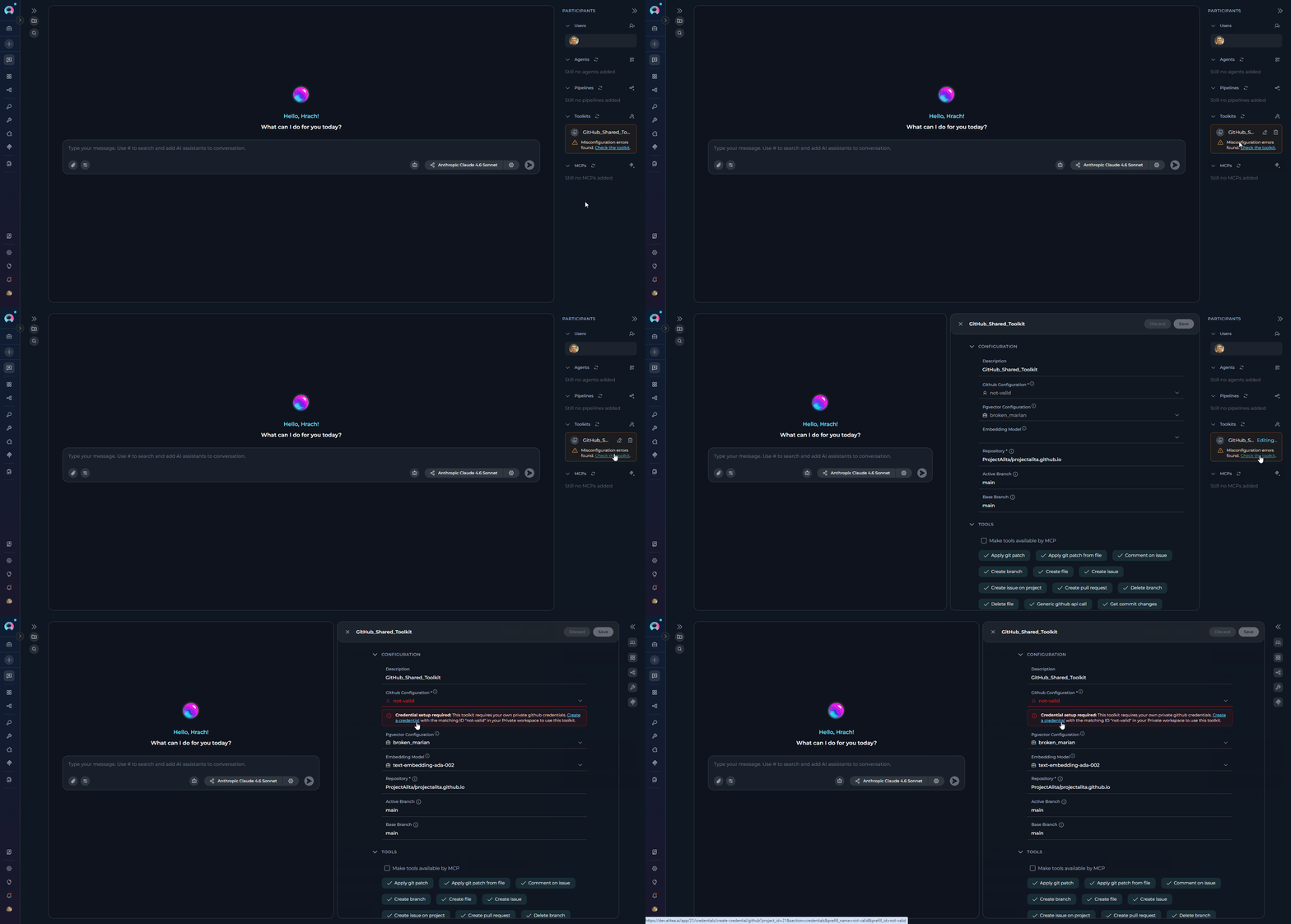
Use AI Participants in a Chat
Once added, participants are ready to process your messages:- Check Participants: Ensure the desired participant is listed in the Participants section.
- Select Active Participant(s):
- Click: Click the participant’s name/icon in the Participants list to make it active for your next message.
- Send Message/Command: Type your message or a simple command (like “Go”, “Execute”, “Run it”) and press Send. The active participant(s) will process your input.
Mention Skills
You can direct the active agent to use one of its own skills by typing~ in the chat input.
- Make an Agent the active participant — skill mentions are only available while an agent is active, and only list the skills attached to that agent’s current version.
- In the chat input box, type
~to open the skills dropdown. - Continue typing to filter by skill name.
- Use the arrow keys to highlight a skill and press Enter, or click a skill from the list, to select it.
- The mention is committed to the input as
~{SkillName}with a highlight and a trailing space so you can continue typing your message.
If the active agent has no skills attached, or no agents are active, typing
~ does not open a dropdown.Mention Toolkits and Tools
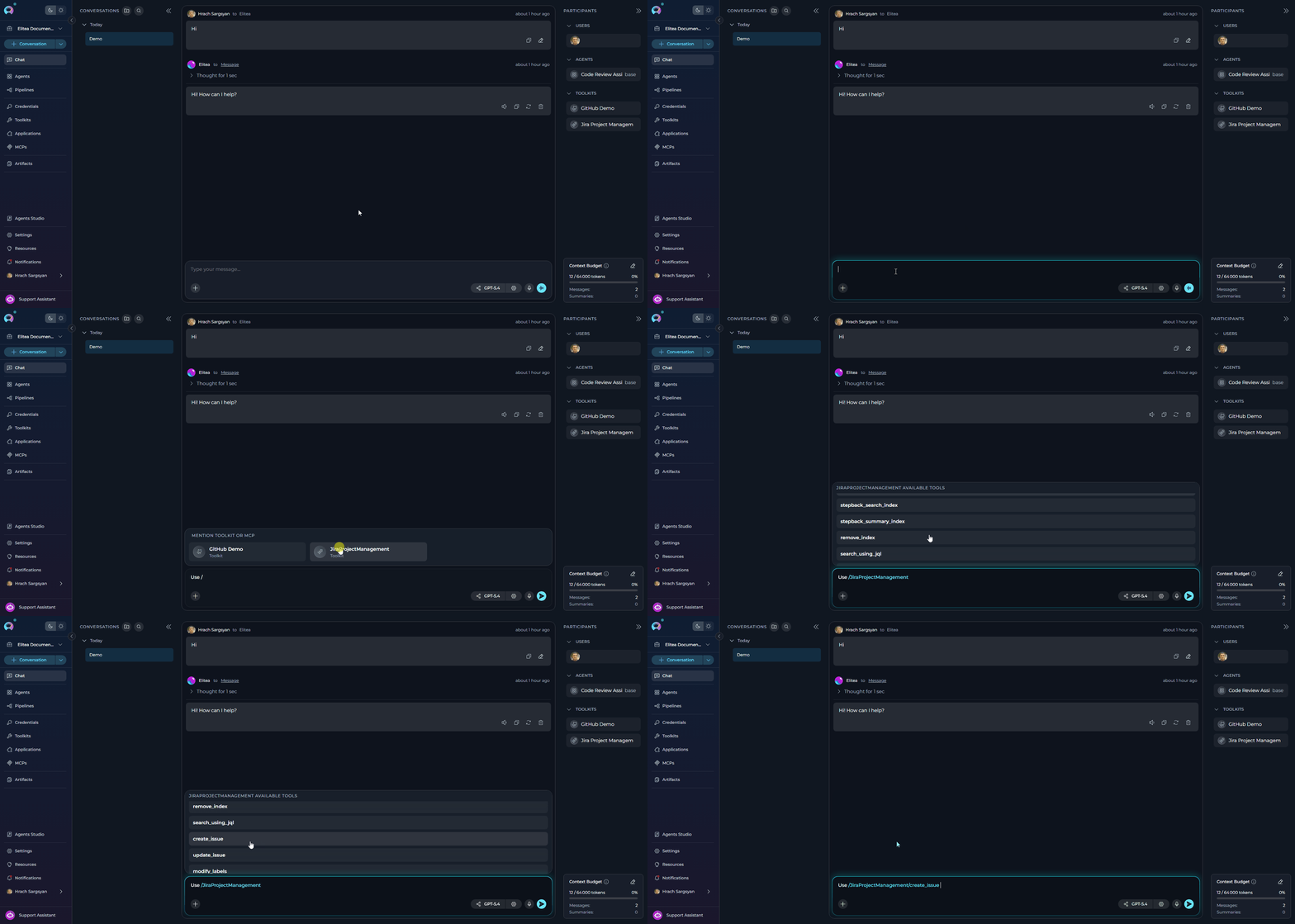
You can direct the AI to use a specific tool from an already-added toolkit by typing/ in the chat input. This is a two-phase selection:
Select a Toolkit:
- In the chat input box, type
/to open the Mention toolkit dropdown. - The dropdown lists all toolkits that are already added as participants in the current conversation.
- Continue typing to filter by toolkit name (e.g.,
/Jirafilters to Jira-related toolkits). - Click a toolkit name from the dropdown, or type the full name and press
/again to confirm it. - The input updates to
/{ToolkitName}/and the dropdown switches to show the toolkit’s available tools.
- The dropdown now shows ” available tools” with all tools exposed by that toolkit.
- Continue typing after the second
/to filter tools by name (e.g.,/Jira/createshows create-related tools). - Each tool shows its name and a short description.
- Click the desired tool to confirm the selection.
- The mention is committed to the input as
/{ToolkitName}/{ToolName}with a cyan highlight and a trailing space so you can continue typing your message.
Please use /Jira/createIssue to create a new issue and then /GitHub/createPR to create a pull request.
Each mention is highlighted independently and sent to the AI as separate tool directives.
The
/ mention works with both Toolkits and MCP participants that are already added to the conversation. If a toolkit or MCP does not appear in the dropdown, add it first via the + button in the input toolbar or by typing #. Toolkits and MCPs with misconfiguration errors are excluded from the dropdown until the configuration issue is resolved.Configure AI Participants
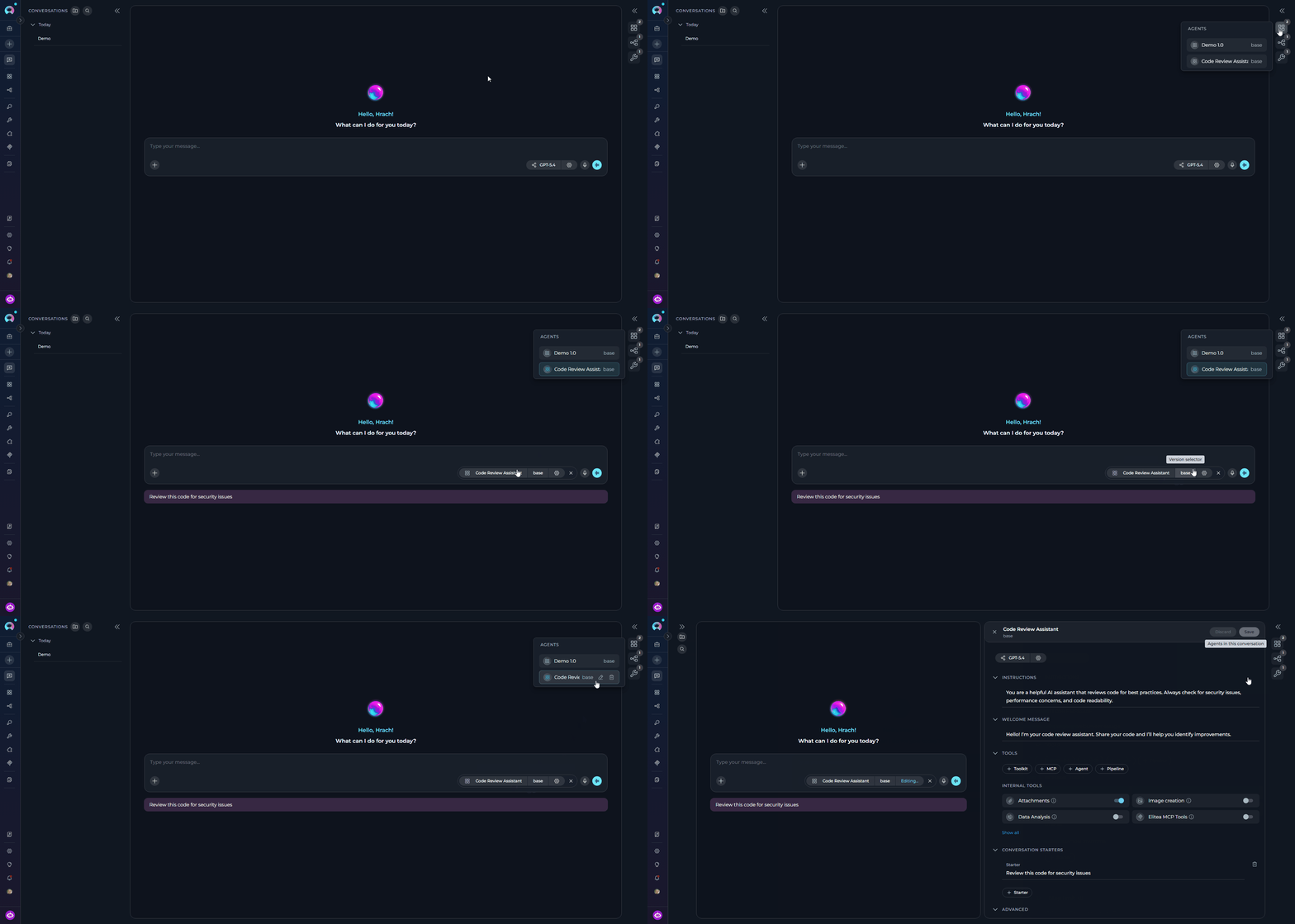
You can configure and edit participants (Agents, Pipelines, Toolkits, and MCPs) directly within the conversation using the Canvas editor. Accessing Participant Settings:- Option 1: Click the participant in the Participants list, then click the ⚙️ (settings) icon.
- Option 2: Hover over the participant element in the Participants list and click the Edit icon that appears.
- The appropriate Canvas editor will open based on the participant type.
- Agents
- Pipelines
- Toolkits
- MCPs
- Edit the agent’s prompt and instructions
- Modify variables used by the agent
- Configure model settings
- Select the agent version (default is “base”)
- Adjust toolkits and integrations
Applying Changes:
- Make your edits in the Canvas editor.
- Click the Save button to apply your modifications.
- The updated configuration will be used for subsequent messages in the conversation.
How to Use Public Agents from Chat
Public Agents are:- Pre-configured AI assistants designed for specific tasks
- Created by community members and approved by moderators
- Contain specialized instructions, model configurations, and integrated toolkits
- Examples: Data analysis agents, code review assistants, documentation generators
- Community-Driven: Shared by other Elitea users after quality review
- Easily Identifiable: Marked with a “Public” chip/badge for quick recognition
- Read-Only Core Config: Core configuration cannot be modified (with temporary adjustments noted below)
- Immediately Usable: Add to conversations and start using right away
- Discoverable: Browse Latest, My Likes, and Trending sections
Differences Between Public and Private Agents
Functionality
Permissions and Limitations
What You Can Do
✔️ Execute Public Agents:- Run public agents in your conversations
- Use them as many times as needed
- Combine multiple public agents in one conversation
- Click the agent in PARTICIPANTS → Click ⚙️ settings icon
- Agent Canvas opens with read-only core configuration
- You CAN temporarily modify:
- LLM model selection
- Model settings (Temperature, Top P, Top K, etc.)
- Variables
- You CANNOT modify or save:
- Agent prompt/instructions
- Toolkit configurations
- Other core settings
- You CAN temporarily modify:
- While you cannot save modifications to public agents, you can create your own agent
- Copy concepts and adapt them to your needs in your Private or Team projects
- Save customized versions permanently in your workspace
What You Cannot Do
✘ Save Modifications to Public Agents:- Cannot save changes to model settings, variables, or credentials
- Temporary adjustments only last for the current conversation
- Each new conversation with the public agent starts with default configuration
- Only the original author and moderators can manage publication status
- Users cannot remove public agents from the community library
Important Notes
When Creating Your Own Versions:- Learn from Public Agents: Study how successful agents are structured, understand prompt engineering techniques, and learn effective configuration patterns
- Adapt, Don’t Copy Exactly: Create variations suited to your specific needs, combine concepts from multiple public agents, and add your own improvements
- Consider Publishing: If you create something valuable, consider publishing it back to the community to share your improvements and help others
Access Public Agents from Chat
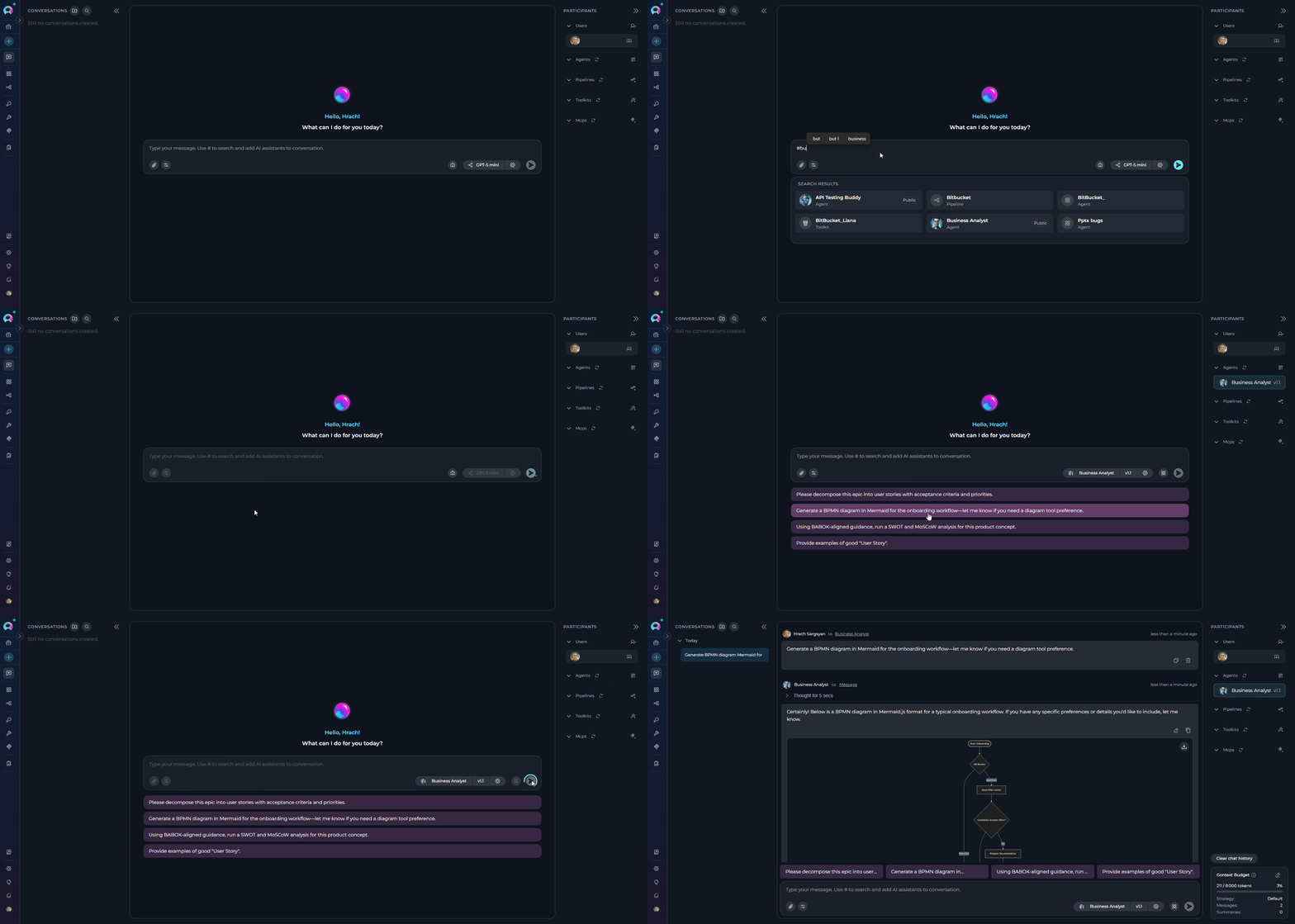
Public agents are accessible directly within any conversation through the Chat interface. Method 1: Using the # Search The quickest way to find and add public agents is using the# symbol:
-
Open or Create a Conversation:
- Navigate to Chat in the main sidebar
- Click + Create for a new conversation, or open an existing one
-
Search for Public Agents:
- In the message input box, type
#followed by the name or keywords - A dropdown list appears showing matching agents
- The list includes both your own agents and public community agents
- Public agents are marked with a “Public” chip/badge for easy identification
- In the message input box, type
-
Select the Agent:
- Click on the desired agent from the dropdown
- The selected agent appears as a chip above the input box
-
Send Your Message:
- Type your message or question
- Click Send or press Enter
- The public agent will process your request
-
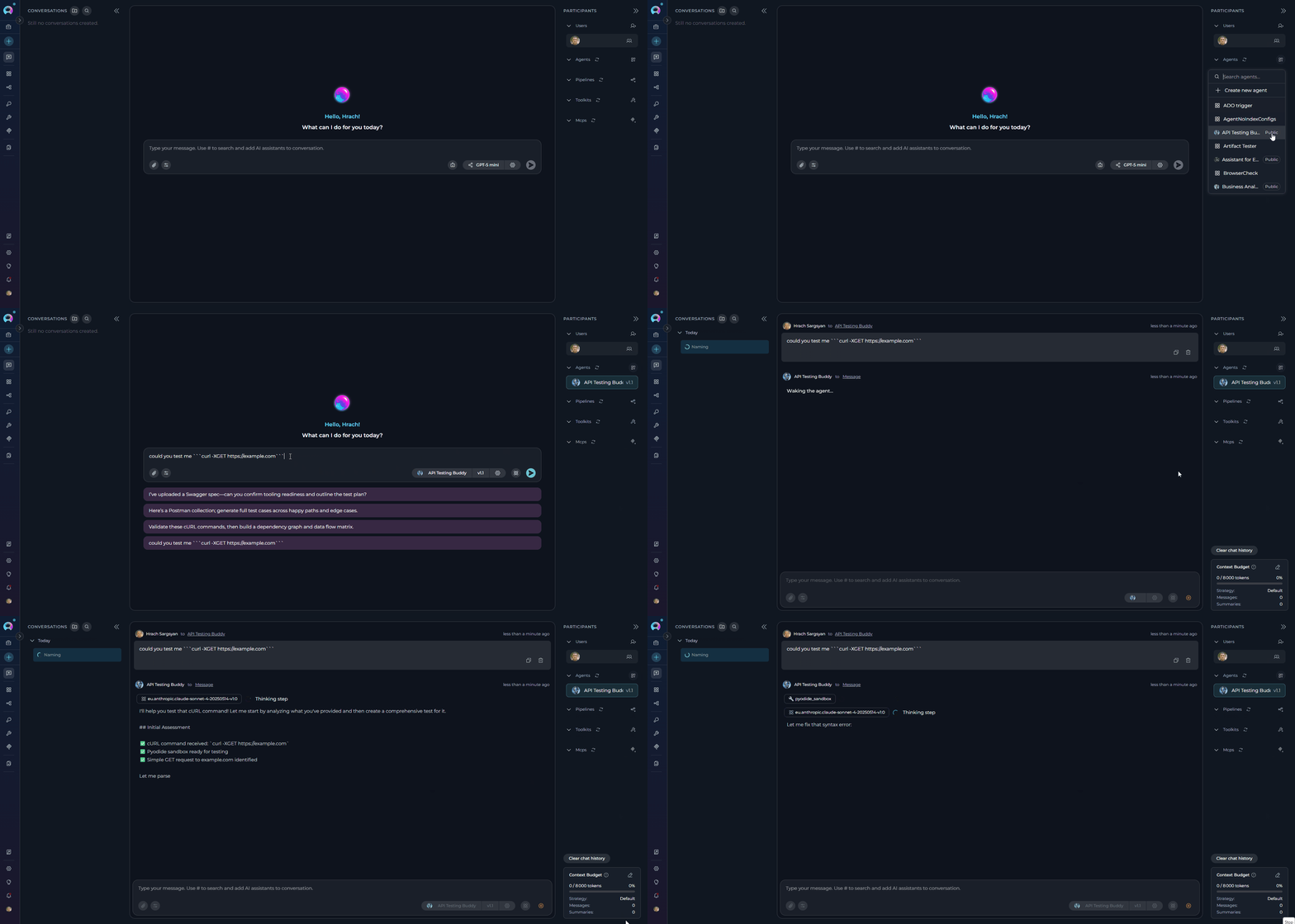
Locate the Participants Panel:
- On the right side of the chat interface, find the PARTICIPANTS section
- You’ll see a collapsible section for Agents
-
Add Public Agents:
- Click the + icon next to Agents
- A dropdown list appears with available agents, including public ones
- Public agents are marked with a “Public” chip/badge
- Select the public agent you want to add
-
Interact with the Agent:
- Click on the participant in the PARTICIPANTS list to activate it
- Type your message and send
Use Public Agents
Step-by-Step:-
Add the Public Agent:
- Use
#AgentNamein the input box, OR - Click + next to Agents in the PARTICIPANTS panel
- Use
-
Activate the Agent:
- Click on the agent name in the PARTICIPANTS list
- The active agent is highlighted in the list
-
Interact:
- Type your message or click a conversation starter if available
- Send your message
- The public agent processes your request and responds
Public agents are marked with a “Public” chip/badge, making them easily identifiable. This badge appears on the agent card in lists and search results, helping you quickly distinguish between your private agents and community-shared public agents.
The Business Analyst agent helps create requirements documentation, diagrams, and analysis artifacts for your projects.Scenario: You need user stories for an e-commerce shopping cart feature.Step 1: Add the Agent
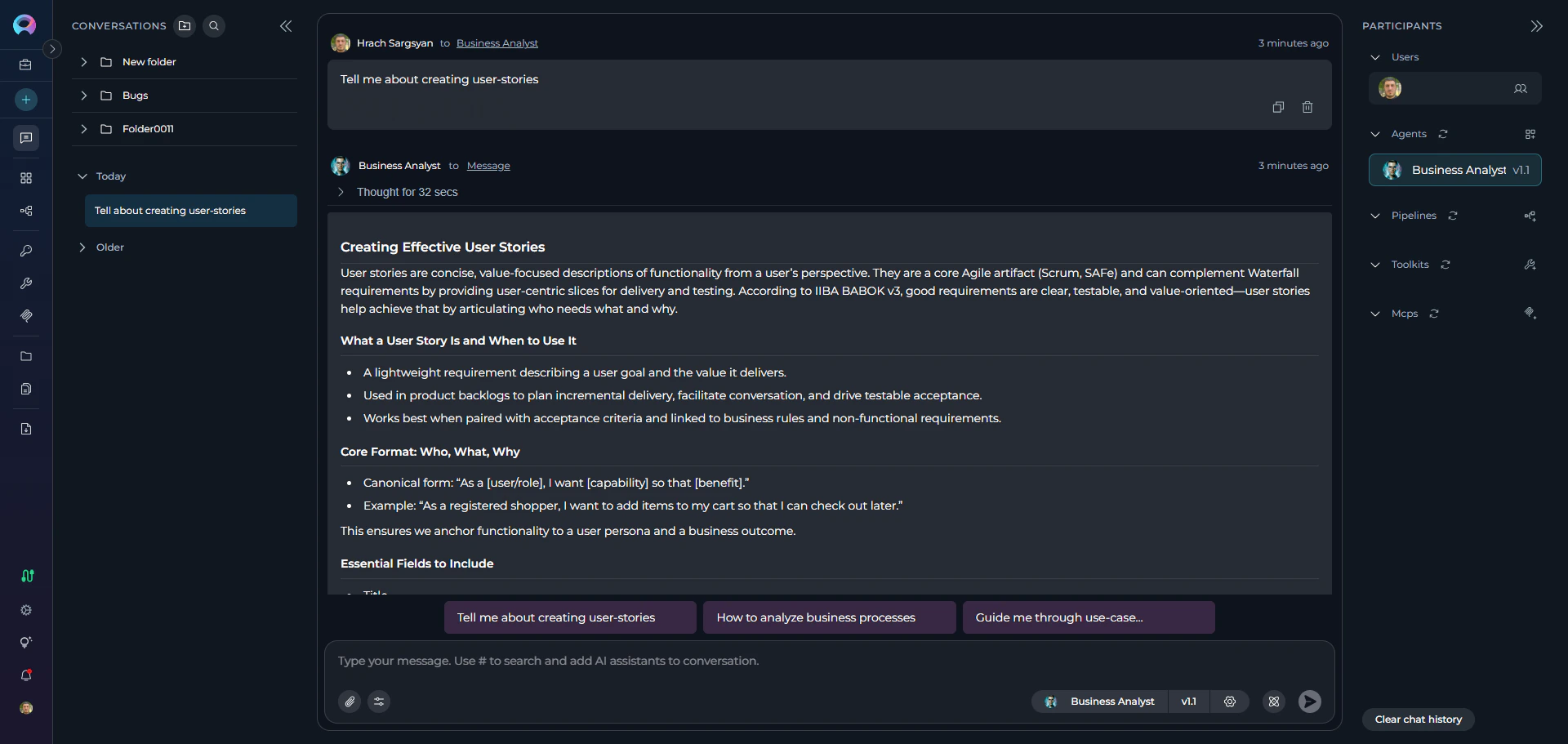
- Type
#Business Analystin the chat input box - The agent appears in PARTICIPANTS with a “Public” badge
Acceptance Criteria (Gherkin format):
- ✔️ Quality Checklist: INVEST criteria (Independent, Negotiable, Valuable, Estimable, Small, Testable)
- ✔️ Story Splitting Techniques: How to break down large stories
- ✔️ Non-Functional Requirements: Performance, security, accessibility considerations
- ✔️ Traceability: Links to business rules, test cases, and requirements
- ✔️ Alternative Formats: YAML, Jira markup, or Azure DevOps format
- ⚡ Fast: Get complete, well-structured user stories in seconds
- 📋 Standards-Based: Follows BABOK, IIBA, and Agile best practices
- 🔄 Adaptable: Works with Jira, Azure DevOps, Confluence, or plain Markdown
- 🎯 Complete: Includes acceptance criteria, NFRs, and traceability
Best Practices
Adding and Managing Users
Adding and Managing Users
- Use Search: In the Add users modal, use the search bar to quickly find teammates by name in large teams
- Multiple Users: You can add multiple users at once from the Add users modal for team-wide conversations
- User Management: Remove users who no longer need access to keep conversations focused and secure
Using Mentions Effectively
Using Mentions Effectively
- Strategic Mentions: Use @mentions to get specific users’ attention on important updates or questions
- Mention Everyone Sparingly: Use
@Everyoneonly for critical announcements to avoid notification fatigue
Human-AI Collaboration
Human-AI Collaboration
- Collaboration: Combine user mentions with AI participants (agents, pipelines) for powerful human-AI collaboration
- Teamwork: Use conversations to enable seamless collaboration between human teammates and AI assistants
Troubleshooting
Cannot see 'Add users' option
Cannot see 'Add users' option
- Verify you’re in a team project (not your personal/private project)
- User collaboration features are disabled in private workspaces
User not appearing in search results
User not appearing in search results
- Ensure the user is a member of your project/team
- Check if the user has been filtered by existing participants (already added users don’t appear in search)
- Scroll down in the user list - there may be more results below
Cannot remove a user
Cannot remove a user
- You cannot remove yourself from the conversation
- Only users who were added to the conversation can be removed
- The conversation creator and project members with appropriate permissions can remove users
Mentions not working
Mentions not working
- Ensure you’re typing @ followed by the username
- Select the user from the dropdown menu that appears
- Verify the user is still a participant in the conversation