

Consider creating a backup before making large changes to your project.
Back Up & Restore Settings
To create a backup file or restore data from a backup:- Select Settings > General.
- In General, expand Back Up & Restore.

Create a Backup
- In Back Up & Restore, select Create a Backup.
- Wait while ELITEA prepares the file. The button label changes to indicate that it is preparing the backup.
- ELITEA downloads the backup as an encrypted SQL file.
Included in the backup file
- Agents
- Skills
- Pipelines
- Toolkits
- MCP servers
Excluded from the backup file
- Credentials
- Tokens
Restore Data Into a Project
To restore data into a project:- In Back Up & Restore, select Restore from the Backup.
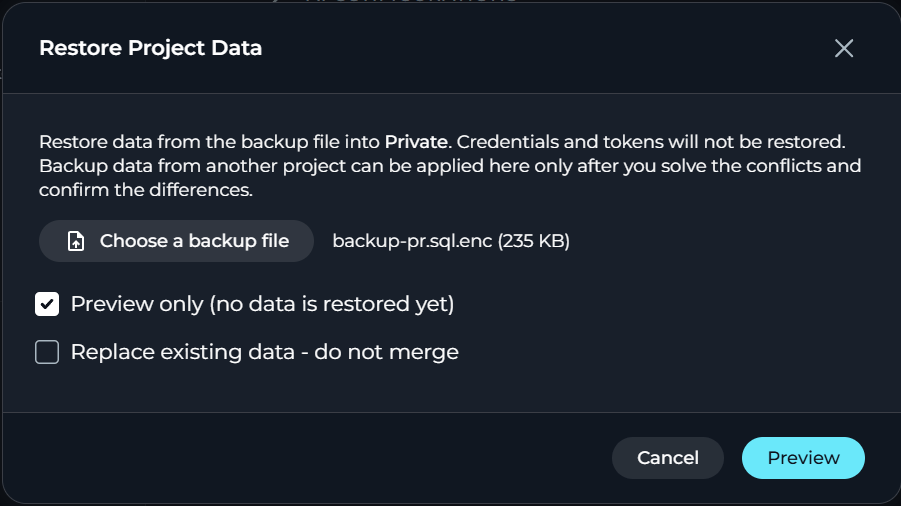
- In the Restore Project Data dialog, select Choose a backup file, then select an .sql or .enc backup file.
-
Keep Preview only (no data is restored yet) selected, clear Replace existing data - do not merge, then select Preview.
- Review the restore summary: the number of statements and rows, the tables affected, any skipped tables, and any columns that ELITEA dropped or filled because of differences between the backup and the current project structure.
-
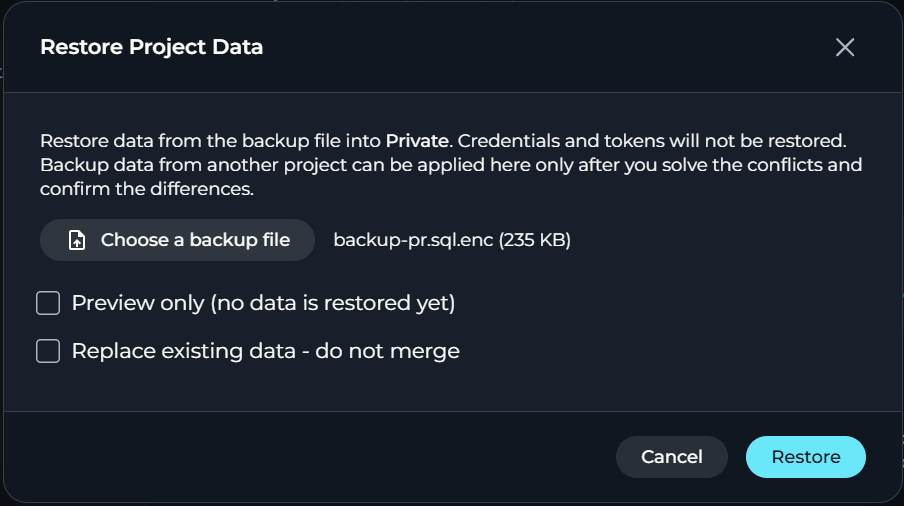
Clear Preview only (no data is restored yet) and select Restore.

Restore the Whole Project
To restore the whole project, you must create a new empty project or select a project whose data you are willing to overwrite.- Create a new empty project.
- In Back Up & Restore, select Restore from the Backup.
- In the Restore Project Data dialog, select Choose a backup file and select an .sql or .enc backup file.
- Select Replace existing data - do not merge.
- Keep Preview only (no data is restored yet) selected and select Preview to review the restore summary, including the number of tables that will be truncated, before you commit to the change.
- Clear Preview only (no data is restored yet) and select Restore.
Best Practices
- Create a backup before you make large changes to a project.
- Preview a restore before you apply it. ELITEA selects Preview only (no data is restored yet) by default.
- Store backup files in a secure location. A backup file, together with the restore permission, is enough to load its data into a project.
- Reconfigure credentials, tokens and other secrets after every restore. ELITEA does not include them in a backup file.
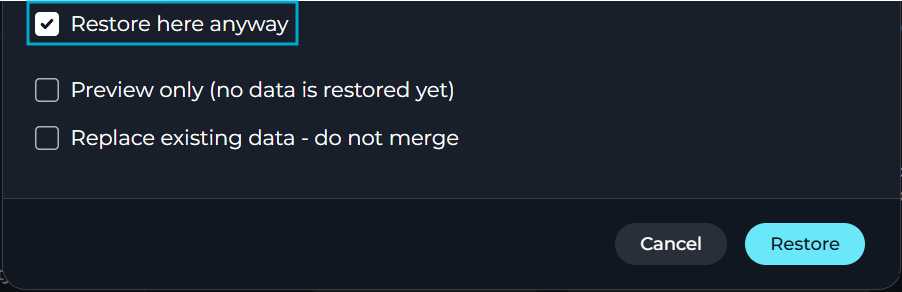
- Confirm the source project before you select Restore here anyway. Restoring a backup from a different project mixes that project’s data into the current one.
Troubleshooting
Issue: You do not see Back Up & Restore in General settings
Issue: You do not see Back Up & Restore in General settings
Cause: You do not have the required permissions for the project.Solution: Ask a project administrator for the necessary permissions.
Issue: Create a Backup fails to download
Issue: Create a Backup fails to download
Cause: The download request failed.Solution: ELITEA shows an error message describing the failure. Try the download again. If the issue continues, contact your project administrator.
Issue: ELITEA reports a project mismatch
Issue: ELITEA reports a project mismatch
Cause: The backup file was created from a different project than the one you are restoring into.Solution: Confirm you have the correct file for this project, or select Restore here anyway to bring that project’s data into the current one.
Issue: Columns were dropped or filled during a restore
Issue: Columns were dropped or filled during a restore
Cause: The project structure changed between when ELITEA created the backup and when you restore it. ELITEA drops columns the current project no longer has, and leaves columns empty when the backup has no value for a column the current project requires.Solution: Review the dropped and filled columns in the restore summary, then update the restored agents, pipelines, toolkits, MCP servers or skills as needed.
See also: