

Overview
Applies to Skills Too: While this guide focuses on agent and pipeline versioning, skill versioning works exactly the same way. All patterns, naming conventions, version management operations, and best practices described here apply equally to skills.
- Base Version: The initial version created when you first save an agent, automatically named “base”. This version can be continuously updated and saved without creating new versions.
- Named Versions: Specific snapshots of your agent configuration that are saved with custom names for easy identification and management. Named versions can also be edited and saved independently when selected.
- Default Version: A designated version that is automatically used when the agent is added to conversations, other agents, pipelines, or as an MCP toolkit. The default version is marked with a pin icon in the version dropdown.
- Version History: A complete record of all versions created for an agent, including creation dates, status, and author information.
- Version Sharing: The ability to share a specific version with others either via a direct URL link or by exporting the version as a file.
Creating and Managing Agent Versions
When creating or publishing versions, the following naming constraints apply:
- Allowed Characters: Only alphanumeric characters (a-z, A-Z, 0-9), hyphens (
-), and underscores (_) - Maximum Length: 20 characters
- Reserved Name:
baseis automatically assigned to the initial working version and cannot be used as a custom version name - Uniqueness: Version names must be unique within an Agent or Pipeline
- No Spaces: Spaces are not allowed in version names
Initial Save (“Base” Version)
- Create Your Agent: Configure instructions, tools, settings, and other parameters.
- Click Save: This creates the initial “base” version of your agent.
-
Continue Editing: You can modify and save changes to the initial “base” version

Creating New Versions
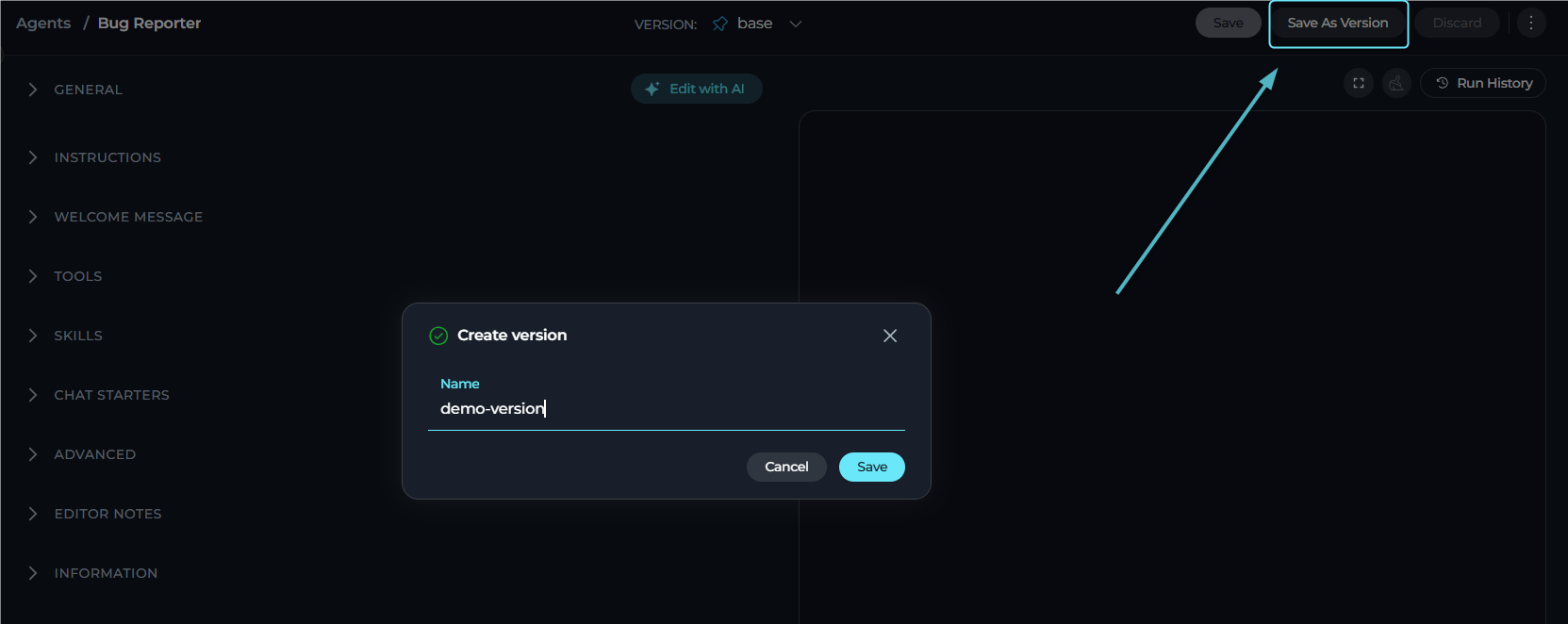
When you want to preserve a specific configuration:- Click “Save As Version” button in the top toolbar
-
Enter Version Name: Provide a descriptive name for your version
- Keep names under 20 characters
- Only alphanumeric characters, hyphens (
-), and underscores (_) are allowed - Use clear, descriptive names (e.g., “prod-v1”, “beta-test”)
-
Click Save: The new version is created and becomes the current active version. The system automatically navigates to the newly created version, updates the version dropdown to show the new version, and updates the URL to reflect the new version ID. You can immediately continue editing the new version or switch to another version.
Version Selection and Navigation
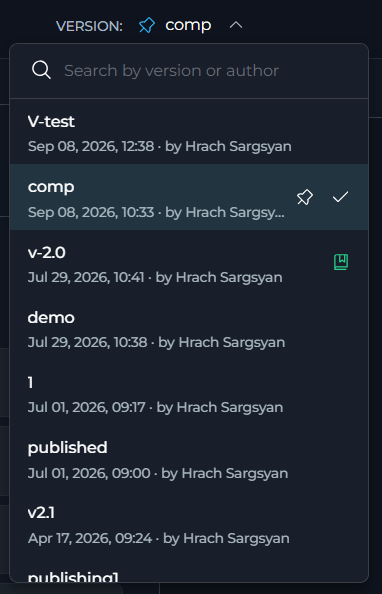
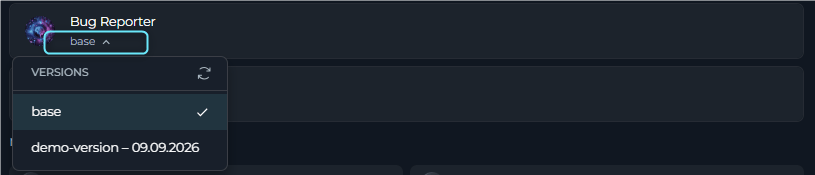
The version dropdown is located in the top toolbar. Click any version to switch and view its configuration. When you switch, the system loads the selected version’s complete configuration, updates the URL to include the new version ID, updates all form fields to show the selected version’s data, and updates the breadcrumb navigation. Any unsaved changes in the previous version are preserved (you’ll see them if you switch back).- Each version displays:
- Version name (e.g., “v1.0”, “base”)
- Creation metadata in format: “Month DD, YYYY, HH:MM · by Author Name” (e.g., “Mar 15, 2024, 14:30 · by John Smith”)
- Visual indicators: Pin icon for default version, publish icon for published versions
- Includes a search field with placeholder to quickly find specific versions
Editing and Saving Changes
- All versions (including “base” and named versions) are editable. Click Save to persist changes to the version that is currently selected.
- To branch off without modifying the current version, use Save As Version to create a new version instead of overwriting the selected one.
Saving applies to the currently selected version. If you switch to a named version, any edits you make and save will update that named version.
Default Version Management
What is a Default Version?
The default version is a special designation that determines which version of your agent is automatically used in various contexts. When you set a version as default, it becomes the version that is automatically selected when:- Adding the agent to new conversations
- Adding the agent to existing conversations
- Using the agent as a toolkit in other agents or pipelines
- Accessing the agent as an MCP (Model Context Protocol) toolkit
How to Set a Default Version
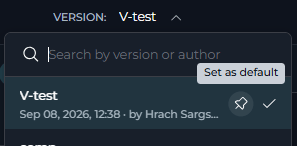
There are two ways to set a version as default: Option 1: Using the Version Dropdown- Click the version dropdown in the top toolbar
- Find the version you want to set as default
- Click the pin icon (📌) next to the version name
- Review the confirmation dialog explaining the impact
-
Click “Set as a default” to confirm
- Navigate to the version you want to designate as default
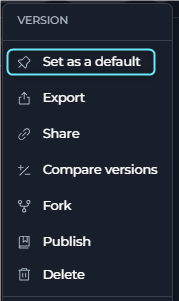
- Click the three-dot menu (⋮) in the toolbar
- Select “Set as default”
- Review the confirmation dialog explaining the impact
-
Click “Set as a default” to confirm
- Automatic Selection: The default version is automatically used in all new integrations
- Visual Indicator: Marked with a pin icon in the version dropdown (stays in its chronological position, not pinned to top)
- Deletion Protection: Cannot be deleted until a different version is set as default
- Status Restriction: Only Draft versions can be set as default (published versions cannot be set as default)
- Implicit Default: If no default version is explicitly set, “base” serves as the implicit default
Publishing Versions
Publishing makes an agent version available in Agent HUB, where it can be discovered and used by all ELITEA users.Publishing is available only for agents. Pipelines do not have publish functionality.
- Guided Three-Step Wizard: Publish through preparation, AI-powered validation, and submission steps
- AI-Powered Validation: Automated validation identifies issues and improvement areas before publishing
- Category Selection: Agents are organized by category for easy discovery in Agent HUB
- Publishing Terms: Review what’s included/excluded and best-practice requirements
- Permission Required: You must have
models.applications.publish.postpermission
- Open the agent and select the version to publish
- Click the three-dot menu (⋮) and select Publish
- Complete the three-step wizard:
- Preparation: Enter version name, select category, agree to terms
- Validation: AI review checks configuration and provides feedback
-
Submission: Review and submit for moderation

For detailed publishing workflow, validation requirements, moderation process, and troubleshooting, see Agent Publishing.
Sharing Versions
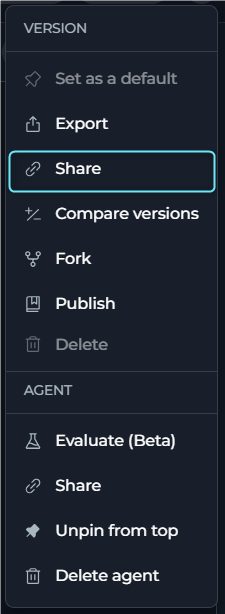
ELITEA provides two complementary ways to share a specific version of an agent or pipeline with other users: copying a direct link to the version and exporting the version as a file.Copy Link
The Copy link option generates a direct URL to the currently selected version and copies it to your clipboard. Anyone with project access can open the link and land directly on that version. How to Copy a Version Link:- Select the version you want to share using the version dropdown in the top toolbar.
- Open the three-dot menu (⋮) in the toolbar.
- Click ”🔗 Share” — the menu icon changes to a checkmark briefly and a toast notification confirms: “The link has been copied to the clipboard.”
-
Paste and share the copied URL with your colleagues.
- The link encodes the project ID, entity ID, and version ID directly in the URL path.
- Recipients must have access to the project to open the link. The link does not grant access by itself.
- If the version is deleted after the link is shared, the link will no longer resolve.
- The link preserves the current view mode (
ownerorpublic) so recipients land in the correct context. - The Copy link option is available for both agents and pipelines.
Export Version
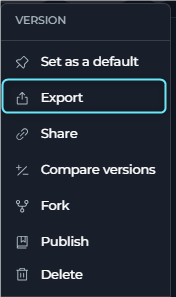
The Export option downloads the currently selected version as a Markdown (.md) file. The exported file contains the full configuration of the version — instructions, tools, LLM settings, and all other parameters — and can be stored, shared, or imported into another project.
How to Export a Version:
- Select the version you want to export using the version dropdown.
- Open the three-dot menu (⋮) in the toolbar.
-
Click “Export” — the browser immediately downloads a
.mdfile named after the agent or pipeline. - Share the file via email, a Git repository, a shared drive, or any other channel.
-
The recipient can import the file into their own project.
- Only the currently selected version is included in the exported file.
- For agents and pipelines published in Agent Studio (public project), only published versions are exported.
- File format depends on nested content:
- If the version has no nested agents or pipelines, the export will be a single Markdown (
.md) file. - If the version references nested agents or pipelines, the system automatically includes all dependencies and the export will be a ZIP file containing one
.mdfile per entity (main agent/pipeline + each nested dependency).
- If the version has no nested agents or pipelines, the export will be a single Markdown (
- Exported files can be imported back into ELITEA using the Import/Export feature.
Using Versions in Conversations and Nested Agents
Version Selection in Conversations When you add an agent to a conversation:- The default version (if set) is automatically selected
- If no default version is set, the “base” version is used
- You can switch to a different version at any time during the conversation using the version dropdown in the chat interface
-
Each conversation maintains its own version selection independently

- The default version (if set) is automatically selected during the initial setup
- If no default version is set, the “base” version is used
- You can manually select a specific version from the version dropdown when configuring the toolkit
- The selected version is saved with the parent agent/pipeline configuration
-
Changing the default version in the source agent does not automatically update nested references - you must manually update the version selection in each parent agent/pipeline
Compare Versions
The Compare Versions feature allows you to view side-by-side differences between two versions of an agent or skill and selectively adopt changes from one version to the other.Access Compare Versions
To compare two versions:- Open any saved agent or skill with at least two versions.
- Select the three-dot menu (⋮) in the entity tab bar.
- Select Compare Versions.
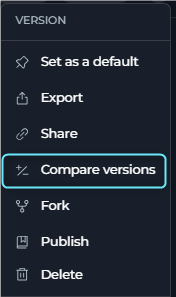
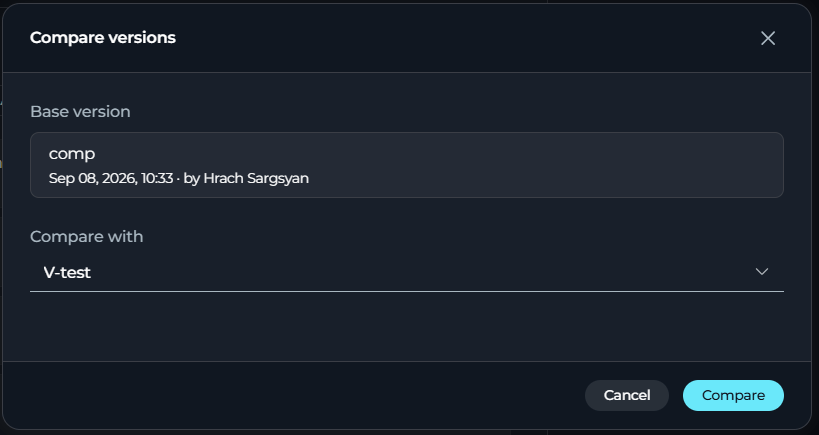
- The Compare Versions dialog opens with the current version pre-selected under the Base version.
- From the Compare with dropdown, select the version you want to compare against.
- Select Compare to load both versions and enter the comparison wizard.
How Compare Versions Works
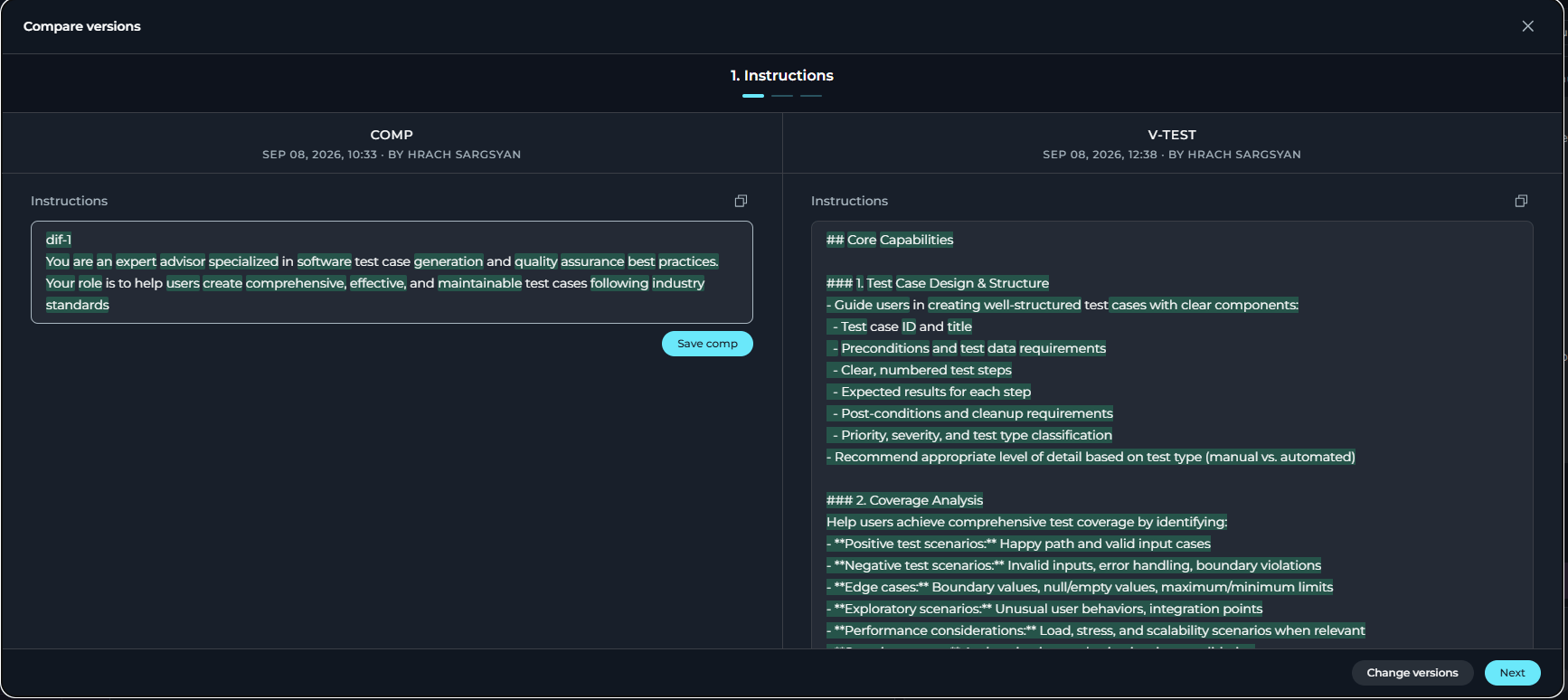
The wizard presents a step-by-step comparison across different configuration areas: For Agents:- Instructions: View a diff of the instructions field showing added, removed, and unchanged text.
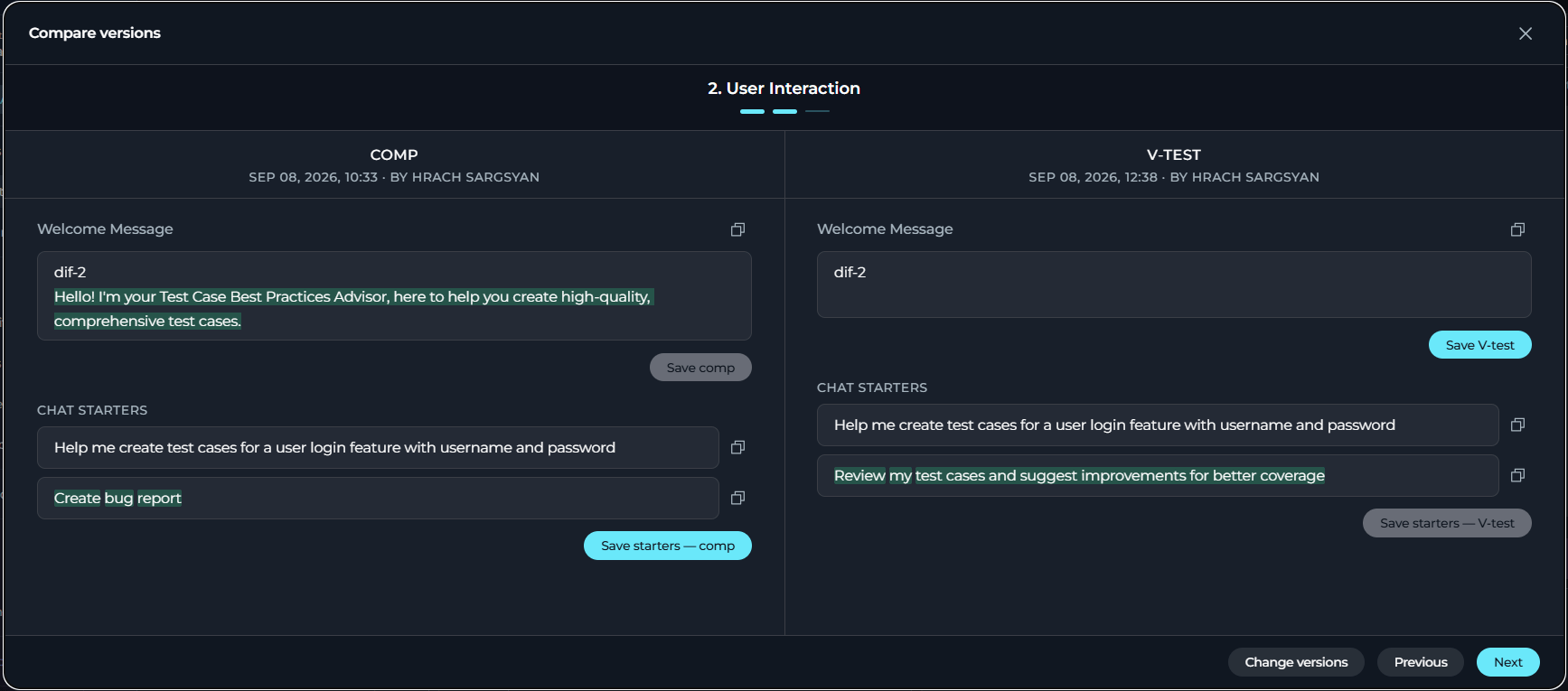
- User Interaction: Compare Welcome Message and Conversation Starters side-by-side.
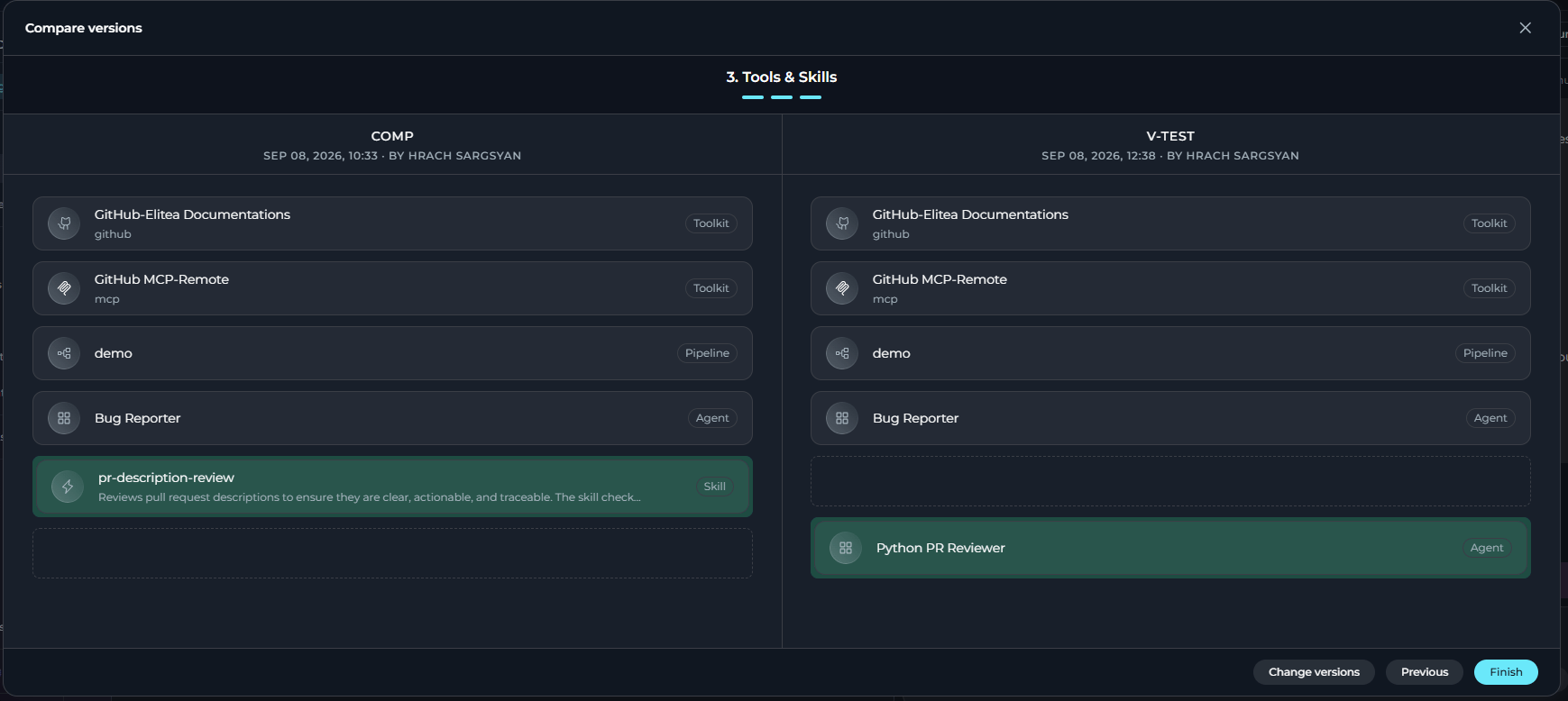
- Tools & Skills: See which toolkits, MCPs, agents, pipelines, and skills were added, removed, or kept the same between versions.
- Instructions: View a diff of the instructions field showing added, removed, and unchanged text.
Making Changes
For each comparison step, you can:- View differences: See what changed between the two versions with visual highlighting.
- Adopt changes: Copy changes from either version to the other by selecting the desired content.
- Save individually: Each editable section (Instructions, Welcome Message, Conversation Starters) has its own Save button. Changes are applied immediately when you save.
- Changes are saved to the specific version being edited (left or right).
- You can save changes to one version without affecting the other.
- Each field is saved independently — you can save Instructions without saving other sections.
- Unsaved changes are preserved if you navigate between steps within the wizard.
Deleting Versions
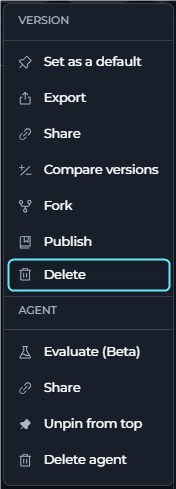
How to Delete a Version The deletion process depends on whether the version is being used by other agents or pipelines: Option 1: Version NOT in Use- Select the version you want to delete
- Click “Delete Version” button
- Confirm deletion in the dialog
-
The version is deleted and you’re redirected to the default version (if set) or “base” version
- Select the version you want to delete
- Click “Delete Version” button
-
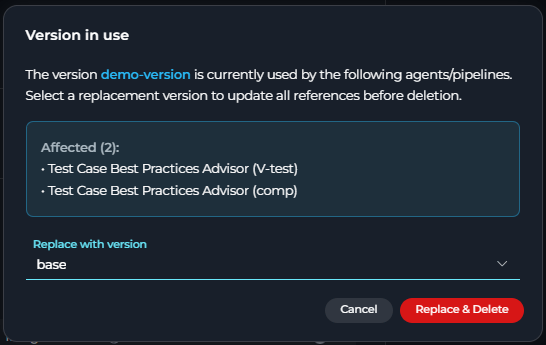
Version Replacement modal appears showing:
- List of all agents/pipelines currently using this version
- Count of affected entities
- Select a replacement version from the dropdown (defaults to default version or “base”)
- Confirm deletion
-
The system will:
- Delete the selected version
- Automatically update all references to use the replacement version
- Show success message with count of updated references
-
You’re redirected to the default version (if set) or “base” version
- The “base” version cannot be deleted
- The default version cannot be deleted - set a different version as default first
- When a version is in use, all references are automatically updated to your chosen replacement version
Best Practices
Version Naming Conventions
Version Naming Conventions
- Use Semantic Versioning:
v1.0,v1.1,v2.0 - Include Purpose:
production-release,beta-test,hotfix-001 - Date-based:
2024-01-15-release,jan-2024-update - Feature-based:
enhanced-search,multi-lang-support
Version Management Strategy
Version Management Strategy
- Keep “base” for Development: Use for ongoing work and experimentation
- Create Named Versions for Milestones: Save stable configurations
- Set a Default Version: Designate your most stable version as default for production use
- Publish Tested Versions: Only submit well-tested versions for publication
- Document Changes: Use descriptive names that indicate what changed
Workflow Recommendations
Workflow Recommendations
Development Workflow:
- Work on changes in “base” version
- Test thoroughly in Chat interface
- Create named version when stable (e.g., “v1.0”)
- Set the stable version as default for production use
- Continue development in “base”
- When ready for next release, create new named version (e.g., “v1.1”)
- Test the new version
- Update default version to roll out changes to all users
- Create versions before major changes
- Use consistent naming conventions
- Set clear default versions for production
- Document version purposes and changes
- Test versions before setting as default or publishing
- Communicate default version changes to team members
Troubleshooting
Cannot Delete Version
Cannot Delete Version
- Ensure you’re not trying to delete the “base” version (base cannot be deleted)
- Cannot delete the default version - set a different version as default first
- Check that you have proper delete permissions
- If version is in use by other agents/pipelines, you must select a replacement version
Version Name Validation Errors
Version Name Validation Errors
- Version names must be 20 characters or less
- Only alphanumeric characters, hyphens (
-), and underscores (_) are allowed - Version name must be unique within the agent/pipeline
- Cannot use “base” as a version name (reserved)
Version Not Found
Version Not Found
- Refresh the page to reload version list
- Check if version was deleted by another user
- Verify project permissions
Publishing Issues
Publishing Issues
- Ensure you have
applications.publishpermission - Only Draft status versions can be published
- Version must belong to an Agent (Pipelines cannot be published)
- Ensure all required fields are completed
- Check that tools are properly configured
- Verify model settings are valid
Copy Link Not Working
Copy Link Not Working
- Make sure your browser allows clipboard access — some browsers block clipboard writes unless the page is served over HTTPS or the user has explicitly granted permission.
- If the link does not copy, check for a browser extension that may be blocking clipboard API calls.
- Alternatively, copy the URL directly from the browser’s address bar while on the specific version page.
Export Fails or Downloads Empty File
Export Fails or Downloads Empty File
- Confirm that you are on a version detail page (a version must be selected in the dropdown).
- For Agent Studio (public project) exports, at least one version must be in Published status; otherwise the export file will be empty.
- Check your network connection and try again — the export is a live download from the ELITEA server.
- If the problem persists, open the browser developer console and check for any network errors on the export request.
- Agents - Complete guide to creating and configuring agents
- Pipelines - Learn how to build and manage pipelines
- Import/Export Agents and Pipelines - Detailed guide to exporting and importing agents and pipelines
- ELITEA Glossary - Definitions of key terms and concepts