

Introduction
Agent publishing is the process of making an agent version available in Agent HUB, a shared library accessible to all ELITEA users. Once published, an agent version is visible to the entire community and can be added to conversations without project membership. Key capabilities:- Publish agent versions to Agent HUB through a guided three-step wizard.
- AI-powered automated validation runs before publishing. It identifies critical issues, warnings, and possible improvement areas and replaces manual pre-approval.
- A validation token from the AI review is cryptographically linked to the publish request, ensuring that only validated versions can be submitted.
- Attached Skills are retained on the published agent version. They are preserved for runtime use, but retained Skills are not published as separately discoverable catalog entries through this flow.
- Unpublish your agent at any time to remove it from Agent HUB immediately.
- Receive in-app notifications when your agent is published, rejected, or unpublished by a moderator.
models.applications.publish.post permission in your role to see the Publish action.How to Publish an Agent
Step 1 — Start
- Go to the Agents menu and open the agent you want to publish.
- Select the required version from the version selector.
- Click the three-dot menu (⋮) to open the actions menu.
-
Select Publish from the dropdown.

Step 2 — Preparation
The Publish version dialog opens on the first step, Preparation. This table describes the fields and actions on this step:
- Credentials and API keys
- Private datasource connections
- Environment-specific configurations
- Module endpoints
- A clear, descriptive name (not generic)
- A detailed description explaining capabilities
- At least one tag for discoverability
- Comprehensive instructions for the model
- Welcome message and conversation starters
- Platform administrators may unpublish your agent at any time
- You retain the ability to unpublish your own agent
- Published agents are visible to all users in ELITEA Catalog
- Usage metrics may be collected for published agents
Step 3 — Review Validation Results
When you click Continue, the wizard moves to the validation step and submits the selected agent version to the AI-powered validation engine. AI reviews this version against all publication requirements — no manual moderator pre-approval is needed at this stage. The validation snapshot includes the agent content, nested sub-agent content, and any attached Skills retained by the agent. If any of that content changes after validation, the validation token becomes invalid and you must validate again. While the validation runs, the dialog shows:Reviewing your agent version to ensure it meets publication rules.
- Passed
- Not Passed
- If the status is PASS or WARN, the Publish button becomes turned on.
-
The response includes a validation token.

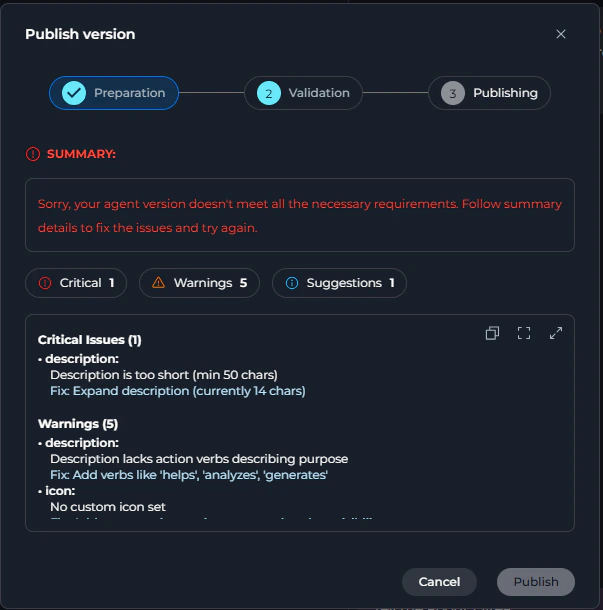
Step 4 — Publishing
Click Publish to submit the agent for publication. The system sends both the version name and the validation token from the AI review in the same request — the token certifies that the version passed automated validation. The dialog transitions to the Publishing step and displays:Publishing your agent…On success, the dialog closes, a toast notification confirms:
The agent has been publishedOnce published, your agent appears in ELITEA Catalog, gets the Published badge on its card, and its version is marked as published.
How to Publish an Agent from the Public Project (Admin Mode)
When you are working inside the public project (the admin context), the wizard uses a simplified single-step flow that bypasses the three-step wizard and AI validation entirely. The simplified dialog shows:- A heading, Publish version
- A single prompt, Enter a version name to publish.
- A Version name text field (same character rules apply: letters, numbers,
.,-,_; max 50 characters) - A Category dropdown (required)
- Publish button (turned on only when a valid version name is entered and a category is selected)
- Cancel button
How to Unpublish an Agent
You can remove a published agent from Agent HUB at any time.As the Agent Owner
- Open the published agent.
- Click the three-dot menu (⋮).
- Select Unpublish from the dropdown.
-
In the Unpublish Agent dialog, review the confirmation message:
Are you sure you want to unpublish {agent name} (version: {version name})? The agent will be removed from Agent HUB immediately. Existing conversations using this agent version may be affected.
- Click Unpublish to confirm, or Cancel to close without changes.
Agent has been successfully unpublished!

As an Administrator (Moderation Space)
Administrators working in the moderation space see an additional Reason field in the Unpublish Agent dialog:Provide clear explanation for the unpublishing decision.This field is optional. Click Unpublish to confirm. The agent owner receives a notification:
“Unpublished agent version id: {linked version ID} from project id: {project ID}. Reason: {reason provided}” — links directly to the affected version.
Moderation Workflow
In the standard publishing flow, agents are published directly topublished status after passing AI validation — no moderator pre-approval is required.
Admin Oversight
Administrators working in the public project or moderation space can unpublish any published agent at any time using the same Unpublish action described in As an Administrator (Moderation Space). This is a reactive oversight tool, not a publication gate. The agent author receives a notification when this happens.Optional Pre-publication Moderation
A pre-publication moderation step can be turned on by platform administrators. When active, agents submitted for publishing enteron_moderation status and are queued for review in Moderation Space → Agents instead of publishing directly.
The following table describes moderator actions when moderation is turned on:
Notifications
The following table lists notification events and their messages:Best Practices
Prepare your agent before opening the wizard
Prepare your agent before opening the wizard
- Set a clear, specific agent name. Avoid generic names like “My Agent” or “Test.”
- Write a detailed description that explains what the agent does and when to use it.
- Add at least one tag to help users discover your agent in Agent HUB.
- Write comprehensive model instructions that cover the agent scope, tone, and behavior.
- Add a welcome message and at least one conversation starter so users know how to begin.
Choose a meaningful version name
Choose a meaningful version name
- A semantic version number:
1.0.0,2.1.3 - A date-based label:
2026-04 - A descriptor:
initial-release,beta
.), hyphens (-), and underscores (_) are allowed. The name cannot be changed after publishing.Review validation warnings before publishing
Review validation warnings before publishing
Account for credential exclusions
Account for credential exclusions
- Ensure your agent instructions are written to guide users to provide their own credentials.
- Document which credentials or configurations users must supply in the agent description.
- Test the agent without credentials to verify that prompts and instructions still guide users effectively.
Understand sub-agent publishing behavior
Understand sub-agent publishing behavior
Troubleshooting
Validation fails with a transient AI error every attempt
Validation fails with a transient AI error every attempt
ai_validation_failed). The system automatically retried twice but was still unable to complete the review.Solution: Close the wizard and try publishing again after a short wait. If the error persists, contact your platform administrator — the AI validation service may be temporarily unavailable.The Publish option is visible but disabled with a tooltip
The Publish option is visible but disabled with a tooltip
is_publish_blocked setting is turned on and your project is not included in the allowed list.Solution: Contact your platform administrator to request that your project be added to the publishing allowlist.Validation returns a FAIL result
Validation returns a FAIL result
- Review the Critical issues in the validation detail list — each entry shows the affected field, context, the issue description, and a recommended fix.
- Close the wizard, update the agent accordingly, save changes, then re-open the Publish wizard.
- Re-run validation to confirm all critical issues are resolved.
An error appears on the Preparation step after clicking Continue
An error appears on the Preparation step after clicking Continue
version_name_invalid error, meaning the version name does not pass server-side validation (for example, the name is already in use on the backend).Solution: Change the version name to a different value and click Continue again.Validation token expired or 'Agent was modified since validation'
Validation token expired or 'Agent was modified since validation'
My attached Skill works in the published agent, but I cannot find it as a separate catalog item
My attached Skill works in the published agent, but I cannot find it as a separate catalog item
The agent publishes but shows a sub-agent warning
The agent publishes but shows a sub-agent warning
A published agent was unpublished and I received a notification
A published agent was unpublished and I received a notification
Publishing fails with 'Maximum published versions reached'
Publishing fails with 'Maximum published versions reached'
limit_reached.Solution: Unpublish one or more earlier published versions of the same agent before publishing a new one.Validation fails with 'LLM model is project-specific' or 'No LLM model configured'
Validation fails with 'LLM model is project-specific' or 'No LLM model configured'
llm_not_shared.Solution: Open the agent (or the affected sub-agent) in the editor, go to the Model settings, and select a model that is shared from the public project. After saving, re-run the publish wizard.Guides & References
- ELITEA Catalog — Browse and use published agents and skills.
- Agents — Manage your agents and track version statuses.