

How to Configure Chats
You can configure how each chat behaves at creation or during the interaction with an LLM.Make private chats visible to all project members.
Restrict access to public chats or make them private.
Select a suitable LLM by the model selector.
Set up the selected LLM manually.
Manage Access to Chats
By default, a new chat is private — visible only to you.- In your private project, you cannot invite other users to them for team collaboration — you can only share them externally.
- In team and public projects, you can invite other team members to collaborate in your chats or make chats public. Public chats are visible to all project members, and all project members can communicate with LLM in them.
Make Chats Public
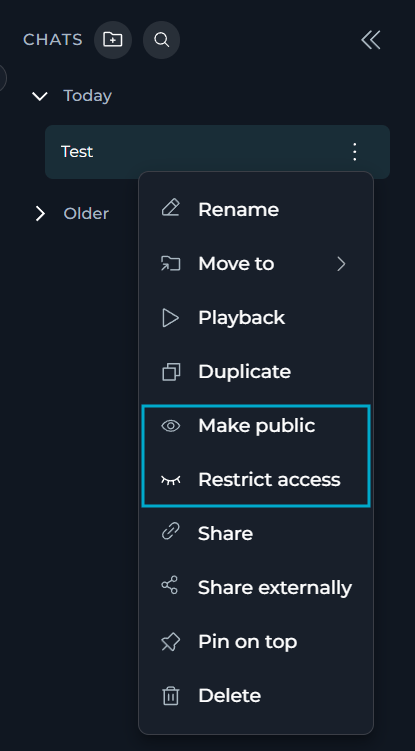
To make your chat public:- Find the chat you want to make public in the CHATS sidebar.
- In its overflow menu, select Make public.
-
Confirm your decision in the confirmation dialog:
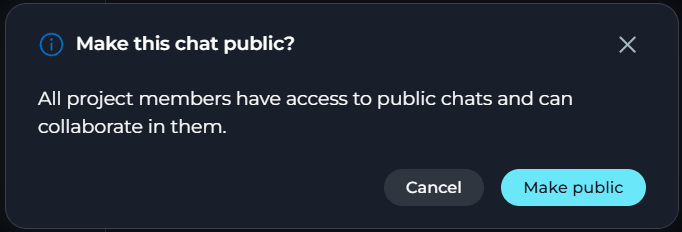
Make public is available to any project member who can see the chat — not only its creator.
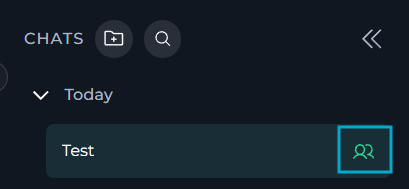
Restrict Access to Chats
To restrict access to a public chat:- Find the chat you want to restrict access to in the CHATS sidebar.
- In its overflow menu, select Restrict access.
-
In the dialog window, select which AI participants and project members (as users) should keep access. You can select both AI participants and users from dropdown lists or search for them by typing:
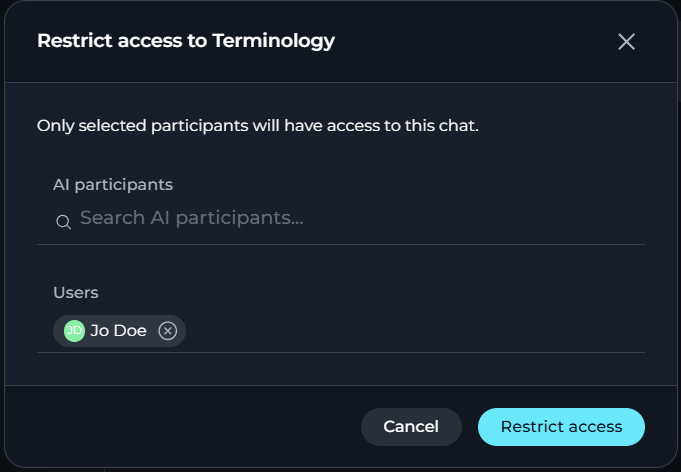
- Select Restrict access in the confirmation dialog.
- Only its creator can restrict access to the chat.
- You cannot deselect the chat’s creator: The creator of the chat always keeps access to it.
- To revert the chat to private, you must remove all users except for its creator.
- You can leave the chat open for collaboration by selecting users and AI participants who will keep access to it.
Configure Models
You can select and set up LLMs from the chat main area: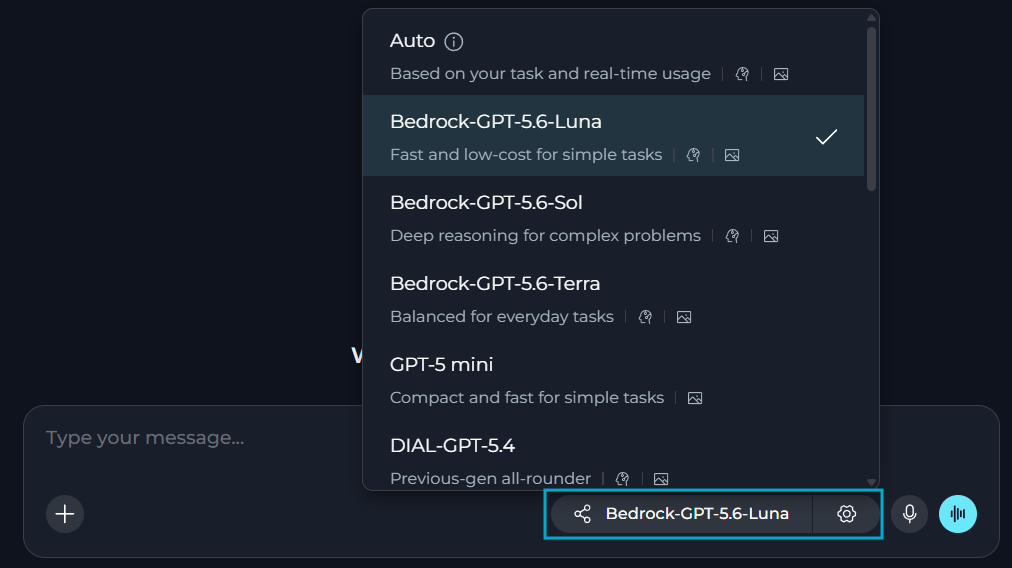
Select a Model
The model selector dropdown includes:- All LLMs available in your project, with their short descriptions and model capability labels.
- Auto allows ELITEA to automatically choose the model for each message based on the task and current availability, instead of you selecting one manually.
Auto only appears in the dropdown if your project administrator has configured it for the project in Settings > General > Chat Configuration.Pipelines always use an explicitly selected model — Auto is not available for them, regardless of this setting.
Set the Model Up
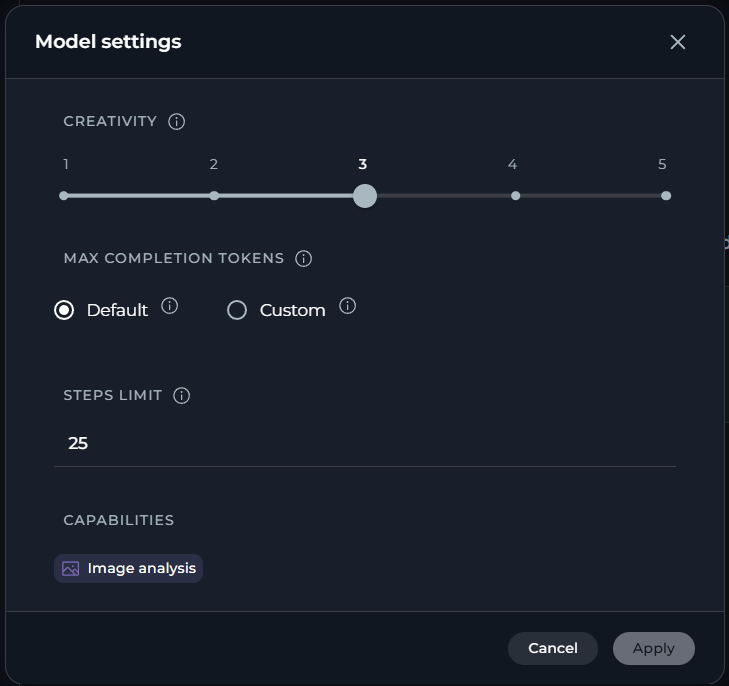
You can set the selected model up in the Model settings window that opens by the Settings (⚙️) icon located next to the model selector. Settings vary by model type. Reasoning vs. Creativity- Reasoning Models
- Standard Models
Reasoning controls the depth of logical thinking and problem-solving.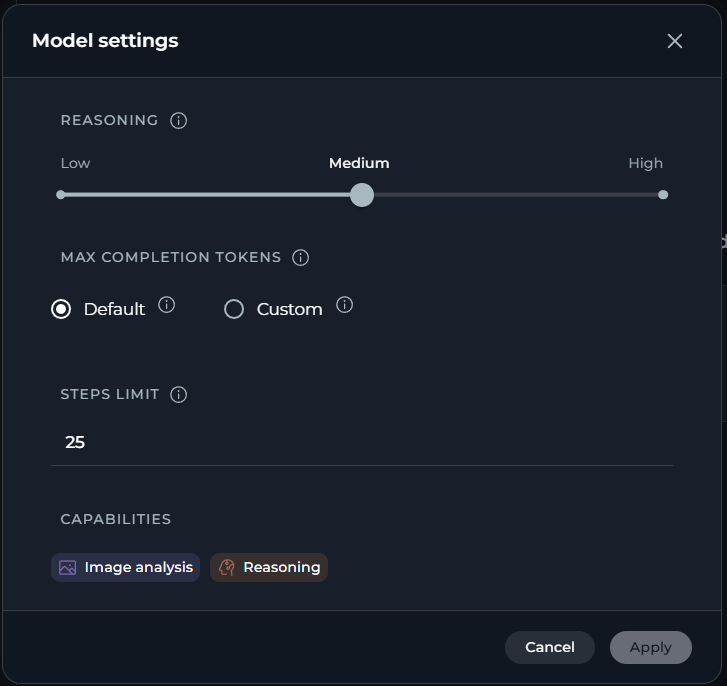
Steps Limit (Chats only)
Controls the maximum number of execution steps (tool calls) the AI can take before the loop is forcefully stopped. This prevents runaway agent executions that could consume excessive resources.
- Default: 25 steps
- Range: 0 – 999
Steps Limit is shown in model settings only in chat. It is not available on the Agents or Pipelines pages, where step limits are configured at the agent/pipeline level.
step_limit field in the chat payload — it is separate from the llm_settings block.
When the limit is reached, the execution loop ends and the AI returns whatever results it has collected so far.
When the steps limit is exceeded, the AI stops executing further tool calls and returns the error message.
Tips for working with step limits:
- Set a lower value (e.g. 5–10) for simple question-answering tasks where you want fast, predictable responses.
- Set a higher value (e.g. 50–100) for complex, multi-step research or automation tasks that require chaining many tool calls.
- If a chat ends abruptly with incomplete results, check whether the steps limit was reached and increase it accordingly.
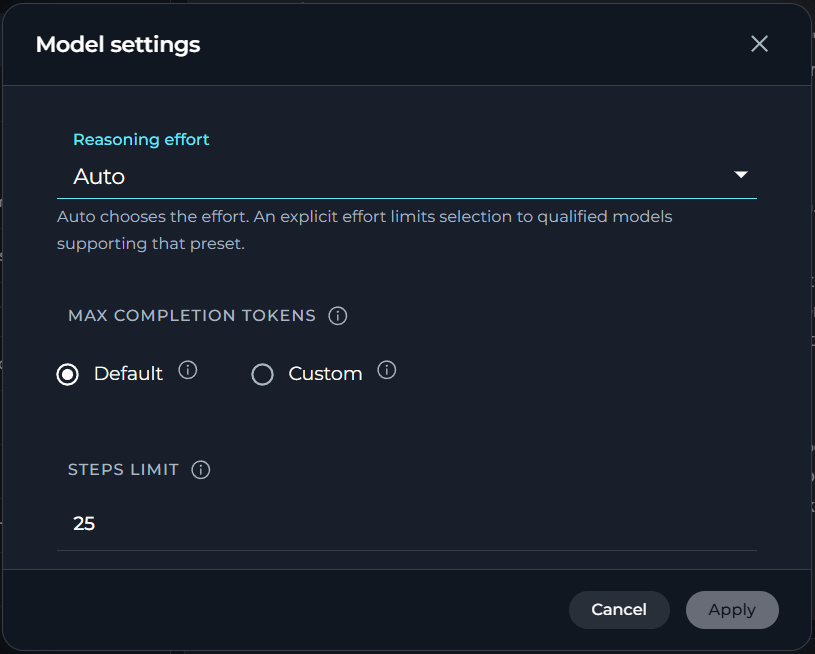
- Reasoning / Creativity is replaced by a single Reasoning effort selector with Auto (default — ELITEA chooses the effort automatically), Low, Medium, and High. Selecting an explicit effort limits ELITEA’s model choice to models that support that preset.
- Remaining Tokens helper field is hidden since there is no single fixed model limit to calculate against.
How to Manage Chats
Once a chat is created, you can organize it into folders, pin or rename it, delete it when you no longer need it, and share it with people inside or outside your project.Create a new chat
Create a folder
Move a chat to a folder
Pin or unpin a chat or folder
Rename a chat or folder
Delete a chat or folder
Share internally
Share externally
Create a New Chat
There are three ways to create a new chat in ELITEA:Creating a chat from the sidebar is the quickest way to start a new conversation.
- In the left sidebar, locate the Chat section.
-
Select the + button at the top of the sidebar.
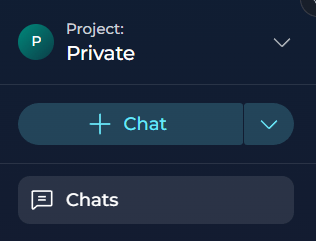
- Use the available controls to configure your new chat.
- Enter your first message and select Send, or press Enter, to create the chat.
From a Folder
From a Folder
Creating a new chat directly inside a folder will save you time moving chats to the necessary folders after they are created.
- Find the folder in which you want to create a new chat.
-
In its overflow menu, select New chat.
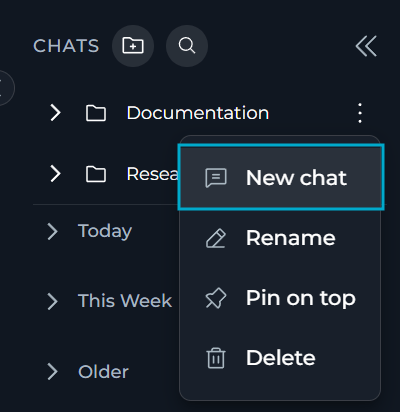
- Use the available controls to configure your new chat — select models, add participants, attach files or turn on modules.
- Enter your first message to create the chat inside the folder.
ELITEA disables New chat if you do not have permissions to create chats, or while a new folder has not been saved yet.
By Duplicating a Chat
By Duplicating a Chat
You can duplicate a chat to reuse its participants and settings without recreating them.If you duplicate a chat inside a folder, the new chat is not automatically assigned to that folder — you will need to move it manually.
Duplicate is unavailable while you are editing Canvas in the active chat.
- Find the chat you want to duplicate.
-
In its overflow menu, select Duplicate.
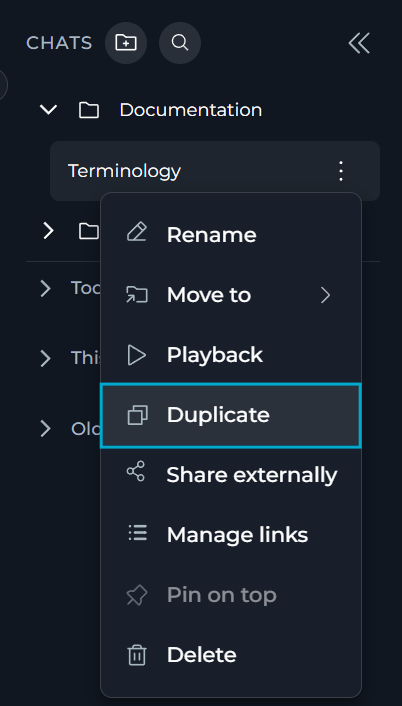
The duplicate does not include messages of the source chat, only its visibility and participants.
Work with Chat Templates
A chat template is a saved, reusable set of chat participants — agents, pipelines, toolkits, MCP servers, or users — that you can apply to new chats without adding each participant manually. ELITEA allows setting one chat template as default:- A default template is applied automatically when you start a new chat.
- Any non-default template is not applied automatically and is not offered as a manual choice when creating a chat; it remains a saved configuration until you mark it as the project’s default.
Creating or editing the default template does not affect any existing chats.
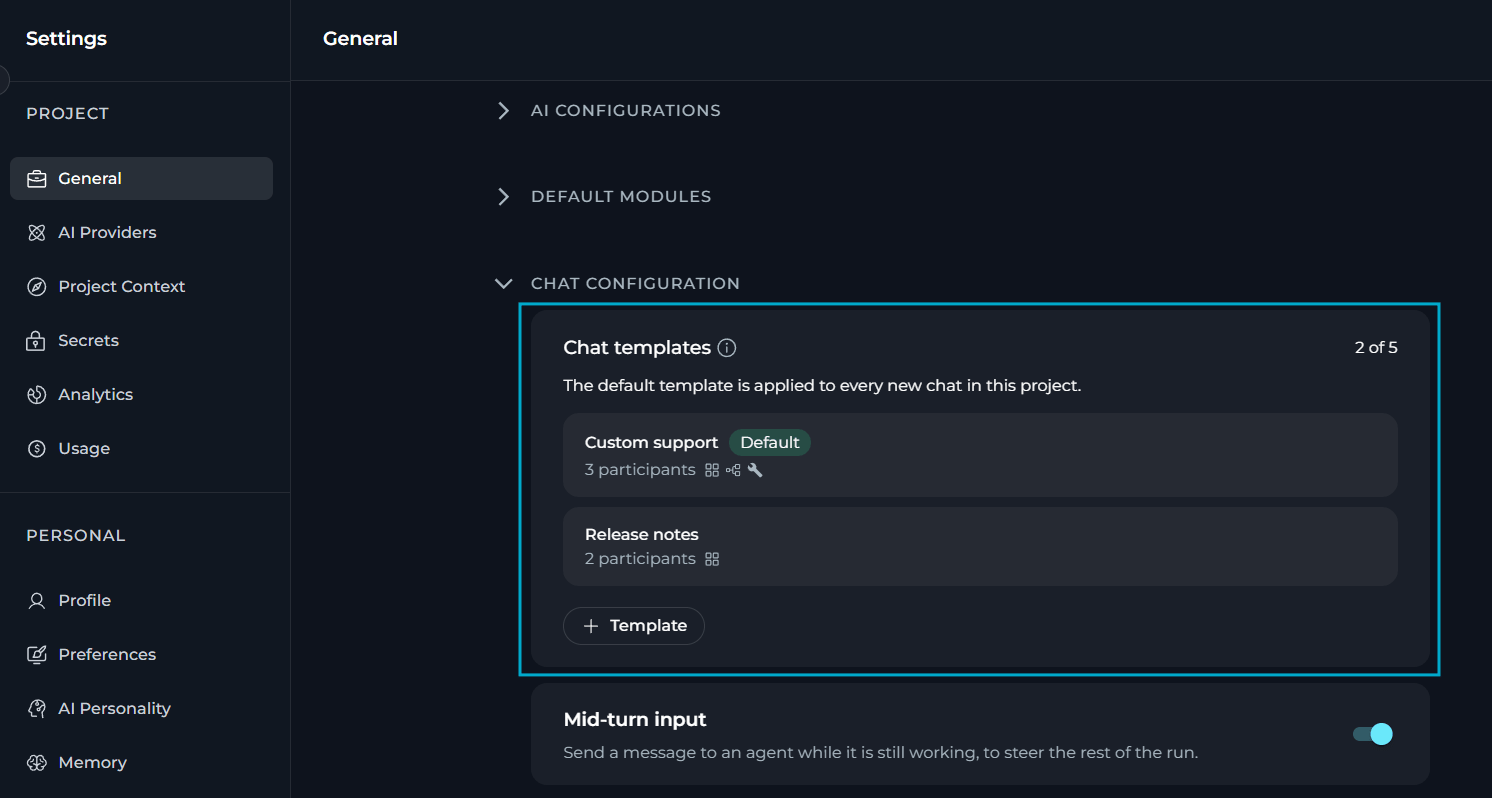
- Its name.
- A Default label, if it is marked as the project’s default template.
- Number of participants — both AI participants and users — added to the template.
- Icons for its participants, grouped by type — agents, pipelines, toolkits, MCP servers, then users.
- An edit icon to open the template (shown as a view icon instead if you do not have permission to edit configuration settings).
- A delete icon to remove the template, shown only if you have permission to edit configuration settings.

- You can create up to 5 templates per project.
- A template name is required, must be 64 characters or fewer, and must be unique within the project (matching is case-insensitive).
- Only one template per project can be marked default at a time.
- If a template has exactly one participant, that participant automatically becomes the active participant in chats created from it, and your messages go directly to it.
- Chat templates specify participants only — they do not specify the model, visibility, or any other chat setting.
Create a Chat Template
To create a chat template:- Go to Settings > General > Chat Configuration.
-
Select + Template.
+ Template is disabled if the project already has 5 templates.
- Enter a unique name for the template.
- (optional) Select Set as default.
- Add participants from the Agents, Pipelines, Toolkits, MCPs, and Users tabs.
- Select Save.
The Users tab is available only in team projects. In private projects, the tab is hidden because they have no users to add.
Edit a Chat Template
To edit a chat template:- In Settings > General > Chat Configuration, find the template you want to change.
- Select Edit (appears on hover).
- Update its name, default status, or participants.
- Select Save.
If you do not have permission to edit the project’s configuration settings, templates open in a read-only view instead, without the Save option.
Delete a Chat Template
- In Settings > General > Chat Configuration, find the template you want to remove.
- Select Delete (appears on hover).
- Confirm the deletion.
Deleting a template does not affect chats that were already created from it — they keep their participants. Deleting the default template leaves the project without a default template until you mark another one.
Organize Chats
You can add your chats to folders for better organization and easier management:- In private projects, only you can see folders and their content.
- In a team project, you can see a folder if you created it, or if it contains at least one chat you have access to — because it is public or because you are a participant. All project members can move their chats into or from folders they can see, but cannot delete folders created by other project members.
Create Folders
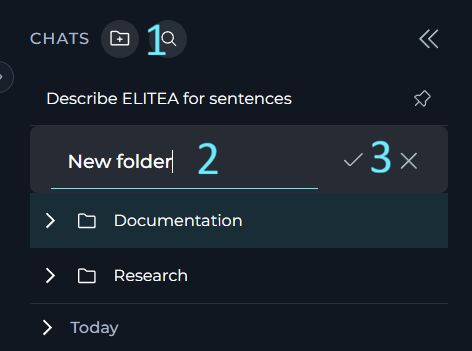
- Click the folder icon button in the header of the CHATS sidebar.
- Enter a name for the new folder.
- Select Save.
Move Chats to Folders
You can organize chats into folders in two ways:- by dragging the chat and dropping it to the necessary folder
- from its overflow menu
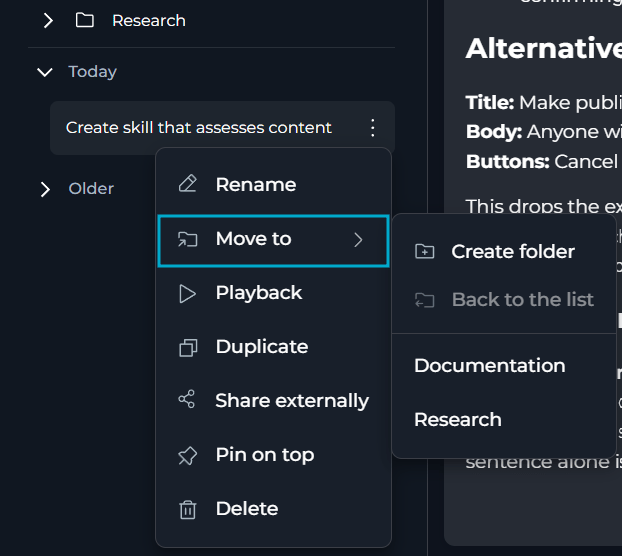
- Find the chat you want to move in the CHATS sidebar.
- In its overflow menu, select Move to.
- Choose the desired destination folder from the list, OR
- Select Create folder to create a new folder for this chat.
Pin/Unpin Chats and Folders
All project members who see chats and folders can pin them. To pin a chat or a folder, select Pin on top in its overflow menu. This keeps it at the top of the CHATS sidebar, above the time-based sections and other folders.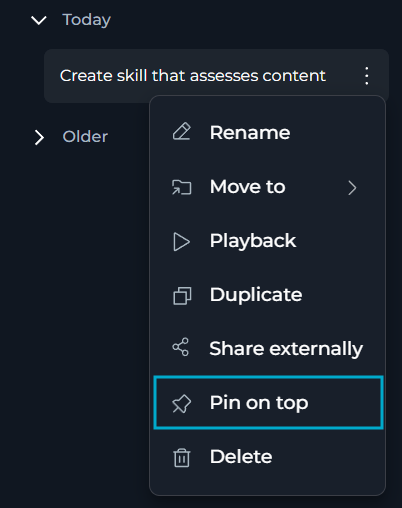
You cannot pin a chat that is in a folder. To pin chats, you must move them out of their folders first.
Rename Chats and Folders
Creators of chats and folders can change their names. To rename a chat or folder:- Find the chat or folder you want to rename in the CHATS sidebar.
- In its overflow menu, select Rename.
- Enter the new name.
- Select the checkmark (✔) to save your changes.
Delete Chats and Folders
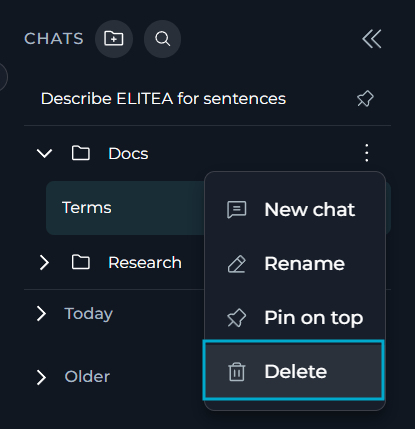
Chats and folders can be deleted only by their creators. To delete a chat or folder:- Find the chat or folder you want to delete in the CHATS sidebar.
- In its overflow menu, select Delete.
- Confirm the deletion.
Share Chats
In ELITEA, sharing options depend on the users with whom you want to share your chats and the type of your project.Share Chats with Team Members
In team projects, you can share your chats with other team members who already have access to this chat — ELITEA will generate a direct link to the chat which you can send to the users you need:- Find the chat you want to share.
- In its overflow menu, select Share.
Recipients must already have access to the chat — as its participants or because the chat is public — to open the link.
Share Chats with External Users
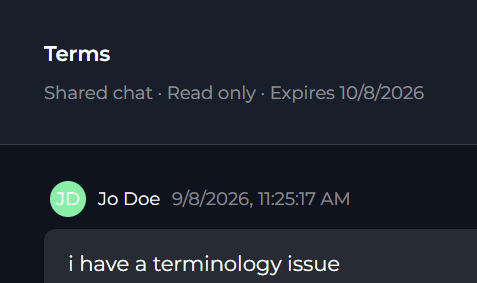
You can share a chat with people outside your project or outside ELITEA through a secure, read-only link. Recipients do not need an ELITEA account to view the shared content. Create a Share Link- Find the chat you want to share.
- In its overflow menu, select Share externally.
- In the Share chat dialog, select what to share.
- Select an expiration for the link: 1 hour, 24 hours, 7 days (default), 30 days, or Never expires.
- (optional) Enter a password to restrict access to the link. Your password must be at least 8 characters long.
- Select Generate link.
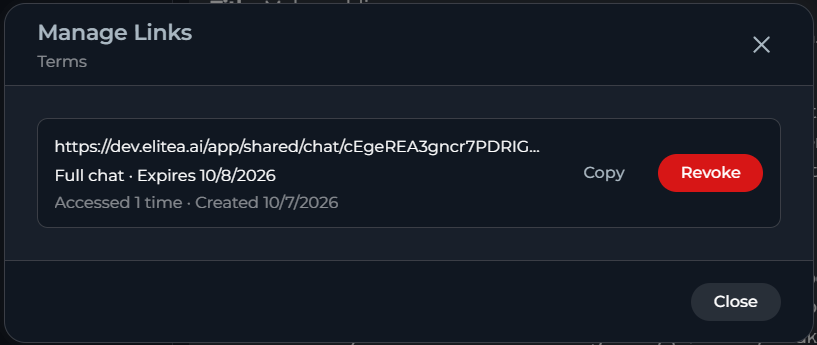
- Find the chat whose link you want to change or revoke.
- In its overflow menu, select Manage links.
- In the Manage Links dialog, review each link: its scope, expiration, password status and view count.
- Select Copy to copy a link again, or select Revoke to disable it immediately.
Restricting access does not revoke external share links.

Best Practices
- Keep sensitive chats private, and restrict access again immediately if you do not need the chat to be public anymore.
- Use Auto when you want ELITEA to pick the best available model per message; select a specific model when you need consistent behavior or a particular capability.
- Organize related chats into folders, and pin the ones you use most often for quicker access.
- Set an expiration and password on external share links for anything containing sensitive information, and revoke links you no longer need.
- Use chat templates to save the participant sets you reuse most often.
Troubleshooting
I do not see Pin on top available for a chat
I do not see Pin on top available for a chat
Cause: The chat is inside a folder.Solution: Move the chat out of the folder, then pin it.
I cannot create, edit, or delete a chat template
I cannot create, edit, or delete a chat template
Cause: The project already has 5 templates, or you do not have permission to edit the project’s configuration settings.Solution: Delete a template you no longer need to free up a slot, or ask a project administrator to manage templates for you.
My new chat does not start with the participants I expected
My new chat does not start with the participants I expected
Cause: No template is marked as default, the default template was deleted, or you had already selected different participants before the default template could apply.Solution: Check Settings > General > Chat Configuration for a default template, and ask your project administrator to mark one if none is set.
I do not see the MCPs tab when adding template participants
I do not see the MCPs tab when adding template participants
Cause: MCP exposure is not enabled at the platform level.Solution: Ask your platform administrator to enable MCP exposure. Until then, you cannot add MCP servers as template participants, though any already added before remain in the template.
See also: