

How to Interact with Chat Responses
ELITEA allows interacting with responses generated by your AI assistant:Send
Send a message while an AI participant is still working.
Edit
Edit your latest message and regenerate the answer.
Read out
Listen to an AI response using text-to-speech playback.
Copy to clipboard
Copy a message’s content to your clipboard.
Regenerate
Regenerate the latest output without editing your message.
Delete
Delete your latest message or the AI’s latest response.
Send a Message While the Agent Is Working
Mid-turn input allows sending a message while an AI assistant is still generating its answer, to change the rest of the run instead of waiting for it to finish.Mid-turn input must be enabled at both the platform level and the project level:
- Platform administrators control which projects have access to this feature through a project allowlist.
- Project administrators or editors can turn it on for the project in Settings > General > Chat Configuration.
- It exceeds 4000 characters.
- The running turn ends before ELITEA processes it.

Edit Your Latest Message
If you want to refine your prompt instead of sending a new follow-up message, you can edit your latest user message and regenerate the answer from the updated text:-
Among the action icons shown under your latest user message, select Edit (the pencil icon).

-
The message switches to inline edit mode. If the original message included attachments, they are not removed and remain visible.
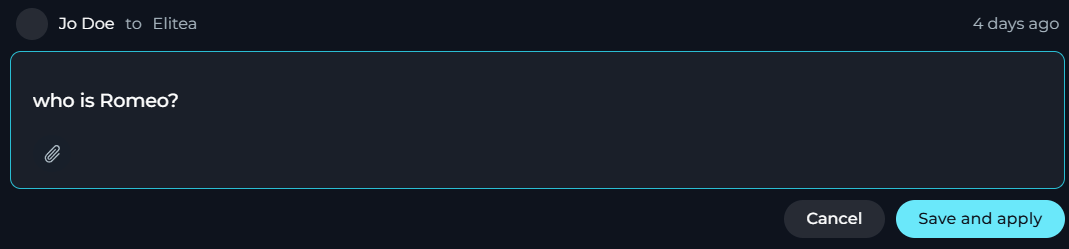
- Update the text, as necessary.
- (optional) Add new attachments or remove the existing ones.
- Select Save and apply to submit the edited message and regenerate the answer, or select Cancel to discard your changes.
You can edit only your latest message, and only if no mid-turn input was added to it.
Read Out a Response
Read out uses text-to-speech to play an AI response aloud instead of you reading it:- Under an AI response, select Read out.
- ELITEA opens a floating voice player under the message input.
- Select Play in the voice player to start listening.
Read out is unavailable while the response is still loading, streaming, or regenerating, or while another response is already playing or queued to play. Select Stop in the voice player before reading out a different response.
- Code blocks, tables, and diagrams are replaced with a short spoken notice.
- Links are read as “the link” (or by their link text, if descriptive).
- Images are read as “an image showing” their alt text.
- Ordered list items are read with spoken ordinals (for example, “First,” instead of “1.”).
For detailed information, see Voice Capabilities.
Copy a Message to the Clipboard
You can copy the text of any message — yours or an AI response — to your clipboard:- Under the message, select Copy to clipboard.
- ELITEA copies the message and shows a confirmation.

Copy to clipboard is available on every message. On an AI response, it is disabled until ELITEA finishes generating the response.
Regenerate the Latest Output
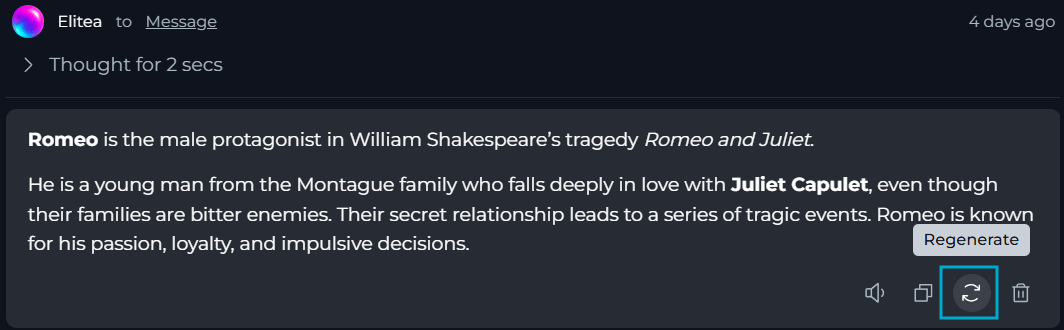
You can request a new answer for the same input without editing your message, once ELITEA has generated at least one response in the chat:- Under the latest generated response, select Regenerate.
- ELITEA regenerates the output based on the same input, providing a refined or corrected response.
Delete Your Latest Message
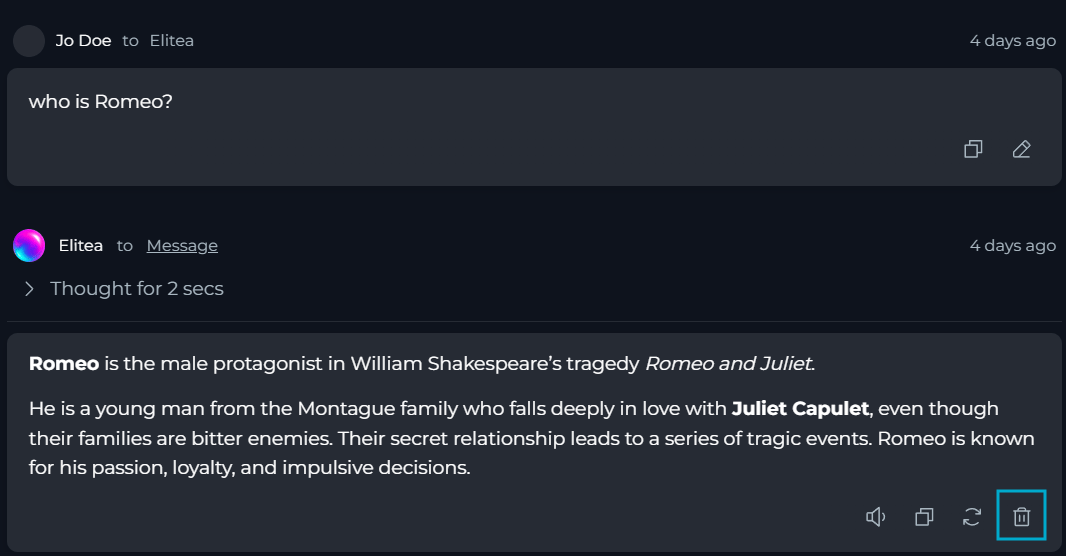
You can delete the latest message in the chat — either your latest message or the AI’s latest response.- Under the latest message, select Delete.
- Select Delete again in the confirmation dialog, or Cancel to keep the message.
You can delete only your own latest message, or the latest AI response to a question you asked. The chat’s creator can delete any latest message regardless of who sent it.
How to Use Playback Mode
In playback mode, you can step through the conversation in the current chat turn by turn, exactly as it happened, without sending any requests to the models or toolkits:- Find the necessary chat in the CHATS sidebar.
- In its overflow menu, select Playback.
- Move forward to the next message, go back to the previous message, or stop the playback simulation using the on-screen controls or keyboard arrow keys.
While playback mode is active, the chat’s name is prefixed with [Playback], and its overflow menu is reduced to Rename and Delete.
- You can demonstrate workflows and complex interactions without incurring processing costs or waiting for live responses.
- Stakeholders see the exact flow of discussions and decisions smoothly and without interruptions.
- The step-by-step simulation keeps your audience engaged and focused on key points.