

- Pause agent execution to ask clarifying questions
- Present open, single-select and multi-select questions with 2-4 options
- Allow free-text input for open answers
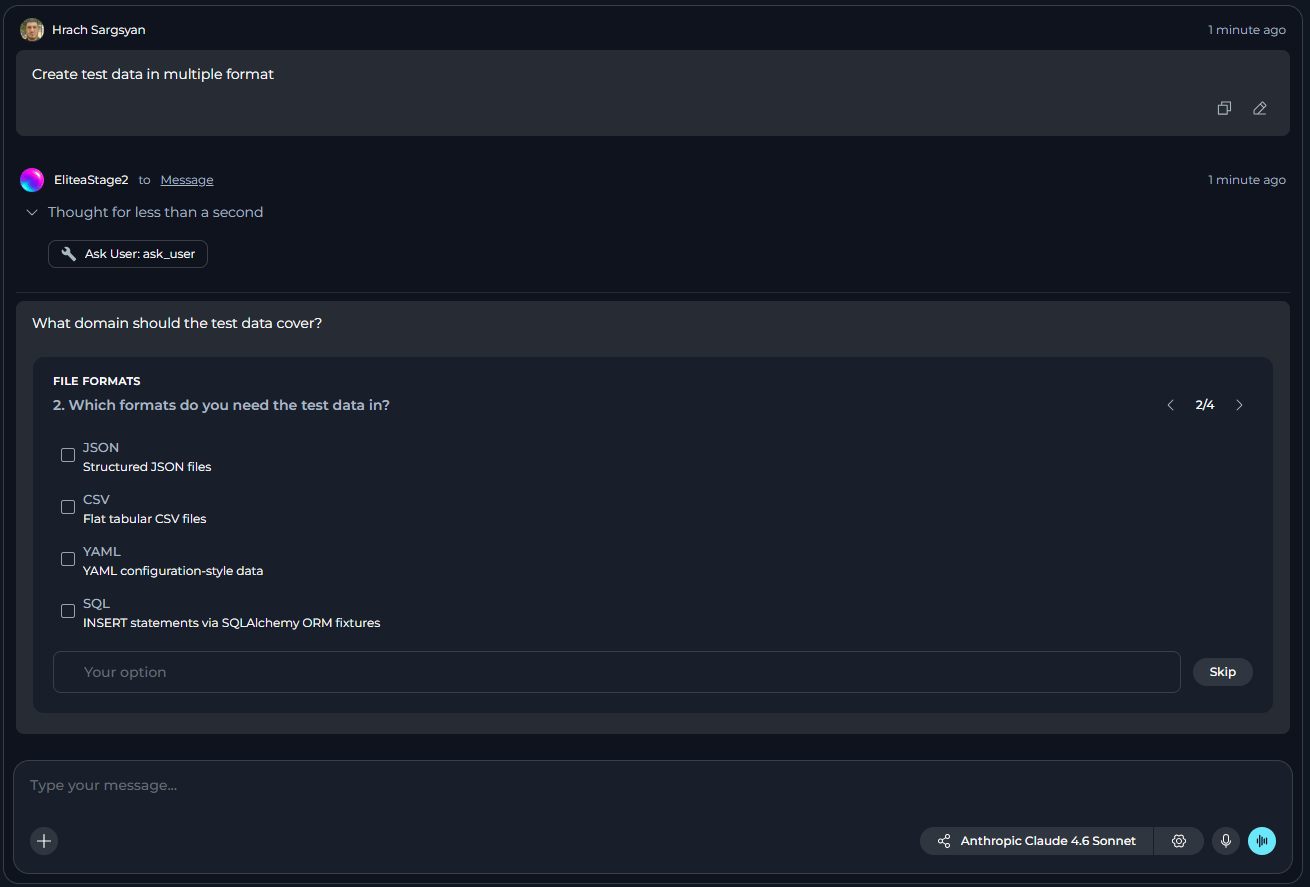
- Display questions in stepwise navigation with progress indicators
Ask User must be enabled in your project settings or for your current chat or agent.
How to Enable Ask User
The default state of the Ask User module — on or off — is defined in the project settings. If Ask User is turned off by default, you can turn it on for your current conversation or agent.Enable Ask User alongside Skill Builder and Project Context Builder for the best experience. When enabled, agents can request structured clarification for skill or project context creation requests instead of proceeding with incomplete information.
For a Conversation
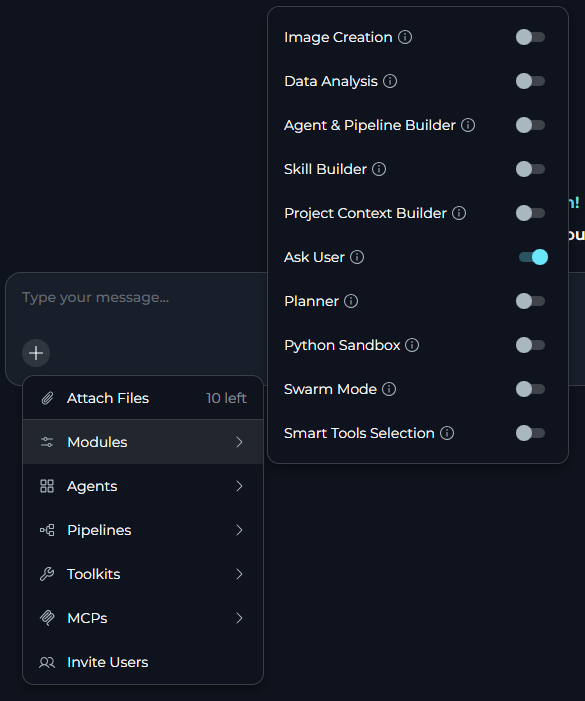
- Go to the conversation.
- Select
+in the chat input toolbar. - Select Modules → Ask User in the list.
- Toggle Ask User on.
For an Agent
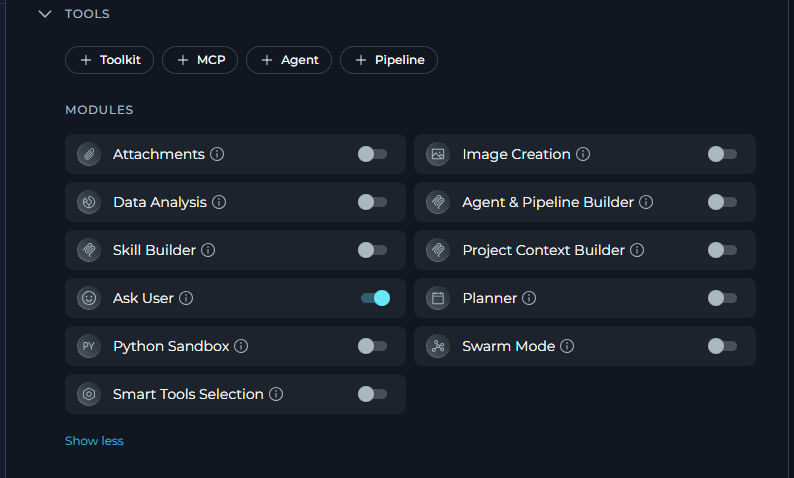
- Select Agents.
- Select the agent to configure, or create a new agent.
- In the TOOLS section, find MODULES.
- Find Ask User. Select Show all if you do not see it immediately.
- Toggle Ask User on.
- Select Save.
How Ask User Works
When Ask User is on, the agent gains access to a tool that can pause execution and present structured questions to the user. The module uses the platform Human-In-The-Loop (HITL) pipeline:- Agent pauses when it needs clarification or faces ambiguous requirements
- Questions are displayed in a stepwise pager with a text field or single-select or multi-select options
- User answers by selecting options or entering free-text
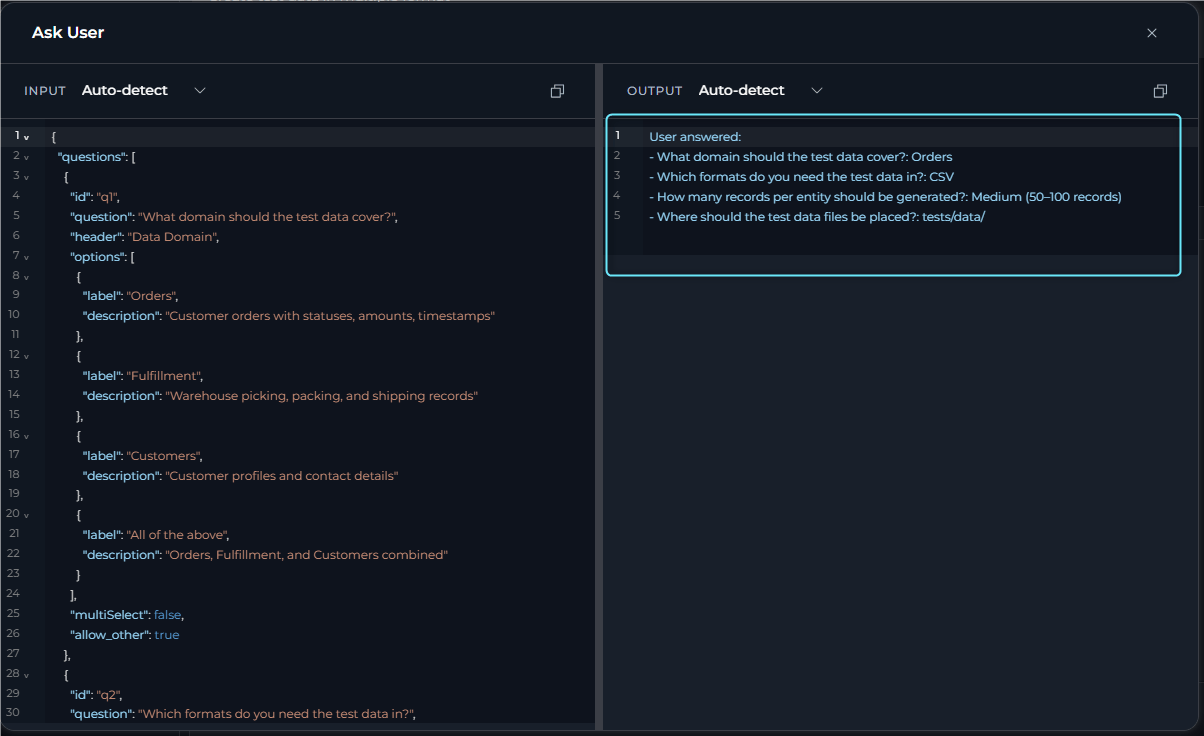
- Agent resumes with answers injected as tool results
- Execution continues with the clarification information
Questions
ELITEA suggests three types of questions:
How questions are designed:
- Questions focus on genuine decision points (approach, target, configuration)
- Options provide 2-4 distinct choices when possible
- Descriptions explain what choosing each option means
- Free-text field is available when flexibility is needed
- Questions do not ask permission to run tools (agents should have appropriate permissions)
- Questions appear one per step.
- If there is only one question, you will see only the Skip or Continue buttons.
- With multiple questions, you will also see
</>navigation controls. - Progress indicator displays
X/Y(meaning Question X of Y). - Navigation is gated until current question receives an answer.
Limitations
- Interactive sessions only: Auto-skips in non-interactive or API runs.
- Question limit: Agents can ask 1-4 questions per pause.
- Navigation gating: Must answer current question before proceeding to the nextone.
- No nested pauses: Agent cannot pause again while a clarifying question is pending.
How to Answer Questions
To answer the questions:- Review the question: its header, description and available options.
- Give your answer by selecting one or more options or entering custom text.
- Navigate through questions using the navigation buttons.
- Execution resumes with your clarification, and the task continues.
Best Practices
Module Configuration
Module Configuration
- Enable Ask User by default in project settings if your team frequently works with builder modules
- Enable Ask User for agents that create or manage project resources
- Disable Ask User for agents in automated pipelines or API-only environments
- Review agent behavior with Ask User to ensure questions are meaningful
Working with Questions
Working with Questions
- Answer all questions before submitting to avoid incomplete clarification
- Use the “Other” field to provide specific details not covered by options
- Navigate back to review or change previous answers before submitting
- Provide complete information upfront in your request to minimize clarification rounds