

- Create an execution plan with a title and an ordered list of steps
- Mark a step as in progress, then mark it completed
- Track progress with completed / in-progress / pending counts
- Resume an existing plan automatically when a conversation continues
- Delete the current plan when it is no longer needed
Prerequisites
- An LLM that supports tool invocation
- User role with conversation edit access
- An active conversation or agent configuration
- Planner enabled in your chat or agent
How to Enable Planner
The default state of the Planner module — on or off — is defined in the project settings. If Planner is turned off by default, you can turn it on for your current conversation or agent.For a Conversation
- Go to the conversation.
- Select
+in the chat input toolbar. - Select Modules → Planner in the list.
- Toggle Planner on.
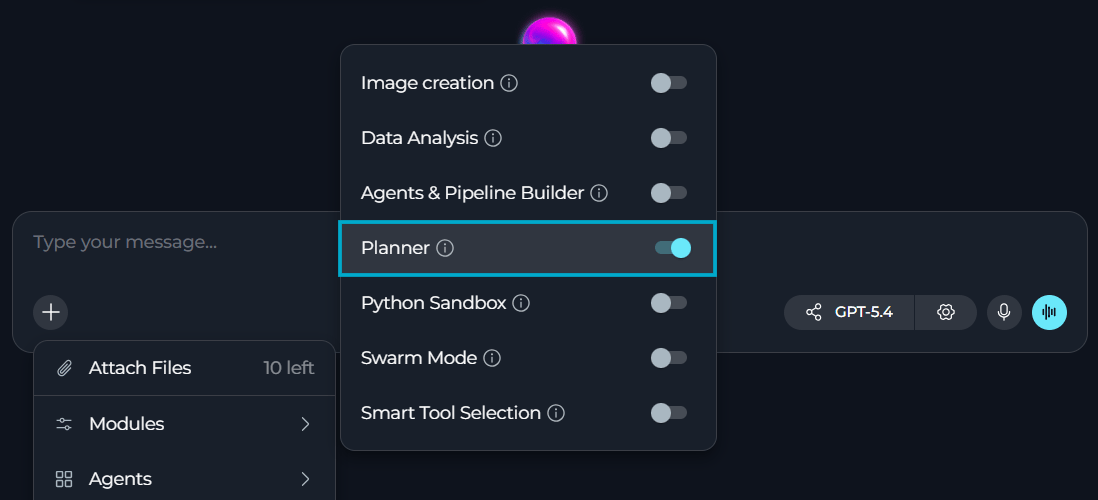
For an Agent
- Select Agents.
- Select the agent to configure, or create a new agent.
- In the TOOLS section, find MODULES.
- Find Planner. Select Show all if you do not see it immediately.
- Toggle Planner on.
- Select Save.
How Planner Works
When Planner is enabled, the agent gains access to five tools for managing a single execution plan tied to the current conversation:
Each step has one of three statuses:
pending—☐not yet startedin_progress—▶currently being worked oncompleted—☑finished
Only one step can be marked in progress at a time. Starting a new step automatically clears the in-progress status on any other step.
How to Use Planner
Planner is best suited for multi-phase work where the sequence of steps matters (deployments, onboarding checklists, review workflows) rather than for tracking many independent to-do items.Create a Plan
Describe the multi-step work you want tracked, or ask the agent to create a plan directly:Create a plan for our website deployment: run tests, build production bundle, upload to server, run smoke tests, update documentationThe agent calls
update_plan and returns the plan as a table:
Example Output
📋 Website Deployment ProcessProgress: 0/5 completed, 0 in progress
Track Progress
Ask the agent to start or complete a step in natural language:Start working on step 1Started step 1: Run all unit tests
Example Output
📋 Website Deployment ProcessProgress: 0/5 completed, 1 in progress
Mark step 1 as completeStep 1 completed (1/5 done)
Example Output
📋 Website Deployment ProcessProgress: 1/5 completed, 0 in progress
Check Plan Status
Ask for the current state of the plan at any time:What’s the status of my plan?The agent calls
get_plan_status and returns the same table shown above, without changing anything.
Resume an Existing Plan
When you return to a conversation that already has a plan, the agent automatically restores it and reports where it left off, for example:Delete a Plan
Delete the current planThe agent calls
delete_plan and confirms deletion. This is the only way to remove a plan — it is not deleted automatically when the conversation ends.
Plan Scope and Storage
- A plan is scoped to a single conversation; each conversation has at most one active plan
- Plans are stored outside the conversation itself, in a database table when configured, or in a local file otherwise
- Deleting a conversation or clearing its history does not automatically delete the associated plan; use
delete_planto remove it explicitly - There is no cross-conversation plan sharing or synchronization
- Creating a new plan (
update_plan) fully replaces any existing plan for that conversation
The full plan text is included in the tool result every time a planning tool is called, so plans with many steps use more tokens per turn.
Usage Scenarios
Deployment Checklist
Deployment Checklist
Use Case: Track the steps of a release from testing through documentation
Create a plan for our mobile app launch: complete beta testing, fix critical bugs, prepare app store listings, submit for review, plan marketing campaign
Example Output
📋 Mobile App Launch PlanProgress: 0/5 completed, 0 in progress
Start step 1, then mark it complete once beta testing wraps upStep 1 completed (1/5 done)
Example Output
📋 Mobile App Launch PlanProgress: 1/5 completed, 0 in progress
Code Review Workflow
Code Review Workflow
Use Case: Track code review process steps
Create a plan for reviewing the authentication PR: check code style and linting, review security implementations, test authentication flows, approve and merge
Example Output
📋 Authentication PR ReviewProgress: 0/4 completed, 0 in progress
Onboarding Checklist
Onboarding Checklist
Use Case: Walk through a fixed sequence of setup steps
Create a plan for onboarding a new team member: set up accounts, assign a buddy, schedule intro meetings, share documentation, review first-week goals
Example Output
📋 New Team Member OnboardingProgress: 0/5 completed, 0 in progress
Best Practices
Plan CreationWrite Clear, Self-Contained Step Descriptions
Write Clear, Self-Contained Step Descriptions
Instead of: “Fix it”Try: “Fix the login authentication timeout affecting mobile users”Why: Each step is shown on its own line with no additional context, so a vague description is hard to act on later.
Keep Plans to a Manageable Number of Steps
Keep Plans to a Manageable Number of Steps
- Break large efforts into 5-8 steps when possible
- Each step should be independently completable and verifiable
- Very long plans increase the token cost of every planning tool call
Describe the Full Sequence Upfront
Describe the Full Sequence Upfront
Provide all the steps you want tracked in your initial request when possible. This avoids an early
update_plan call that would need to be replaced later once more steps become known.Start a Step Before Completing It
Start a Step Before Completing It
Use
start_step to mark what is currently being worked on, then complete_step when it is finished. This keeps the in-progress indicator (▶) accurate if you check status mid-task or resume the conversation later.Do Not Recreate a Plan That Already Exists
Do Not Recreate a Plan That Already Exists
Before creating a new plan, ask the agent to check the current plan status. If steps are already completed, continue from the next pending step instead of calling
update_plan again — recreating the plan replaces it entirely and resets all progress.Delete Plans You No Longer Need
Delete Plans You No Longer Need
Plans are not removed automatically when a conversation ends or its history is cleared. Explicitly ask the agent to delete the plan once the work is done.
Use Planner for Multi-Phase Work, Not Single To-Dos
Use Planner for Multi-Phase Work, Not Single To-Dos
Good fit: Deployments, onboarding sequences, review workflows, and other work where the sequence of steps matters.Not a good fit: Independent, unrelated to-do items — Planner tracks one ordered plan per conversation, not a general task list.
One Plan per Conversation
One Plan per Conversation
Keep each conversation focused on a single plan. If you need to track unrelated work, start a new conversation rather than trying to fit multiple plans into one — Planner only tracks one active plan per conversation.
Review Plan Status Before Ending a Session
Review Plan Status Before Ending a Session
Ask for the plan status before wrapping up so you have a clear record of what was completed, in progress, and still pending — especially before a long pause between messages.
Troubleshooting
Planner does not respond to planning requests
Planner does not respond to planning requests
Possible causes:
- Planner tool not enabled
- Request phrasing doesn’t clearly describe multi-step work
- Model doesn’t support tool invocation
- Verify that Planner is enabled.
- Describe the work as a sequence of steps rather than a single request.
- Ensure selected model supports tool invocation.
- Refresh the page and try again.
Plan does not persist between messages
Plan does not persist between messages
Possible causes:
- Conversation not saved
- Browser session expired
- Network connection lost while the plan was being created or updated
- Ensure conversation is properly saved (check conversation title).
- Verify network connection is stable.
- Ask the agent for the plan status to confirm whether it still exists.
- Recreate the plan if it was lost.
I cannot enable Planner in an agent
I cannot enable Planner in an agent
Possible causes:
- Insufficient permissions
- Agent configuration form validation errors
- Conflicting configuration
- Ensure you have edit permissions for the agent.
- Check for any error messages at the top of the form.
- Ensure all required agent fields are filled.
- Save the entire configuration form, not just the toggle.
- Try creating a new agent version if issues persist.
Creating a new plan removed my previous steps
Creating a new plan removed my previous steps
Possible causes:
update_planwas called again for the same conversation
- This is expected:
update_planalways fully replaces the current plan, it does not merge in new steps. - To extend an existing plan, ask the agent to recreate it with the complete list of steps, including the ones already in progress or completed.
- Check plan status before asking for a new plan if you want to confirm what exists first.
Planner still does not work after updating modules configuration
Planner still does not work after updating modules configuration
Possible causes:
- Toggle enabled but the request isn’t recognized as multi-step work
- Model context reset required
- Tool invocation blocked by settings
- Send a new message to refresh the conversation context.
- Ask explicitly:
Create a plan with these steps: .... - Check model configuration supports tool use.
- Disable and re-enable Planner.
- Start a new conversation.
Plan output appears in the wrong format
Plan output appears in the wrong format
Possible causes:
- Model interpretation variance when relaying the tool result
- Unexpected response structure
- This is typically cosmetic; the underlying plan data is still intact.
- Ask for plan status to see the table rendered again.
- If persistent, report to administrator.