

Voice Input
Dictate messages into the chat input field. Transcribed text is inserted at the cursor position in real time.
Text-to-Speech
Have AI responses read aloud. Pause and resume playback from a mini-player pill in the input area.
Speaking Mode
Hands-free voice conversation loop. ELITEA records, sends, speaks the response, and listens again — automatically.
Voice Input
Voice Input lets you dictate messages directly into the chat input field using a microphone. The transcribed text is inserted at the current cursor position, so you can combine typed and spoken content in the same message — position your cursor anywhere in the text before starting to record. How to use Voice Input:- (Optional) Click inside the input field and place the cursor where you want the dictation inserted.
- Click the microphone icon in the message input toolbar (tooltip: Start voice input) to start recording.
- The mic icon turns teal and a Stop (■) button appears beside it in a pill-shaped container — this indicates active recording.
- Speak your message. A live transcript appears in the input field in real time. Interim (in-progress) words are shown immediately and replaced by the final transcript as recognition completes.
- Click the Stop (■) button (tooltip: Stop dictation) to finish recording. The final transcript is committed at the cursor position and focus returns to the input field.
- Review the transcribed text, then press Send to send your message.
The Send button is disabled while recording is active. Stop recording before sending.
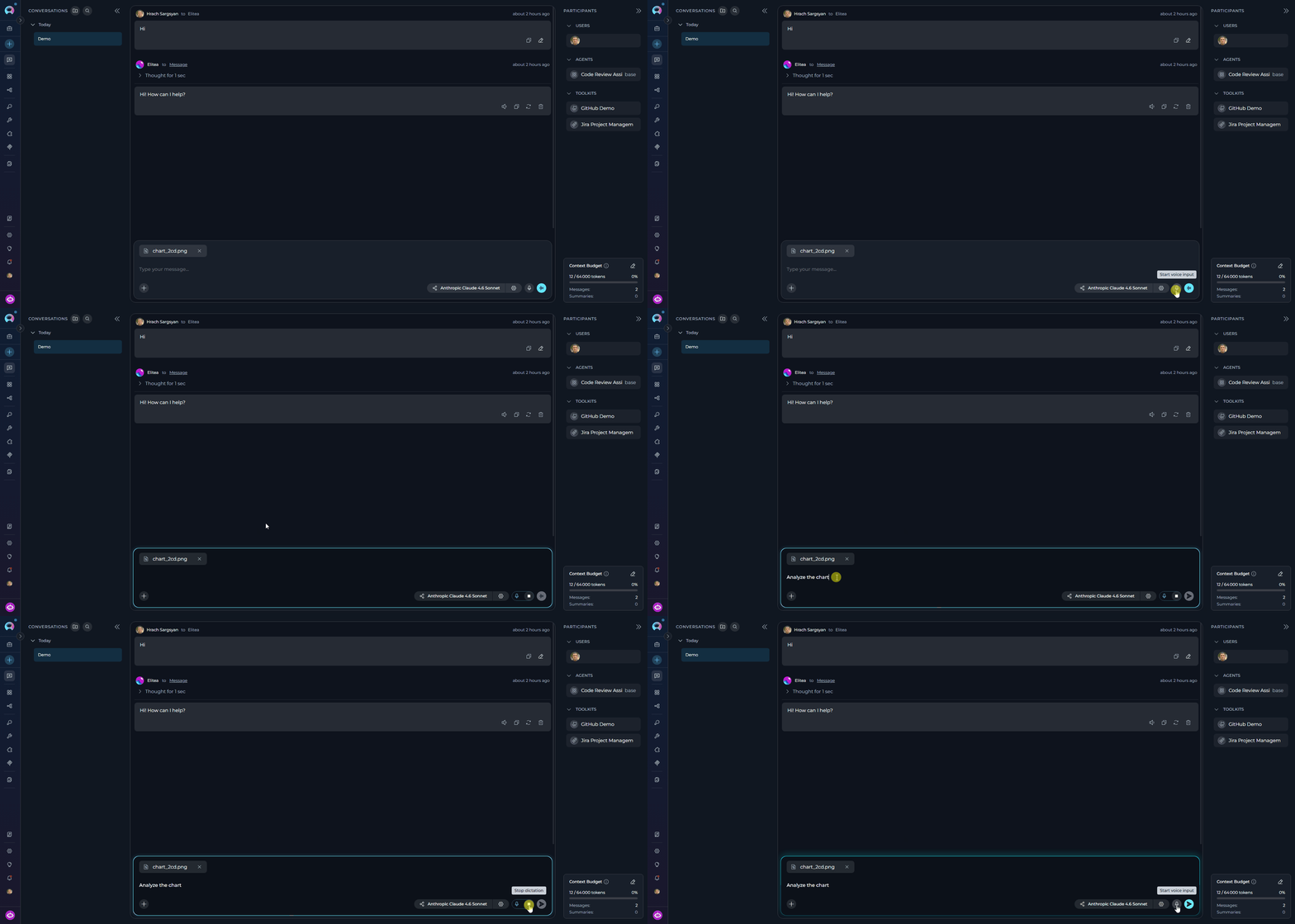
ASR model selection. ELITEA selects the best available speech recognition source in the following priority order:
- Server-side Realtime/Streaming ASR model (default model first, if configured in Settings → AI Configuration → Speech Recognition)
- Server-side Whisper ASR model (default model first — batch transcription with slightly higher latency)
- Browser Web Speech API (built-in browser fallback, no server configuration required)
- Microphone icon hidden — if none of the above is available, the button is not shown
Text-to-Speech
Text-to-Speech reads AI responses aloud. A Read out button (megaphone icon) appears in the action bar below each AI message when the message contains speakable text. How to use Text-to-Speech:- Click the Read out (megaphone) button below an AI message to start playback.
-
The text is read aloud and a playback pill appears in the input area containing:
- A megaphone icon
- A Stop (■) button (tooltip: Stop speaking) — click to stop playback
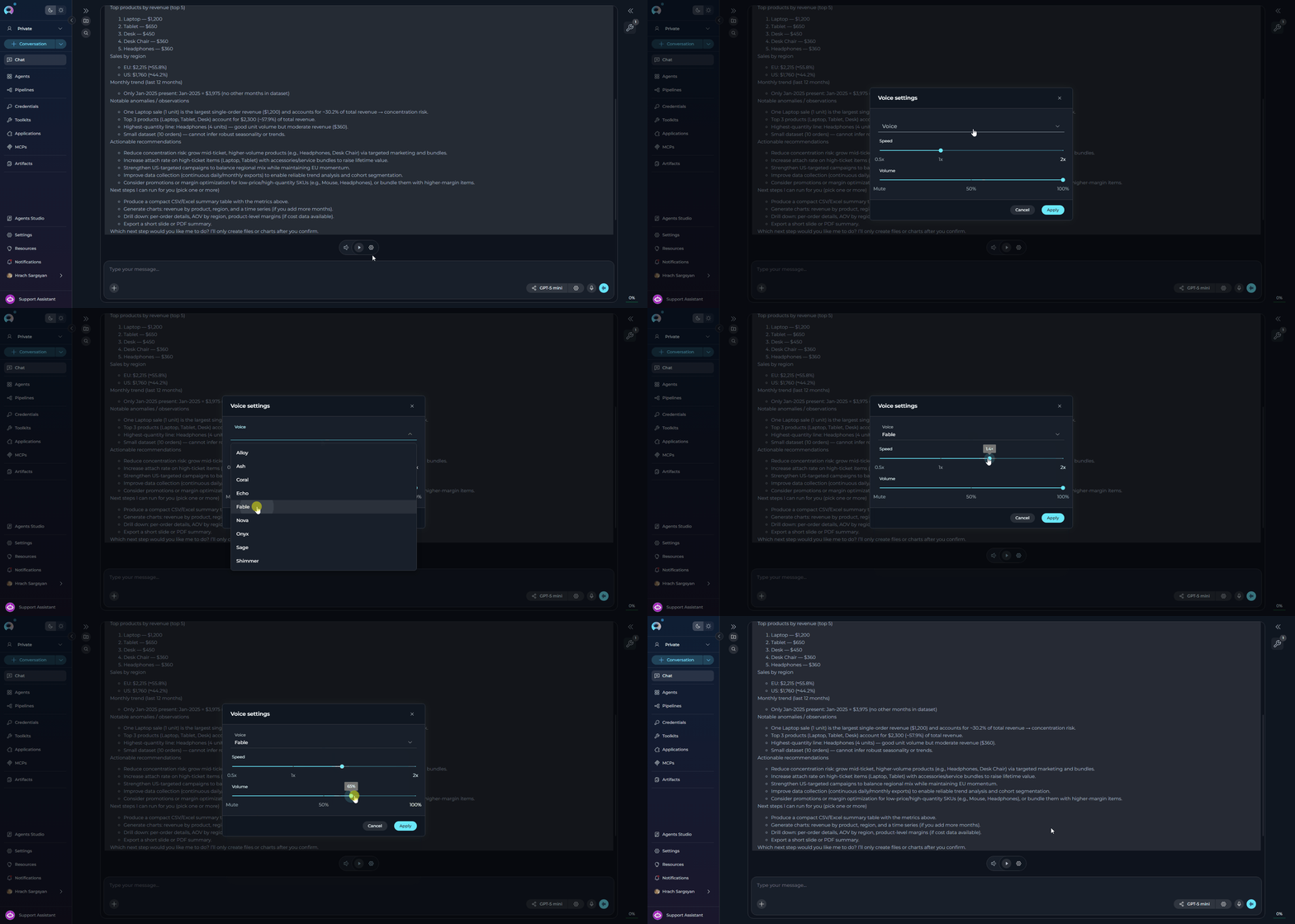
- A Voice settings (⚙) gear icon (tooltip: Voice settings) — opens the Voice Settings dialog. Disabled while playback is active.
-
To restart playback after stopping, click the Play (▶) button that replaces the Stop button in the pill.
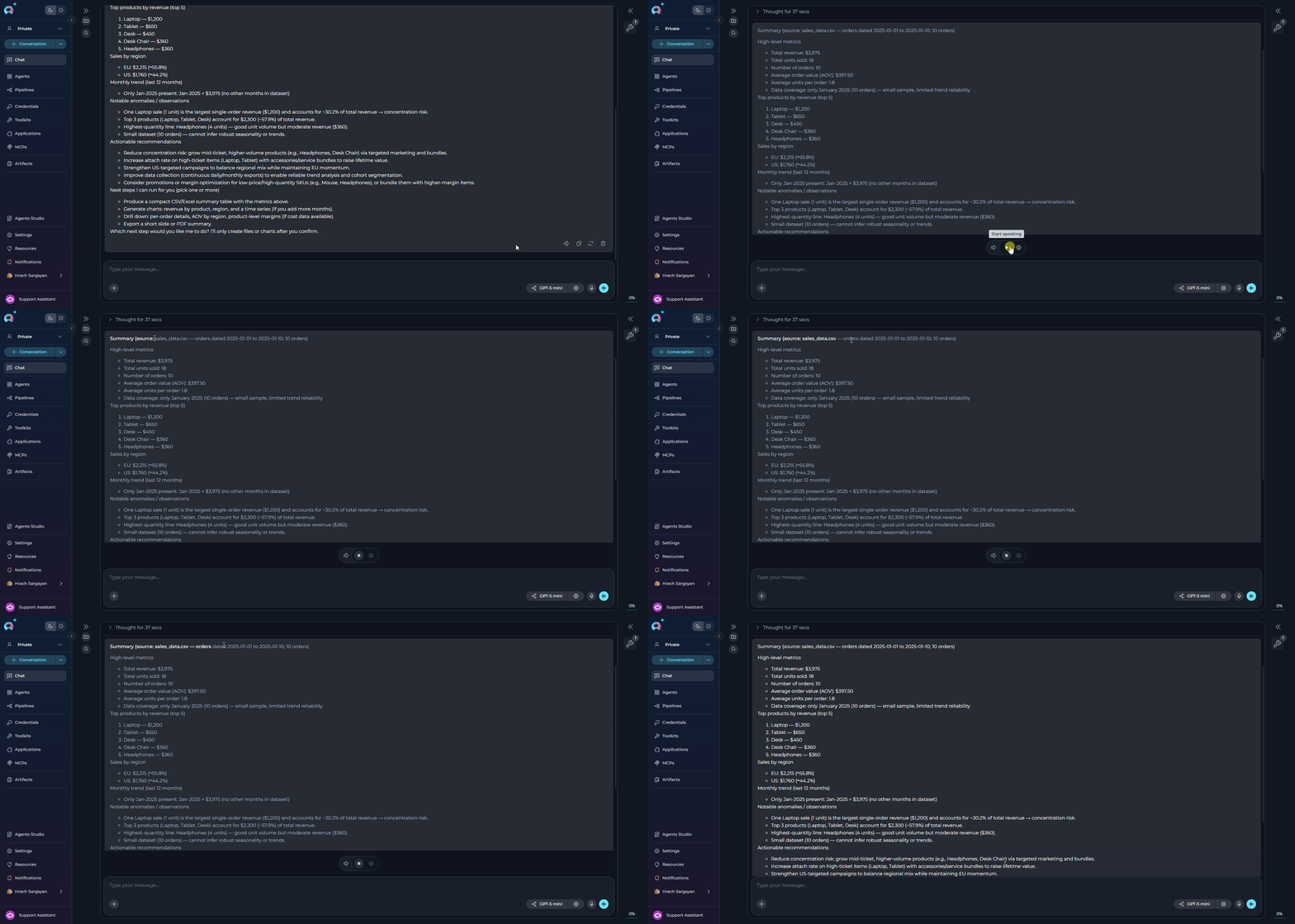
When a TTS model is configured in Settings → AI Configuration → Text to Speech (TTS), ELITEA uses that model for audio generation. If no TTS model is configured, playback uses the browser’s built-in SpeechSynthesis API as a fallback.
Click Apply to save, or Cancel to discard changes.
Speaking Mode
Speaking Mode is a continuous, hands-free voice conversation loop. Once activated, ELITEA automatically records your speech, sends your message after a pause, plays back the AI’s response, and then starts listening again — without any manual interaction between turns. How to activate Speaking Mode:- Leave the message input field empty.
- Click the voicewave icon (shown in place of the Send button when the input is empty) to enter Speaking Mode.
- A voicewave pill with an Exit (✕) button replaces the send button, indicating Speaking Mode is active.
- Speak your message. After 3 seconds of silence, your message is automatically sent.
- The AI response streams in and is read aloud via Text-to-Speech.
- Once the response finishes playing, recording starts again automatically for the next turn.
- Click the ✕ button in the voicewave pill to exit Speaking Mode at any time.
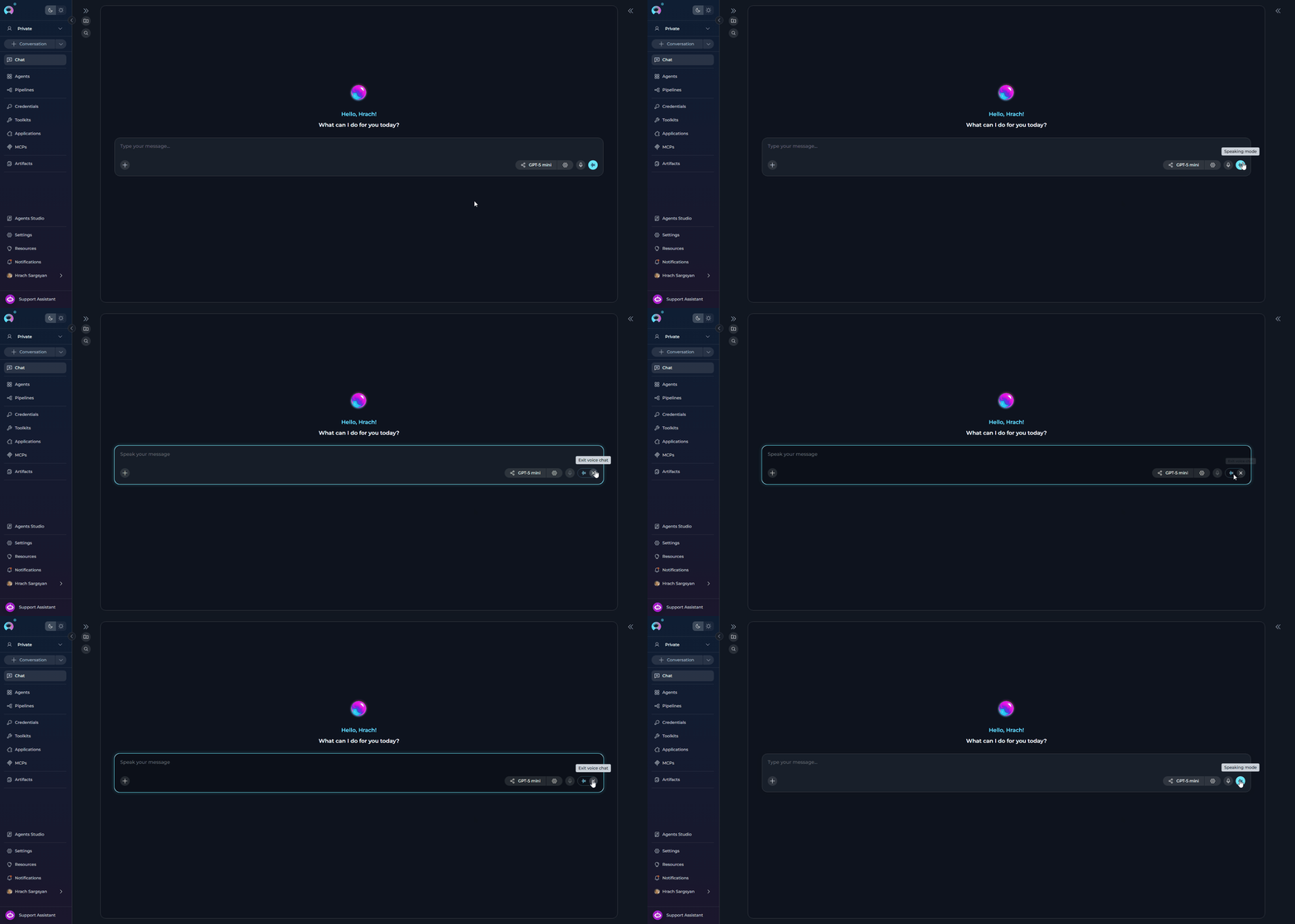
Speaking Mode requires a voice recognition source (server ASR model or browser Web Speech API) for input and uses Text-to-Speech for output. If you start manual voice input while Speaking Mode is active, Speaking Mode is automatically deactivated.