

Overview
By default, toolkits in a team project use project credentials — a single shared set of secrets that all team members execute under. This works for many scenarios, but it means all actions appear under one account, making it impossible to audit who did what or enforce per-user access controls. User-specific credentials solve this by letting the toolkit reference a private credential instead. Each team member creates their own private credential with a matching Credential ID, and the system automatically resolves to the individual user’s credential at execution time — no shared secrets, no ambiguous audit trails. Key BenefitsEnhanced Security
Each user executes the toolkit with their own credentials — no shared secrets that can be over-permissioned or accidentally exposed.
Individual Auditability
Actions are attributed to the individual user’s account on the target service, making audit trails accurate and meaningful.
Granular Access Control
Each user’s access level on the target service (e.g., read-only vs. write) is naturally enforced through their own credentials.
Compliance-Ready
Meets security and compliance requirements that mandate individual accountability for automated actions.
How It Works
Limitations of Shared Credentials When creating toolkits in a team project with project credentials:- All users share the same credentials.
- Actions appear under a single account.
- It’s difficult to audit individual user actions.
- Potential security and compliance issues.
- The team (or toolkit creator) agrees on a common Credential ID (e.g.,
github_team_access). - Each user creates a private credential in their Private workspace using that exact ID.
- The toolkit creator configures the project toolkit to reference a private credential with that ID.
- When a user executes the toolkit, the system looks up a private credential in their workspace matching the configured ID and uses it automatically.
Understanding Credential Types
Project Credentials vs Private Credentials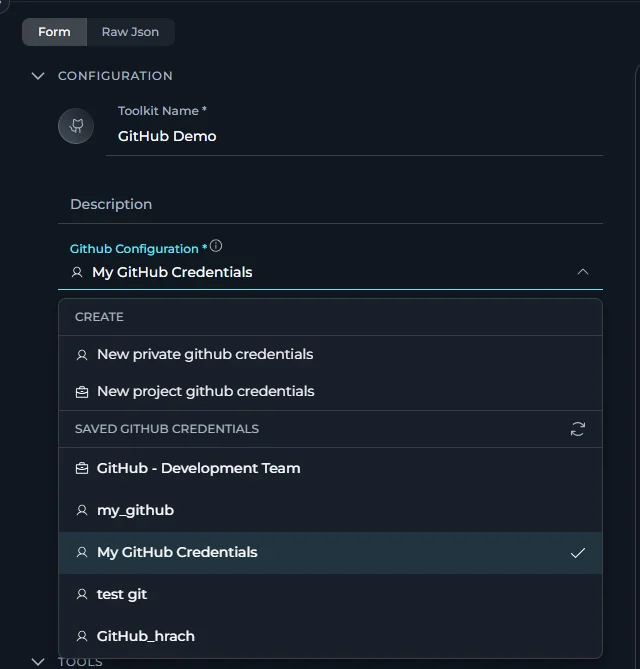
- Created and stored at the project level
- Accessible to all project members (based on their role permissions)
- Shared across the entire project team
- Identified by a briefcase icon () in the interface
In a team project, both project credentials and the current user’s private credentials are shown in the credential selector, filtered by toolkit type (e.g. only GitHub credentials appear for a GitHub toolkit).
- Created and stored in individual user’s private workspace
- Only accessible to the credential owner
- Cannot be shared with other users
- Identified by a human icon () in the interface
In a Private workspace, only private credentials are available — no project credentials are shown.
Creating Project Credentials
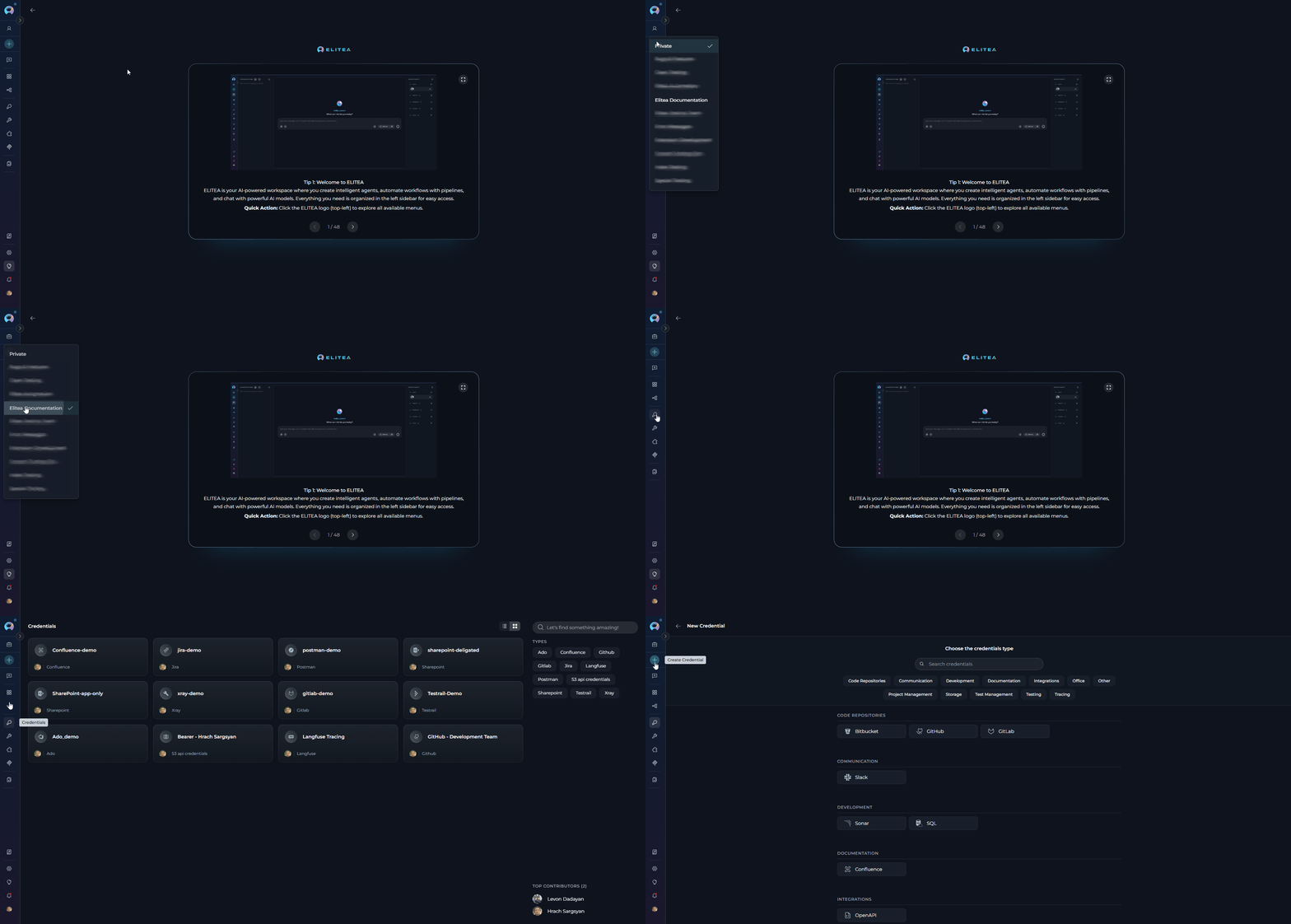
- From Credentials Page
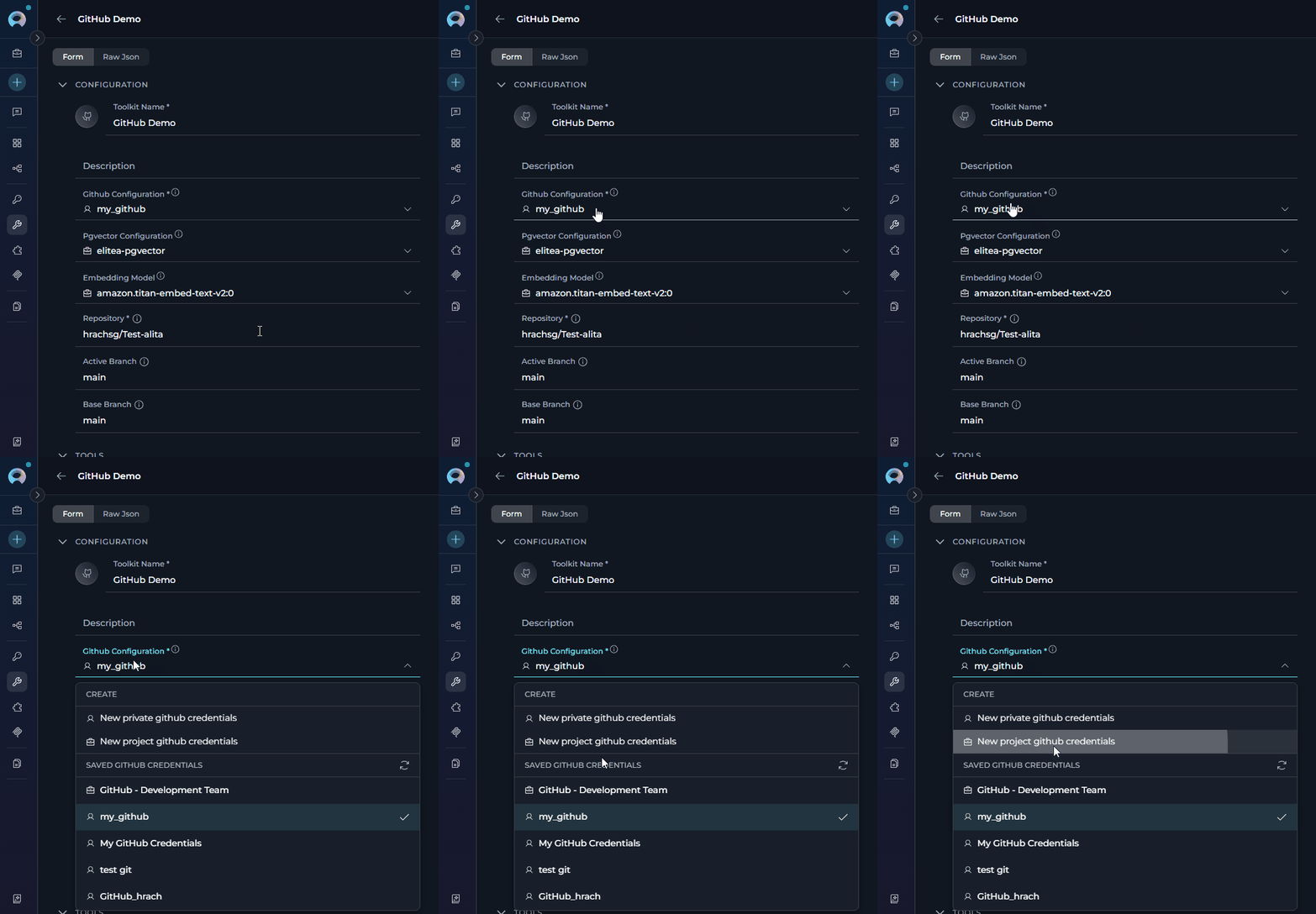
- From Toolkit Configuration
- Select the target project from the project dropdown.
- Open the sidebar and select Credentials.
-
Click the + Create button — the credential will be stored as a project credential.
Creating Private Credentials
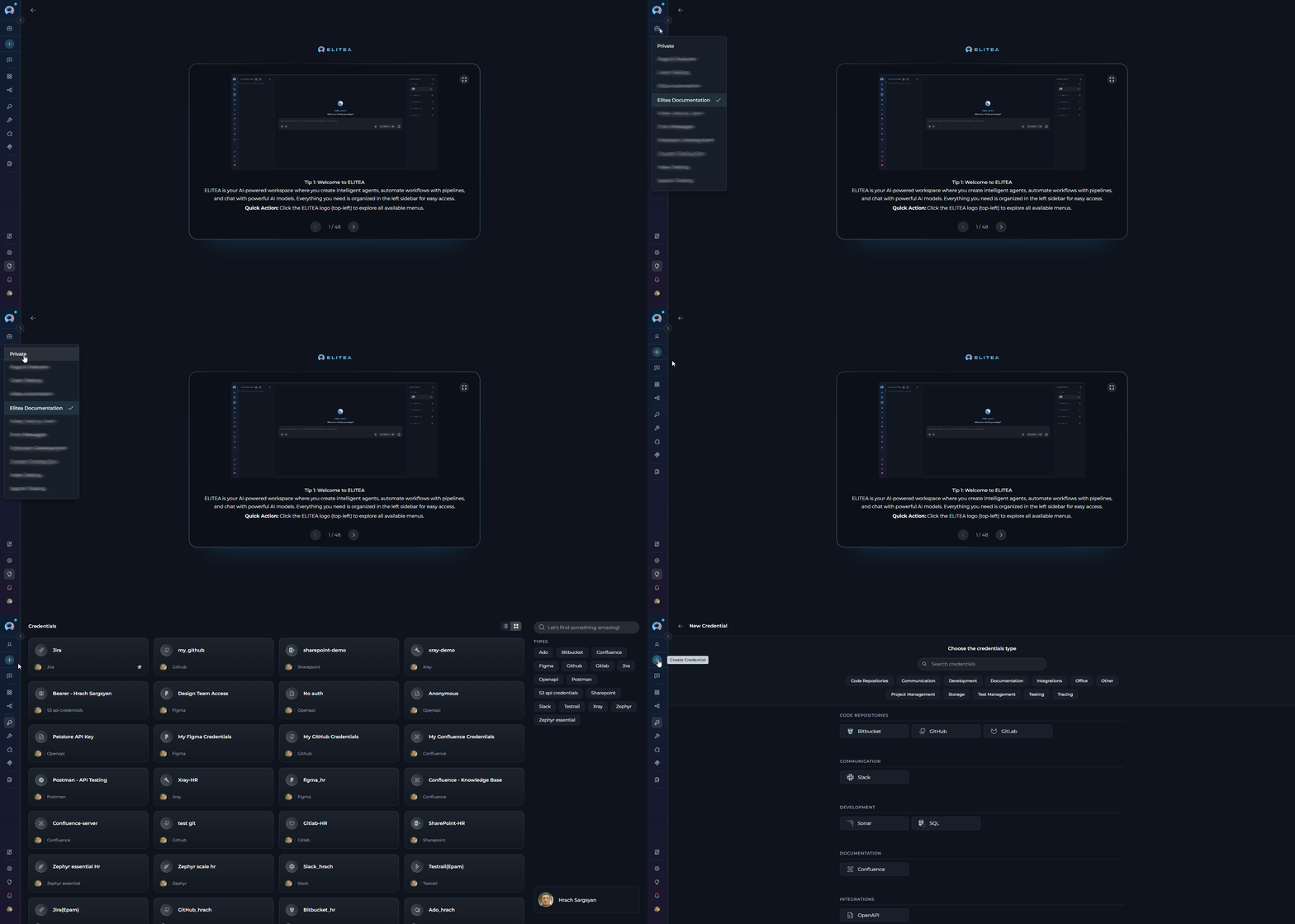
- From Credentials Page
- From Toolkit Configuration
- Switch to your Private workspace using the project selector.
- Open the sidebar and select Credentials.
-
Click the + Create button — the credential is automatically stored as private.
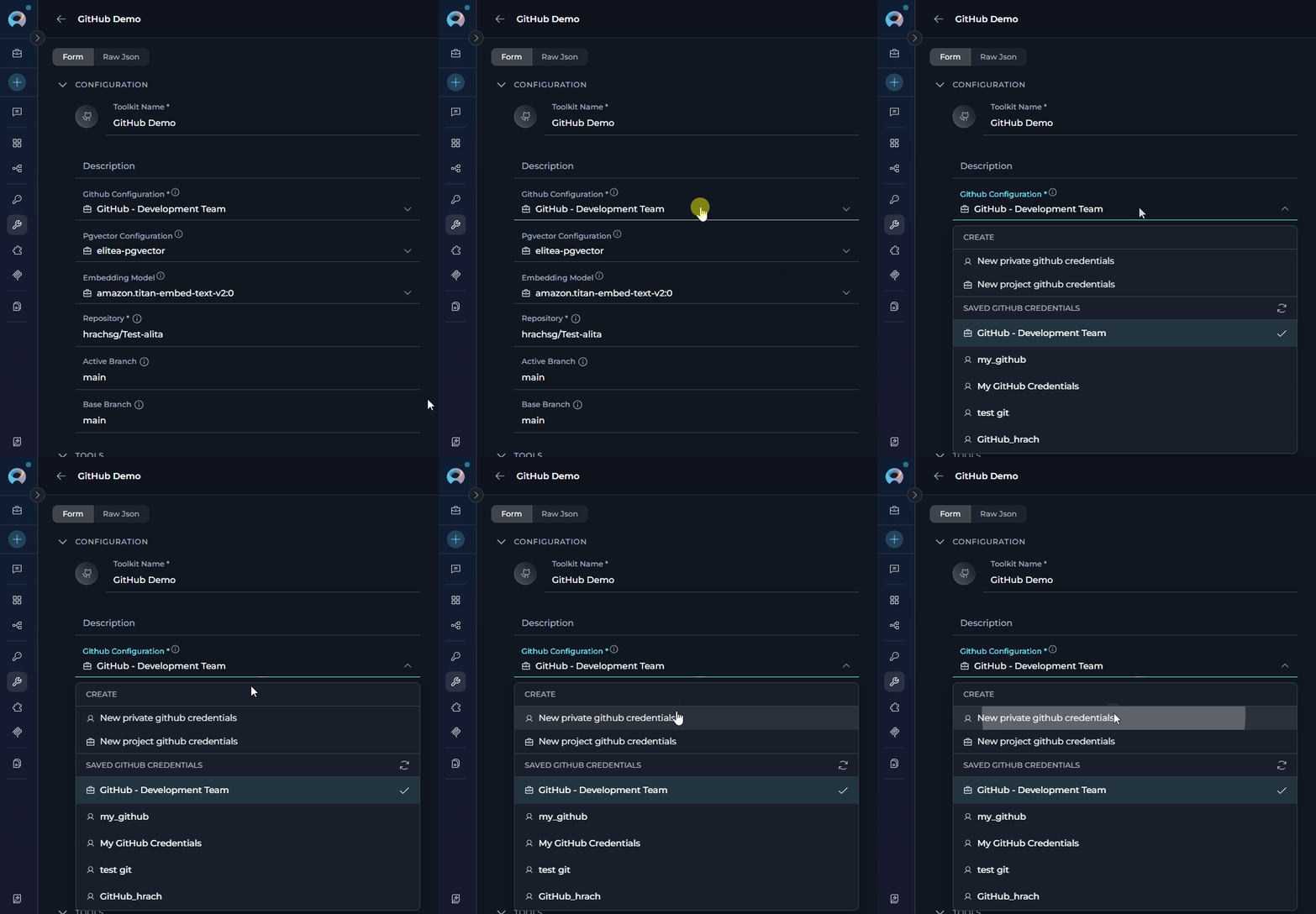
Credential Names and IDs
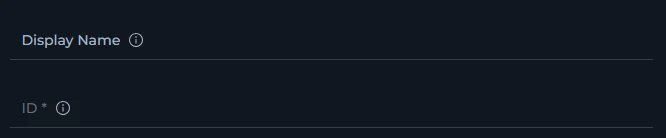
Understanding the Distinction When creating credentials, you’ll notice two important fields:- Credential Name: A human-readable display name shown in the UI.
- Credential ID: A unique identifier used by the system to match credentials across users. Always lowercase.
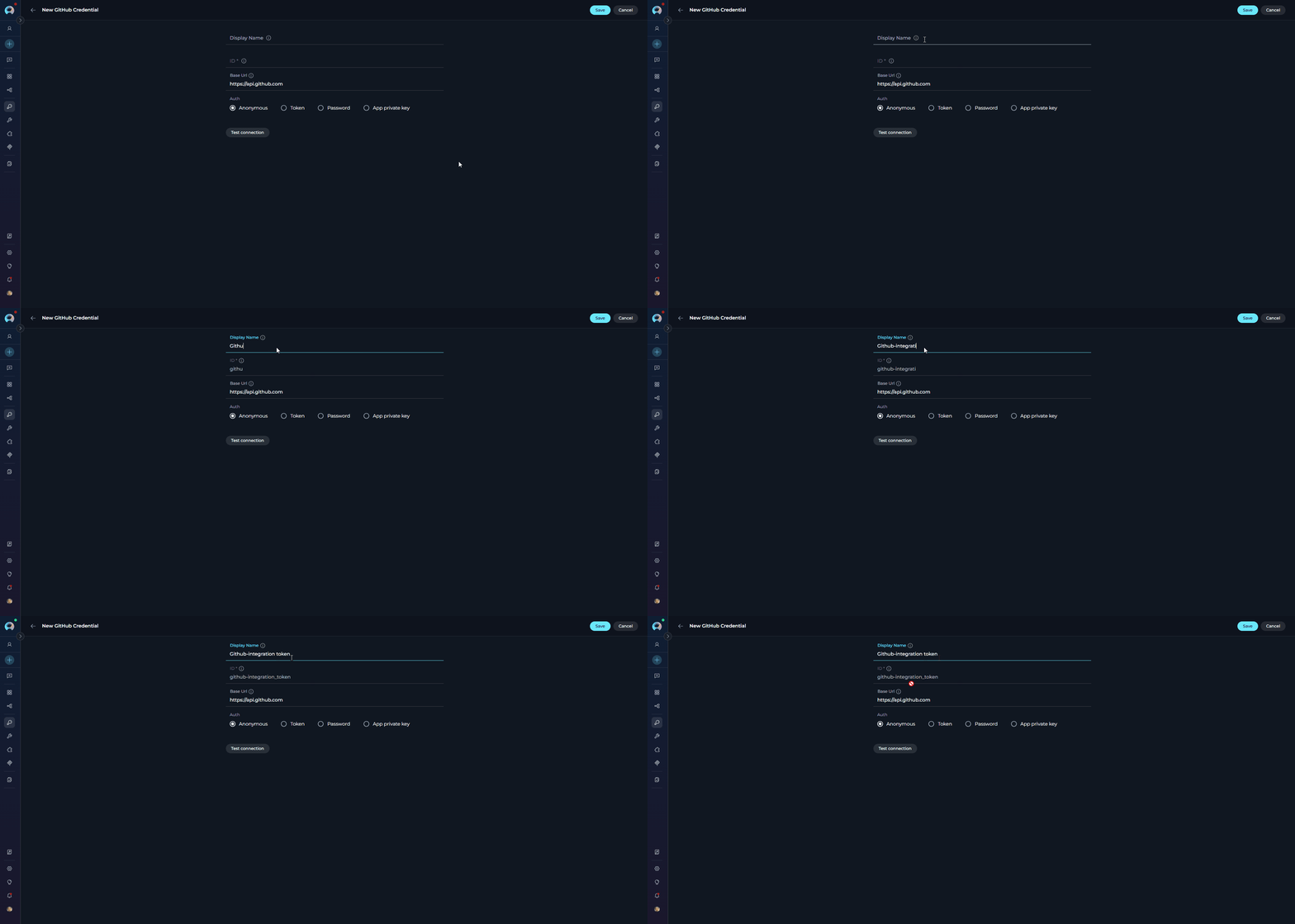
- Name: “GitHub Integration Token”
- Auto-generated ID:
github_integration_token
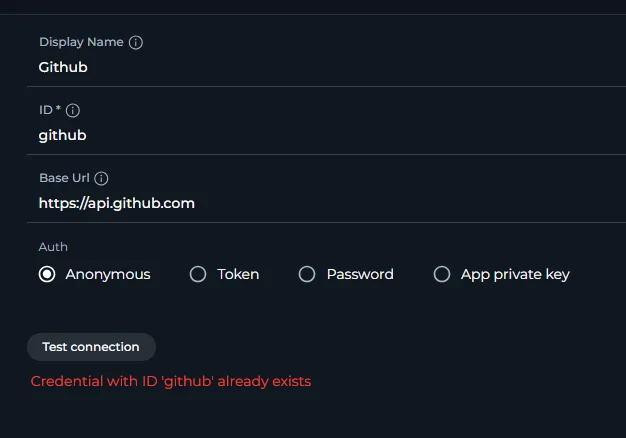
- Saving returns an error indicating the ID is already in use,
-
The Credential ID field becomes editable — modify the ID while keeping the same display name.
Team Setup Walkthrough
Step 1: Agree on a Credential ID The team (or toolkit creator) decides on a shared Credential ID that all members will use when creating their private credentials (e.g.,github_team_access). This ID must be identical across all users’ private credentials.
Step 2: Each User Creates a Private Credential
Every team member creates a private credential with the agreed-upon ID in their Private workspace. Refer to Creating Private Credentials above for detailed instructions.
Step 3: Configure the Toolkit
The toolkit creator opens the toolkit configuration form in the team project and selects a private credential with the agreed-upon ID from the credential dropdown:
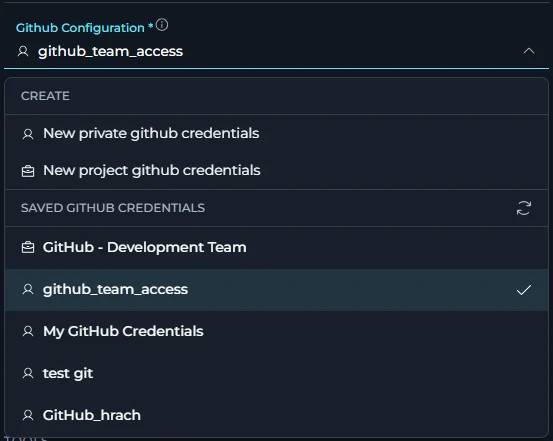
- The system looks for a private credential in the executing user’s Private workspace whose Credential ID matches the one configured in the toolkit.
- If found, the user’s private credential is used for execution.
Missing Private Credentials
If no matching private credential is found, a Credential setup required banner is shown in the credential field, prompting the user to create one. Credential setup required: This toolkit requires your own private [credential type] credentials. Create a credential with the matching ID “[credential ID]” in your Private workspace to use this toolkit.
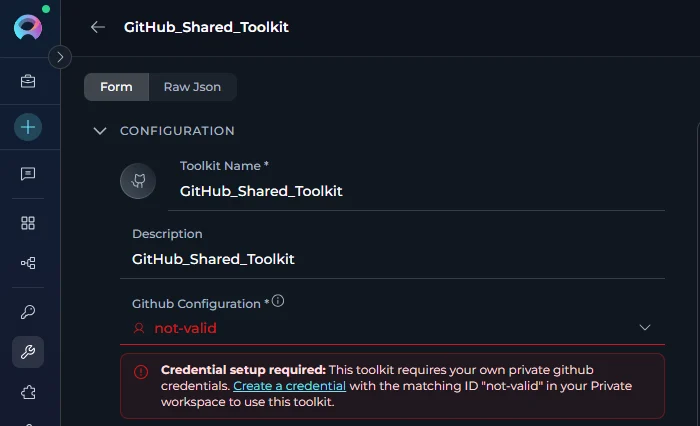
Credential Configuration Change Warning
When any team member with edit permissions changes the credentials of a toolkit in a team project, a confirmation modal appears before the change is saved:Credential Configuration Change
Changing the credential may make this toolkit non-operational for other team members who do not have a matching Private credential. Make this decision considering the potential impact on your team.
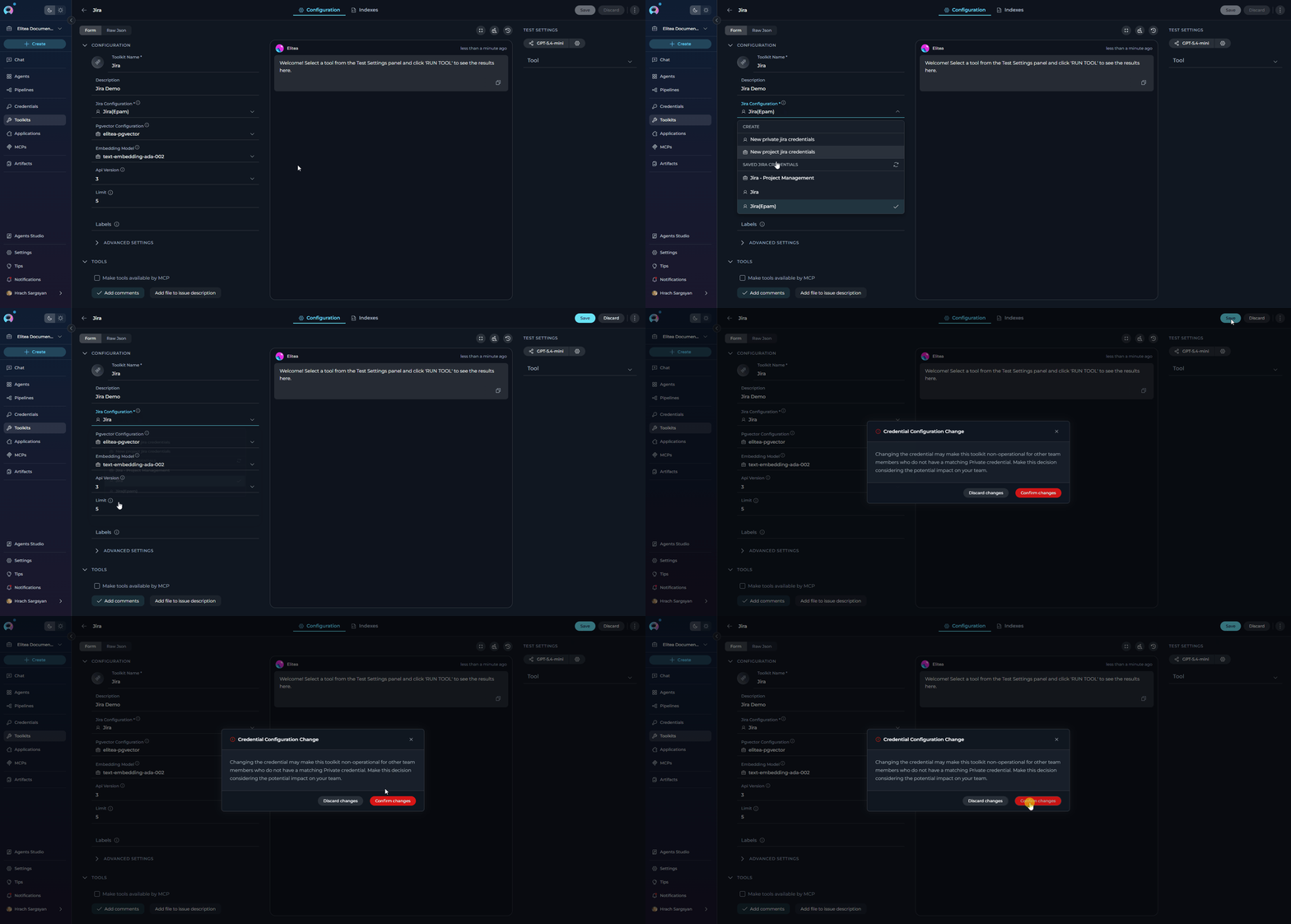
Limitations and Considerations
Credential Requirement
Only toolkits that require credentials can leverage user-specific credentials. Toolkits without credential requirements cannot use this functionality.
API Rate Limits
Individual credentials may be subject to separate rate limits depending on the service.
Permission Models
Ensure all team members have the necessary permissions on the target service before configuring user-specific credentials.
Account Types
Some services distinguish between personal and organizational accounts — verify that each user’s account type is compatible with the toolkit’s requirements.
Credential Type Must Match
A private credential can only substitute a credential of the same type. A GitHub toolkit requires a GitHub private credential — a credential of a different type (e.g., GitLab) will not be accepted, even if the Credential ID matches.
Troubleshooting
Execution Error: Credentials Missing
Execution Error: Credentials Missing
Problem: An error appears during agent or toolkit execution stating credentials are missing, or the toolkit displays “Your configuration does not match any available configurations.”Cause: The Credential ID referenced by the toolkit does not exist in the executor’s Private workspace, or the credential was deleted after the toolkit was configured.Solution:
- Look for the Credential setup required banner in the toolkit’s credential field — it shows the exact Credential ID required.
- Navigate to your Private workspace → Settings → Credentials and create a new credential with that exact ID.
- Verify the credential is properly configured (test the connection if available) and save.
Toolkit Not Recognizing Private Credentials
Toolkit Not Recognizing Private Credentials
Problem: A user has a private credential but the toolkit still shows the Credential setup required banner.Cause: The Credential ID is auto-derived from the credential name at creation time (spaces → underscores, all lowercase). The system matches exclusively on the Credential ID — so if the credential was created with a different name, its auto-generated ID will not match what the toolkit expects.Solution:
- Find the required Credential ID from the Credential setup required banner on the toolkit (e.g.,
github_team_access). - Delete or ignore the existing mismatched credential.
- Create a new private credential with a name that produces the correct ID — during creation, verify that the auto-generated Credential ID shown in the form matches the required one before saving (e.g., name “GitHub Team Access” → ID
github_team_access).
FAQ
Can I use this approach with any toolkit?
Can I use this approach with any toolkit?
No, only toolkits that require credentials can use this functionality. Toolkits without credential requirements cannot leverage user-specific credentials. List of the toolkits can be found on following page How to Use Credentials
What happens if a user doesn't have the required private credentials?
What happens if a user doesn't have the required private credentials?
The credential field in the toolkit configuration shows a Credential setup required banner with a direct Create a credential link. The link pre-fills the required Credential ID and type, so the user only needs to supply the secret values and save. The toolkit becomes usable once matching private credentials exist in the user’s Private workspace.
Do credential names need to match exactly?
Do credential names need to match exactly?
No, credential names can be different. Only the credential IDs need to match exactly (case-sensitive).
Can I mix project and private credentials in the same toolkit?
Can I mix project and private credentials in the same toolkit?
A toolkit can only use one credential configuration. You either use project credentials (shared) or private credentials (user-specific), but not both simultaneously.
How do I know what credential ID is required?
How do I know what credential ID is required?
The Credential setup required banner displayed in the toolkit’s credential field shows the exact Credential ID required. The toolkit creator should also document this ID when sharing the toolkit with the team.
Can I change the credential ID after creating the toolkit?
Can I change the credential ID after creating the toolkit?
Yes, you can edit the toolkit configuration to update the credential reference, but all team members will need to update their private credentials accordingly.
What happens if I delete my private credential after the toolkit is configured?
What happens if I delete my private credential after the toolkit is configured?
The toolkit will immediately show the Credential setup required banner again for your user, as if the credential was never created. Other team members who have their own matching private credentials are unaffected. You can recreate the credential with the same Credential ID to restore access.