

Introduction
The Import/Export feature supports:- Individual agents and pipelines - Export single entities
- Nested dependencies - Agents referencing other agents
- Multiple file formats -
.mdfor single entities,.zipfor multi-entity exports
Export Functionality
Exporting an Agent or Pipeline
-
Navigate to the Entity:
- Go to the Agents menu (or Pipelines menu for pipelines)
- Open the specific agent or pipeline you want to export
-
Initiate Export:
- Click the three-dot menu (⋮) in the toolbar
- Select Export from the dropdown menu
- The file will automatically download to your local device
-
File Format:
- Agents and pipelines are exported as Markdown (
.md) files - Only the currently selected version of the agent or pipeline is included in the export
- Each file contains YAML frontmatter with configuration and Markdown body with instructions
- Agents and pipelines are exported as Markdown (
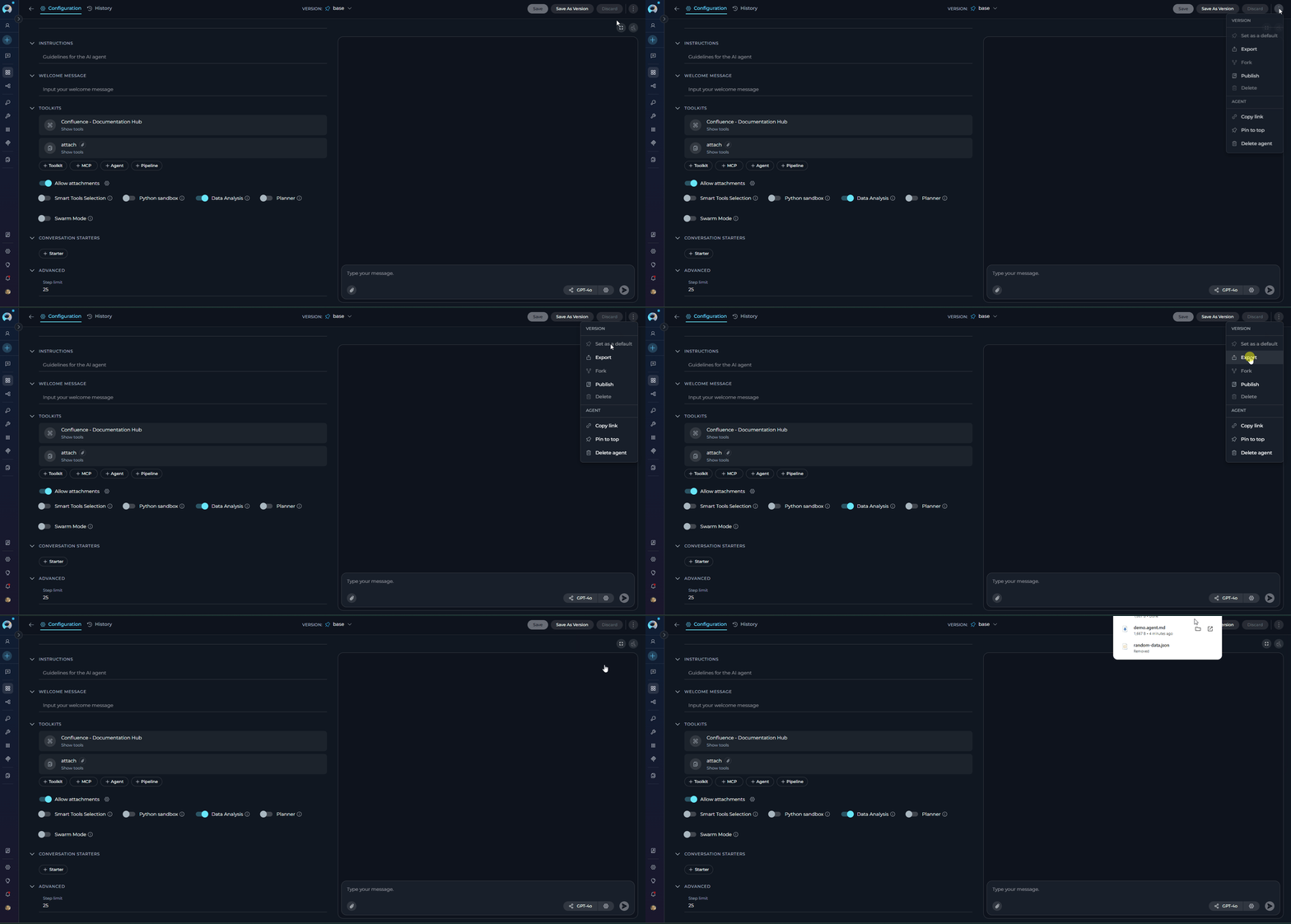
When you export an agent or pipeline that contains nested agents (agents referencing other agents), the system automatically includes all dependencies in the export:
- If the agent has nested dependencies, the export will be a ZIP file containing multiple
.mdfiles (one for the main agent and one for each nested dependency) - If the agent has no nested dependencies, the export will be a single
.mdfile
The exported
.md file includes the selected version of the agent or pipeline:Import Functionality
ELITEA allows you to import agents and pipelines from exported files. Both agents and pipelines support single-entity (.md) and multi-entity (.zip) imports.
Importing requires the appropriate import permission in the destination project. The Import button is disabled if this permission is not granted. Contact your project administrator if you need access.
Importing Agents
Agents can be imported individually from.md files or in bulk from .zip files with automatic dependency resolution.
Importing Agent from .md File (Single Entity)
Use.md file import when you want to import a single agent.
Step 1: Select .md File
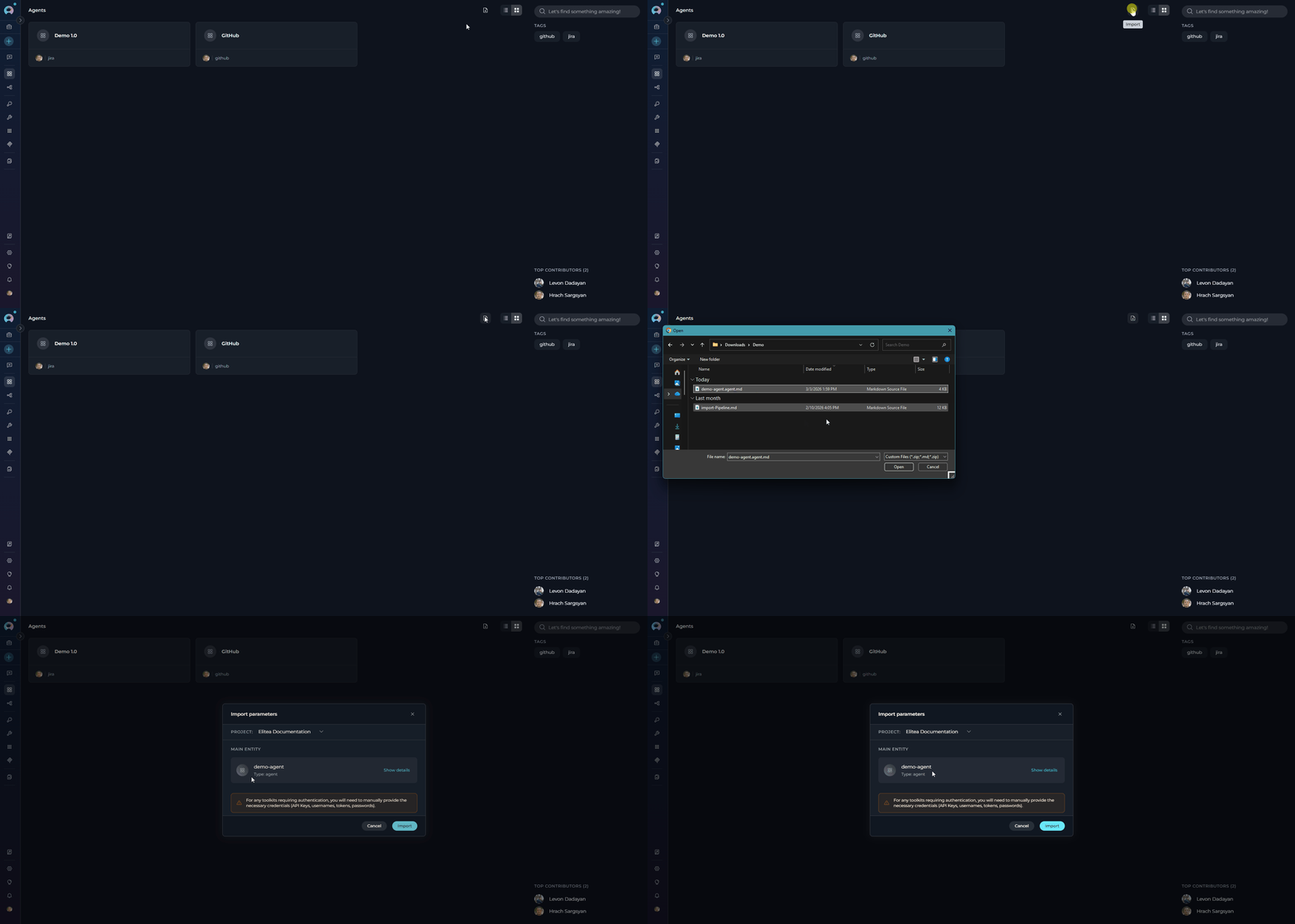
- Navigate to Agents menu
- Click the Import button in the toolbar
- Select the
.mdfile from the file dialog - The file is parsed and the Import Wizard opens
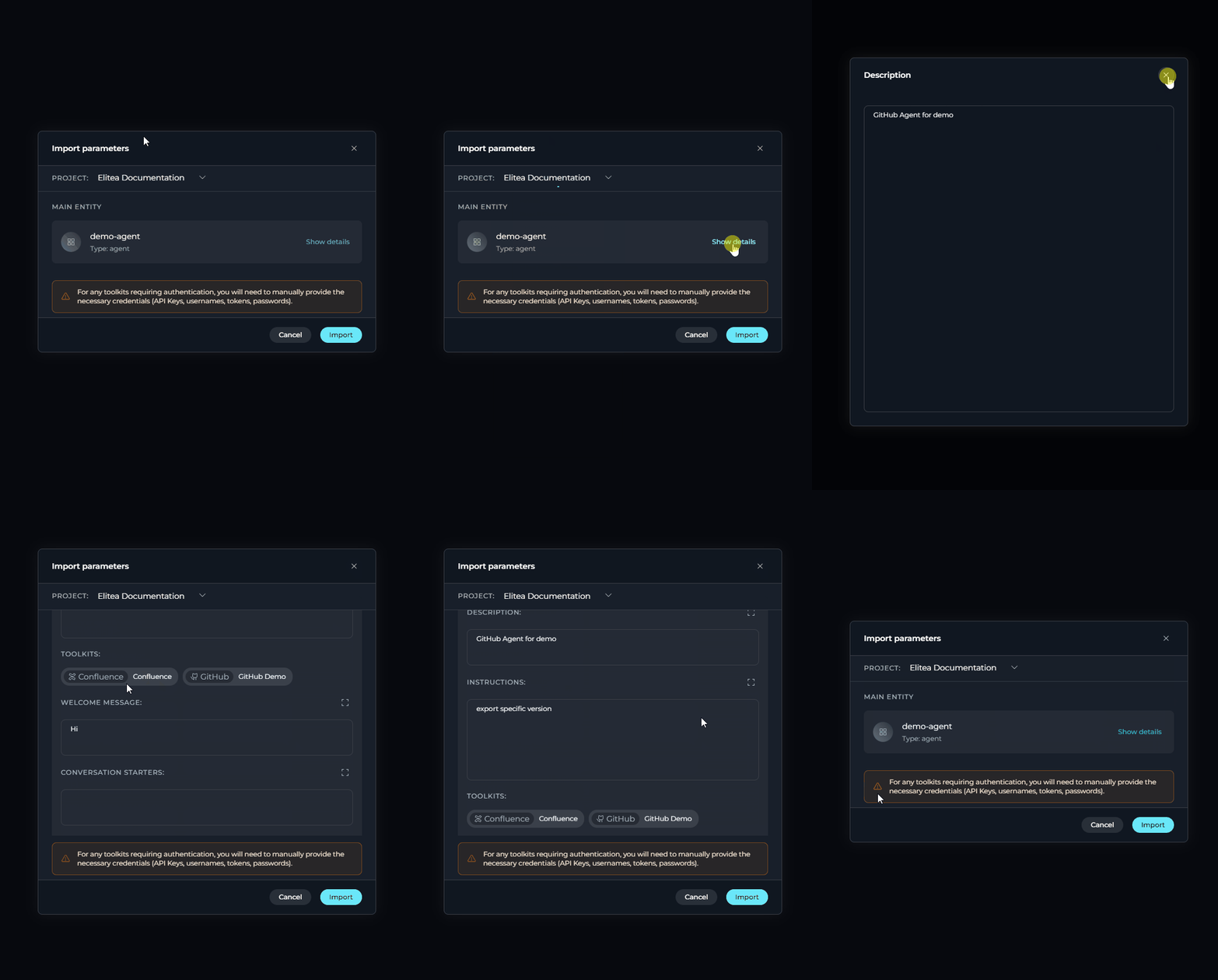
The Import Wizard displays in a single-column modal dialog:Project Selector — at the top of the modal, select the destination project.Entity Cards — the modal shows one card per entity:
- Main entity — the primary agent or pipeline being imported
- Nested entities — any dependent agents (ZIP imports only)
- Description, Instructions (agents) or Pipeline Diagram (pipelines)
- Toolkits and their tools
- Welcome message, Conversation starters, Modules, Step limit
-
Select Project Destination:
- At the top of the modal, find the Project selector
- Click the dropdown to select the destination project
-
Review Entity Card: The wizard displays the entity as a card showing its name and type (agent or pipeline)
- Click Show details on the card to expand full configuration
- Expanded details include: Description, Instructions, Toolkits and their tools, Welcome message, Conversation starters, Modules, and Step limit
- Model and Embedding Remapping: The system automatically maps LLM and embedding models to the destination project’s defaults. You can adjust model settings individually after import.
- Credentials warning: A warning at the bottom of the modal reminds you that any toolkits requiring authentication will need credentials configured manually after import
-
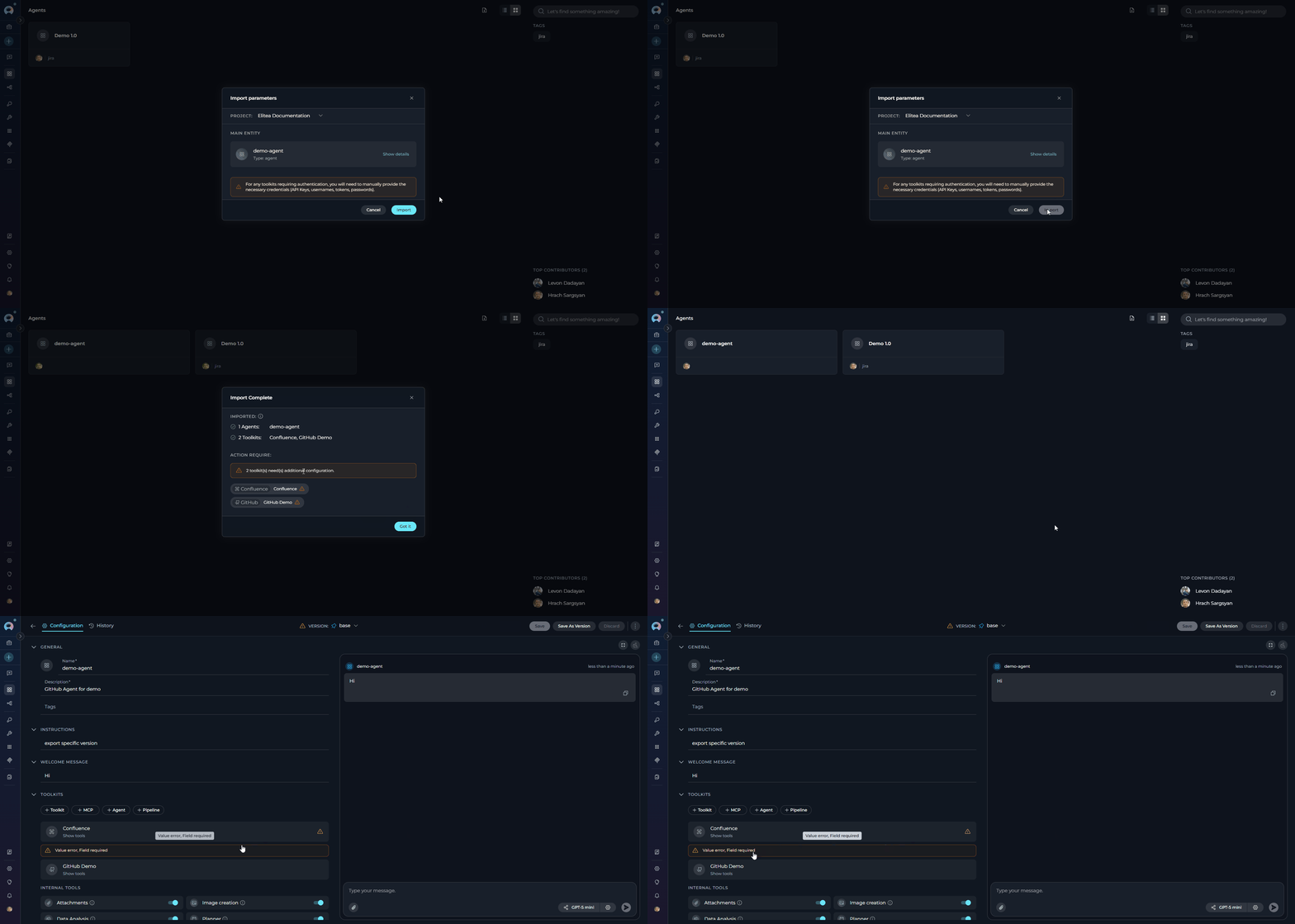
Click Import at the bottom of the modal. Upon successful import, the modal transitions to an Import Complete screen showing the imported agents, pipelines, and toolkits. Toolkits that require additional credential configuration are highlighted in an “Action required” section.
Importing Agents from .zip File (Multiple Entities)
Use.zip file import when you want to import multiple agents with dependencies (nested agents).
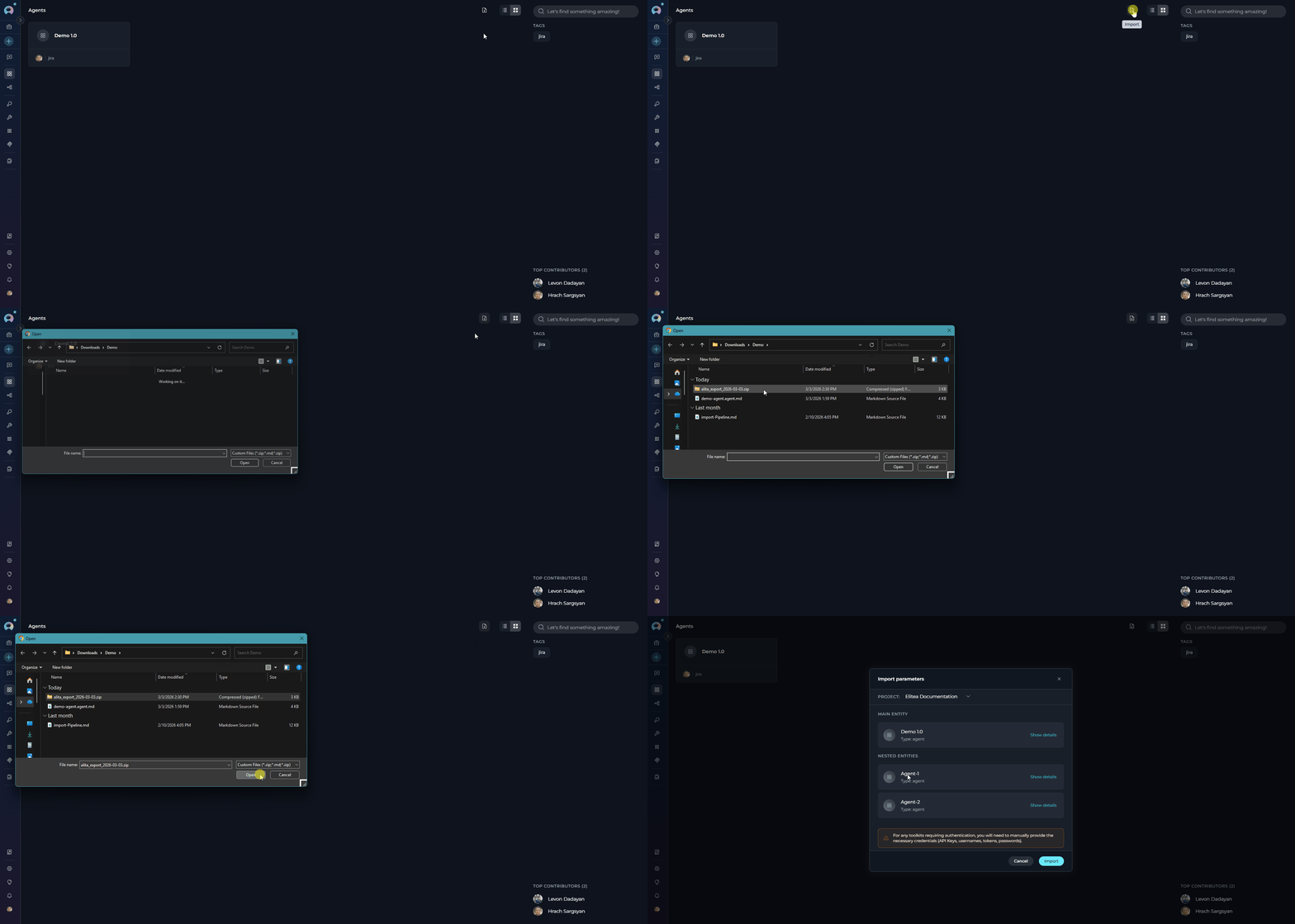
Step 1: Select .zip File
- Navigate to Agents menu
- Click the Import button in the toolbar
- Select a
.zipfile from the file dialog - All
.mdfiles in the ZIP are extracted and parsed; versions from files with the same agent name are merged - The Import Wizard opens showing all agents
-
Select Project Destination:
- At the top of the modal, find the Project selector
- Click the dropdown to select the destination project
-
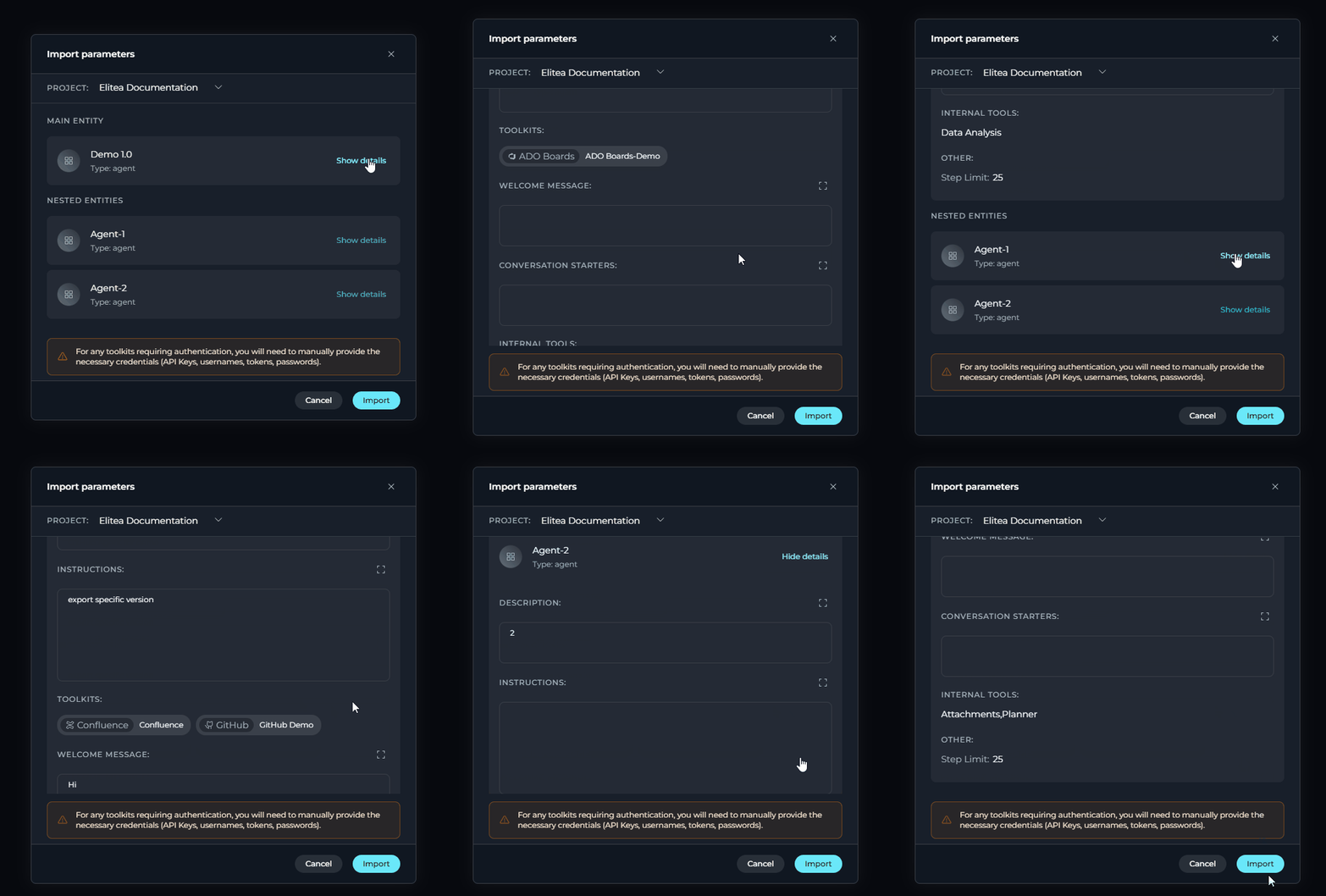
Review Entity Cards: The wizard displays a Main entity section for the primary agent and a Nested entities section for each dependency
- Click Show details on any card to expand its configuration
- Each card shows: Description, Instructions, Toolkits, Welcome message, Conversation starters, Modules, and Step limit
-
Model and Embedding Remapping: The system automatically maps LLM and embedding models to the destination project’s defaults. You can adjust model settings individually after import.
-
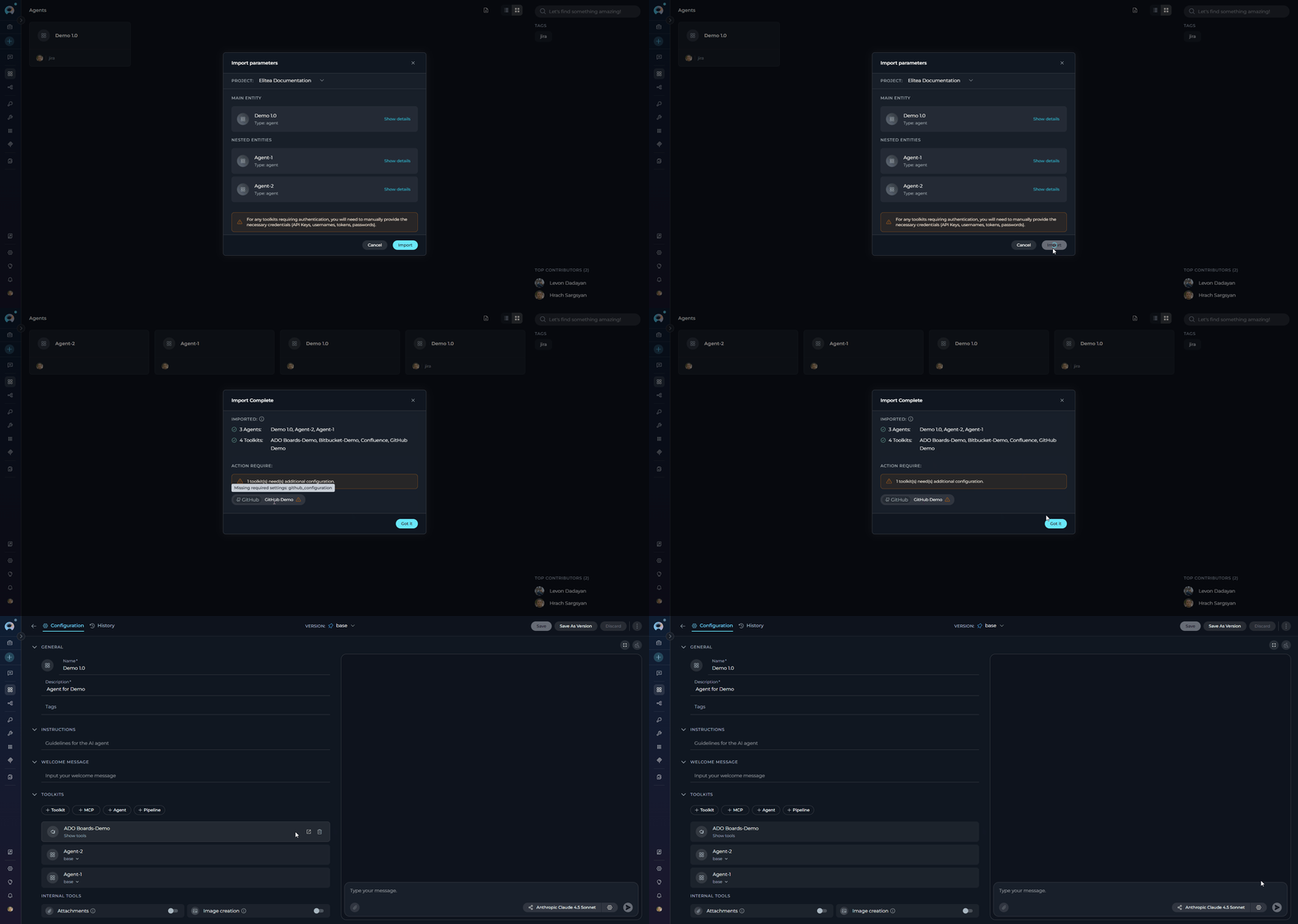
Click Import at the bottom of the modal. Upon successful import, the modal transitions to an Import Complete screen showing all imported agents, pipelines, and toolkits. Toolkits that require credentials are highlighted in an “Action required” section.
ZIP files can contain multiple
.md files representing different agents:Importing Pipelines
Pipelines are imported from.md or .zip files. If the pipeline has nested dependencies (referenced agents or pipelines), the export will be a ZIP archive containing all required entities.
Step 1: Select Import File
- Navigate to Pipelines menu
- Click the Import button in the toolbar
- Select the
.mdor.zipfile from the file dialog - The file is parsed and the Import Wizard opens
-
Select Project Destination:
- At the top of the modal, find the Project selector
- Click the dropdown to select the destination project
- You must have the
models.applications.export_import.importpermission in the target project
-
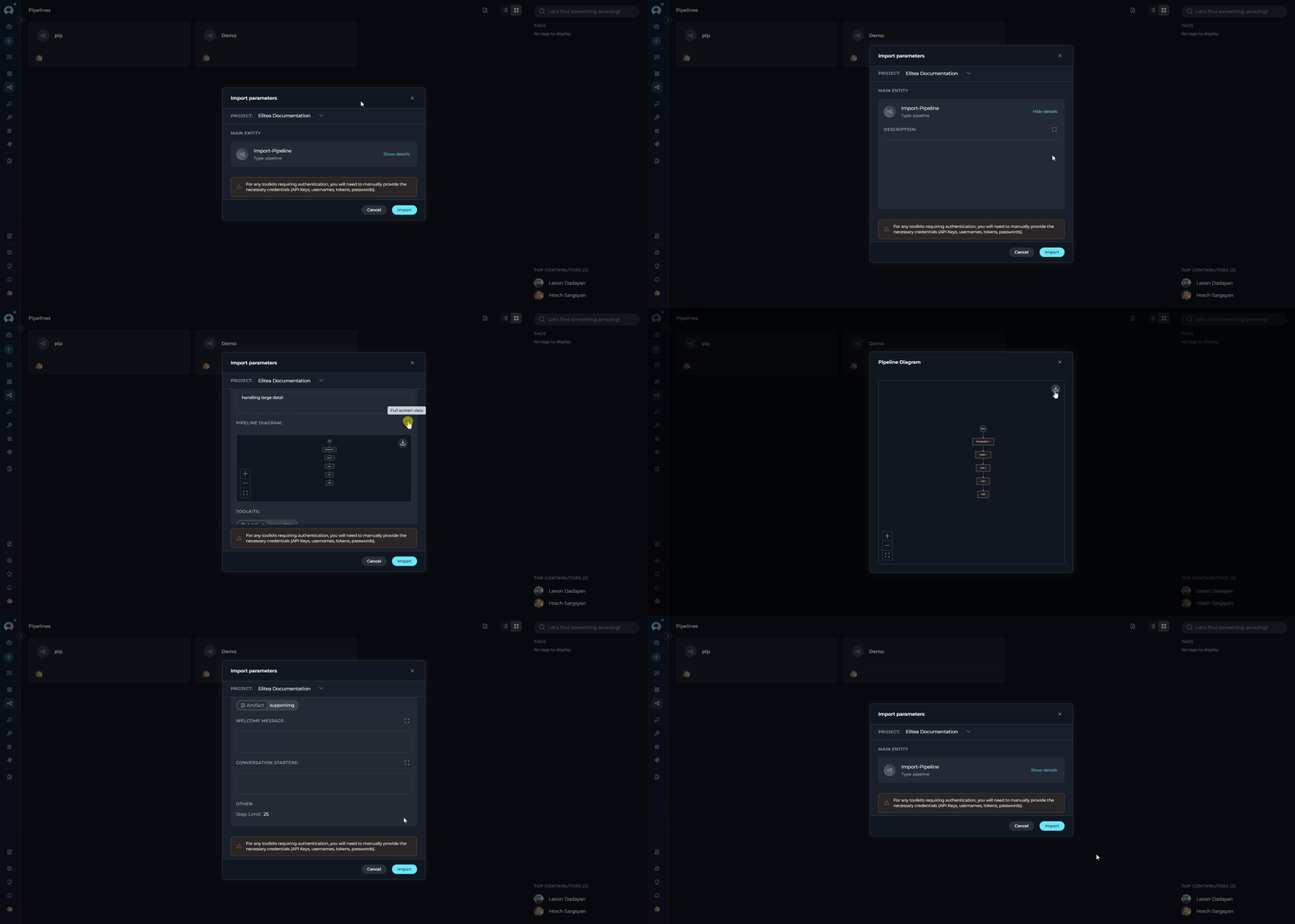
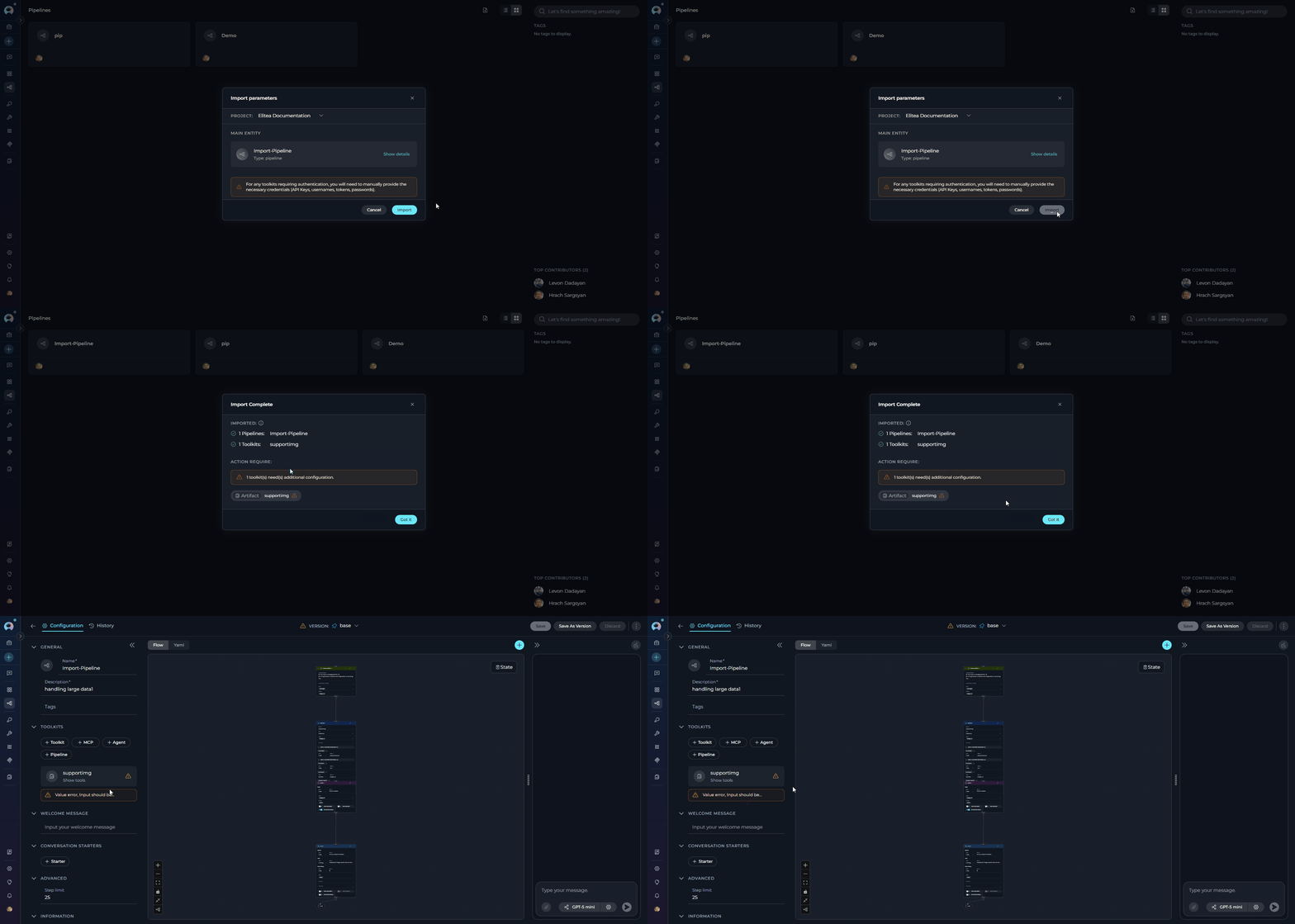
Review Entity Card: The wizard displays the pipeline as a card showing its name and type
- Click Show details to expand full configuration
- Expanded details include: Description, a live Pipeline Diagram (Mermaid, with fullscreen view option), Toolkits and their tools, Welcome message, Conversation starters, and Step limit
-
Model and Embedding Remapping: The system automatically maps LLM and embedding models to the destination project’s defaults. You can adjust model settings individually after import.
-
Click Import at the bottom of the modal. Upon successful import, the modal transitions to an Import Complete screen showing the imported pipeline and its toolkits. Toolkits that require credentials are highlighted in the “Action required” section.
Best Practices
Export Recommendations
Version Control
Version Control
- Export regularly to maintain backups
- Use descriptive naming for easy identification
Documentation
Documentation
- Add clear descriptions to your agents and pipelines
- Document dependencies and special requirements
Security
Security
- Store exports in secure locations
- Review content before sharing with others
Import Recommendations
Pre-Import Checks
Pre-Import Checks
- Verify destination project has required toolkits
- Ensure necessary models are available
- Check you have appropriate permissions
Review Before Importing
Review Before Importing
- Expand entity cards using Show details to review configuration before importing
- Verify model remapping is correct for your destination project
Post-Import Configuration
Post-Import Configuration
- Reconfigure toolkit credentials
- Test imported agents/pipelines
- Verify nested dependencies work correctly
Project Organization
Project Organization
- Import related entities together
- Maintain consistent naming conventions
- Group by functionality or team
Troubleshooting
Issue: Model Not Available
Issue: Model Not Available
Cause: The model specified in the import file doesn’t exist in destination projectSolution:
- Select an alternative model from the dropdown
- Add the required model configuration to the project first
Issue: Missing Toolkit
Issue: Missing Toolkit
Cause: Referenced toolkit not installed in destination projectSolution:
- Install the missing toolkit in the destination project before importing
- Or import to a different project where the toolkit is available
Issue: Permission Denied
Issue: Permission Denied
Cause: The user does not have the
models.applications.export_import.import permission in the destination projectSolution:- Request the
models.applications.export_import.importpermission from your project administrator - Import to a different project where you have this permission
Issue: Invalid Import Format
Issue: Invalid Import Format
Cause: The
.md file doesn’t have proper YAML frontmatter structureSolution:- Verify the file starts with
--- - Check YAML syntax is valid
- Ensure closing
---is present
Issue: Failed to Parse MD File
Issue: Failed to Parse MD File
Possible Causes:
- Invalid YAML frontmatter
- Missing closing
---delimiters - Corrupted file encoding
- Open file in text editor and verify format
- Ensure UTF-8 encoding
- Re-export from source if possible
Issue: Nested Agent Not Found
Issue: Nested Agent Not Found
Possible Causes:
- Referenced agent not included in ZIP
- Import UUID mismatch
- Agent imported to different project
- Include all dependent agents in same import
- Verify all
.mdfiles are in ZIP - Import all entities to same project
Issue: Toolkit Tools Not Available
Issue: Toolkit Tools Not Available
Possible Causes:
- Toolkit version mismatch
- Tool deprecated or renamed
- Toolkit not properly configured
- Update toolkit to latest version
- Review toolkit configuration
- Select alternative tools if available
- Entity Versioning: Learn about version management
- Credentials Menu: Configure authentication credentials for toolkits
- Agents Menu: Complete agents documentation
- Pipelines Menu: Complete pipelines documentation
- Toolkits Menu: Complete toolkits documentation