

- Reduce token usage
- Access all toolkit functionality through two meta-tools
- Load tool schemas on demand instead of pre-binding every tool to the LLM
- Keep the same final tool results as direct binding
- Preserve toolkit organization for efficient tool discovery and invocation
Enable Smart Tools Selection once an agent or conversation has 5 or more toolkits configured. Note that it only takes effect once there are 20 or more eligible tools in total — below that, every tool stays bound directly no matter what the toggle says. Above that, token savings grow as tool count rises further.
Prerequisites
- User role with conversation or agent edit access
- At least 20 eligible toolkit tools configured in total
- Smart Tools Selection enabled in your chat or agent
How to Enable Smart Tools Selection
The default state of the Smart Tools Selection module — on or off — is defined in the project settings. If Smart Tools Selection is turned off by default, you can turn it on for your current conversation or agent.For a Conversation
- Go to the conversation.
- Select
+in the chat input toolbar. - Select Modules → Smart Tools Selection in the list.
- Toggle Smart Tools Selection on.
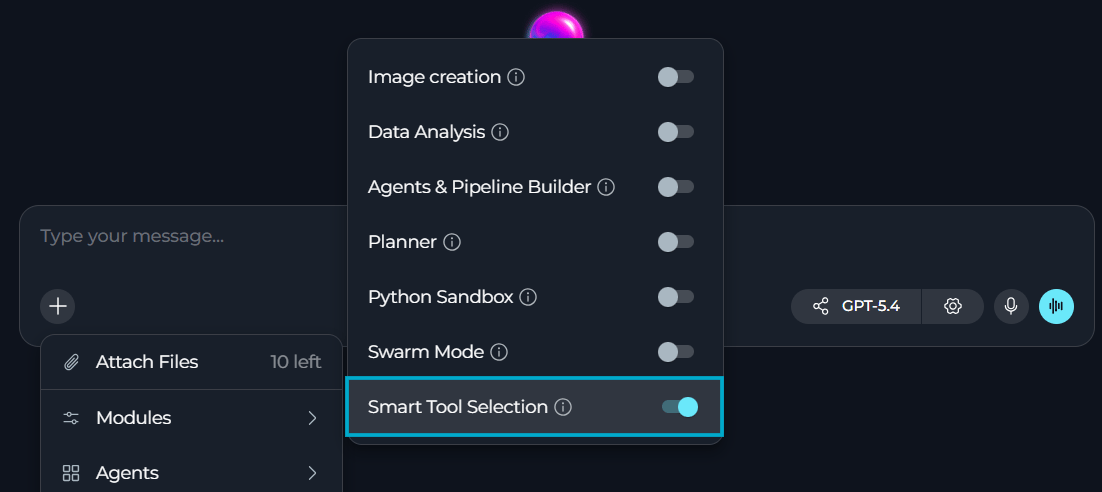
For an Agent
- Select Agents.
- Select the agent to configure, or create a new agent.
- In the TOOLS section, find MODULES.
- Find Smart Tools Selection. Select Show all if you do not see it immediately.
- Toggle Smart Tools Selection on.
- Select Save.
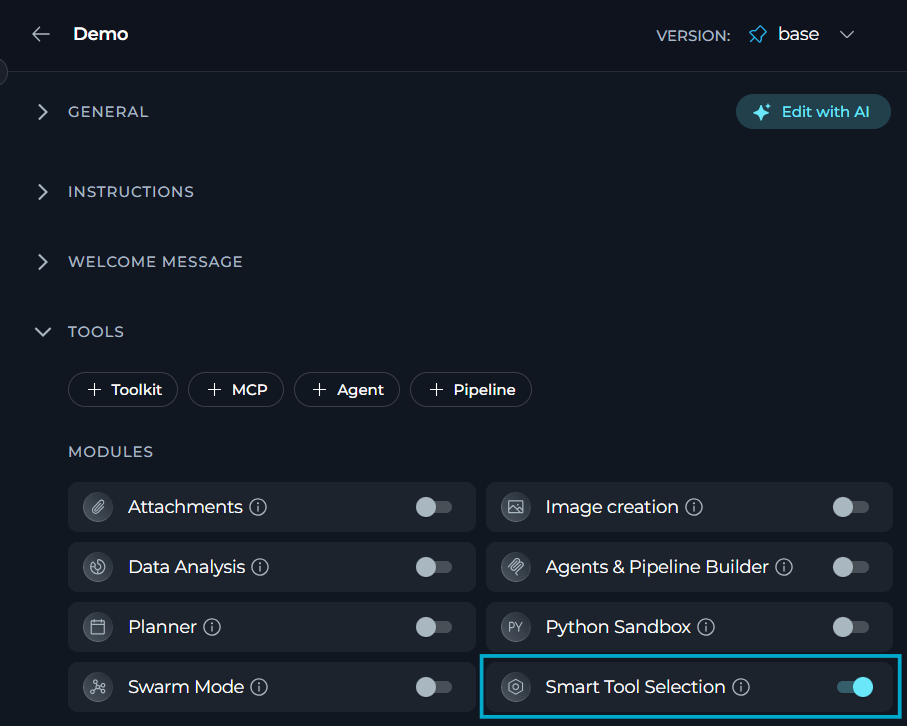
How Smart Tools Selection Works
With Smart Tools Selection enabled:- Only two meta-tools are bound to the LLM:
get_tool_schemaandinvoke_tool - Every configured toolkit’s tools remain reachable through
invoke_tool, without being bound directly - The assistant retrieves a tool’s parameter schema on demand via
get_tool_schema, right before calling it - A compressed toolkit index (toolkit names, tool lists, instance descriptions) is included in the system prompt instead of full tool schemas
- Toolkit structure is preserved, so tools stay organized and easy to discover
- Planner — always bound directly to the model, never routed through
get_tool_schema/invoke_tool. Enabling Smart Tools Selection brings no benefit here. - Image Creation — implemented as a direct model/provider call, not a tool bound to the LLM at all, so it’s unaffected either way.
- Swarm Mode — forces every peer agent’s tools to bind directly for that peer, which disables lazy loading for the whole toolset while Swarm Mode is active.
- Python Sandbox, Data Analysis, Ask User — no exemption. These are ordinary toolkit tools and get swept into the lazy-tools registry like any other tool once the 20-tool threshold is met.
Traditional Approach vs Smart Tools Selection
Actual token savings depend on toolkit count, average tools per toolkit, and schema size — measure your own usage rather than relying on a fixed estimate.
Execution Flow
When Smart Tools Selection is enabled, ELITEA handles tool access automatically:- Toolkit Index Generation: The system generates a compressed index of all available toolkits and their tools.
- Meta-Tool Binding: Only
get_tool_schemaandinvoke_toolare bound to the LLM, instead of every individual tool. - Schema Retrieval: When a tool is needed, the assistant calls
get_tool_schemato learn its parameters. - Tool Invocation: The assistant calls
invoke_toolwith the toolkit name, tool name, and arguments. - Result Return: The tool’s result is returned to the conversation like any other tool call.
invoke_toolcalls are not shown as a separate action chip, butget_tool_schemalookups appear as visible steps in the assistant’s action trace.
When Smart Tools Selection is enabled, a compressed toolkit index is included in the system prompt:
This compact format lets the assistant access hundreds of tools while using minimal tokens. The
System Prompt
System Prompt
Tools (N) count per type is deduplicated across instances of the same type, but the final Total counts tools per toolkit instance — so two GitHub instances with 45 identical tool names each contribute 45+45 to the total, not 45.Possible Use Cases
Many Configured Toolkits
- Token savings scale with toolkit and tool count
- No effect below 20 eligible tools total
Cross-Platform Integration
- Agents orchestrating work across GitHub, Jira, Confluence, Slack, etc.
- Each additional platform increases the value of on-demand loading
Multi-Instance Toolkits
- Agents managing multiple instances of the same service (e.g., several GitHub repositories)
- Reduced token overhead while keeping access to every instance
Token-Constrained Conversations
- Conversations that would otherwise approach context limits with many bound tools
- Frees up context for actual conversation content
Limitations
- Hard 20-tool floor: Smart Tools Selection is silently disabled whenever the eligible tool count (excluding always-bound tools like Planner’s) is below 20 — even with the toggle on, every tool remains directly bound with no warning shown.
- Latency: Meta-tool invocations add roughly 1-2 seconds per tool call. For latency-critical, single-toolkit operations, direct binding may be preferred.
- Highly repetitive tool usage: When a conversation repeatedly uses the same 2-3 tools, direct binding keeps schemas in context without repeated lookups.
- Keyword-based pre-selection can bypass meta-tools: A separate toolkit pre-selection step can bind a toolkit’s tools directly based on keywords in the request, independent of the 20-tool floor — those tools are bound directly for that turn rather than routed through
get_tool_schema/invoke_tool. - Sub-agents and pipelines are always bound: Child agents and pipelines added as tools are always bound directly to the model and are never routed through the meta-tools, regardless of toolkit or tool count.
Example Scenarios
QA Testing Coordinator
QA Testing Coordinator
Scenario: A QA engineer uses an agent to manage test cases across multiple test management systems and coordinate with development teams.Configuration:
- TestRail (test case management)
- Xray (Jira test management)
- GitHub (2 repositories for test automation)
- Slack (team communication)
- Artifact storage (test results)
- Total: 6 toolkits, ~85 tools
Find all failed test cases from yesterday's regression suite in TestRail, check if there are existing bugs in Xray for these failures, and create GitHub issues for any new defects
Smart Tools Selection allows the agent to seamlessly query TestRail, cross-reference with Xray, and create GitHub issues — all while keeping token usage minimal despite having access to multiple test management platforms.Multi-Client Services Agency
Multi-Client Services Agency
Scenario: A digital agency manages projects for 5 different clients, each with their own GitHub repository and Jira project.Configuration:
- 5 GitHub repositories (one per client)
- 5 Jira projects (one per client)
- 1 Confluence space (internal documentation)
- 1 Slack workspace (internal communication)
- Total: 12 toolkits, ~160 tools
Check the status of Client A's payment feature PR, update Client B's sprint board with completed stories, and document the deployment process in our internal wiki
The agent can work across multiple client repositories and projects efficiently, with the assistant only loading the specific tools needed for each client when required.Documentation Hub Agent
Documentation Hub Agent
Scenario: A technical writer maintains documentation across multiple platforms and needs to keep content synchronized.Configuration:
- 3 Confluence spaces (product docs, internal wiki, knowledge base)
- 2 GitHub repositories (docs-as-code projects)
- SharePoint (legacy documentation)
- Artifact storage (documentation assets)
- Total: 7 toolkits, ~95 tools
Search all documentation sources for references to the old API endpoint, update them with the new endpoint, and create a migration guide in the product documentation space
Smart Tools Selection enables efficient cross-platform documentation searches and updates without the overhead of binding nearly 100 documentation-related tools.Best Practices
Use descriptive toolkit names for multi-instance configurations
Use descriptive toolkit names for multi-instance configurations
When configuring multiple instances of the same toolkit type (e.g., GitHub for different repos), use clear, semantic names that the assistant can understand:
github_frontend, github_backend, github_docs rather than generic names.Leverage schema reuse across toolkit instances
Leverage schema reuse across toolkit instances
Toolkits of the same type share identical schemas. The assistant calls
get_tool_schema once to learn a tool’s parameters, then reuses that knowledge across all instances by changing only the toolkit name in invoke_tool calls.Monitor and validate token savings
Monitor and validate token savings
Use your LLM provider’s token monitoring dashboard to verify actual savings. Compare usage before and after enabling.
Test before deploying to production
Test before deploying to production
For new multi-toolkit agents, test both configurations: run the agent with Smart Tools Selection disabled to establish a baseline, then enable it to measure performance and token savings in your specific use case.
Configure only necessary toolkits
Configure only necessary toolkits
Smart Tools Selection optimizes token usage but doesn’t replace thoughtful toolkit selection. Only configure toolkits that the agent actually needs — unused toolkits still add to the index size.
Consider latency requirements
Consider latency requirements
Meta-tool calls add minimal overhead (1-2 seconds per tool invocation). For latency-sensitive applications using few toolkits, evaluate whether the token savings justify the additional response time.
Troubleshooting
Tools not being invoked
Tools not being invoked
Possible causes:
- Smart Tools Selection not properly enabled
- Meta-tools not accessible to the assistant
- Toolkit index not generated
- Verify Smart Tools Selection is enabled in Modules.
- Check conversation logs for meta-tool calls (
get_tool_schema,invoke_tool). - Try disabling and re-enabling Smart Tools Selection.
- If issues persist, disable Smart Tools Selection and use traditional tool binding.
Increased latency
Increased latency
Possible causes:
- Additional meta-tool calls add minor overhead
- Multiple schema lookups for complex workflows
- This is expected behavior — Smart Tools Selection trades minimal latency for significant token savings.
- For latency-critical single-toolkit use cases, consider disabling Smart Tools Selection.
- Latency overhead is typically 1-2 seconds per tool invocation.
- There is no built-in caching of schema results — each
get_tool_schemacall is a fresh lookup, so repeated calls for the same tool are expected.
Tool not found errors
Tool not found errors
Possible causes:
- Incorrect toolkit name in invocation
- Tool not available in specified toolkit
- Toolkit index not properly synchronized
- Tool blocked by security policy
- The assistant receives detailed error messages with available toolkits and tools.
- Error responses include suggestions for correct toolkit/tool names.
- The assistant can self-correct by using the provided information.
- If the error text says the tool “is blocked by security policy,” the tool is intentionally disabled — check with your administrator rather than treating it as a naming or configuration issue.
- If errors persist otherwise, verify toolkit configuration in agent settings.
Higher token usage than expected
Higher token usage than expected
Possible causes:
- Using single or few toolkits (limited benefit)
- Frequent schema lookups for different tools
- Very long conversation history
- Verify you have 5+ toolkits configured for meaningful savings.
- Review the conversation to ensure meta-tools are being used.
- Consider disabling Smart Tools Selection for single-toolkit use cases.
- Token savings are most significant in the system prompt, not conversation history.
Schema errors or missing parameters
Schema errors or missing parameters
Possible causes:
- Tool schema not properly extracted
- Parameter validation issues
- Toolkit metadata incomplete
- Error messages include detailed parameter requirements and examples.
- The assistant receives schema information before invocation.
- Verify toolkit configuration includes proper tool metadata.
- If specific tools fail consistently, report to system administrators.