

MCP Canvas Feature: Visual MCP Management
The MCP Canvas interface in ELITEA serves as an integrated MCP management system accessible directly from the chat interface. This feature enables you to create, configure, and manage Model Context Protocol connections without leaving your conversation context.Integrated Chat Experience
Access MCP management directly from the PARTICIPANTS section in chat, maintaining conversation context while configuring integrations.
Real-time Validation
Configuration fields are validated in real-time, ensuring correct setup before the MCP is created.
Instant Integration
Created MCPs are immediately available for use in the current conversation and appear in the PARTICIPANTS panel.
Dynamic Tool Discovery
MCP tools are automatically discovered from connected MCP servers via the Elitea MCP Client..
Two Connection Types
Connect to Local MCP servers discovered from your running Elitea MCP Client, or configure a Remote MCP connection to any HTTP-based MCP server.
Creating MCPs via Canvas Interface
1
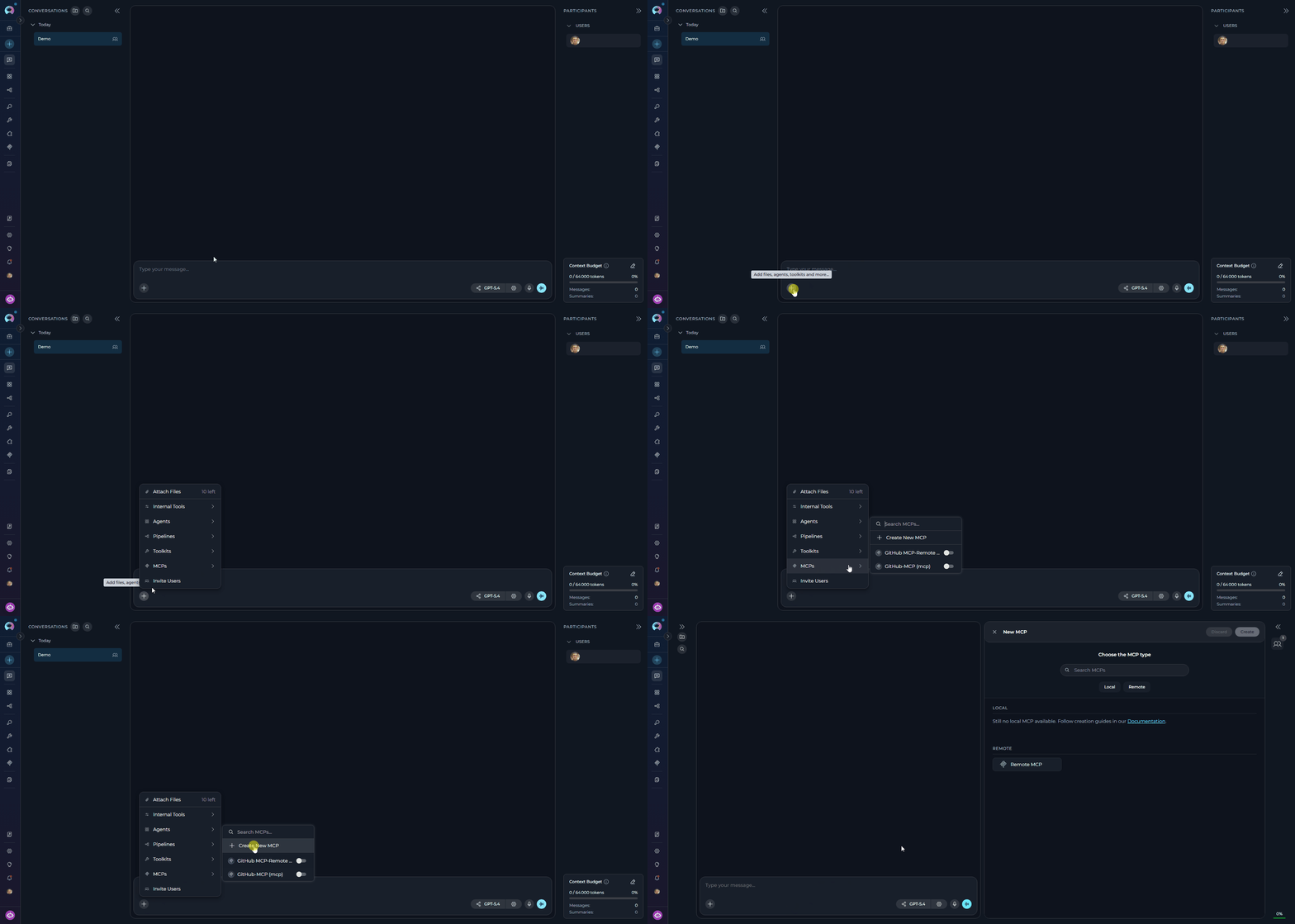
Access the MCP Creation Canvas
- Navigate to the Chat page (main sidebar menu).
- In the chat input toolbar, click the
+icon. - Hover over MCPs to expand the submenu.
- Click Create New MCP at the bottom of the submenu.
2
Select an MCP Type
The type selector displays all available MCP types grouped into two categories:To find an MCP type:Clicking an MCP type immediately loads its configuration form.
- Browse by category — Scroll through the Local and Remote groups and click an MCP type.
- Search — Type in the “Search MCPs” field to filter by name. Results update in real-time.
- Local
- Remote
Local MCP types are MCP servers that you have configured and connected via the Elitea MCP Client running on your machine. Any MCP server connected through the client (e.g., Playwright, GitHub, Figma, or other stdio/http-based MCP servers) automatically appears here.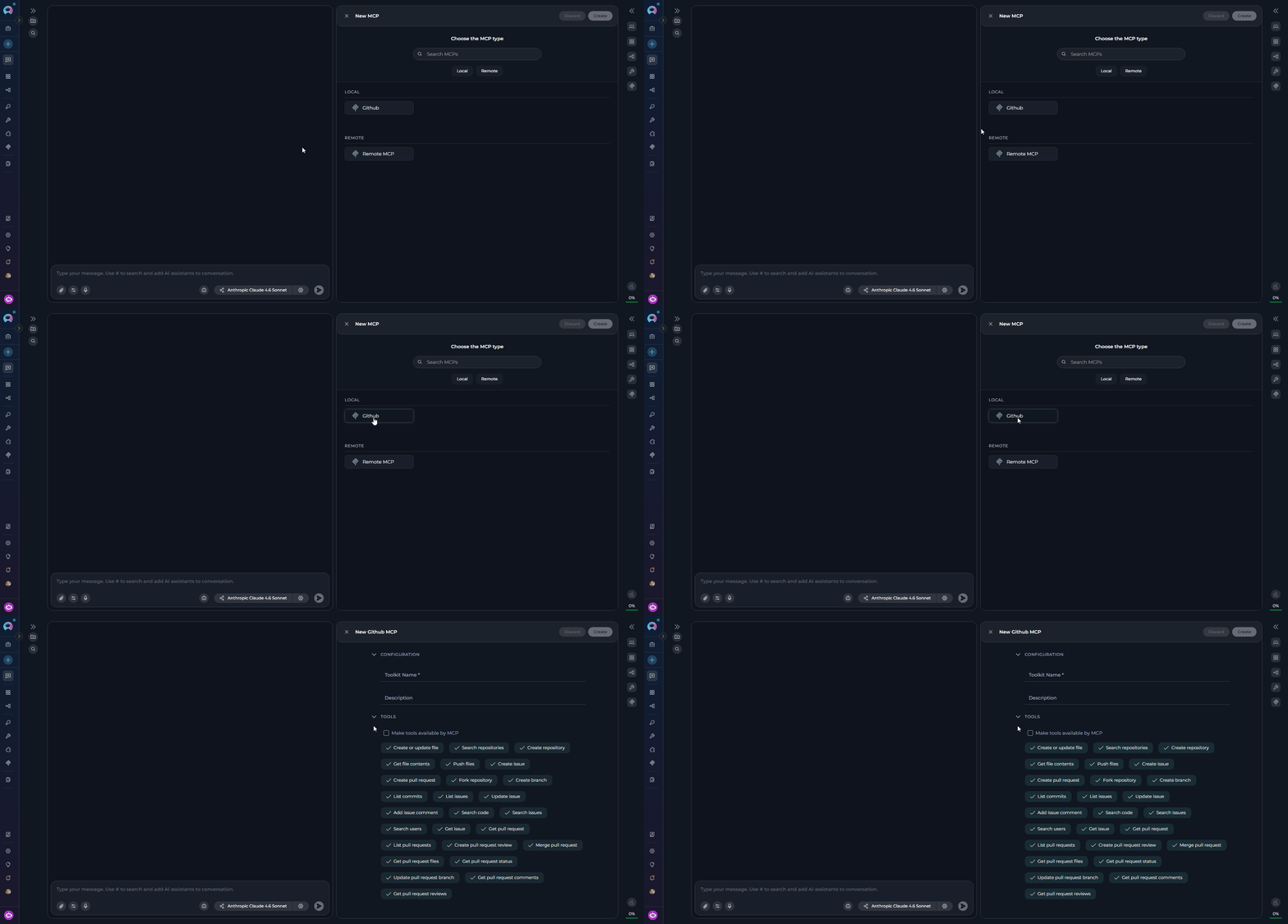
3
Configure the MCP
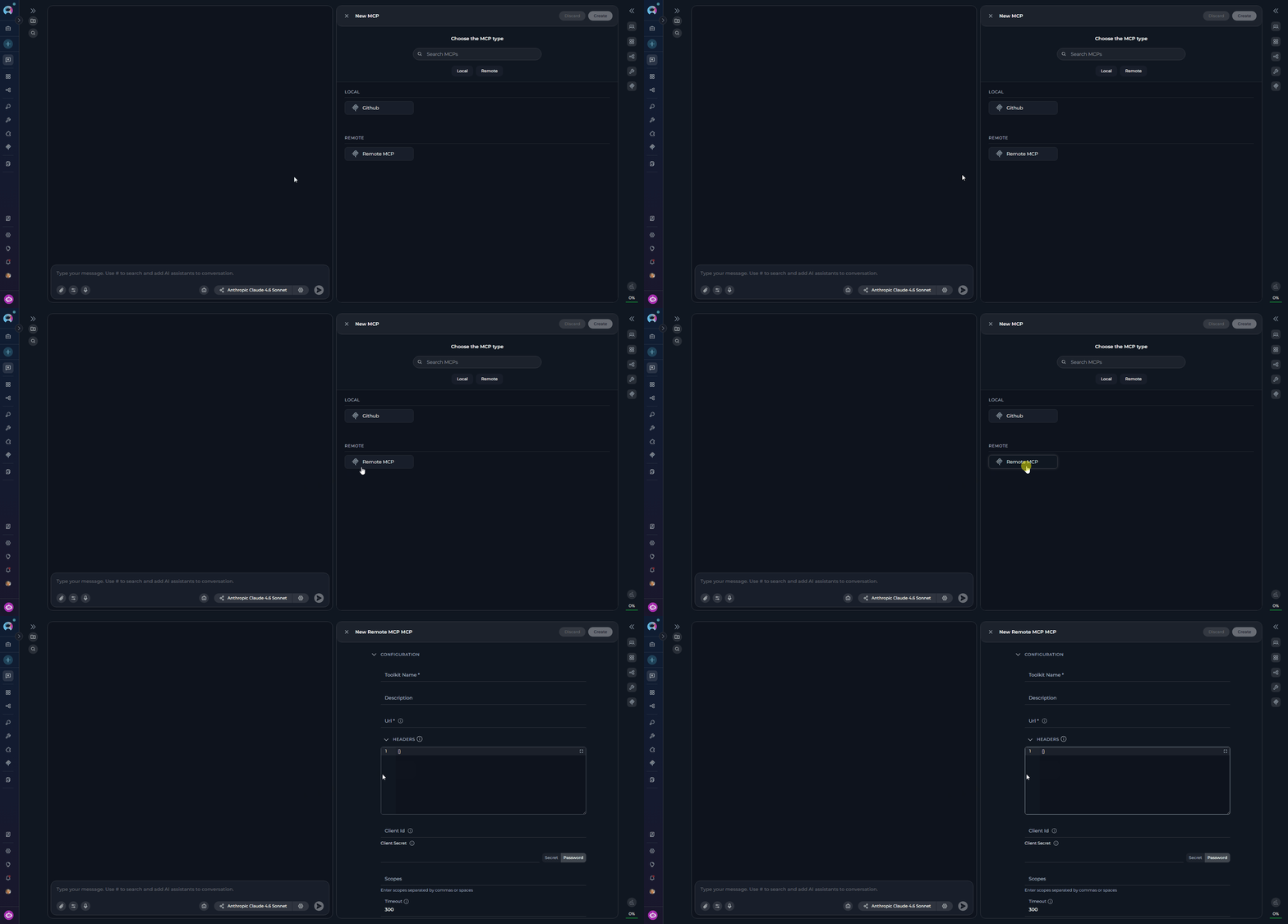
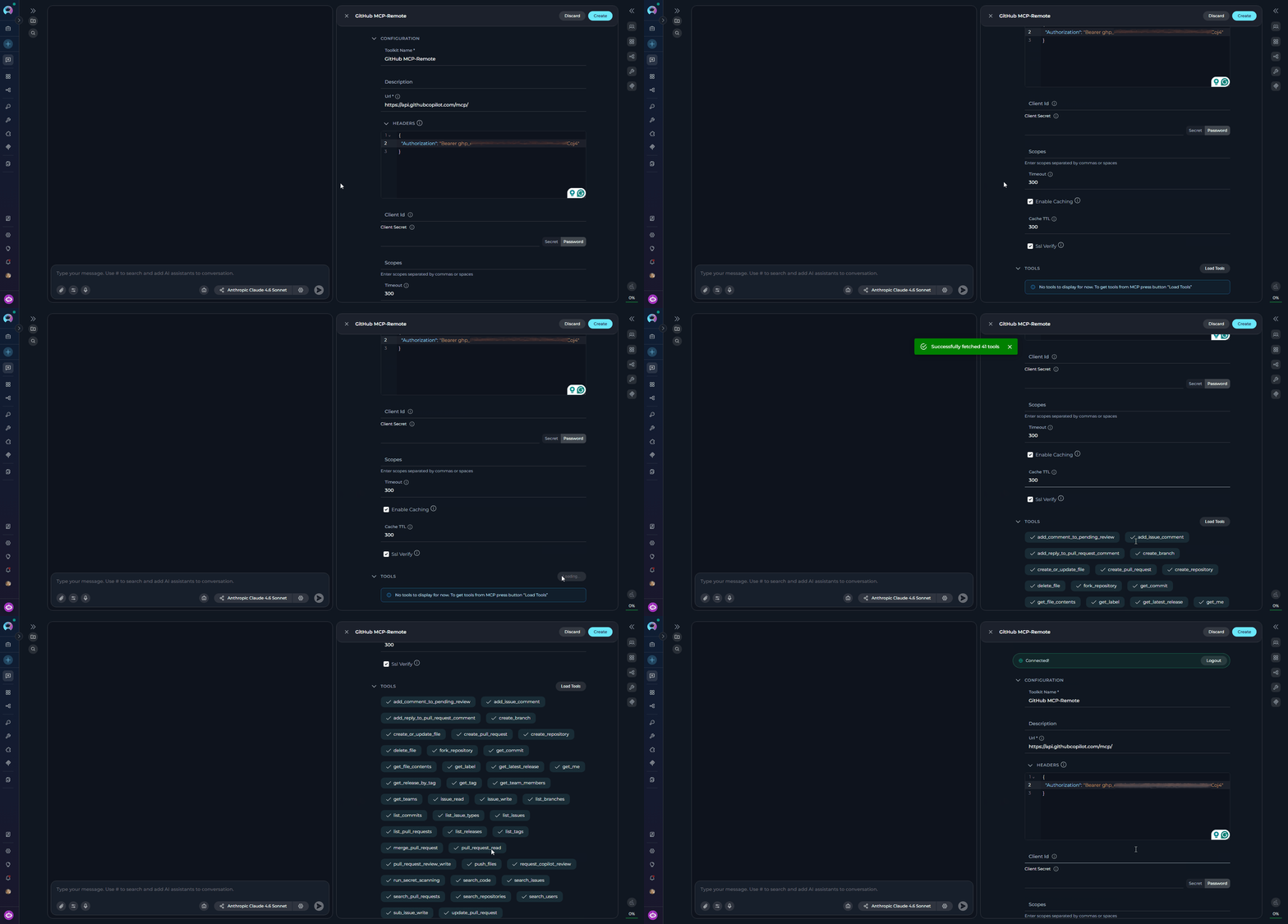
After selecting the MCP type, the Create MCP canvas interface slides in with the available configuration fields.
- Local MCP
- Remote MCP
Local MCP configuration is minimal — the server’s tools and schema are automatically discovered from your connected Elitea MCP Client. Fill in the following fields: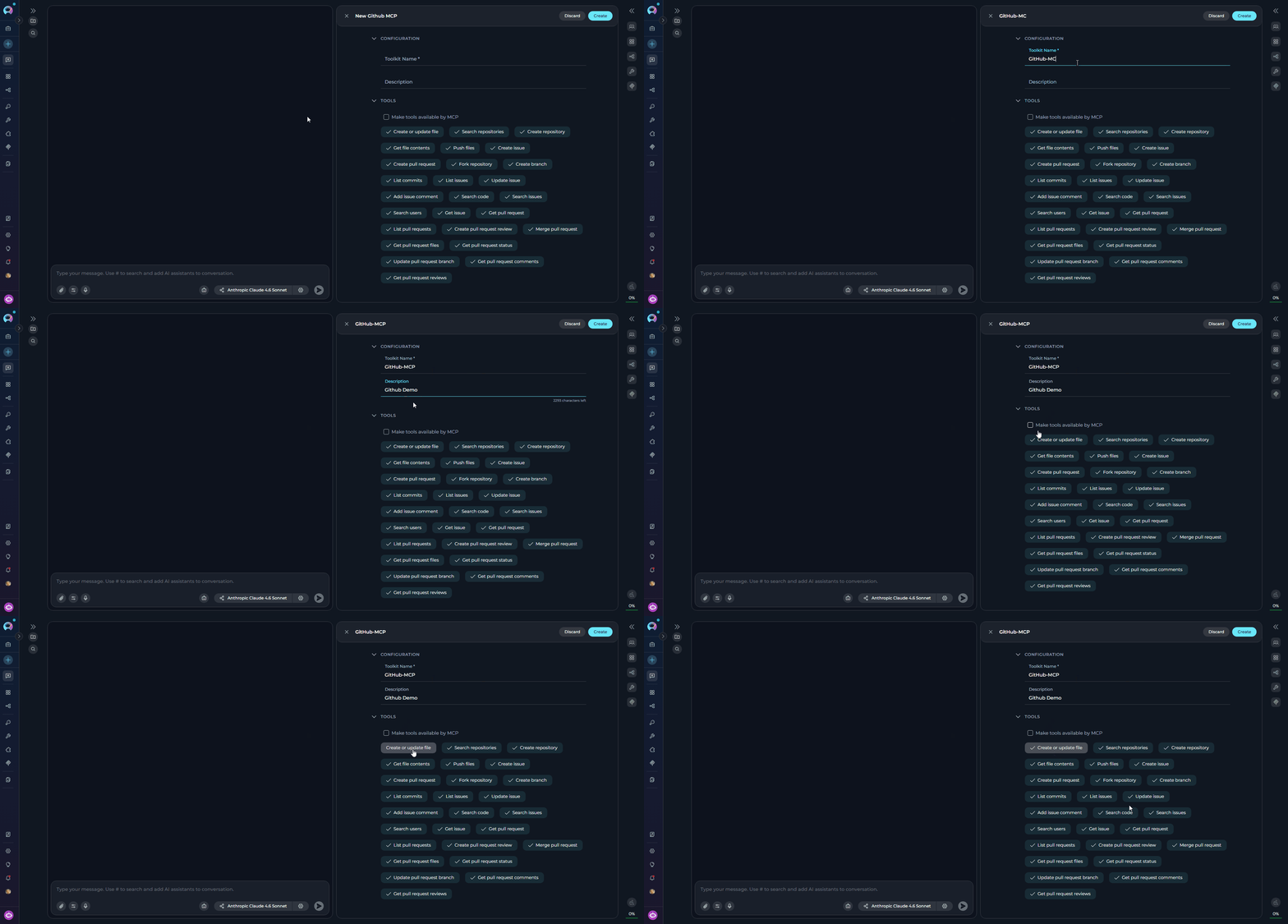
The available tools in the TOOLS section are automatically populated from the connected MCP server. No additional connection configuration is required for Local MCPs.
4
Create the MCP
Once you have completed configuring your MCP: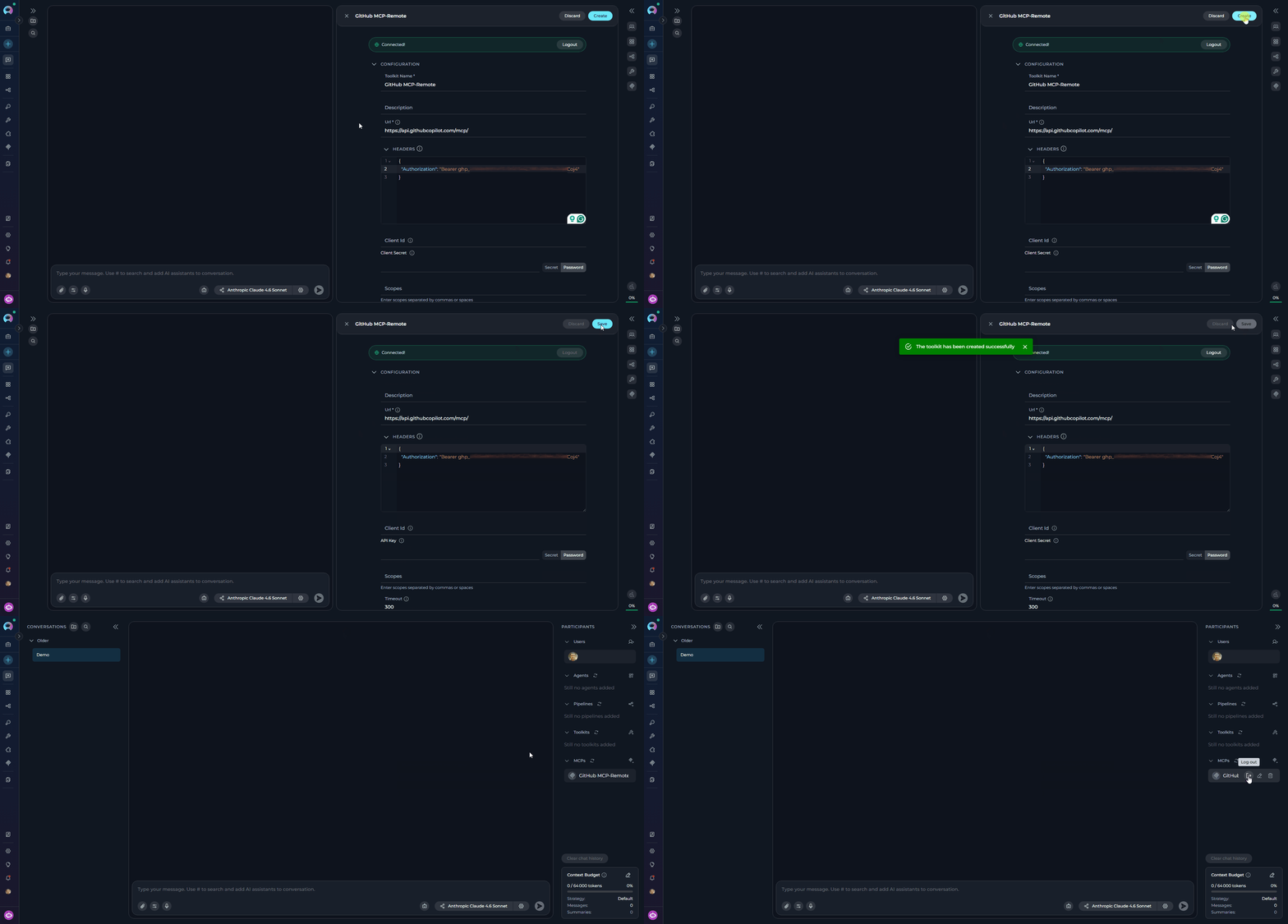
- Click the Create button to save the configuration.
- Click the × button to close the canvas interface.
Editing MCPs via Canvas Interface
Accessing MCP Edit Mode
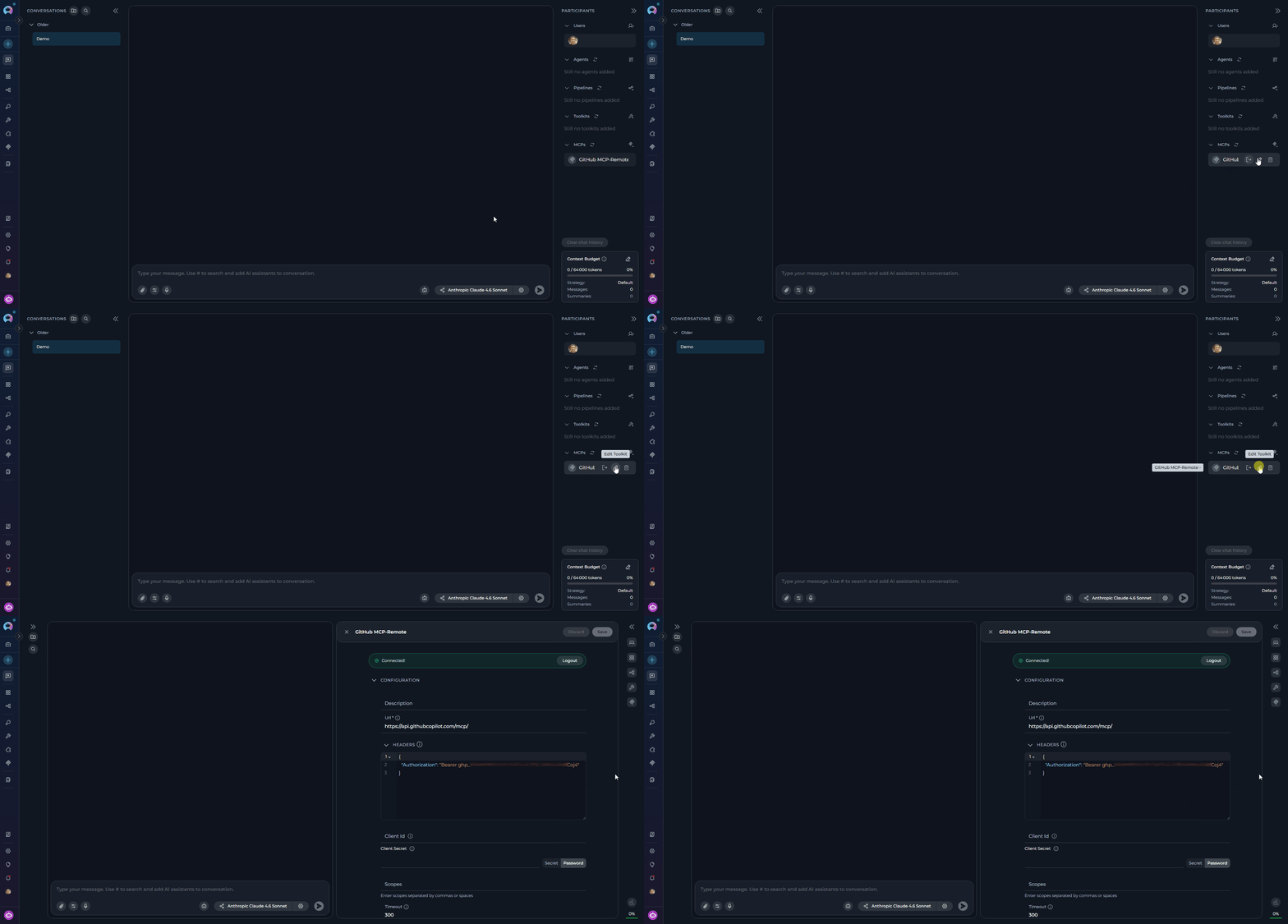
- Navigate to the Chat page where the MCP is listed as a participant.
- In the PARTICIPANTS section, locate the MCPs group.
- Hover over the MCP you want to edit to reveal the action icons.
- Click the pencil Edit MCP icon.
Modifying MCP Configuration
Once in edit mode you can modify any of the following:Description
Update the MCP’s description. Note that the MCP name cannot be changed via the canvas interface.
Configuration Fields
Update type-specific parameters such as server URL, authentication headers, timeout, and caching settings.
Selected Tools
Toggle individual tools on or off in the TOOLS section to control which capabilities are exposed to the AI.
Connection Status (Remote MCP)
For Remote MCPs that use OAuth, a Log In / Log Out button appears in the PARTICIPANTS panel. Click Log In to complete the OAuth authorization flow, or Log Out to revoke the active session.
If an MCP loses its connection, the participant item in the PARTICIPANTS panel displays a disconnection warning: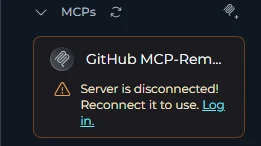
- Local MCP — Displays: “The <server-name> mcp server is disconnected. Reconnect it to use.” No Log in button is shown. To resolve, ensure the Elitea MCP Client is running and the MCP server is active.
- Remote MCP — Displays: “Server is disconnected! Reconnect it to use.” with a Log in link. Click Log in to re-authenticate and restore the connection.
Troubleshooting
Validation error on create or save
Validation error on create or save
Problem: A toast message appears — “Please fill in all required fields before creating the toolkit.”
- Review all fields marked with an asterisk
*and ensure they are completed. - Inline red borders and error text below individual fields indicate exactly which fields need attention.
- Check that the MCP Name field is filled in — it is required for all MCP types.
- For Remote MCP, verify that the URL field is filled in and uses
http://orhttps://.
No Local MCP types available
No Local MCP types available
Problem: The Local category in the type selector is empty.
- Local MCP types are discovered from your Elitea MCP Client. If none appear, ensure the MCP Client is installed, running, and has at least one MCP server connected.
- Verify the MCP Client is active and connected to the ELITEA platform — the UI discovers available servers via real-time updates.
- See the MCP Client integration guide for setup instructions.
- You can still use Remote MCP to connect directly to any HTTP-based MCP server without the client.
Cannot access edit mode for existing MCP
Cannot access edit mode for existing MCP
Problem: The pencil edit icon is not visible or clicking it does nothing.
- Hover directly over the MCP row in the PARTICIPANTS panel — the action icons appear only on hover.
- If the MCP belongs to a public project, the form fields will be read-only and editing is not permitted.
- Verify you have the Edit permission for this project. Users without edit permissions cannot modify MCPs.
MCP not appearing in PARTICIPANTS after creation
MCP not appearing in PARTICIPANTS after creation
Problem: The MCP was created successfully but is not visible in the PARTICIPANTS panel.
- After creation, the MCP is added to the available MCPs list but is not automatically set as an active participant. Locate it in the +Add MCP dropdown and select it to add it to the current conversation.
- Verify the MCP was created in the correct project — check that you are viewing the right project in the sidebar.
- If you still cannot find it, refresh the page and check again.
Remote MCP shows a disconnected or logged-out warning
Remote MCP shows a disconnected or logged-out warning
Problem: A Remote MCP participant displays “Server is disconnected! Reconnect it to use.” with a Log in link in the PARTICIPANTS panel.
- The Remote MCP’s OAuth token has expired or was never set. The MCP cannot be used until re-authenticated.
- Click the Log in link on the participant item. An OAuth authorization modal will open automatically.
- Complete the authorization flow in the modal. After a successful login, the MCP reconnects and retries automatically.
- If the modal shows a 403 error after login, the OAuth token may have insufficient scopes — re-authorize and ensure all required scopes are granted.
Load Tools fails for Remote MCP
Load Tools fails for Remote MCP
Problem: Clicking Load Tools returns an error or discovers no tools.
- Ensure the URL field is filled in before clicking Load Tools — if it is empty, the error “MCP server URL is required” will appear.
- If a 401 Unauthorized error appears (“Authorization failed. Please try logging in again.”), the OAuth token is invalid or expired. The OAuth modal will open automatically — complete the login flow and Load Tools will retry automatically.
- If a 403 Forbidden error appears (“Access denied. The OAuth token may have insufficient permissions…”), re-authorize using the OAuth modal and ensure all required scopes are included.
- If the server URL is correct and authentication succeeds but no tools are returned, verify that the remote MCP server exposes tools and is reachable from the ELITEA platform.
For additional information and related functionality, explore these related guides and references:
- MCP Menu - Complete reference for MCP management and configuration options
- Chat Menu - Comprehensive guide to chat interface features and navigation
- Credential Menu - Detailed instructions for managing authentication credentials
- How to Create and Edit Toolkits from Canvas - Similar guide for toolkit management
- How to Create and Edit Agents from Canvas - Similar guide for agent management
- How to Create and Edit Pipelines from Canvas - Similar guide for pipeline management