

Introduction
AvailabilityThe Support Bot is an optional feature, turned on at the deployment level. If you do not see the entry in the sidebar, the feature is not active in your environment.
Context-Aware Assistance
The Support Bot automatically tracks your current project, page, and open entity, so you can ask questions about exactly what you are working on.
File Attachments
Attach files to your messages by clicking the paperclip icon, dragging and dropping, or pasting images directly from your clipboard.
Conversation History
All your past conversations are saved and accessible from the history panel in the Support Bot header.
Markdown Responses
Responses render with full Markdown formatting, including code blocks, tables, lists, and inline styling.
Mermaid & Image Rendering
Mermaid code blocks render as visual diagrams, and inline images or GIFs render directly in the conversation with click-to-expand preview.
Fullscreen Mode
Expand the Support Bot to a fullscreen overlay for a more focused interaction when you need more space.
Theme-Aware Interface
The widget automatically matches the active light or dark theme of the ELITEA UI.
Authentication Is AutomaticThe Support Bot authenticates using your platform session, so there is nothing to set up. If you do not have a personal access token of your own, ELITEA automatically falls back to a platform-managed token for you. Visit Settings → Personal Tokens only if you want a personal token for other purposes, for example direct API access.
Open the Support Bot
When enabled, the Support Bot entry appears at the bottom of the main navigation sidebar.- When the sidebar is expanded, the entry shows the icon with the Support Bot label.
- When the sidebar is collapsed, only the icon is shown.
Send a Message
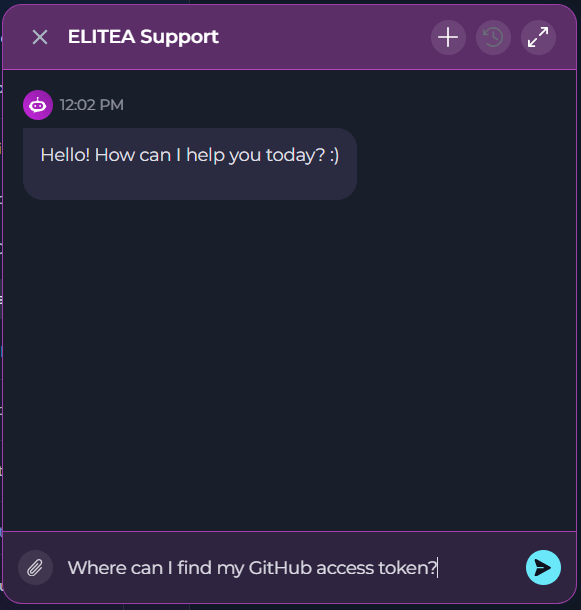
- Click Support Bot in the sidebar to open the chat panel.
- Type your question or issue in the input field at the bottom.
- Press Enter to send, or Shift + Enter to add a new line without sending.
- The Support Bot streams its response in real time. A typing indicator (three animated dots) appears while the response is being generated.
Stopping a ResponseWhile the Support Bot is generating a response, a Stop button appears in place of Send. Selecting it interrupts generation immediately. Any partial output already produced remains visible in the conversation, followed by a message confirming that generation was stopped.
Response Rendering
The Support Bot uses the same rich message rendering approach as the main ELITEA Chat experience for common response content.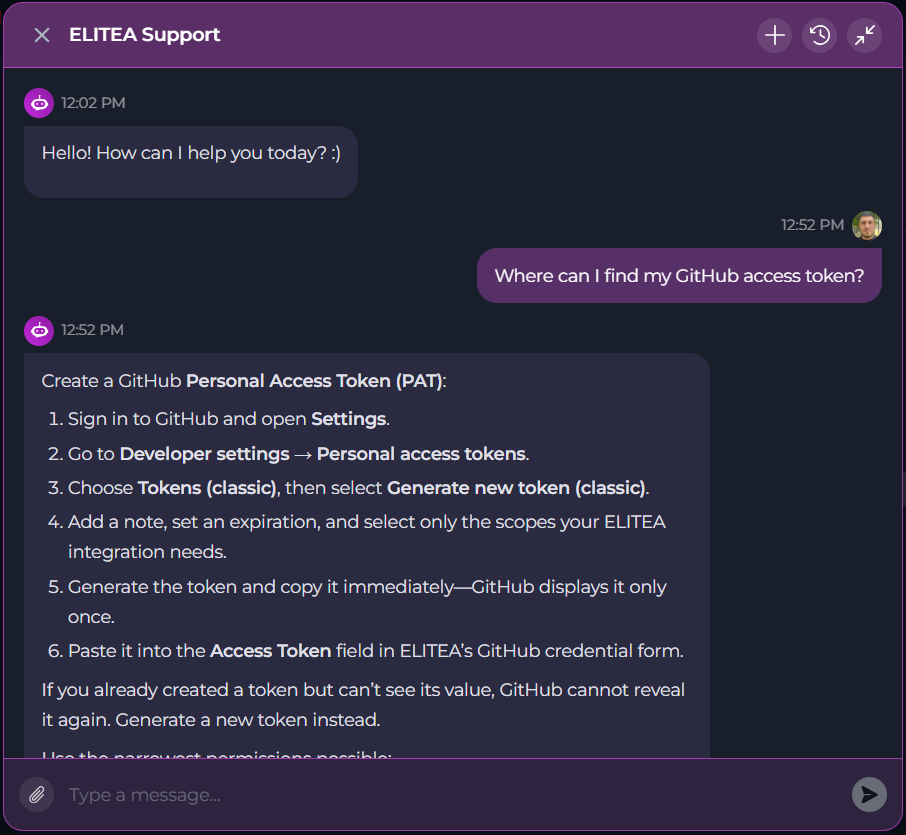 Rendering parity includes:
- Mermaid diagrams: fenced code blocks marked as
mermaidrender as visual diagrams instead of raw code. - Inline images and GIFs: both Markdown image syntax and inline HTML
<img>tags render directly in the conversation. - Expanded image preview: selecting an inline image opens a larger preview overlay for easier inspection.
- Markdown formatting: tables, lists, headings, inline code, and standard fenced code blocks render in formatted form.
Support Bot responses support Mermaid diagram rendering and inline image rendering through the same Markdown pipeline used by the Support Bot widget, including GitHub-flavored Markdown and embedded raw HTML image tags.
Attach Files
You can attach files to provide additional context alongside your message. To attach a file:- Click the paperclip icon in the input area to open the file picker.
- Drag and drop files directly onto the input area.
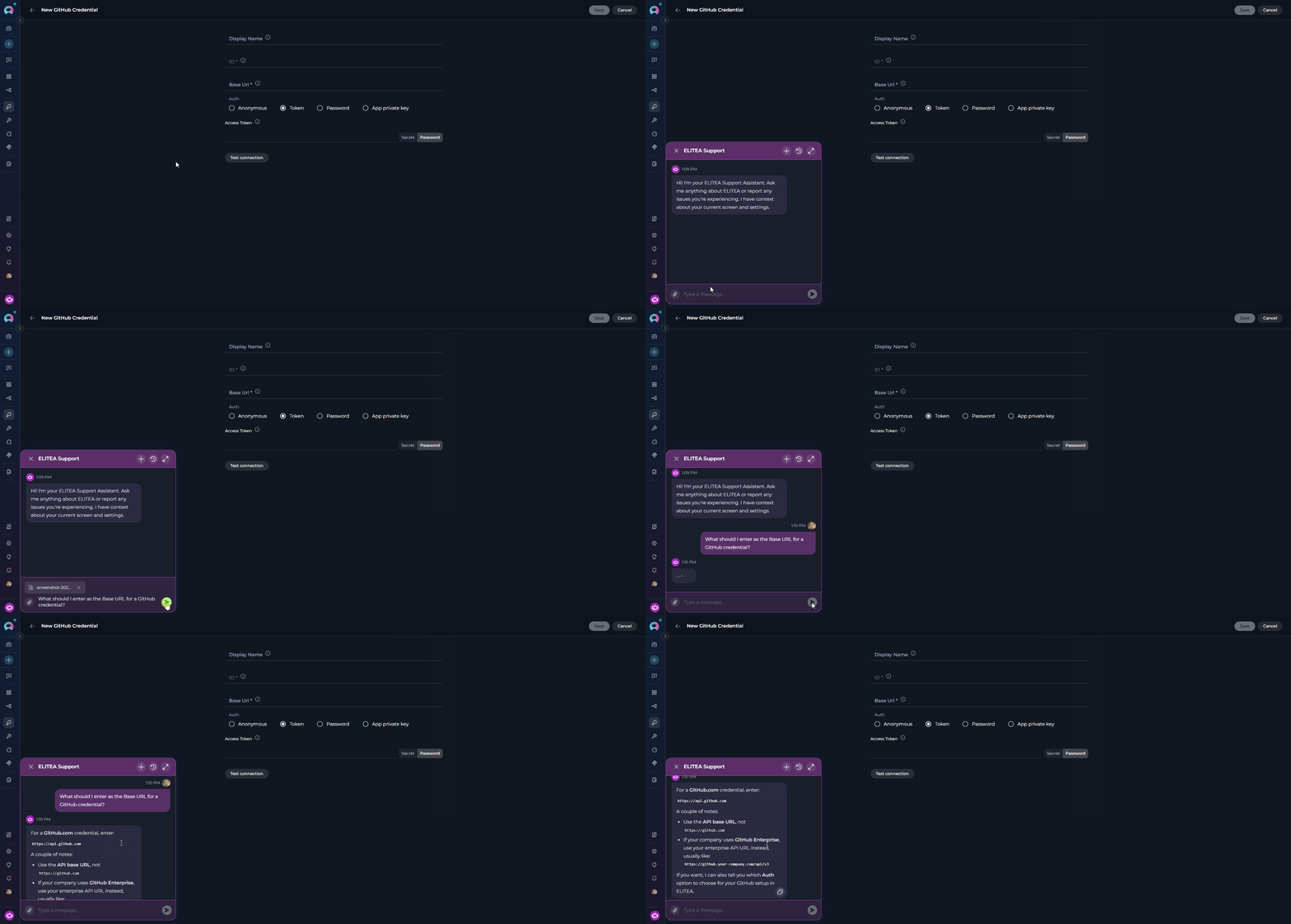
- Paste an image from your clipboard directly into the text field. Screenshots are automatically renamed with a timestamp.
Limits:
- Up to 10 attachments per message
- Images: max 3 MB each
- Other files: max 150 MB each
- Total upload size: max 150 MB per message
Conversation History
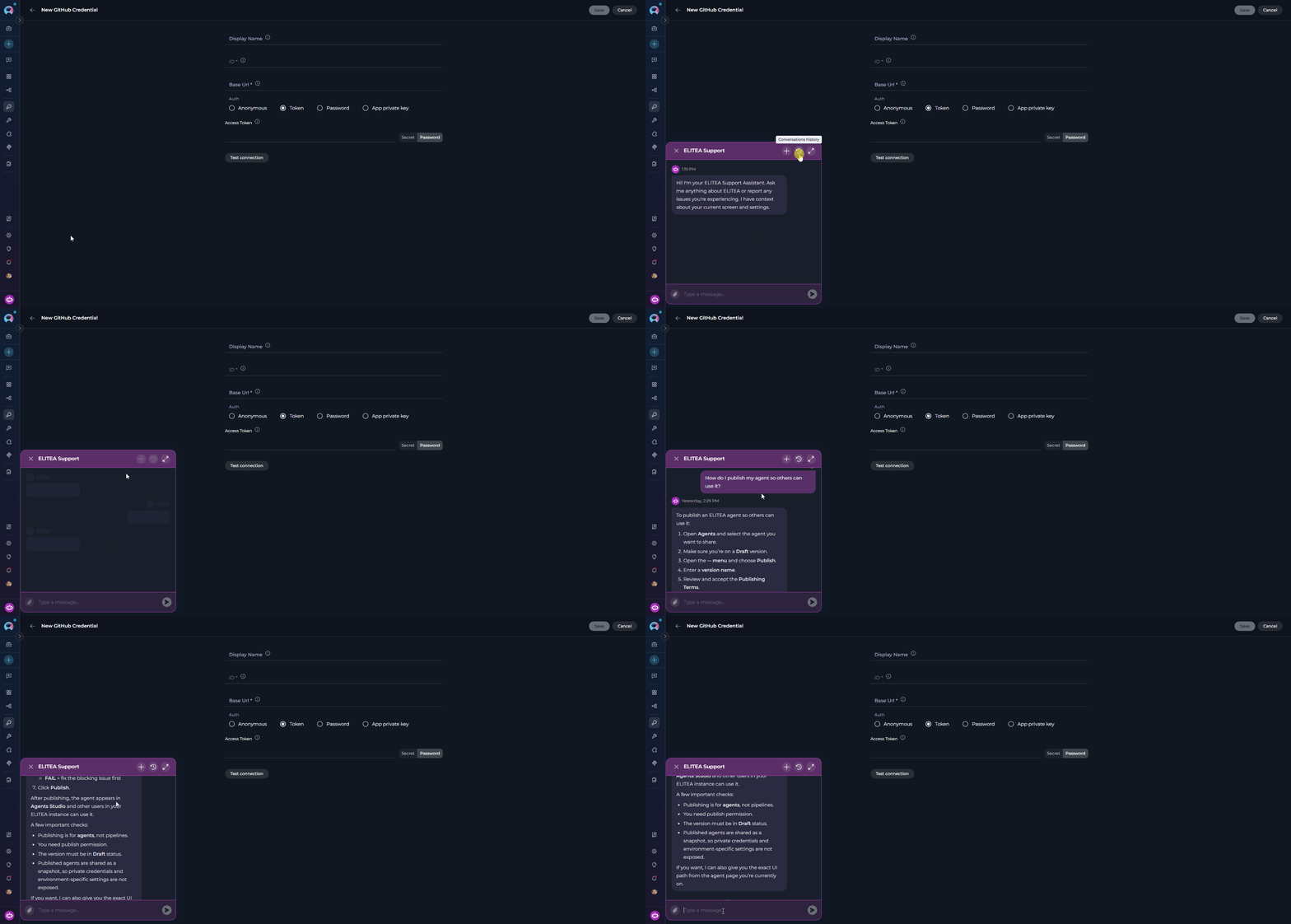
The Support Bot saves all your previous conversations. To revisit a past conversation:- Click the history icon in the Support Bot header.
- A dropdown list of your past conversations appears.
- Click any conversation to load it and continue where you left off.
Context Passed to the Support Bot
The Support Bot receives the following context from your current session, which informs the responses it provides:- Project: the currently selected project ID and name
- Current page: the URL of the page you are viewing
- Browser info: user agent string
The Support Bot reads your context to provide more relevant answers. It does not perform actions in ELITEA on your behalf unless your administrator has configured the backing agent with tools to do so.
Troubleshooting
Support Bot Panel Opens but Receives No Response
Support Bot Panel Opens but Receives No Response
An ELITEA agent backs the Support Bot. If responses are not returned, the backing agent may be misconfigured, offline, or missing the necessary credentials. Contact your platform administrator to verify the agent and its configuration.
File Attachment Fails or Shows an Error
File Attachment Fails or Shows an Error
Check that your file meets the supported type and size requirements: images must be under 3 MB, all other files under 150 MB, and no more than 10 attachments per message. Unsupported file types will show an error on the chip immediately after selection.
History Icon Is Grayed Out
History Icon Is Grayed Out
The history dropdown is only active when at least one previous conversation exists. If this is your first interaction with the Support Bot, no history is available yet.
Context Does Not Seem Relevant to My Current Page
Context Does Not Seem Relevant to My Current Page
The Support Bot captures context at the moment you open it. If you navigated to a different page after opening the panel, the context may not reflect your current location. Close and reopen the Support Bot to refresh the context.
Mermaid Diagram or Inline Image Does Not Render Correctly
Mermaid Diagram or Inline Image Does Not Render Correctly
The Support Bot renders Mermaid diagrams and inline images directly in the conversation. If rendering fails:
- Verify the Mermaid block uses valid fenced syntax such as
```mermaid. - Check that inline HTML image tags use a valid
srcvalue. - If a Mermaid diagram contains invalid syntax, the Support Bot may fall back to showing the raw Mermaid code block.
- Reload the page and reopen the Support Bot if the message was streamed while the widget was still initializing.
- Contact Support: reach the ELITEA Support Team for issues not covered in this guide.