

Introduction
The Notification Center supports:- Real-time delivery — Notifications arrive instantly via a live socket connection; a dot indicator on the sidebar button signals new unread items
- Quick panel access — A popover panel lets you review new notifications without leaving your current page
- Full table view — The dedicated Notification Center page lists all notifications with search, sorting, and bulk management tools
- Actionable links — Notification messages include direct links to the relevant entity (agent version, index, bucket, conversation, Settings page, etc.)
- Read/unread tracking — Each notification carries a read state that is visually reflected and can be changed individually or in bulk
- Bulk operations — Select multiple entries to mark them as read, mark them as unread, or delete them in a single action
Accessing Notifications
Click the Notifications button in the left sidebar to open the quick notification panel. A colored dot on the button signals unread notifications are waiting. The panel shows only unread notifications; scrolling loads more. Each entry displays an icon, message text, and a relative timestamp (e.g., “5 minutes ago”). Clicking an embedded link navigates to the relevant page. When empty, the panel shows “No notifications right now”. Click View all at the bottom to open the full Notification Center page. To close the panel, click the close button or anywhere outside it.Notification Center Page
The Notification Center page provides a full table view of all your notifications — read and unread — together with search, sorting, and bulk-action controls. Open it by clicking View all at the bottom of the quick notification panel.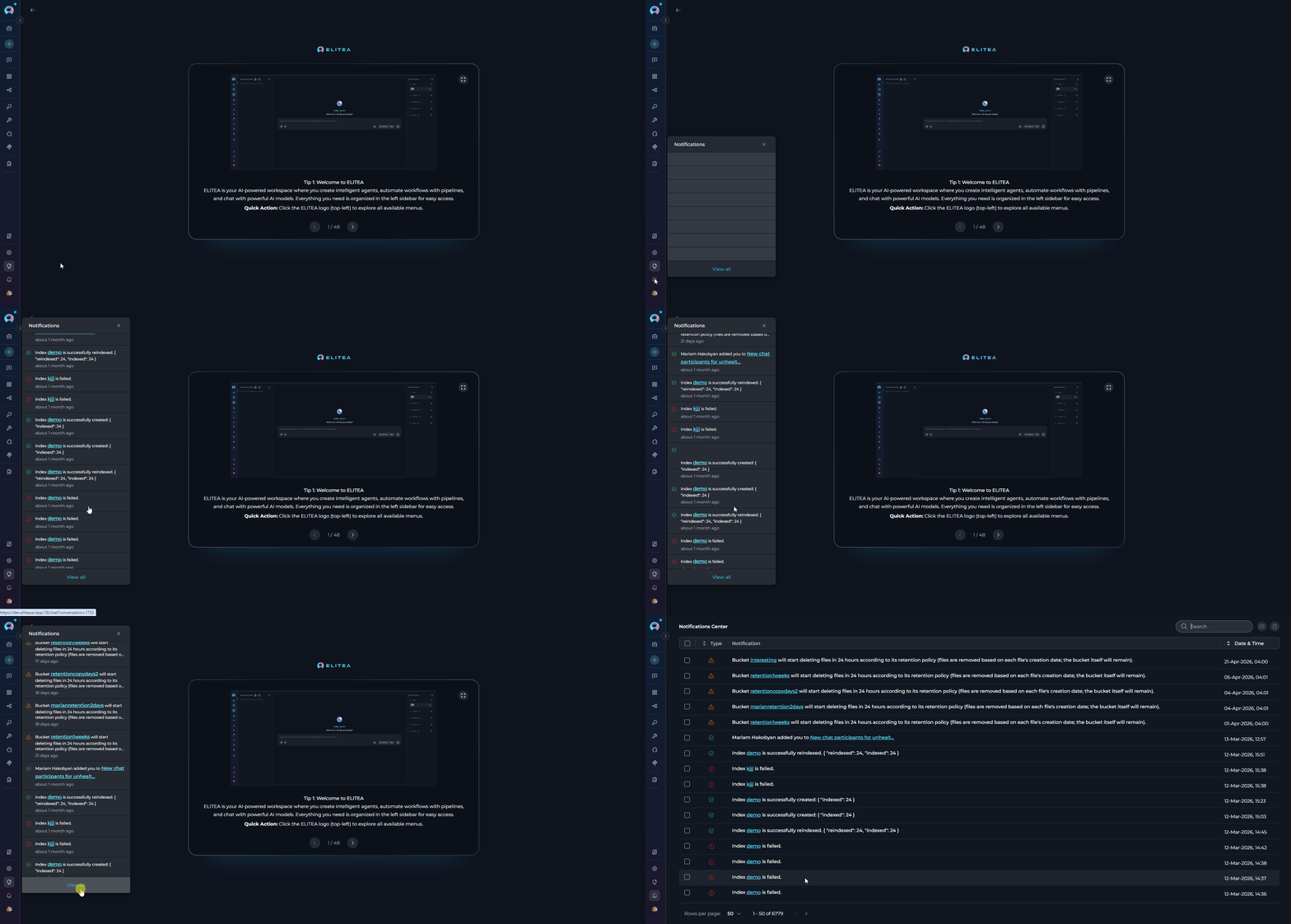
- Search — Filter notifications by keyword (event type or associated entity). The list updates automatically as you type.
- Sort — Click the Date & Time column header to toggle ascending/descending order.
- Bulk actions — Select one or more rows using the checkboxes, then use the toolbar buttons to mark selected as read/unread or delete selected notifications. The header checkbox selects all entries on the current page.
Notification Types
Each notification is identified by its event type and carries an icon indicating its category.Embedded Navigation Links
Several notification types include a clickable link that takes you directly to the relevant area of ELITEA:The quick notification panel shows only unread notifications and does not automatically mark them as read when the panel is opened. Navigating to the full Notification Center page marks all currently visible notifications as read. Use Mark selected as unread to restore the unread state on any entry.
Best Practices
Keeping the Notification List Manageable
Keeping the Notification List Manageable
- Periodically review notifications and delete entries that are no longer relevant.
- Use the Select all header checkbox followed by Delete selected notifications to clear an entire page at once.
- Use the Search bar to locate a specific event type or entity by keyword before performing bulk actions.
Acting on Personal Access Token Warnings
Acting on Personal Access Token Warnings
- A Personal access token expiring notification means the token will stop working within 24 hours. Delete and recreate the token from the Settings → Tokens page before it expires.
Acting on Index and Bucket Notifications
Acting on Index and Bucket Notifications
- An Index data changed notification with a red error icon indicates the indexing operation failed. Click the index name link in the notification to open the index detail page and investigate.
- A Bucket expiration warning means file deletion begins within 24 hours. Click the bucket link to review and back up any files you need to retain.
Managing Read and Unread State
Managing Read and Unread State
- The dot on the Notifications sidebar button disappears once there are no remaining unread notifications.
- To mark a batch of notifications as read without deleting them, select them and click the Mark selected as read button.
- To re-flag a notification for follow-up, select it and click Mark selected as unread to restore the unread indicator.