

Introduction
Help Center gives access to all ELITEA learning and reference materials.Documentation
API references, guides, and platform concepts for your version of ELITEA.
Release Notes
ELITEA updates, improvements, and bug fixes.
Video Library
ELITEA walkthroughs and recorded sessions at your own pace.
Tutorials
Step-by-step guides and use-cases to learn core workflows.
Interactive Tours
EGuided in-product tours.
Help Center content is configured by your platform administrator. No links will appear on the page unless they are enabled by your administrator. If Help Center appears empty, contact your administrator to configure the available content.
How to Get to the Help Center
Click the ? button at the bottom of the sidebar to open the Help Center.- When the sidebar is expanded, the Help Center entry is available from the ? button area at the bottom of the sidebar.
- When the sidebar is collapsed, you will see only the ? icon. Hover over it to see the “Help Center” tooltip.
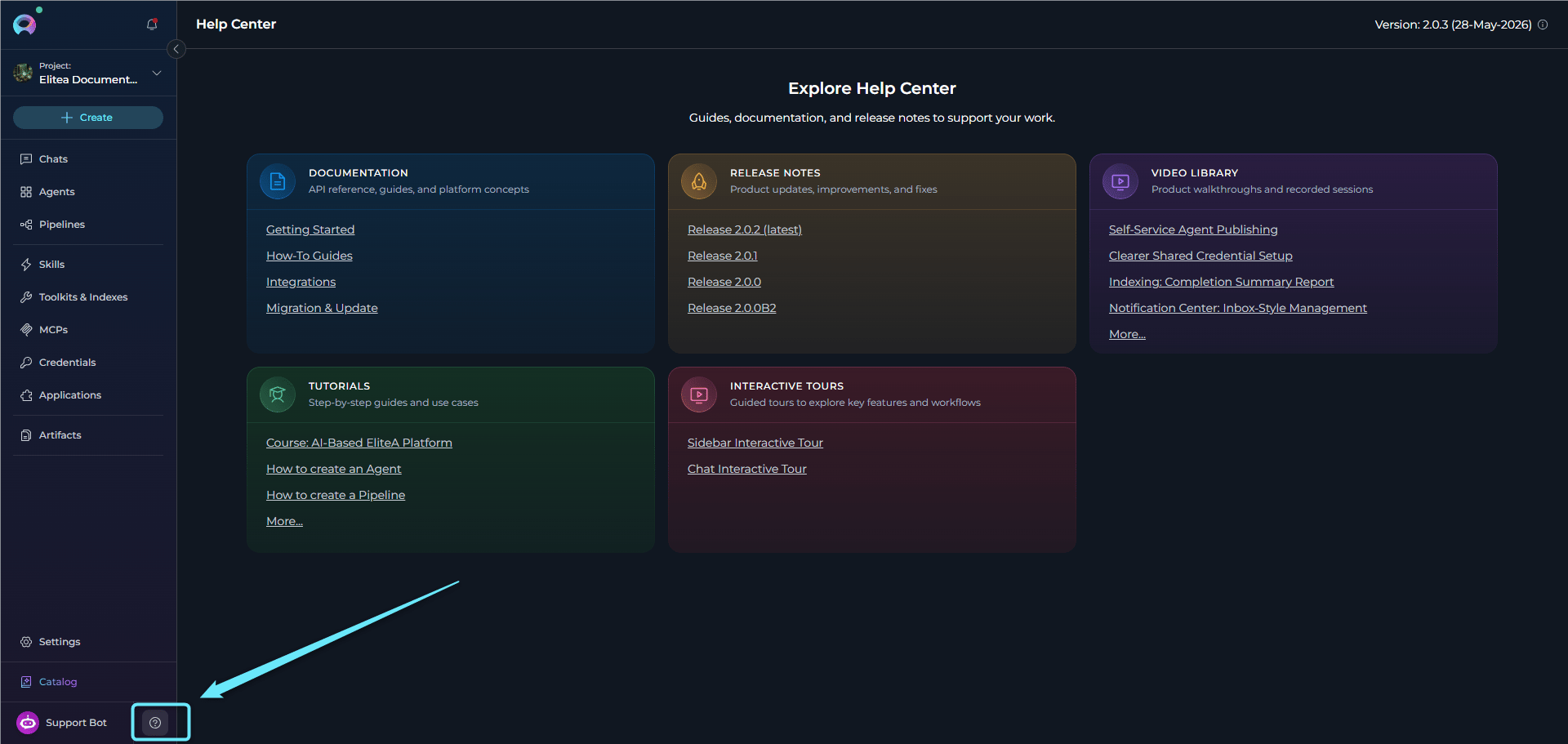
Help Center Content
In Help Center, you get the links to these guides and references:
Your administrator can customize titles and descriptions and add specific links. If any section has no links configured, it displays “No links configured”.
ELITEA Version and System Information
When enabled by your administrator, the Help Center header displays the current platform version and its upgrade date. If you hover over the info icon next to the version label, you will see the list of all installed plugins and their versions.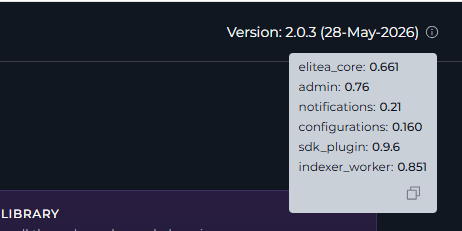
You will see the ELITEA version and plugins only if your administrator has enabled the information display and provided the version data. If no version data appears in the header, the feature is not configured on your environment.
- Settings → AI Configuration — Configure AI models used across the platform.
- Support Assistant — Get in-context help from the AI-powered support widget.
- Contact Support — Reach the ELITEA Support Team for issues not covered in this guide.