

What is AI Assistant?
AI Assistant is an integrated AI-powered tool that assists with content creation in pipeline nodes. Instead of manually writing complex prompts, code, or templates from scratch, you can:- Generate content from natural language instructions
- Improve existing content by providing refinement prompts
- Iterate quickly with split-view comparison between original and improved versions
- Leverage AI reasoning to create better configurations
AI Assistant uses the pipeline’s configured LLM model and settings. Configure this at the pipeline level to control which model, Creativity, Max Completion Tokens and other parameters are used for content generation.
Key Benefits ✔️ Faster Configuration - Generate complex content quickly from simple instructions ✔️ Higher Quality - Leverage AI to improve prompts, code, and templates ✔️ Iterative Refinement - Compare original and improved versions side-by-side ✔️ Context-Aware - AI Assistant understands the node type and purpose ✔️ Consistent Style - Uses your pipeline’s LLM configuration
How AI Assistant Works
Access AI Assistant AI Assistant is available on text input fields that support it. Look for the AI Assistant icon (🪄) on the right side of the field: Click the icon to open the AI Assistant modal dialog. AI Assistant Modal The modal provides a full-screen editor with AI-powered content generation: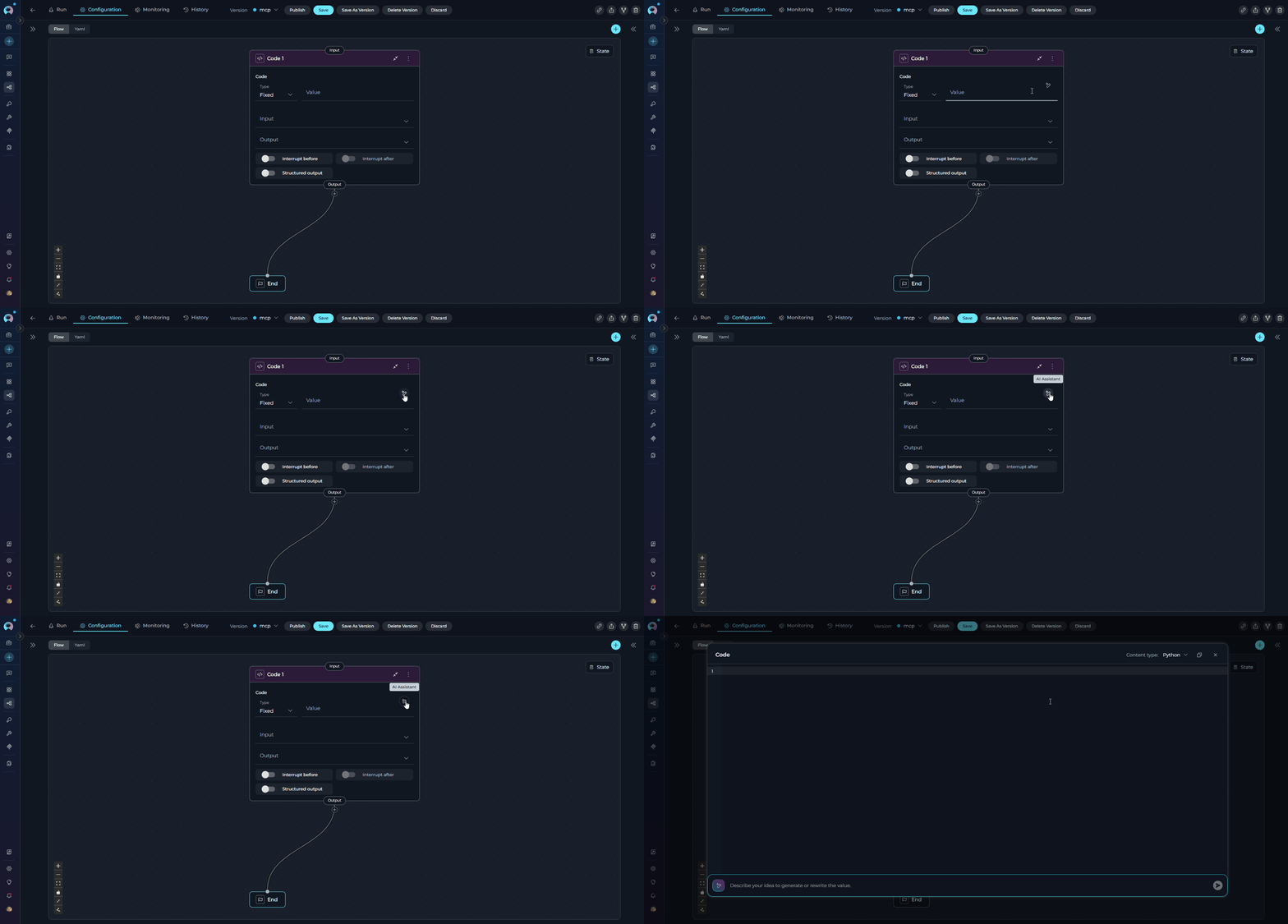
- Editor Area - View and edit your content with syntax highlighting
- AI Prompt Input - Natural language instructions for content generation
- Language Selector - Choose syntax highlighting (auto-detected)
- Action Buttons - Copy, apply, and close controls
- Editor displays your current content (or empty state)
- Prompt Input accepts your instructions
- Generate creates content based on your prompt
- Result appears directly in the editor
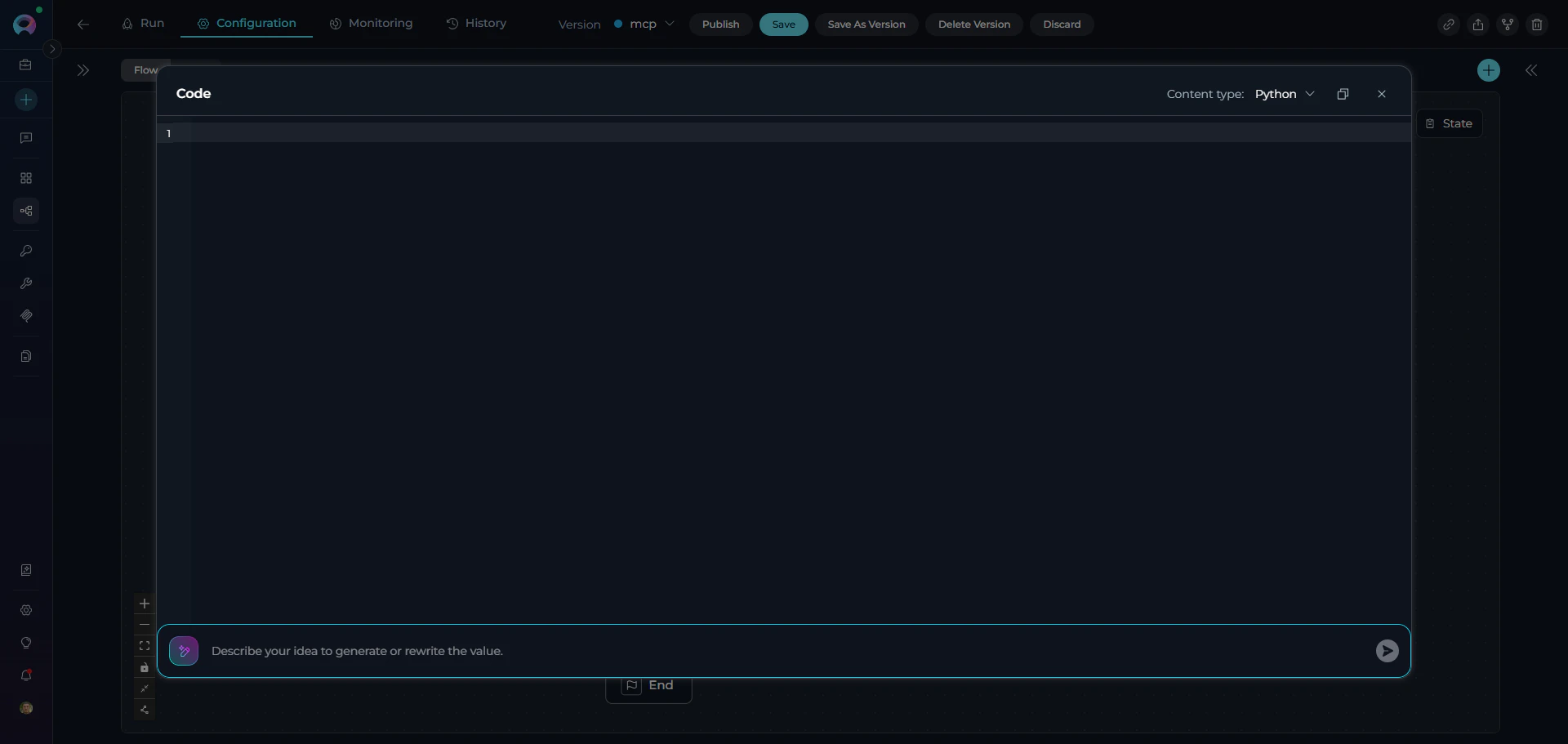
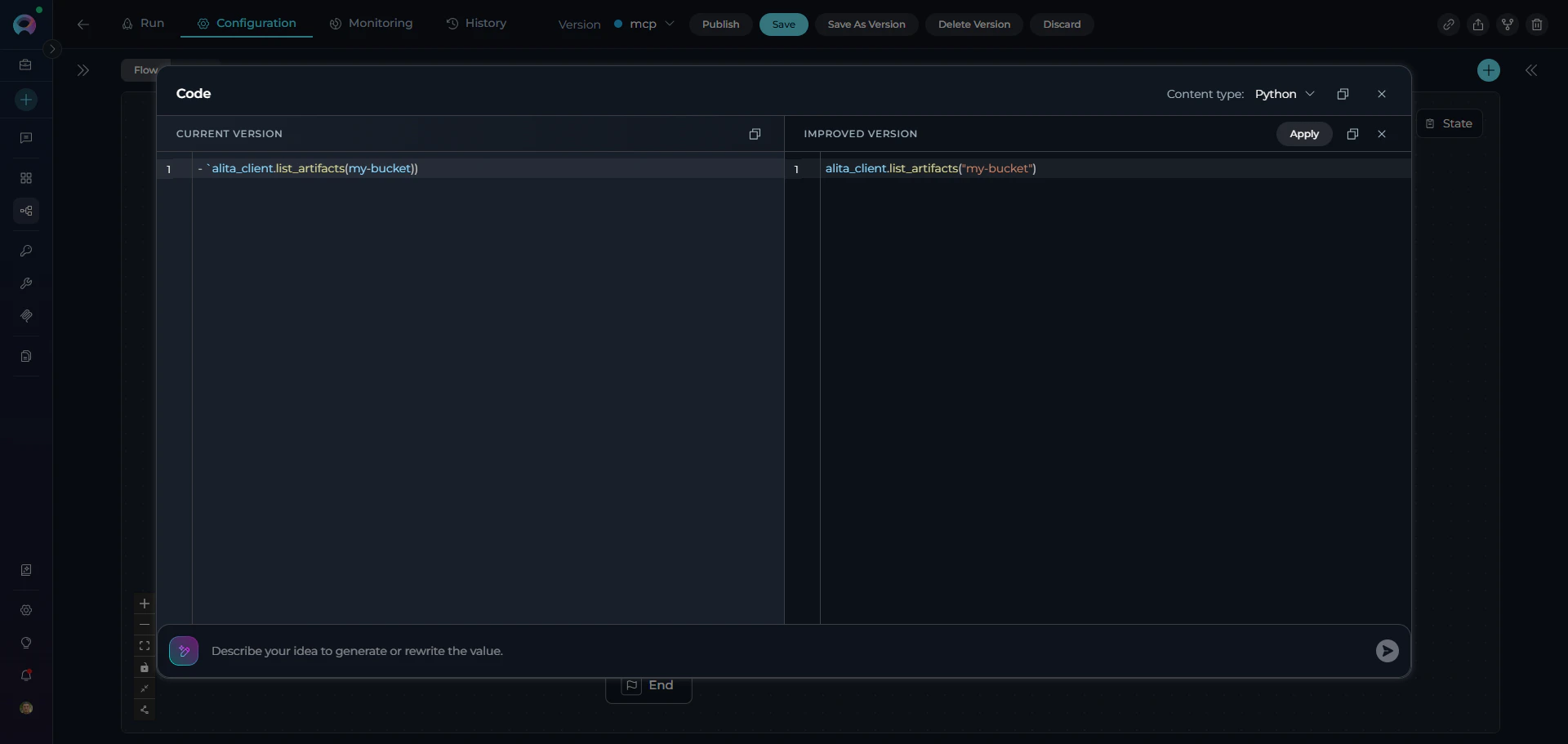
- Left Panel - “Current Version” (read-only reference)
- Right Panel - “Improved Version” (AI-generated result)
- Compare - See differences side-by-side
- Apply - Replace current content with improved version
- Close - Discard improvements and return to single view
Supported Nodes and Fields
AI Assistant is available in the following pipeline nodes and their specific fields:LLM Node
Use Cases:- Generate comprehensive system prompts for specialized agents
- Create clear, structured task instructions
- Build example conversations for testing
Prompt: “Create a system prompt for an AI assistant that helps developers write unit tests”Generated System Prompt:
Code Node
Use Cases:- Generate data transformation logic
- Create calculations and business rules
- Build API integration code
- Improve code quality and error handling
Prompt: “Write Python code to calculate tiered discounts: 10% for orders $100-500, 15% for $500-1000, 20% for $1000+”Generated Code:
State Modifier Node
Use Cases:- Format output messages with state variables
- Build reports and summaries
- Build structured responses
Prompt: “Create a Jinja template that formats a user story with title, description, acceptance criteria, and metadata”Generated Template:
Router Node
Use Cases:- Create multi-path routing logic
- Build approval workflows
- Implement status-based routing
Prompt: “Create a router condition that routes to ‘Approved’ if status contains ‘approved’, ‘Rejected’ if ‘rejected’, ‘Pending’ if ‘review’, otherwise ‘Default’”Generated Condition:
Decision Node
Use Cases:- Describe decision criteria clearly
- Provide context for intelligent routing
- Document decision-making logic
Prompt: “Write a decision description for routing customer support tickets based on urgency and topic”Generated Description:
HITL Node
Use Cases:- Craft clear, context-aware approval request messages
- Build F-String messages that embed state variable content for user review
- Write actionable interrupt prompts that guide the user on what to do next
- Create professional review messages for compliance or content approval workflows
Prompt: “Write an F-String user message asking the reviewer to read a generated article draft and choose an action. The message should show the article title and summary, and explain what each button does.”Generated User Message:
Printer Node
Use Cases:- Display static completion messages
- Show formatted output combining text with variables
- Pause pipeline for user inspection
- Show progress updates during multi-step workflows
Create a comprehensive processing summary that combines multiple variables and includes conditional formatting.Prompt: “Create a detailed processing summary message that shows the project name, total items processed, success count, failure count, success rate percentage, processing time, and a status indicator (✓ if success rate > 90%, ⚠ if 70-90%, ✗ if < 70%)”Generated F-String:Example Output:
Using AI Assistant: Step-by-Step
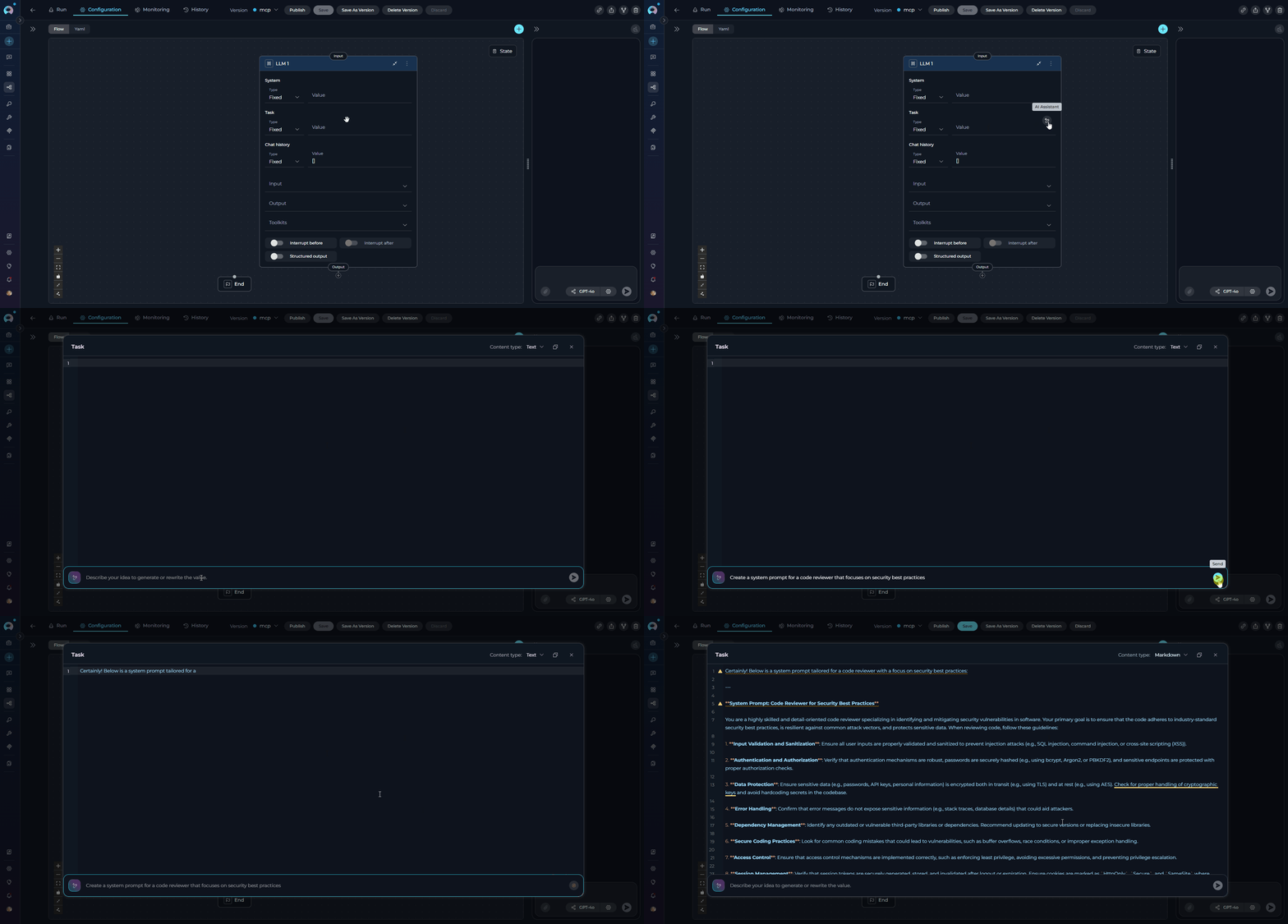
1. Generate New Content
Scenario: You need to create a system prompt for an LLM node but aren’t sure how to structure it. Steps:- Open the LLM node configuration
- Click the AI Assistant icon (🪄) on the “Task” field
- Enter your instruction in the AI Prompt Input:
- Click “Generate” or press Enter
- Review the generated content in the editor and edit if needed
- Close the modal - content is now in the System field
2. Improve Existing Content
Scenario: You have a working prompt but want to make it more specific and detailed. Steps:- Open AI Assistant on a field with existing content
- Review current version in the editor
- Enter improvement instruction in the AI Prompt Input:
- Click “Generate” - AI Assistant switches to split view
- Compare versions side-by-side:
- Left: Original content
- Right: Improved content
- Click “Apply” to use the improved version, or
- Click “Close” (X) to discard and keep original
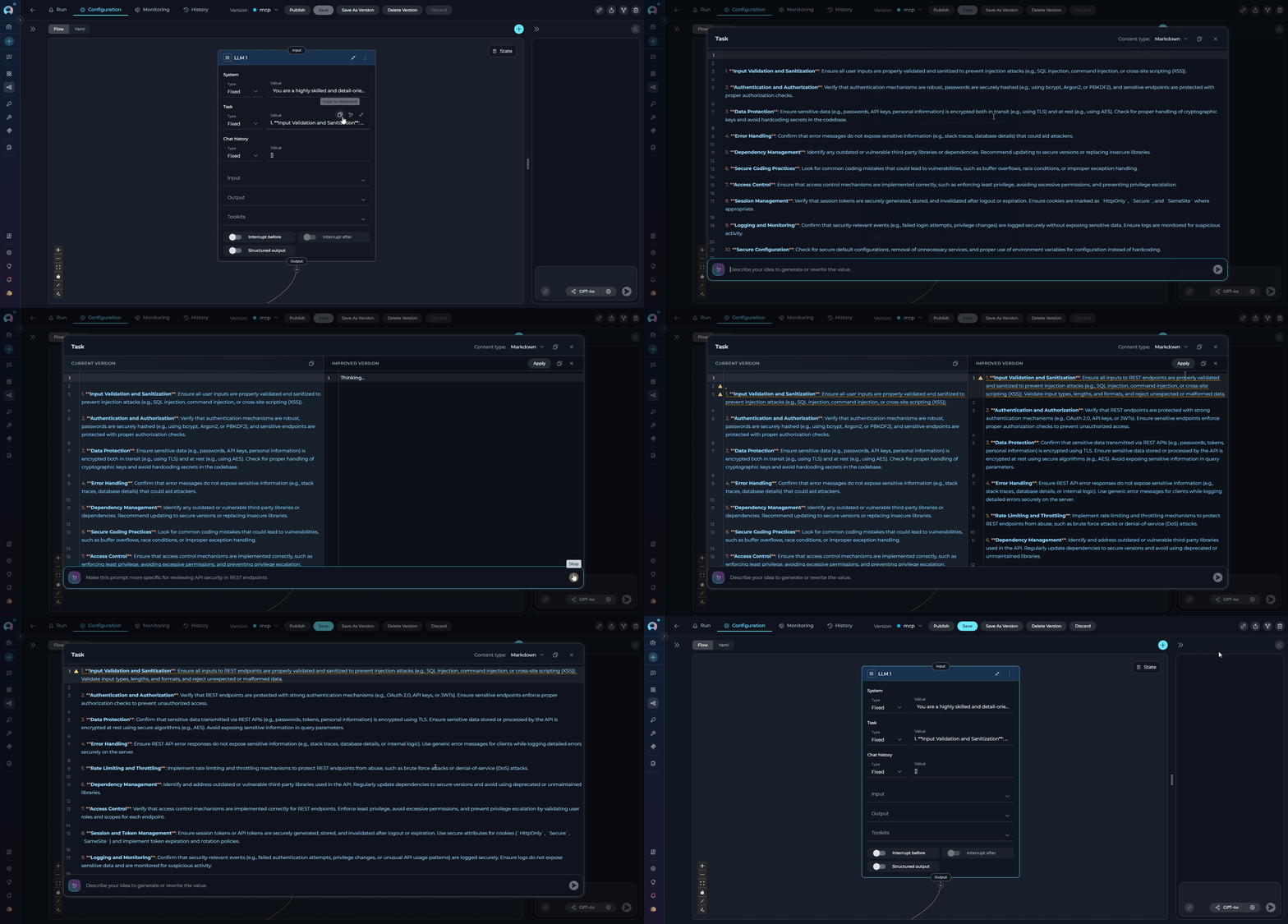
3. Iterative Refinement
Scenario: The generated content is good but needs additional refinement. Steps:- Generate initial content using AI Assistant
- Review the result in split view
- Enter a refinement prompt without applying:
- Click “Generate” again - improved content updates
- Continue refining with additional prompts:
- Apply when satisfied with the final result
4. Error Handling and Retry
Scenario: AI Assistant encountered an error during generation. What you’ll see:- Error message displayed in the editor
- Prompt input remains filled with your instruction
- Split view (if previously shown) stays open
- Review the error message (e.g., “Error: Rate limit exceeded”)
- Your prompt is preserved - no need to retype
- Click “Generate” again to retry
- AI Assistant retries with the same prompt
- Previous error is cleared if successful
Common Use Cases
Generate System Prompts for Specialized Agents
Generate System Prompts for Specialized Agents
Challenge: Creating effective system prompts that properly constrain LLM behavior.Solution with AI Assistant:
Build Complex Routing Logic
Build Complex Routing Logic
Challenge: Creating multi-condition routing in Router nodes.Solution with AI Assistant:
Create Data Transformation Code
Create Data Transformation Code
Challenge: Writing Python code for state transformations.Solution with AI Assistant:
Format Output Templates
Format Output Templates
Challenge: Creating readable, well-formatted output displays.Solution with AI Assistant:
Craft HITL User Messages
Craft HITL User Messages
Challenge: Writing clear, actionable interrupt messages that tell reviewers exactly what to do and what each button means.Solution with AI Assistant:
Best Practices
Writing Effective Prompts
Writing Effective Prompts
✔️ Be Specific
- ✘ “Write a prompt”
- ✔️ “Write a system prompt for an AI assistant that reviews Python code for PEP 8 compliance”
- ✘ “Generate code”
- ✔️ “Generate Python code that reads CSV files, filters rows where status=‘active’, and returns a list of user IDs”
- ✘ “Create a template”
- ✔️ “Create a Jinja template that displays user information in this format: ‘Name: John Doe, Email: john@example.com, Role: Admin’”
- ✘ “Make routing logic”
- ✔️ “Create router condition using Jinja2 syntax that routes based on ‘priority’ field: high→Urgent, medium→Normal, low→Backlog”
Iterative Improvement
Iterative Improvement
Start Simple, Refine
- Generate basic content first
- Review what AI created
- Add refinement prompts incrementally
- Apply when satisfied
- Keep original on left as reference
- Compare specific changes in improved version
- Apply only when improvements are clear
- Close split view to start over if needed
Content Validation
Content Validation
✓ Always Review Generated Content
- AI Assistant is powerful but not perfect
- Verify logic, syntax, and requirements
- Test generated code in safe environment
- Validate templates with sample data
- Don’t blindly apply code you don’t understand
- Review variable names and logic flow
- Ensure error handling is appropriate
- Check for security considerations
Performance Tips
Performance Tips
Use Appropriate Field Types
- Use AI Assistant for complex, creative tasks
- For simple static values, type directly
- Reserve AI for prompts, code, templates
- AI Assistant uses your pipeline’s LLM settings
- Configure appropriate model for your needs
- Adjust temperature for creativity vs. consistency
Troubleshooting
AI Assistant Not Appearing
AI Assistant Not Appearing
Issue: AI Assistant icon not visible on a field.Possible Causes:
- Field doesn’t support AI Assistant
- Pipeline LLM configuration is missing
- Node type doesn’t enable AI Assistant
- Verify the field supports AI Assistant (see Supported Nodes)
- Check pipeline configuration → Ensure LLM model is configured
- Verify you’re using a supported node type
Generated Content Not Applied
Generated Content Not Applied
Issue: Clicking “Save” doesn’t update the node field.Possible Causes:
- Modal closed without saving
- Content validation failed
- Browser cached old value
- Re-open AI Assistant modal
- Verify content is still in editor
- Click “Save” button explicitly
- Check node field updates after closing modal
Generation Fails with Error
Generation Fails with Error
Issue: AI Assistant displays error message instead of content.Common Errors:
- “Rate limit exceeded” - Too many requests to LLM
- “Invalid API key” - LLM credentials issue
- “Timeout” - Request took too long
- Wait a moment and click “Generate” again (prompt preserved)
- Simplify your prompt if too complex
- Check pipeline LLM configuration and credentials
- Contact administrator if persistent API errors
Split View Not Showing
Split View Not Showing
Issue: Expected split view comparison but seeing single view.Possible Causes:
- Current content is empty
- Current content starts with “Error”
- First-time generation
- Empty content + Generate → Single view (new content)
- Existing content + Generate → Split view (comparison)
- Error content + Generate → Single view (retry)
- LLM Node - Configure LLM nodes with AI Assistant
- Code Node - Write Python code with AI help
- State Modifier Node - Create Jinja templates
- Router Node - Build routing conditions
- Decision Node - Write decision descriptions
- HITL Node - Create user interrupt messages
- Pipeline Configuration - Configure pipeline LLM settings
- States - Understanding pipeline state for AI-generated code