

What is Flow Editor?
The Flow Editor is a visual workspace for building pipelines. It provides:- Drag-and-drop interface for adding and arranging nodes
- Visual connections between nodes showing execution flow
- Vertical layout optimized for easy configuration
- Instant YAML sync - changes in Flow appear immediately in YAML (and vice versa)
- Interactive configuration - click nodes to configure their settings
Accessing Flow Editor
- Navigate to Pipelines menu
- Open an existing pipeline or create a new one
- Click the Configuration tab
- Select Flow mode (appears alongside YAML tab)
Whatever you configure in Flow automatically appears in YAML format, and vice versa. Both views stay perfectly synchronized.
Flow Editor Interface
The Flow Editor consists of several key areas:Main Components
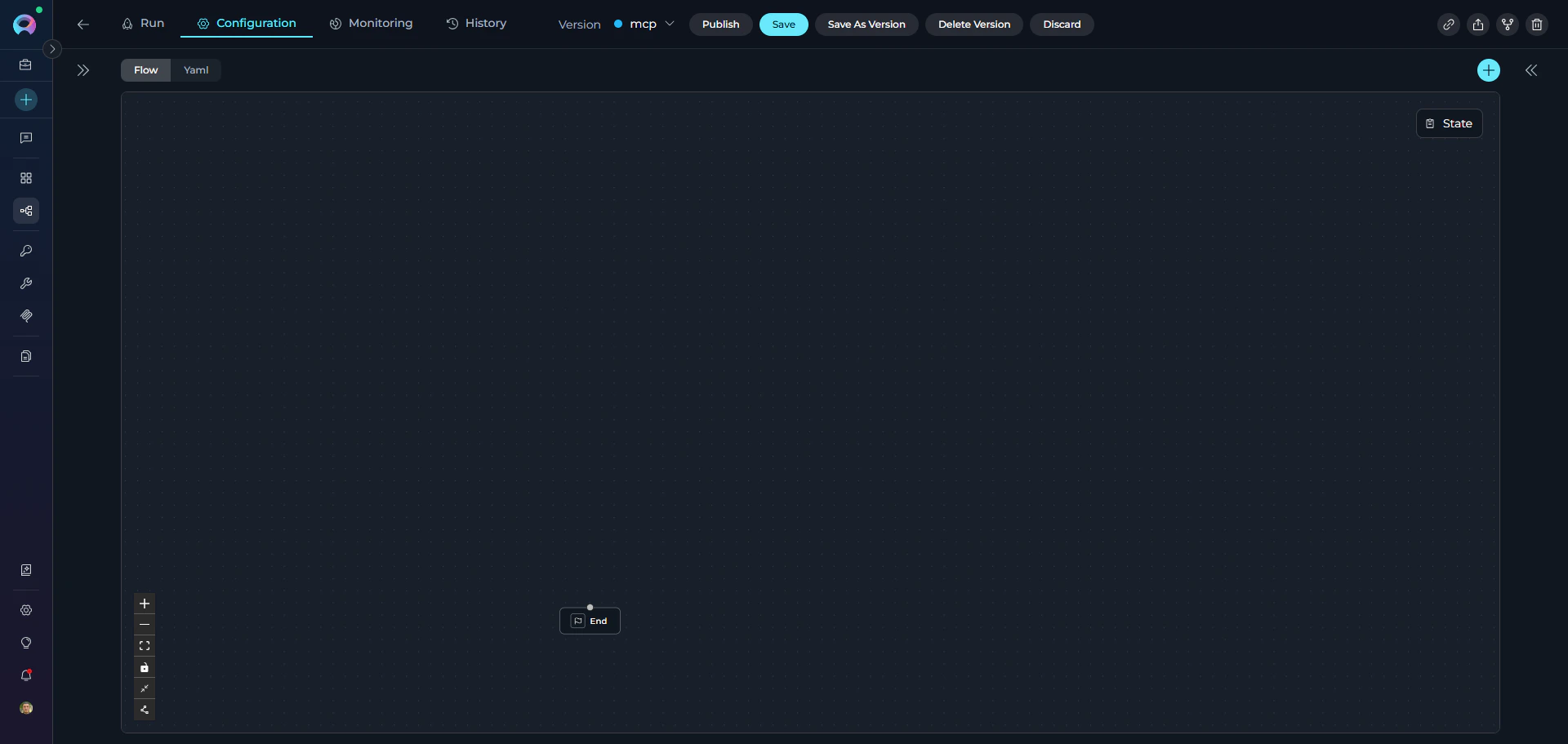
Left Toolbar Buttons
Adding Nodes
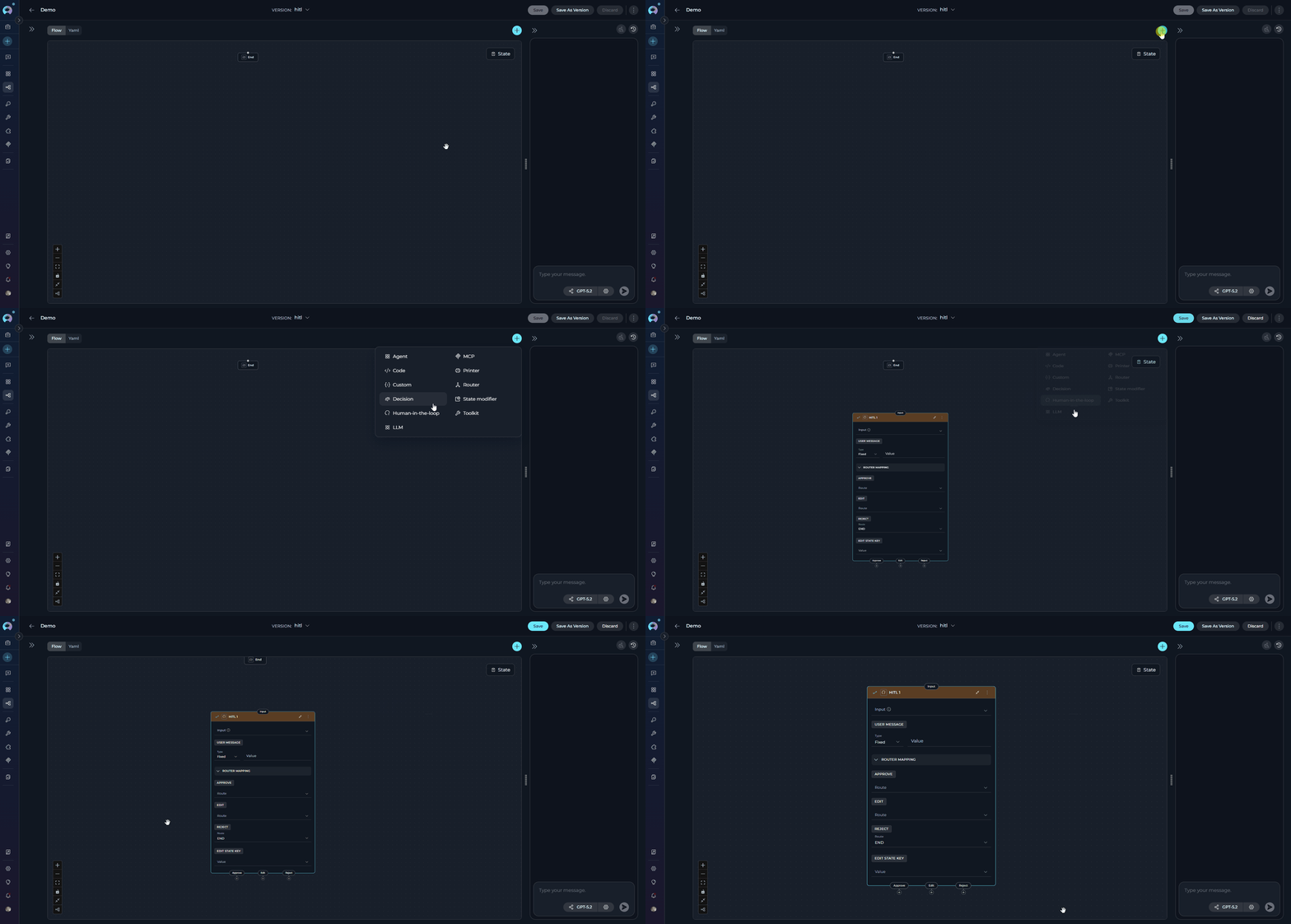
Method 1: Add Node Button
- Click the ➕ button (top right corner)
- A node palette appears showing all available node types
- Select the node type you want to add
- Node appears on the canvas
- Agent
- Code
- Decision
- HITL
- LLM
- MCP
- Printer
- Router
- State modifier
-
Toolkit
Method 2: Drag from Connection
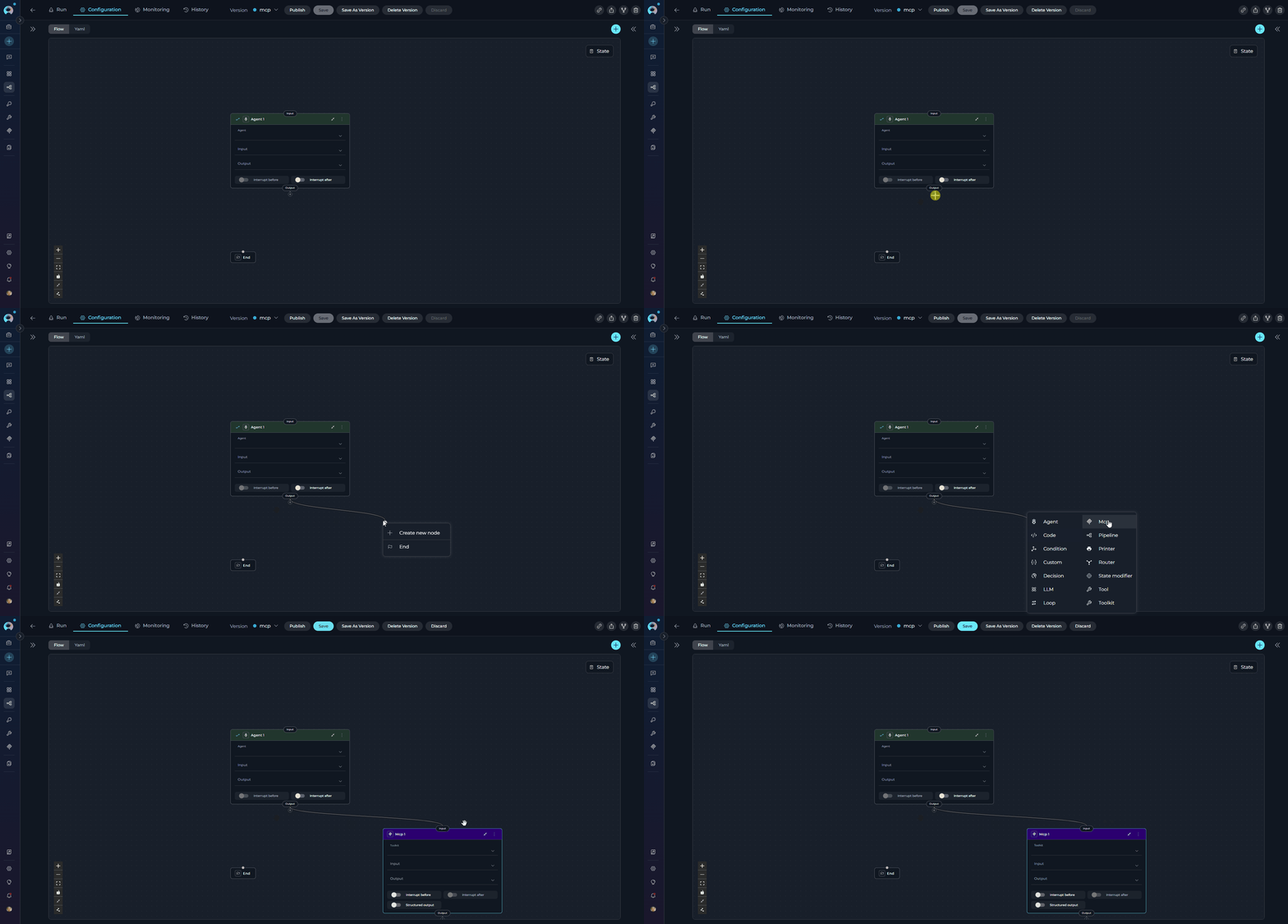
You can also add nodes while creating connections:- Drag a connector from an existing node
- Release it in empty space on the canvas
- Select Create New Node from the dropdown
- Choose node type
-
New node is created with connection already attached
Configuring Nodes
Click on any node card to open its configuration panel:Node Configuration Options
Each node type has specific configuration fields. Common options include:- Node Name (click card title to rename)
- Input/Output state variables
- Node-specific settings (prompts, toolkits, conditions, etc.)
- Advanced options (Interrupt Before/After, Structured Output)
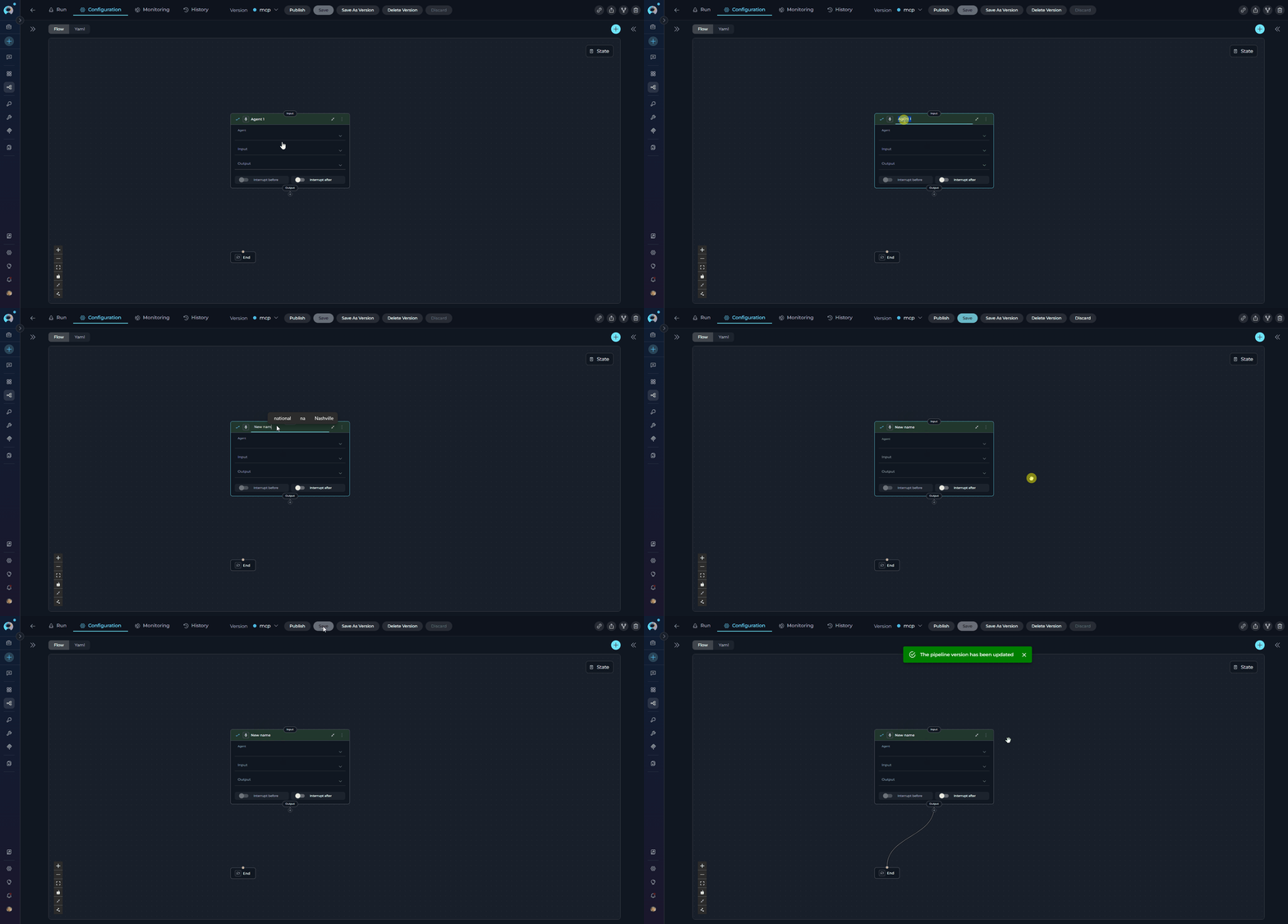
Renaming a Node
- Click the node card title
- Type the new name
-
Press Enter or click outside to save
Connecting Nodes
Nodes must be connected to define the execution flow. See the Nodes Connectors Guide for complete details.Creating Connections
Method 1: Drag and Drop- Click and hold the output port (bottom of node card)
- Drag the connector line to the input port (top of target node)
- Release to create the connection
- Drag connector from a node
- Release in empty canvas space
- Select existing node or create new node from dropdown
- Connection auto-completes
Deleting Connections
Click on the connection line to select it, then press Delete on keyboard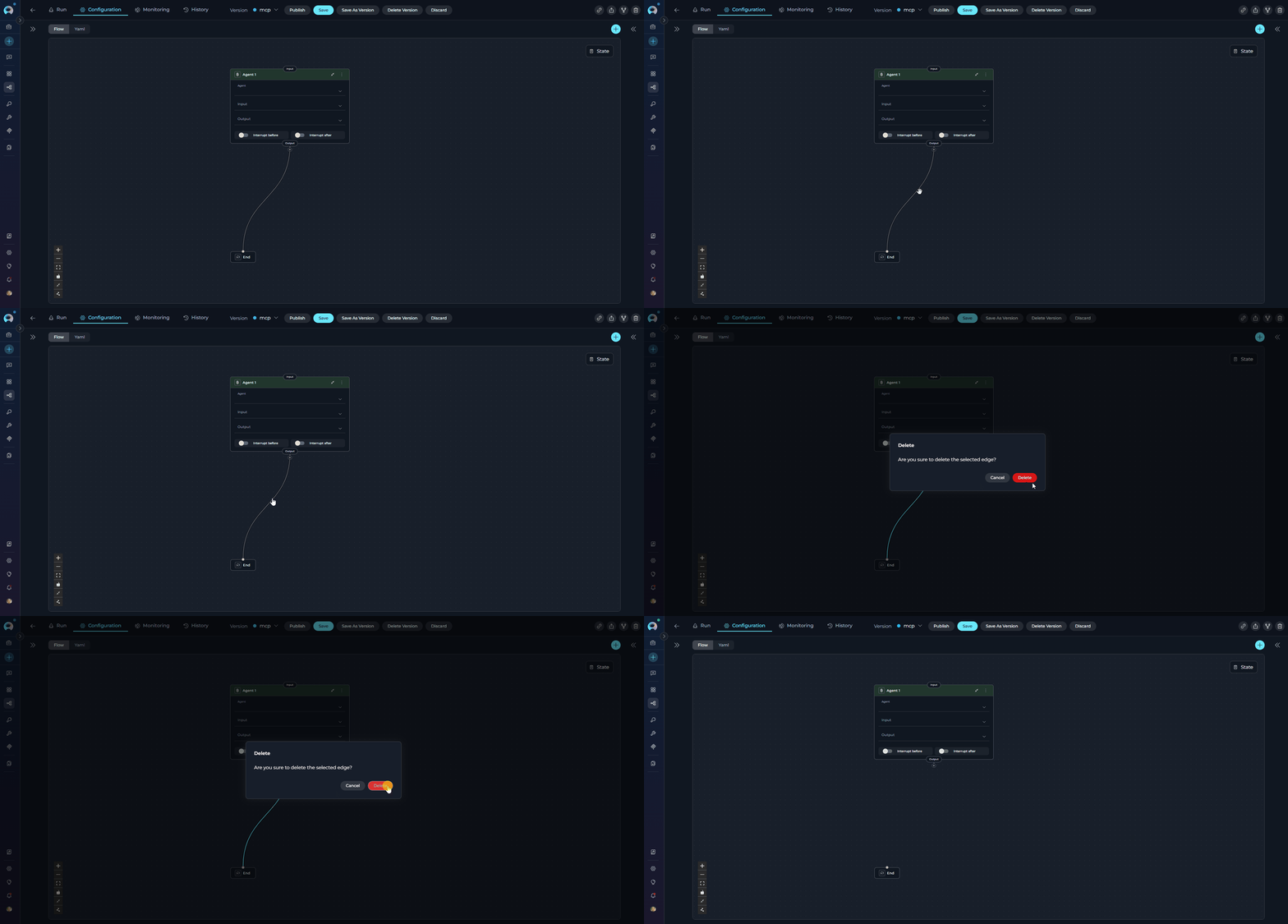
Managing Nodes
Node Card Actions
Click the three-dots menu (⋮) on any node card to access node actions: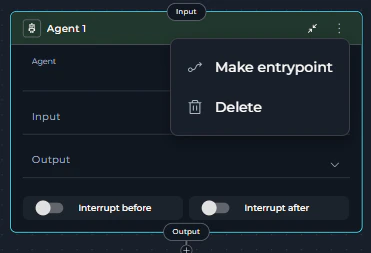
Moving Nodes
Rearrange nodes to improve visual clarity:- Click on a node card
- Drag it to a new position on the canvas
- Release to place
Canvas Controls
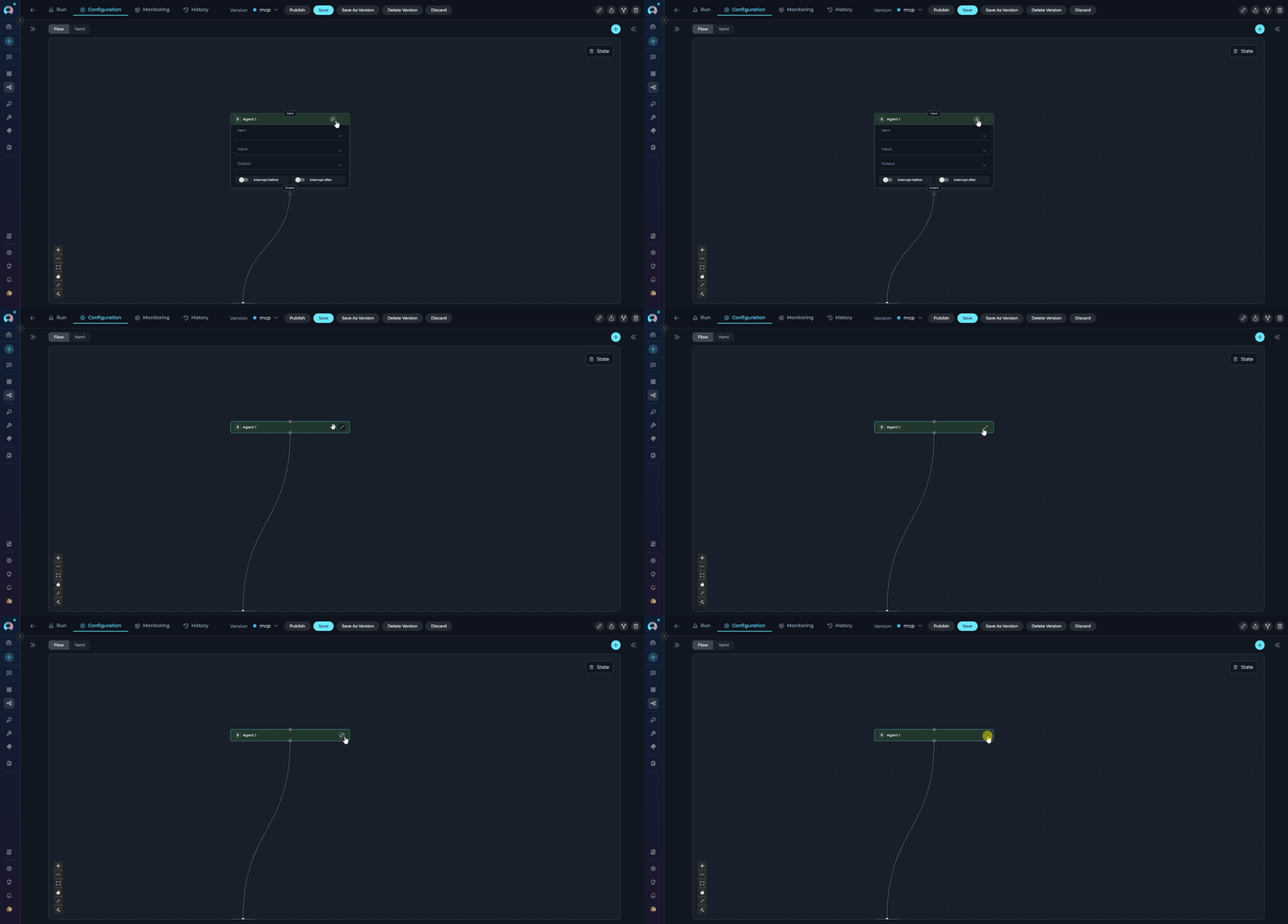
Collapse/Expand Cards
Toggle between compact and detailed node views:- Collapsed: Shows only node name and type icon
- Expanded: Shows all configuration fields
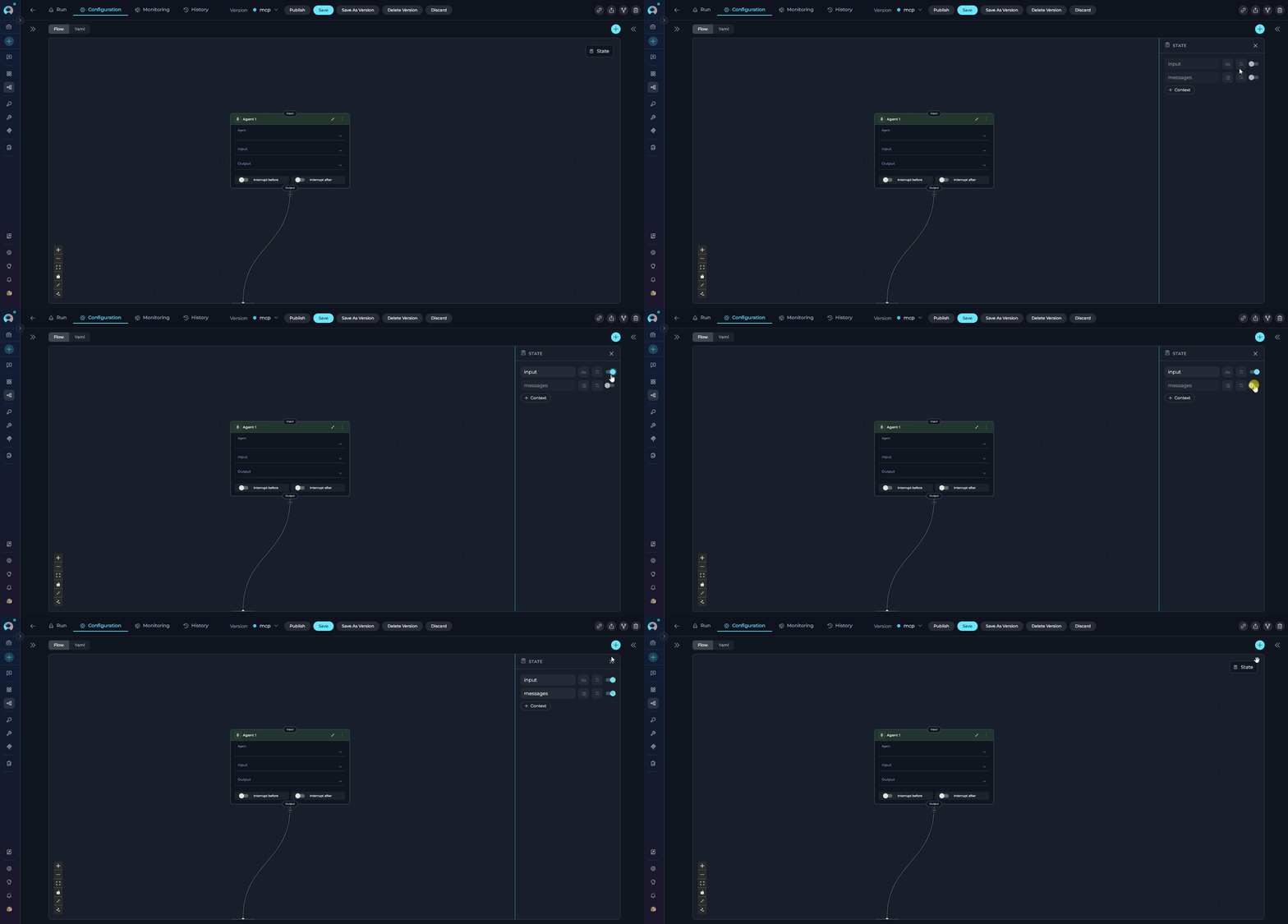
- View all pipeline state variables
- Add new custom states
- Configure default values
- Set state data types (String, Number, Array, Object)
Flow to YAML Synchronization
Changes made in Flow Editor instantly appear in YAML:- Add/modify nodes in Flow
- Switch to YAML tab
- See the updated YAML code
- Switch back to Flow to continue visual editing
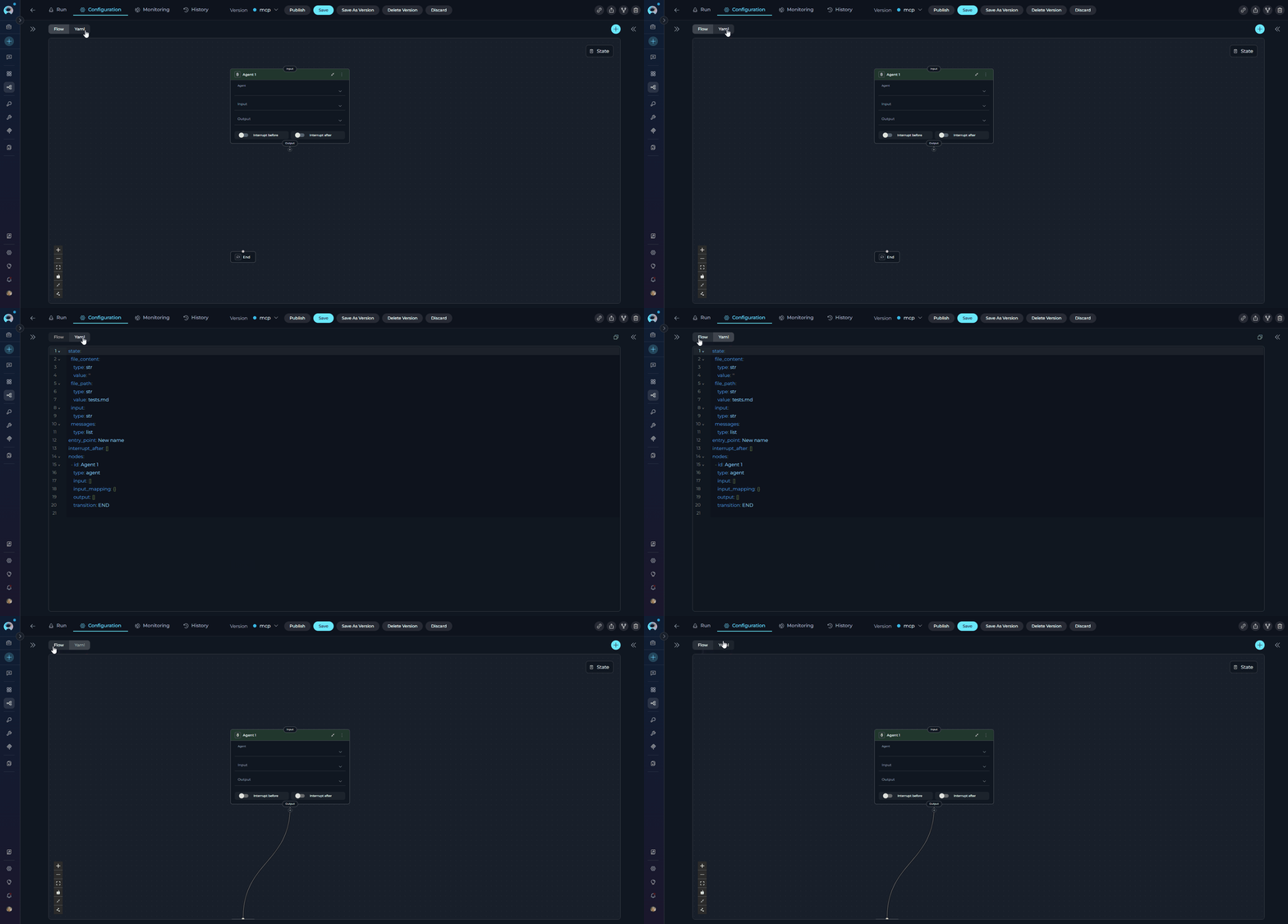
Edits in YAML also update the Flow view immediately. You can work in whichever mode you prefer.
Keyboard Shortcuts
Best Practices
Troubleshooting
Nodes Not Connecting
Nodes Not Connecting
Problem: Cannot create connection between nodes.Solutions:
- Check if nodes are compatible (e.g., Router requires specific output nodes)
- Verify you’re dragging from output port (bottom) to input port (top)
- Try Auto-fix Layout if nodes are overlapping
Canvas is Blank
Canvas is Blank
Problem: Flow Editor shows empty canvas.Solutions:
- Switch to YAML tab to check if pipeline has nodes
- Click Fit View to center nodes
- Refresh the page
Changes Not Saving
Changes Not Saving
Problem: Edits disappear after closing pipeline.Solutions:
- Click Save button before navigating away
- Check for error messages at top of screen
- Verify network connection
Node Configuration Not Opening
Node Configuration Not Opening
Problem: Clicking node doesn’t show configuration panel.Solutions:
- Click directly on the node card (not the connection lines)
- Unlock editing if canvas is locked (🔒 button)
- Expand the GENERAL section if collapsed
- Nodes Connectors: Learn how to connect nodes and manage transitions
- States Guide: Configure state variables for data flow
- YAML Configuration: Work directly with YAML code
- Nodes Overview: Understand all 11 node types
- Entry Point Guide: Set up pipeline starting points