

- Toolkit Node - Execute ELITEA toolkit functions with direct parameter mapping
- MCP Node - Execute Model Context Protocol (MCP) server tools
- Code Node - Execute custom Python code in a secure sandbox
Tool Outcome
Every tool-executing node (Toolkit, MCP) writes a typed outcome into pipeline state beside its normal output. This removes the need to parse the message history to determine whether a tool call failed.New Pipeline State Keys
Both keys are cleared at the start of every turn, so a previous turn’s failure cannot leak into a condition. Re-entering a node (a loop) overwrites that node’s entry.
Outcome Object
If a user blocks a sensitive tool call on a Toolkit or MCP node, the pipeline simply stops with a descriptive message — it does not populate
last_tool_outcome or tool_outcomes.Toolkit Node
The Toolkit Node executes specific tools from ELITEA Toolkits with direct parameter mapping. It provides fast, deterministic execution without LLM overhead, making it ideal for scenarios where you know exactly which tool to call and how to configure its parameters.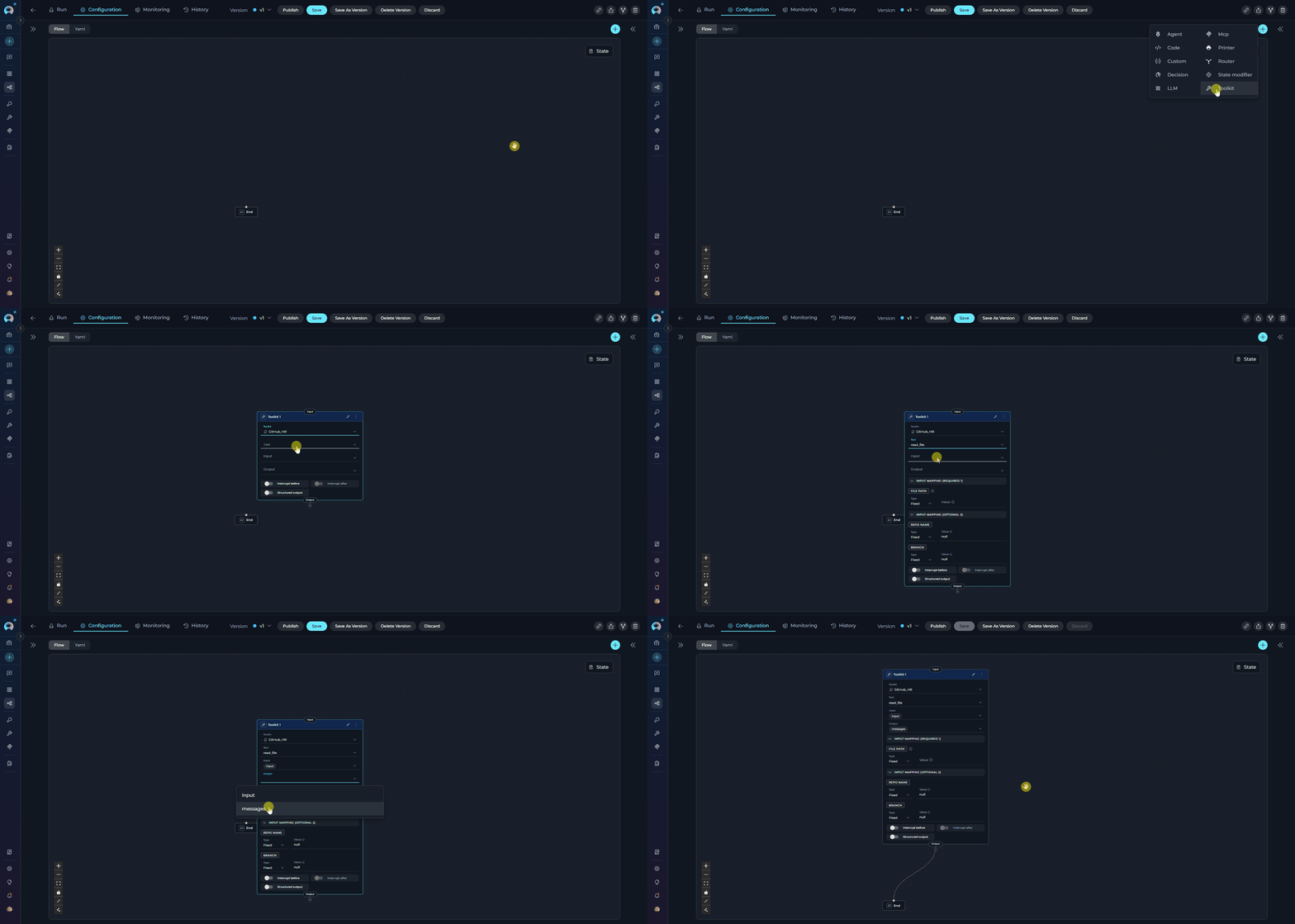
- Execute ELITEA toolkit functions directly without LLM decision-making
- Call external APIs through toolkit integrations (Jira, GitHub, Slack, Confluence, etc.)
- Perform deterministic actions where the tool and parameters are known upfront
- Map pipeline state directly to tool parameters
- Chain multiple toolkit calls in sequence with precise control
Toolkit Nodes can use ELITEA Toolkits only (not MCPs). For MCP servers, use the MCP Node.
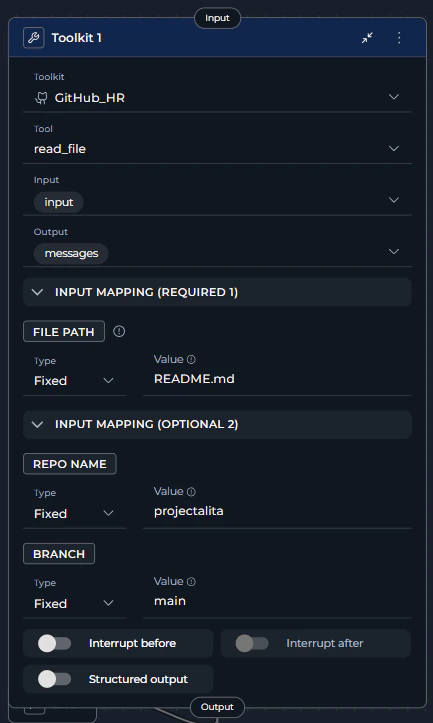
The Input Mapping section dynamically displays only the parameters required by the selected tool. Each toolkit tool has different required and optional parameters. Select your tool first to see available mapping options.
- Map Required Parameters Correctly - Ensure all required parameters have proper mappings
- Use Appropriate Type for Each Parameter
- Variable: When value comes from state
- F-String: When you need dynamic interpolation
- Fixed: For static, unchanging values
- Handle Optional Parameters - Set optional parameters to
nullif not needed - Include Output Variables - Capture important results in output variables
- Use Interrupts for Debugging - Enable interrupts when testing new integrations
- Validate State Variables - Ensure input state variables exist before the Toolkit node executes
- Use Structured Output - Enable structured output when you need to extract specific fields from tool results
- Chain Toolkit Calls - Create workflows by sequencing Toolkit nodes
MCP Node
The MCP Node executes tools from Model Context Protocol (MCP) servers with direct parameter mapping. It connects to remote MCP servers via HTTP and provides access to their tools without LLM overhead.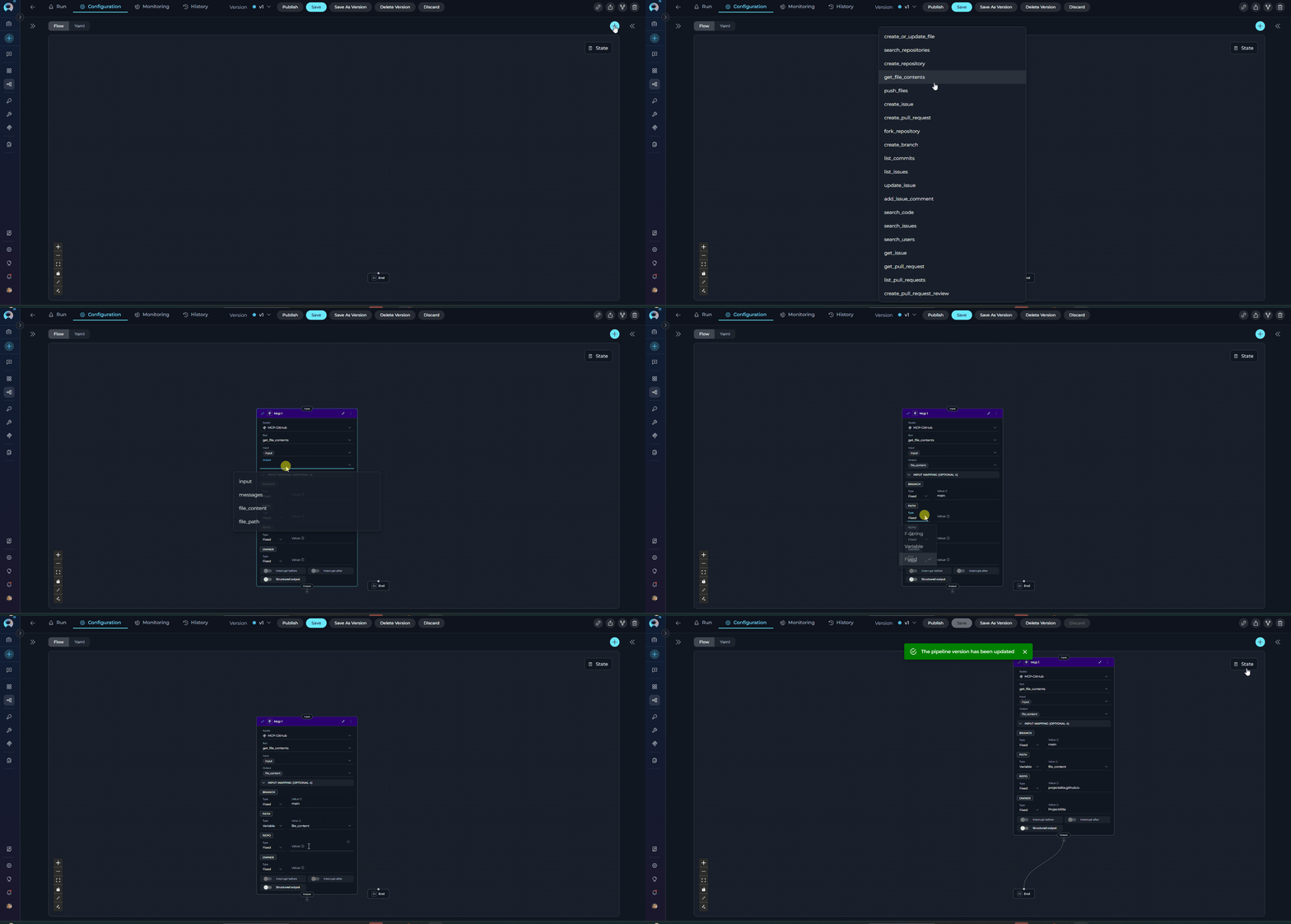
- Execute MCP server tools directly with explicit parameter configuration
- Connect to remote MCP servers via HTTP/HTTPS
- Access specialized MCP tools (Playwright, GitHub, Figma, etc.)
- Map pipeline state directly to MCP tool parameters
- Enable/disable specific tools from MCP servers
MCP Nodes can use Model Context Protocol servers only. For ELITEA Toolkits, use the Toolkit Node.
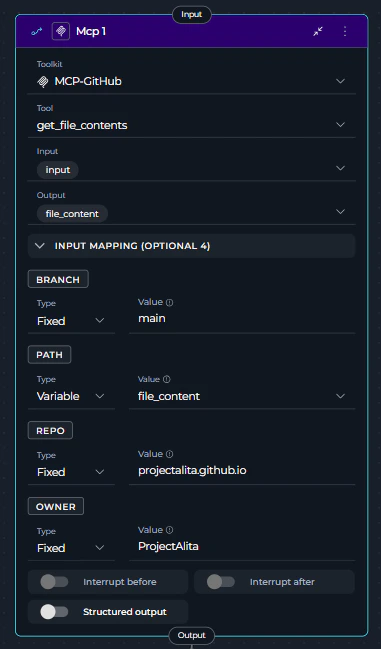
MCP servers must be properly configured and connected before using the MCP Node. Ensure the MCP server is running and accessible via HTTP/HTTPS.
- Verify MCP Connection - Ensure the MCP server is connected and accessible before pipeline execution
- Map Required Parameters Correctly - MCP tools have specific parameter requirements
- Use Appropriate Type for Each Parameter
- Variable: When value comes from state
- F-String: When you need dynamic path/value interpolation
- Fixed: For static configurations
- Handle Errors - MCP server connection failures will stop pipeline execution
- Use Structured Output - Enable when extracting specific data from MCP tool results
- Test MCP Tools - Use the MCP test panel to verify tool functionality before using in pipelines
- Monitor Timeouts - Configure appropriate timeout values for MCP server connections
Code Node
The Code Node enables secure execution of custom Python code within a sandboxed environment using Pyodide (Python compiled to WebAssembly). It provides full Python capabilities for data processing, calculations, and custom logic without accessing the host system.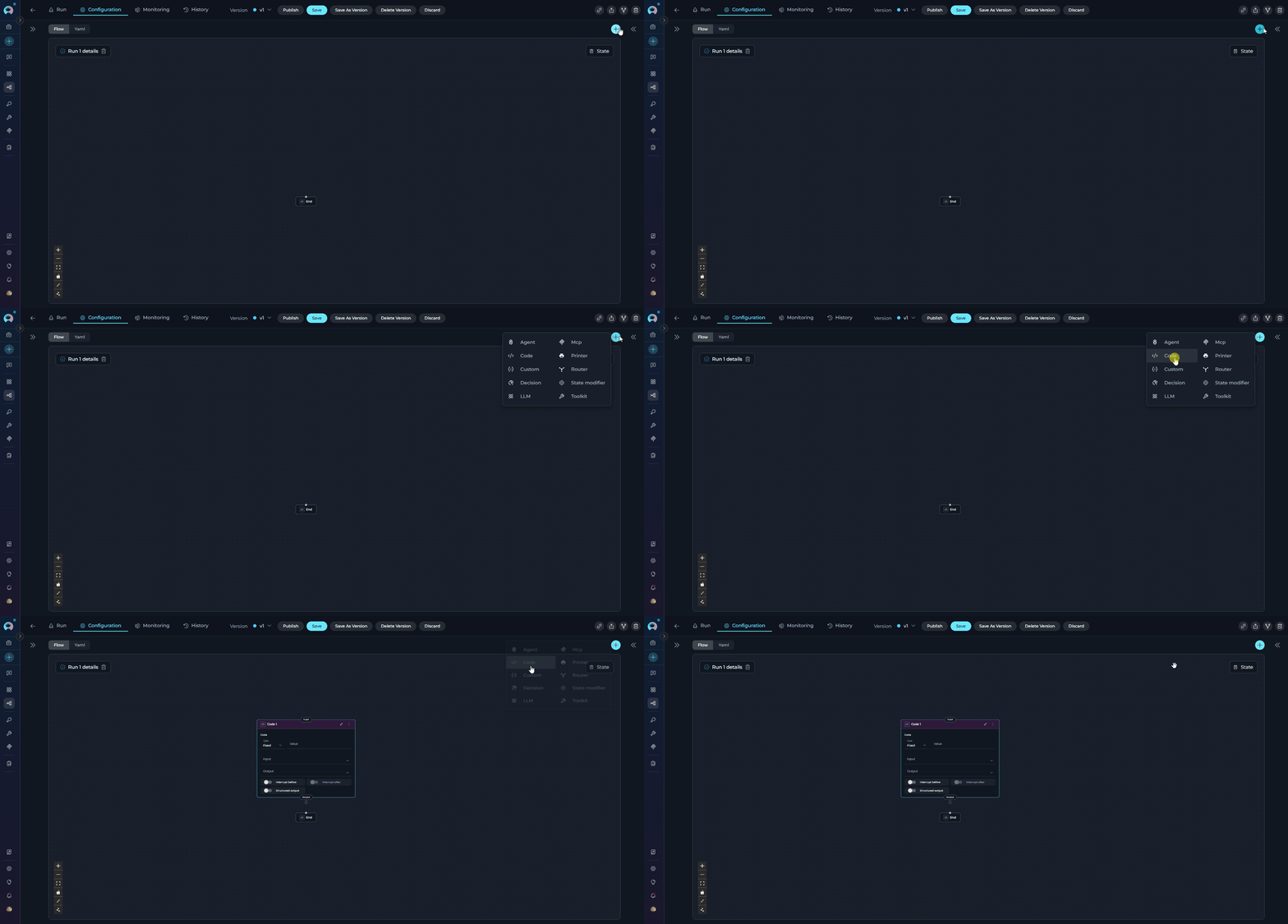
- Execute custom Python logic for data transformation and processing
- Perform calculations that don’t require external tool integrations
- Process pipeline state with full programming control
- Implement business rules and conditional logic in Python
- Transform data formats between pipeline nodes
- Call external APIs directly from Python (with network access enabled)
- Install Python packages dynamically using micropip
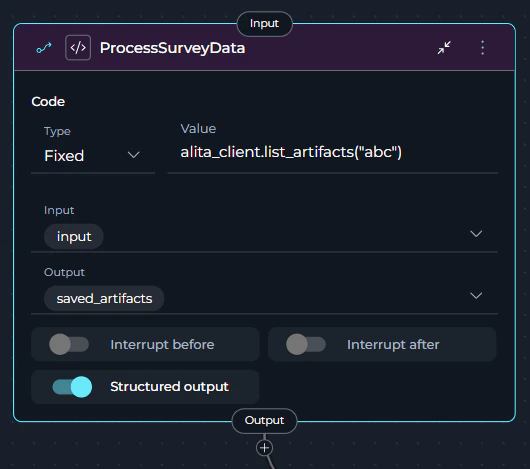
Debug Mode
Use Code Node debug mode when you need to inspect the exact Python source that ELITEA sent to the sandbox.When
debug: true is enabled on a Code Node, ELITEA saves a timestamped standalone Python snapshot to the code-debug artifact bucket before execution. The saved file includes the generated client preamble, the injected state payload, and your code wrapped so it can be run locally in standard Python.-
Add
debug: trueto the Code Node definition - Run the pipeline normally
-
Open the
code-debugartifact bucket and download the generated.pyfile -
Replace the auth token placeholder if your code uses
elitea_client -
Run the file locally to reproduce the exact execution context
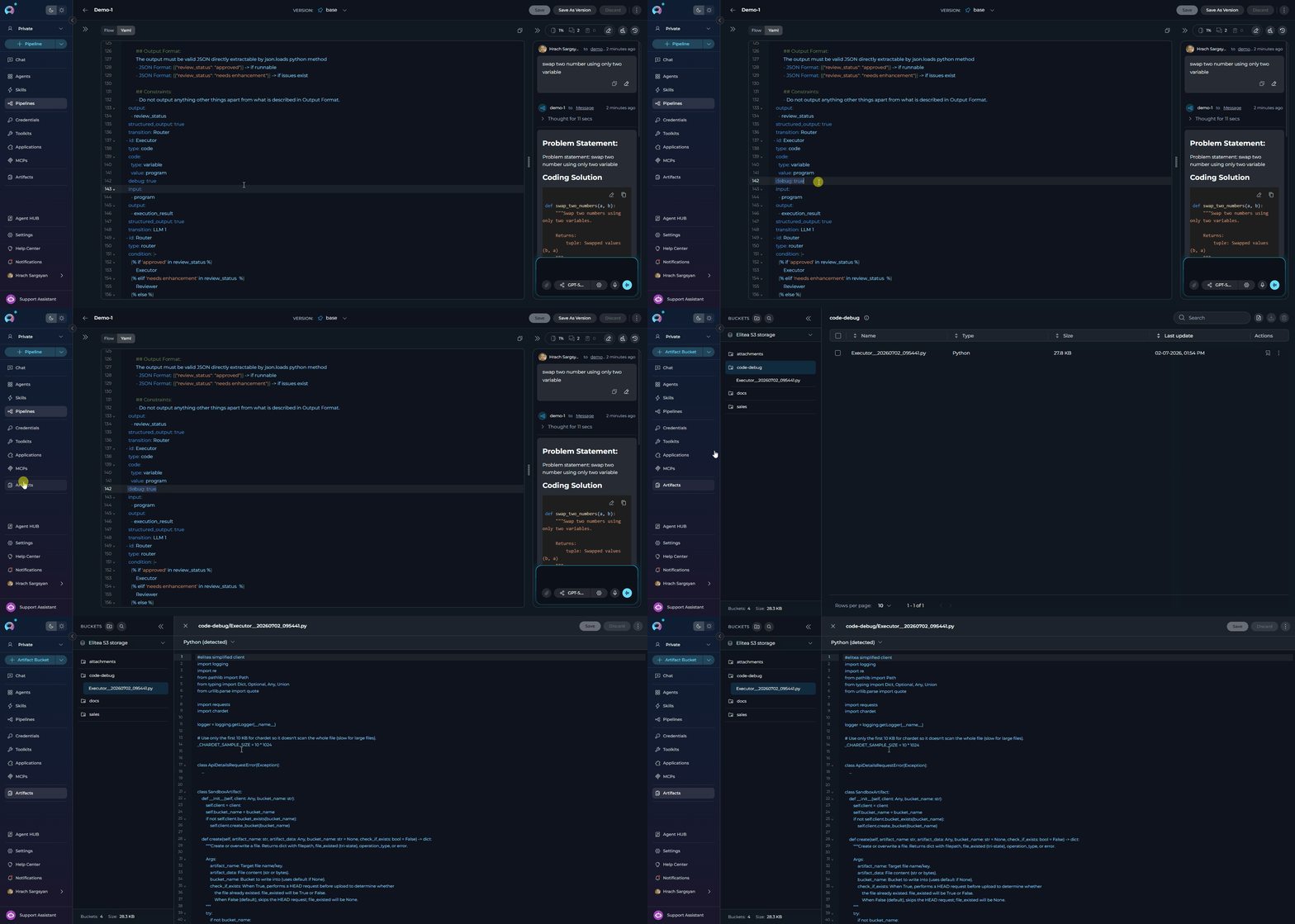
process_data__20260702_153045.py in the code-debug artifact bucket.
When
debug: true, the saved artifact contains these parts in order:- A simplified
SandboxClientimplementation so the file can run outside the ELITEA SDK - An
elitea_client = SandboxClient(...)initialization block with an auth token placeholder - The generated state preamble that restores
elitea_state,alita_state, andalita_client - Your Code Node logic wrapped in an async runner so top-level
awaitalso works in standard CPython
code-debug bucket fails, pipeline execution continues and the failure is logged as a warning.YAML Configuration Examples
Basic Example: Simple Calculation
Basic Example: Simple Calculation
Advanced Example: Data Processing with Error Handling
Advanced Example: Data Processing with Error Handling
API Integration Example: External HTTP Calls
API Integration Example: External HTTP Calls
Package Installation Example: Using External Libraries
Package Installation Example: Using External Libraries
Conditional Logic Example: Business Rules
Conditional Logic Example: Business Rules
Alita Client Integration Example: Accessing Artifacts
Alita Client Integration Example: Accessing Artifacts
Without Output Variables (or includes With Specific Output Variables:Results populate the specified variables:With Structured Output:Return dictionary to update multiple variables:
messages):Results are added to messages array:Private Project Secrets
In a shared (team) project,alita_client.unsecret(secret_name) always reads the secret stored in that shared project — every user who triggers the pipeline gets the same value. Use alita_client.get_private_project_secret(secret_name, default=None) instead when each user running the Code Node should supply their own credential: User A and User B calling the same node with the same secret_name resolve two different values, each read from their own Private project.
The secret owner must opt inThere is deliberately no fallback to a same-named secret in the shared project. For 
get_private_project_secret to succeed, the secret must exist in the executing user’s own Private project secrets, and that user must turn on the per-secret Share with other projects toggle (Secrets, visible only while viewing your own Private project’s Secrets table). The toggle is unavailable for platform-managed (default) secrets.alita_client.get_private_project_secret(secret_name: str, default: Any = <unset>)
- Called with no
default, a failed lookup raises an exception (see table below). - Called with an explicit
default(includingdefault=None), a failed lookup returns that default instead of raising — useful when the secret is optional for some users.
Example: per-user credential in a shared pipeline
- Sandbox: Pyodide (Python compiled to WebAssembly) provides secure isolation
- Standard Library: Full Python standard library available
- Package Installation: Use
import micropip; await micropip.install('package-name')for additional packages - Network Access: Enabled by default for external API calls (use
httpxinstead ofrequests) - Performance: Stateless execution by default for optimal performance; local caching reduces initialization time
- Limitations: File system access not supported; use
httpx.AsyncClientfor HTTP calls instead ofrequests
- Data Transformation: Clean and format data between nodes
- Validation: Verify data meets requirements before proceeding
- Enrichment: Add computed fields or external data
- Conditional Routing: Calculate which path to take next
- State Management: Transform state structure for downstream nodes
Best Practices
- Return Structured Data: When using
structured_output: true, always return dictionaries with keys matching output variables - Handle Errors Gracefully: Include try-except blocks to catch and return errors as part of the structured output
- Validate Input Data: Check state variables exist and have expected types before processing using
alita_state.get('var', default) - Use Descriptive Output Variables: Name output variables clearly (e.g.,
total_revenue,average_scoreinstead ofresult1,result2) - Keep Code Focused: Each Code Node should have one clear purpose - avoid combining multiple unrelated operations
- Document Complex Logic: Use Python comments to explain business rules, calculations, and non-obvious operations
- Test with Interrupts: Enable interrupts during development to review code execution results and debug issues
- Optimize Performance: Avoid heavy computations in frequently called nodes; use efficient data structures
- Use Async for HTTP: Use
httpx.AsyncClientfor HTTP requests (Pyodide compatible) instead ofrequests - Install Packages Carefully: Package installation adds latency; install only necessary packages
- Handle JSON Serialization: Ensure returned objects are JSON-serializable (native Python types, lists, dicts)
- Access Alita Client: Use
alita_clientwhen available for artifact operations and API interactions - Enable Debug Selectively: Turn on
debug: trueonly for nodes you are actively investigating to avoid creating unnecessary debug artifacts - Use Debug Artifacts for Reproduction: Download the saved
.pyfile fromcode-debugwhen sandbox behavior differs from expectations or when you need to inspect the injected state
Troubleshooting
Common Issues and SolutionsError: Deno is required for PyodideSandbox but is not installed
Error: Deno is required for PyodideSandbox but is not installed
Cause: The Deno JavaScript runtime is missingSolution: Install Deno and ensure it’s in your system PATH
Error: Object is not serializable
Error: Object is not serializable
Cause: Code returns non-JSON-serializable objects (classes, functions, etc.)Solution: Return only JSON-serializable types (str, int, float, bool, list, dict, None)
Error: ModuleNotFoundError: No module named 'package'
Error: ModuleNotFoundError: No module named 'package'
Cause: Required package not available in Pyodide environmentSolution: Install package using micropip (note: not all packages are compatible)Limitations: Some packages with C extensions may not work in Pyodide
Error: Output variables not updating
Error: Output variables not updating
Cause: Variables not listed in
output or structured_output is falseSolution:- Ensure
structured_output: true - List all target variables in
output - Return dictionary with matching keys
Issue: Debug mode is enabled but no debug artifact appears
Issue: Debug mode is enabled but no debug artifact appears
Cause: Debug artifact capture is best-effort. The node saves the file only when
debug: true is set and the runtime has access to the artifact client. Upload failures do not stop pipeline execution.Solution:- Confirm the node definition includes
debug: true - Check the
code-debugartifact bucket for a file named<node_id>__<YYYYMMDD_HHMMSS>.py - Review runtime logs for warnings related to debug artifact upload or client preamble generation
- Re-run the pipeline after verifying artifact storage is available
Issue: The downloaded debug file does not run locally
Issue: The downloaded debug file does not run locally
Cause: The saved file contains an auth token placeholder and may rely on packages that are not installed in your local Python environment.Solution:
- Replace
<YOUR_AUTH_TOKEN>in the generatedSandboxClient(...)block with a valid token if the code useselitea_client - Install required local dependencies such as
requestsandchardet - If your code uses top-level
await, run the saved file directly as generated; the wrapper added by ELITEA already makes it executable in standard Python
Error: httpx or network requests failing
Error: httpx or network requests failing
Cause: Using
requests library (not Pyodide compatible) or network disabledSolution: Use httpx.AsyncClient for HTTP callsExecution Nodes Comparison
When to Use Each Node
Toolkit Node
Toolkit Node
Choose Toolkit Node when you:
- Need to call ELITEA toolkit functions (Jira, GitHub, Slack, Confluence, etc.)
- Know exactly which toolkit and tool to use
- Have straightforward parameter mapping
- Need fast, deterministic execution
- Want explicit control over toolkit execution
MCP Node
MCP Node
Choose MCP Node when you:
- Need to execute MCP server tools
- Have a configured MCP server connection
- Know exactly which MCP tool to call
- Have explicit parameter requirements
- Need direct MCP integration
Code Node
Code Node
Choose Code Node when you:
- Need custom Python logic
- Require data transformation or processing
- Implement business rules and calculations
- Call external APIs directly
- Have logic too complex for standard nodes
Deprecated Execution Nodes
The following execution nodes are deprecated and will be removed in a future release. Please migrate to the recommended alternatives:Function Node
Function Node
The Function node is deprecated and will be removed in an upcoming release.Migration: Use the Toolkit node for ELITEA toolkits or the MCP node for Model Context Protocol servers.Key Differences:
- Function Node → Toolkit Node: Direct replacement for ELITEA toolkit calls
- Function Node → MCP Node: Direct replacement for MCP server tool calls
- Identify whether your Function node uses an ELITEA Toolkit or MCP server
- Replace with Toolkit Node (for toolkits) or MCP Node (for MCPs)
- Copy Input Mapping configuration to new node
- Update YAML
typefield fromfunctiontotoolkitormcp - Test pipeline execution
Tool Node
Tool Node
The Tool node is deprecated and will be removed in an upcoming release.Migration: Use the Toolkit node for direct toolkit execution without LLM preprocessing.Key Differences:
- Tool Node uses LLM to select tools and generate parameters from natural language tasks
- Toolkit Node executes tools directly with explicit parameter mapping (faster, more reliable)
- Replace Tool Node with Toolkit Node
- Convert natural language task to explicit Input Mapping
- Manually map task parameters to tool parameters
- Update YAML
typefield fromtooltotoolkit - Remove
taskfield, keepinput_mapping - Test pipeline execution
Custom Node
Custom Node
The Custom node is deprecated and hidden from the node picker. Existing Custom nodes keep working as-is — there is no removal deadline and no dedicated migration guide, since there’s no single replacement.Migration: For new nodes, select the specific node type that matches what you need instead (Toolkit, MCP, LLM, Code, etc.).
- Nodes Overview - Understand all available node types
- Interaction Nodes - LLM and Agent nodes for AI-powered tasks
- Control Flow Nodes - Router, and Decision nodes
- States - Manage data flow through pipeline state
- Connections - Link nodes together
- YAML Configuration - See complete node syntax examples