

What is Pipeline State?
Pipeline state represents the current condition of your workflow at any given moment. It stores:- User input from conversations
- Conversation history (messages exchanged)
- Extracted data from external systems
- Intermediate results from processing nodes
- Configuration values used across multiple steps
Without state, each node would operate in isolation with no memory of previous steps. State enables your pipeline to maintain context, pass data between nodes, and build complex workflows that accumulate knowledge as they execute.
Default States
Every pipeline automatically includes two special default states that are always available:input State
Type: strPurpose: Holds the most recent message from the user The
input state represents short-term memory—it always contains the latest user message. When a user types something new, input is updated to reflect that new message.
messages State
Type: list[BaseMessage]Purpose: Stores the complete conversation history The
messages state represents long-term memory—it contains the entire conversation between the user and the pipeline, including all user inputs and pipeline responses.
Managing States in Flow Mode
Starting with ELITEA 2.0.0 Beta, pipeline states are managed through an intuitive sidebar interface in Flow mode.Accessing the States Sidebar
- Open Flow Editor: Navigate to your pipeline’s Configuration tab
- Click States Button: Located under the + button for adding nodes
- States Sidebar Opens: A resizable panel appears on the right side
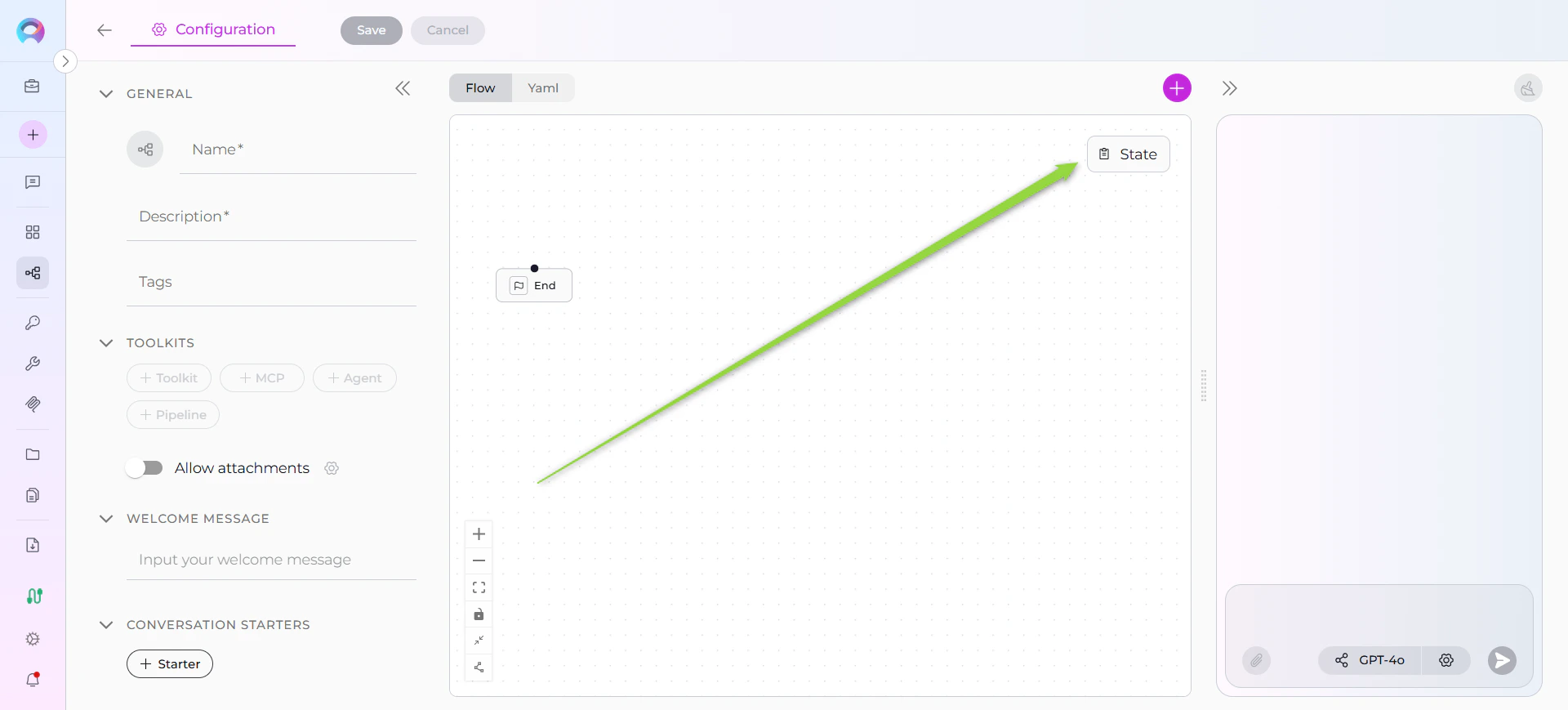
The States button is only visible in Flow mode. In YAML mode, states are defined directly in the YAML configuration.
Default States Display
When you open the States sidebar, you’ll see the two default states:- input - Toggle to activate/deactivate
- messages - Toggle to activate/deactivate
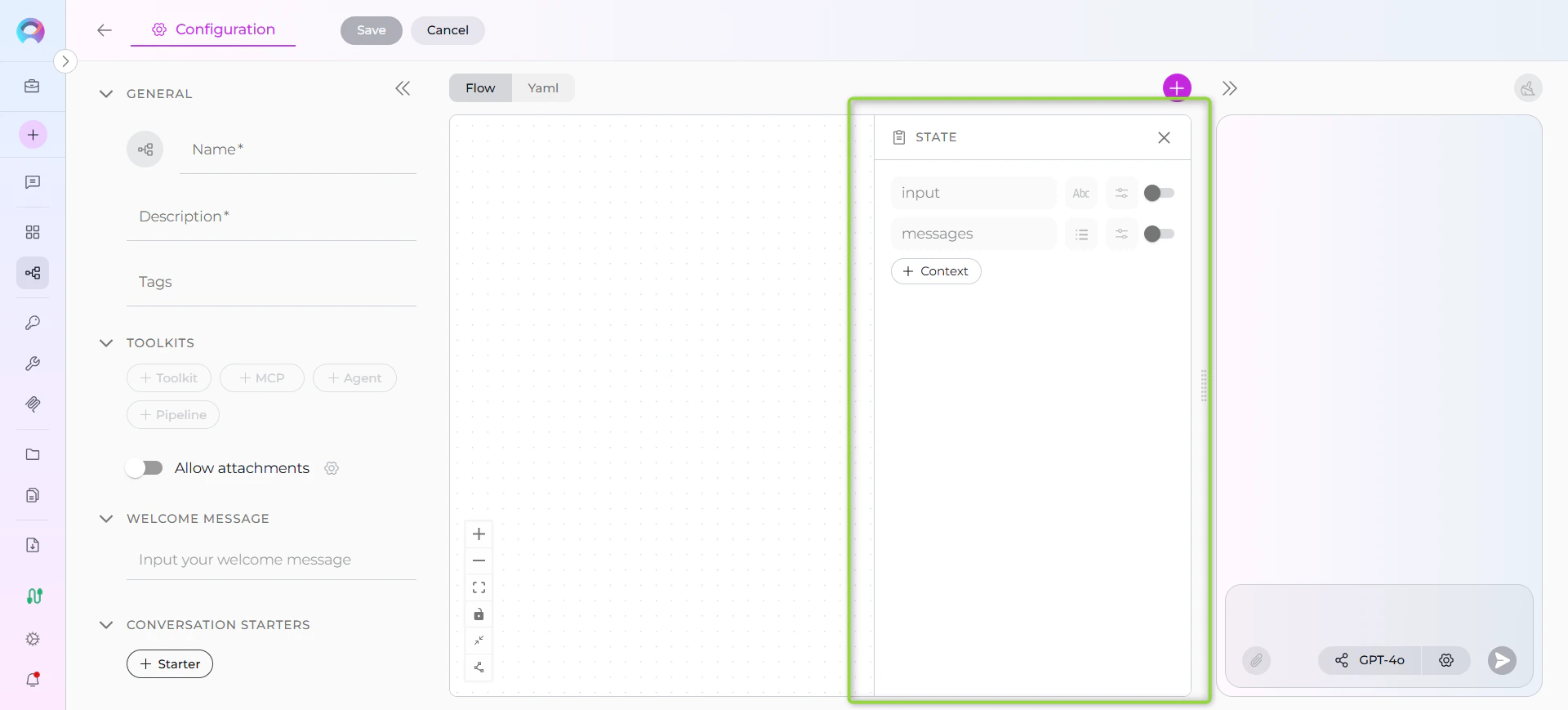
Sidebar Features
Resizable Panel : Drag the left edge of the sidebar to resize it. The sidebar remembers your preferred width for the session. Minimum/Maximum Width : The sidebar has a minimum width (300px) and maximum width (50% of screen). Collapse Icon : Click the collapse icon in the top-right corner to close the sidebar.Adding Custom States
Custom states allow you to store pipeline-specific data beyond the defaultinput and messages.
Creating a New State
- Click + Context Button: Located in the States sidebar
- Fill Out State Form:
- State Name (required): Enter a valid name
- State Type (required): Select from dropdown (string, list, JSON, number)
- Default Value (optional): Enter initial value in 5-row text area
- Auto-Save: Changes are automatically saved
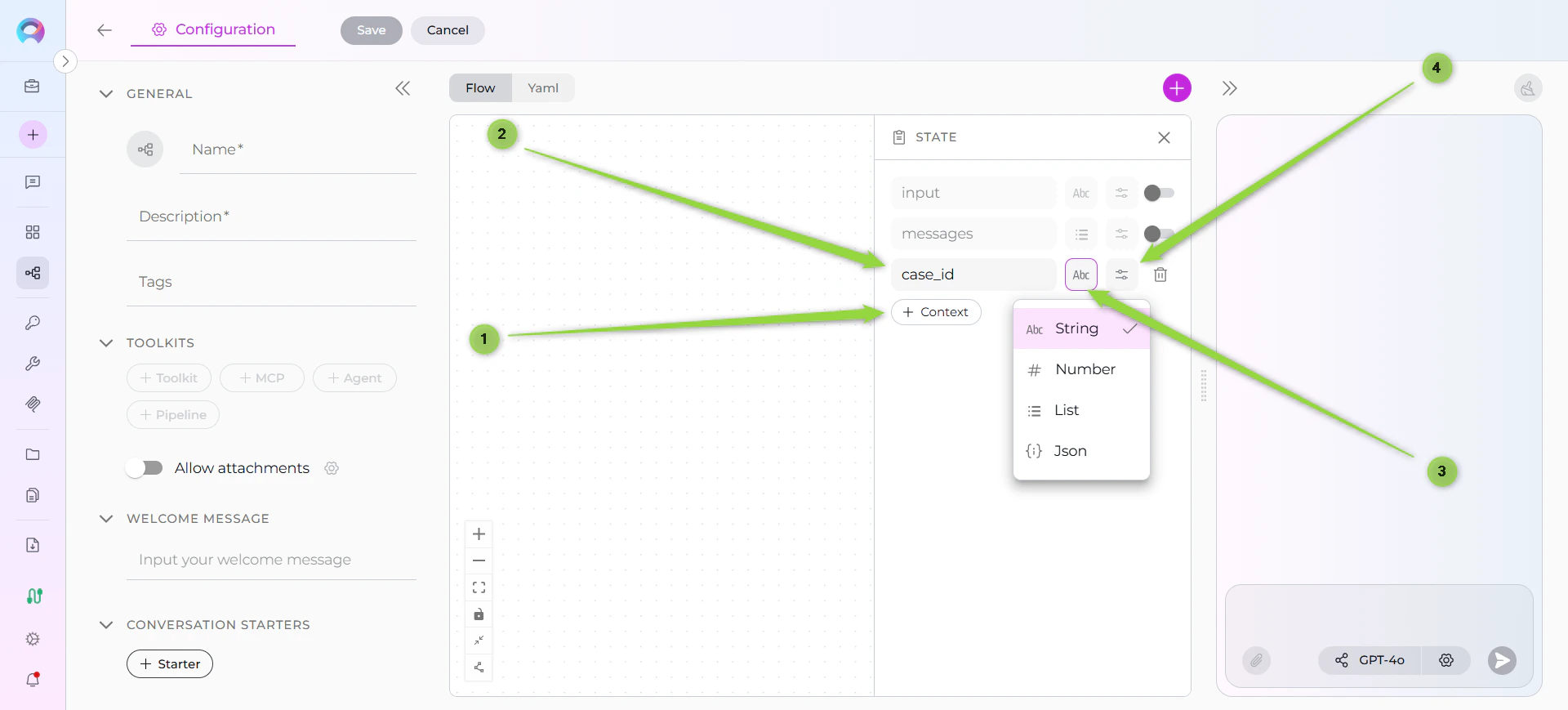
State Name Validation
State names must follow these rules: ✔️ Allowed:- Letters (a-z, A-Z)
- Numbers (0-9)
- Underscores (_)
- Special characters (!, @, #, $, %, etc.)
- Spaces
- Hyphens or dashes
user_story_title✔️jiraProjectId✔️epic_id_123✔️description✔️
State Variable Types
ELITEA Pipelines support multiple data types for state variables:String (str)
Icon: 📝 (displayed in sidebar)Purpose: Store text data
Default Value Example:
"Draft user story"
Use Cases:
- User story titles
- Descriptions
- Status messages
- Extracted text content
Number (int, float)
Icon: 🔢 (displayed in sidebar)Purpose: Store numeric data
Default Value Example:
42 or 3.14
Use Cases:
- Counters
- Scores or ratings
- Identifiers
- Calculation results
List (list)
Icon: 📋 (displayed in sidebar)Purpose: Store ordered collections
Default Value Example:
["item1", "item2", "item3"]
Use Cases:
- Multiple results from a search
- Batch processing items
- Conversation history
- File listings
JSON
Icon: (displayed in sidebar)Purpose: Store key-value pairs and structured data
Default Value Example:
{"key": "value", "status": "active"}
Use Cases:
- Configuration objects
- API responses
- Structured metadata
- Complex data structures
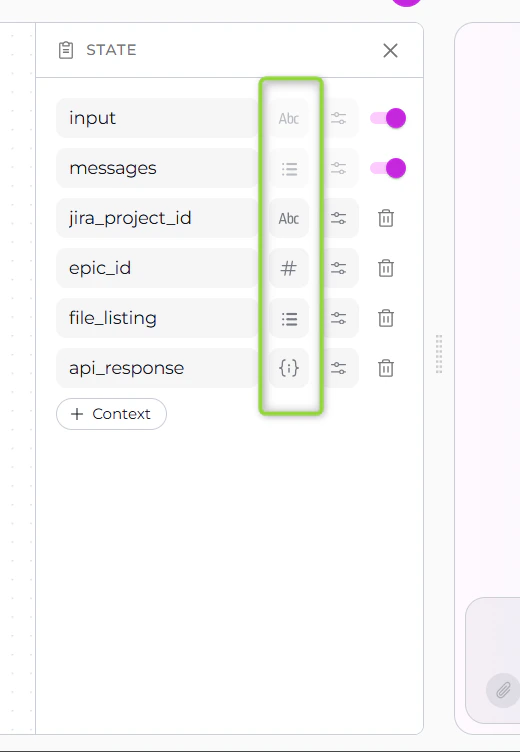
State Initialization
Default Values
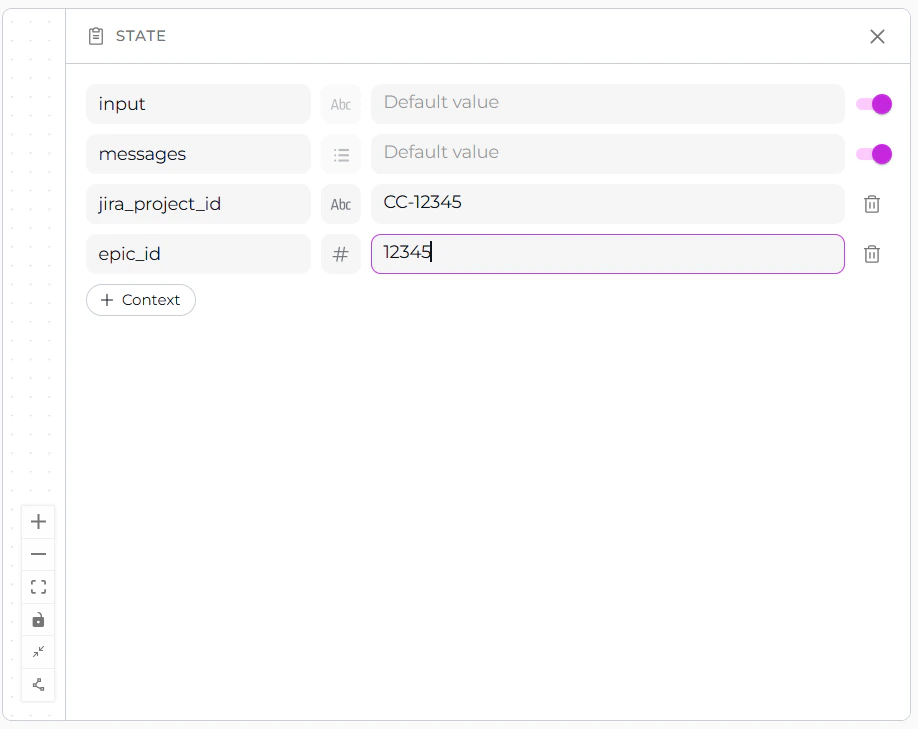
When adding a custom state, you can optionally provide a default value. This value is used when the pipeline starts executing if no other value has been set. Default Value Field:- 5-row text area for comfortable editing
- Expands when sidebar is resized
- Supports multi-line input for complex values
State Modification
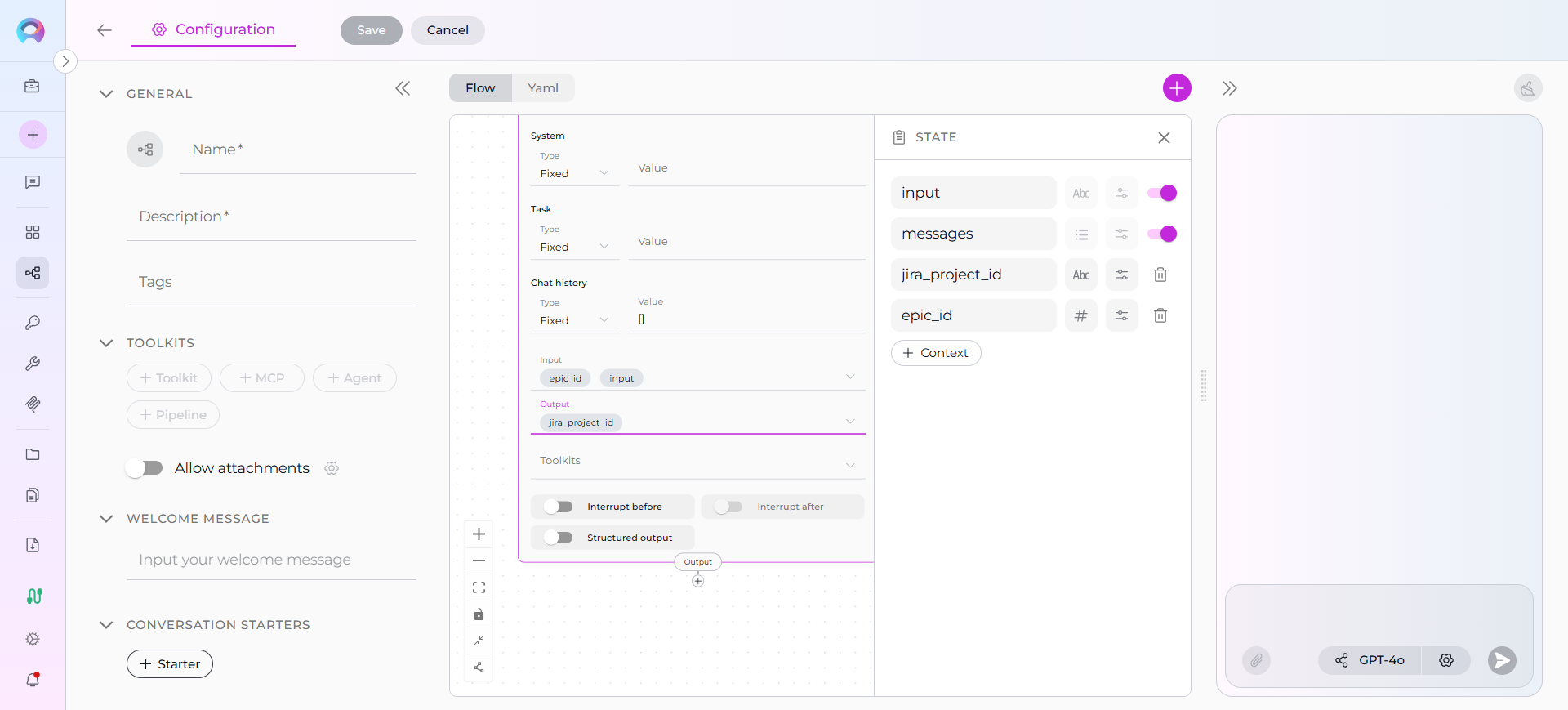
States can be modified in several ways during pipeline execution:1. Node Output Variables
Nodes can write to state variables using theoutput parameter:
When this node executes, the LLM response will be parsed and the values will be stored in the specified state variables.
Output
2. State Modifier Node
The State Modifier node allows advanced state manipulation using Jinja2 templates:- Combine multiple state variables
- Transform data using Jinja2 filters
- Clean or reset state variables
- Format output for specific purposes
3. Code Node Updates
Code nodes can update state by returning structured dictionaries:4. Toolkit and MCP Node Results
Toolkit and MCP nodes automatically store results in output variables: Toolkit Node Example:Practical Examples
Example 1: User Story Creation Pipeline
Example 2: Data Processing with State
Example 3: Conversation Context with Messages
Best Practices
1. Use Descriptive State Names
✔️ Good:2. Choose Appropriate Types
Match state types to the data they’ll store:- Strings: Single values, text content
- Lists: Collections, multiple items
- Dictionaries: Structured data, API responses
- Numbers: Counters, IDs, scores
3. Initialize Critical States
Provide default values for states that nodes depend on:4. Keep State Minimal
Only create state variables you actually need. Unnecessary states:- Increase complexity
- Make debugging harder
- Use more memory
5. Use input vs messages Appropriately
- Use
inputfor single-turn interactions - Use
messageswhen context from previous turns matters - Use both when you need current input AND historical context
6. Leverage State Modifier for Complex Transformations
Instead of complex prompt formatting, use State Modifier:7. Handle State Errors Gracefully
Always account for missing or invalid state:8. Monitor State in Development
Use interruptions to inspect state at key points:9. Document Complex State Usage
Add comments in YAML or description fields explaining non-obvious state usage:10. Clean Up Unused State
Use State Modifier to clear state variables when no longer needed:Common Patterns
Pattern 1: Iterative Processing with Router
Pattern 2: Conditional State Initialization
Pattern 3: State-Based Routing
Troubleshooting
Issue: State Variable Not Found
Problem: Node fails because a state variable doesn’t exist Solutions:- Verify the state is defined in the
statesection - Check that previous nodes populate the state via
output - Provide default values in state initialization
- Use
alita_state.get('var', default_value)in Code nodes
Issue: State Type Mismatch
Problem: Node expects a list but receives a string Solutions:- Verify state type matches the data being stored
- Use State Modifier to transform types if needed
- Check node output configuration
Issue: Messages Not Persisting
Problem: Conversation history is lost between nodes Solutions:- Ensure
messages: listis in thestatesection - Activate the
messagestoggle in States sidebar - Include
messagesin nodeinputparameters - Verify nodes return messages in their output
Issue: Default Values Not Applied
Problem: State variable is empty despite setting a default value Solutions:- Check that default value syntax matches the state type
- Verify no nodes are overwriting the state with empty values
- Use State Modifier to explicitly set values at pipeline start
Cross-Mode Consistency
State management works identically in:- Pipelines Menu: Create and manage pipelines from the main Pipelines interface
- Canvas Mode: Create and manage pipelines directly from conversation canvas
- Nodes Overview - Learn how different node types read from and write to state
- State Modifier Node - Advanced state manipulation with Jinja2 templates
- Connections - Understand how data flows between nodes through state
- Entry Point - Define pipeline starting point and initial state
- YAML Configuration - See complete state definition syntax
- Code Node - Access state via
alita_statein Python code