

Introduction
This guide provides step-by-step instructions for integrating and using the Azure DevOps Boards (ADO Boards) toolkit within ELITEA. It covers everything from setting up your Azure DevOps Personal Access Token to configuring the toolkit and using it within your Agents, Pipelines, and Chat conversations. Azure Boards (ADO Boards) Azure Boards is a work tracking and project management service for planning, organizing, and tracking tasks, user stories, bugs, features, and epics. It includes agile planning tools, customizable dashboards, and workflow automation to help teams manage their work effectively. Integrating Azure DevOps Boards with ELITEA enables your Agents, Pipelines, and Chat conversations to intelligently interact with work items — automating bug creation, status updates, task searches, and linking as part of AI-driven workflows.Toolkit’s Account Setup and Configuration
Account Setup
Create an Azure DevOps account and organization to access the Boards service.- Visit Azure DevOps: Navigate to https://dev.azure.com/
- Start Free or Sign In: Click “Start free” to create a new organization, or “Sign in to Azure DevOps” for existing accounts
- Create Organization: Follow prompts to set up your organization (provide name, select hosting region, optionally link to Azure account)
- Verify Email: Confirm your email address if prompted
- Enable Basic Subscription: Verify Basic subscription is enabled (typically enabled by default)
- Add Users (Optional): Navigate to
https://dev.azure.com/{YourOrganizationName}/_settings/users, click “Add users”, enter user details, select “Basic” access level, and click “Add”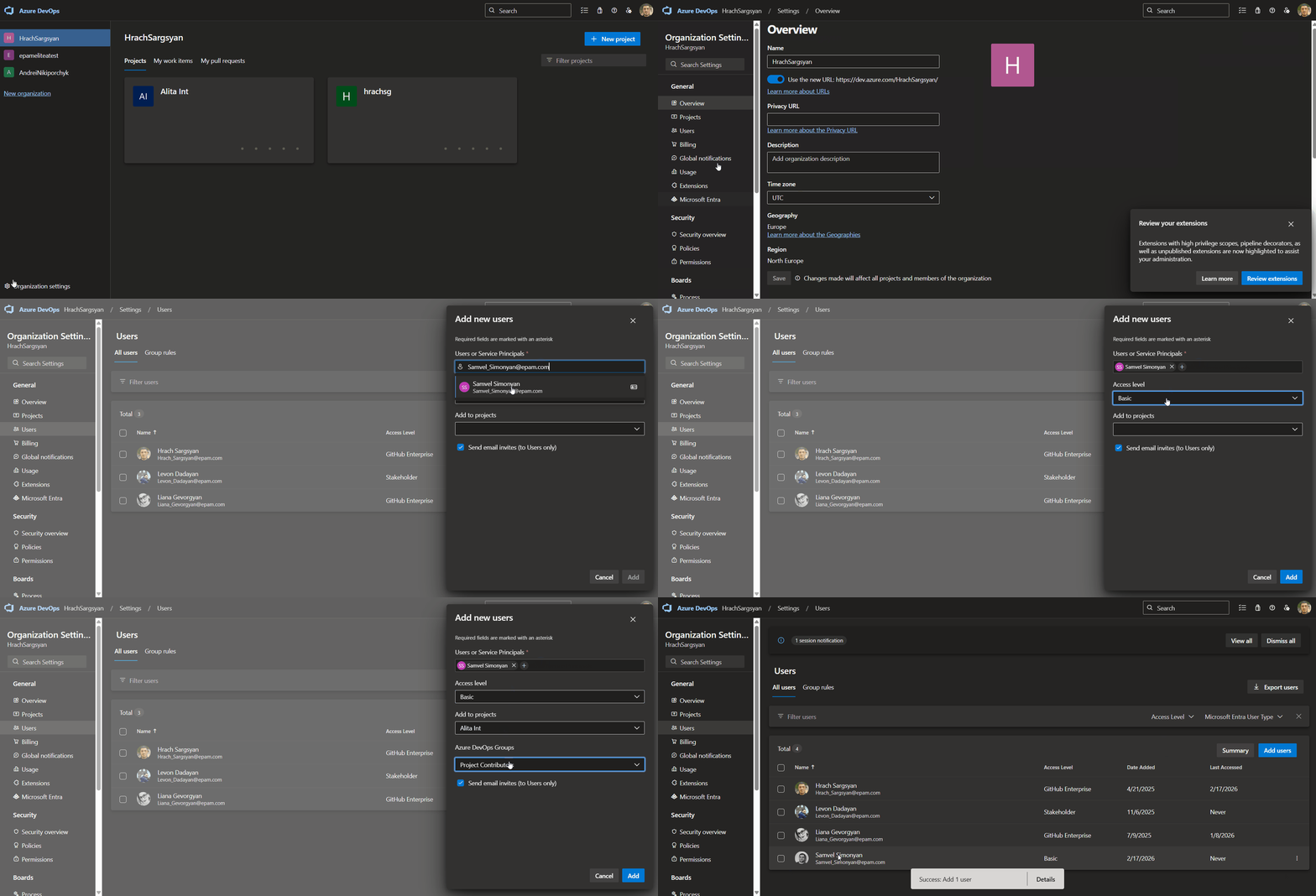
- Verify Access: Confirm “Boards” appears in the left sidebar of your project
Generate a Personal Access Token (PAT)
For secure integration with ELITEA, use an Azure DevOps Personal Access Token (PAT).-
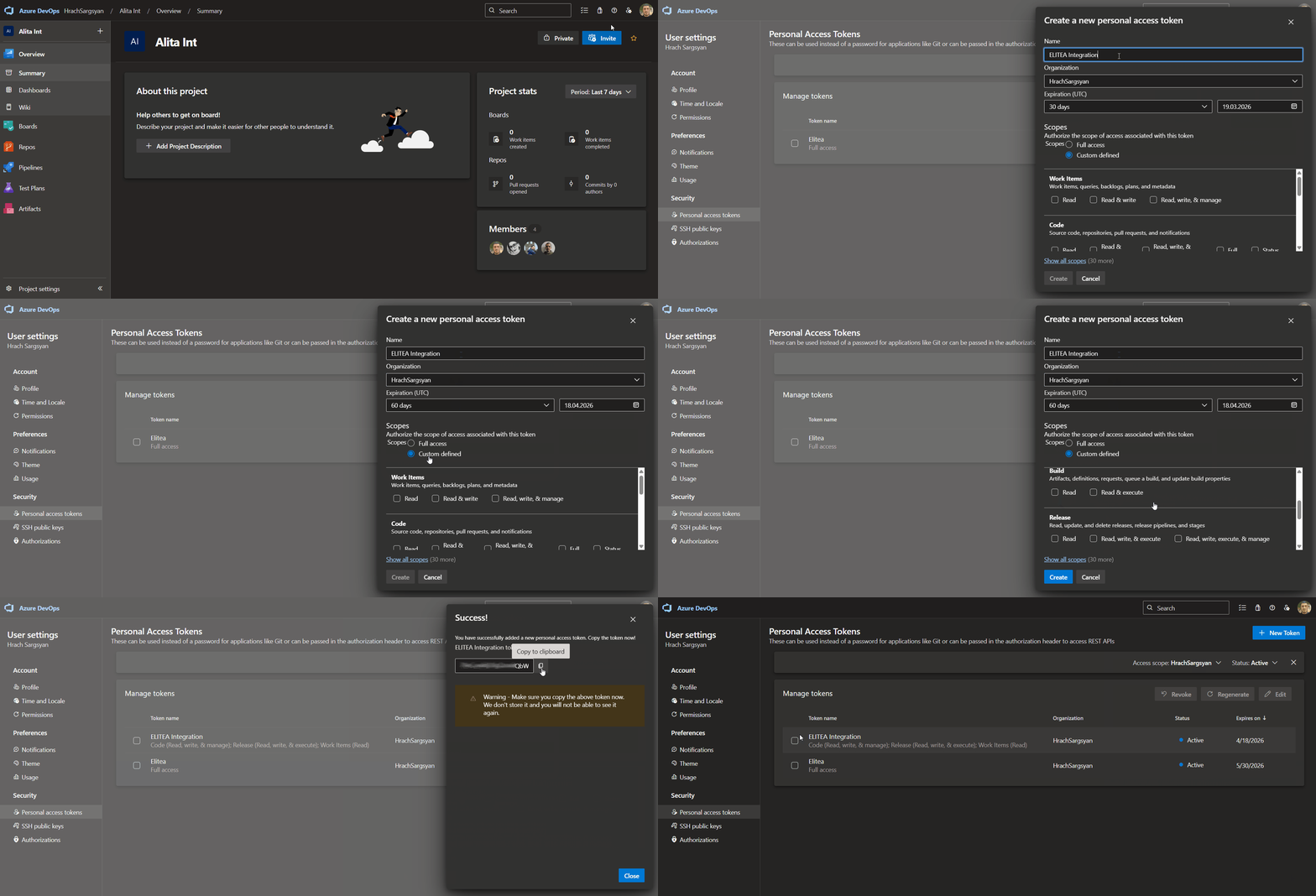
Log in to Azure DevOps: Navigate to
https://dev.azure.com/and log in. - Access User Settings: Click the User settings icon (top right) → select “Personal access tokens”.
- Generate New Token: Click ”+ New Token”.
-
Configure Token Details:
- Name: Enter a descriptive label (e.g., “ELITEA Boards Integration”)
- Organization: Select your organization
- Expiration: Set an expiration date
- Scopes: Select Custom defined, then enable:
- Work items → Read (to read work item details)
- Work items → Write (to create or update work items — only if needed)
- Create Token: Click “Create”.
-
Copy and Store Token: Copy the token immediately and store it securely in a password manager or ELITEA’s Secrets feature.
System Integration with ELITEA
To integrate Azure DevOps Boards with ELITEA, follow this three-step process: Create Credentials → Create Toolkit → Use in Agents.Step 1: Create Azure DevOps Credentials
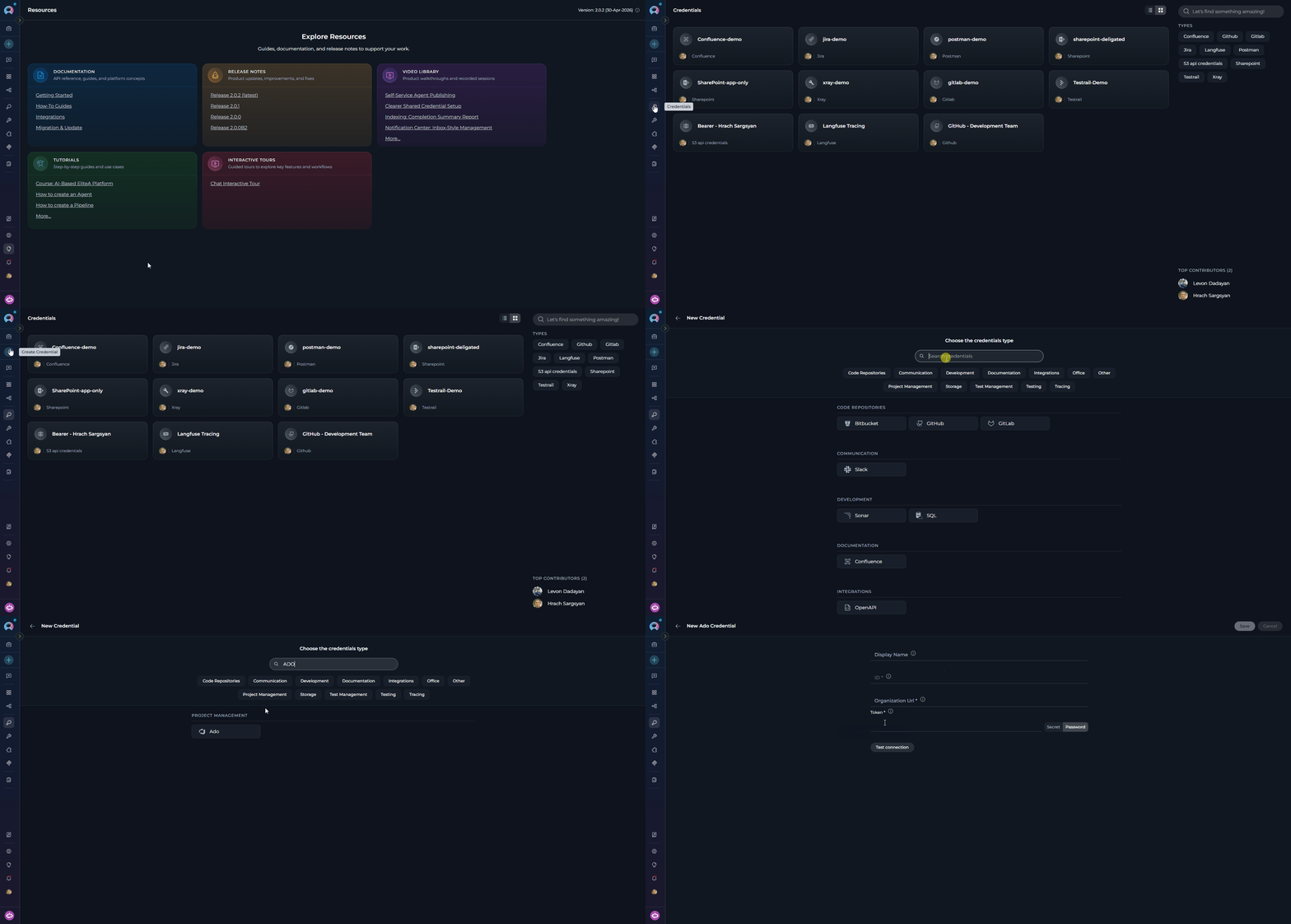
- Navigate to Credentials Menu: Open the sidebar and select Credentials.
-
Create New Credential: Click the
+ Createbutton. -
Select Azure DevOps: Choose Ado as the credential type.
-
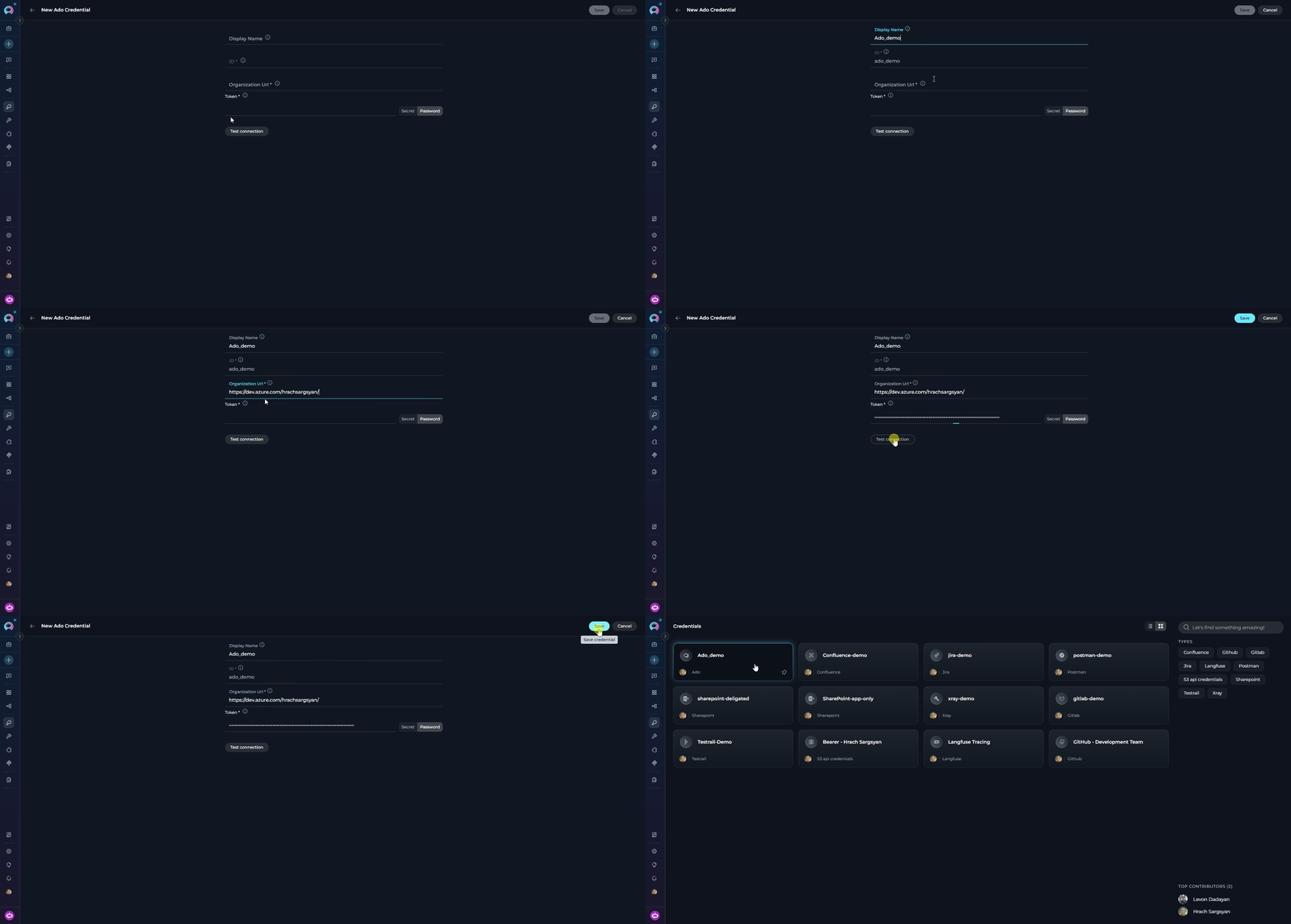
Configure Credential Details:
- Test Connection: Click Test Connection to verify credentials.
-
Save Credential: Click Save.
Step 2: Create the Azure DevOps Boards Toolkit
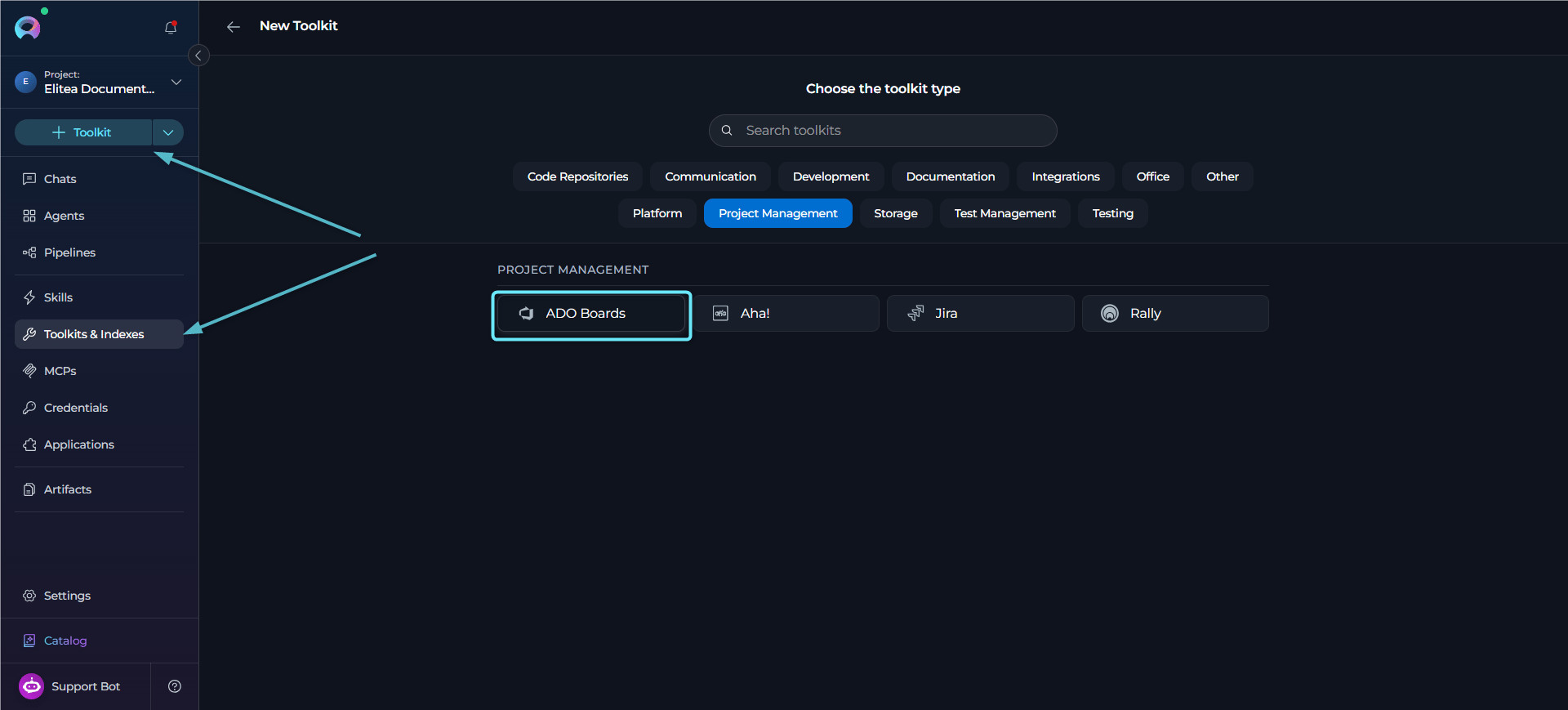
- Navigate to Toolkits Menu: Open the sidebar and select Toolkits & Indexes.
-
Create New Toolkit: Click the
+ Toolkitbutton. -
Select Azure Boards: Choose Azure Boards (ADO Board) from the available toolkit types.
-
Configure Toolkit Settings:
-
Enable Desired Tools: Select the checkboxes next to the specific boards tools you want to enable. Enable only the tools your agents will actually use.
- Make Tools Available by MCP — (optional) Make selected tools accessible through external MCP clients.
- Save Toolkit: Click Save.
Available Boards Tools
- Documents: Word (.docx), PowerPoint (.pptx), CSV
- Email files: Outlook Message (.msg), MIME Email (.eml) — including email metadata (sender, recipients, subject, date, CC/BCC), body content (plain text and HTML), and nested attachments
- Get comments supports
process_images=Trueto analyze images embedded in comment text. When enabled, ELITEA inserts image descriptions next to the original image references in the returned comment content. - Get image by url analyzes a single Azure DevOps work item attachment image directly from its attachment URL.
- Image descriptions are cached inside the toolkit runtime, so repeated analysis of the same image during a session avoids unnecessary duplicate vision-model calls.
- You can upload
.featurefiles or other Gherkin-formatted content to Azure DevOps work items using Attach file to work item. - You can also store Gherkin content directly in HTML-capable work item fields such as
Microsoft.VSTS.TCM.ReproStepsorSystem.Descriptionby using Create work item or Update work item with the appropriate Azure DevOps field reference names. - Attach file to work item supports optional inline rendering in an HTML field and can also add the uploaded file reference as a work item comment.
Testing Toolkit Tools
After configuring the toolkit, test individual tools from the Toolkit detail page using the Test Settings panel:- Select LLM Model from the model dropdown
- Select a Tool from the available boards tools
- Provide Input — enter required parameters or test queries
- Run the Test and review the response
Step 3: Add the Boards Toolkit to Your Workflows
In Agents
- Navigate to Agents: Open the sidebar and select Agents.
- Create or Edit Agent: Create a new agent or select an existing one.
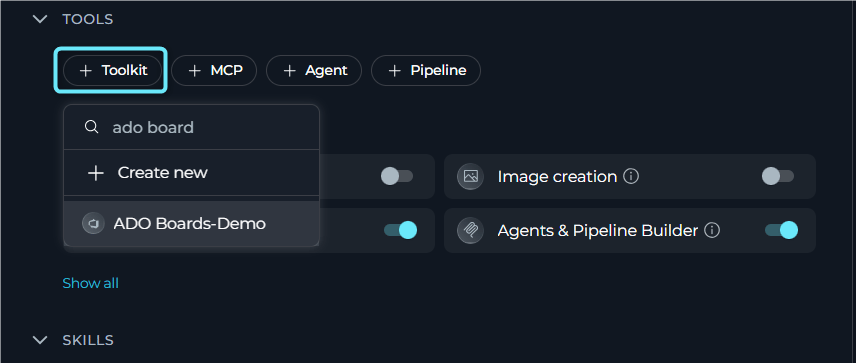
- Add the Toolkit: In the TOOLS section, click “+Toolkit” and select your ADO Boards toolkit.
In Pipelines
- Navigate to Pipelines: Open the sidebar and select Pipelines.
- Create or Edit Pipeline: Create a new pipeline or select an existing one.
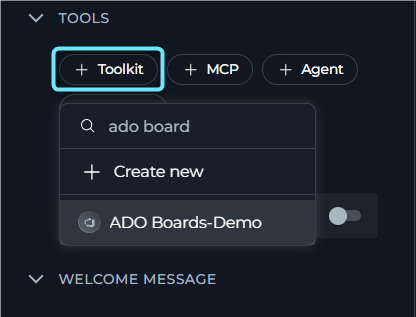
- Add the Toolkit: In the TOOLS section, click “+Toolkit” and select your ADO Boards toolkit.
In Chat
- Navigate to Chat: Open the sidebar and select Chat.
- Start New Conversation: Click + Conversation or open an existing conversation.
- Add ADO Boards Toolkit to Conversation:
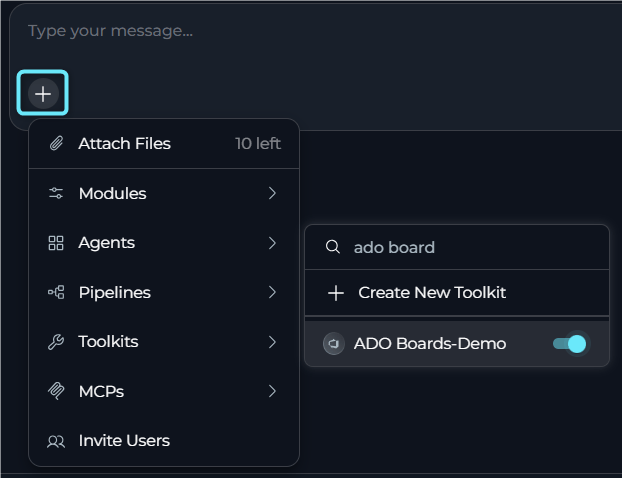
- Click the
+icon in the chat input toolbar (tooltip: Add files, agents, toolkits and more…) - Hover over Toolkits in the popup menu
- Search for your ADO Boards toolkit by name
- Enable the toolkit to add it to your conversation
- Click the
- Verify Toolkit Added: The ADO Boards toolkit appears in the PARTICIPANTS panel on the right side under the Toolkits section.
- Use Toolkit in Chat: You can now directly interact with your Azure Boards projects by asking questions or requesting actions that will trigger the ADO Boards toolkit tools.
- “Find all high-priority bugs assigned to me.”
- “Create a new bug for the login issue I just found.”
- “List all open tasks assigned to the current sprint.”
Instructions and Prompts for Using the ADO Boards Toolkit
When crafting instructions for agents using the ADO Boards toolkit, clarity and precision are essential. Break down tasks into simple, actionable steps and explicitly define all parameters. Effective instructions are:- Direct and Action-Oriented: Use strong action verbs (e.g., “Use the ‘search_work_items’ tool…”, “Create a work item using ‘create_work_item’…”)
- Parameter-Centric: Specify each required parameter and how the agent should obtain its value
- Step-by-Step Structured: Use numbered steps for complex workflows
Chat Usage Examples
Search Work Items
Search Work Items
Create Work Item
Create Work Item
Update Work Item
Update Work Item
Get Comments with Image Processing
Get Comments with Image Processing
Attach Screenshot or Gherkin File to Work Item
Attach Screenshot or Gherkin File to Work Item
Best Practices
Test Integration Thoroughly
Test Integration Thoroughly
Monitor Agent Performance
Monitor Agent Performance
Follow Security Best Practices
Follow Security Best Practices
- Use Personal Access Tokens instead of your main account password
- Grant only the minimum necessary scopes (Work items: Read, Write only if needed)
- Store PATs using ELITEA’s Secrets Management feature
Provide Clear Instructions
Provide Clear Instructions
Start with Simple Use Cases
Start with Simple Use Cases
Intelligent Work Item Search for Task Prioritization
Intelligent Work Item Search for Task Prioritization
- Scenario: Developers use ELITEA Agents to quickly find work items assigned to them, filtered by priority or status.
- Tools Used:
search_work_items - Example Instruction: “Use ‘search_work_items’ to find all ‘Task’ work items assigned to me that are currently ‘Active’, sorted by Priority.”
- Benefit: Improves daily task prioritization without leaving ELITEA.
Automated Bug Logging from ELITEA Workflows
Automated Bug Logging from ELITEA Workflows
- Scenario: When automated tests detect a bug, automatically create a Bug work item pre-populated with error details.
- Tools Used:
create_work_item - Example Instruction: “Use ‘create_work_item’ to create a new ‘Bug’ with title ‘Automated Test Failure Detected’ and description containing the error logs from the failed workflow step.”
- Benefit: Ensures timely, consistent bug reporting directly from ELITEA workflows.
Attach Evidence Files to Work Items
Attach Evidence Files to Work Items
- Scenario: After a failed automated test, attach a screenshot, log bundle, or Gherkin feature file to the related bug.
- Tools Used:
attach_file_to_work_item - Example Instruction: “Use ‘attach_file_to_work_item’ to upload the generated screenshot artifact to the bug work item and append it inline to System.Description.”
- Benefit: Keeps diagnostic evidence directly on the work item for faster triage and validation.
Store Gherkin Scenarios in Work Items
Store Gherkin Scenarios in Work Items
- Scenario: Teams maintain acceptance criteria or reproducible test scenarios in Gherkin format inside Azure DevOps work items.
- Tools Used:
create_work_item,update_work_item,attach_file_to_work_item - Example Instruction: “Use ‘update_work_item’ to add the Gherkin scenario to Microsoft.VSTS.TCM.ReproSteps, or attach the .feature file to the work item if the scenario is maintained as a file artifact.”
- Benefit: Preserves executable-style test scenarios alongside bugs, tasks, or test-related work items.
Automated Work Item Updates Based on Workflow Progress
Automated Work Item Updates Based on Workflow Progress
- Scenario: As tasks progress through ELITEA workflows, automatically update the status of linked work items.
- Tools Used:
update_work_item - Example Instruction: “Use ‘update_work_item’ to set the State of work item [ID] to ‘In Progress’ when the workflow reaches the Development stage.”
- Benefit: Keeps work item statuses synchronized with actual project progress automatically.
Troubleshooting
Connection Issues
Connection Issues
- Verify the organization URL is correct (e.g.,
https://dev.azure.com/YourOrganizationName) - Check that your PAT is accurate and not expired
- Regenerate the PAT if needed and update your ELITEA credential
- Verify network connectivity and firewall settings
Incorrect Organization or Project Names
Incorrect Organization or Project Names
- Verify the organization name matches your Azure DevOps URL exactly
- Confirm the project name is correct (case-sensitive)
- Ensure the URL format is:
https://dev.azure.com/YourOrganizationName
Work Item Access Issues
Work Item Access Issues
- Confirm the work item ID exists in the specified project
- Verify the PAT has appropriate work item scopes
- Ensure Boards is enabled for the project (Project Settings → Services)
- Check your account has permission to access the specific area path
Indexing and Search Tool Errors
Indexing and Search Tool Errors
- Verify PgVector is properly configured in toolkit settings
- Confirm an embedding model is selected
- Ensure the index was created successfully before searching
- Verify there is data available to index
Work Item Creation or Update Fails with Field Errors
Work Item Creation or Update Fails with Field Errors
create_work_item or update_work_item tool returns an error about invalid or unrecognized field names.Cause: Work item fields must be specified using their Azure DevOps reference names (e.g. System.Title), not display names.-
Use the Get work item type fields tool to retrieve the correct reference names for your work item type (e.g.
Task,Bug,Epic) -
If the field list looks outdated after a project configuration change, instruct the agent to use
force_refresh=Truewhen calling the tool to reload definitions from Azure DevOps -
Use the following common reference names as a starting point:
-
Ensure the JSON payload uses the correct structure:
Support Contact
FAQ
Can I use my regular Azure DevOps password instead of a Personal Access Token?
Can I use my regular Azure DevOps password instead of a Personal Access Token?
What scopes should I grant to the PAT for Boards?
What scopes should I grant to the PAT for Boards?
What is the correct format for the Azure DevOps Organization URL?
What is the correct format for the Azure DevOps Organization URL?
https://dev.azure.com/YourOrganizationName — replace YourOrganizationName with your actual organization name. Do not include the project name in the URL.Can I use the same credential for multiple ADO toolkits?
Can I use the same credential for multiple ADO toolkits?
How do I find my Azure DevOps organization and project names?
How do I find my Azure DevOps organization and project names?
https://dev.azure.com/YourOrgName). Project names are listed in the Azure DevOps interface under your organization.Why am I getting 'Permission Denied' errors even with a valid token?
Why am I getting 'Permission Denied' errors even with a valid token?
vso.work_write scope for write operations. Also ensure your Azure DevOps account has project-level permissions — a valid token does not automatically grant project access.Do I need PgVector configuration for all boards tools?
Do I need PgVector configuration for all boards tools?
Can I attach screenshots or other files to a work item?
Can I attach screenshots or other files to a work item?
System.Description. For non-image files, the toolkit inserts a link instead.Can I upload Gherkin scenarios to Azure DevOps work items?
Can I upload Gherkin scenarios to Azure DevOps work items?
- put the Gherkin text directly into a work item field using Create work item or Update work item, or
- upload a
.featurefile using Attach file to work item.
System.Description or Microsoft.VSTS.TCM.ReproSteps.How do image descriptions work in comments and attachments?
How do image descriptions work in comments and attachments?
process_images=True to analyze images embedded in comment text. The toolkit keeps the original image reference and adds a textual description next to it. For direct analysis of a single attachment image, use Get image by url with the Azure DevOps attachment URL.Can I use multiple ADO toolkits in the same agent?
Can I use multiple ADO toolkits in the same agent?
How do I update my PAT when it expires?
How do I update my PAT when it expires?
- Generate a new PAT in Azure DevOps
- Navigate to Credentials in ELITEA
- Edit your Azure DevOps credential and update the Token field
- Save the credential — all toolkits using it will automatically use the new token
What is the correct JSON format for creating or updating work items?
What is the correct JSON format for creating or updating work items?
create_work_item and update_work_item expect a JSON string with a fields key containing Azure DevOps field reference names:Task, Bug, Epic).Can I retrieve all work items without a result limit?
Can I retrieve all work items without a result limit?
search_work_items returns up to the Limit value configured in the toolkit settings (default: 5). To retrieve all matching results, set limit=-1 in the agent instruction:How do I find valid link type names for linking work items?
How do I find valid link type names for linking work items?
System.LinkTypes.Dependency-forward— forward dependencySystem.LinkTypes.Dependency-reverse— reverse dependencySystem.LinkTypes.Related— relatedSystem.LinkTypes.Hierarchy-Forward— parent → childSystem.LinkTypes.Hierarchy-Reverse— child → parent
link_work_items tool.- Agent Menu — Complete reference for agent management
- Create and Edit Agents from Canvas — Quickly create agents from chat canvas
- Indexing Overview — Understanding ELITEA’s indexing capabilities
- Azure Repos (ADO Repos) Toolkit Integration Guide — Integrate Azure Repos for version control
- Azure DevOps Documentation — Official Microsoft documentation
- Azure Boards Documentation — Work item tracking, backlogs, sprints, and Kanban boards
- Personal Access Tokens Guide — Best practices for PAT management