

Before You Start
Before you begin, make sure you have:- ☑️ Python installed on your computer (version 3.10 or newer) - Download Python
- ☑️ Node.js installed (required for most MCP servers like Playwright, GitHub, Figma) - Download Node.js
- ☑️ Your Elitea Project ID (find this in Elitea Settings → Configuration)
- ☑️ Your Elitea Authentication Token (create one in Elitea Settings → Personal Tokens)
- ☑️ Your Elitea deployment URL (example:
https://next.elitea.ai)
Some MCP servers may require additional dependencies beyond Python and Node.js. Check the specific MCP server documentation for any additional requirements before installation.
What is an MCP Client and Why Do I Need It?
MCP Client means Elitea can connect to external tools that follow the Model Context Protocol (MCP) standard. Why it matters to you: Your Elitea agents can use powerful external tools like:- Playwright - Automate web browsers, take screenshots, test websites
- GitHub - Create issues, manage pull requests, read repositories
- And many more - Any tool that supports MCP can be connected
Step-by-Step Setup
Part 1: Install the Elitea MCP Client
The client is a program that connects Elitea to external MCP tools.-
Open PowerShell
- Press
Windows key, type “PowerShell”, and press Enter
- Press
-
Install pipx (a tool that helps install Python programs)
- Copy this command and paste it into PowerShell, then press Enter:
- Wait for it to finish
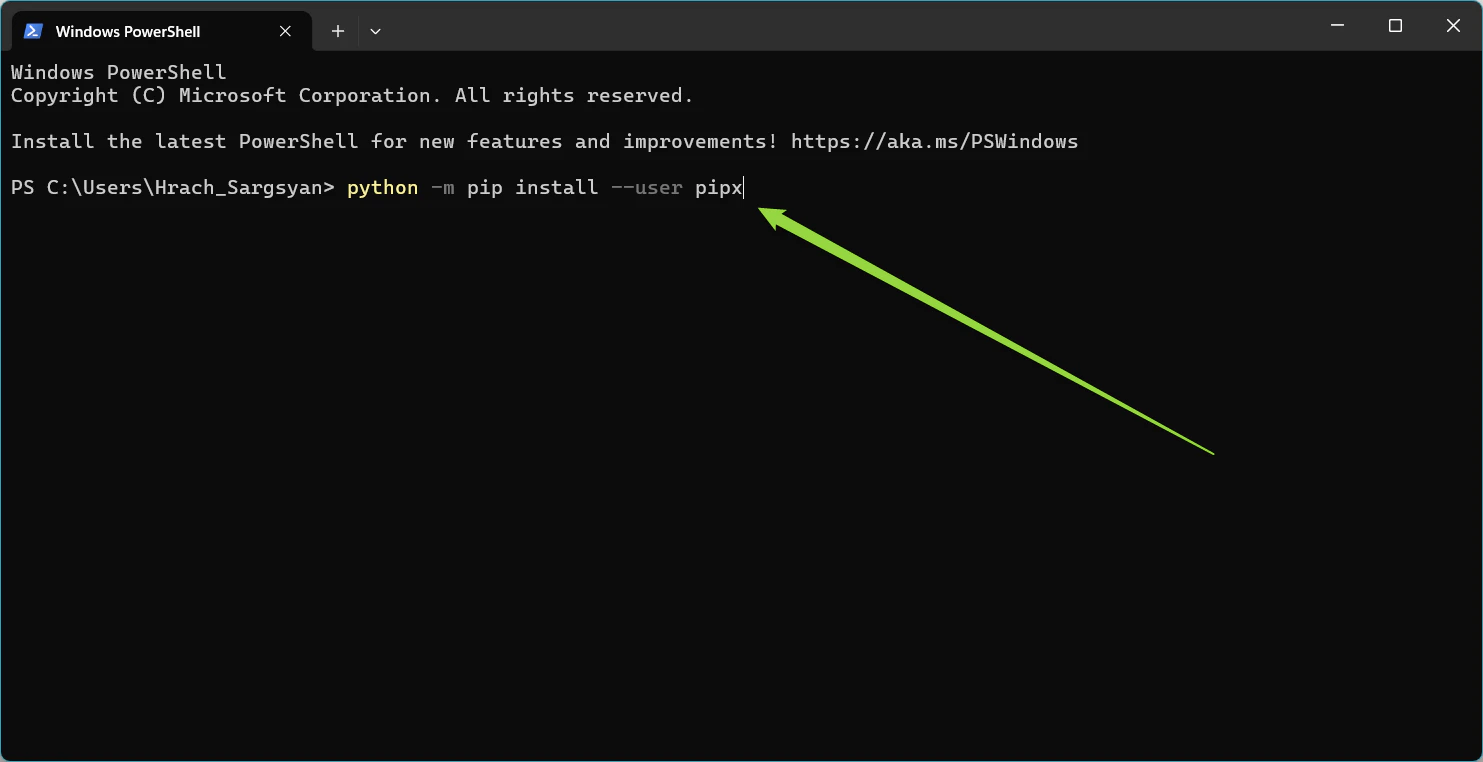
- Copy this command and paste it into PowerShell, then press Enter:
-
Set up pipx’s path
- This makes sure your computer can find pipx. Copy and run:
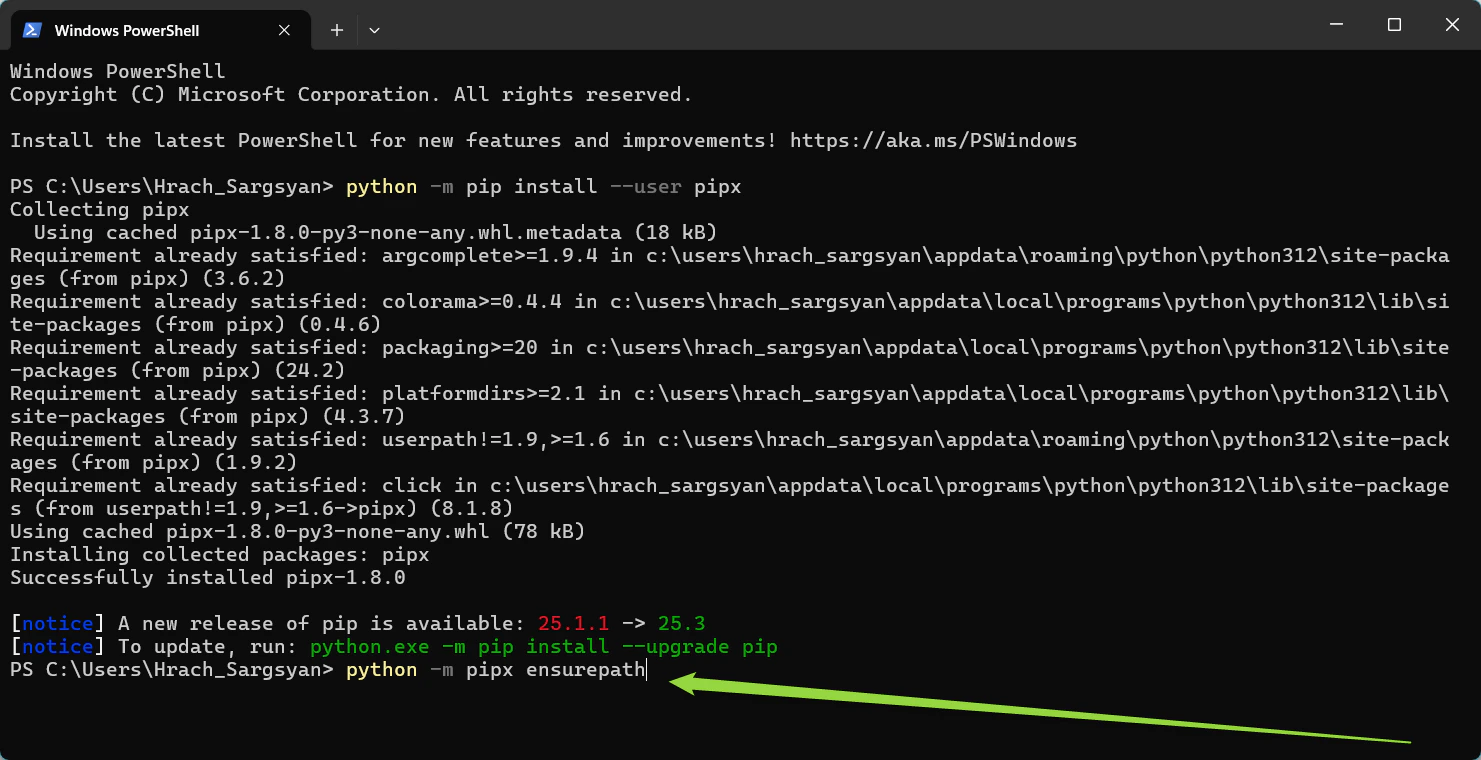
- This makes sure your computer can find pipx. Copy and run:
-
Install elitea-mcp
- This is the actual client program. Copy and run:
- Wait for installation to complete
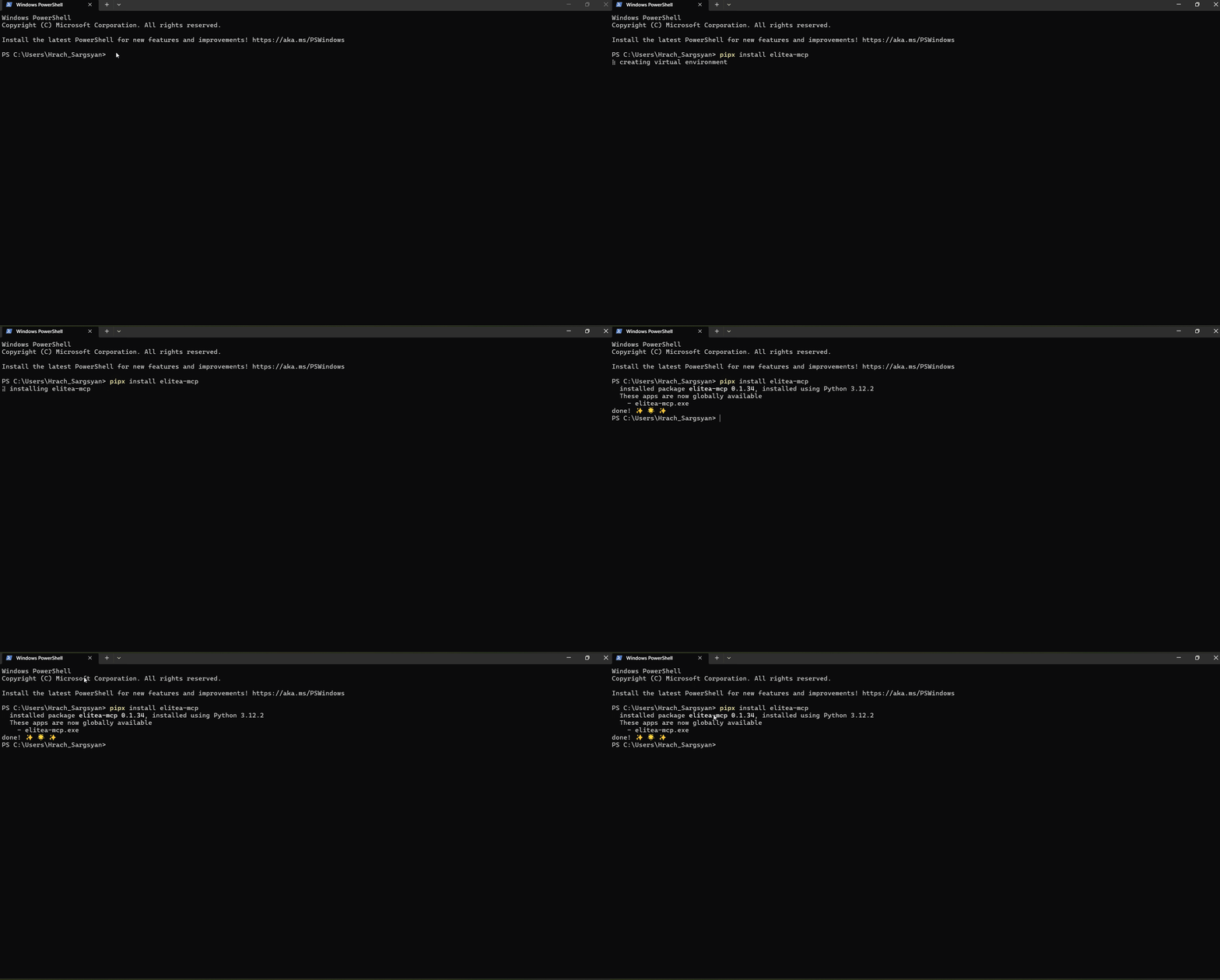
- This is the actual client program. Copy and run:
-
Close and reopen PowerShell
- This refreshes your environment so the new program is recognized
Part 2: Configure the Client
Now you’ll set up the connection to your Elitea account and add external tools.-
Run the setup wizard
- In PowerShell, type:
- Press Enter
- In PowerShell, type:
-
Answer the basic prompts
- Deployment URL: Type your Elitea URL (example:
https://next.elitea.ai) and press Enter - Authentication token: Paste your token (the one you copied earlier) and press Enter
- Host: Just press Enter to accept the default (
0.0.0.0) - Port: Just press Enter to accept the default (
8000) - Project ID: Enter your Project ID number (find it in Elitea Settings → Configuration)
- Deployment URL: Type your Elitea URL (example:
-
Add an MCP Server (example: Playwright)
- When asked “Do you want to add an MCP server?”, type
yand press Enter - Server Name: Type a name like
Playwrightand press Enter - Server Type: Select
stdioand press Enter - Command: Type
npxand press Enter (ornpx.cmdon Windows if needed) - Args: Type
@playwright/mcp@latestand press Enter - Keep Connection Alive: Type
yfor Yes (recommended for browser automation)
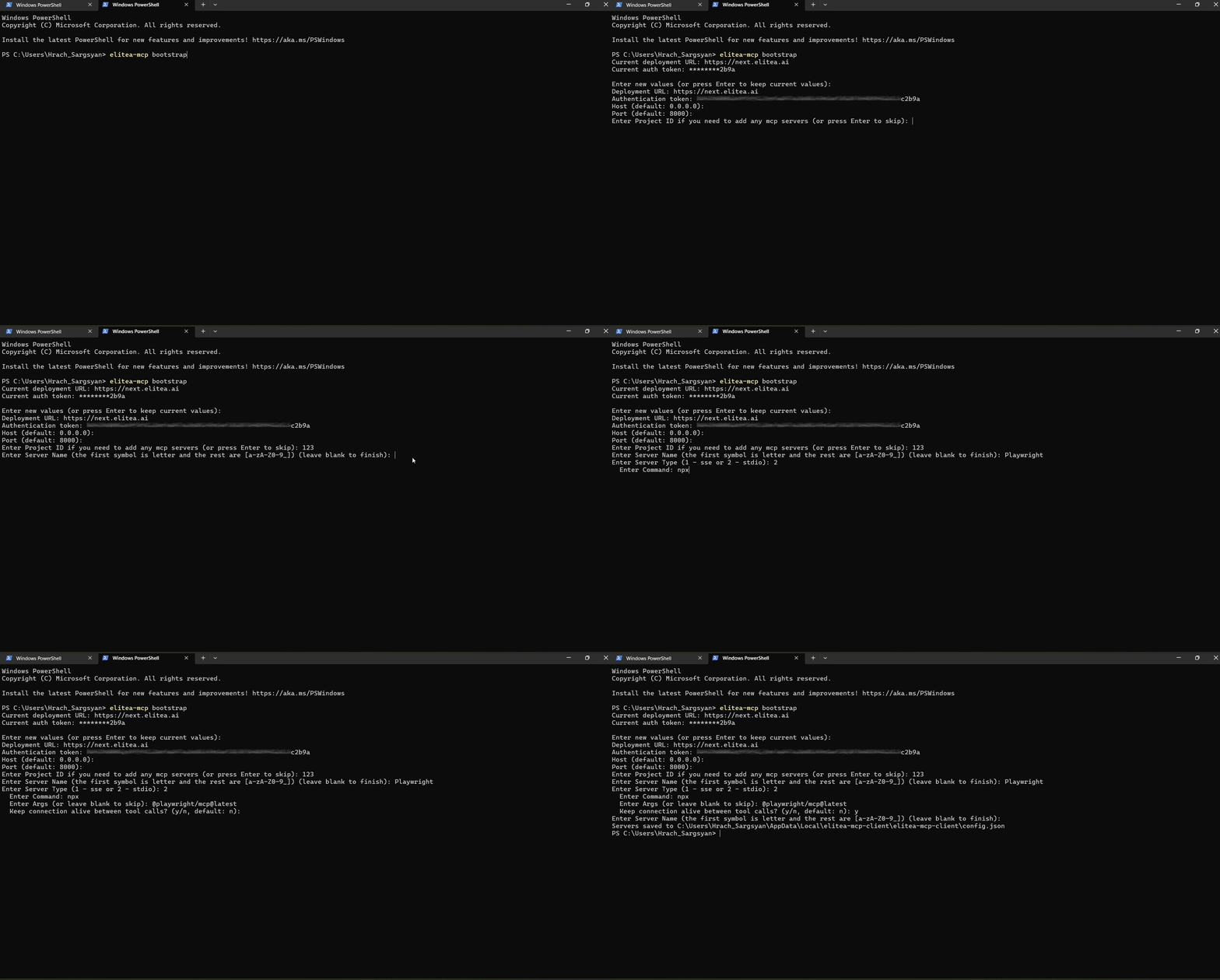
- When asked “Do you want to add an MCP server?”, type
-
Add more servers (optional)
- You can add GitHub, Figma, or other MCP servers by repeating the process
- For GitHub:
- For Figma:
-
Finish setup
- When done adding servers, type
nwhen asked to add more - You should see a confirmation message
- When done adding servers, type
Part 3: Start the MCP Client
Now you’ll start the client so it runs in the background.Using the System Tray (Recommended - Easiest Way)
-
Start the tray application
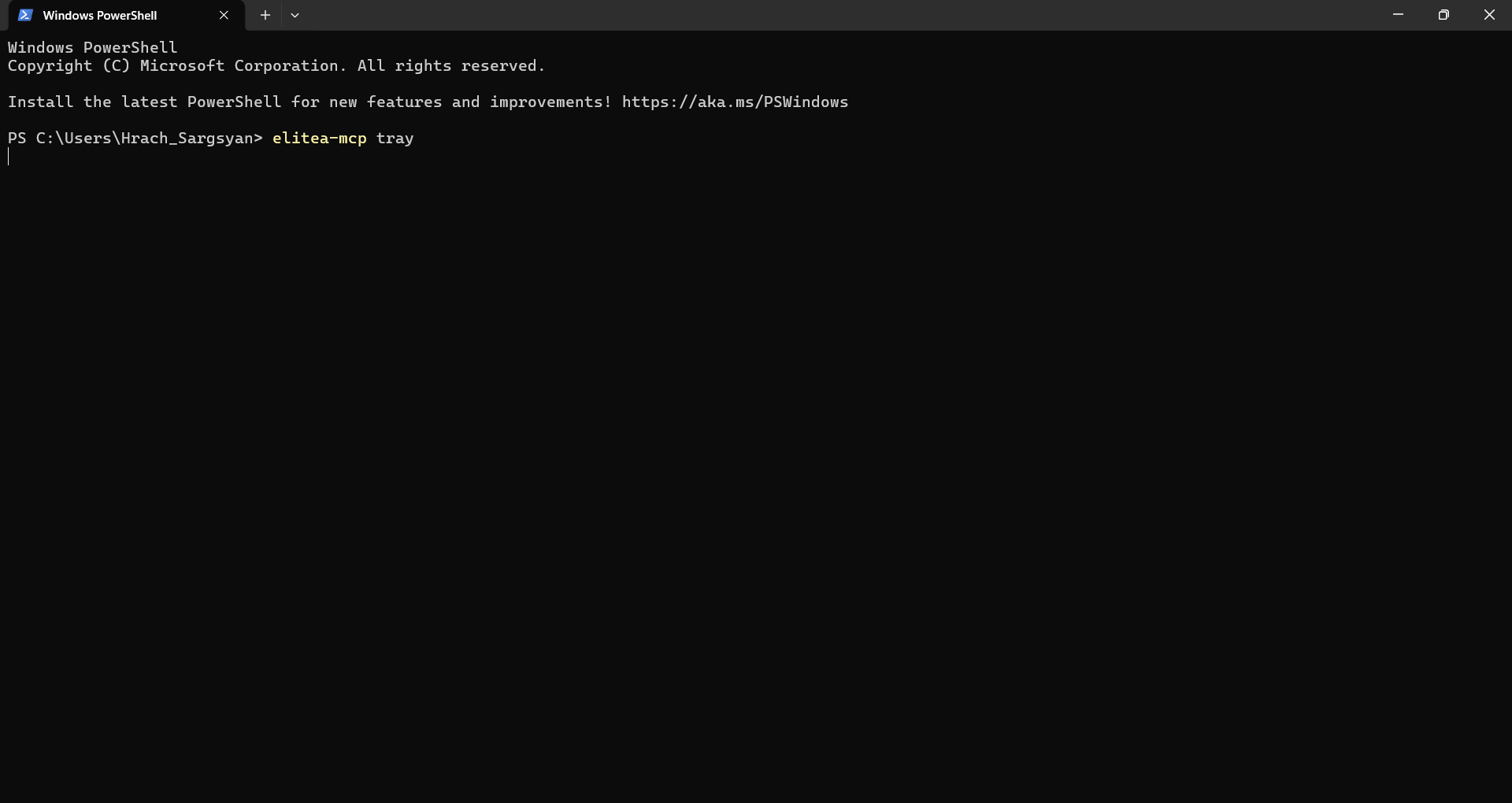
- In PowerShell, type:
- Press Enter
- You should see the Elitea icon appear in your system tray
- In PowerShell, type:
-
Start the MCP Server from the tray
- Look in the bottom-right corner of your screen (system tray)
- Click the Elitea icon
- Select Start MCP Server

-
Verify it’s running
- The tray icon should show the server is active
You can easily open and edit the configuration file from the tray: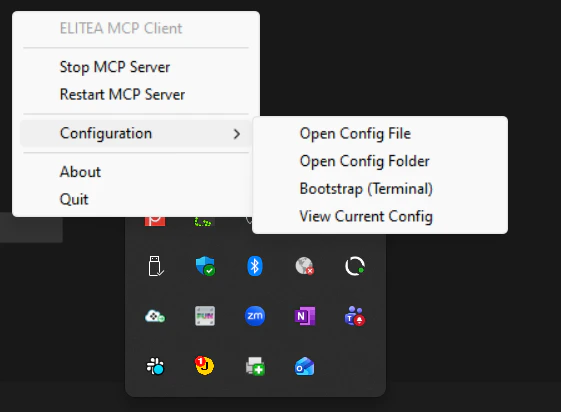
- Click the Elitea icon in the system tray
- Select Configuration → Open Config File
- The
config.jsonfile will open in your default text editor - Make any needed changes and save
- Restart the MCP server for changes to take effect
Part 4: Connect Tools in Elitea
Now you’ll make the external tools available to your Elitea agents.-
Log into Elitea
- Open your Elitea deployment in a web browser
- Navigate to your project
-
Open the MCPs menu
- Look for the MCPs menu in the left sidebar
- Click it to open
-
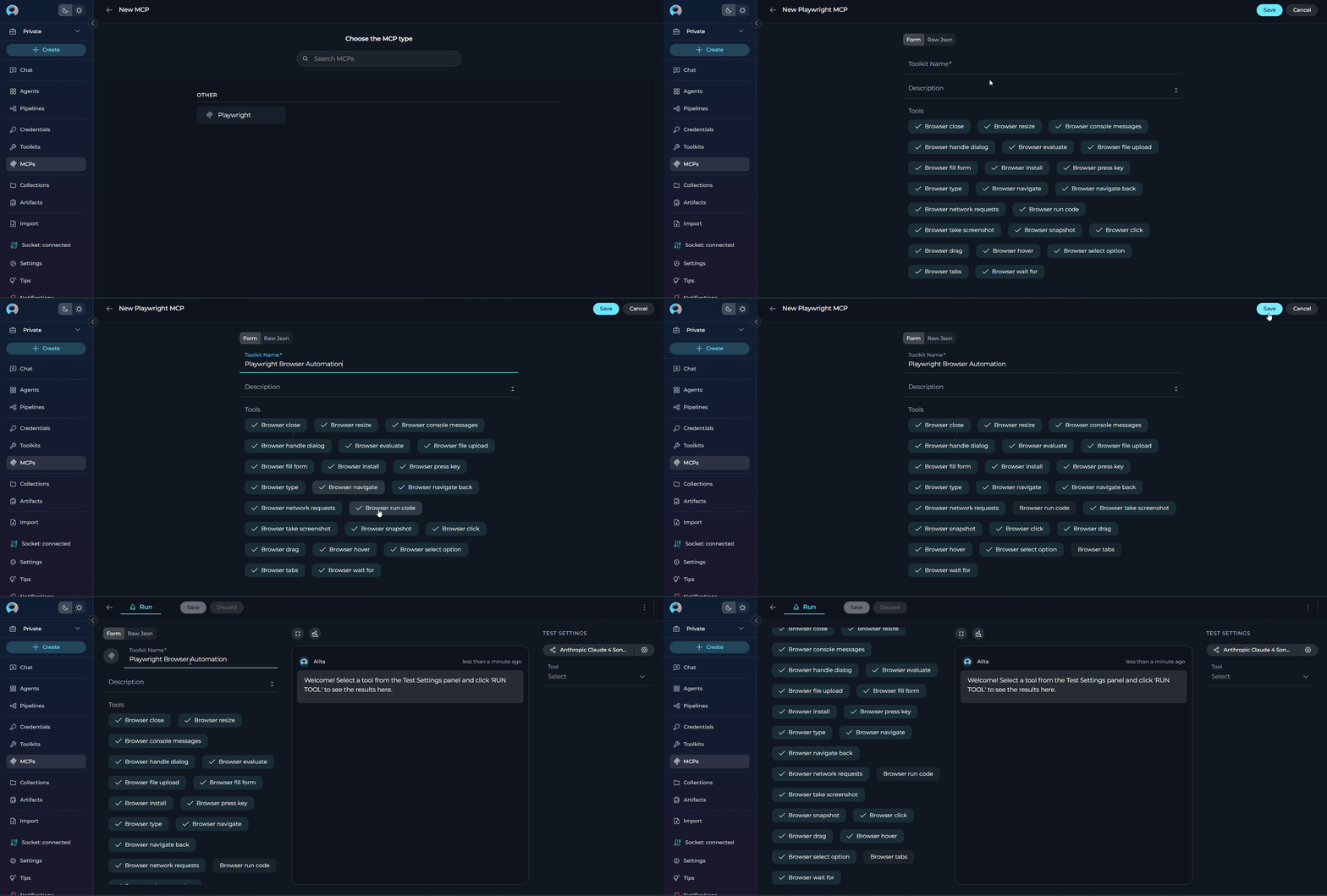
Create an MCP entry
- Click + Create
- You should see your running MCP servers (like “Playwright”)
-
Configure the MCP
- Name: Give it a clear name (example: “Playwright Browser Automation”)
- Description: Optional - describe what it does
- Tools: Review the list of tools and uncheck any you don’t need
-
Save
- Click Save to create the MCP entry
Part 5: Add MCP Tools to Your Agent
Now you’ll give your agent access to these new tools.-
Navigate to your agent
- In Elitea, go to the agent or pipeline you want to enhance
- Click on it to open
-
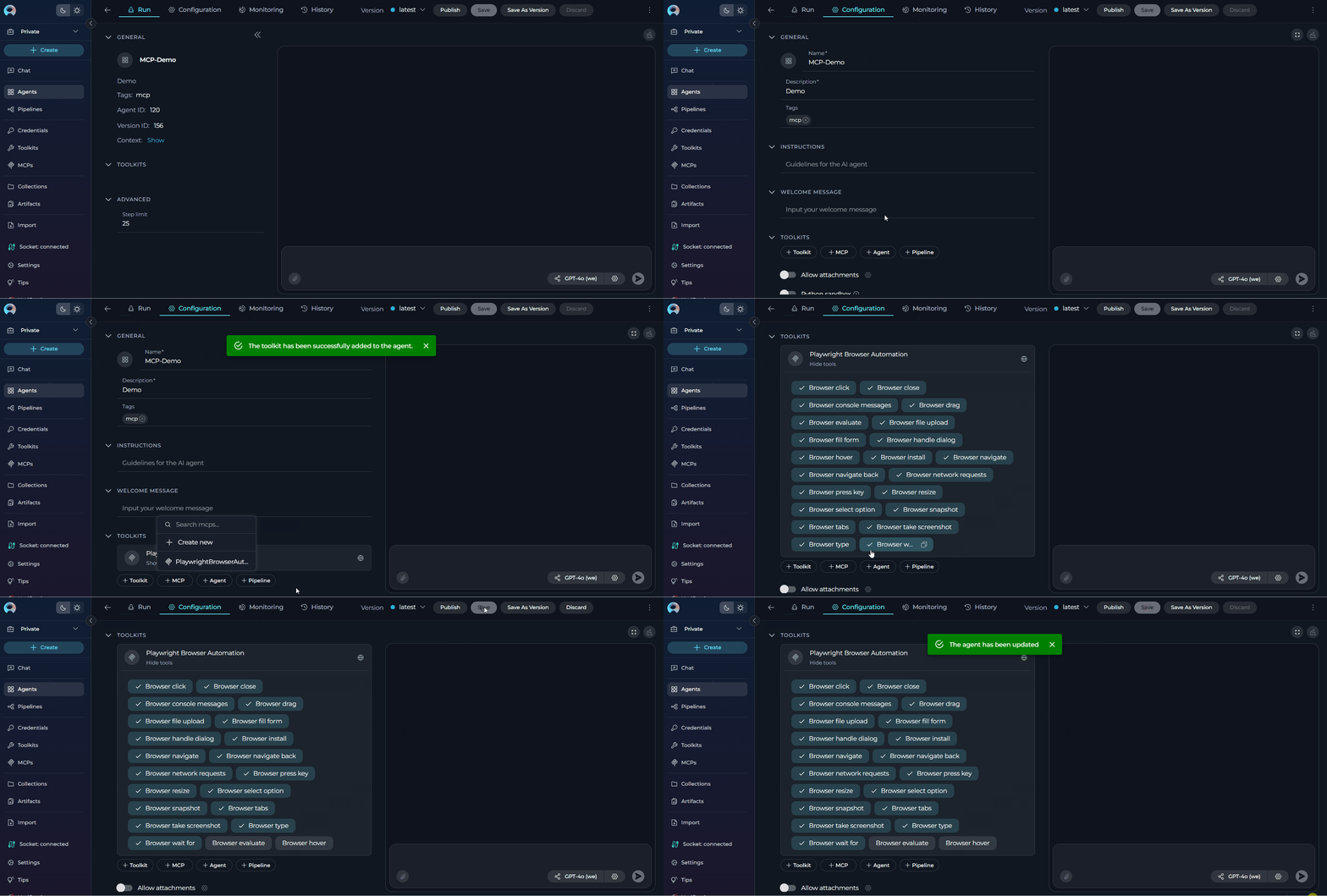
Go to Configuration
- Click the Configuration tab
-
Add the MCP toolkit
- Scroll down to the Toolkits section
- Click +MCP
- Select your MCP server from the list (example: “Playwright Browser Automation”)
- Click Add
-
Save your agent
- Click Save to apply the changes
Part 6: Add MCP to a Conversation and Chat
You can add MCP tools directly to conversations when creating a new chat or in an existing conversation.Adding MCP to a Conversation
-
Navigate to Chat
- Open the sidebar in Elitea
- Select Chat
-
Start a conversation
- Click + Create to start a new conversation, OR
- Open an existing conversation
-
Add MCP to the conversation
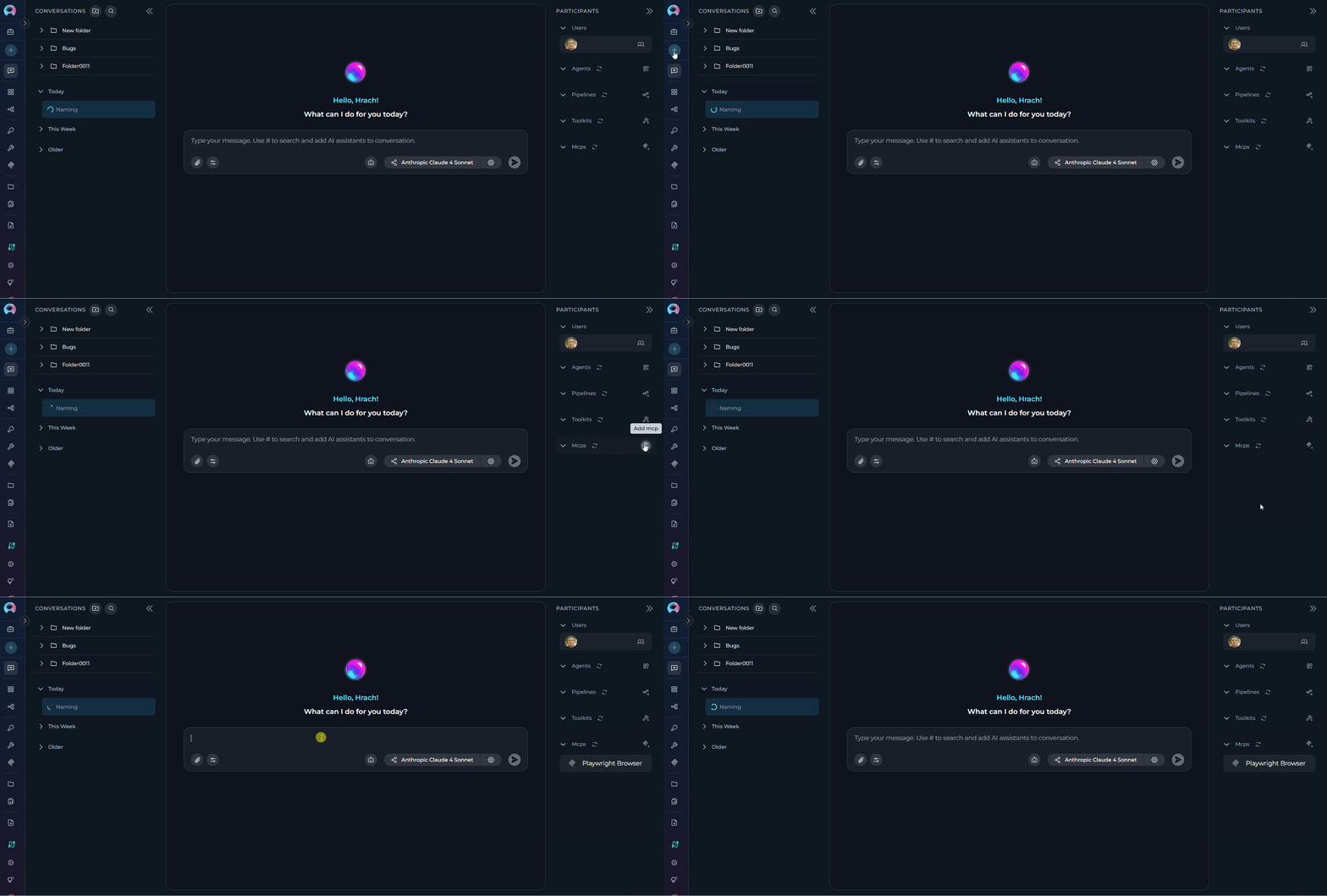
- In the Participants section of the chat, look for the MCPs element
- Click to add an MCP
- Select your MCP from the available options (e.g., “Playwright Browser Automation”)
- The MCP will be added to your conversation with all configured tools enabled
-
Use MCP in chat
- You can now directly interact with the MCP tools
- Ask questions or request actions that will trigger the MCP tools
- Example: “Take a screenshot of https://example.com”
Here’s a practical example of using Playwright MCP to test a login page:This shows how you can use MCP tools to test web applications, verify functionality, and document the results with screenshots - all through natural conversation!
How to Know It’s Working
✔️ You’ve succeeded if:- The tray icon shows the MCP server is running
- Your MCP appears in the Elitea MCPs menu with tools listed
- The connection status icon shows grey (connected)
- When you ask your agent to use a tool, it executes successfully
- No error messages appear
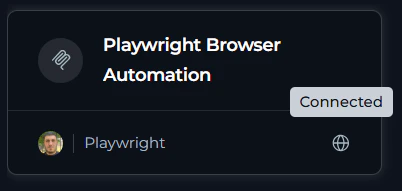
- The tray shows “Disconnected” or errors
- The connection status icon shows orange (disconnected)
- No tools appear when creating the MCP in Elitea
- Agent says it can’t access the tools
- You see error messages in the tray or console
Common Problems & Fixes
Problem: 'Node.js not found' error with Playwright
Problem: 'Node.js not found' error with Playwright
Fix:
- Install Node.js from nodejs.org
- Download the LTS (Long Term Support) version
- Restart your terminal after installation
- Verify by running:
node --version
Problem: 'npx command not found' on Windows
Problem: 'npx command not found' on Windows
Fix:
- Open your configuration file at
%APPDATA%\elitea-mcp-client\config.json - Change
"command": "npx"to"command": "npx.cmd"in the servers section - Save the file and restart the MCP client
Problem: No tools showing up in Elitea
Problem: No tools showing up in Elitea
Fix:
- Make sure the MCP client is running (check the tray icon or terminal)
- Restart the MCP server from the tray menu
- Refresh the Elitea page in your browser
- Check that your Project ID is correct
Problem: 'Server configuration empty' error
Problem: 'Server configuration empty' error
Fix:
- Open your
config.jsonfile at%APPDATA%\elitea-mcp-client\config.json - Make sure the
"servers"section is not empty - If it’s empty, run
elitea-mcp bootstrapagain to add servers
Problem: Tray icon not visible
Problem: Tray icon not visible
Fix:
- Make sure the tray app is actually running (check PowerShell window)
- Try running
elitea-mcp trayagain - Check if other applications are hiding the icon in the system tray
- Click the small arrow (^) in the system tray to show hidden icons
Problem: 'Connection failures in Elitea', 'Port already in use', 'Address already in use' errors
Problem: 'Connection failures in Elitea', 'Port already in use', 'Address already in use' errors
Fix:
- Another application is using port 8000 (the default MCP port)
- Option 1 - Change the port:
- Open your
config.jsonfile at%APPDATA%\elitea-mcp-client\config.json - Change
"port": 8000to a different port like"port": 8001 - Save the file and restart the MCP client
- Open your
- Option 2 - Find and stop the conflicting application:
- Open PowerShell as Administrator
- Run:
netstat -ano | findstr :8000 - Note the PID (Process ID) in the last column
- Run:
tasklist | findstr <PID>(replace<PID>with the number) - Stop that application if it’s not needed
- Restart the MCP client after making changes
Problem: Tools work but give errors
Problem: Tools work but give errors
Fix:
- Check the tool’s specific requirements (authentication, permissions, etc.)
- For GitHub: Make sure you have proper access tokens configured
- For Playwright: Ensure you have sufficient system resources for browser automation
- Click the tray icon and select View Logs to see detailed error messages
Problem: MCP server not working - need to clear NPX cache
Problem: MCP server not working - need to clear NPX cache
Fix:If the MCP server is not working correctly, you may need to clear the NPX cache:
-
Clear the NPX cache:
-
Or manually delete the cache folder (Windows):
(Replace
<Firstname_Lastname>with your actual Windows username) -
Try installing the MCP server again:
-
Verify it works:
Problem: Errors when running 'elitea-mcp serve' or 'elitea-mcp tray' - need to upgrade client
Problem: Errors when running 'elitea-mcp serve' or 'elitea-mcp tray' - need to upgrade client
Fix:If you’re getting errors with the Elitea MCP client, try upgrading to the latest version:
-
If you installed via pip:
-
If you installed via pipx:
What You Can Do Next
Now that your MCP client is running, you can:- Automate browser testing with Playwright tools
- Manage GitHub repositories directly from Elitea agents
- Connect more MCP servers to add even more capabilities
- Create complex workflows that combine multiple external tools
- Share configurations with your team by exporting your
config.json