

Introduction
This document is your definitive resource for integrating and utilizing the Teams toolkit within ELITEA. It provides a comprehensive, step-by-step walkthrough, from registering an application in Azure Active Directory to configuring the toolkit in ELITEA and effectively using it within your Agents. By following these steps, you will unlock the power of automated chat and channel messaging, streamlined collaboration workflows, and conversational intelligence, all directly within the ELITEA platform. This integration empowers you to leverage AI-driven automation to optimize your Microsoft Teams-driven workflows using the combined strengths of ELITEA and Microsoft Teams. Brief Overview of Microsoft Teams Microsoft Teams is Microsoft’s chat-based collaboration platform, built on top of Microsoft Graph — the unified API for Microsoft 365 data. The ELITEA Teams toolkit interacts with a signed-in user’s teams, channels and chats through the Microsoft Graph Teams endpoints (https://graph.microsoft.com/v1.0), enabling Agents to:
- Discover Teams and Channels: List the teams the signed-in user is a member of, and list the channels within a team.
- Discover and Read Chats: List the user’s 1:1, group and meeting chats with member and last-message previews, and read messages within a specific chat.
- Search Across Teams: Search chat and channel messages across the user’s Teams activity using Microsoft’s KQL (Keyword Query Language) syntax.
- Send Chat Messages: Send a message to an existing chat, or to one or more people by email — automatically creating the 1:1 or group chat when needed.
- Post to Channels: Post a new message to a channel, or reply to an existing channel post, with optional @mentions.
ChannelMessage.Read.All application permission, which needs admin consent and is out of scope), and does not support editing or deleting messages that have already been sent. See the FAQ below for details.Toolkit’s Account Setup and Configuration in Teams
Registering an App in Azure Active Directory (Azure AD)
The Teams toolkit authenticates using Delegated (User OAuth) access only — it acts on behalf of a signed-in user via Microsoft Entra ID (Azure AD). To enable this, you need to register an application in Azure AD that will represent ELITEA.- Access Azure Portal: Open your web browser, navigate to the Azure Portal, and log in using an account with sufficient permissions to register applications in Azure AD.
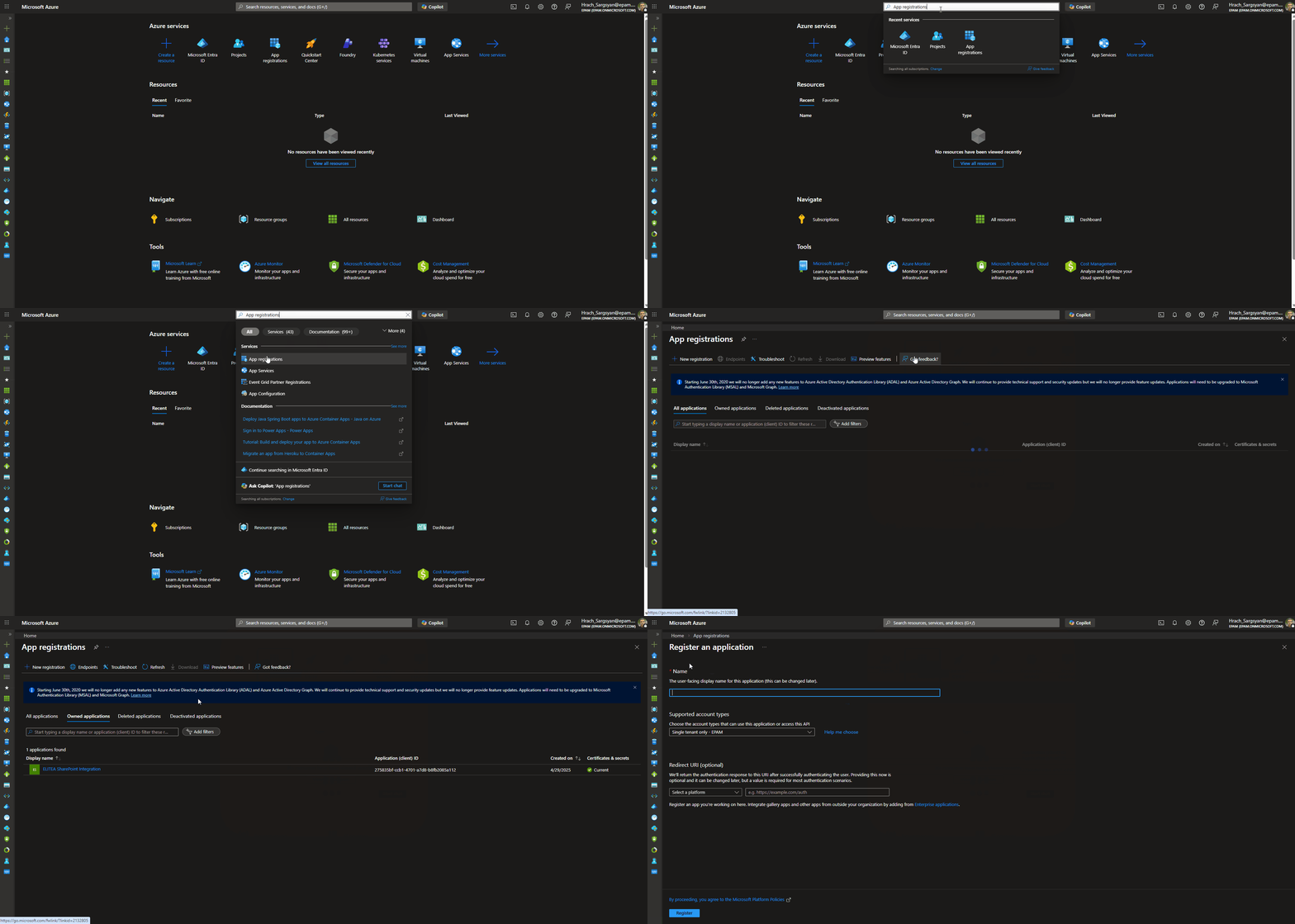
- Navigate to App Registrations: In the Azure portal, use the search bar at the top to search for “App registrations” and select “App registrations” from the search results under “Services”.
-
Create New Registration: On the “App registrations” page, click ”+ New registration”.
-
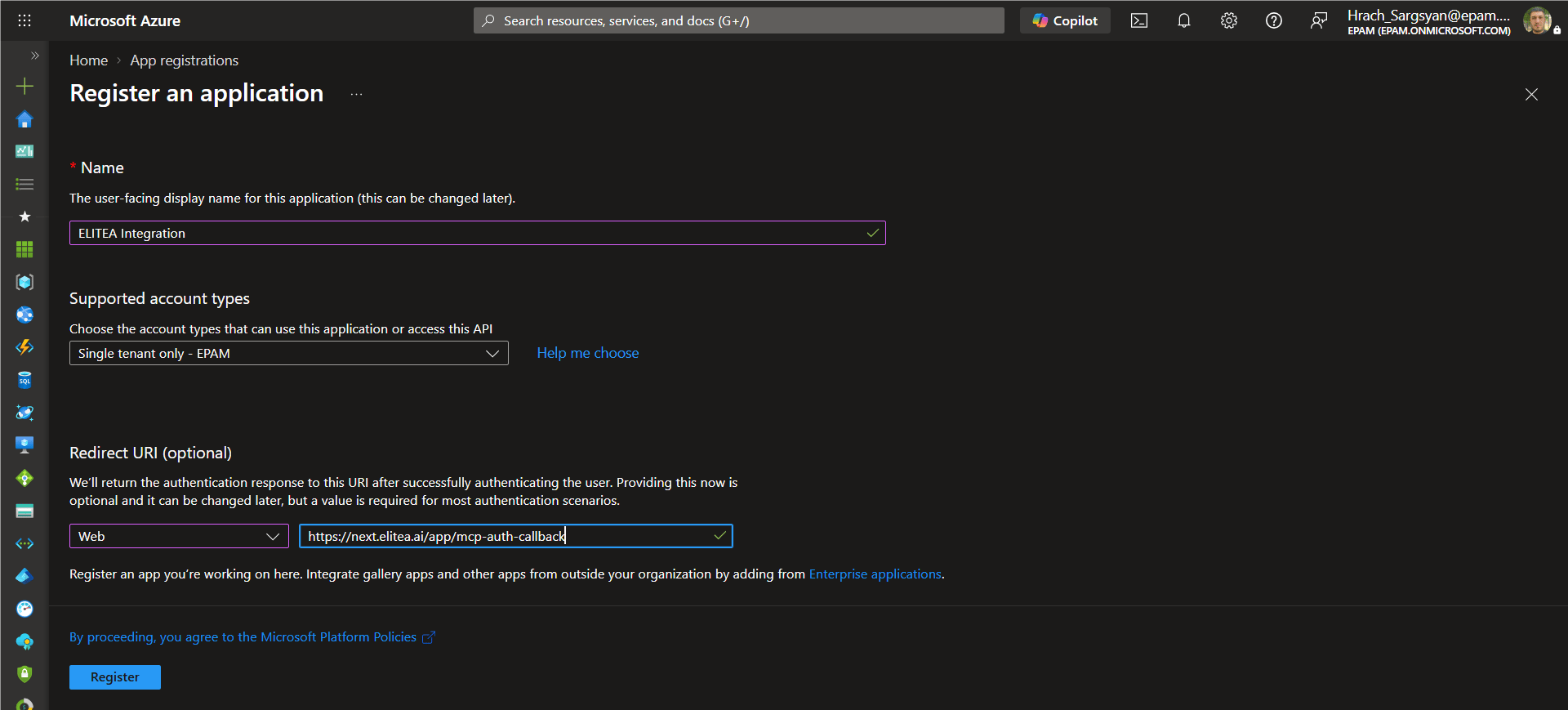
Configure App Registration Details: On the “Register an application” page, provide the following information:
- Name: Enter a meaningful and descriptive name for your application registration, for example “ELITEA Teams Integration” or “ELITEA Agent Access to Teams”.
- Supported account types: Select the appropriate account type based on your organization’s requirements. In most cases, “Accounts in this organizational directory only ([Your Organization Name] only - Single tenant)” is the recommended option for internal organizational use.
- Redirect URI: Since Teams only supports Delegated (User OAuth) access, a redirect URI must always be configured:
- In the “Select a platform” dropdown, select “Web”.
- In the URI field, enter the ELITEA callback URL for your instance. The correct value depends on your deployment — refer to the info callout below.
-
Register Application: Click the “Register” button at the bottom of the page to create the app registration.
Application Credentials
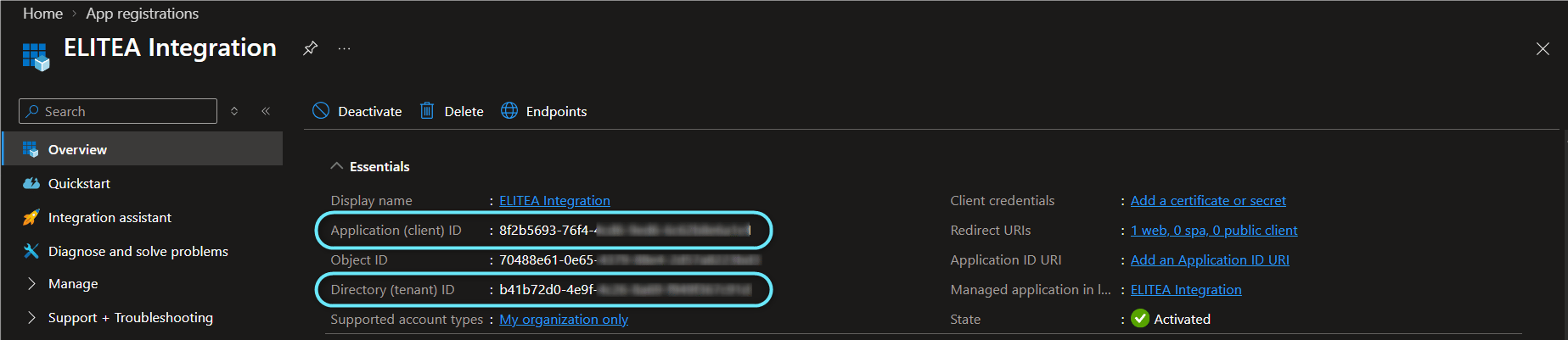
Once the app registration is created successfully, you will be redirected to the application’s Overview page. Note down the following, as you will need them to configure the Teams credential in ELITEA:- Application (client) ID — Copy and store this value securely.
-
Directory (tenant) ID — Copy and store this value securely.
Configure API Permissions for the Registered App
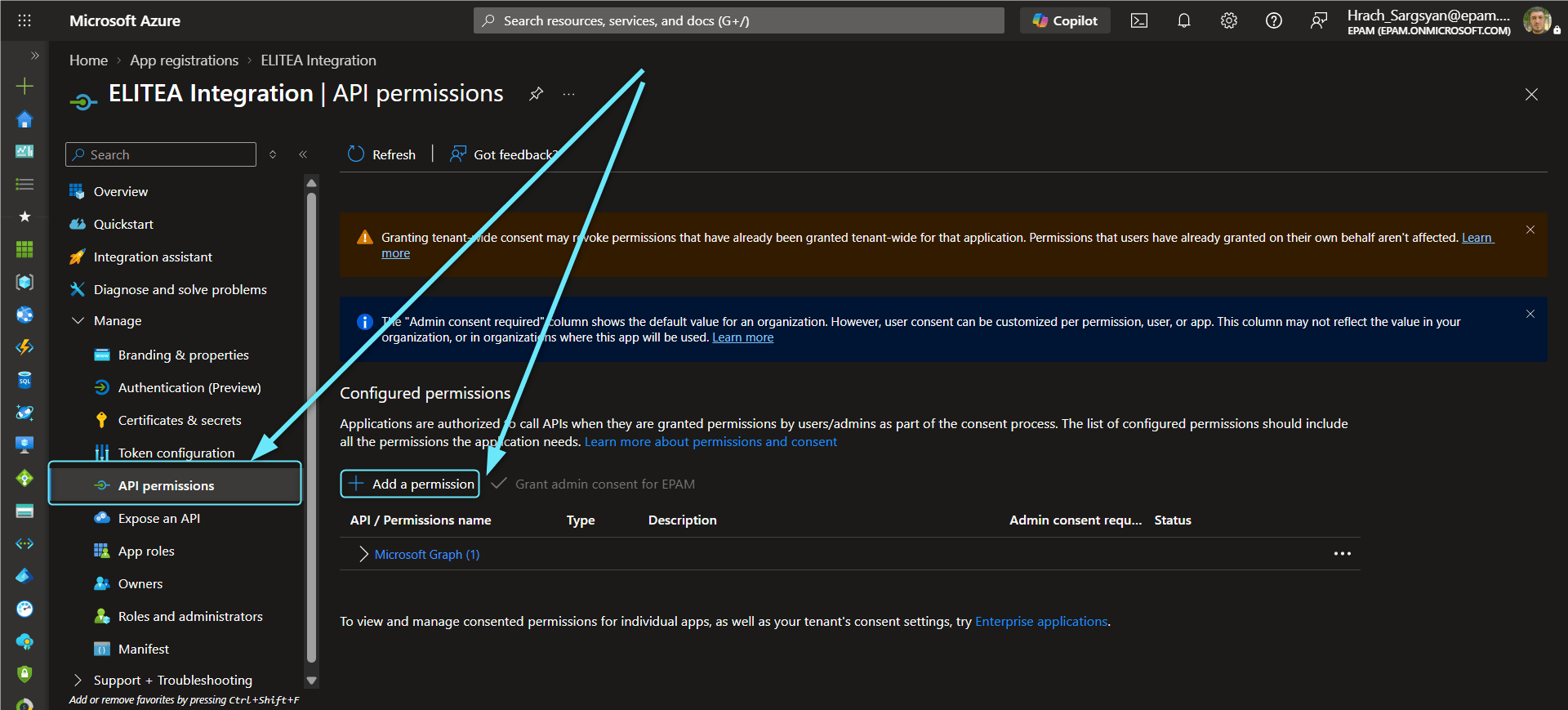
To allow ELITEA to act on a signed-in user’s teams, channels and chats, configure delegated Microsoft Graph permissions for your registered application.- Navigate to API Permissions: In your registered app within the Azure portal, navigate to the left-hand menu and click “API permissions”.
-
Add Permissions: On the “API permissions” page, click ”+ Add a permission”.
-
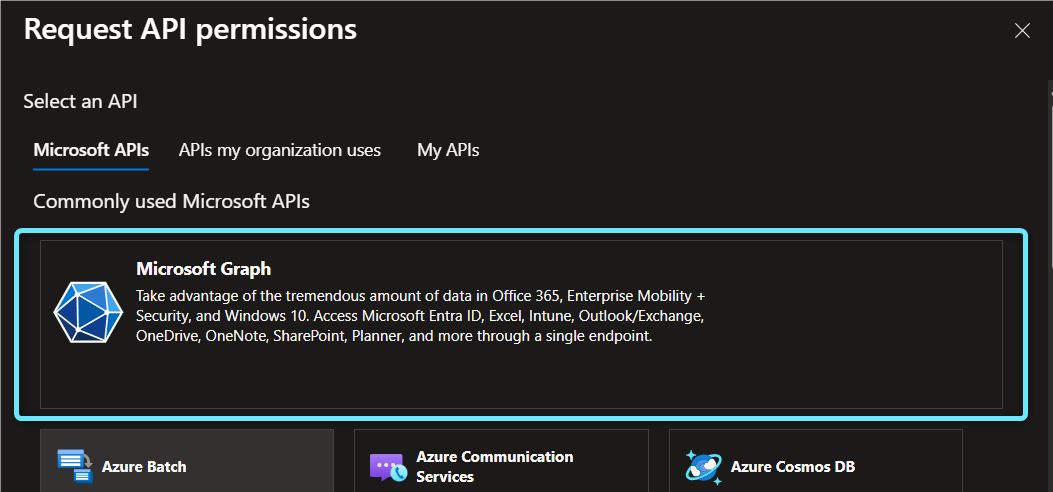
Select API Type - Microsoft Graph: In the “Request API permissions” panel, select the “Microsoft Graph” API tile.
-
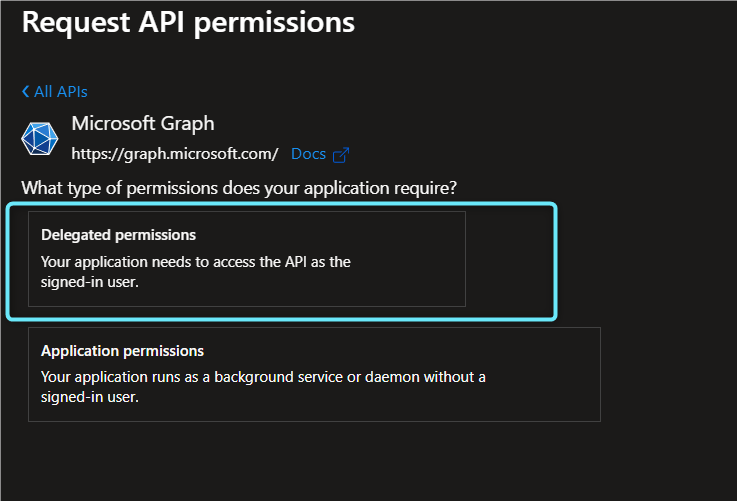
Select Permission Type - Delegated permissions: Choose “Delegated permissions” — the Teams toolkit always acts on behalf of the signed-in user, never as the application itself.
-
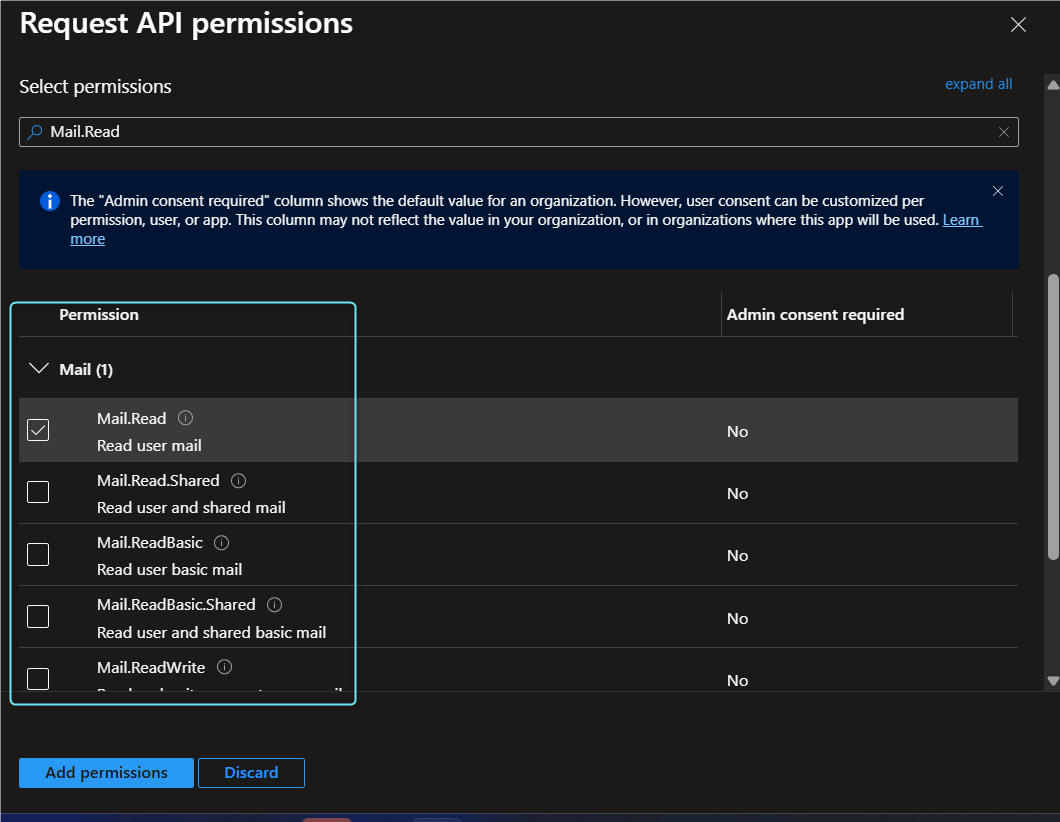
Add Microsoft Graph Teams Scopes: Search for and select the scopes your Agents require, for example:
Reading channel messages is not supportedThere is intentionally no scope listed above for reading channel messages. That capability requires
ChannelMessage.Read.All, an application permission that needs tenant admin consent, and is out of scope for this toolkit. -
Add Permissions: Click “Add permissions” at the bottom of the panel to add the selected scopes to your application registration.
- Grant Admin Consent (if required by your tenant): On the “API permissions” page, click “Grant admin consent for [Your Organization Name]” and then “Yes” if your organization requires admin consent for delegated permissions before users can authorize the app.
Configure the Client Secret
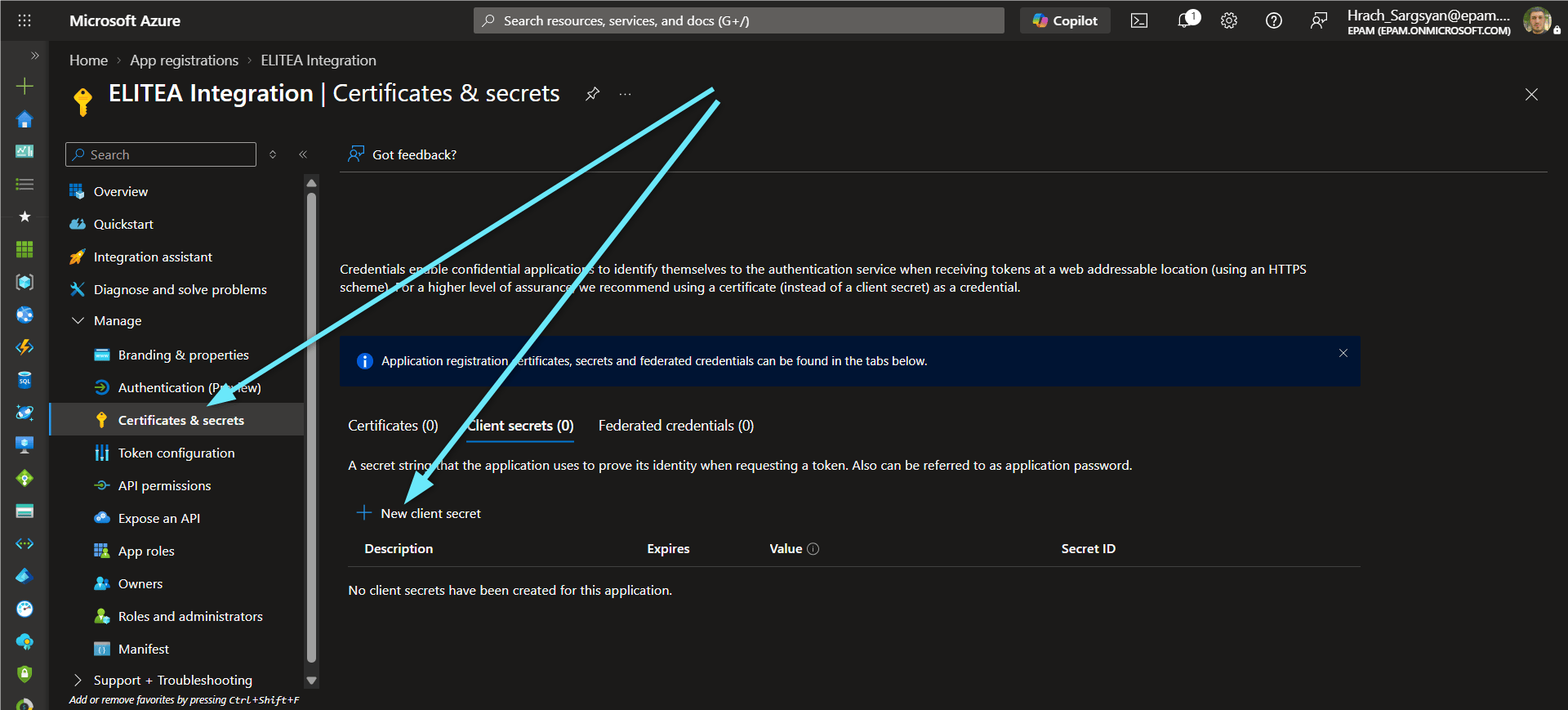
To securely authenticate your ELITEA Teams credential, create a Client Secret for your registered application.- Navigate to Certificates & secrets: In your registered app within the Azure portal, click “Certificates & secrets”.
-
Create New Client Secret: On the “Certificates & secrets” page, select the “Client secrets” tab and click ”+ New client secret”.
-
Configure Client Secret Details: In the “Add a client secret” panel, enter a Description and choose an appropriate Expiration period.
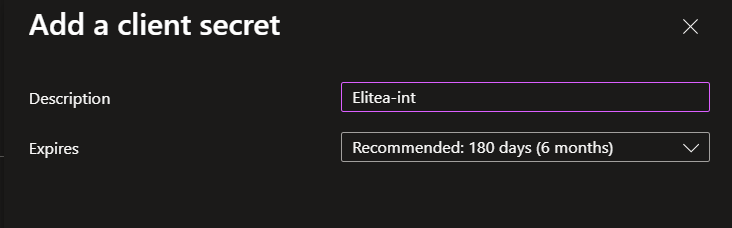
- Add Client Secret: Click “Add” to create the client secret.
-
Securely Copy and Store the Client Secret Value: Immediately copy the generated Client Secret Value displayed in the “Value” column. This is the only time you will see the full value. Store it securely, preferably in ELITEA’s Secrets feature.

System Integration with ELITEA
To integrate Teams with ELITEA, you need to follow a three-step process: Create Credentials → Create Toolkit → Use in Agents. This workflow ensures secure authentication and proper configuration.Step 1: Create Teams Credentials
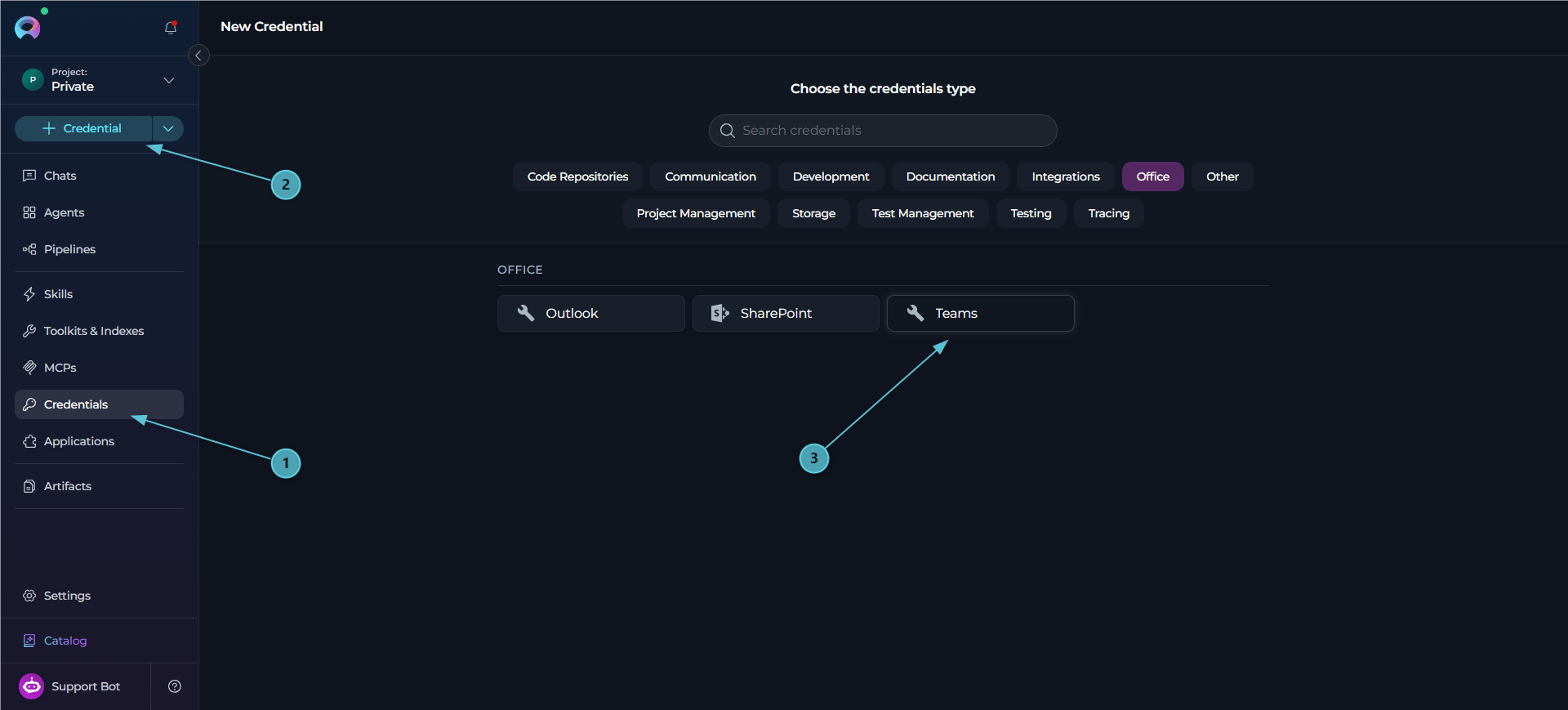
Before creating a toolkit, you must first create Teams credentials in ELITEA. The Teams credential supports a single authentication mode — Delegated (User OAuth).- Navigate to Credentials Menu: Open the sidebar and select Credentials.
-
Create New Credential: Click the
+ Credentialbutton. -
Select Teams: Choose Teams as the credential type.
-
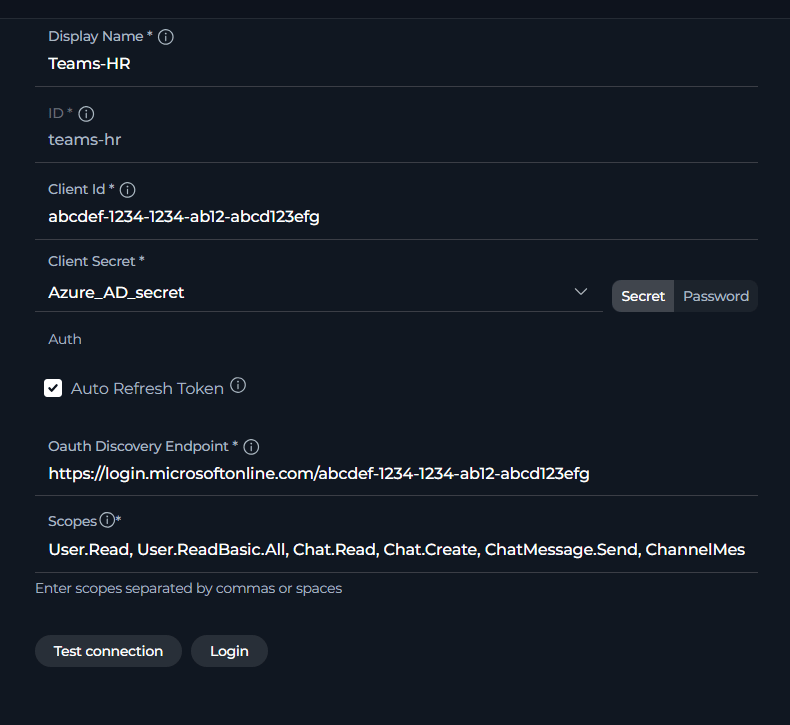
Configure Credential Details:
-
Log in: Once the OAuth Discovery Endpoint field is filled in, a Login button appears next to the Test Connection button. Click Login to initiate the OAuth authorization flow — ELITEA calls the Teams check-connection endpoint, which redirects to Azure AD for user sign-in. After you authorize the application, the token is stored and the connection is verified against Microsoft Graph.
- Test Connection: Click Test Connection to verify that your credentials are valid and ELITEA can successfully connect to Microsoft Teams. This performs a health check against
GET /me/joinedTeamson Microsoft Graph.
- Test Connection: Click Test Connection to verify that your credentials are valid and ELITEA can successfully connect to Microsoft Teams. This performs a health check against
-
Save Credential: Click Save to create the credential. It will be added to the credentials dashboard and available to use in toolkit configurations.
Step 2: Create Teams Toolkit
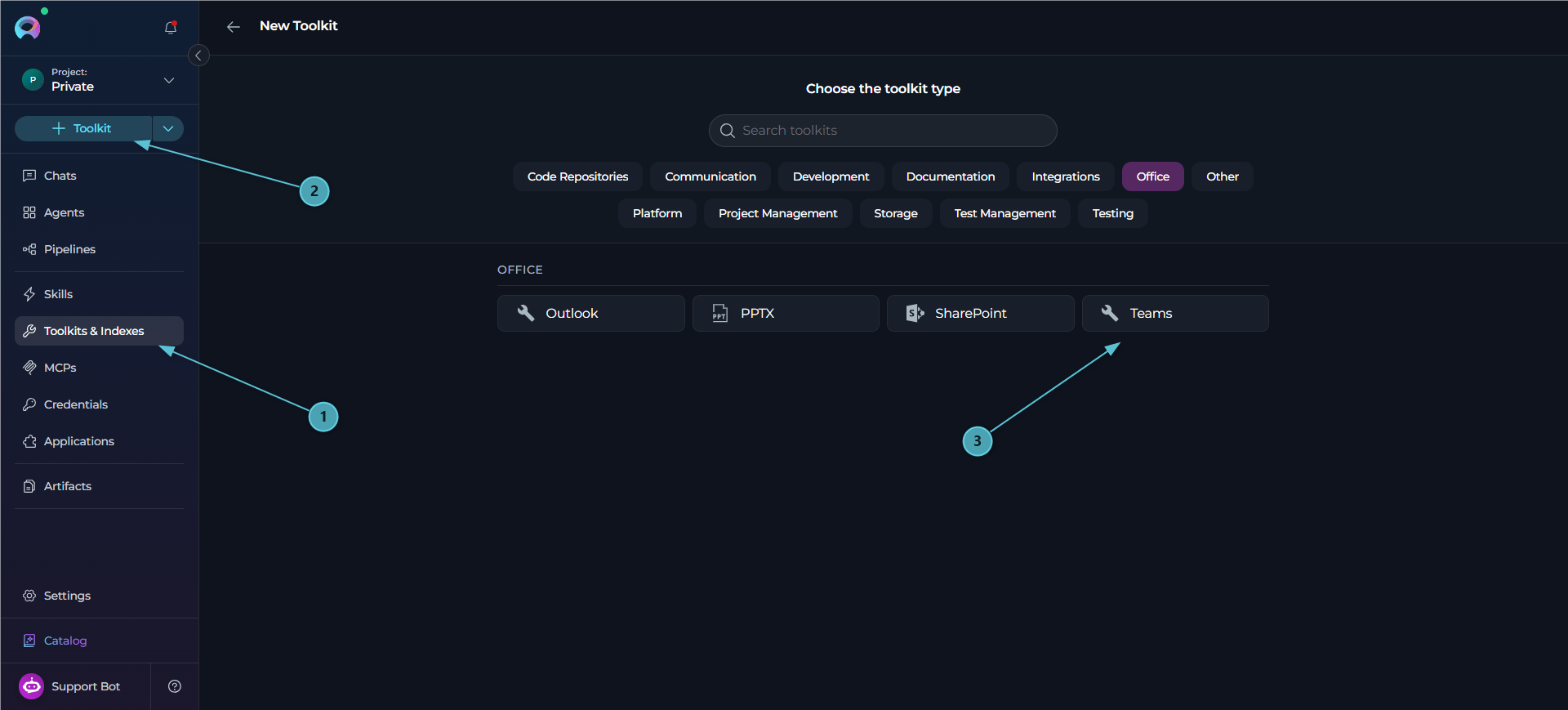
Once your credentials are configured, create the Teams toolkit:- Navigate to Toolkits Menu: Open the sidebar and select Toolkits & Indexes.
-
Create New Toolkit: Click the
+ Toolkitbutton. -
Select Teams: Choose Teams from the list of available toolkit types.
-
Configure Toolkit Details:
-
Enable Desired Tools: In the “Tools” section, select the checkboxes next to the specific Teams tools you want to enable. Enable only the tools your agents will actually use to follow the principle of least privilege.
- Enable MCP access for selected tools — (optional) exposes the tools selected in this toolkit through the platform MCP server, so external MCP clients can call them.
-
Save Toolkit: Click Save to create the toolkit.
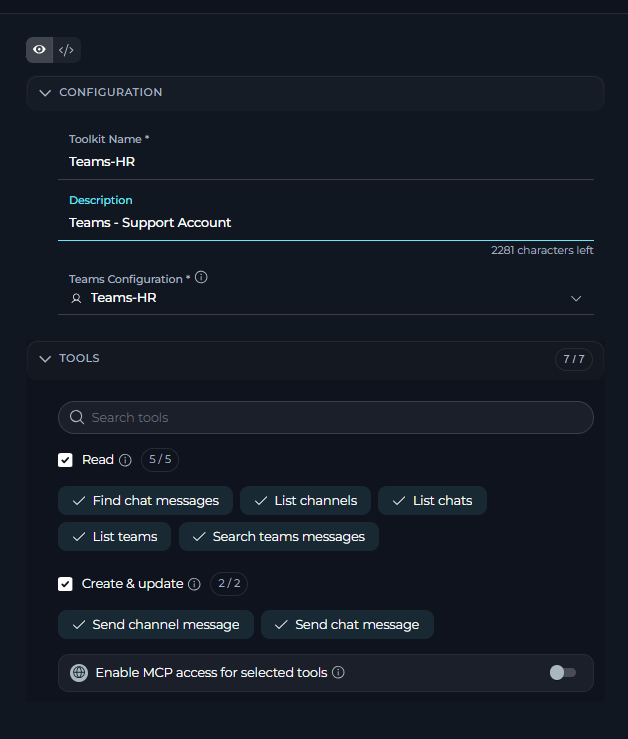
Available Tools:
The Teams toolkit provides 7 tools for discovering teams, channels and chats, reading and searching messages, and sending chat or channel messages. In the toolkit configuration form, tools are grouped by the effect they have on your Teams account:Testing Toolkit Tools
After configuring your Teams toolkit, you can test individual tools directly from the Toolkit detailed page using the Test Settings panel. This allows you to verify that your credentials are working correctly and validate tool functionality before adding the toolkit to your workflows. General Testing Steps:- Select LLM Model: Choose a Large Language Model from the model dropdown in the Test Settings panel
- Configure Model Settings: Adjust model parameters like Creativity, Max Completion Tokens, and other settings as needed
- Select a Tool: Choose the specific Teams tool you want to test from the available tools
- Provide Input: Enter any required parameters or test queries for the selected tool
- Run the Test: Execute the tool and wait for the response
- Review the Response: Analyze the output to verify the tool is working correctly and returning expected results
Step 3: Add Teams Toolkit to Your Workflows
Now you can add the configured Teams toolkit to your agents, pipelines, or use it directly in chat:In Agents:
- Navigate to Agents: Open the sidebar and select Agents.
- Create or Edit Agent: Either create a new agent or select an existing agent to edit.
-
Add Teams Toolkit:
- In the “TOOLS” section of the agent configuration, click the “+Toolkit” icon
- Select your configured Teams toolkit from the dropdown list
- The toolkit will be added to your agent with the previously configured tools enabled
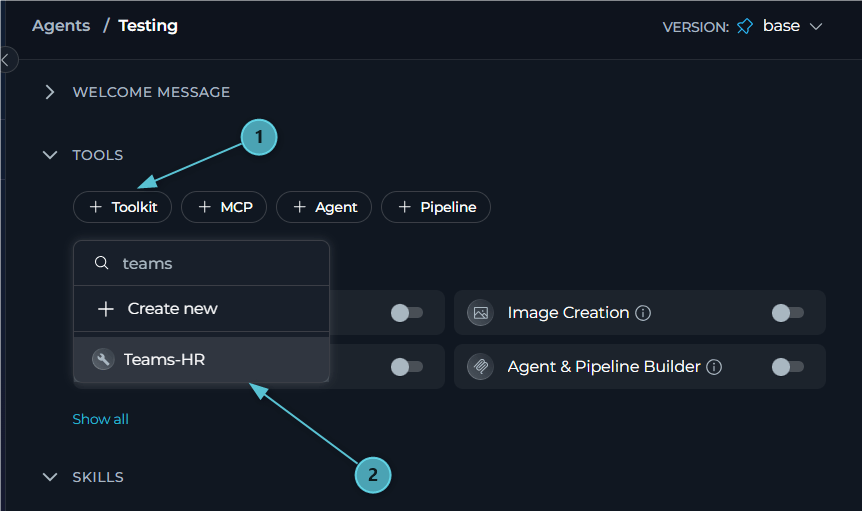
In Pipelines:
- Navigate to Pipelines: Open the sidebar and select Pipelines.
- Create or Edit Pipeline: Either create a new pipeline or select an existing pipeline to edit.
-
Add Teams Toolkit:
- In the “TOOLS” section of the pipeline configuration, click the “+Toolkit” icon
- Select your configured Teams toolkit from the dropdown list
- The toolkit will be added to your pipeline with the previously configured tools enabled
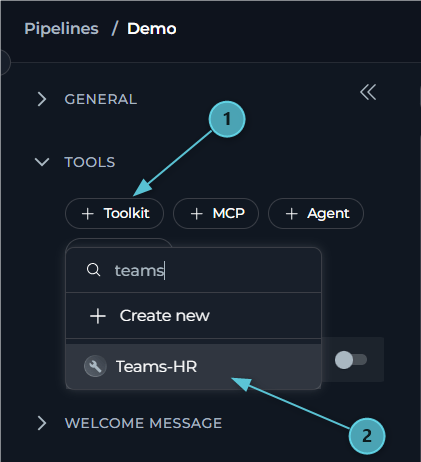
In Chat:
- Navigate to Chat: Open the sidebar and select Chat.
- Start New Conversation: Click + Conversation or open an existing conversation.
-
Add Teams Toolkit to Conversation:
- Click the
+icon in the chat input toolbar (tooltip: Add files, agents, toolkits and more…) - Hover over Toolkits in the popup menu
- Search for your Teams toolkit by name
- Enable the toolkit to add it to your conversation
- Click the
- Verify Toolkit Added: The Teams toolkit appears in the PARTICIPANTS panel on the right side under the Toolkits section.
-
Use Toolkit in Chat: You can now directly interact with your teams, channels and chats by asking questions or requesting actions that will trigger the Teams toolkit tools.
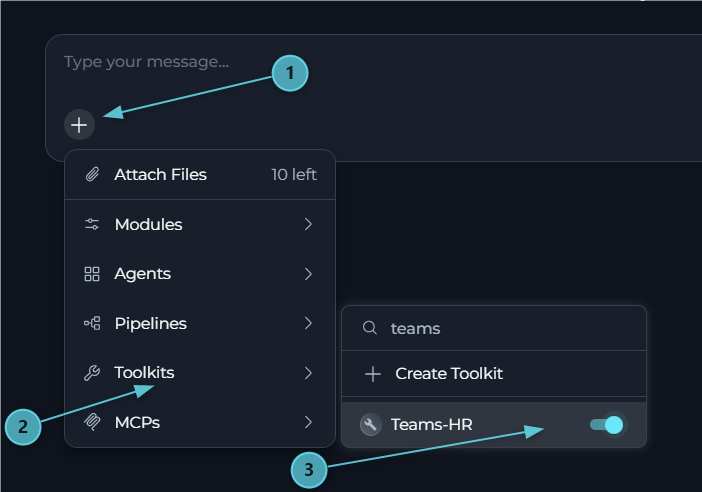
- A prompt appears asking: “Authorization is required for toolkit “<toolkit name>”. Authorize now or skip it for this run?”
- Selecting Authorize opens an OAuth dialog (titled “Configuration OAuth”) with Cancel and Authorize buttons.
- Completing the sign-in shows a “Successful authentication!” confirmation and the message ”✓ Authorization successful! Your credentials and session have been saved. Please send your message again to use the authorized MCP server.”
- Send your message again to continue with the now-authorized toolkit.
- “List the teams I’m a member of.”
- “Show me my most recent chats with unread messages.”
- “Send a message to john@example.com asking if the deployment is ready.”
- “Post an update in the Engineering channel of the Platform team and mention Sarah.”
- “Search my Teams messages for anything about the Q3 release.”
Instructions and Prompts for Using the Teams Toolkit
To effectively instruct your ELITEA Agent to use the Teams toolkit, you need to provide clear and precise instructions within the Agent’s “Instructions” field. These instructions are crucial for guiding the Agent on when and how to utilize the available Teams tools to achieve your desired automation goals.Instruction Creation for OpenAI Agents
When crafting instructions for the Teams toolkit, especially for OpenAI-based Agents, clarity and precision are paramount. Break down complex tasks into a sequence of simple, actionable steps. Explicitly define all parameters required for each tool and guide the Agent on how to obtain or determine the values for these parameters. OpenAI Agents respond best to instructions that are:- Direct and Action-Oriented: Employ strong action verbs and clear commands to initiate actions. For example, “Use the ‘list_chats’ tool…”, “Send a message to…”, “Post an update in the channel…”.
-
Parameter-Centric: Clearly enumerate each parameter required by the tool. For each parameter, specify:
- Its name (exactly as expected by the tool)
- The format or type of value expected
- How the Agent should obtain the value – whether from user input, derived from previous steps in the conversation, retrieved from an external source, or a predefined static value
- Contextually Rich: Provide sufficient context so the Agent understands the overarching objective and the specific scenario in which each Teams tool should be applied within the broader workflow. Explain the desired outcome or goal for each tool invocation.
- Step-by-Step Structure: Organize instructions into a numbered or bulleted list of steps for complex workflows. This helps the Agent follow a logical sequence of actions.
- Add Conversation Starters: Include example conversation starters that users can use to trigger this functionality. For example, “Conversation Starters: ‘Show me my recent Teams chats’, ‘Message the on-call engineer about the outage’, ‘Post the release notes in the Engineering channel’”
- State the Goal: Begin by clearly stating the objective you want to achieve with this step. For example, “Goal: To notify the project team of a status update in their group chat.”
- Specify the Tool: Clearly indicate the specific Teams tool to be used for this step. For example, “Tool: Use the ‘send_chat_message’ tool.”
-
Define Parameters: Provide a detailed list of all parameters required by the selected tool. For each parameter:
- Parameter Name:
<Parameter Name as defined in tool documentation> - Value or Source:
<Specify the value or how to obtain the value. Examples: "user input", "from previous step", "hardcoded value 'General'", "value of variable X">
- Parameter Name:
- Describe Expected Outcome (Optional but Recommended): Briefly describe the expected result or outcome after the tool is successfully executed. For example, “Outcome: The Agent will confirm the message was sent and report the message_id and chat_id.”
- Add Conversation Starters: Include example conversation starters that users can use to trigger this functionality.
Chat Usage Examples by Tool Category
The following examples demonstrate how to interact with the Teams toolkit in ELITEA Chat, grouped by functional area. Each example shows the user request and the expected agent behavior.Discovery - List Teams and Channels
Discovery - List Teams and Channels
Discovery - List Chats
Discovery - List Chats
Reading & Searching - Find Chat Messages
Reading & Searching - Find Chat Messages
Reading & Searching - Search Teams Messages
Reading & Searching - Search Teams Messages
Sending - Send Chat Message
Sending - Send Chat Message
Sending - Send Channel Message
Sending - Send Channel Message
Sending - Inline Mention and Importance
Sending - Inline Mention and Importance
Troubleshooting
Credential Not Appearing in Toolkit Configuration
Credential Not Appearing in Toolkit Configuration
- Check Credential Scope: Ensure you’re working in the same workspace/project where the credential was created. Private credentials are only visible in your Private workspace, while project credentials are visible within the specific team project.
- Verify Credential Creation: Go to the Credentials menu and confirm that your Teams credential was successfully saved.
- Credential Type Match: Ensure you selected “Teams” as the credential type when creating the credential.
OAuth Login Fails with 'No Reply Address Is Registered' Error
OAuth Login Fails with 'No Reply Address Is Registered' Error
AADSTS500113: No reply address is registered for the application.Cause: This error occurs when no Redirect URI has been registered in your Azure AD App Registration. Azure AD requires the redirect URI to be explicitly registered before it will send the authorization response back to ELITEA.Troubleshooting Steps:
- Open your App Registration: In the Azure Portal, go to Microsoft Entra ID → App registrations and select your app.
- Navigate to Authentication: In the left menu, click “Authentication”.
- Add a Redirect URI: If no Web platform exists, click ”+ Add a platform” → “Web”. If Web is already listed, click the Edit pencil next to it.
- Enter the ELITEA callback URL: In the “Redirect URIs” field, enter the value matching your deployment (see the redirect URI table above).
- Save: Click “Configure” (or “Save” if editing), then click “Save” at the top of the page.
- Retry: Return to your ELITEA Teams credential and click Login again.
'Access Forbidden' Errors
'Access Forbidden' Errors
403 response from Microsoft Graph — the token was issued successfully, but it does not carry the delegated scope(s) required for the operation.Troubleshooting Steps:- Review Granted Scopes: In Azure AD, go to API permissions on your app registration and confirm the required scopes (
Team.ReadBasic.All,Channel.ReadBasic.All,Chat.Read,ChatMessage.Send,Chat.Create,ChannelMessage.Send, etc.) are listed as Delegated permissions. - Grant Admin Consent (if required): If your tenant requires admin consent for delegated permissions, ensure it has been granted.
- Update the Scopes Field and Re-login: Update the Scopes field in your ELITEA credential to include the missing scope(s), then click Logout and Login again — an existing token does not automatically pick up newly added scopes.
A Team, Channel or Chat 'Not Found' Error
A Team, Channel or Chat 'Not Found' Error
- Use the Exact Name: Check the exact spelling via
list_teams/list_channels/list_chats, and use that exact name, or pass the ID instead. - Confirm Membership: Confirm the signed-in user (the one who completed the OAuth login) is actually a member of that team, channel, or chat.
- For 1:1 Chats: Pass the other person’s email directly as the
chatparameter rather than a topic — 1:1 chats generally don’t have a topic set.
Toolkit Configuration Issues
Toolkit Configuration Issues
- Credential Selection: Ensure you have selected the correct Teams credential from the dropdown in the toolkit configuration.
- Re-check Required Credential Fields: Confirm Client ID and Client Secret are both set on the linked credential — these are required regardless of whether OAuth login has been completed.
Support Contact
If you encounter issues not covered here or need additional assistance with Teams integration, please refer to Contact Support for detailed information on how to reach the ELITEA Support Team.FAQ
Does the Teams toolkit support App-Only (application-only) authentication?
Does the Teams toolkit support App-Only (application-only) authentication?
Can the Teams toolkit read channel messages?
Can the Teams toolkit read channel messages?
ChannelMessage.Read.All application permission, which needs tenant admin consent and is intentionally out of scope for this toolkit. The toolkit can still post to a channel or reply to a channel post (send_channel_message), and channel content can surface indirectly as a search hit via search_teams_messages — but there is no tool dedicated to reading a channel’s message history.Can the Teams toolkit edit or delete messages that were already sent?
Can the Teams toolkit edit or delete messages that were already sent?
What are the required credential fields for the Teams toolkit?
What are the required credential fields for the Teams toolkit?
- Client ID — Azure AD Application (client) ID.
- Client Secret — Azure AD Client Secret value.
- OAuth Discovery Endpoint —
https://login.microsoftonline.com/{tenant_id}. - Scopes — the Microsoft Graph scopes your Agents need (e.g.,
Chat.Read,ChatMessage.Send,Chat.Create).
- Auto Refresh Token — enabled by default; automatically refreshes the token using
offline_access.
Is the offline_access scope something I need to add myself?
Is the offline_access scope something I need to add myself?
offline_access scope alongside whatever you list in the Scopes field, so refresh tokens are issued without any extra configuration on your part.Do I need to register a Redirect URI for the Teams credential?
Do I need to register a Redirect URI for the Teams credential?
AADSTS500113: No reply address is registered.How do I find my Directory (Tenant) ID?
How do I find my Directory (Tenant) ID?
- In the Azure Portal, search for “Microsoft Entra ID” and select it.
- On the Overview page, copy the “Tenant ID” value.
- In the Azure Portal, go to Microsoft Entra ID → App registrations and select your app.
- On the Overview page, copy the “Directory (tenant) ID” value.
Can I use the same Teams credential across multiple toolkits and agents?
Can I use the same Teams credential across multiple toolkits and agents?
How do I send a message to multiple people, or start a group chat?
How do I send a message to multiple people, or start a group chat?
recipients parameter set to a list of email addresses instead of chat. If you provide exactly one recipient, ELITEA uses (or creates) your 1:1 chat with that person. If you provide more than one, ELITEA finds an existing group chat with exactly those members, or creates a new one — set topic to name the new group chat. Note that recipients only chooses which chat the message goes to; it does not @mention anyone by itself.How do I @mention someone in the middle of a message instead of at the start?
How do I @mention someone in the middle of a message instead of at the start?
@[email] directly inside the message text of send_chat_message / send_channel_message, at the exact spot the mention should appear — e.g. message="Thanks @[anna@contoso.com], please review by 3pm" posts as “Thanks @Anna Kowalski, please review by 3pm”. People you list in mentions but don’t place inline are instead tagged at the start of the message. The same person is never tagged twice even if listed in both. A plain @name without brackets is just literal text — it does not notify anyone.What does the importance parameter actually do?
What does the importance parameter actually do?
importance (on send_chat_message / send_channel_message) accepts normal (default), high, or urgent. high adds a red “Important” label to the message. urgent additionally re-notifies each chat recipient every 2 minutes for 20 minutes until they read it — this re-notification behavior is specific to chats; channel posts may not repeat the same way. Use high/urgent sparingly, only when the user asks for it or the content is genuinely time-critical.How does the toolkit distinguish new messages from ones I've already seen?
How does the toolkit distinguish new messages from ones I've already seen?
find_chat_messages returns a watermark value (watermark / latest_message_id). Pass that value back in on the next call as since or after_message_id to only surface messages created after the previous check. If neither is provided, “new” falls back to messages created after your last-read time in that chat (i.e., unread).What are some best practices for using the Teams toolkit effectively?
What are some best practices for using the Teams toolkit effectively?
- After setting up the Teams toolkit and incorporating it into your Agents, thoroughly test each tool you intend to use to ensure seamless connectivity, correct authentication, and accurate execution of chat and channel actions.
- Store the Client Secret using ELITEA’s Secrets Management feature rather than entering it directly.
- Grant only the minimum necessary Microsoft Graph scopes (principle of least privilege).
- When an Agent or pipeline checks a chat repeatedly (e.g., on a schedule), always persist and reuse the watermark returned by
find_chat_messagesso it doesn’t re-report the same messages.
- Have Agents draft the body of
send_chat_messageorsend_channel_messageand confirm it with the user before actually sending, especially for Delegated credentials acting under a real person’s identity.
- Craft clear and unambiguous instructions within your ELITEA Agents to guide them in using the Teams toolkit effectively. Use the prompt examples provided in this documentation as a starting point.
- Azure Portal - Manage your Azure AD App Registrations, API permissions, and Client Secrets.
- Microsoft Graph Teams API Overview - Official documentation for the Microsoft Graph Teams/chat API used by this toolkit.
- Microsoft Graph Permissions Reference - Detailed reference for Microsoft Graph API permission scopes, including Chat.Read, ChatMessage.Send, and Chat.Create.
- KQL Query Syntax Reference - Reference for the Keyword Query Language (KQL) syntax used by the search_teams_messages tool.