

Available EPAM MCP Servers and Their Tools
EPAM MCP Servers are available at next.elitea.ai and are accessible only to EPAM employees. Authentication requires an active EPAM corporate account via the EPAM identity provider.EPAM MCP Servers
ELITEA supports most EPAM pre-built MCP servers:EPAM Data Catalog
Discover, explore and describe data assets within EPAM’s data catalog with search and metadata management tools.
EPAM Delivery Central
Review and update project delivery, risk and employee profile information.
EPAM Expertise Search
Connect employee expertise, project data and case studies to quickly find relevant information for resource management and decision support.
EPAM Feedback
Request, give or receive performance feedback from other employees.
EPAM Grafana
Query, inspect and manage Grafana dashboards, datasources and alerting configuration.
EPAM Heroes
Recognize and reward colleagues’ contributions and achievements by giving and tracking badges.
EPAM Learn
Explore and access EPAM’s learning solutions, courses and professional development resources.
EPAM Level Up
Check career growth requirements and skill matrices for titles and primary skills.
EPAM Matching Model
Match candidates to open positions and compare relevance scores for staffing.
EPAM Notebooks
Access OneHub Notebooks for data science and analytical workloads.
EPAM OneHub Core
Single access point for searching users, projects and skills as part of the OneHub platform.
EPAM OneHub Play
Create, manage and share lightweight web apps built with Copilot Builder or uploaded as projects.
EPAM People Central
Streamline HR and people management tasks relating to staffing, performance, retention and recognition.
EPAM Presales
Search EPAM presales content, including case studies, projects, opportunities and solutions.
EPAM Query
Centralized knowledge platform to find answers, search documentation and retrieve content from EPAM documents.
EPAM Radar
Search, filter, analyze and report across people, positions, projects and hiring data within EPAM.
EPAM Staffing
Access and operate on employees, applicants, positions, projects, requisitions, skills and staffing processes.
EPAM Talent Hub
Review organizational units, team rosters, dashboard metrics and employee performance insights.
EPAM Talk
Manage one-on-one talks and performance expectations for employees.
EPAM Telescope
Check a person’s or project’s availability calendar, custom calendar and vacations.
EPAM Time
Review employee and project calendar days, time reporting issues and leave requests.
EPAM VideoPortal
Search and browse videos, channels and playlists, and load video metadata and transcripts.
We Are Community
Connect with EPAM’s professional and social communities and events.
EPAM MCP Server Tools
Each EPAM MCP server exposes a set of tools that agents can invoke to interact with the corresponding EPAM internal service.Available tools and returned data depend on your EPAM corporate account permissions. If you lack access to an EPAM MCP server, tools will not load and you will see:
Each accordion below corresponds to one EPAM MCP server. Expand an accordion to browse the tools available for that server.
EPAM Data Catalog
EPAM Data Catalog
Enables efficient discovery, exploration and governance of data assets within EPAM’s data catalog, providing users with detailed information, search capabilities and metadata management through structured tools and protocols.
EPAM Delivery Central
EPAM Delivery Central
Interact with EPAM Delivery Central to review and update project delivery, risk and employee profile information.
EPAM Expertise Search
EPAM Expertise Search
Provides access to integrated organizational knowledge by connecting employee expertise, project data and case studies. Empowers users to quickly find relevant information for resource management, project insights and decision support within EPAM.
EPAM Feedback
EPAM Feedback
Interact with EPAM Feedback to request, give and receive performance feedback from other employees.
EPAM Grafana
EPAM Grafana
Provides access to EPAM Grafana and its observability ecosystem, so agents and chatbots can query and analyze project metrics, and search, inspect, create and update dashboards, datasources and alerting configuration.
EPAM Heroes
EPAM Heroes
Interact with EPAM Heroes to give, search and validate recognition badges for employees.
EPAM Learn
EPAM Learn
Supports and manages the learning process: search courses, track progress and skills, and manage team training requests.
EPAM Level Up
EPAM Level Up
Interact with EPAM Level Up to check skill requirements and assessment eligibility for career titles.
EPAM Matching Model
EPAM Matching Model
Interact with the EPAM Matching Model to find and rank matching candidates and positions, and compare their relevance scores.
EPAM Notebooks
EPAM Notebooks
Provides access to OneHub Notebooks for data science and analytical workloads.
EPAM OneHub Core
EPAM OneHub Core
Provides access to integrated organizational knowledge by connecting employee expertise, project data and case studies. Empowers users to quickly find relevant information for resource management, project insights and decision support within EPAM.
EPAM OneHub Play
EPAM OneHub Play
Host and manage HTML applications in OneHub Play.
EPAM People Central
EPAM People Central
Provides data-driven tools and processes documentation to streamline HR and people management tasks relating to staffing, performance, retention and recognition.
EPAM Presales
EPAM Presales
Search EPAM presales content, including case studies, projects, opportunities and solutions.
EPAM Query
EPAM Query
The Query MCP server acts as a centralized knowledge platform for EPAM. It enables users to quickly find answers, search documentation and retrieve content from documents.
EPAM Radar
EPAM Radar
Provides access to EPAM data such as people, positions, projects and hiring processes, enabling advanced search, filtering, analysis and reporting across multiple business domains.
EPAM Staffing
EPAM Staffing
Provides detailed information and performs operations related to employees, applicants, positions, projects, requisitions, skills and staffing processes within EPAM’s staffing management system.
EPAM Talent Hub
EPAM Talent Hub
Provides data-driven tools and process guidance for Talent Hub operations, helping managers and employees navigate organizational units, role-based access, dashboard metrics, team structure and unit-level insights.
EPAM Talk
EPAM Talk
Interact with EPAM Talk to manage one-on-one talks and performance expectations.
EPAM Telescope
EPAM Telescope
Check a person’s or project’s availability calendar, custom calendar and vacations.
EPAM Time
EPAM Time
Interact with EPAM Time to review employee and project calendar days, time reporting issues and leave requests.
EPAM VideoPortal
EPAM VideoPortal
Read-only access to EPAM Video Portal: search videos, channels and playlists; browse channel content and personal lists; load video metadata and transcripts.
We Are Community
We Are Community
Interact with We Are Community to browse, join and manage EPAM communities and events.
How to Work with EPAM MCP Servers
ELITEA provides a simple flow for connecting to and configuring EPAM MCP servers. Once a toolkit is created, you can use it in chat conversations or attach it to agents for automated workflows.Connect a New EPAM MCP Server
The setup and creation flow is the same for all EPAM MCP servers. Follow the steps below once to create any EPAM MCP toolkit — simply select the desired server in Step 1.
1
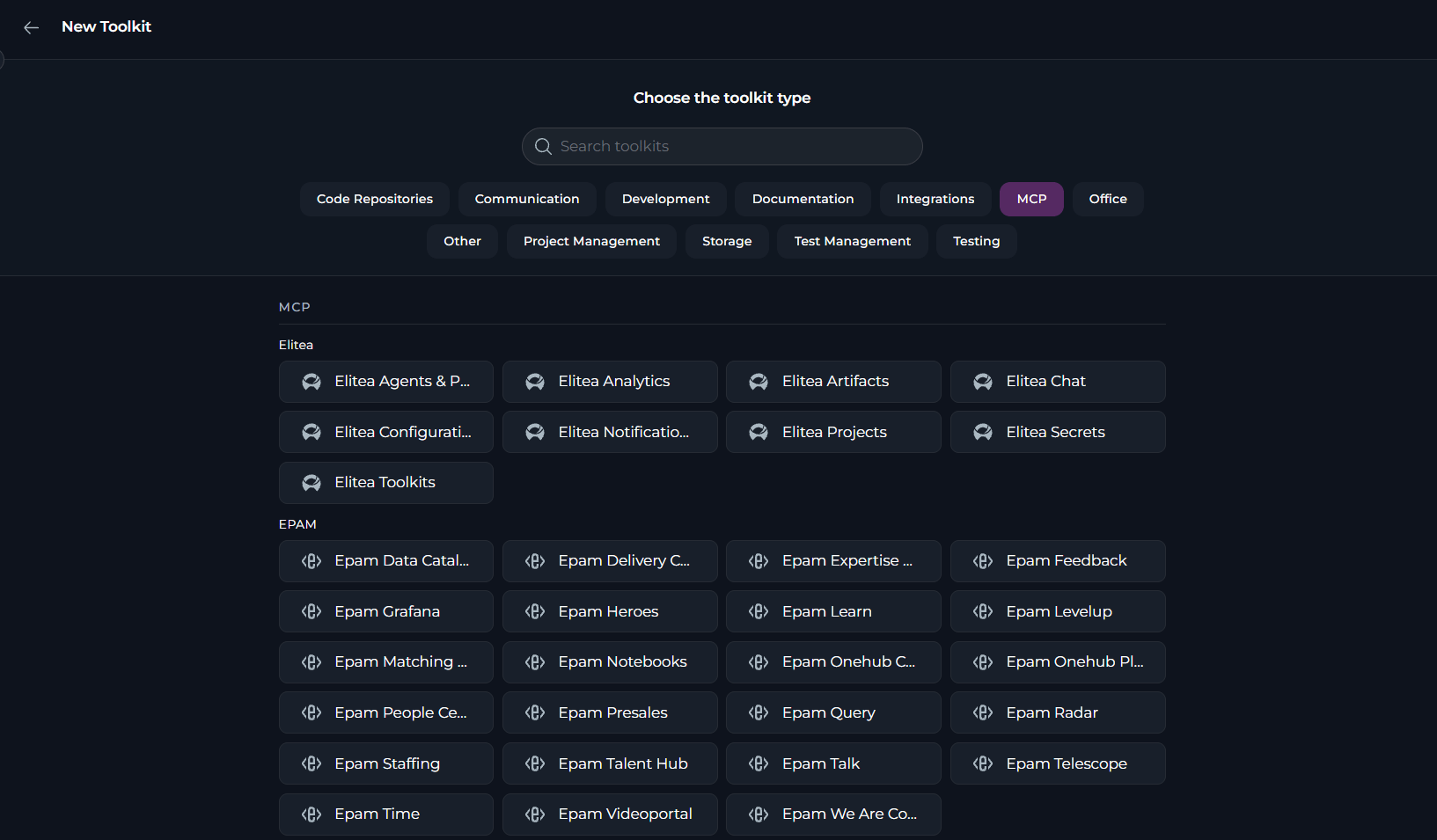
Open the Toolkits panel and select the EPAM MCP type
- Navigate to your ELITEA project and open the Toolkits panel from the left sidebar.
- Click + Create to open the toolkit creation dialog.
- Select the MCP category.
-
Choose the EPAM MCP you want to connect:
2
Authorize
An MCP Authorization pop-up will appear showing the server URL and an optional Scope field: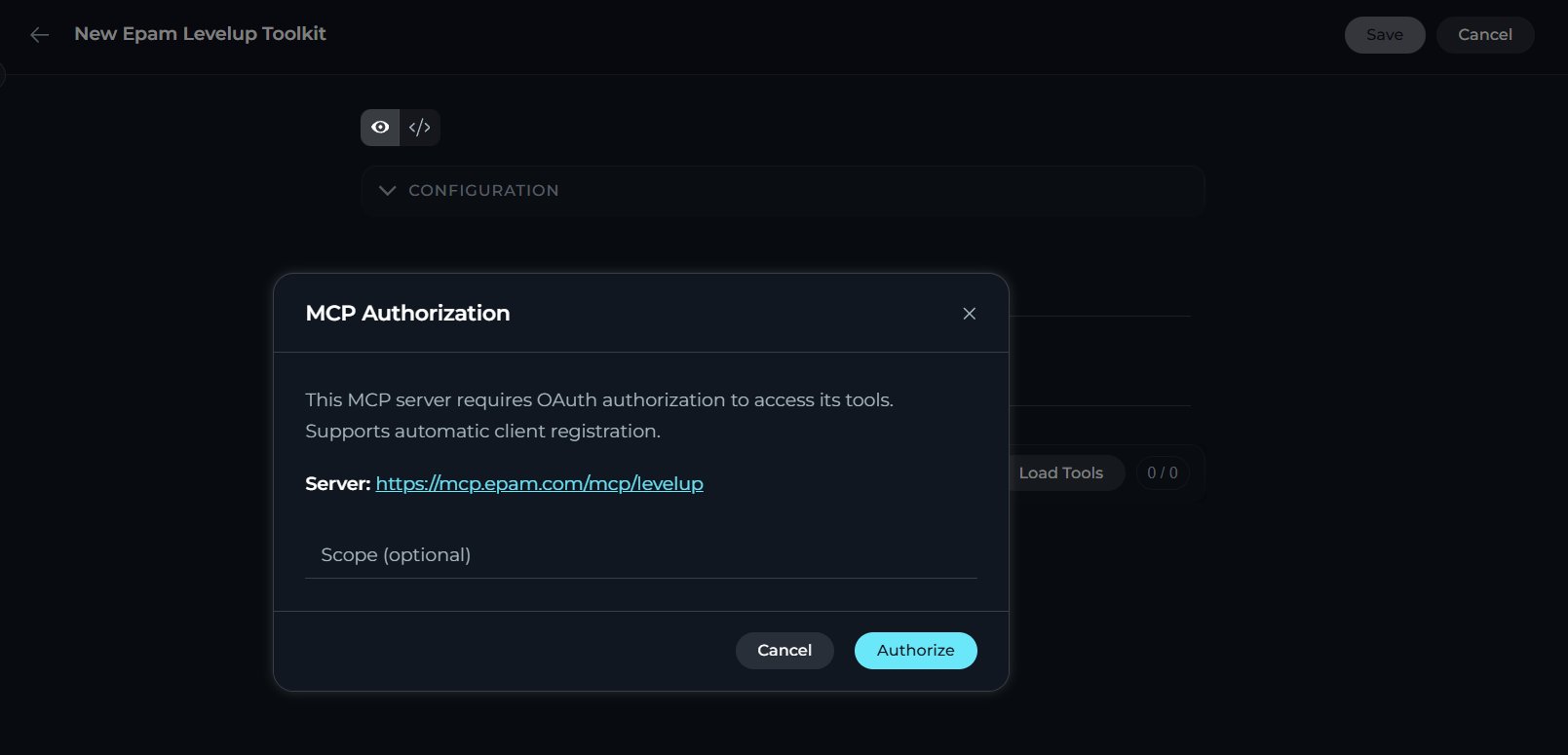
- Select Authorize in the pop-up.
- In the EPAM OAuth sign-in window, approve the requested permissions.
3
Enter a name and description
The toolkit configuration form opens with two fields to fill in: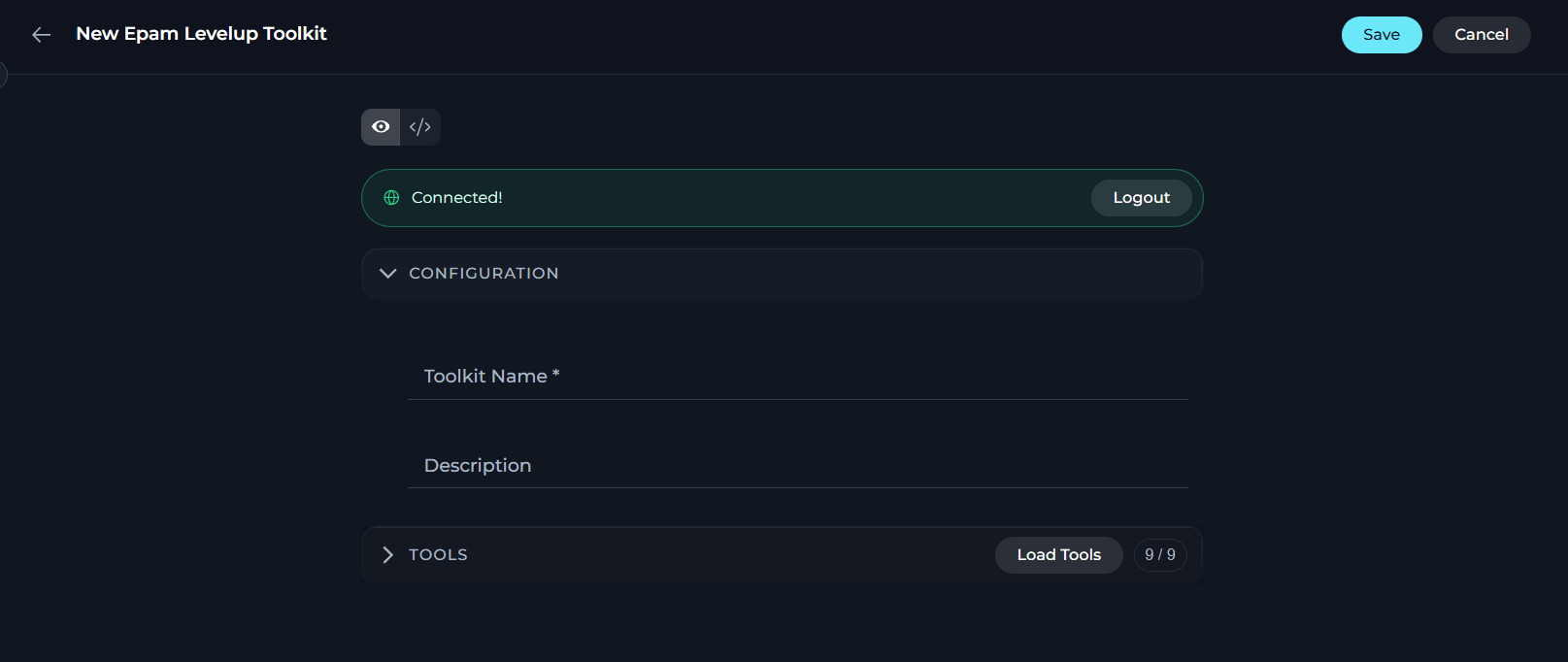
- Toolkit name (required) — enter a name to identify this toolkit in your project
- Description (optional) — add a short description to help your team understand what this toolkit is for
All connection settings (server URL, OAuth credentials) are handled automatically by ELITEA — there is nothing else to configure.
4
Select tools and save
After authorization, the full list of tools provided by the MCP server appears as a checklist.Select the tools you want to make available in ELITEA, then select Save to create the toolkit.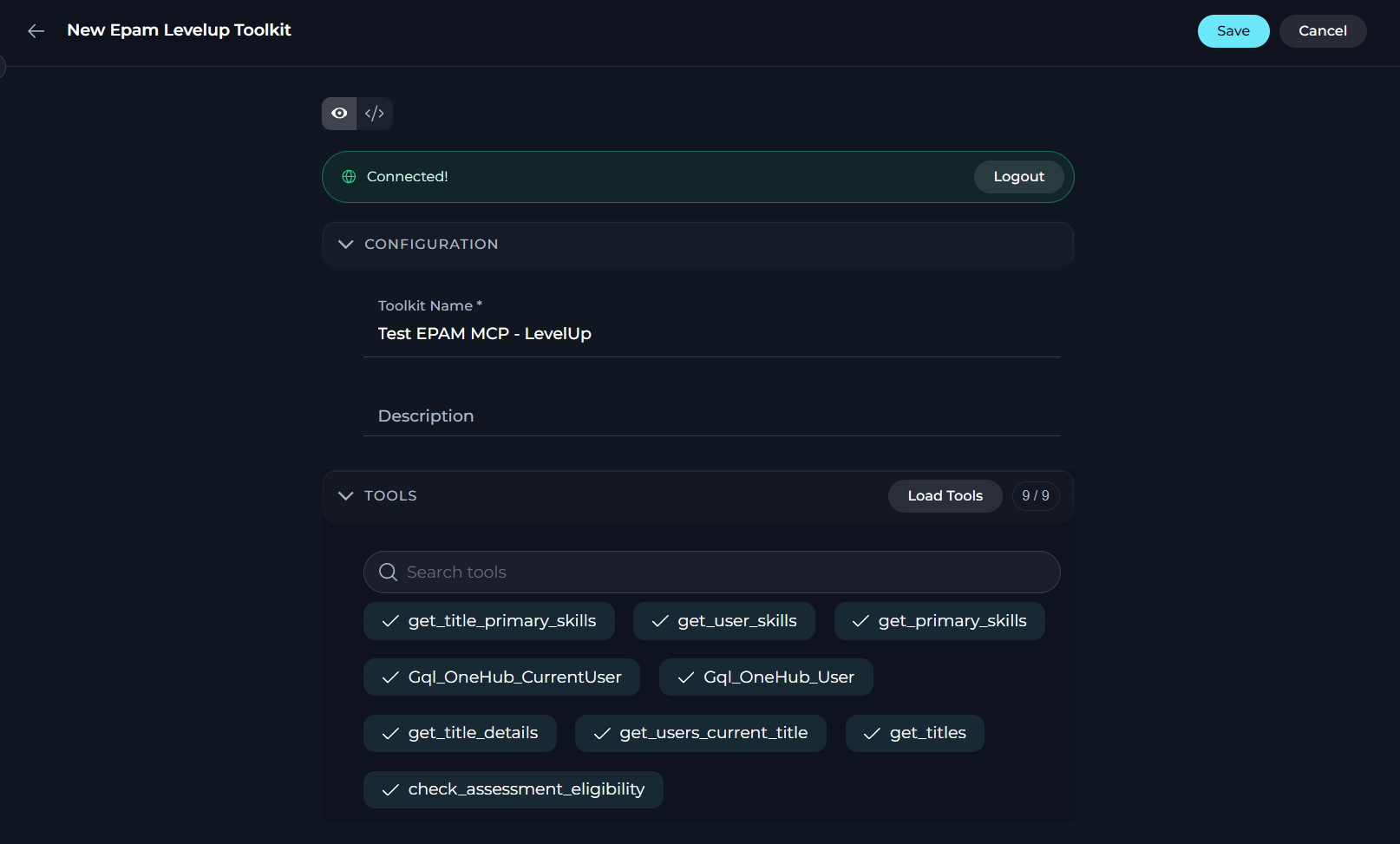
If you create the EPAM MCP toolkit inside a team project, it will be available to all members of that project — they can add it to their agents and chat conversations without needing to set it up individually.
Test EPAM MCP Server Tools
After you save your EPAM MCP toolkit, you can test its tools from the toolkit detail page. By testing, you verify that authorization works and validate tool behavior before you add the toolkit to a chat or an agent.EPAM MCP servers are tested the same way as any other toolkit.
- On the toolkit detail page, select Test.
- In the Test Settings panel, select Select Tool, and search for the tool you want to test.
- Select a model, and complete the parameter fields for the tool.
- Select Run Test.
- Verify that EPAM OAuth authorization is configured correctly.
- Test tools and their parameters and see actual responses from the EPAM MCP server.
- Debug the tool behavior and understand output formats before integrating with agents.
For detailed instructions on how to use the Test Settings panel, see How to Test Toolkit Tools.
Use EPAM MCP Servers in Chat
EPAM MCP servers are added to chats as Toolkits, not as MCPs.
- In the sidebar, select Chat.
- Select + Chat or open an existing chat.
- In the message input toolbar, select + > Toolkits.
- Search for your configured EPAM MCP toolkit, and select the toggle next to it.
Use EPAM MCP Servers in Agents
EPAM MCP servers are added to agents as Toolkits, not as MCPs.
- In the sidebar, select Agents.
- Create an agent, or open an existing one.
- In the Tools section of the agent configuration, select + Toolkit.
- Search for your configured EPAM MCP toolkit, and select it.
Related Documentation
EPAM MCP Hub
Browse all available EPAM MCP servers, their tools and descriptions.