

Introduction
Remote MCP servers are external services that implement the Model Context Protocol (MCP) and expose tools over HTTP/HTTPS connections. Unlike stdio MCP servers that run as local processes, remote MCP servers:- Run independently on remote infrastructure
- Are accessed via HTTP/HTTPS APIs
- Support multiple concurrent connections
- Can be shared across teams and organizations
- Require network-based authentication (Bearer tokens, OAuth 2.0)
- Access cloud-based services like GitHub, Figma, Atlassian (Jira/Confluence)
- Use enterprise tools deployed on corporate infrastructure
- Share tool access across multiple ELITEA projects and teams
- Scale tool usage without local resource constraints
- Centralize authentication and access control
✔️ Reliability: Enterprise-grade hosting and availability
✔️ Security: Centralized credential management and OAuth flows
✔️ Collaboration: Shared access to tools across teams
✔️ Maintenance: Server updates don’t require client changes
Remote vs Stdio MCP Servers
Key Differences- Cloud-based integrations (GitHub, Figma, Atlassian)
- Enterprise SaaS tools requiring OAuth authentication
- Team-wide tool access shared across multiple users
- No local installation requirements
- Centralized credential management
- Local development tools (file system, browser automation)
- Custom tooling specific to your machine
- Minimal network latency for time-sensitive operations
- Tools requiring local system access
Prerequisites
Before configuring Remote MCP servers in ELITEA, ensure you have: Required Information- ✔️ Remote MCP Server URL: The HTTP/HTTPS endpoint for the MCP server
- Example:
https://api.githubcopilot.com/mcp/orhttps://mcp.atlassian.com/v1/sse
- Example:
- ✔️ Authentication Credentials: Depending on the server:
- Bearer token (API key)
- OAuth 2.0 client credentials (Client ID, Client Secret)
- Custom authentication headers
- ✔️ ELITEA Project Access: Permissions to create and configure MCPs in your project
- ✔️ Network Access: Ability to reach the remote MCP server (check firewall/proxy settings)
- ELITEA account with toolkit creation permissions
- Network connectivity to remote MCP endpoints
- Valid authentication tokens for the MCP services you want to use
Authentication Methods
Remote MCP servers support multiple authentication mechanisms. Choose the method based on your MCP server’s requirements:Bearer Token (API Key)
Most Common: Simple and straightforward for most APIs. Configuration:- URL: MCP server endpoint (entered in separate field)
- Headers: JSON object with Authorization header
- API key-based services
- Internal corporate MCP servers
- Development and testing environments
OAuth 2.0 Client Credentials
Enterprise Standard: Used by GitHub, Atlassian, and most SaaS providers. Flow:- Click “Get / Sync tools” in ELITEA MCP configuration
- If OAuth is required, authorization modal appears
- User clicks “Authorize” and completes OAuth flow in browser
- ELITEA stores access token and refresh token
- Token automatically refreshed when expired
- URL: MCP server endpoint (entered in separate field)
- Client ID: OAuth application client identifier
- Client Secret: OAuth application secret
- Scopes: OAuth permission scopes (space-separated or array)
- Initial discovery triggers OAuth flow
- Authorization modal shows OAuth metadata
- One-click authorization
- Automatic token management
- Re-authorization option available
- ✔️ Authorization Code Flow
- ✔️ PKCE (Proof Key for Code Exchange)
- ✔️ Refresh Tokens
- ✔️ Dynamic Client Registration (DCR)
- ✔️ Automatic token refresh
- ✔️ Multiple MCP server authentication
WWW-Authenticateheaderauthorization_uriparameter- Resource metadata URLs from
resource_metadataparameter - Standard OAuth discovery endpoints (
.well-known/oauth-authorization-server)
Custom Authentication Headers
Flexible: For services with custom authentication schemes. Configuration:- URL: MCP server endpoint (entered in separate field)
- Headers: JSON object with custom authentication headers
- Internal tools with proprietary auth
- Multi-header authentication requirements
- Services requiring additional metadata headers
Remote MCP Configuration
Step-by-Step Setup in ELITEA
Step 1. Create Remote MCP- Navigate to MCPs in the left sidebar
- Click + Create button
- Select Remote MCP type from the form
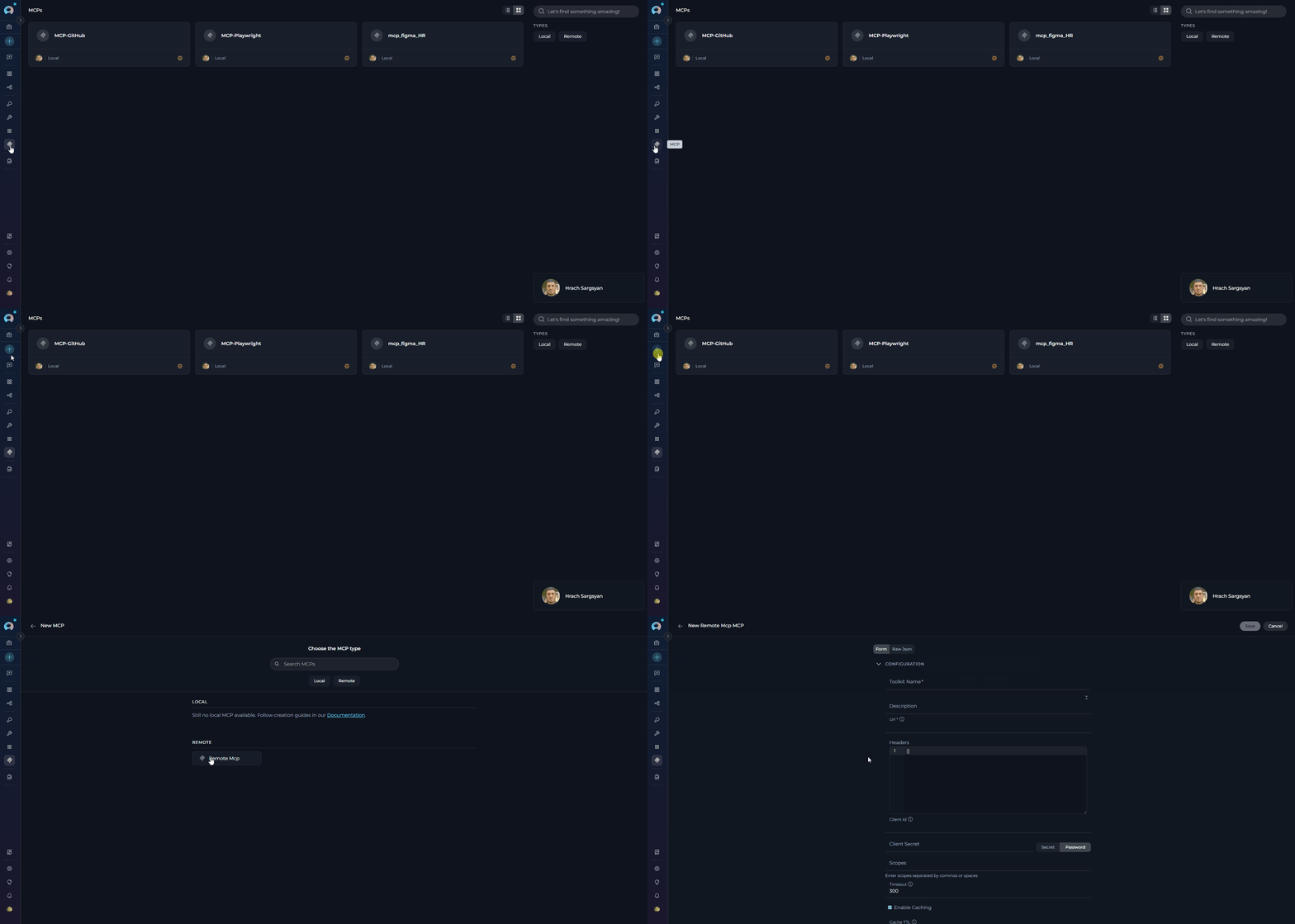
- Name: Give your MCP a descriptive name (e.g., “GitHub MCP”, “Atlassian Integration”)
- Description: Optional - describe what this MCP provides
- URL (required): Enter the full HTTP/HTTPS endpoint
- Example:
https://api.githubcopilot.com/mcp/ - Example:
https://mcp.atlassian.com/v1/sse
- Example:
- Headers (optional): JSON object with authentication headers
- For Bearer token:
- For custom headers:
- For Bearer token:
- Timeout (optional): Request timeout in seconds (default: 60, range: 1-3600)
- Enable Caching: Cache tool schemas for better performance (default: enabled)
- Cache TTL: Cache time-to-live in seconds (default: 300, range: 60-3600)
- After entering URL (and headers if needed), click Get / Sync tools
- ELITEA will connect to the remote MCP server
- If OAuth is required:
- Authorization modal appears
- Click Authorize
- Complete OAuth flow in new browser tab
- Return to ELITEA - tools will load automatically
- Available tools appear in the tools list
- By default, all tools are enabled
- Uncheck specific tools to exclude them
- Use Selected Tools field to filter tools by name
- Review your configuration
- Click Save
- MCP is now available for use in agents, pipelines, and chats
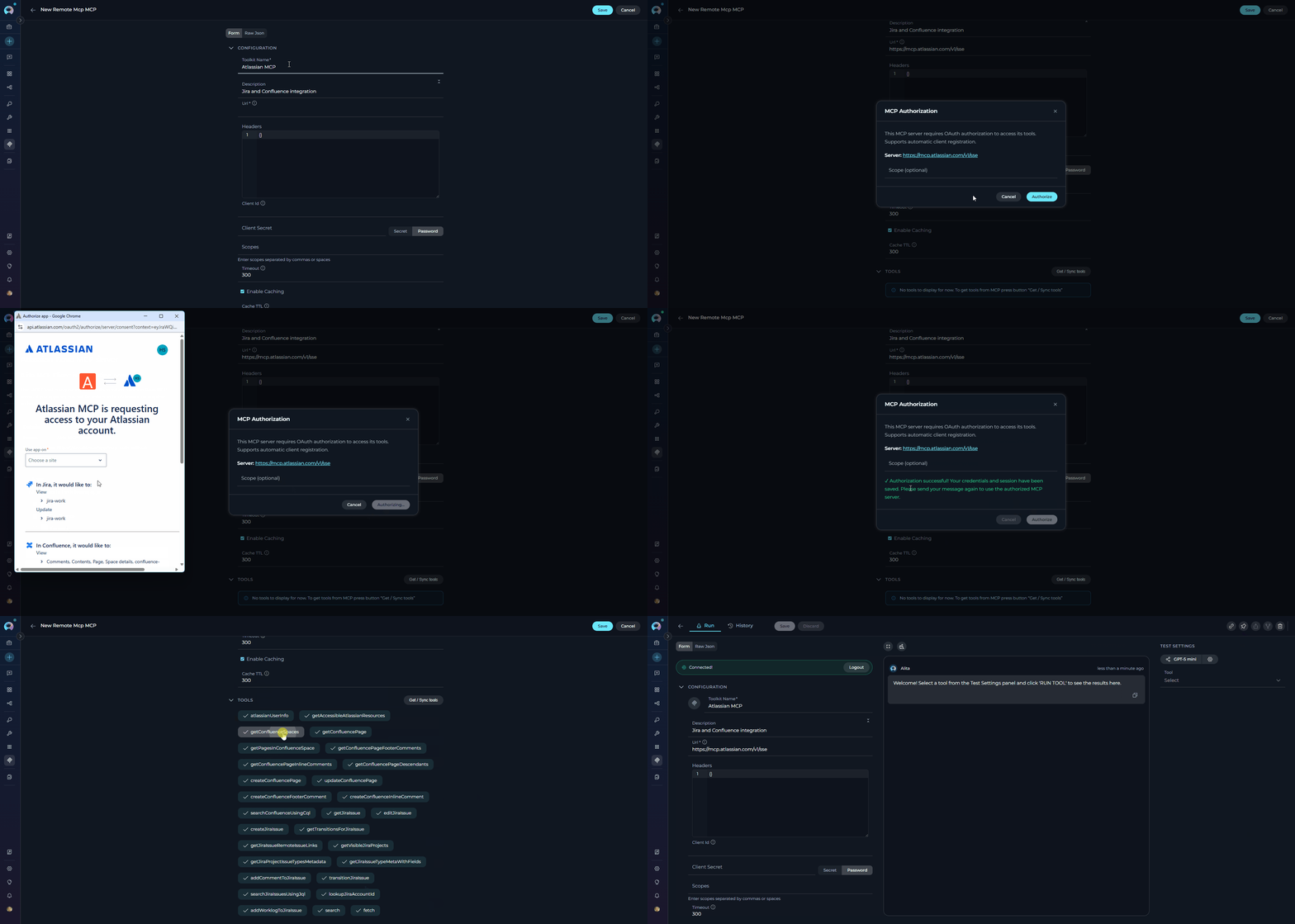
Configuration Fields Reference
Example 1: GitHub Remote MCP Integration
Use Case Automate GitHub workflows including:- Repository analysis and code review
- Issue and pull request management
- Automated PR creation and updates
- Code search across repositories
- Branch and commit operations
Prerequisites
- GitHub Account with appropriate permissions
- Authentication credentials (choose one):
- Personal Access Token for Bearer token authentication, OR
- GitHub Copilot MCP OAuth credentials (Client ID and Client Secret) for OAuth flow
- Repository access for the tools you want to use
Obtaining GitHub Credentials
Option 1: Personal Access Token (Simpler Setup)- Go to GitHub Settings → Developer settings → Personal access tokens
- Click Generate new token → Generate new token (classic)
- Configure token:
- Note: “ELITEA MCP Access”
- Expiration: Choose appropriate duration
- Select scopes:
- ✔️
repo(Full control of private repositories) - ✔️
read:org(Read org and team membership) - ✔️
workflow(Update GitHub Actions workflows) - ✔️
read:user(Read user profile data)
- ✔️
- Click Generate token
- Copy the token immediately - you won’t see it again!
-
Contact GitHub or your organization’s GitHub administrator to obtain:
- Client ID: OAuth application client identifier
- Client Secret: OAuth application secret
- Ensure the OAuth app has appropriate scopes (same as above)
-
Confirm the OAuth app’s Authorization callback URL is set to ELITEA’s redirect URI:
For example, on the ELITEA cloud instance:
https://next.elitea.ai/mcp-auth-callbackThis value must be registered in the GitHub OAuth App settings under Authorization callback URL. If it doesn’t match, GitHub will reject the OAuth flow with a redirect URI mismatch error.
Configure GitHub MCP
1. Basic Settings- Name:
GitHub MCP - Description:
GitHub repository management and automation tools
- URL:
https://api.githubcopilot.com/mcp/
- Timeout:
90seconds (GitHub operations can be slower) - Enable Caching: ✔️ Enabled
- Cache TTL:
600seconds (10 minutes)
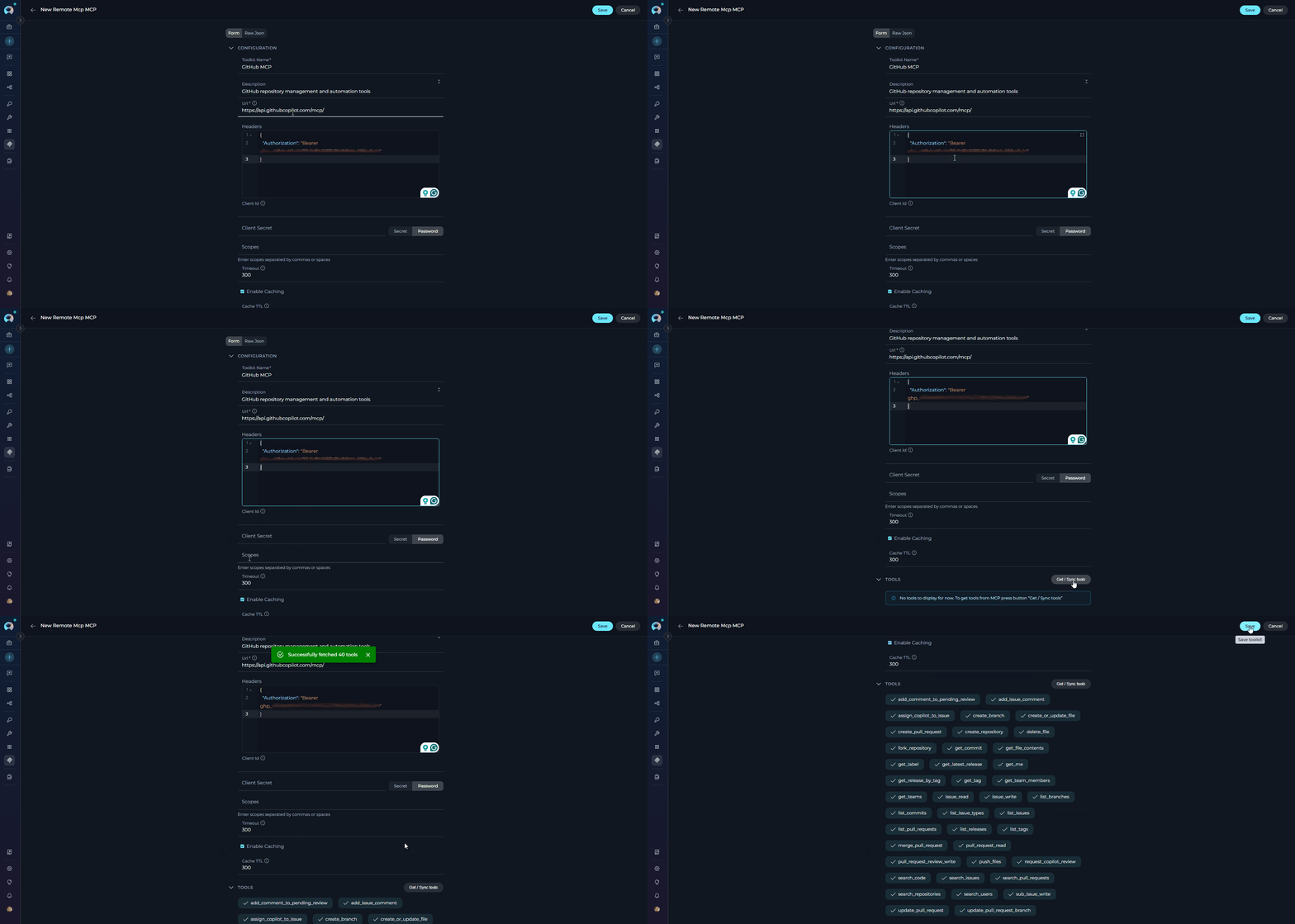
Method 1: Bearer Token (recommended for individual use)
Configuration:- Headers:
- Client ID: Leave empty
- Client Secret: Leave empty
- Scopes: Leave empty
- Click Get / Sync tools button
- ELITEA connects directly to GitHub MCP server
- Tools load immediately if token is valid
- No additional authorization required
Method 2: OAuth (recommended for team/enterprise)
Configuration:- Headers:
{}(leave empty) - Client ID: Your GitHub OAuth application client ID
- Client Secret: Your GitHub OAuth application client secret
- Scopes: Define required OAuth scopes based on your needs:
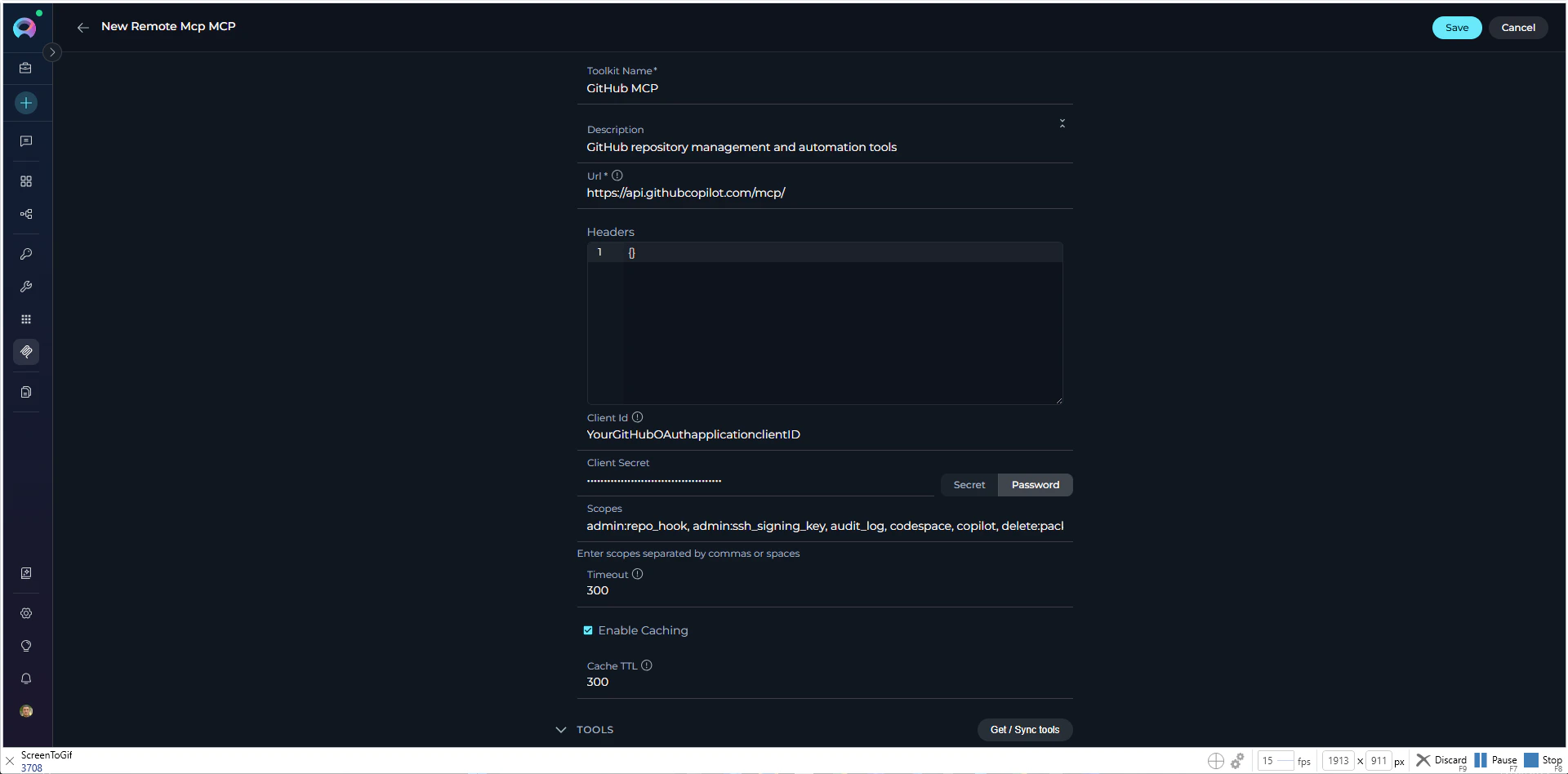
repo, workflow, and user are typically sufficient.- Click Get / Sync tools button
- Authorization modal appears automatically where you can provide or modify:
- Client ID: OAuth application client identifier
- Client Secret: OAuth application secret
- Scopes: Required OAuth permission scopes
- Click Authorize to proceed
- GitHub OAuth page opens in new browser tab
- Review and approve requested permissions
- GitHub redirects back to ELITEA
- Tools load automatically after successful authorization
Example 2: Atlassian Remote MCP Integration
Use Case Automate Atlassian workflows including:- Jira issue tracking and project management
- Sprint planning and board management
- Confluence documentation generation
- Cross-platform reporting (Jira + Confluence)
- Automated ticket creation from incidents
Prerequisites
- ✔️ Atlassian Account with access to Jira and/or Confluence
- ✔️ Atlassian Cloud site with Jira, Confluence, and/or Compass
- ✔️ Site access to your Atlassian cloud instance
- ✔️ Product access: Users need access to Atlassian products they want to integrate
- ✔️ First-time setup: The first user to complete OAuth consent flow must have access to all requested products
- ✔️ Appropriate permissions for the operations you want to perform
- ✔️ Modern browser for completing OAuth 2.1 authorization flow
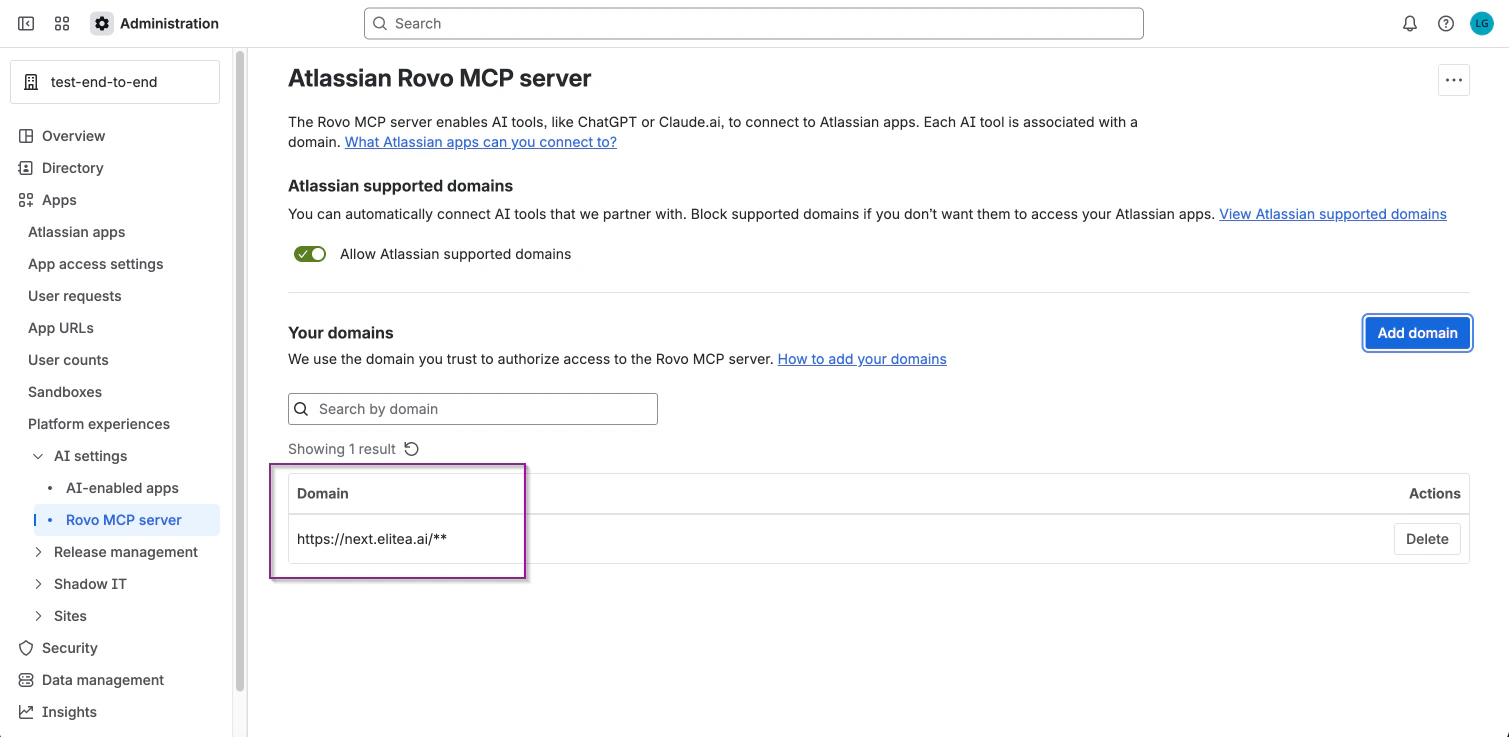
Configuring Atlassian Rovo MCP Server Domain Access
Domain configuration is only required for organization admins who want to control which AI tools can connect to their Atlassian organization. Step 1: Access Rovo MCP Server Settings- Go to Atlassian Administration
- Select your organization if you have more than one
- Navigate to Apps → AI settings → Rovo MCP server
- Click Add domain
- Enter your domain with required protocol format: (e.g,
https://next.elitea.ai/**) - Click Add to save
- Deselect Allow Atlassian supported domains
- Only your manually added domains will be allowed
Step-by-Step Setup
Configure Atlassian MCP 1. Basic Settings- Name:
Atlassian MCP - Description:
Jira and Confluence integration for project management and documentation
-
URL:
https://mcp.atlassian.com/v1/mcp!!! info “Atlassian Rovo MCP Endpoint” The official Atlassian Rovo MCP endpoint ishttps://mcp.atlassian.com/v1/mcp(recommended). The legacy/sseendpoint is still supported but Atlassian recommends updating to/mcpfor new configurations.
- Timeout:
120seconds (Atlassian operations can be slow) - Enable Caching: ✔️ Enabled
- Cache TTL:
300seconds (5 minutes)
- Headers:
{}(leave empty) - Client ID: (leave empty)
- Client Secret: (leave empty)
- Scopes: (leave empty)
- Click Get / Sync tools button
- Authorization modal appears automatically
- Click Authorize to proceed
- Atlassian OAuth page opens in new browser tab
- Select your site and approve requested permissions
- Atlassian redirects back to ELITEA
- Tools load automatically after successful authorization
Testing MCP Tools
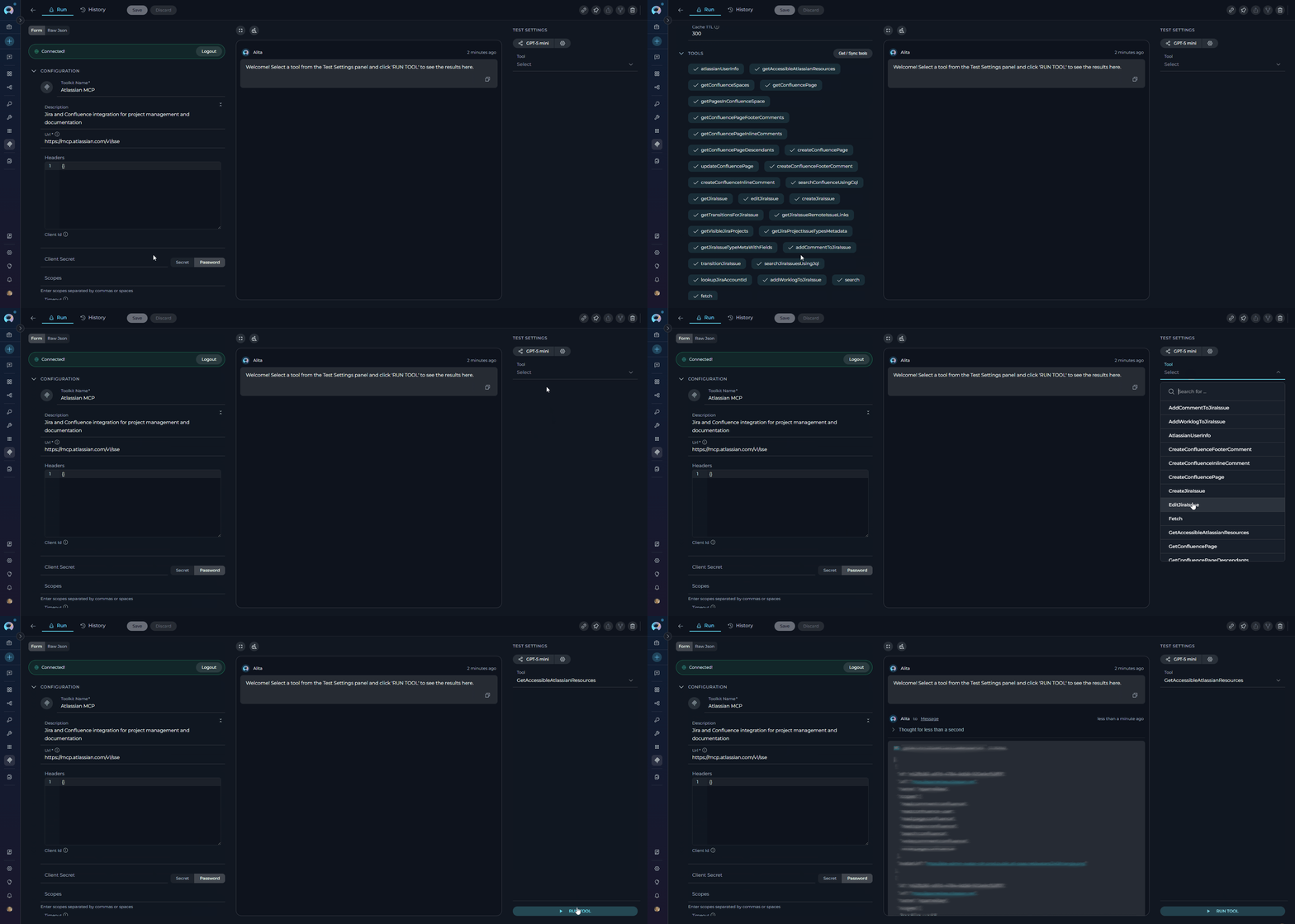
After configuring and saving your Remote MCP, you can test individual tools directly in ELITEA to verify they work correctly. How to Test MCP Tools- Navigate to MCPs → Click on your configured MCP
- Locate the TEST SETTINGS panel displaying all available tools
- Select a tool from the list to open its parameter form
- Fill in required parameters (e.g., for
github_create_issue: repository, title, body) - Click Run to execute the tool with your configured authentication
- Review results in the output panel and verify in the target system
Use Remote MCP in Agents, Pipelines, and Chat
Once your Remote MCP is created, you can use it in various ELITEA features:
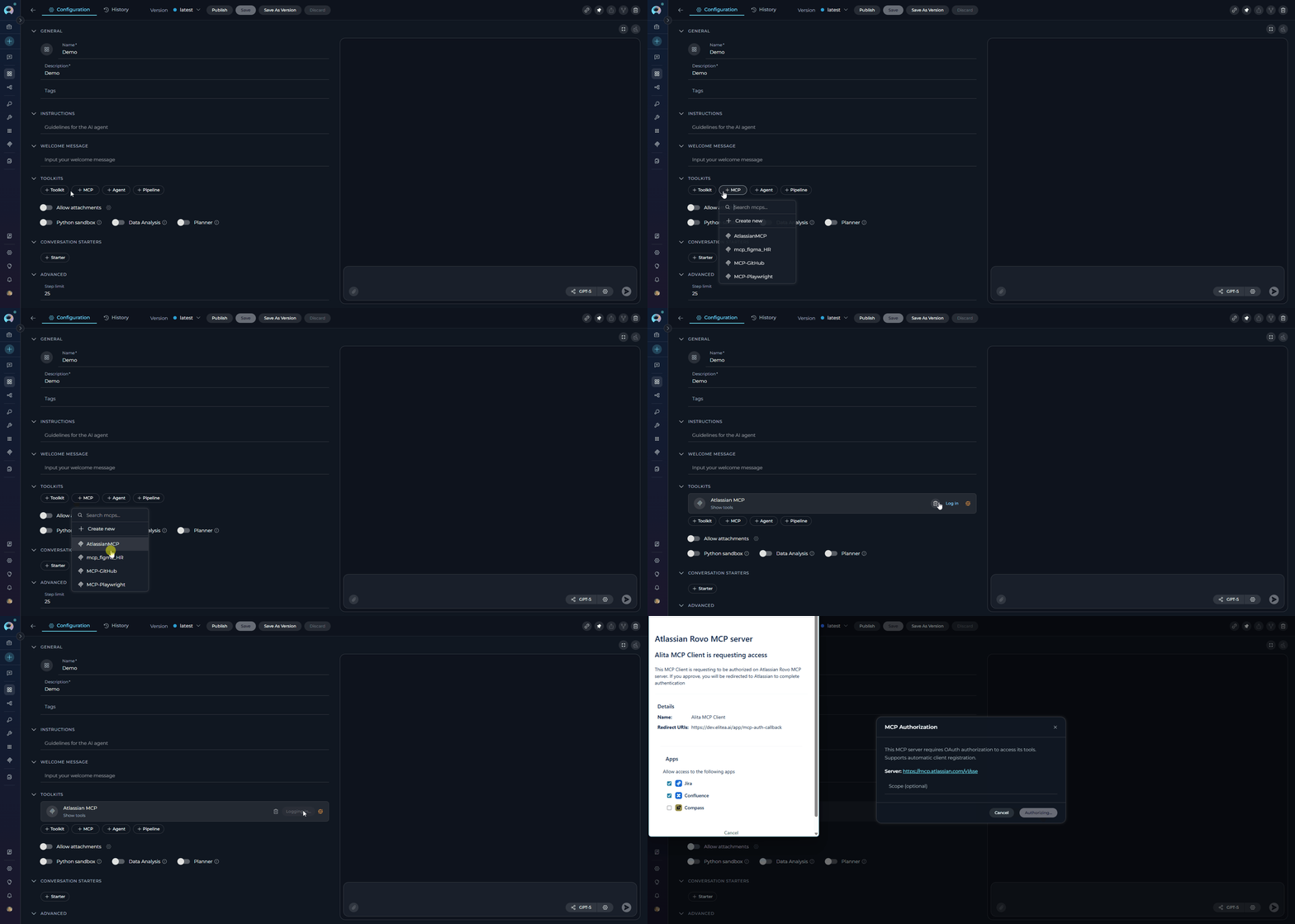
In Agents:
- Navigate to Agents: Open the sidebar and select Agents.
- Create or Edit Agent: Click
+ Createfor a new agent or select an existing agent to edit. - Add Remote MCP:
- In the “TOOLKITS” section of the agent configuration, click the “+MCP” icon
- Choose your Remote MCP from the list (e.g., “GitHub MCP”, “Atlassian MCP”)
- The MCP will be added to your agent with all configured tools available
- Authorization (if required):
- If the MCP requires OAuth authentication and you’re not already connected, a Log In button will appear next to the MCP
- Click Log In to open the authorization modal
- Complete the OAuth flow without leaving the agent editor
- Once authorized, the MCP is ready to use
In Pipelines:
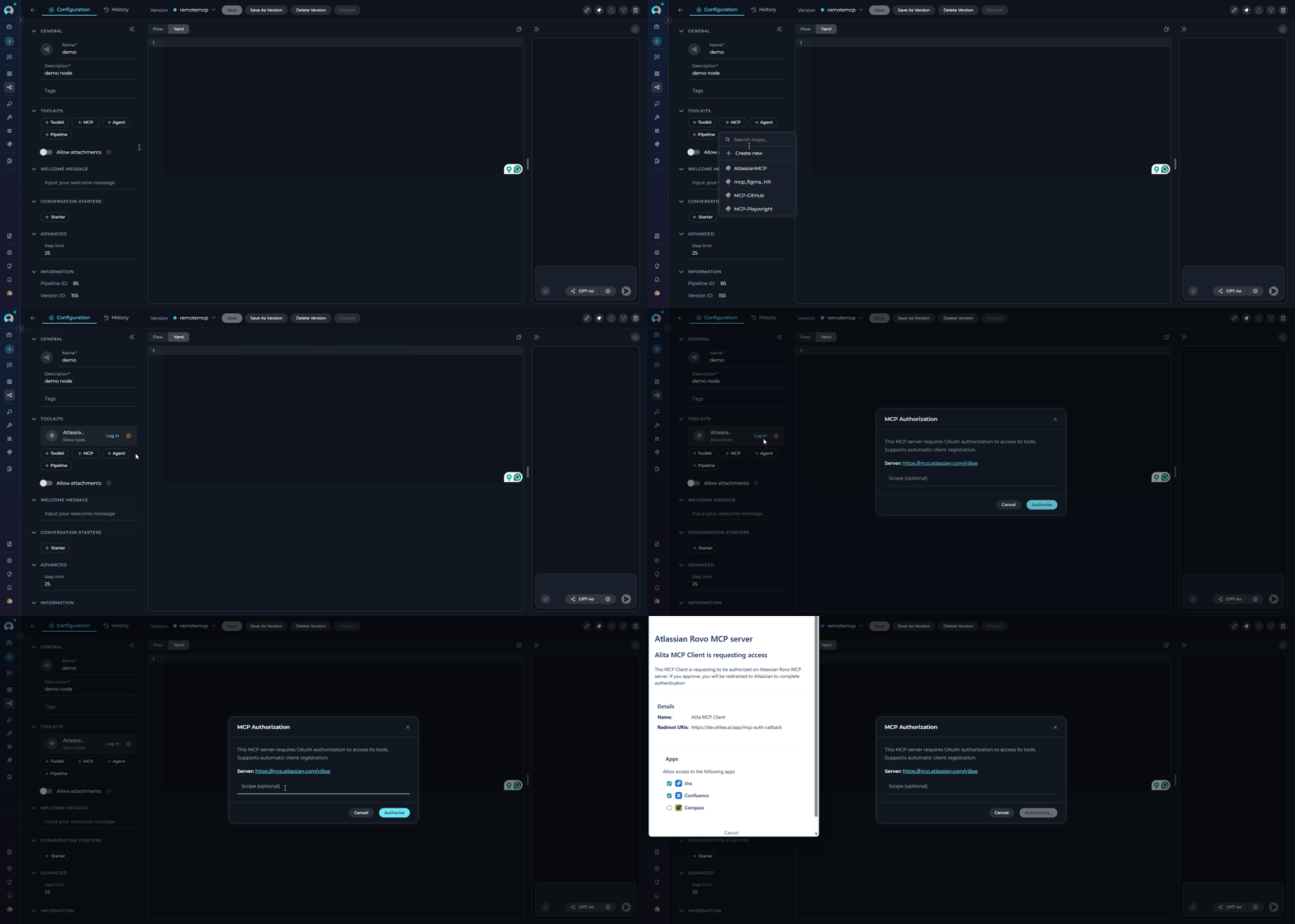
- Navigate to Pipelines: Open the sidebar and select Pipelines.
- Create or Edit Pipeline: Either create a new pipeline or select an existing pipeline to edit.
- Add Remote MCP:
- In the “TOOLKITS” section of the pipeline configuration, click the “+MCP” icon
- Choose your Remote MCP from the list (e.g., “GitHub MCP”, “Atlassian MCP”)
- The MCP will be added to your pipeline with all configured tools available for use in pipeline nodes
- Authorization (if required):
- If the MCP requires OAuth authentication and you’re not already connected, a Log In button will appear next to the MCP
- Click Log In to open the authorization modal
- Complete the OAuth flow without leaving the pipeline editor
- Once authorized, the MCP is ready to use in pipeline nodes
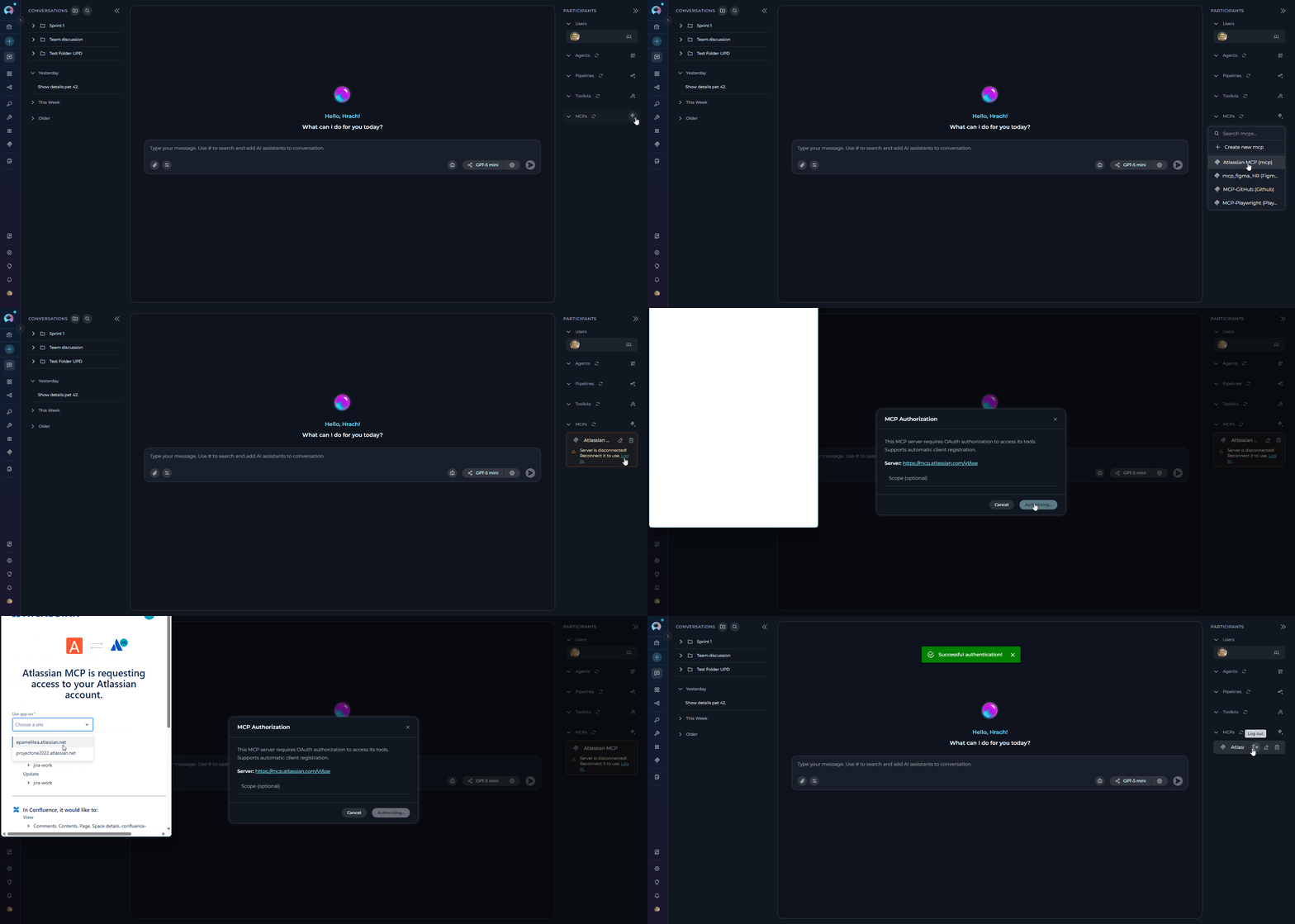
In Chat:
- Navigate to Chat: Open the sidebar and select Chat.
- Start New Conversation: Click +Create or open an existing conversation.
- Add Toolkit to Conversation:
- In the chat Participants section, look for the MCP element
- Click “+MCP” to add the MCP
- Choose your Remote MCP from available options (e.g., “GitHub MCP”)
- The MCP will be added to your conversation with all tools available
- Authorization (if required):
- If the MCP requires OAuth authentication and you’re not already connected, a Log In button will appear next to the MCP in the Participants section
- Click Log In to open the authorization modal
- Complete the OAuth flow without leaving the chat interface
- Once authorized, the MCP is ready to use in your conversation
- Use MCP in Chat: You can now directly interact with your remote MCP by asking questions or requesting actions that will trigger the MCP tools.
Best Practices
When working with Remote MCP servers, follow these best practices to ensure secure, efficient, and reliable integration:Security
Security
- Use OAuth 2.0 when available instead of static API keys
- Store sensitive tokens and credentials securely (never commit to version control)
- Rotate API keys and tokens regularly according to your security policy
- Use the principle of least privilege - request only necessary OAuth scopes
- Monitor token expiration and renewal processes
- Limit MCP access to authorized team members only
- Review and audit MCP configurations periodically
- Implement proper logging for security monitoring
Performance
Performance
- Enable caching to reduce redundant API calls
- Set appropriate cache TTL values based on data freshness requirements
- Configure reasonable timeout values (avoid too short or too long timeouts)
- Use tool filtering to expose only necessary operations to agents
- Be aware of API rate limits from your MCP provider
- Implement retry logic with exponential backoff for transient failures
- Monitor usage patterns to avoid hitting rate limits
Reliability
Reliability
- Test MCP configurations thoroughly before production use
- Use the TEST SETTINGS panel to verify tools work correctly
- Start with read-only operations before enabling write operations
- Monitor MCP connectivity and tool execution success rates
- Document OAuth scopes and their purposes for your team
- Maintain clear descriptions for each MCP configuration
- Document agent instructions that reference MCP tools
- Keep track of MCP server endpoints and version changes
Agent Design
Agent Design
- Provide clear agent instructions that explain available MCP tools
- Include conversation starters to guide users on how to interact with MCP tools
- Implement confirmation steps for destructive operations (delete, update)
- Design agents to handle tool failures gracefully
- Test agents in non-production environments first
- Verify OAuth flows work correctly for all team members
- Test edge cases and error scenarios
- ✔️ Validate that agent instructions align with available tool capabilities
Troubleshooting
Common issues and solutions when working with Remote MCP servers:Connection Errors
Connection Errors
-
Network connectivity issues:
- Verify you can reach the MCP server URL from your network
- Check firewall rules and proxy settings
- Test with
curlor browser to confirm endpoint accessibility
-
Invalid URL:
- Ensure URL starts with
https://orhttp:// - Verify there are no typos in the endpoint
- Check if the MCP server is running and accessible
- Ensure URL starts with
-
SSL/TLS certificate issues:
- Ensure the server has a valid SSL certificate
- Check if your organization uses custom certificates
Authentication Failures
Authentication Failures
-
Invalid Bearer token:
- Verify the token is correct and hasn’t expired
- Regenerate the token if necessary
- Ensure the token has the required permissions/scopes
-
OAuth authentication issues:
- Click the Log In button to re-authorize
- Check if OAuth app credentials (Client ID, Client Secret) are correct
- Verify callback URL matches ELITEA’s OAuth redirect URL
- Ensure requested scopes are approved in the OAuth app settings
-
Expired access token:
- ELITEA automatically refreshes tokens, but if refresh fails, re-authorize
- Check if refresh token is still valid
-
Incorrect headers:
- Verify header names and values are correct (case-sensitive)
- Ensure Authorization header format matches API requirements
OAuth Flow Issues
OAuth Flow Issues
-
Popup blocked:
- Allow popups for ELITEA in your browser settings
- Try authorizing in a different browser
-
Redirect URI mismatch:
- The redirect URI registered in your OAuth app must exactly match ELITEA’s callback URL:
Example:
https://next.elitea.ai/mcp-auth-callback - Update the Authorized redirect URIs (or equivalent field) in your OAuth app settings to this value
- If your ELITEA instance uses a sub-path, include it in the URL (e.g.,
https://your-host/app/mcp-auth-callback) - Contact your OAuth provider’s admin console to update the redirect URI if you do not have access
- The redirect URI registered in your OAuth app must exactly match ELITEA’s callback URL:
-
Insufficient scopes:
- Review the scopes requested vs. scopes configured in OAuth app
- Add missing scopes to the MCP configuration
- Re-authorize after updating scopes
-
Session timeout:
- Complete the OAuth flow quickly before session expires
- If stuck, close the authorization window and try again
Tool Discovery Failures
Tool Discovery Failures
-
Authentication required but not provided:
- Check if authorization modal appeared and complete OAuth flow
- Verify Bearer token is provided in headers if using token auth
-
MCP server response issues:
- Check server logs if you have access
- Verify the server implements MCP protocol correctly
- Test with a different MCP server to isolate the issue
-
Timeout:
- Increase timeout value in Advanced Settings
- Check if the MCP server is slow to respond
-
Empty tool list:
- Verify the MCP server has tools configured
- Check if your account has permissions to access the tools
Tool Execution Errors
Tool Execution Errors
-
Missing required parameters:
- Review tool documentation to identify required parameters
- Update agent instructions to provide all necessary parameters
- Use TEST SETTINGS panel to identify parameter requirements
-
Invalid parameter values:
- Check parameter types (string, number, boolean, object)
- Ensure JSON parameters are properly formatted
- Validate parameter values against API requirements
-
Permission errors:
- Verify OAuth scopes include permissions for the operation
- Check if your account has the necessary permissions in the target system
- Re-authorize with updated scopes if needed
-
Rate limiting:
- Reduce frequency of API calls
- Implement delays between operations
- Check MCP provider’s rate limit documentation
-
Server errors (5xx):
- Retry the operation after a delay
- Check MCP server status page if available
- Contact MCP provider support if issue persists
Cache Issues
Cache Issues
-
Stale cache:
- Click Get / Sync tools to refresh tool schemas
- Reduce Cache TTL value for more frequent updates
- Disable caching temporarily for testing
-
Configuration changes not applied:
- Save the MCP configuration after making changes
- Refresh the agent/pipeline/chat to pick up new configuration
- Clear browser cache if issues persist
Performance Issues
Performance Issues
-
Network latency:
- Check your internet connection speed
- Test from a different network location
- Consider geographic proximity to MCP server
-
Timeout too short:
- Increase timeout value in Advanced Settings
- Balance between performance and reliability
-
Server performance:
- Check MCP server status and load
- Contact provider if server is consistently slow
- Schedule operations during off-peak hours
-
Too many tools enabled:
- Use tool filtering to limit exposed operations
- Enable only the tools your agents actually need
FAQ
Frequently asked questions about Remote MCP integration:Can I use multiple Remote MCPs in the same agent or pipeline?
Can I use multiple Remote MCPs in the same agent or pipeline?
What's the difference between Remote MCP and Stdio MCP?
What's the difference between Remote MCP and Stdio MCP?
Do I need to create OAuth applications for every Remote MCP?
Do I need to create OAuth applications for every Remote MCP?
How do I update my Remote MCP configuration?
How do I update my Remote MCP configuration?
What happens if my OAuth token expires?
What happens if my OAuth token expires?
Can I use Remote MCPs with custom or self-hosted MCP servers?
Can I use Remote MCPs with custom or self-hosted MCP servers?
How do I test if my Remote MCP is working correctly?
How do I test if my Remote MCP is working correctly?
What should I do if tools aren't appearing after clicking 'Get / Sync tools'?
What should I do if tools aren't appearing after clicking 'Get / Sync tools'?
Can I limit which tools are available to my agents?
Can I limit which tools are available to my agents?
Do Remote MCPs work offline?
Do Remote MCPs work offline?
How do I handle rate limits from my MCP provider?
How do I handle rate limits from my MCP provider?
Can I migrate from Stdio MCP to Remote MCP (or vice versa)?
Can I migrate from Stdio MCP to Remote MCP (or vice versa)?
What OAuth scopes should I request for GitHub/Atlassian MCPs?
What OAuth scopes should I request for GitHub/Atlassian MCPs?
repo, workflow, and user. For Atlassian, typical scopes are read:jira-work, write:jira-work, read:confluence-content.summary, and write:confluence-content. See the example sections for detailed scope recommendations.